Potrzebujesz szybszego sposobu na udostępnianie danych kontaktowych lub rejestrowanie uczestników na kolejnym wydarzeniu? Ręcznie wpisywane dane giną, papierowe wizytówki piętrzą się, a długie kolejki do rejestracji frustrują wszystkich. Ten przewodnik pokaże Ci, jak dodać skanowalne kody QR do identyfikatorów – omawiając odpowiedni typ kodu, zasady projektowania i specyfikacje druku, które faktycznie działają.
Dlaczego kody QR powinny znaleźć się na identyfikatorach
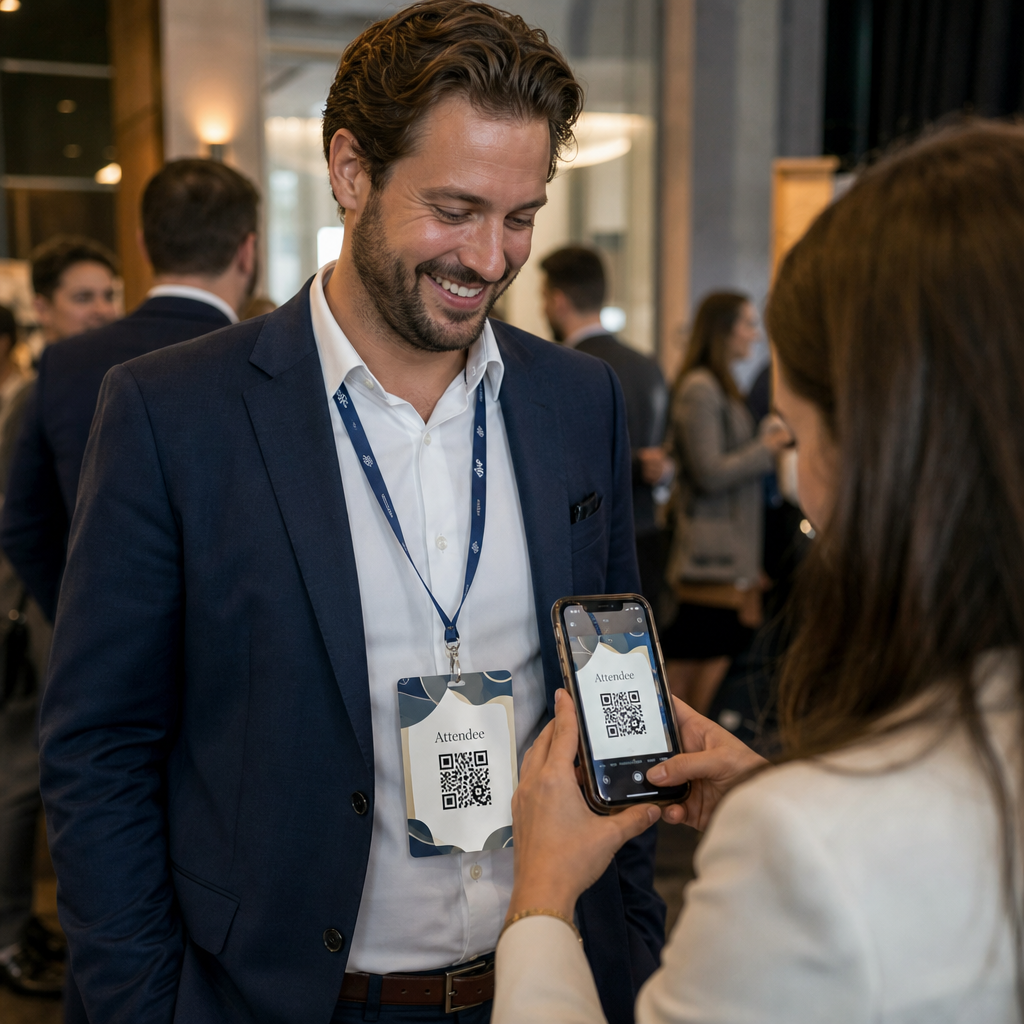
Identyfikator tradycyjnie wyświetla imię i nazwisko oraz ewentualnie firmę. Jest to przydatne przez około trzy sekundy rozmowy. Kod QR zamienia ten sam identyfikator w trwały, skanowalny zasób, który działa przez całe wydarzenie.
Oto, co może zrobić kod QR na identyfikatorze:
- Natychmiastowe udostępnianie danych kontaktowych – Jedno skanowanie zapisuje pełną wizytówkę vCard bezpośrednio w telefonie skanującego, bez konieczności wpisywania
- Automatyzacja rejestracji na wydarzenie – Uczestnicy skanują się przy wejściu, rejestrując swoje przybycie bez papierowych list czy ręcznego wyszukiwania
- Połączenie z profilem cyfrowym – Link do strony LinkedIn, osobistej strony internetowej, portfolio lub biogramu wydarzenia
- Śledź zaangażowanie – Dzięki dynamicznemu kodowi możesz dokładnie zobaczyć, ile razy identyfikator został zeskanowany, kiedy i z jakiego urządzenia
Sam przypadek użycia do udostępniania kontaktów uzasadnia dodanie. A vCard Kod QR koduje imię i nazwisko, numer telefonu, e-mail, firmę i stronę internetową w formacie, który iOS i Android rozpoznają natywnie. Kiedy ktoś go zeskanuje, telefon natychmiast wyświetla monit o dodanie kontaktu – bez aplikacji, bez ręcznego wprowadzania, bez zgubionych wizytówek.
Wybór odpowiedniego typu kodu QR dla Twojego identyfikatora
Nie każdy kod QR służy temu samemu celowi. Zanim cokolwiek wydrukujesz, dopasuj typ kodu do swojego celu.
| Cel | Typ kodu QR | Co robi |
|---|---|---|
| Udostępnianie danych kontaktowych | vCard Kod QR | Koduje imię i nazwisko, telefon, e-mail, firmę; zapisuje bezpośrednio w kontaktach telefonu |
| Rejestracja na wydarzenie | Kod QR obecności/wydarzenia | Łączy z formularzem rejestracyjnym lub systemem rejestracji |
| Link do profilu lub strony internetowej | kod QR URL | Kieruje do dowolnej strony internetowej |
| Udostępnianie cyfrowej wizytówki | Kod QR wizytówki | Łączy z pełną cyfrową wizytówką z profilami społecznościowymi i niestandardową treścią |
W przypadku większości wydarzeń networkingowych, a vCard Kod QR lub kod QR wizytówki jest właściwym wyborem. Na konferencje, gdzie trzeba również śledzić, kto i kiedy się pojawił, an kodów QR do rejestracji obecności lub QR na wydarzenie obsługuje tę warstwę.
Statyczne vs. Dynamiczne: Których powinieneś użyć?
A statyczny kod QR koduje dane bezpośrednio w swoim wzorze. Po wydrukowaniu nie można go zmienić. Jeśli połączony adres URL przestanie działać lub dane kontaktowe uczestnika ulegną zmianie, musisz ponownie wydrukować każdą plakietkę.
A dynamiczny kod QR używa krótkiego linku przekierowującego. Wydrukowany wzór pozostaje taki sam, ale możesz zaktualizować miejsce docelowe w dowolnym momencie – nawet gdy plakietki są już w rękach uczestników. Kody dynamiczne dostarczają również analityki: liczbę skanów, czas skanowania, typ urządzenia i lokalizację. W przypadku każdego wydarzenia z więcej niż garstką uczestników, dynamiczne kody QR są warte dodatkowego kroku konfiguracji.
Ważne: Aby uzyskać dostęp do funkcji śledzenia i edycji, musisz wygenerować kod dynamiczny przed rozpoczęciem procesu drukowania.
Konfiguracja śledzonych kodów QR na identyfikatorach Twórz dynamiczne kody QR, które możesz aktualizować i monitorować z jednego pulpitu nawigacyjnego. Użyj Generator kodów QR aby zacząć – nie ma potrzeby ponownego drukowania, jeśli szczegóły ulegną zmianie.
Jak stworzyć kod QR vCard dla identyfikatora
To jest najczęstszy przypadek użycia identyfikatora – natychmiastowe udostępnianie kontaktów na wydarzeniach networkingowych, konferencjach i targach. Aby zacząć, otwórz Generator kodów QR vCard i wprowadź wymagane pola: co najmniej pełne imię i nazwisko oraz jedną metodę kontaktu, taką jak numer telefonu lub adres e-mail. Następnie dodaj pola opcjonalne – nazwę firmy, stanowisko, stronę internetową, profile społecznościowe – aby zapisany rekord kontaktu był bardziej użyteczny dla osoby skanującej.
Gdy dane zostaną wprowadzone, dostosuj projekt, regulując kolory, dodając logo i wybierając styl ramki, który pasuje do brandingu Twojego wydarzenia. Pobierz kod w formacie gotowym do druku – SVG lub EPS dla skalowalnego wyjścia, PNG do użytku cyfrowego – i przetestuj go zarówno na iOS, jak i Androidzie przed wysłaniem plików do drukarki.
Powtórz ten proces dla każdego uczestnika, jeśli tworzysz zindywidualizowane plakietki, lub utwórz jeden wspólny kod dla stoiska firmowego lub punktu odprawy zespołu. Aby uzyskać głębsze spojrzenie na konfigurację vCard i najlepsze praktyki, przewodniku po kodach QR vCard szczegółowo opisuje cały proces.
Jak używać kodów QR do odprawy na wydarzeniach na identyfikatorach
Dla konferencji, warsztatów lub dowolnego wydarzenia biletowanego, kod QR na identyfikatorze służy zarówno jako poświadczenie do odprawy, jak i narzędzie networkingowe. Zacznij od utworzenia formularza rejestracyjnego za pomocą Google Forms, Typeform lub platformy do zarządzania wydarzeniami. Następnie wygeneruj kodów QR do rejestracji obecności który łączy się bezpośrednio z formularzem lub systemem odprawy i wydrukuj go na każdym identyfikatorze uczestnika przed wydarzeniem – lub dołącz go do e-maila przed wydarzeniem w celu samodzielnego wydruku.
Przy wejściu personel skanuje każdy identyfikator smartfonem lub ręcznym skanerem, aby zarejestrować przybycie. System automatycznie rejestruje skan, bez potrzeby papierowych list czy ręcznego wyszukiwania. Odprawy z kodem QR mogą skrócić czas przetwarzania do mniej niż dwóch sekund na osobę, co znacznie skraca całkowity czas wejścia w porównaniu do metod ręcznych. Aby uzyskać pełny przewodnik po konfiguracji odprawy na wydarzenie, zobacz przewodnika po kodach QR do odpraw na wydarzenia.
Możesz również połączyć obie funkcje na jednym identyfikatorze: kod QR vCard do udostępniania kontaktów i oddzielny kod obecności do odprawy. Umieść je w różnych obszarach identyfikatora z wyraźnymi etykietami, aby uczestnicy i personel wiedzieli, który skanować i kiedy.
Zautomatyzuj odprawę na wydarzenie Przestań zarządzać papierowymi listami i ręcznym wyszukiwaniem. Użyj narzędzia do kodów QR do śledzenia frekwencji aby skonfigurować system odprawy oparty na skanowaniu, który rejestruje przybycia w czasie rzeczywistym.
Zasady projektowania, które zapewniają skanowalność kodów QR na identyfikatorach
Kod QR, który dobrze wygląda, ale nie daje się zeskanować, jest bezużyteczny. Identyfikatory stwarzają specyficzne wyzwania: mały obszar druku, zmienne warunki oświetleniowe, identyfikatory noszone pod różnymi kątami oraz osoby skanujące z odległości wyciągniętej ręki. Poniższe zasady bezpośrednio odnoszą się do każdego z tych problemów.
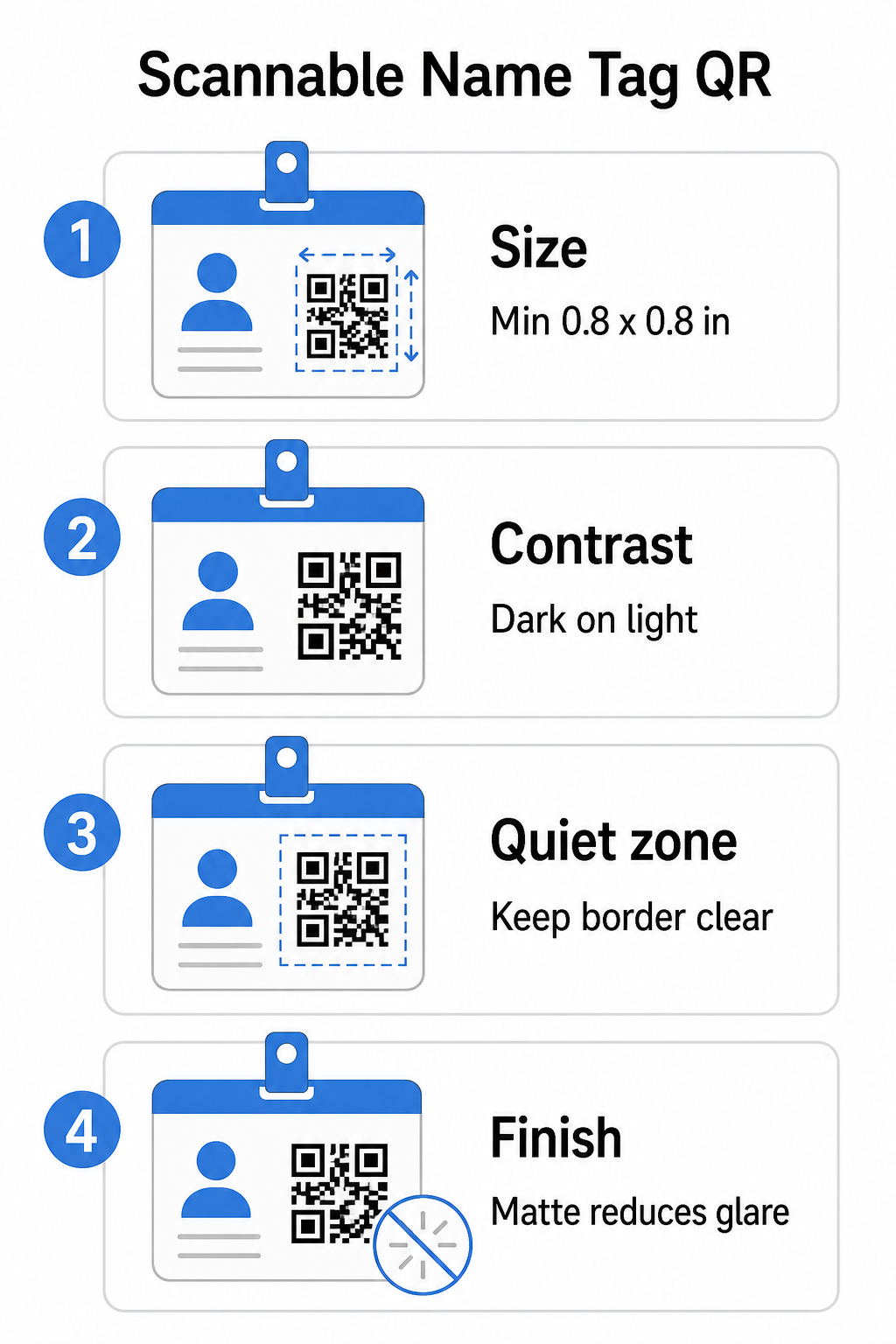
Rozmiar: Zastosuj proporcję 10:1
Najmniejszy wymiar kodu QR powinien wynosić mniej więcej jedną dziesiątą oczekiwanej odległości skanowania. W przypadku identyfikatora skanowanego z odległości około 10 cali (25 cm), kod musi mieć co najmniej 1 cal (2,5 cm) szerokości. Praktyczne minimum dla każdego drukowanego kodu bliskiego zasięgu to 0,8 × 0,8 cala (2 × 2 cm) – zmniejszanie rozmiaru powoduje niepotrzebne błędy skanowania, zwłaszcza na starszych telefonach. Jeśli Twoja plakietka ma miejsce, rozmiar kodu bliżej 1 × 1 cala zapewnia bardziej niezawodne wyniki na szerszej gamie urządzeń. Aby uzyskać więcej szczegółów na temat decyzji dotyczących rozmiaru, zobacz Rozmiary kodów QR dla wizytówek – te same zasady mają bezpośrednie zastosowanie do identyfikatorów.
Kontrast: Tylko ciemne na jasnym
Skanery działają poprzez wykrywanie kontrastu między ciemnymi modułami a jasnym tłem. Najlepszą praktyką jest ciemnego pierwszego planu na jasnym tle – czerń na bieli pozostaje najbardziej niezawodną kombinacją. Odwrócone kody (jasne moduły na ciemnym tle) powodują błędy w wielu aplikacjach skanujących, zwłaszcza starszych. Dąż do współczynnika kontrastu wynoszącego co najmniej 4:1, co wspiera czytelność w różnych warunkach oświetleniowych i na różnych aparatach urządzeń.
Unikaj gradientów i cieni w obszarze kodu QR lub wokół niego. Tworzą one półtony, które mylą algorytmy skanerów i zmniejszają niezawodność w warunkach słabego oświetlenia. Ten przewodnikiem po najlepszych praktykach kontrastu kolorów kodów QR zapewnia szczegółowe wskazówki dotyczące kombinacji kolorów oraz tabelę porównania kontrastu, jeśli chcesz użyć kolorów marki zamiast zwykłej czerni i bieli.
Strefa ciszy: Zachowaj czyste granice
Plik strefy ciszy to pusta przestrzeń wokół kodu QR ze wszystkich czterech stron. Informuje skaner, gdzie kod się zaczyna i kończy – bez niej skaner nie może niezawodnie zlokalizować symbolu. Zgodnie ze standardem ISO/IEC 18004, margines ten musi mieć co najmniej cztery moduły szerokości z każdej strony. Jeśli projekt Twojej plakietki umieszcza tekst, logo lub elementy dekoracyjne zbyt blisko kodu, skaner może go w ogóle nie wykryć. Jako praktyczna zasada: jeśli każdy moduł w Twoim kodzie ma 2 mm szerokości, strefa ciszy powinna wynosić co najmniej 8 mm z każdej strony.
Korekcja błędów: Zwiększ ją, jeśli dodajesz logo
Kody QR mają cztery poziomy korekcji błędów, które określają, ile fizycznych uszkodzeń lub przeszkód kod może tolerować, pozostając możliwym do zeskanowania: L (około 7%), M (około 15%), Q (około 25%) i H (około 30%). Jeśli osadzasz logo firmy lub ikonę w obszarze kodu – co jest typowe dla markowych plakietek – użyj poziom korekcji błędów H i zachowaj logo do nie więcej niż 30% powierzchni kodu. Dzięki temu skaner ma wystarczającą ilość nadmiarowych danych, aby odtworzyć wzór, nawet jeśli jego część jest zakryta. Jeśli nie dodajesz logo, poziom M lub Q jest wystarczający dla większości zastosowań drukowanych.
Kształt i format: Nigdy nie rozciągaj ani nie kompresuj
Kod QR musi pozostać idealnie kwadratowy. Rozciąganie lub kompresowanie kodu w celu dopasowania do układu powoduje niewspółosiowość modułów i sprawia, że jest on niemożliwy do zeskanowania. Zawsze skaluj proporcjonalnie i eksportuj w formatach wektorowych (SVG lub EPS) do druku, aby uniknąć pikselizacji przy większych rozmiarach.
Wykończenie: Wybierz matowe zamiast błyszczącego
Błyszczące materiały na identyfikatory odbijają światło i tworzą odblaski, które zakłócają skanowanie aparatem. Matowa laminacja lub niepowlekany papier sprawdzają się znacznie lepiej w rzeczywistym oświetleniu wydarzeń. Jeśli drukujesz na błyszczących identyfikatorach, przetestuj kody w rzeczywistych warunkach oświetleniowych miejsca wydarzenia przed sfinalizowaniem nakładu. Ten przewodnik po najlepszych praktykach czytelności kodów QR omawia każdy z tych czynników z dodatkową głębią.
Umiejscowienie na identyfikatorze
Miejsce, w którym kod QR znajduje się na identyfikatorze, wpływa na częstotliwość jego skanowania. Rozważ te zasady umieszczania:
- Pozycja na naturalnej wysokości wzroku po założeniu – dolna połowa plakietki na wysokości klatki piersiowej jest łatwa do zeskanowania bez proszenia kogoś o jej zdjęcie
- Wyraźnie oznacz kod – dołącz krótką instrukcję, taką jak “Zeskanuj, aby zapisać kontakt” lub “Zamelduj się tutaj” bezpośrednio pod lub obok kodu; ludzie są znacznie bardziej skłonni do skanowania, gdy wiedzą, co kod robi
- Oddziel wiele kodów – jeśli Twoja plakietka zawiera zarówno kod do zameldowania, jak i kod do udostępniania kontaktów, oznacz każdy wyraźnie i daj im wystarczająco dużo miejsca, aby można je było zeskanować indywidualnie bez pomyłek
- Unikaj umieszczania kodu w pobliżu klipsa do plakietki lub otworu na smycz – te obszary ulegają zagięciu lub zakryciu, co może zablokować część kodu lub strefę ciszy
Testowanie przed drukiem
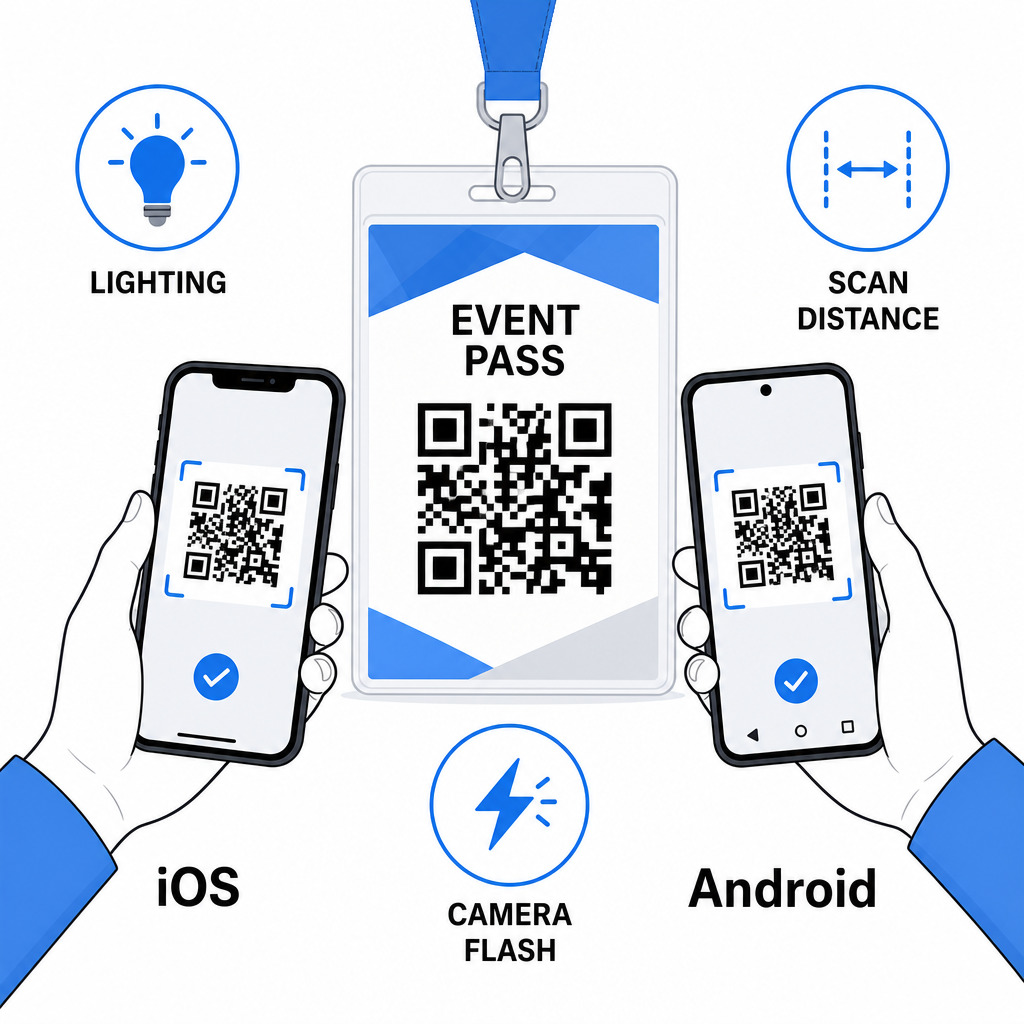
Wydrukuj próbę i zeskanuj ją przed wysłaniem całego zamówienia plakietek do produkcji. Przetestuj kod zarówno na urządzeniach iOS, jak i Android, w warunkach oświetleniowych miejsca wydarzenia, z odległości, z której uczestnicy i personel faktycznie będą skanować, oraz z lampą błyskową aparatu i bez niej, aby symulować scenariusze słabego oświetlenia. Kod, który przejdzie wszystkie cztery testy, jest gotowy do produkcji. Ten, który nie przejdzie któregokolwiek z nich, wymaga korekty projektu – czy to zwiększenia rozmiaru, poprawy kontrastu, czy rozszerzenia strefy ciszy – zanim zdecydujesz się na pełny nakład.
Kody QR na identyfikatorach działają najlepiej, gdy odpowiedni typ kodu, czysty projekt i prawidłowe specyfikacje druku zostaną połączone, zanim pojedyncza plakietka trafi do druku. Wybierz kod dynamiczny, jeśli dane uczestników mogą się zmienić lub jeśli chcesz analizować skany. Przestrzegaj zasad dotyczących rozmiaru, kontrastu i strefy ciszy, aby zapewnić niezawodne skanowanie każdej plakietki w dniu wydarzenia. I zawsze testuj na rzeczywistych urządzeniach przed finalizacją produkcji.
Twórz swoje kody QR do identyfikatorów Twórz konfigurowalne kody QR vCard i do rejestracji obecności z wbudowaną analityką i dynamiczną edycją. Zacznij od Pageloot Generator kodów QR – bezpłatnie do wypróbowania, karta kredytowa nie jest wymagana.
Najczęściej zadawane pytania
Możesz zakodować dane kontaktowe, takie jak imię, telefon, e-mail, firma i strona internetowa, używając kodu QR vCard, połączyć z formularzem odprawy na wydarzenie, używając kodu QR obecności, lub wskazać dowolne miejsce docelowe w sieci, takie jak profil LinkedIn lub cyfrowe portfolio. Właściwy wybór zależy od tego, czy głównym celem jest udostępnianie kontaktów, odprawa, czy ogólny dostęp do informacji.
Praktyczne minimum dla kodu QR na identyfikator wynosi 0,8 × 0,8 cala (2 × 2 cm). Zmniejszanie rozmiaru zwiększa ryzyko niepowodzeń skanowania, zwłaszcza na starszych smartfonach. Jeśli projekt Twojego identyfikatora ma miejsce, ustawienie rozmiaru kodu bliżej 1 × 1 cala daje bardziej niezawodne wyniki w szerszym zakresie urządzeń i warunków oświetleniowych.
Jeśli użyłeś statycznego kodu QR, musiałbyś ponownie wydrukować zmienione plakietki. Jeśli użyłeś dynamicznego kodu QR, możesz zaktualizować miejsce docelowe – czy to vCard, stronę kontaktową, czy link do formularza – z pulpitu nawigacyjnego Pageloot bez dotykania wydrukowanej plakietki. Jest to jeden z głównych powodów używania kodów dynamicznych na każde wydarzenie ze zmiennymi informacjami o uczestnikach.