Vajadzīgs ātrāks veids, kā kopīgot kontaktinformāciju vai reģistrēt apmeklētājus nākamajā pasākumā? Manuāli ievadīta informācija pazūd, papīra vizītkartes krājas kaudzēs, un garas reģistrācijas rindas visus nomāc. Šis ceļvedis parādīs, kā pievienot skenējamus QR kodus vārdu zīmēm – aptverot pareizo koda veidu, dizaina noteikumus un drukas specifikācijas, kas patiešām darbojas.
Kāpēc QR kodiem ir vieta uz vārdu zīmēm
Vārdu zīme tradicionāli attēlo vārdu un, iespējams, uzņēmumu. Tas ir noderīgi apmēram trīs sekundes sarunas laikā. QR kods pārvērš to pašu zīmi par pastāvīgu, skenējamu līdzekli, kas darbojas visa pasākuma laikā.
Lūk, ko QR kods uz vārdu zīmes var darīt:
- Kopīgot kontaktinformāciju uzreiz – Viena skenēšana saglabā pilnu vCard tieši skenētāja tālrunī, nav nepieciešama rakstīšana
- Automatizēt pasākuma reģistrāciju – Apmeklētāji reģistrējas pie durvīm, reģistrējot savu ierašanos bez papīra sarakstiem vai manuālas meklēšanas
- Savienot ar digitālo profilu – Saite uz LinkedIn lapu, personīgo vietni, portfolio vai pasākuma biogrāfiju
- Iesaistes izsekošana – Ar dinamisku kodu var precīzi redzēt, cik reizes zīme tika skenēta, kad un no kādas ierīces
Tikai kontaktinformācijas kopīgošanas gadījums vien attaisno pievienošanu. A vCard QR kods kodē vārdu, tālruņa numuru, e-pastu, uzņēmumu un vietni formātā, ko iOS un Android atpazīst dabiski. Kad kāds to skenē, tālrunis nekavējoties piedāvā pievienot kontaktu – nav nepieciešama lietotne, nav manuālas ievades, nav pazaudētu karšu.
Pareizā QR koda veida izvēle jūsu vārdu zīmei
Ne katrs QR kods kalpo vienam un tam pašam mērķim. Pirms kaut ko drukājat, saskaņojiet koda veidu ar savu mērķi.
| Mērķis | QR koda veids | Ko tas dara |
|---|---|---|
| Kopīgot kontaktinformāciju | vCard QR kods | Kodē vārdu, tālruni, e-pastu, uzņēmumu; saglabā tieši tālruņa kontaktos |
| Pasākuma reģistrācija | Apmeklējuma/pasākuma QR kods | Saite uz reģistrācijas veidlapu vai reģistrācijas sistēmu |
| Saite uz profilu vai vietni | URL QR kods | Novirza uz jebkuru tīmekļa galamērķi |
| Kopīgot digitālo vizītkarti | Vizītkartes QR kods | Saite uz pilnu digitālo karti ar sociālajiem profiliem un pielāgotu saturu |
Lielākajai daļai tīklošanās pasākumu, a vCard QR kods vai vizītkartes QR kods ir pareizā izvēle. Konferencēm, kurās jums arī jāseko līdzi tam, kurš ieradās un kad, an apmeklējuma QR koda vai QR kods apstrādā šo slāni.
Statiskais pret dinamisko: Kuru jums vajadzētu izmantot?
A statisks QR kods kodē datus tieši savā rakstā. Pēc izdrukāšanas to nevar mainīt. Ja saistītā URL adrese vairs nedarbojas vai mainās apmeklētāja kontaktinformācija, jums ir jāpārdrukā katra emblēma.
A dinamiskais QR kods izmanto īsu pāradresācijas saiti. Izdrukātais raksts paliek nemainīgs, bet jūs varat atjaunināt galamērķi jebkurā laikā – pat pēc tam, kad emblēmas jau ir apmeklētāju rokās. Dinamiskie kodi nodrošina arī analītiku: skenējumu skaits, skenēšanas laiks, ierīces tips un atrašanās vieta. Jebkuram pasākumam ar vairāk nekā dažiem apmeklētājiem, dinamiskie QR kodi ir vērts veikt papildu iestatīšanas soli.
Svarīgi: Lai piekļūtu izsekošanas un rediģēšanas funkcijām, jums ir jāģenerē dinamisks kods pirms drukāšanas procesa sākuma.
Iestatiet izsekojamus vārda zīmju QR kodus Izveidojiet dinamiskus QR kodus, kurus varat atjaunināt un uzraudzīt no viena vadības paneļa. Izmantojiet QR kodu ģenerators lai sāktu – nav nepieciešama atkārtota drukāšana, ja mainās detaļas.
Kā izveidot vCard QR kodu vārda zīmei
Šis ir visizplatītākais vārda zīmju lietošanas gadījums – tūlītēja kontaktu koplietošana tīklošanās pasākumos, konferencēs un izstādēs. Lai sāktu, atveriet vCard QR koda ģenerators un ievadiet nepieciešamos laukus: vismaz pilnu vārdu un vienu kontakta metodi, piemēram, tālruņa numuru vai e-pasta adresi. Pēc tam pievienojiet papildu laukus – uzņēmuma nosaukumu, amatu, tīmekļa vietni, sociālos profilus – lai saglabātais kontakta ieraksts būtu noderīgāks skenējošajai personai.
Kad dati ir ievadīti, pielāgojiet dizainu, pielāgojot krāsas, pievienojot logotipu un izvēloties rāmja stilu, kas atbilst jūsu pasākuma zīmolam. Lejupielādējiet kodu drukāšanai gatavā formātā – SVG vai EPS mērogojamai izvadei, PNG digitālai lietošanai – un pārbaudiet to gan iOS, gan Android ierīcēs pirms failu nosūtīšanas printerim.
Atkārtojiet šo procesu katram apmeklētājam, ja veidojat individualizētas emblēmas, vai izveidojiet vienu kopīgu kodu uzņēmuma stendam vai komandas reģistrācijas punktam. Lai dziļāk aplūkotu vCard iestatīšanu un labāko praksi, guide to vCard QR codes detalizēti aptver visu darba plūsmu.
Kā izmantot QR kodus pasākuma reģistrācijai uz emblēmām
Konferencēm, semināriem vai jebkuram pasākumam ar biļetēm QR kods uz nozīmītes kalpo gan kā reģistrācijas apliecinājums, gan kā tīklošanās rīks. Sāciet, izveidojot reģistrācijas veidlapu, izmantojot Google Forms, Typeform vai savu pasākumu pārvaldības platformu. Pēc tam ģenerējiet apmeklējuma QR koda QR kodu, kas tieši ved uz veidlapu vai reģistrācijas sistēmu, un izdrukājiet to uz katras dalībnieka nozīmītes pirms pasākuma – vai iekļaujiet to pirms pasākuma e-pastā pašapkalpošanās drukāšanai.
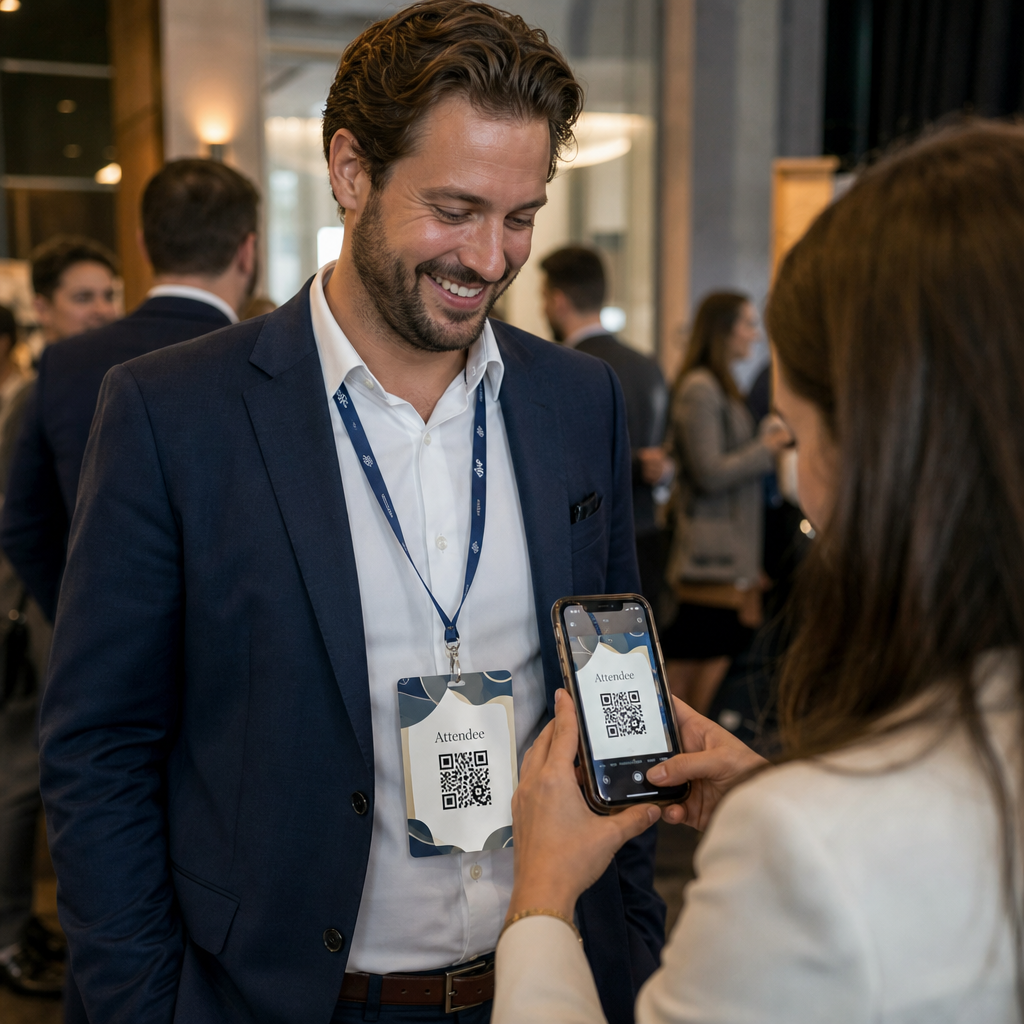
Pie durvīm personāls skenē katru žetonu ar viedtālruni vai rokas skeneri, lai reģistrētu ierašanos. Sistēma automātiski reģistrē skenēšanu, bez papīra sarakstiem vai manuālas meklēšanas. QR kodu reģistrācija var samazināt apstrādes laiku līdz mazāk nekā divām sekundēm uz personu, kas ievērojami samazina kopējo ieejas ilgumu salīdzinājumā ar manuālām metodēm. Lai iegūtu pilnīgu pasākuma reģistrācijas iestatīšanas aprakstu, skatiet ceļvedis par QR kodiem pasākumu reģistrācijai.
Varat arī apvienot abas funkcijas uz viena žetona: vCard QR kodu kontaktu koplietošanai un atsevišķu apmeklējuma kodu reģistrācijai. Novietojiet tos dažādās žetona vietās ar skaidrām etiķetēm, lai apmeklētāji un personāls zinātu, kuru skenēt un kad.
Automatizējiet savu pasākuma reģistrāciju Pārtrauciet pārvaldīt papīra sarakstus un manuālas meklēšanas. Izmantojiet Apmeklējuma QR koda rīku lai iestatītu uz skenēšanu balstītu reģistrācijas sistēmu, kas reģistrē ierašanos reāllaikā.
Dizaina noteikumi, kas nodrošina vārdu zīmju QR kodu skenējamību
QR kods, kas izskatās labi, bet neizdodas skenēt, ir bezjēdzīgs. Vārdu zīmes rada īpašas problēmas: maza drukas zona, dažādi apgaismojuma apstākļi, žetoni, kas nēsāti dažādos leņķos, un cilvēki, kas skenē no rokas stiepiena attāluma. Šie noteikumi tieši risina katru no šīm problēmām.
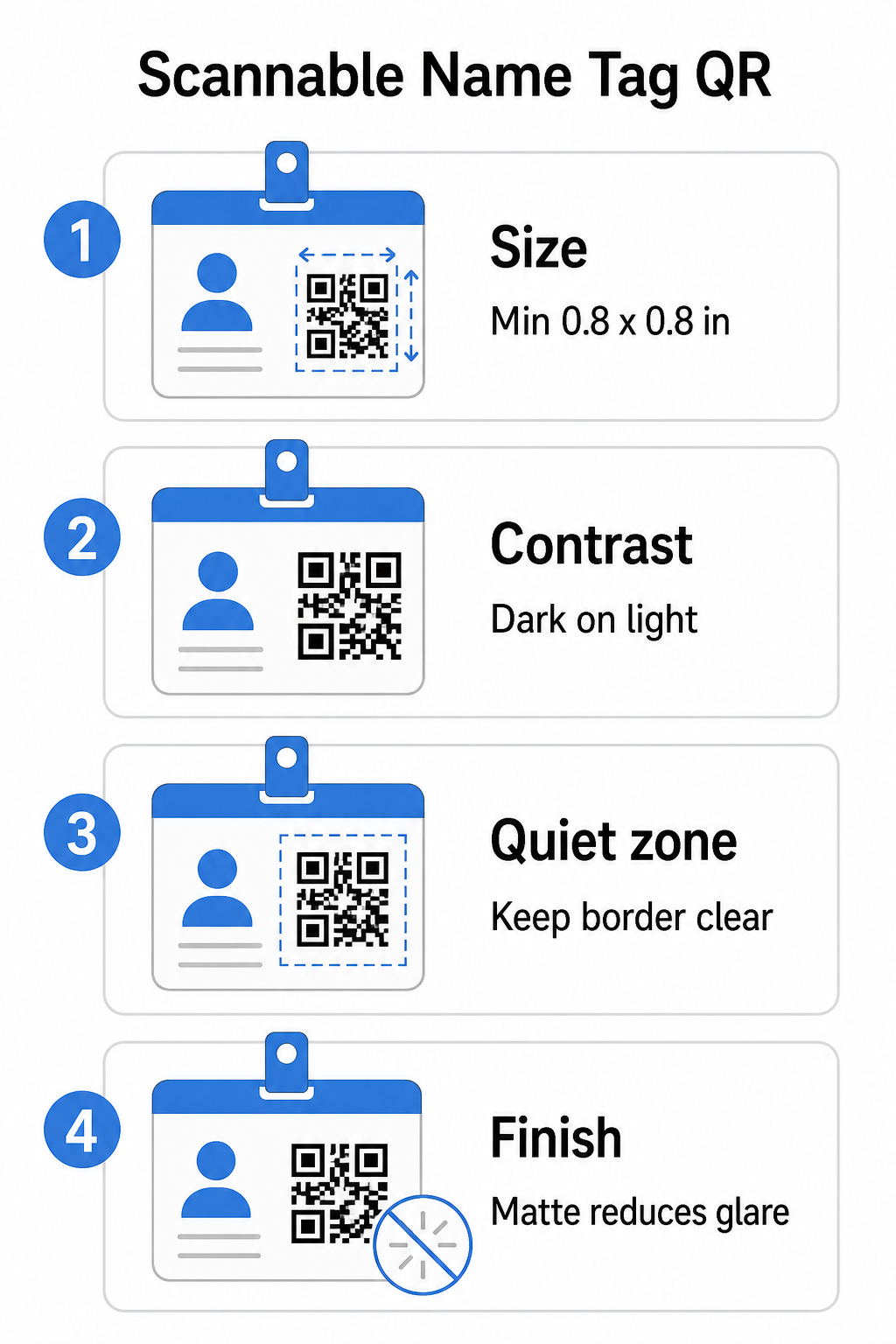
Izmērs: Lietojiet attiecību 10:1
QR koda mazākajai dimensijai jābūt aptuveni vienai desmitdaļai no paredzamā skenēšanas attāluma. Vārdu zīmei, kas skenēta no aptuveni 10 collu (25 cm) attāluma, kodam jābūt vismaz 1 collu (2,5 cm) platam. Praktiskais minimums jebkuram tuva diapazona drukātam kodam ir 0,8 × 0,8 collas (2 × 2 cm) – samazināšana rada nevajadzīgas skenēšanas kļūmes, īpaši vecākos tālruņos. Ja jūsu žetonam ir vieta, koda izmēra pielāgošana tuvāk 1 × 1 collai dod uzticamākus rezultātus plašākā ierīču klāstā. Lai iegūtu sīkāku informāciju par izmēru lēmumiem, skatiet QR kodu izmēri vizītkartēm – tie paši principi tieši attiecas uz vārdu zīmēm.
Kontrasts: Tikai tumšs uz gaiša
Skeneri darbojas, nosakot kontrastu starp tumšiem moduļiem un gaišu fonu. Labākā prakse ir tumšu priekšplānu uz gaiša fona – melns uz balta joprojām ir visuzticamākā kombinācija. Invertētie kodi (gaiši moduļi uz tumša fona) izraisa kļūmes daudzās skenēšanas lietotnēs, īpaši vecākās. Mērķējiet uz kontrasta attiecību vismaz 4:1, kas atbalsta lasāmību dažādās apgaismojuma vidēs un ierīču kamerās.
Izvairieties no gradientiem un ēnām QR koda zonā vai ap to. Tie rada vidējos toņus, kas mulsina skenera algoritmus un samazina uzticamību vāja apgaismojuma apstākļos. QR koda krāsu kontrasta labākās prakses rokasgrāmatu sniedz īpašas krāsu kombināciju vadlīnijas un kontrasta salīdzināšanas tabulu, ja vēlaties izmantot zīmola krāsas nevis vienkāršu melnbaltu.
Klusā zona: Saglabājiet robežas skaidras
Portāls klusā zona ir tukšā mala, kas ieskauj QR kodu no visām četrām pusēm. Tā norāda skenerim, kur kods sākas un beidzas – bez tās skeneris nevar droši atrast simbolu. Saskaņā ar ISO/IEC 18004 standartu, šai malai jābūt vismaz četru moduļu platumā katrā pusē. Ja jūsu žetona dizains novieto tekstu, logotipus vai dekoratīvus elementus pārāk tuvu kodam, skeneris var to pilnībā neatklāt. Kā praktisks noteikums: ja katrs modulis jūsu kodā ir 2 mm plats, klusajai zonai jābūt vismaz 8 mm katrā pusē.
Kļūdu labošana: Palieliniet, ja pievienojat logotipu
QR kodiem ir četri kļūdu labošanas līmeņi, kas nosaka, cik lielu fizisku bojājumu vai šķēršļu kods var izturēt, saglabājot skenējamību: L (aptuveni 7%), M (aptuveni 15%), Q (aptuveni 25%) un H (aptuveni 30%). Ja iegulstat uzņēmuma logotipu vai ikonu koda zonā – kas ir ierasts zīmolu žetoniem – izmantojiet kļūdu labošanas līmeni H un saglabājiet logotipu ne vairāk kā 30% no koda zonas. Tas dod skenerim pietiekami daudz lieku datu, lai rekonstruētu modeli pat ja daļa no tā ir aizsegta. Ja nepievienojat logotipu, M vai Q līmenis ir pietiekams lielākajai daļai drukas lietojumprogrammu.
Forma un formāts: Nekad nestiepiet un nesaspiežiet
QR kodam jāpaliek pilnīgi kvadrātveida. Koda izstiepšana vai saspiešana, lai tas atbilstu izkārtojumam, izjauc moduļu izlīdzinājumu un padara to neskenējamu. Vienmēr mērogojiet proporcionāli un eksportējiet vektoru formātos (SVG vai EPS) drukāšanai, lai izvairītos no pikseļu veidošanās lielākos izmēros.
Apdare: Izvēlieties matētu, nevis glancētu
Glancēti žetonu materiāli atstaro gaismu un rada atspīdumu, kas traucē kameras skenēšanai. Matēta laminēšana vai nepārklāts materiāls darbojas ievērojami labāk reālos pasākumu apgaismojuma apstākļos. Ja drukājat uz glancētiem žetoniem, pārbaudiet kodus jūsu pasākuma vietas faktiskajos apgaismojuma apstākļos pirms drukas pabeigšanas. QR kodu lasāmības labākās prakses ceļvedis aptver katru no šiem faktoriem ar papildu dziļumu.
Izvietojums uz žetona
Kur QR kods atrodas uz vārdu zīmes, ietekmē to, cik bieži tas tiek skenēts. Apsveriet šos izvietojuma principus:
- Novietojiet dabiskā acu līmenī, valkājot – krūšu augstumā novietotas emblēmas apakšējā puse ir viegli skenējama, neprasot kādam to noņemt
- Skaidri marķējiet kodu – iekļaujiet īsu instrukciju, piemēram, “Skenēt, lai saglabātu kontaktu” vai “Reģistrēties šeit” tieši zem vai blakus kodam; cilvēki ievērojami biežāk skenē, kad viņi zina, ko kods dara
- Atdaliet vairākus kodus – ja jūsu emblēma ietver gan reģistrācijas kodu, gan kontaktu koplietošanas kodu
- Izvairieties novietot kodu pie nozīmītes klipša vai auklas cauruma – šīs vietas tiek salocītas vai nosegtas, kas var bloķēt daļu koda vai kluso zonu
Testēšana pirms drukāšanas
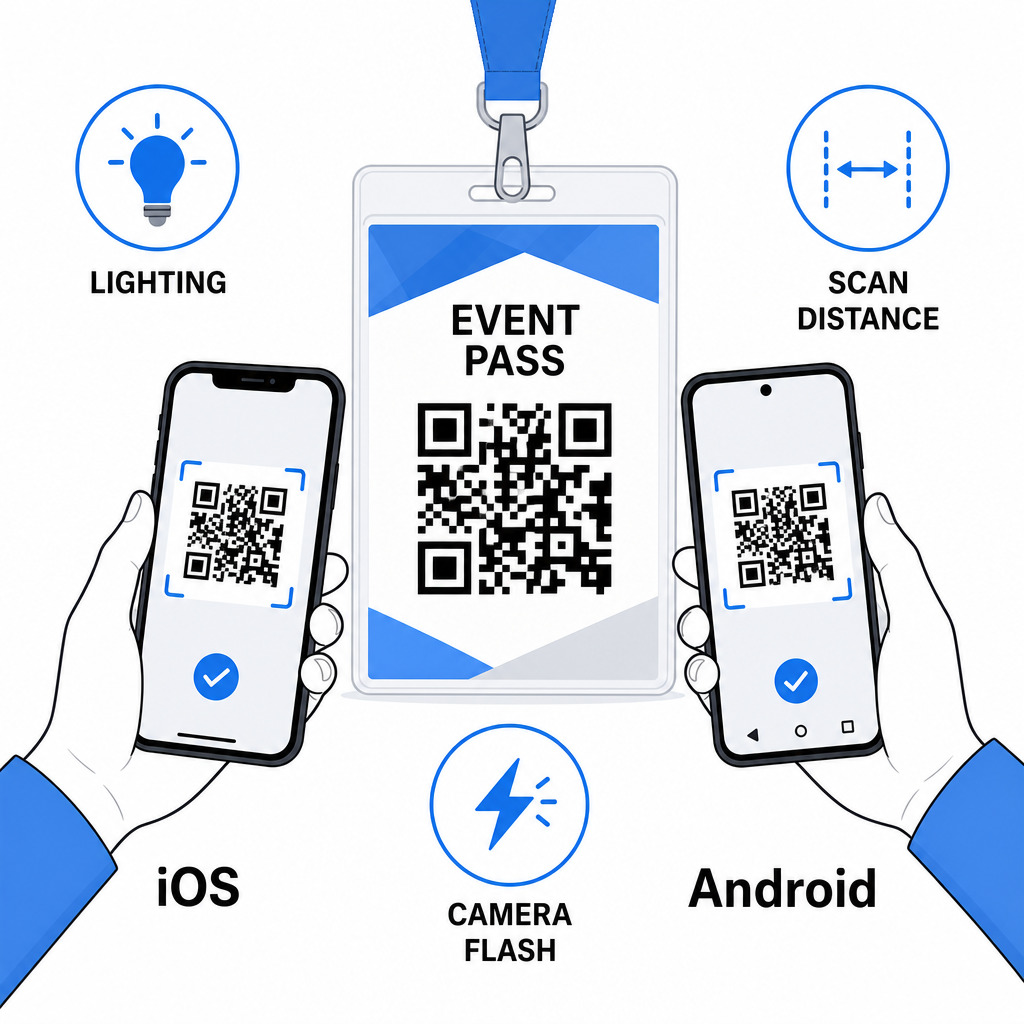
Izdrukājiet paraugu un skenējiet to pirms pilna nozīmīšu pasūtījuma nosūtīšanas ražošanai. Pārbaudiet kodu gan iOS, gan Android ierīcēs, jūsu pasākuma norises vietas apgaismojuma apstākļos, attālumā, no kura apmeklētāji un personāls faktiski skenēs, un ar un bez kameras zibspuldzes, lai simulētu vāja apgaismojuma scenārijus. Kods, kas iztur visus četrus testus, ir gatavs ražošanai. Tas, kas neiztur kādu no tiem, prasa dizaina pielāgošanu – vai tas būtu izmēra palielināšana, kontrasta uzlabošana vai klusās zonas paplašināšana – pirms jūs apņematies veikt pilnu drukas tirāžu.
QR kodi uz vārda zīmēm darbojas vislabāk, kad pareizais koda veids, tīrs dizains un pareizas drukas specifikācijas apvienojas, pirms tiek izdrukāta pat viena nozīmīte. Izvēlieties dinamisku kodu, ja apmeklētāju dati var mainīties vai ja vēlaties skenēšanas analītiku. Ievērojiet izmēru, kontrastu un klusās zonas noteikumus, lai nodrošinātu, ka katra nozīmīte tiek droši skenēta pasākuma dienā. Un vienmēr pārbaudiet ar reālām ierīcēm pirms ražošanas pabeigšanas.
Izveidojiet savus vārda zīmju QR kodus Izveidojiet pielāgojamus vCard un apmeklējuma QR kodus ar iebūvētu analītiku un dinamisku rediģēšanu. Sāciet ar Pageloot QR kodu ģenerators – bez maksas izmēģināt, nav nepieciešama kredītkarte.
Biežāk uzdotie jautājumi
Jūs varat kodēt kontaktinformāciju, piemēram, vārdu, tālruni, e-pastu, uzņēmumu un vietni, izmantojot vCard QR kodu, saistīt ar pasākuma reģistrācijas veidlapu, izmantojot apmeklējuma QR kodu, vai norādīt uz jebkuru tīmekļa galamērķi, piemēram, LinkedIn profilu vai digitālo portfolio. Pareizā izvēle ir atkarīga no tā, vai primārais mērķis ir kontaktu koplietošana, reģistrācija vai vispārīgas informācijas piekļuve.
Praktiskais minimums vārda zīmes QR kodam ir 0,8 × 0,8 collas (2 × 2 cm). Samazinot izmēru, palielinās skenēšanas kļūdu risks, īpaši vecākos viedtālruņos. Ja jūsu nozīmītes dizainā ir vieta, koda izmēra palielināšana tuvāk 1 × 1 collai nodrošina uzticamākus rezultātus plašākā ierīču un apgaismojuma apstākļu diapazonā.
Ja izmantojāt statisku QR kodu, jums būtu jāpārdrukā skartās nozīmītes. Ja izmantojāt dinamisku QR kodu, jūs varat atjaunināt galamērķi – vai tas būtu vCard, kontaktu lapa vai veidlapas saite – no jūsu Pageloot informācijas paneļa, nepieskaroties izdrukātajai nozīmītei. Tas ir viens no galvenajiem iemesliem izmantot dinamiskos kodus jebkuram pasākumam ar mainīgu apmeklētāju informāciju.