Cần một cách nhanh hơn để chia sẻ thông tin liên hệ hoặc kiểm tra khách tham dự tại sự kiện tiếp theo của bạn? Các chi tiết được nhập thủ công dễ bị mất, danh thiếp giấy chất đống, và hàng dài chờ check-in làm mọi người khó chịu. Hướng dẫn này sẽ chỉ cho bạn cách thêm mã QR có thể quét được vào thẻ tên – bao gồm loại mã phù hợp, quy tắc thiết kế và thông số kỹ thuật in thực sự hiệu quả.
Tại sao mã QR nên có trên thẻ tên
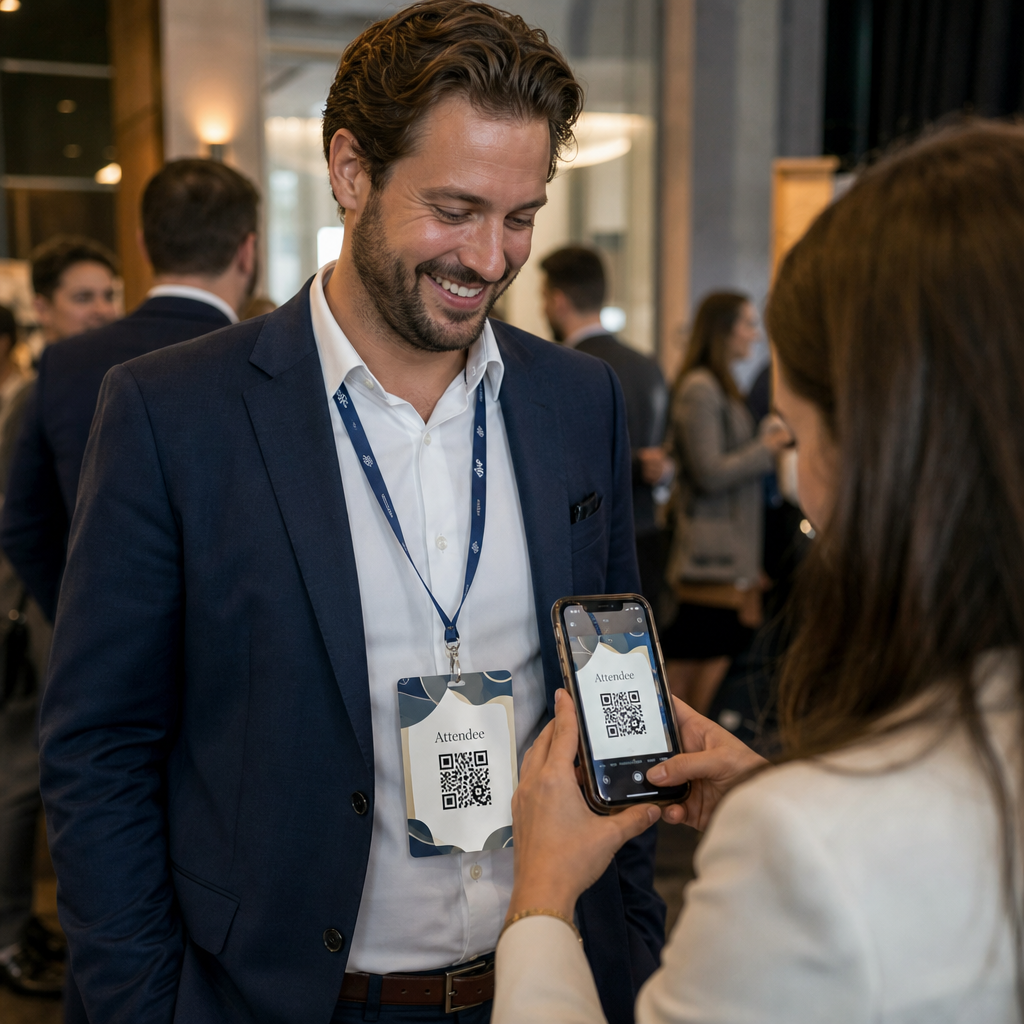
Một thẻ tên truyền thống hiển thị tên và có thể là một công ty. Điều đó hữu ích trong khoảng ba giây trò chuyện. Một mã QR biến cùng một huy hiệu thành một tài sản bền vững, có thể quét được, hoạt động trong suốt toàn bộ sự kiện.
Dưới đây là những gì một mã QR trên thẻ tên có thể làm:
- Chia sẻ thông tin liên hệ ngay lập tức – Một lần quét lưu toàn bộ vCard trực tiếp vào điện thoại của người quét, không cần nhập liệu
- Tự động hóa việc check-in sự kiện – Khách tham dự quét mã tại cửa, đăng ký sự có mặt của họ mà không cần danh sách giấy hoặc tra cứu thủ công
- Kết nối với hồ sơ kỹ thuật số – Liên kết đến trang LinkedIn, trang web cá nhân, danh mục đầu tư hoặc tiểu sử sự kiện
- Theo dõi sự tham gia – Với một mã động, bạn có thể thấy chính xác số lần một huy hiệu đã được quét, khi nào và từ thiết bị nào
Trường hợp sử dụng chia sẻ liên hệ riêng đã đủ để biện minh cho việc bổ sung. Một vCard mã QR mã hóa tên, số điện thoại, email, công ty và trang web theo định dạng mà iOS và Android nhận diện nguyên bản. Khi ai đó quét nó, điện thoại ngay lập tức nhắc họ thêm liên hệ – không cần ứng dụng, không cần nhập thủ công, không mất thẻ.
Chọn loại mã QR phù hợp cho thẻ tên của bạn
Không phải mã QR nào cũng phục vụ cùng một mục đích. Trước khi bạn in bất cứ thứ gì, hãy khớp loại mã với mục tiêu của bạn.
| Mục tiêu | Loại mã QR | Chức năng |
|---|---|---|
| Chia sẻ thông tin liên hệ | vCard mã QR | Mã hóa tên, điện thoại, email, công ty; lưu trực tiếp vào danh bạ điện thoại |
| Check-in sự kiện | Mã QR điểm danh/sự kiện | Liên kết đến một biểu mẫu đăng ký hoặc hệ thống check-in |
| Liên kết đến một hồ sơ hoặc trang web | mã QR URL | Chuyển hướng đến bất kỳ điểm đến web nào |
| Chia sẻ danh thiếp kỹ thuật số | Mã QR danh thiếp | Liên kết đến một thẻ kỹ thuật số đầy đủ với hồ sơ mạng xã hội và nội dung tùy chỉnh |
Đối với hầu hết các sự kiện kết nối, một vCard mã QR hoặc một mã QR danh thiếp là lựa chọn đúng đắn. Đối với các hội nghị mà bạn cũng cần theo dõi ai đã đến và khi nào, một 12. ghi lại lượt đến theo thời gian thực, cho phép bạn đối chiếu những người đã check-in với những người đã quét trải nghiệm AR của bạn và hoàn thành một hành động sau khi quét. Điều này đặc biệt hữu ích để tính toán tỷ lệ chuyển đổi thực sự thay vì chỉ tỷ lệ quét-đến-trang-đích. hoặc là mã QR sự kiện xử lý lớp đó.
Tĩnh so với Động: Bạn nên sử dụng loại nào?
A mã QR tĩnh mã hóa dữ liệu trực tiếp vào mẫu của nó. Một khi đã in, nó không thể thay đổi. Nếu URL liên kết bị hỏng hoặc thông tin liên hệ của khách tham dự thay đổi, bạn cần in lại mọi huy hiệu.
A mã QR động sử dụng một liên kết chuyển hướng ngắn. Mẫu in vẫn giữ nguyên, nhưng bạn có thể cập nhật điểm đến bất cứ lúc nào – ngay cả sau khi huy hiệu đã ở trong tay khách tham dự. Mã động cũng cung cấp phân tích: số lần quét, thời gian quét, loại thiết bị và vị trí. Đối với bất kỳ sự kiện nào có nhiều hơn một vài khách tham dự, mã QR động đáng để thực hiện bước thiết lập bổ sung.
Quan trọng: Để truy cập các tính năng theo dõi và chỉnh sửa, bạn phải tạo một mã động trước khi quá trình in bắt đầu.
Thiết lập mã QR thẻ tên có thể theo dõi Tạo mã QR động mà bạn có thể cập nhật và giám sát từ một bảng điều khiển duy nhất. Sử dụng Trình tạo mã QR để bắt đầu – không cần in lại nếu chi tiết thay đổi.
Cách tạo mã QR vCard cho thẻ tên
Đây là trường hợp sử dụng thẻ tên phổ biến nhất – chia sẻ liên hệ tức thì tại các sự kiện kết nối, hội nghị và triển lãm thương mại. Để bắt đầu, hãy mở Tạo mã QR vCard và nhập các trường bắt buộc: tối thiểu là tên đầy đủ và một phương thức liên hệ như số điện thoại hoặc địa chỉ email. Từ đó, thêm các trường tùy chọn – tên công ty, chức danh, trang web, hồ sơ mạng xã hội – để làm cho bản ghi liên hệ đã lưu hữu ích hơn cho người quét.
Khi dữ liệu đã có, hãy tùy chỉnh thiết kế bằng cách điều chỉnh màu sắc, thêm logo và chọn kiểu khung phù hợp với thương hiệu sự kiện của bạn. Tải xuống mã ở định dạng sẵn sàng in – SVG hoặc EPS cho đầu ra có thể mở rộng, PNG cho sử dụng kỹ thuật số – và kiểm tra nó trên cả iOS và Android trước khi gửi tệp đến máy in.
Lặp lại quy trình này cho từng khách tham dự nếu bạn đang tạo huy hiệu cá nhân hóa, hoặc tạo một mã chia sẻ duy nhất cho gian hàng công ty hoặc điểm check-in của đội. Để tìm hiểu sâu hơn về thiết lập vCard và các phương pháp hay nhất, hướng dẫn về mã QR vCard bao gồm toàn bộ quy trình làm việc một cách chi tiết.
Cách sử dụng mã QR để check-in sự kiện trên huy hiệu
Đối với các hội nghị, hội thảo hoặc bất kỳ sự kiện có vé nào, một mã QR trên huy hiệu đóng vai trò kép vừa là thông tin xác thực check-in vừa là công cụ kết nối. Bắt đầu bằng cách tạo một biểu mẫu đăng ký bằng Google Forms, Typeform hoặc nền tảng quản lý sự kiện của bạn. Sau đó tạo một 12. ghi lại lượt đến theo thời gian thực, cho phép bạn đối chiếu những người đã check-in với những người đã quét trải nghiệm AR của bạn và hoàn thành một hành động sau khi quét. Điều này đặc biệt hữu ích để tính toán tỷ lệ chuyển đổi thực sự thay vì chỉ tỷ lệ quét-đến-trang-đích. liên kết trực tiếp đến biểu mẫu hoặc hệ thống check-in và in nó trên mỗi huy hiệu khách tham dự trước sự kiện – hoặc bao gồm nó trong email trước sự kiện để tự in.
Tại cửa ra vào, nhân viên quét từng thẻ bằng điện thoại thông minh hoặc máy quét cầm tay để đăng ký đến. Hệ thống tự động ghi lại lượt quét, mà không cần danh sách giấy hoặc tra cứu thủ công. Việc check-in bằng mã QR có thể giảm thời gian xử lý xuống dưới hai giây mỗi người, điều này cắt giảm đáng kể tổng thời gian vào cửa so với các phương pháp thủ công. Để biết hướng dẫn chi tiết về cách thiết lập check-in sự kiện, hãy xem hướng dẫn về mã QR cho việc check-in sự kiện.
Bạn cũng có thể kết hợp cả hai chức năng trên một thẻ duy nhất: một mã QR vCard để chia sẻ thông tin liên hệ và một mã tham dự riêng biệt để check-in. Đặt chúng ở các khu vực khác nhau trên thẻ với nhãn rõ ràng để người tham dự và nhân viên biết quét mã nào và khi nào.
Tự động hóa việc Check-in Sự kiện của bạn Ngừng quản lý danh sách giấy và tra cứu thủ công. Sử dụng công cụ Mã QR Điểm danh để thiết lập hệ thống check-in dựa trên quét ghi nhận lượt đến theo thời gian thực.
Quy tắc thiết kế giúp mã QR trên thẻ tên có thể quét được
Một mã QR trông đẹp nhưng không thể quét được thì vô dụng. Thẻ tên tạo ra những thách thức cụ thể: diện tích in nhỏ, điều kiện ánh sáng đa dạng, thẻ đeo ở các góc khác nhau và mọi người quét từ khoảng cách xa. Các quy tắc sau đây giải quyết trực tiếp từng vấn đề này.
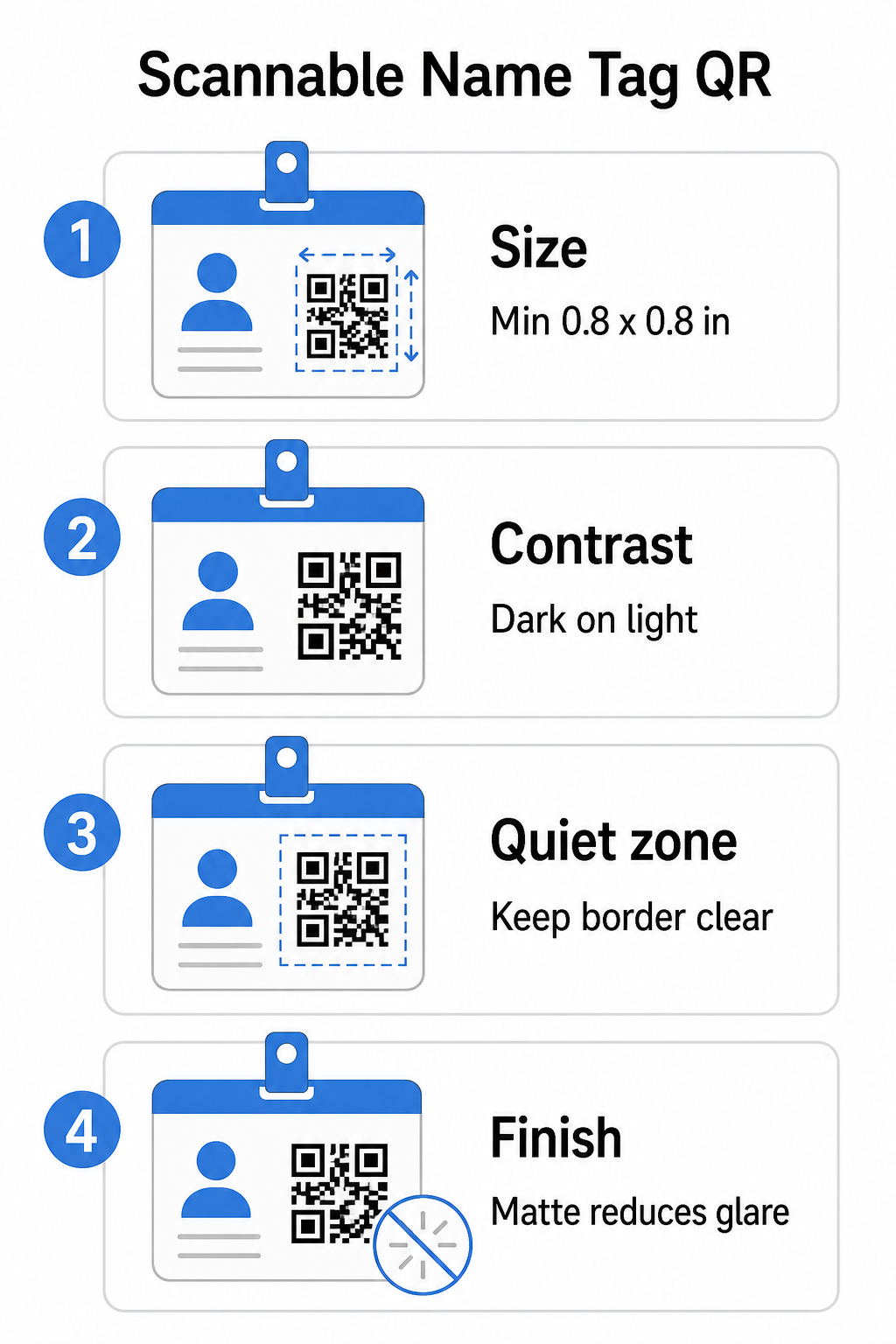
Kích thước: Áp dụng Tỷ lệ 10:1
Kích thước nhỏ nhất của mã QR nên bằng khoảng một phần mười khoảng cách quét dự kiến. Đối với thẻ tên được quét từ khoảng 10 inch (25 cm), mã cần rộng ít nhất 1 inch (2.5 cm). Mức tối thiểu thực tế cho bất kỳ mã in tầm gần nào là 0,8 × 0,8 inch (2 × 2 cm) – nhỏ hơn sẽ tạo ra các lỗi quét không cần thiết, đặc biệt trên các điện thoại cũ hơn. Nếu thẻ của bạn có đủ không gian, việc điều chỉnh kích thước mã gần 1 × 1 inch sẽ cho kết quả đáng tin cậy hơn trên nhiều loại thiết bị hơn. Để biết thêm chi tiết về các quyết định về kích thước, hãy xem Kích thước mã QR cho danh thiếp – các nguyên tắc tương tự áp dụng trực tiếp cho thẻ tên.
Độ tương phản: Chỉ tối trên nền sáng
Máy quét hoạt động bằng cách phát hiện độ tương phản giữa các mô-đun tối và nền sáng. Thực hành tốt nhất là nền tối trên nền sáng – đen trên trắng vẫn là sự kết hợp đáng tin cậy nhất. Mã đảo ngược (các mô-đun sáng trên nền tối) gây ra lỗi trên nhiều ứng dụng quét, đặc biệt là các ứng dụng cũ hơn. Hãy hướng tới tỷ lệ tương phản ít nhất 4:1, hỗ trợ khả năng đọc trên các môi trường ánh sáng và camera thiết bị khác nhau.
Tránh các dải màu và bóng trong hoặc xung quanh khu vực mã QR. Những điều này tạo ra các tông màu trung gian làm nhiễu thuật toán máy quét và giảm độ tin cậy trong môi trường ánh sáng yếu. Mục hướng dẫn thực hành tốt nhất về độ tương phản màu sắc của mã QR cung cấp hướng dẫn cụ thể về kết hợp màu sắc và bảng so sánh độ tương phản nếu bạn muốn sử dụng màu sắc thương hiệu thay vì màu đen trắng đơn giản.
Vùng yên tĩnh: Giữ các đường viền rõ ràng
Các vùng yên tĩnh là khoảng trống bao quanh mã QR ở cả bốn phía. Nó cho máy quét biết mã bắt đầu và kết thúc ở đâu – nếu không có nó, máy quét không thể định vị biểu tượng một cách đáng tin cậy. Theo tiêu chuẩn ISO/IEC 18004, khoảng trống này phải rộng ít nhất bốn mô-đun ở mỗi phía. Nếu thiết kế thẻ của bạn đặt văn bản, logo hoặc các yếu tố trang trí quá gần mã, máy quét có thể không phát hiện được nó hoàn toàn. Theo một quy tắc thực tế: nếu mỗi mô-đun trong mã của bạn rộng 2 mm, vùng yên tĩnh nên rộng ít nhất 8 mm ở mỗi phía.
Sửa lỗi: Tăng cấp nếu thêm Logo
Mã QR có bốn cấp độ sửa lỗi xác định mức độ hư hại vật lý hoặc vật cản mà mã có thể chịu đựng trong khi vẫn có thể quét được: L (khoảng 7%), M (khoảng 15%), Q (khoảng 25%) và H (khoảng 30%). Nếu bạn đang nhúng logo hoặc biểu tượng công ty vào bên trong khu vực mã – phổ biến cho các thẻ có thương hiệu – hãy sử dụng cấp độ sửa lỗi H và giữ logo ở mức không quá 30% diện tích mã. Điều này cung cấp cho máy quét đủ dữ liệu dự phòng để tái tạo lại mẫu ngay cả khi một phần của nó bị che. Nếu bạn không thêm logo, cấp độ M hoặc Q là đủ cho hầu hết các ứng dụng in ấn.
Hình dạng và Định dạng: Không bao giờ kéo giãn hoặc nén
Mã QR phải luôn là hình vuông hoàn hảo. Kéo giãn hoặc nén mã để phù hợp với bố cục làm lệch các mô-đun và khiến nó không thể quét được. Luôn điều chỉnh tỷ lệ cân đối và xuất ở định dạng vector (SVG hoặc EPS) để in để tránh bị vỡ pixel ở kích thước lớn hơn.
Hoàn thiện: Chọn mờ thay vì bóng
Vật liệu thẻ bóng phản chiếu ánh sáng và tạo ra chói làm cản trở việc quét bằng camera. Ép mờ hoặc giấy không tráng phủ hoạt động tốt hơn đáng kể trong điều kiện ánh sáng sự kiện thực tế. Nếu bạn đang in trên thẻ bóng, hãy kiểm tra các mã dưới điều kiện ánh sáng thực tế của địa điểm của bạn trước khi hoàn tất đợt in. Mục thực hành tốt nhất về khả năng đọc mã QR bao gồm từng yếu tố này với độ sâu bổ sung.
Vị trí trên Thẻ
Vị trí mã QR trên thẻ tên ảnh hưởng đến tần suất nó được quét. Hãy xem xét các nguyên tắc đặt vị trí này:
- Vị trí ở tầm mắt tự nhiên khi đeo – nửa dưới của thẻ đeo ngang ngực dễ quét mà không cần yêu cầu ai đó tháo ra
- Ghi nhãn mã rõ ràng – bao gồm một hướng dẫn ngắn như “Quét để lưu liên hệ” hoặc “Điểm danh tại đây” ngay bên dưới hoặc bên cạnh mã; mọi người có nhiều khả năng quét hơn đáng kể khi họ biết mã đó làm gì
- Tách nhiều mã – nếu thẻ của bạn bao gồm cả mã điểm danh và mã chia sẻ liên hệ, hãy ghi nhãn từng mã rõ ràng và cho chúng đủ không gian để được quét riêng lẻ mà không gây nhầm lẫn
- Tránh đặt mã gần kẹp thẻ hoặc lỗ dây đeo – những khu vực này bị gập hoặc che khuất, có thể chặn một phần mã hoặc vùng yên tĩnh
Kiểm tra trước khi in
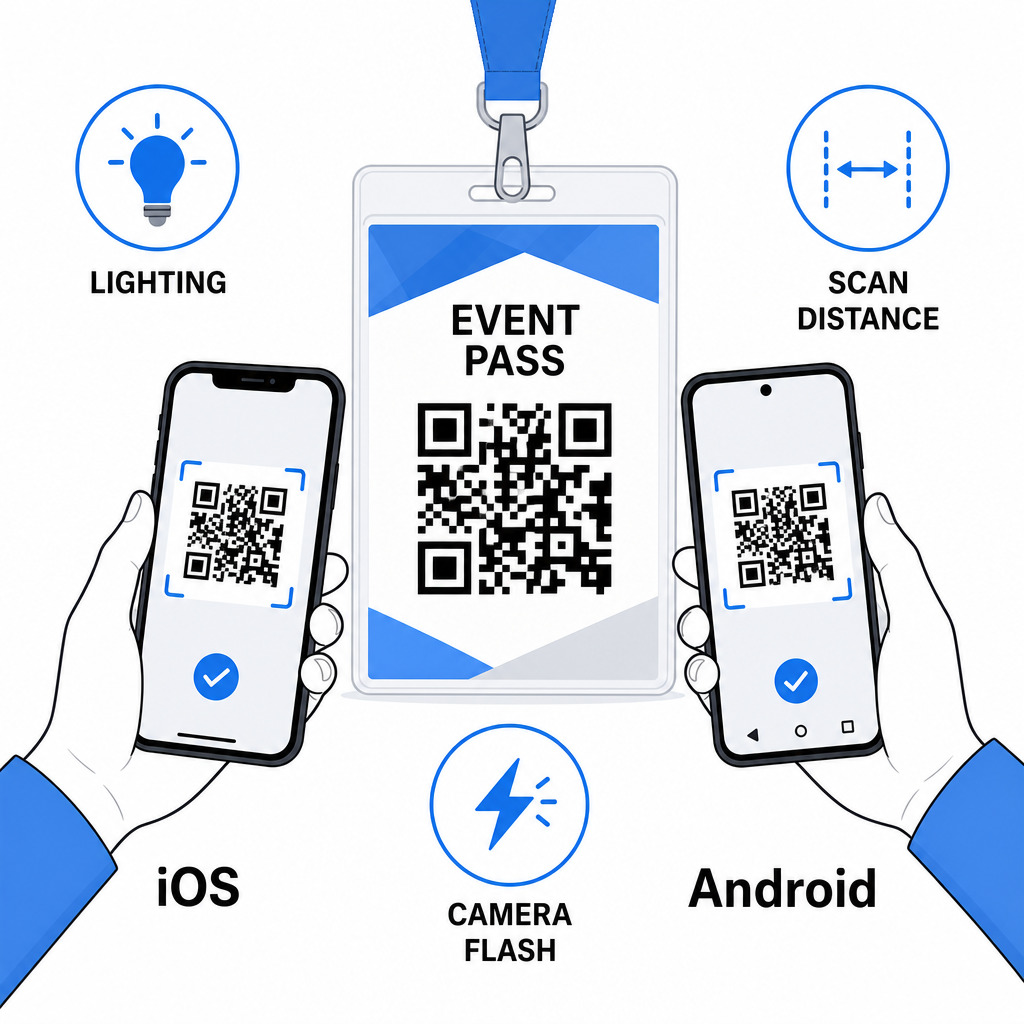
In bản thử và quét nó trước khi gửi toàn bộ đơn đặt hàng thẻ đến sản xuất. Kiểm tra mã trên cả thiết bị iOS và Android, trong điều kiện ánh sáng của địa điểm sự kiện của bạn, ở khoảng cách mà người tham dự và nhân viên sẽ thực sự quét từ đó, và có và không có đèn flash máy ảnh để mô phỏng các tình huống thiếu sáng. Một mã vượt qua cả bốn bài kiểm tra đã sẵn sàng để sản xuất. Một mã thất bại ở bất kỳ bài kiểm tra nào trong số đó cần điều chỉnh thiết kế – cho dù đó là tăng kích thước, cải thiện độ tương phản hay mở rộng vùng yên tĩnh – trước khi bạn cam kết in toàn bộ.
Mã QR trên thẻ tên hoạt động tốt nhất khi loại mã phù hợp, thiết kế sạch sẽ và thông số in chính xác kết hợp với nhau trước khi một thẻ duy nhất được in. Chọn một mã động nếu chi tiết người tham dự có thể thay đổi hoặc nếu bạn muốn phân tích quét. Tuân thủ các quy tắc về kích thước, độ tương phản và vùng yên tĩnh để đảm bảo mọi thẻ đều quét đáng tin cậy vào ngày đó. Và luôn kiểm tra trên các thiết bị thực tế trước khi hoàn thiện sản xuất.
Xây dựng Mã QR Thẻ Tên Của Bạn Tạo mã QR vCard và điểm danh có thể tùy chỉnh với phân tích tích hợp và chỉnh sửa động. Bắt đầu với Trình tạo mã QR Pageloot – miễn phí dùng thử, không yêu cầu thẻ tín dụng.
Câu hỏi thường gặp
Bạn có thể mã hóa thông tin liên hệ như tên, số điện thoại, email, công ty và trang web bằng cách sử dụng mã QR vCard, liên kết đến một biểu mẫu đăng ký sự kiện bằng cách sử dụng mã QR điểm danh, hoặc trỏ đến bất kỳ điểm đến web nào như hồ sơ LinkedIn hoặc danh mục đầu tư kỹ thuật số. Lựa chọn đúng đắn phụ thuộc vào việc mục tiêu chính là chia sẻ thông tin liên hệ, đăng ký, hay truy cập thông tin chung.
Mức tối thiểu thực tế cho một mã QR trên thẻ tên là 0.8 × 0.8 inch (2 × 2 cm). Thu nhỏ hơn sẽ làm tăng nguy cơ quét không thành công, đặc biệt là trên các điện thoại thông minh cũ hơn. Nếu thiết kế thẻ của bạn có không gian, việc điều chỉnh kích thước mã gần hơn 1 × 1 inch sẽ mang lại kết quả đáng tin cậy hơn trên nhiều loại thiết bị và điều kiện ánh sáng khác nhau.
Nếu bạn sử dụng mã QR tĩnh, bạn sẽ cần in lại các thẻ bị ảnh hưởng. Nếu bạn sử dụng mã QR động, bạn có thể cập nhật đích đến – cho dù đó là vCard, trang liên hệ hay liên kết biểu mẫu – từ bảng điều khiển Pageloot của bạn mà không cần chạm vào thẻ đã in. Đây là một trong những lý do chính để sử dụng mã động cho bất kỳ sự kiện nào có thông tin người tham dự thay đổi.