Tarvitsetko nopeamman tavan jakaa yhteystietoja tai kirjata osallistujia sisään seuraavassa tapahtumassasi? Käsin kirjoitetut tiedot katoavat, paperiset käyntikortit kasaantuvat, ja pitkät sisäänkirjautumisjonot turhauttavat kaikkia. Tämä opas opastaa sinua lisäämään skannattavia QR-koodeja nimilappuihin – kattaen oikean koodityypin, suunnittelusäännöt ja tulostusmääritykset, jotka todella toimivat.
Miksi QR-koodit kuuluvat nimilappuihin
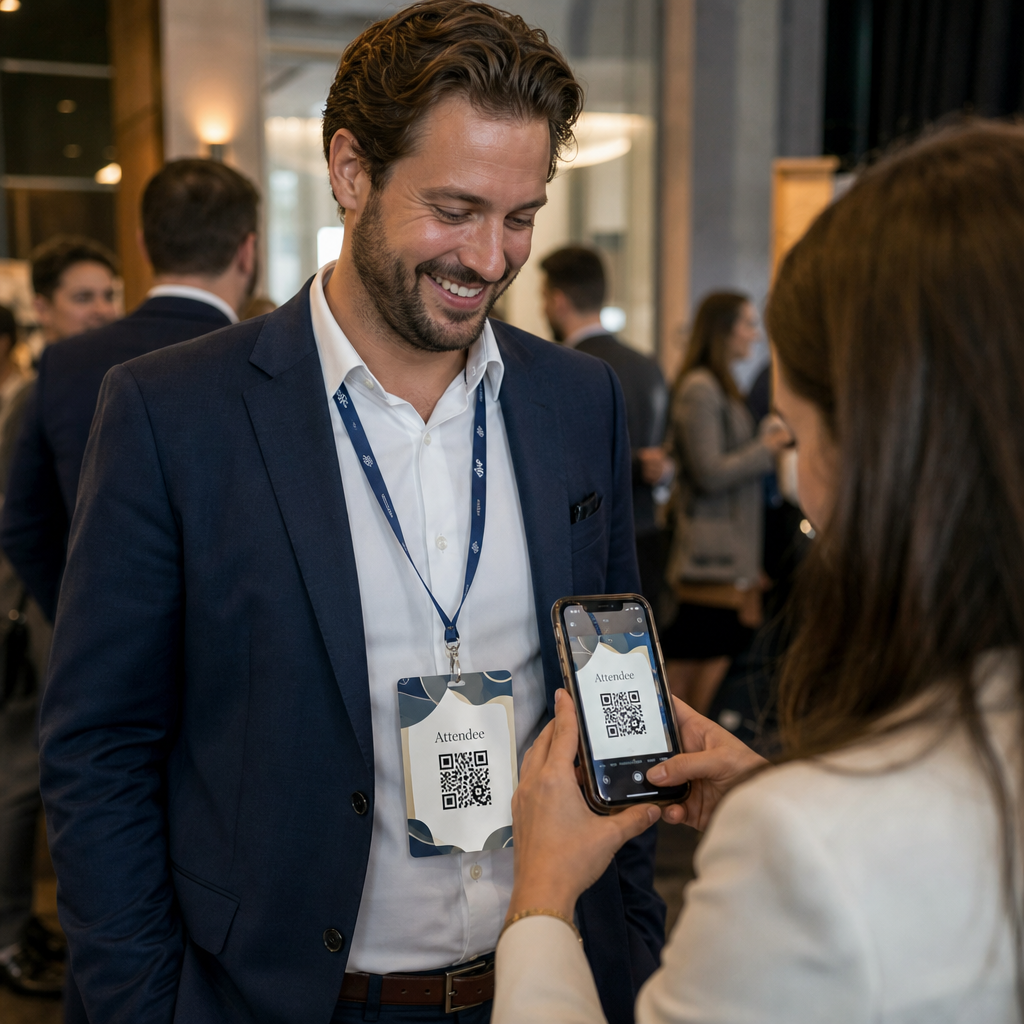
Nimilappu näyttää perinteisesti nimen ja ehkä yrityksen. Se on hyödyllinen noin kolmen sekunnin keskustelun ajan. QR-koodi muuttaa saman merkin pysyväksi, skannattavaksi omaisuudeksi, joka toimii koko tapahtuman ajan.
Tässä mitä QR-koodi nimilapussa voi tehdä:
- Jaa yhteystiedot välittömästi – Yksi skannaus tallentaa täyden vCardin suoraan skannaajan puhelimeen, kirjoittamista ei tarvita
- Automatisoi tapahtuman sisäänkirjautuminen – Osallistujat skannaavat itsensä sisään ovella, rekisteröiden saapumisensa ilman paperilistoja tai manuaalista hakua
- Yhdistä digitaaliseen profiiliin – Linkitä LinkedIn-sivulle, henkilökohtaiselle verkkosivustolle, portfolioon tai tapahtumabioan
- Seuraa sitoutumista – Dynaamisella koodilla näet tarkalleen, kuinka monta kertaa merkki skannattiin, milloin ja miltä laitteelta
Yhteystietojen jakamisen käyttötapaus yksinään oikeuttaa lisäyksen. A vCard QR-koodi koodaa nimen, puhelinnumeron, sähköpostin, yrityksen ja verkkosivuston muodossa, jonka iOS ja Android tunnistavat natiivisti. Kun joku skannaa sen, puhelin kehottaa heitä välittömästi lisäämään yhteystiedon – sovellusta ei tarvita, manuaalista syöttöä ei, kortteja ei katoa.
Oikean QR-koodityypin valitseminen nimilappuun
Kaikki QR-koodit eivät palvele samaa tarkoitusta. Ennen kuin tulostat mitään, sovita koodityyppi tavoitteeseesi.
| Tavoite | QR-koodin tyyppi | Mitä se tekee |
|---|---|---|
| Jaa yhteystiedot | vCard QR-koodi | Koodaa nimen, puhelimen, sähköpostin, yrityksen; tallentaa suoraan puhelimen yhteystietoihin |
| Tapahtuman sisäänkirjautuminen | Läsnäolo-/tapahtuma-QR-koodi | Linkittää rekisteröintilomakkeeseen tai sisäänkirjautumisjärjestelmään |
| Linkitä profiiliin tai verkkosivustoon | URL-osoite QR-koodi | Ohjaa mihin tahansa verkkokohteeseen |
| Jaa digitaalinen käyntikortti | Käyntikortin QR-koodi | Linkittää täyteen digitaaliseen korttiin, jossa on sosiaalisia profiileja ja mukautettua sisältöä |
Useimmissa verkostoitumistapahtumissa, a vCard QR-koodi tai a käyntikortin QR-koodi on oikea valinta. Konferensseissa, joissa sinun on myös seurattava, kuka saapui ja milloin, an osallistumisen QR-koodi tai QR-koodi hoitaa sen kerroksen.
Staattinen vs. dynaaminen: Kumpi sinun tulisi käyttää?
A staattinen QR-koodi koodaa tiedot suoraan kuvioonsa. Kun se on tulostettu, sitä ei voi muuttaa. Jos linkitetty URL-osoite rikkoutuu tai osallistujan yhteystiedot muuttuvat, sinun on tulostettava jokainen merkki uudelleen.
A dynaaminen QR-koodi käyttää lyhyttä uudelleenohjauslinkkiä. Tulostettu kuvio pysyy samana, mutta voit päivittää kohteen milloin tahansa – jopa sen jälkeen, kun merkit ovat jo osallistujien käsissä. Dynaamiset koodit tarjoavat myös analytiikkaa: skannausten määrä, skannausaika, laitetyyppi ja sijainti. Kaikissa tapahtumissa, joissa on enemmän kuin kourallinen osallistujia, dynaamiset QR-koodit ovat lisäasetusvaiheen arvoisia.
Tärkeää: Päästäksesi seuranta- ja muokkausominaisuuksiin, sinun on luotava dynaaminen koodi ennen tulostusprosessin alkamista.
Määritä seurattavat nimilapun QR-koodit Luo dynaamisia QR-koodeja, joita voit päivittää ja seurata yhdestä hallintapaneelista. Käytä QR-koodigeneraattori aloittaaksesi – uudelleentulostusta ei tarvita, jos tiedot muuttuvat.
Kuinka luoda vCard QR-koodi nimilappuun
Tämä on yleisin nimilapun käyttötapaus – välitön yhteystietojen jakaminen verkostoitumistapahtumissa, konferensseissa ja messuilla. Aloittaaksesi, avaa vCard QR-koodi: tee ilmainen yhteystieto-QR-koodi ja syötä vaaditut kentät: vähintään koko nimi ja yksi yhteystapa, kuten puhelinnumero tai sähköpostiosoite. Sieltä voit lisätä valinnaisia kenttiä – yrityksen nimi, titteli, verkkosivusto, sosiaaliset profiilit – jotta tallennettu yhteystieto olisi hyödyllisempi skannaavalle henkilölle.
Kun tiedot ovat syötetty, mukauta suunnittelua säätämällä värejä, lisäämällä logo ja valitsemalla kehystyyli, joka vastaa tapahtumasi brändäystä. Lataa koodi tulostusvalmiissa muodossa – SVG tai EPS skaalautuvaa tulostusta varten, PNG digitaaliseen käyttöön – ja testaa se sekä iOS:llä että Androidilla ennen tiedostojen lähettämistä tulostimelle.
Toista tämä prosessi jokaiselle osallistujalle, jos luot yksilöllisiä merkkejä, tai luo yksi jaettu koodi yrityksen osastolle tai tiimin sisäänkirjautumispisteelle. Syvempää tietoa vCardin asetuksista ja parhaista käytännöistä, opas vCard QR-koodeihin kattaa koko työnkulun yksityiskohtaisesti.
Kuinka käyttää QR-koodeja tapahtuman sisäänkirjautumiseen merkeissä
Konferensseissa, työpajoissa tai missä tahansa lipullisessa tapahtumassa QR-koodi merkissä toimii sekä sisäänkirjautumistunnuksena että verkostoitumistyökaluna. Aloita luomalla rekisteröintilomake käyttäen Google Formsia, Typeformia tai tapahtumanhallinta-alustaasi. Luo sitten osallistumisen QR-koodi joka linkittää suoraan lomakkeeseen tai sisäänkirjautumisjärjestelmään ja tulosta se jokaisen osallistujan merkkiin ennen tapahtumaa – tai sisällytä se tapahtumaa edeltävään sähköpostiin itsepalvelutulostusta varten.
Ovelta henkilökunta skannaa jokaisen merkin älypuhelimella tai kädessä pidettävällä skannerilla rekisteröidäkseen saapumisen. Järjestelmä kirjaa skannauksen automaattisesti, ilman paperilistoja tai manuaalista hakua. QR-koodin sisäänkirjautumiset voivat lyhentää käsittelyaikaa alle kahteen sekuntiin per henkilö, mikä lyhentää kokonaiskestoa merkittävästi verrattuna manuaalisiin menetelmiin. Tapahtuman sisäänkirjautumisen täydellisen läpikäynnin löydät osoitteesta opas QR-koodeihin tapahtumien sisäänkirjautumista varten.
Voit myös yhdistää molemmat toiminnot yhdelle merkille: vCard QR-koodi yhteystietojen jakamista varten ja erillinen osallistumiskoodi sisäänkirjautumista varten. Aseta ne merkin eri alueille selkeillä merkinnöillä, jotta osallistujat ja henkilökunta tietävät, minkä skannata ja milloin.
Automatisoi tapahtumasi sisäänkirjautuminen Lopeta paperilistojen ja manuaalisten hakujen hallinta. Käytä Osallistumisen QR-koodityökalua perustamaan skannaukseen perustuvan sisäänkirjautumisjärjestelmän, joka rekisteröi saapumiset reaaliaikaisesti.
Suunnittelusäännöt, jotka pitävät nimilapun QR-koodit skannattavina
QR-koodi, joka näyttää hyvältä mutta ei skannaa, on hyödytön. Nimilaput luovat erityisiä haasteita: pieni tulostusalue, vaihtelevat valaistusolosuhteet, eri kulmissa pidetyt merkit ja ihmiset, jotka skannaavat käsivarren etäisyydeltä. Seuraavat säännöt käsittelevät kutakin näistä ongelmista suoraan.
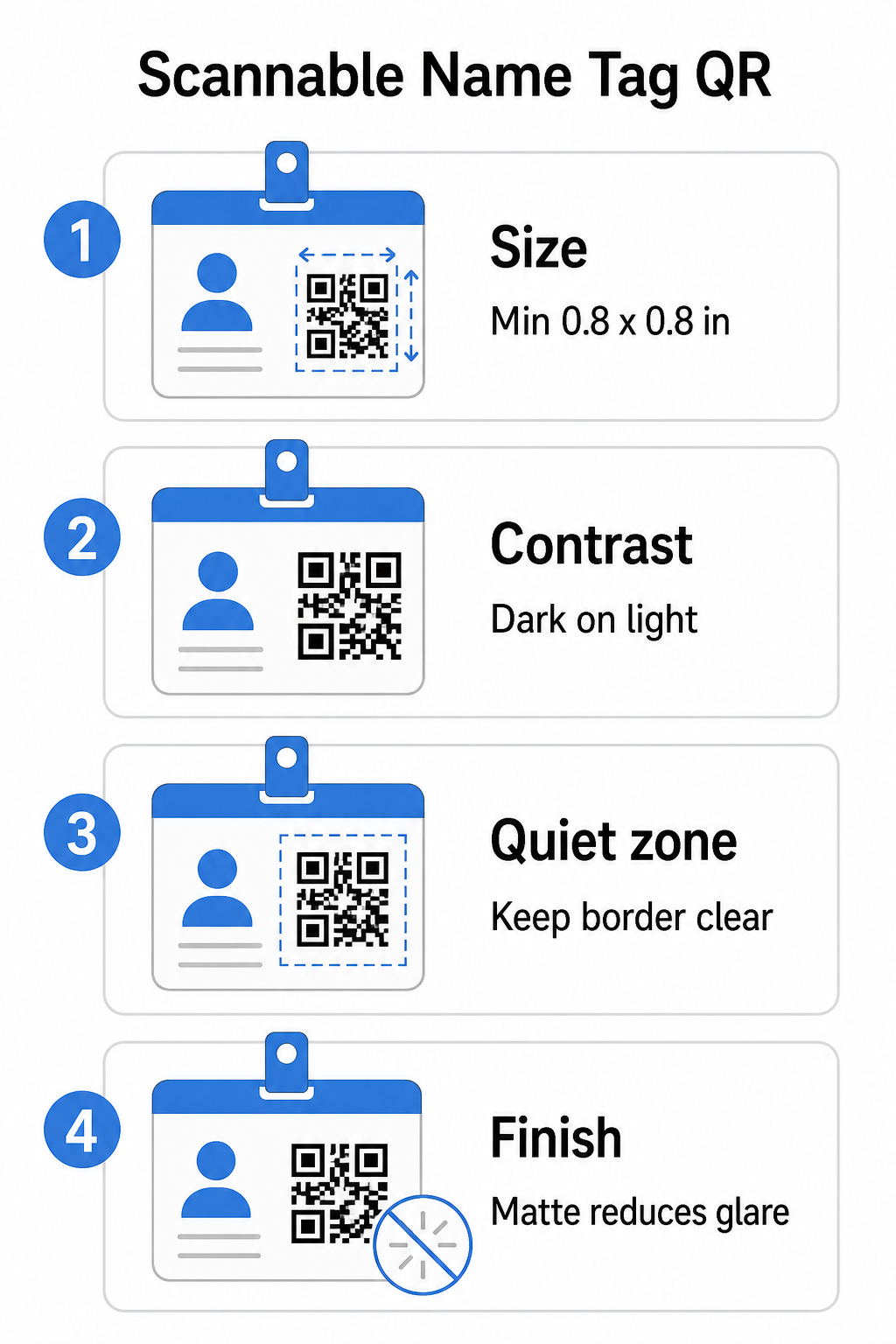
Koko: Sovella 10:1-suhdetta
QR-koodin pienimmän mitan tulisi olla noin yksi kymmenesosa odotetusta skannausetäisyydestä. Nimilapulle, joka skannataan noin 10 tuuman (25 cm) etäisyydeltä, koodin on oltava vähintään 1 tuuman (2,5 cm) leveä. Käytännöllinen minimi mille tahansa lähialueen painetulle koodille on 0,8 × 0,8 tuumaa (2 × 2 cm) – pienemmäksi meneminen luo tarpeettomia skannausvirheitä, erityisesti vanhemmilla puhelimilla. Jos merkissäsi on tilaa, koodin mitoittaminen lähemmäksi 1 × 1 tuumaa antaa luotettavampia tuloksia laajemmalla laitevalikoimalla. Lisätietoja mitoituspäätöksistä, katso QR-koodikoot käyntikorteille – samat periaatteet pätevät suoraan nimilappuihin.
Kontrasti: Vain tumma vaalealla
Skannerit toimivat havaitsemalla kontrastin tummien moduulien ja vaalean taustan välillä. Paras käytäntö on tummaan etualaan vaalealla taustalla – musta valkoisella pysyy luotettavimpana yhdistelmänä. Käänteiset koodit (vaaleat moduulit tummalla taustalla) aiheuttavat virheitä monissa skannaussovelluksissa, erityisesti vanhemmissa. Pyri kontrastisuhteeseen vähintään 4:1, joka tukee luettavuutta eri valaistusympäristöissä ja laitekameroiden kanssa.
Vältä gradientteja ja varjoja QR-koodialueella tai sen ympärillä. Nämä luovat keskisävyjä, jotka hämmentävät skannerialgoritmeja ja heikentävät luotettavuutta heikossa valaistuksessa. Se QR-koodin värikontrastin parhaiden käytäntöjen opas tarjoaa erityisiä väriyhdistelmäohjeita ja kontrastivertailutaulukon, jos haluat käyttää brändivärejä tavallisen mustavalkoisen sijaan.
Hiljainen alue: Pidä reunat selkeinä
Se hiljaisen alueen on tyhjä marginaali, joka ympäröi QR-koodia kaikilta neljältä sivulta. Se kertoo skannerille, mistä koodi alkaa ja mihin se päättyy – ilman sitä skanneri ei voi luotettavasti paikantaa symbolia. ISO/IEC 18004 -standardin mukaan tämän marginaalin on oltava vähintään neljä moduulia leveä joka puolelta. Jos merkkisi suunnittelu sijoittaa tekstiä, logoja tai koriste-elementtejä liian lähelle koodia, skanneri ei välttämättä havaitse sitä kokonaan. Käytännön sääntönä: jos jokainen koodisi moduuli on 2 mm leveä, hiljaisen alueen tulisi olla vähintään 8 mm joka puolelta.
Virheenkorjaus: Nosta tasoa, jos lisäät logon
QR-koodeissa on neljä virheenkorjaustasoa, jotka määrittävät, kuinka paljon fyysistä vauriota tai estettä koodi voi sietää pysyen skannattavana: L (noin 7%), M (noin 15%), Q (noin 25%) ja H (noin 30%). Jos upotat yrityksen logon tai kuvakkeen koodialueelle – yleistä brändätyissä merkeissä – käytä virheenkorjaustaso H ja pidä logo enintään 30% koodialueesta. Tämä antaa skannerille riittävästi redundanttia tietoa kuvion rekonstruoimiseksi, vaikka osa siitä olisi peitetty. Jos et lisää logoa, taso M tai Q riittää useimpiin tulostussovelluksiin.
Muoto ja formaatti: Älä koskaan venytä tai pakkaa
QR-koodin on pysyttävä täysin neliönä. Koodin venyttäminen tai pakkaaminen asettelun sovittamiseksi vääristää moduuleja ja tekee siitä skannaamattoman. Skaalaa aina suhteellisesti ja vie vektorimuodoissa (SVG tai EPS) tulostusta varten välttääksesi pikselöitymisen suuremmissa koissa.
Viimeistely: Valitse matta kiiltävän sijaan
Kiiltävät merkkimateriaalit heijastavat valoa ja luovat häikäisyä, joka häiritsee kameraskannausta. Matta laminointi tai päällystämätön materiaali toimii huomattavasti paremmin todellisessa tapahtumavalaistuksessa. Jos tulostat kiiltäville merkeille, testaa koodit tapahtumapaikkasi todellisissa valaistusolosuhteissa ennen tulostuksen viimeistelyä. Se QR-koodin luettavuuden parhaiden käytäntöjen opas käsittelee kutakin näistä tekijöistä lisäsyvyydellä.
Sijoitus merkkiin
Se, missä QR-koodi sijaitsee nimilapussa, vaikuttaa siihen, kuinka usein se skannataan. Harkitse näitä sijoitteluperiaatteita:
- Aseta luonnolliselle silmien korkeudelle, kun sitä pidetään – rinnan korkeudella olevan merkin alaosa on helppo skannata pyytämättä ketään poistamaan sitä
- Merkitse koodi selkeästi – sisällytä lyhyt ohje, kuten “Skannaa tallentaaksesi yhteystiedot” tai “Kirjaudu sisään tästä” suoraan koodin alle tai viereen; ihmiset skannaavat huomattavasti todennäköisemmin, kun he tietävät, mitä koodi tekee
- Erota useat koodit – jos merkissäsi on sekä sisäänkirjautumiskoodi että yhteystietojen jakamiskoodi, merkitse kumpikin selkeästi ja anna niille riittävästi tilaa, jotta ne voidaan skannata erikseen ilman sekaannusta
- Vältä koodin sijoittamista merkin klipsin tai kaulanauhan reiän lähelle – nämä alueet taittuvat tai peittyvät, mikä voi estää osan koodista tai hiljaisesta alueesta
Testaus ennen painatusta
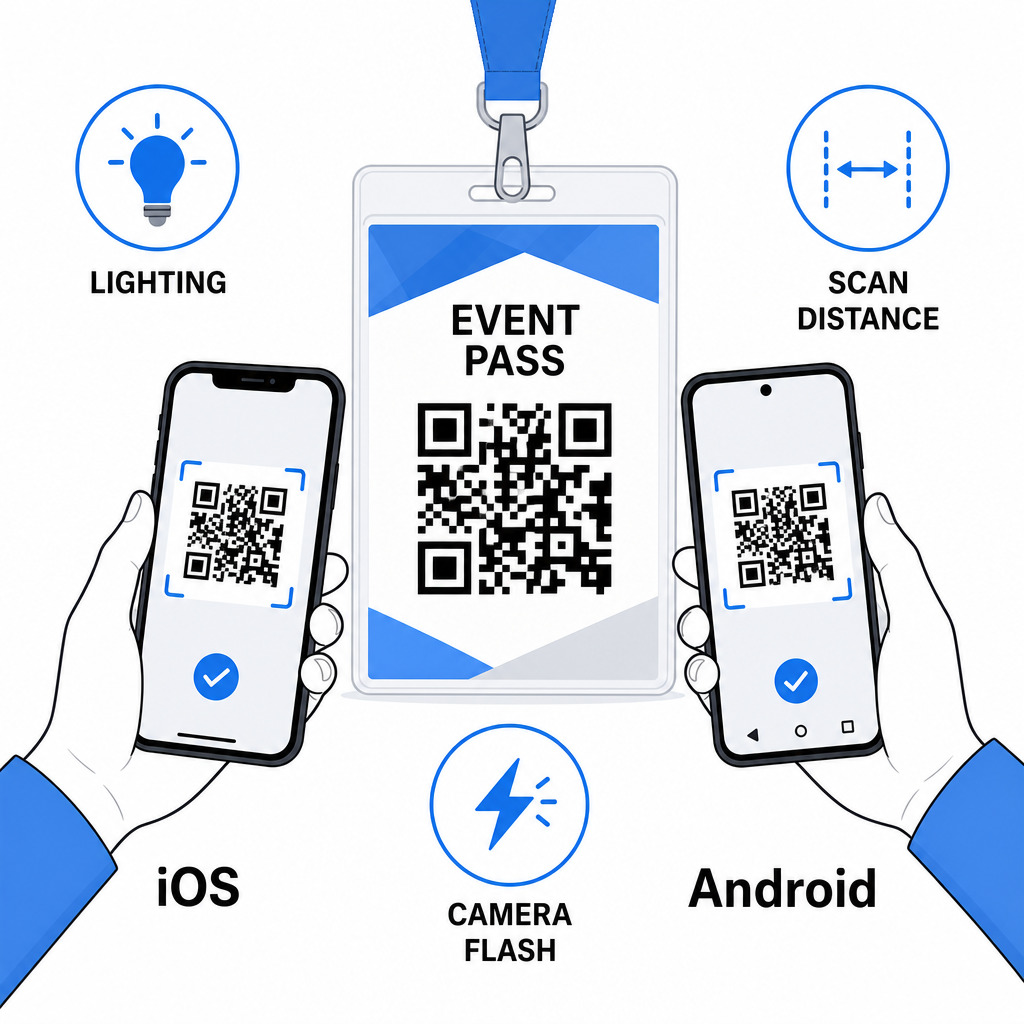
Tulosta vedos ja skannaa se ennen koko merkkimääräyksen lähettämistä tuotantoon. Testaa koodi sekä iOS- että Android-laitteilla, tapahtumapaikkasi valaistusolosuhteissa, etäisyydeltä, josta osallistujat ja henkilökunta todella skannaavat, ja kameran salamalla ja ilman sitä simuloidaksesi heikon valaistuksen tilanteita. Koodi, joka läpäisee kaikki neljä testiä, on valmis tuotantoon. Koodi, joka epäonnistuu jossakin niistä, tarvitsee suunnittelun säätöä – olipa kyse sitten koon suurentamisesta, kontrastin parantamisesta tai hiljaisen alueen laajentamisesta – ennen kuin sitoudut täyteen painokseen.
QR-koodit nimilapuissa toimivat parhaiten, kun oikea koodityyppi, selkeä muotoilu ja oikeat tulostusmääritykset yhdistyvät ennen kuin yksikään merkki menee painoon. Valitse dynaaminen koodi, jos osallistujien tiedot saattavat muuttua tai jos haluat skannausanalytiikkaa. Noudata koon, kontrastin ja hiljaisen alueen sääntöjä varmistaaksesi, että jokainen merkki skannautuu luotettavasti tapahtumapäivänä. Ja testaa aina todellisilla laitteilla ennen tuotannon viimeistelyä.
Rakenna nimilappusi QR-koodit Luo muokattavia vCard- ja osallistumisen QR-koodeja sisäänrakennetulla analytiikalla ja dynaamisella muokkauksella. Aloita Pageloot QR-koodigeneraattori – ilmainen kokeilu, luottokorttia ei tarvita.
Usein kysytyt kysymykset
Voit koodata yhteystietoja, kuten nimen, puhelinnumeron, sähköpostin, yrityksen ja verkkosivuston, käyttämällä vCard QR-koodia, linkittää tapahtuman sisäänkirjautumislomakkeeseen käyttämällä osallistumisen QR-koodia tai ohjata mihin tahansa verkkokohteeseen, kuten LinkedIn-profiiliin tai digitaaliseen portfolioon. Oikea valinta riippuu siitä, onko ensisijainen tavoite yhteystietojen jakaminen, sisäänkirjautuminen vai yleisten tietojen käyttö.
Käytännön minimi nimilapun QR-koodille on 0,8 × 0,8 tuumaa (2 × 2 cm). Pienentäminen lisää skannausvirheiden riskiä, erityisesti vanhemmilla älypuhelimilla. Jos rintamerkkisi suunnittelussa on tilaa, koodin koon asettaminen lähemmäksi 1 × 1 tuumaa antaa luotettavampia tuloksia laajemmalla laitevalikoimalla ja valaistusolosuhteissa.
Jos käytit staattista QR-koodia, sinun olisi tulostettava kyseiset merkit uudelleen. Jos käytit dynaamista QR-koodia, voit päivittää kohteen – olipa kyseessä vCard, yhteystietosivu tai lomakelinkki – Pageloot-hallintapaneelista koskematta tulostettuun merkkiin. Tämä on yksi ensisijaisista syistä käyttää dynaamisia koodeja missä tahansa tapahtumassa, jossa on muuttuvia osallistujatietoja.