¿Necesita una forma más rápida de compartir detalles de contacto o registrar asistentes en su próximo evento? Los detalles escritos manualmente se pierden, las tarjetas de presentación de papel se acumulan y las largas filas de registro frustran a todos. Esta guía le explica cómo añadir códigos QR escaneables a las credenciales – cubriendo el tipo de código correcto, las reglas de diseño y las especificaciones de impresión que realmente funcionan.
Por qué los códigos QR pertenecen a las credenciales
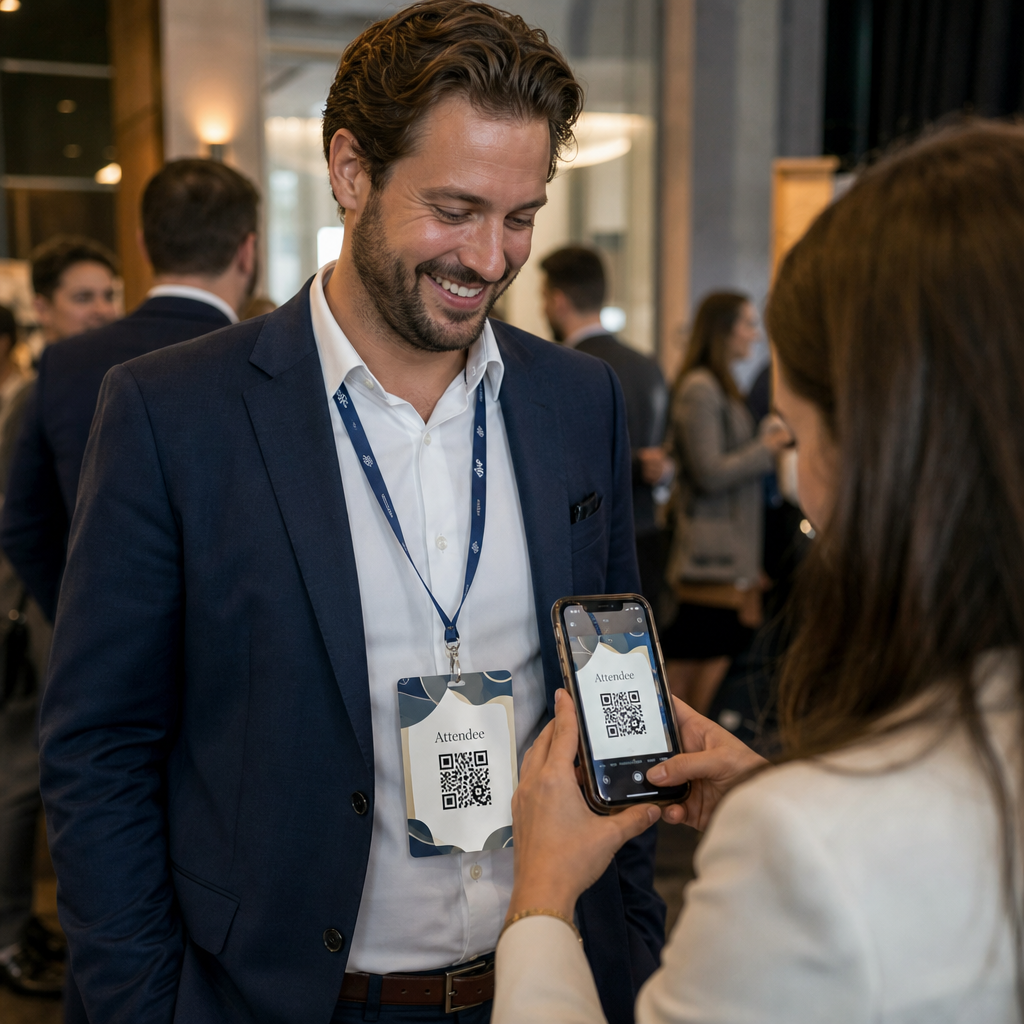
Una credencial tradicionalmente muestra un nombre y quizás una empresa. Eso es útil durante unos tres segundos de conversación. Un código QR convierte la misma credencial en un activo persistente y escaneable que funciona durante todo el evento.
Esto es lo que un código QR en una credencial puede hacer:
- Compartir detalles de contacto al instante – Un solo escaneo guarda una vCard completa directamente en el teléfono del escáner, sin necesidad de escribir
- Automatizar el registro de eventos – Los asistentes se registran en la puerta, registrando su llegada sin listas de papel o búsqueda manual
- Conectar a un perfil digital – Enlace a una página de LinkedIn, sitio web personal, portafolio o biografía del evento
- Seguimiento de la participación – Con un código dinámico, puede ver exactamente cuántas veces se escaneó una credencial, cuándo y desde qué dispositivo
El caso de uso de compartir contactos por sí solo justifica la adición. Un vCard Código QR codifica un nombre, número de teléfono, correo electrónico, empresa y sitio web en un formato que iOS y Android reconocen de forma nativa. Cuando alguien lo escanea, el teléfono le pide inmediatamente que añada el contacto – no se requiere aplicación, no hay entrada manual, no hay tarjetas perdidas.
Elegir el tipo de código QR adecuado para su credencial
No todos los códigos QR tienen el mismo propósito. Antes de imprimir cualquier cosa, haga coincidir el tipo de código con su objetivo.
| Objetivo | Tipo de código QR | Qué hace |
|---|---|---|
| Compartir información de contacto | vCard Código QR | Codifica nombre, teléfono, correo electrónico, empresa; guarda directamente en los contactos del teléfono |
| Registro de eventos | Código QR de asistencia/evento | Enlaza a un formulario de registro o sistema de registro |
| Enlace a un perfil o sitio web | Código QR de URL | Dirige a cualquier destino web |
| Compartir una tarjeta de presentación digital | Código QR de tarjeta de presentación | Enlaza a una tarjeta digital completa con perfiles sociales y contenido personalizado |
Para la mayoría de los eventos de networking, un vCard Código QR o un Código QR de tarjeta de visita es la elección correcta. Para conferencias donde también necesita rastrear quién asistió y cuándo, un código QR de asistencia o código QR de evento maneja esa capa.
Estático vs. Dinámico: ¿Cuál debería usar?
UNA código QR estático codifica datos directamente en su patrón. Una vez impreso, no se puede cambiar. Si la URL enlazada se rompe o los detalles de contacto de un asistente cambian, necesita reimprimir cada credencial.
UNA código QR dinámico utiliza un enlace de redirección corto. El patrón impreso permanece igual, pero puede actualizar el destino en cualquier momento – incluso después de que las credenciales ya estén en manos de los asistentes. Los códigos dinámicos también proporcionan análisis: número de escaneos, hora del escaneo, tipo de dispositivo y ubicación. Para cualquier evento con más de un puñado de asistentes, códigos QR dinámicos valen el paso adicional de configuración.
Importante: Para acceder a las funciones de seguimiento y edición, debe generar un código dinámico antes de que comience el proceso de impresión.
Configurar códigos QR de credenciales rastreables Cree códigos QR dinámicos que pueda actualizar y monitorear desde un único panel de control. Utilice el Generador de códigos QR para empezar – no se necesita reimpresión si los detalles cambian.
Cómo crear un código QR vCard para una credencial
Este es el caso de uso más común de credenciales – compartir contactos al instante en eventos de networking, conferencias y ferias comerciales. Para empezar, abra el Generador de códigos QR de contacto vCard y rellene los campos obligatorios: como mínimo un nombre completo y un método de contacto como un número de teléfono o una dirección de correo electrónico. A partir de ahí, añada campos opcionales – nombre de la empresa, cargo, sitio web, perfiles sociales – para que el registro de contacto guardado sea más útil para la persona que escanea.
Una vez introducidos los datos, personalice el diseño ajustando los colores, añadiendo un logotipo y eligiendo un estilo de marco que coincida con la marca de su evento. Descargue el código en un formato listo para imprimir – SVG o EPS para salida escalable, PNG para uso digital – y pruébelo tanto en iOS como en Android antes de enviar los archivos a la impresora.
Repita este proceso para cada asistente si está creando credenciales individualizadas, o cree un único código compartido para un stand de empresa o un punto de registro de equipo. Para una mirada más profunda a la configuración de vCard y las mejores prácticas, el guía de códigos QR vCard cubre el flujo de trabajo completo en detalle.
Cómo usar códigos QR para el registro de eventos en credenciales
Para conferencias, talleres o cualquier evento con entrada, un código QR en la credencial funciona como credencial de registro y herramienta de networking. Comience creando un formulario de registro usando Google Forms, Typeform o su plataforma de gestión de eventos. Luego genere un código QR de asistencia que enlaza directamente al formulario o sistema de registro e imprímalo en cada credencial de asistente antes del evento – o inclúyalo en un correo electrónico previo al evento para impresión de autoservicio.
En la puerta, el personal escanea cada credencial con un smartphone o un escáner de mano para registrar la llegada. El sistema registra el escaneo automáticamente, sin necesidad de listas de papel o búsqueda manual. Los registros con código QR pueden reducir el tiempo de procesamiento a menos de dos segundos por persona, lo que reduce significativamente la duración total de la entrada en comparación con los métodos manuales. Para una guía completa de la configuración del registro de eventos, consulta el guía de códigos QR para registros de eventos.
También puedes combinar ambas funciones en una sola credencial: un código QR vCard para compartir contactos y un código de asistencia separado para el registro. Colócalos en diferentes áreas de la credencial con etiquetas claras para que los asistentes y el personal sepan cuál escanear y cuándo.
Automatiza el registro de tu evento Deja de gestionar listas de papel y búsquedas manuales. Usa el herramienta de Código QR de Asistencia para configurar un sistema de registro basado en escaneo que registra las llegadas en tiempo real.
Reglas de diseño para mantener escaneables los códigos QR de las credenciales
Un código QR que se ve bien pero no se escanea es inútil. Las credenciales crean desafíos específicos: área de impresión pequeña, condiciones de iluminación variadas, credenciales usadas en diferentes ángulos y personas escaneando a distancia de un brazo. Las siguientes reglas abordan cada uno de estos problemas directamente.
Tamaño: Aplica la relación 10:1
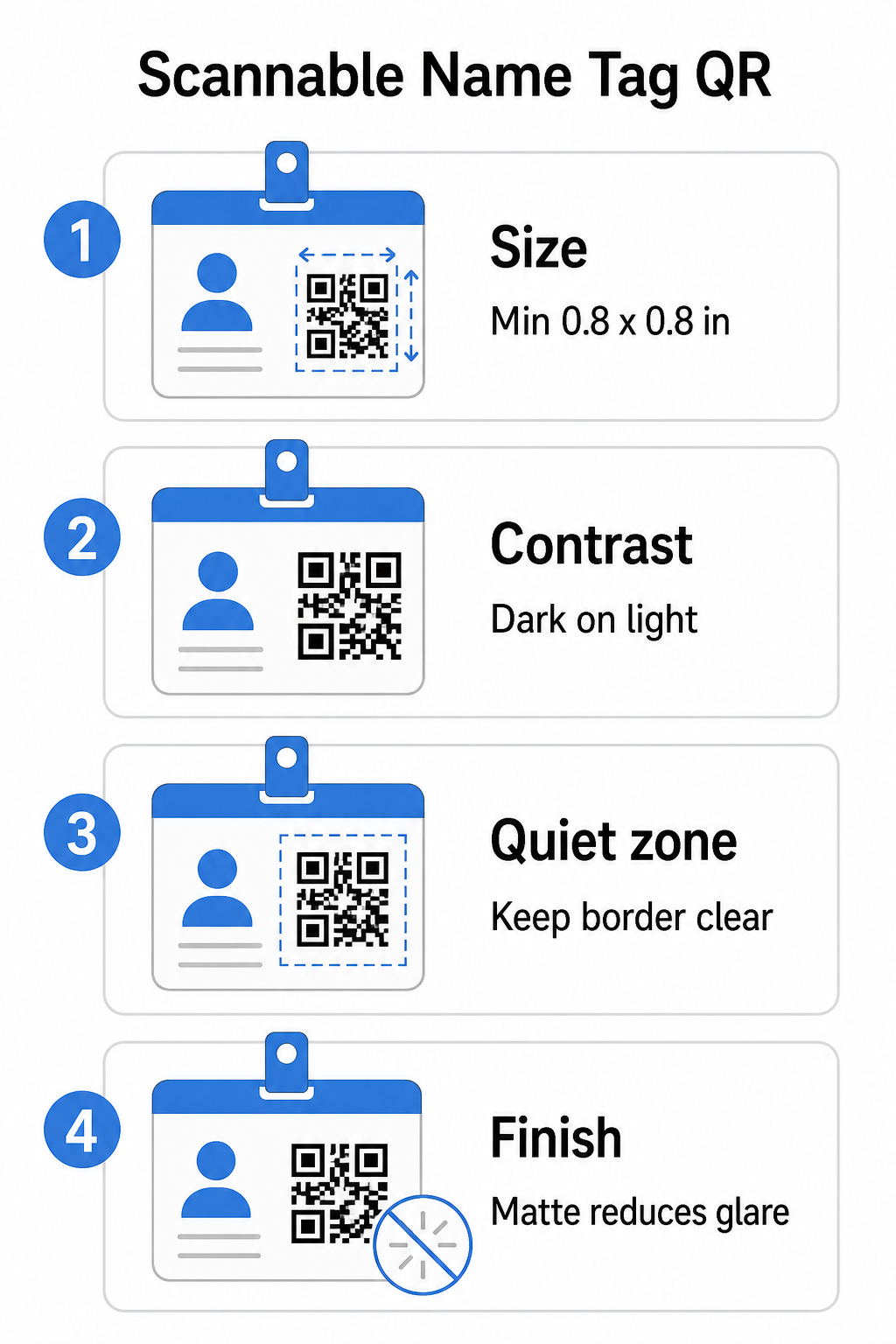
La dimensión más pequeña del código QR debe ser aproximadamente una décima parte de la distancia de escaneo esperada. Para una credencial escaneada desde aproximadamente 10 pulgadas (25 cm) de distancia, el código debe tener al menos 1 pulgada (2.5 cm) de ancho. El mínimo práctico para cualquier código impreso de corto alcance es 0.8 × 0.8 pulgadas (2 × 2 cm) – ir más pequeño crea fallos de escaneo innecesarios, especialmente en teléfonos más antiguos. Si tu credencial tiene espacio, dimensionar el código más cerca de 1 × 1 pulgada ofrece resultados más fiables en una gama más amplia de dispositivos. Para más detalles sobre las decisiones de tamaño, consulta Tamaños de códigos QR para tarjetas de visita – los mismos principios se aplican directamente a las credenciales.
Contraste: Oscuro sobre claro solamente
Los escáneres funcionan detectando el contraste entre módulos oscuros y un fondo claro. La mejor práctica es un primer plano oscuro sobre un fondo claro – el negro sobre blanco sigue siendo la combinación más fiable. Los códigos invertidos (módulos claros sobre un fondo oscuro) causan fallos en muchas aplicaciones de escaneo, particularmente las más antiguas. Busca un relación de contraste de al menos 4:1, que soporta la legibilidad en diferentes entornos de iluminación y cámaras de dispositivos.
Evita gradientes y sombras en o alrededor del área del código QR. Estos crean tonos medios que confunden los algoritmos del escáner y reducen la fiabilidad en entornos de poca luz. El guía de mejores prácticas de contraste de color de códigos QR proporciona una guía específica de combinación de colores y una tabla de comparación de contraste si quieres usar colores de marca en lugar de un simple blanco y negro.
Zona silenciosa: Mantén los bordes claros
El zona tranquila es el margen en blanco que rodea el código QR en los cuatro lados. Le dice al escáner dónde empieza y termina el código – sin él, el escáner no puede localizar el símbolo de forma fiable. Según el estándar ISO/IEC 18004, este margen debe tener al menos cuatro módulos de ancho en cada lado. Si el diseño de tu credencial coloca texto, logotipos o elementos decorativos demasiado cerca del código, el escáner puede no detectarlo por completo. Como regla práctica: si cada módulo de tu código tiene 2 mm de ancho, la zona silenciosa debe tener al menos 8 mm en cada lado.
Corrección de errores: Auméntala si añades un logotipo
Los códigos QR tienen cuatro niveles de corrección de errores que determinan cuánto daño físico u obstrucción puede tolerar el código mientras sigue siendo escaneable: L (aproximadamente 7%), M (aproximadamente 15%), Q (aproximadamente 25%) y H (aproximadamente 30%). Si estás incrustando un logotipo o icono de empresa dentro del área del código – común para credenciales de marca – usa el nivel de corrección de errores H y mantén el logotipo en no más del 30% del área del código. Esto le da al escáner suficientes datos redundantes para reconstruir el patrón incluso con parte de él cubierto. Si no estás añadiendo un logotipo, el nivel M o Q es suficiente para la mayoría de las aplicaciones de impresión.
Forma y formato: Nunca estires ni comprimas
Un código QR debe permanecer perfectamente cuadrado. Estirar o comprimir el código para que encaje en un diseño desalinea los módulos y lo hace inescaneable. Escala siempre proporcionalmente y exporta en formatos vectoriales (SVG o EPS) para impresión para evitar la pixelación en tamaños más grandes.
Acabado: Elige mate sobre brillante
Los materiales de credenciales brillantes reflejan la luz y crean un resplandor que interfiere con el escaneo de la cámara. La laminación mate o el papel sin recubrimiento funcionan significativamente mejor en la iluminación real de eventos. Si estás imprimiendo en credenciales brillantes, prueba los códigos bajo las condiciones de iluminación reales de tu lugar antes de finalizar la tirada de impresión. El guía de mejores prácticas de legibilidad de códigos QR cubre cada uno de estos factores con profundidad adicional.
Colocación en la credencial
Dónde se encuentra el código QR en una credencial afecta la frecuencia con la que se escanea. Considera estos principios de colocación:
- Posicionar a la altura natural de los ojos cuando se lleva puesto – la mitad inferior de una credencial a la altura del pecho es fácil de escanear sin pedirle a alguien que se la quite
- Etiquetar el código claramente – incluir una instrucción corta como “Escanear para guardar contacto” o “Registrarse aquí” directamente debajo o al lado del código; las personas son significativamente más propensas a escanear cuando saben lo que hace el código
- Separar múltiples códigos – si tu credencial incluye tanto un código de registro como un código para compartir contacto, etiqueta cada uno claramente y dales suficiente espacio para ser escaneados individualmente sin confusión
- Evitar colocar el código cerca del clip de la credencial o del orificio del cordón – estas áreas se doblan o se cubren, lo que puede bloquear parte del código o la zona de silencio
Pruebas antes de imprimir
Imprime una prueba y escanéala antes de enviar el pedido completo de credenciales a producción. Prueba el código en dispositivos iOS y Android, bajo las condiciones de iluminación del lugar de tu evento, a la distancia desde la que los asistentes y el personal realmente escanearán, y con y sin el flash de la cámara para simular escenarios de poca luz. Un código que pasa las cuatro pruebas está listo para producción. Uno que falla en cualquiera de ellas necesita un ajuste de diseño – ya sea aumentando el tamaño, mejorando el contraste o expandiendo la zona de silencio – antes de comprometerte con una tirada de impresión completa.
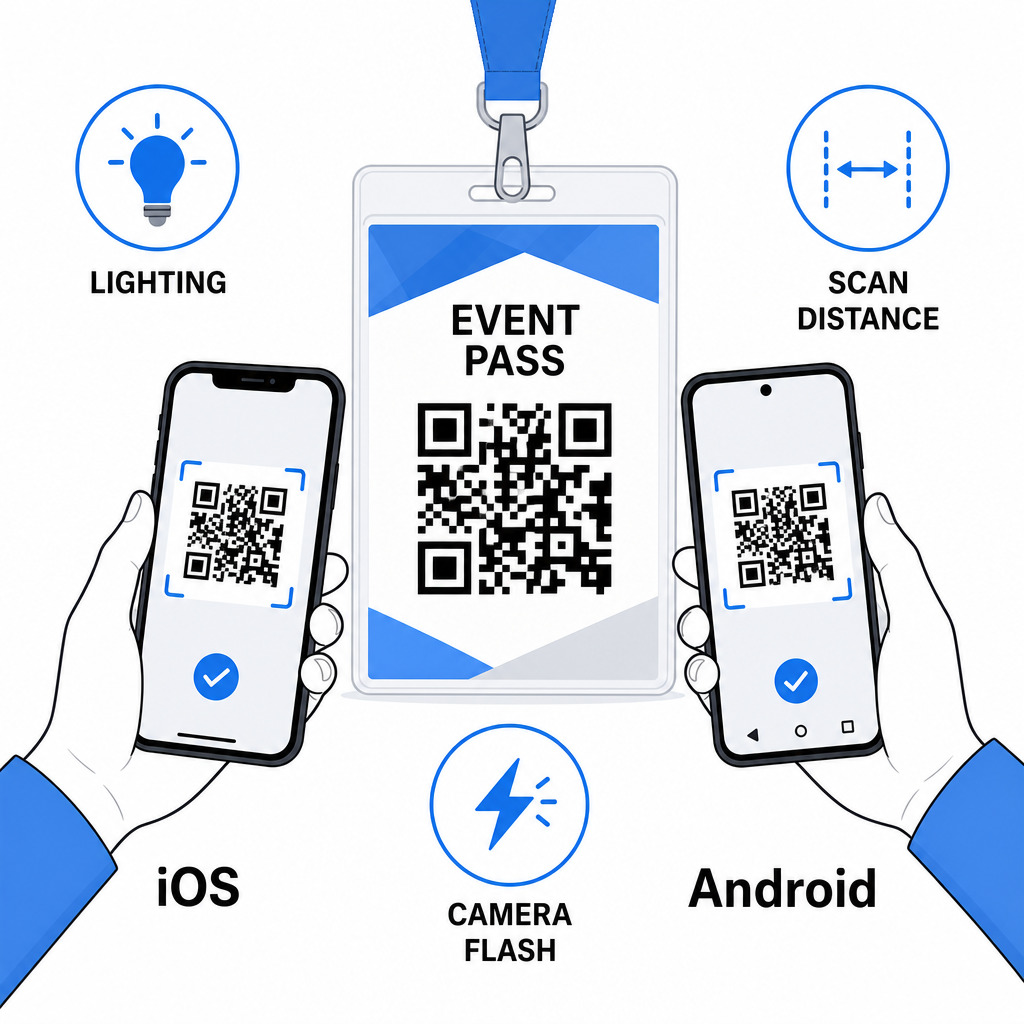
Los códigos QR en las credenciales funcionan mejor cuando el tipo de código correcto, un diseño limpio y las especificaciones de impresión correctas se unen antes de que una sola credencial se imprima. Elige un código dinámico si los detalles del asistente podrían cambiar o si quieres análisis de escaneo. Sigue las reglas de tamaño, contraste y zona de silencio para asegurar que cada credencial se escanee de forma fiable el día del evento. Y siempre prueba en dispositivos reales antes de finalizar la producción.
Crea tus códigos QR para credenciales Crea códigos QR personalizables para vCard y asistencia con análisis integrados y edición dinámica. Empieza con el Generador de códigos QR de Pageloot – gratis para probar, no se requiere tarjeta de crédito.
Preguntas frecuentes
Puede codificar detalles de contacto como nombre, teléfono, correo electrónico, empresa y sitio web utilizando un código QR de vCard, vincular a un formulario de registro de eventos utilizando un código QR de asistencia, o apuntar a cualquier destino web como un perfil de LinkedIn o un portafolio digital. La elección correcta depende de si el objetivo principal es compartir contactos, el registro o el acceso a información general.
El mínimo práctico para un código QR de etiqueta de nombre es 0.8 × 0.8 pulgadas (2 × 2 cm). Ir más pequeño aumenta el riesgo de fallos de escaneo, especialmente en smartphones más antiguos. Si el diseño de su credencial tiene el espacio, dimensionar el código más cerca de 1 × 1 pulgada da resultados más fiables en una gama más amplia de dispositivos y condiciones de iluminación.
Si usaste un código QR estático, necesitarías reimprimir las credenciales afectadas. Si usaste un código QR dinámico, puedes actualizar el destino – ya sea una vCard, una página de contacto o un enlace a un formulario – desde tu panel de control de Pageloot sin tocar la credencial impresa. Esta es una de las razones principales para usar códigos dinámicos para cualquier evento con información variable de los asistentes.