ホーム > ユースケース > QR Codes on Name Tags: A Practical Setup Guide
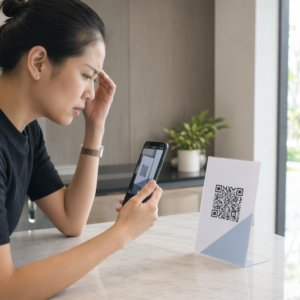
QR name tag scan

QR Codes on Name Tags: A Practical Setup Guide

Learn how to add QR codes to name tags for instant contact sharing and event check-in. This guide covers vCard setup, design rules, and essential print specs.
Updated on 7月 2, 2026
目次

Need a faster way to share contact details or check in attendees at your next event? Manually typed details get lost, paper business cards pile up, and long check-in lines frustrate everyone. This guide walks you through how to add scannable QR codes to name tags – covering the right code type, design rules, and print specs that actually work.

Why QR Codes Belong on Name Tags

A name tag traditionally displays a name and maybe a company. That’s useful for about three seconds of conversation. A QR code turns the same badge into a persistent, scannable asset that works throughout the entire event.

Here’s what a QR code on a name tag can do:

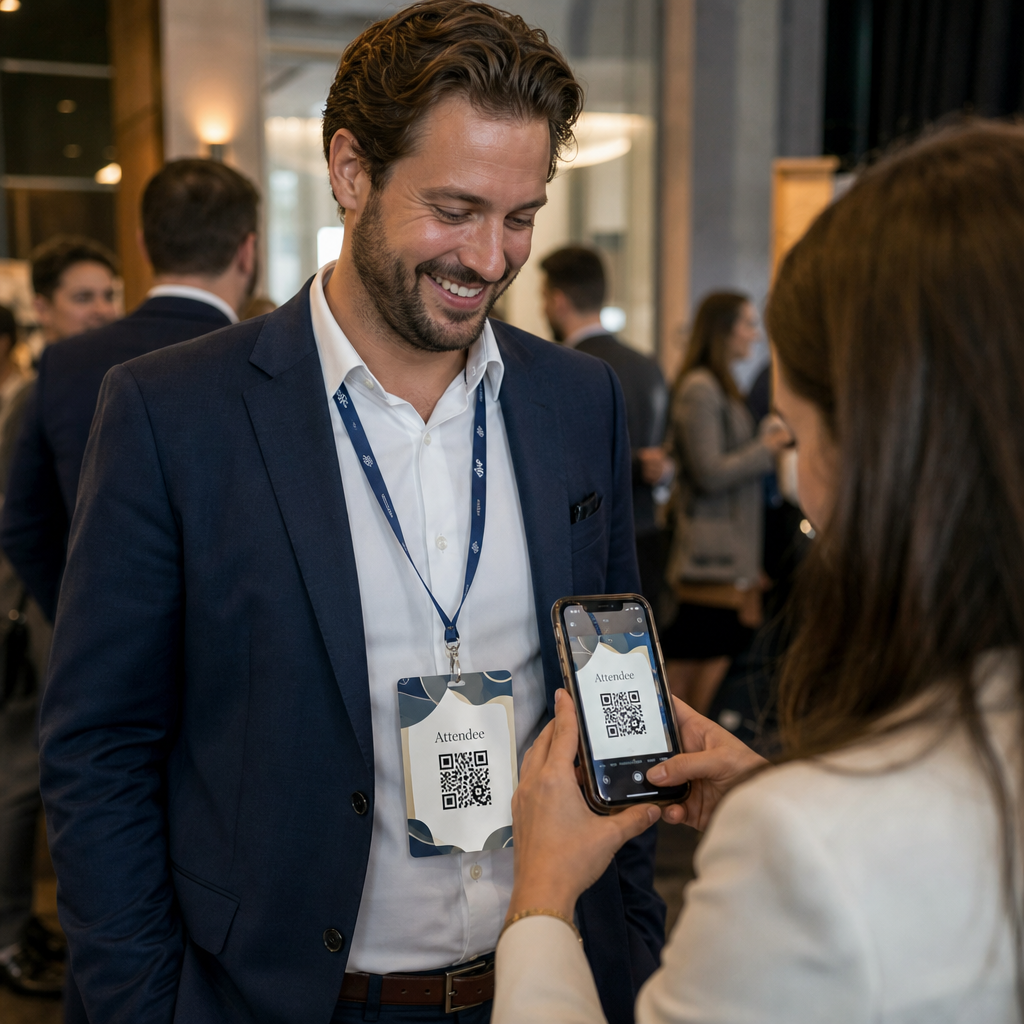
  • Share contact details instantly – One scan saves a full vCard directly to the scanner’s phone, no typing required
  • Automate event check-in – Attendees scan in at the door, registering their arrival without paper lists or manual lookup
  • Connect to a digital profile – Link to a LinkedIn page, personal website, portfolio, or event bio
  • エンゲージメントを追跡する – With a dynamic code, you can see exactly how many times a badge was scanned, when, and from what device

The contact-sharing use case alone justifies the addition. A vカードQRコード encodes a name, phone number, email, company, and website in a format that iOS and Android recognize natively. When someone scans it, the phone immediately prompts them to add the contact – no app required, no manual entry, no lost cards.

Choosing the Right QR Code Type for Your Name Tag

Not every QR code serves the same purpose. Before you print anything, match the code type to your goal.

Goal QRコードタイプ What It Does
Share contact info vカードQRコード Encodes name, phone, email, company; saves directly to phone contacts
Event check-in Attendance/event QR code Links to a registration form or check-in system
Link to a profile or website URL QR code Directs to any web destination
Share a digital business card Business card QR code Links to a full digital card with social profiles and custom content

For most networking events, a vカードQRコード または 名刺QRコード is the right choice. For conferences where you also need to track who showed up and when, an attendance QR code 或いは event QR code handles that layer.

Static vs. Dynamic: Which Should You Use?

静的QRコード encodes data directly into its pattern. Once printed, it cannot be changed. If the linked URL breaks or an attendee’s contact details change, you need to reprint every badge.

ダイナミックQRコード uses a short redirect link. The printed pattern stays the same, but you can update the destination anytime – even after badges are already in attendees’ hands. Dynamic codes also provide analytics: number of scans, time of scan, device type, and location. For any event with more than a handful of attendees, ダイナミックQRコード are worth the extra setup step.

Important: To access tracking and editing features, you must generate a dynamic code before the printing process begins.

Set Up Trackable Name Tag QR Codes Create dynamic QR codes that you can update and monitor from a single dashboard. Use the QRコードジェネレーター to get started – no reprinting needed if details change.

How to Create a vCard QR Code for a Name Tag

This is the most common name tag use case – instant contact sharing at networking events, conferences, and trade shows. To get started, open the vCardのQRコードジェネレータ and enter the required fields: at minimum a full name and one contact method such as a phone number or email address. From there, add optional fields – company name, job title, website, social profiles – to make the saved contact record more useful for the person scanning.

Once the data is in, customize the design by adjusting colors, adding a logo, and choosing a frame style that matches your event branding. Download the code in a print-ready format – SVG or EPS for scalable output, PNG for digital use – and test it on both iOS and Android before sending files to the printer.

Repeat this process for each attendee if you’re creating individualized badges, or create a single shared code for a company booth or team check-in point. For a deeper look at vCard setup and best practices, the guide to vCard QR codes covers the full workflow in detail.

How to Use QR Codes for Event Check-In on Badges

For conferences, workshops, or any ticketed event, a QR code on the badge doubles as both a check-in credential and a networking tool. Start by creating a registration form using Google Forms, Typeform, or your event management platform. Then generate an attendance QR code that links directly to the form or check-in system and print it on each attendee badge before the event – or include it in a pre-event email for self-service printing.

At the door, staff scan each badge with a smartphone or handheld scanner to register arrival. The system logs the scan automatically, with no paper lists or manual lookup needed. QR code check-ins can reduce processing time to under two seconds per person, which cuts total entry duration significantly compared to manual methods. For a full walkthrough of event check-in setup, see the guide to QR codes for event check-ins.

You can also combine both functions on a single badge: a vCard QR code for contact sharing and a separate attendance code for check-in. Place them in different areas of the badge with clear labels so attendees and staff know which to scan and when.

Automate Your Event Check-In Stop managing paper lists and manual lookups. Use the Attendance QR Code tool to set up a scan-based check-in system that registers arrivals in real time.

Design Rules That Keep Name Tag QR Codes Scannable

A QR code that looks good but fails to scan is useless. Name tags create specific challenges: small print area, varied lighting conditions, badges worn at different angles, and people scanning from arm’s length. The following rules address each of these problems directly.

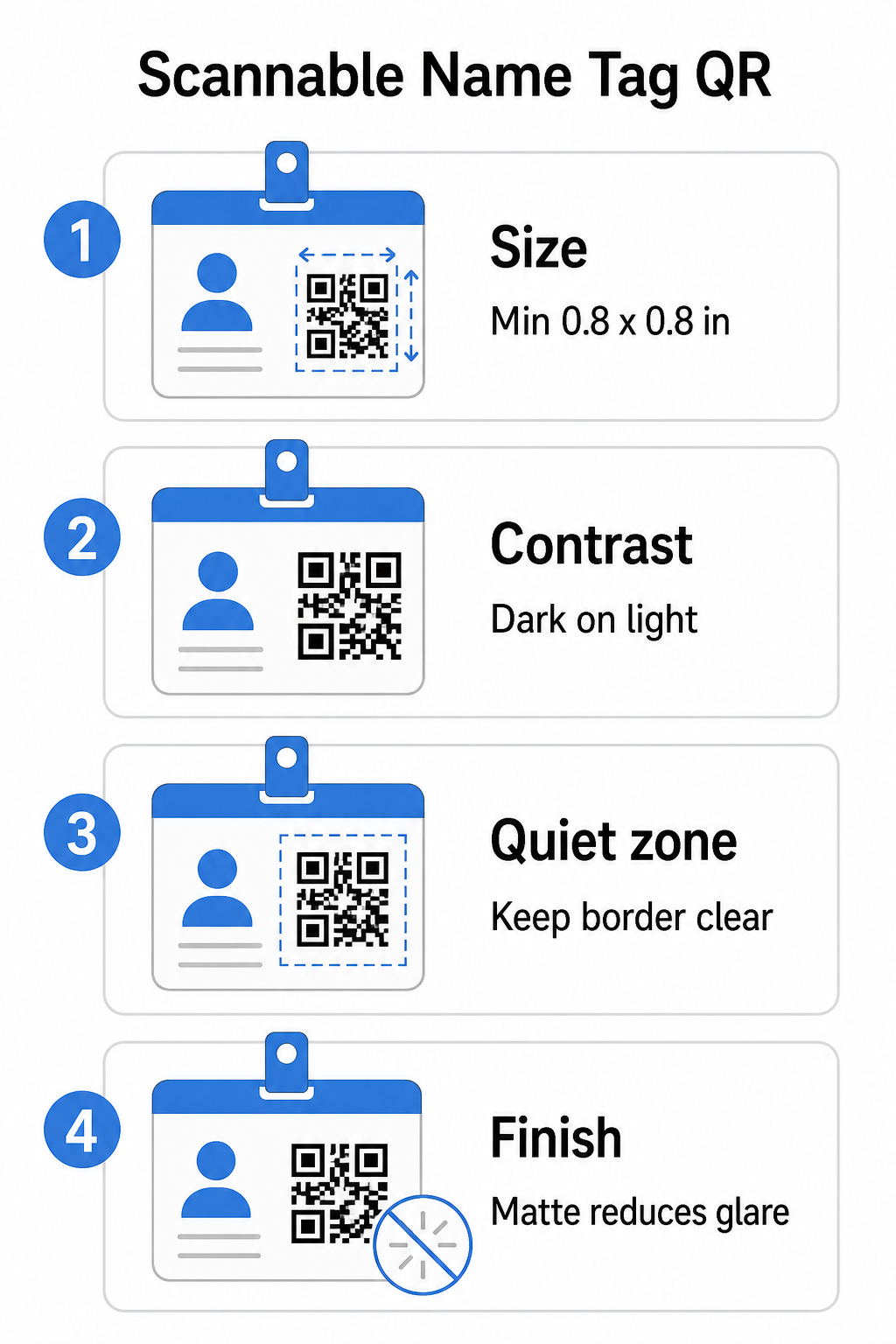
Name tag QR rules

Size: Apply the 10:1 Ratio

The QR code’s smallest dimension should be roughly one-tenth of the expected scanning distance. For a name tag scanned from about 10 inches (25 cm) away, the code needs to be at least 1 inch (2.5 cm) wide. The practical minimum for any close-range printed code is 0.8 × 0.8インチ (2 × 2 cm) – going smaller creates unnecessary scan failures, especially on older phones. If your badge has the space, sizing the code closer to 1 × 1 inch gives more reliable results across a wider range of devices. For more detail on sizing decisions, see QR code sizes for business cards – the same principles apply directly to name tags.

Contrast: Dark on Light Only

Scanners work by detecting the contrast between dark modules and a light background. Best practice is a 明るい背景に暗い前景 – black on white remains the most reliable combination. Inverted codes (light modules on a dark background) cause failures on many scanning apps, particularly older ones. Aim for a 少なくとも4:1のコントラスト比, which supports readability across different lighting environments and device cameras.

Avoid gradients and shadows in or around the QR code area. These create mid-tones that confuse scanner algorithms and reduce reliability in low-light settings. The QR code color contrast best practices guide provides specific color combination guidance and a contrast comparison table if you want to use branded colors rather than plain black and white.

Quiet Zone: Keep the Borders Clear

クワイエットゾーン is the blank margin surrounding the QR code on all four sides. It tells the scanner where the code begins and ends – without it, the scanner cannot reliably locate the symbol. Per the ISO/IEC 18004 standard, this margin must be at least four modules wide on every side. If your badge design places text, logos, or decorative elements too close to the code, the scanner may fail to detect it entirely. As a practical rule: if each module in your code is 2 mm wide, the quiet zone should be at least 8 mm on every side.

Error Correction: Bump It Up If Adding a Logo

QR codes have four error correction levels that determine how much physical damage or obstruction the code can tolerate while remaining scannable: L (approximately 7%), M (approximately 15%), Q (approximately 25%), and H (approximately 30%). If you’re embedding a company logo or icon inside the code area – common for branded badges – use error correction level H and keep the logo to no more than 30% of the code area. This gives the scanner enough redundant data to reconstruct the pattern even with part of it covered. If you’re not adding a logo, level M or Q is sufficient for most print applications.

Shape and Format: Never Stretch or Compress

A QR code must remain perfectly square. Stretching or compressing the code to fit a layout misaligns the modules and makes it unscannable. Always scale proportionally and export in vector formats (SVG or EPS) for print to avoid pixelation at larger sizes.

Finish: Choose Matte Over Glossy

Glossy badge materials reflect light and create glare that interferes with camera scanning. Matte lamination or uncoated stock performs significantly better in real-world event lighting. If you’re printing on glossy badges, test the codes under your venue’s actual lighting conditions before finalizing the print run. The QR code readability best practices guide covers each of these factors with additional depth.

Placement on the Badge

Where the QR code sits on a name tag affects how often it gets scanned. Consider these placement principles:

  • Position at a natural eye level when worn – the lower half of a chest-height badge is easy to scan without asking someone to remove it
  • Label the code clearly – include a short instruction like “Scan to save contact” or “Check in here” directly below or beside the code; people are significantly more likely to scan when they know what the code does
  • Separate multiple codes – if your badge includes both a check-in code and a contact-sharing code, label each clearly and give them enough space to be scanned individually without confusion
  • Avoid placing the code near the badge clip or lanyard hole – these areas get folded or covered, which can block part of the code or the quiet zone

印刷前のテスト

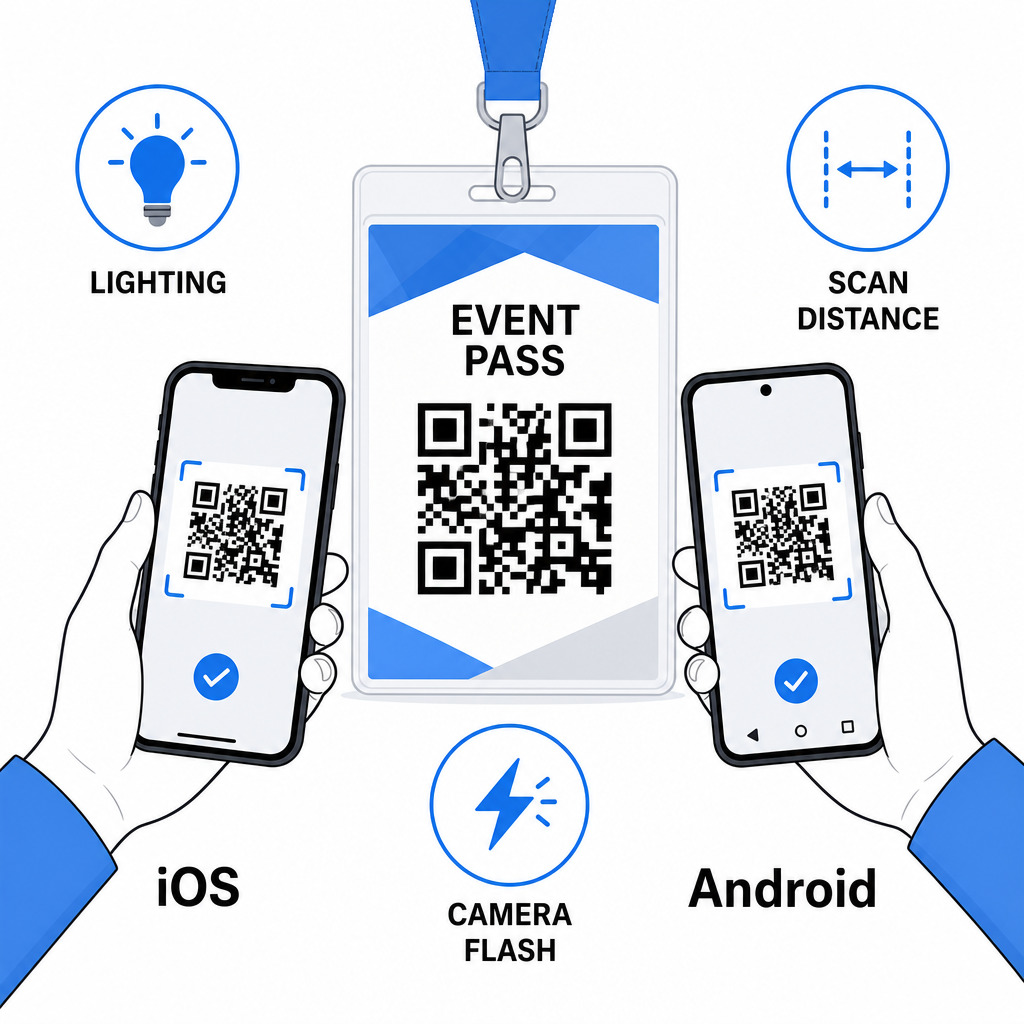
Print a proof and scan it before sending the full badge order to production. Test the code on both iOS and Android devices, under the lighting conditions of your event venue, at the distance attendees and staff will actually scan from, and with and without the camera flash to simulate low-light scenarios. A code that passes all four tests is ready for production. One that fails on any of them needs a design adjustment – whether that’s increasing size, improving contrast, or expanding the quiet zone – before you commit to a full print run.

Testing badge QR

QR codes on name tags work best when the right code type, clean design, and correct print specs come together before a single badge goes to print. Choose a dynamic code if attendee details might change or if you want scan analytics. Follow the sizing, contrast, and quiet zone rules to ensure every badge scans reliably on the day. And always test on actual devices before finalizing production.

Build Your Name Tag QR Codes Create customizable vCard and attendance QR codes with built-in analytics and dynamic editing. Start with the Pageloot QRコードジェネレータ – free to try, no credit card required.

よくある質問

What information can I put in a QR code on a name tag?

You can encode contact details such as name, phone, email, company, and website using a vCard QR code, link to an event check-in form using an attendance QR code, or point to any web destination such as a LinkedIn profile or digital portfolio. The right choice depends on whether the primary goal is contact sharing, check-in, or general information access.

How small can a QR code be on a printed name tag?

The practical minimum for a name tag QR code is 0.8 × 0.8 inches (2 × 2 cm). Going smaller increases the risk of scan failures, especially on older smartphones. If your badge design has the space, sizing the code closer to 1 × 1 inch gives more reliable results across a wider range of devices and lighting conditions.

What happens if an attendee’s details change after the badges are printed?

If you used a static QR code, you would need to reprint the affected badges. If you used a dynamic QR code, you can update the destination – whether that’s a vCard, a contact page, or a form link – from your Pageloot dashboard without touching the printed badge. This is one of the primary reasons to use dynamic codes for any event with variable attendee information.

著者について

Siim KostabiはPagelootのコンテンツリードです。Pagelootの革新的なQRコード生成サービスについて執筆しています。5年以上にわたるQRコードに関する深い専門知識を持つSiimは、この分野の専門家です。QRテクノロジーを活用してデジタルインタラクションを簡素化・拡張する上で、大きな進歩を遂げています。.

カテゴリー
について詳しくはこちら
ウェブサイトのQRコードをスキャン中
QRコードの ウェブサイト
顧客が抽選用QRをスキャン
のQRコード 景品コンテスト
✅ QRコードの#1ソリューション

オンラインでQRコードを作成する必要がある場合は QRコードを作る ここで無料で
ページルートは #1のGo-Toソリューション でQRコードを作成してスキャンすることができます。

BL-0283

ブログジェネ

売上、レビュー、フォロワーを増やすために 20,000 を超えるブランドから信頼されています。

クライアントのロゴ
トップブランドから信頼される
5 のうち 4.8 と評価しました

4.86 / 5つ星評価

ユーゴ・ローラン
ユーゴ・ローラン
レストランオーナー
最も簡単で信頼性の高いQRコードジェネレータです。PDFファイルを即座にアップロードできます。レストランのメニューがデジタル化されました。
ルーカス・ジャンセン
ルーカス・ジャンセン
不動産開発業者
これは優れたツールで、QRコードでちょうど欲しいところに連れて行ってくれます。私たちは位置情報のQRコードしか使っていませんが、とても便利な機能がたくさんあります。
エマ・モレッティ
エマ・モレッティ
小売製品
使いやすいし、早い。素晴らしい機能で、完璧な画像を作成してくれるので、社員は私のvCardをダウンロードすることができます。
ユーゴ・ローラン
ユーゴ・ローラン
レストランオーナー
最も簡単で信頼性の高いQRコードジェネレータです。PDFファイルを即座にアップロードできます。レストランのメニューがデジタル化されました。
ルーカス・ジャンセン
ルーカス・ジャンセン
不動産開発業者
これは優れたツールで、QRコードでちょうど欲しいところに連れて行ってくれます。私たちは位置情報のQRコードしか使っていませんが、とても便利な機能がたくさんあります。
エマ・モレッティ
エマ・モレッティ
小売製品
使いやすいし、早い。素晴らしい機能で、完璧な画像を作成してくれるので、社員は私のvCardをダウンロードすることができます。
QRコードをもっと見る
QRコードの検索方法
どのように QRコードを検索
Supporter scanning donation QR
のQRコード 非営利団体
あらゆるものをデジタル体験に変えよう 3分以内に。

14日間の無料トライアル。

クレジットカードは必要ありません。

初回購入で30%オフ

次のコードを使用してください:

MP3ファイルを共有

PDF QRコードを作成するにはサインアップしてください

必要なものをすべてアップロードして表示する。

  • オーディオファイル
  • ポッドキャスト
  • 音楽

サインアップで14日間無料トライアル。.
トライアル終了後、QRコードは期限切れになります。.

オーディオmp3 QRコードを作成するにはサインアップしてください

フレームでより多くのスキャンを獲得

QRコードにフレームを追加するにはサインアップしてください

コールトゥアクションフレームは、お客様が簡単にQRコードと対話できるようにします。ぜひお試しください。

サインアップで14日間無料トライアル。.
トライアル終了後、QRコードは期限切れになります。.

QRコードにフレームを追加するにはサインアップしてください

シェイプでスタイルを追加

より多くの図形を作成するにはサインアップしてください

QRコードは四角いものである必要はありません。あなたのブランドのイメージに合わせて変えてみてください。

サインアップで14日間無料トライアル。.
トライアル終了後、QRコードは期限切れになります。.

より多くの図形を作成するにはサインアップしてください

QRコードにロゴを追加

QRコードにロゴを追加するにはサインアップしてください

QRコードにロゴやブランドを入れることで、目立たせることができます。

サインアップで14日間無料トライアル。.
トライアル終了後、QRコードは期限切れになります。.

QRコードにロゴを追加するにはサインアップしてください

スマートなApp Storeリダイレクト

アプリストアのQRコードを作成するにはサインアップしてください

スマートなApp StoreのQRコードに、あなたのアプリのリンクを追加します。ユーザーは、デバイスに応じてリダイレクトされます。

サインアップで14日間無料トライアル。.
トライアル終了後、QRコードは期限切れになります。.

アプリストアのQRコードを作成するにはサインアップしてください

QRコードに画像をアップロード

画像QRコードを作成するにはサインアップしてください

画像を簡単に共有できます。どんな画像も、数秒でダイナミックに変化します。

サインアップで14日間無料トライアル。.
トライアル終了後、QRコードは期限切れになります。.

画像QRコードを作成するにはサインアップしてください

PDFファイルを共有

PDF QRコードを作成するにはサインアップしてください

必要なものをすべてアップロードして表示する。

  • メニュー&プライスリスト
  • 指示
  • 任意の書類

サインアップで14日間無料トライアル。.
トライアル終了後、QRコードは期限切れになります。.

PDF QRコードを作成するにはサインアップしてください

印刷せずに後で編集

再度印刷せずにQRコードを編集するにはサインアップしてください

ダイナミックQRコードは、新たにQRコードを印刷することなく、QRコードの内容を変更することができます。

サインアップで14日間無料トライアル。.
トライアル終了後、QRコードは期限切れになります。.

再度印刷せずにQRコードを編集するにはサインアップしてください

いつ?どこで?QRコードのスキャンを追跡

QRコードを追跡するにはサインアップしてください

どのQRコードが最も多くスキャンされ、何が最も顧客を喜ばせているのかを知ることができます。

サインアップで14日間無料トライアル。.
トライアル終了後、QRコードは期限切れになります。.

QRコードを追跡するにはサインアップしてください

印刷可能なファイルが利用可能

PDFやSVGのようなベクターQRコードを作成するにはサインアップしてください

.eps、.pdf、.svg

QRコードをHD解像度でダウンロードしたいですか?すぐに印刷できるベクターまたはピクセル形式を入手しましょう。

サインアップで14日間無料トライアル。.
トライアル終了後、QRコードは期限切れになります。.

PDFやSVGのようなベクターQRコードを作成するにはサインアップしてください

しばらくお待ちください。あなたのQRコードは ロード... ロード...

あなただけのものに

サインアップしてQRコードを後で保存してください

異なる色、ロゴ、コールトゥアクションフレームで素晴らしいQRコードを作成することで、より多くのスキャンを得ることができます。

サインアップで14日間無料トライアル。.
トライアル終了後、QRコードは期限切れになります。.

サインアップしてQRコードを後で保存してください