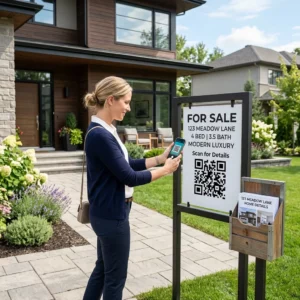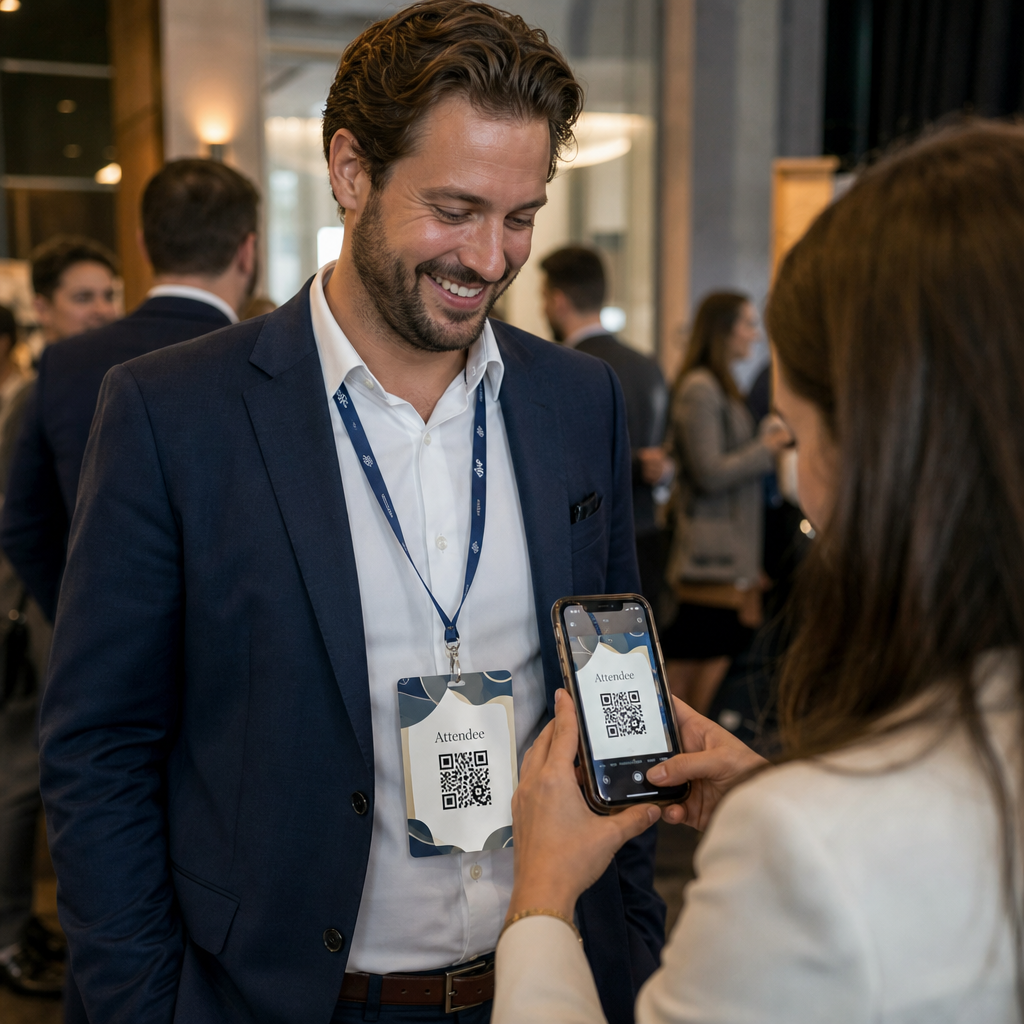
Kas vajate kiiremat viisi kontaktandmete jagamiseks või osalejate registreerimiseks oma järgmisel üritusel? Käsitsi sisestatud andmed lähevad kaduma, paberist visiitkaardid kuhjuvad ja pikad registreerimisjärjekorrad frustreerivad kõiki. See juhend näitab teile, kuidas lisada nimesiltidele skaneeritavaid QR-koode – käsitledes õiget kooditüüpi, disainireegleid ja prindispetsifikatsioone, mis tegelikult töötavad.
Miks QR-koodid kuuluvad nimesiltidele
Nimesilt kuvab traditsiooniliselt nime ja võib-olla ettevõtte. See on kasulik umbes kolmeks sekundiks vestluses. QR-kood muudab sama märgi püsivaks, skaneeritavaks varaks, mis töötab kogu ürituse vältel.
Siin on, mida QR-kood nimesildil teha saab:
- Jaga kontaktandmeid koheselt – Üks skaneerimine salvestab täieliku vCardi otse skanneri telefoni, ilma tippimiseta
- Automatiseeri ürituse registreerimine – Osalejad skaneerivad end uksel sisse, registreerides oma saabumise ilma paberil nimekirjade või käsitsi otsimiseta
- Ühenda digitaalse profiiliga – Lingi LinkedIni lehele, isiklikule veebisaidile, portfooliole või ürituse biograafiale
- Jälgige kaasatust – Dünaamilise koodiga näete täpselt, mitu korda märki skaneeriti, millal ja millisest seadmest
Ainuüksi kontaktide jagamise kasutusjuht õigustab lisamist. A vCard QR-kood kodeerib nime, telefoninumbri, e-posti, ettevõtte ja veebisaidi vormingus, mida iOS ja Android tunnevad loomulikult ära. Kui keegi seda skaneerib, palub telefon neil kohe kontakti lisada – pole vaja rakendust, käsitsi sisestamist ega kadunud kaarte.
Õige QR-koodi tüübi valimine oma nimesildile
Mitte iga QR-kood ei täida sama eesmärki. Enne midagi printimist sobitage kooditüüp oma eesmärgiga.
| Eesmärk | QR-koodi tüüp | Mida see teeb |
|---|---|---|
| Jaga kontaktinfot | vCard QR-kood | Kodeerib nime, telefoni, e-posti, ettevõtte; salvestab otse telefoni kontaktidesse |
| Ürituse registreerimine | Osalemise/ürituse QR-kood | Lingib registreerimisvormile või registreerimissüsteemile |
| Lingi profiilile või veebisaidile | URL-i QR-kood | Suunab mis tahes veebisihtkohta |
| Jaga digitaalset visiitkaarti | Visiitkaardi QR-kood | Lingib täielikule digitaalsele kaardile sotsiaalsete profiilide ja kohandatud sisuga |
Enamiku võrgustike loomise ürituste jaoks on a vCard QR-kood või a visiitkaardi QR-kood õige valik. Konverentside jaoks, kus peate ka jälgima, kes ja millal kohale ilmus, on an osaluse QR-koodi või sündmuse QR-kood käsitleb seda kihti.
Staatiline vs. Dünaamiline: Kumba peaksite kasutama?
A staatiline QR-kood kodeerib andmed otse oma mustrisse. Pärast printimist ei saa seda muuta. Kui lingitud URL katkeb või osaleja kontaktandmed muutuvad, peate iga pääsme uuesti printima.
A dünaamiline QR-kood kasutab lühikest ümbersuunamislinki. Prinditud muster jääb samaks, kuid sihtkohta saab igal ajal uuendada – isegi pärast seda, kui pääsmed on juba osalejate käes. Dünaamilised koodid pakuvad ka analüütikat: skaneeringute arv, skaneerimise aeg, seadme tüüp ja asukoht. Iga ürituse puhul, kus on rohkem kui käputäis osalejaid, dünaamilised QR-koodid on väärt lisaseadistamise sammu.
Tähtis: Jälgimis- ja redigeerimisfunktsioonidele juurdepääsuks peate genereerima dünaamilise koodi enne printimisprotsessi algust.
Seadistage jälgitavad nimesildi QR-koodid Looge dünaamilisi QR-koode, mida saate ühest juhtpaneelist uuendada ja jälgida. Kasutage QR-koodi generaator alustamiseks – andmete muutumisel pole uuesti printimist vaja.
Kuidas luua vCard QR-kood nimesildile
See on kõige levinum nimesildi kasutusjuhtum – kohene kontaktide jagamine võrgustikuüritustel, konverentsidel ja messidel. Alustamiseks avage vCard QR-koodi generaator ja sisestage nõutavad väljad: vähemalt täisnimi ja üks kontaktmeetod, näiteks telefoninumber või e-posti aadress. Sealt edasi lisage valikulised väljad – ettevõtte nimi, ametinimetus, veebisait, sotsiaalprofiilid – et salvestatud kontaktikirje oleks skaneerijale kasulikum.
Kui andmed on sisestatud, kohandage disaini, reguleerides värve, lisades logo ja valides raami stiili, mis sobib teie ürituse brändinguga. Laadige kood alla printimiseks valmis formaadis – SVG või EPS skaleeritava väljundi jaoks, PNG digitaalseks kasutamiseks – ja testige seda nii iOS-is kui ka Androidis enne failide printerisse saatmist.
Korrake seda protsessi iga osaleja puhul, kui loote individuaalseid pääsmeid, või looge üks jagatud kood ettevõtte boksi või meeskonna registreerimispunkti jaoks. vCardi seadistamise ja parimate tavade sügavama ülevaate saamiseks vCard QR-koodide juhendist käsitleb kogu töövoogu üksikasjalikult.
Kuidas kasutada QR-koode üritusele registreerimiseks pääsmetel
Konverentside, töötubade või mis tahes piletiga ürituste puhul toimib rinnamärgil olev QR-kood nii sisseregistreerimise mandaadina kui ka võrgustikutööriistana. Alustage registreerimisvormi loomisest Google Formsi, Typeformi või oma ürituste haldamise platvormi abil. Seejärel genereerige osaluse QR-koodi mis lingib otse vormi või sisseregistreerimissüsteemiga ja printige see igale osaleja rinnamärgile enne üritust – või lisage see ürituseelsele e-kirjale iseteeninduslikuks printimiseks.
Ukse juures skaneerivad töötajad iga rinnamärgi nutitelefoni või käeskanneriga, et registreerida saabumine. Süsteem logib skaneeringu automaatselt, ilma paberloendite või käsitsi otsimise vajaduseta. QR-koodiga sisseregistreerimine võib vähendada töötlemisaega alla kahe sekundi inimese kohta, mis lühendab oluliselt kogu sisenemise kestust võrreldes käsitsi meetoditega. Ürituse sisseregistreerimise seadistamise täieliku juhendi leiate siit: juhendile QR-koodide kohta ürituste registreerimiseks.
Saate kombineerida mõlemad funktsioonid ühel rinnamärgil: vCardi QR-kood kontaktide jagamiseks ja eraldi osalemiskood sisseregistreerimiseks. Asetage need rinnamärgi erinevatesse kohtadesse selgete siltidega, et osalejad ja töötajad teaksid, mida ja millal skaneerida.
Automatiseerige oma ürituse sisseregistreerimine Lõpetage paberloendite ja käsitsi otsingute haldamine. Kasutage Osavõtu QR-koodi tööriista skaneerimispõhise sisseregistreerimissüsteemi seadistamiseks, mis registreerib saabumised reaalajas.
Disainireeglid, mis hoiavad nimesiltide QR-koodid skaneeritavana
QR-kood, mis näeb hea välja, kuid ei skaneeri, on kasutu. Nimesildid tekitavad spetsiifilisi väljakutseid: väike trükipind, erinevad valgustingimused, erinevate nurkade all kantavad rinnamärgid ja inimesed, kes skaneerivad käeulatusest. Järgmised reeglid käsitlevad iga probleemi otse.
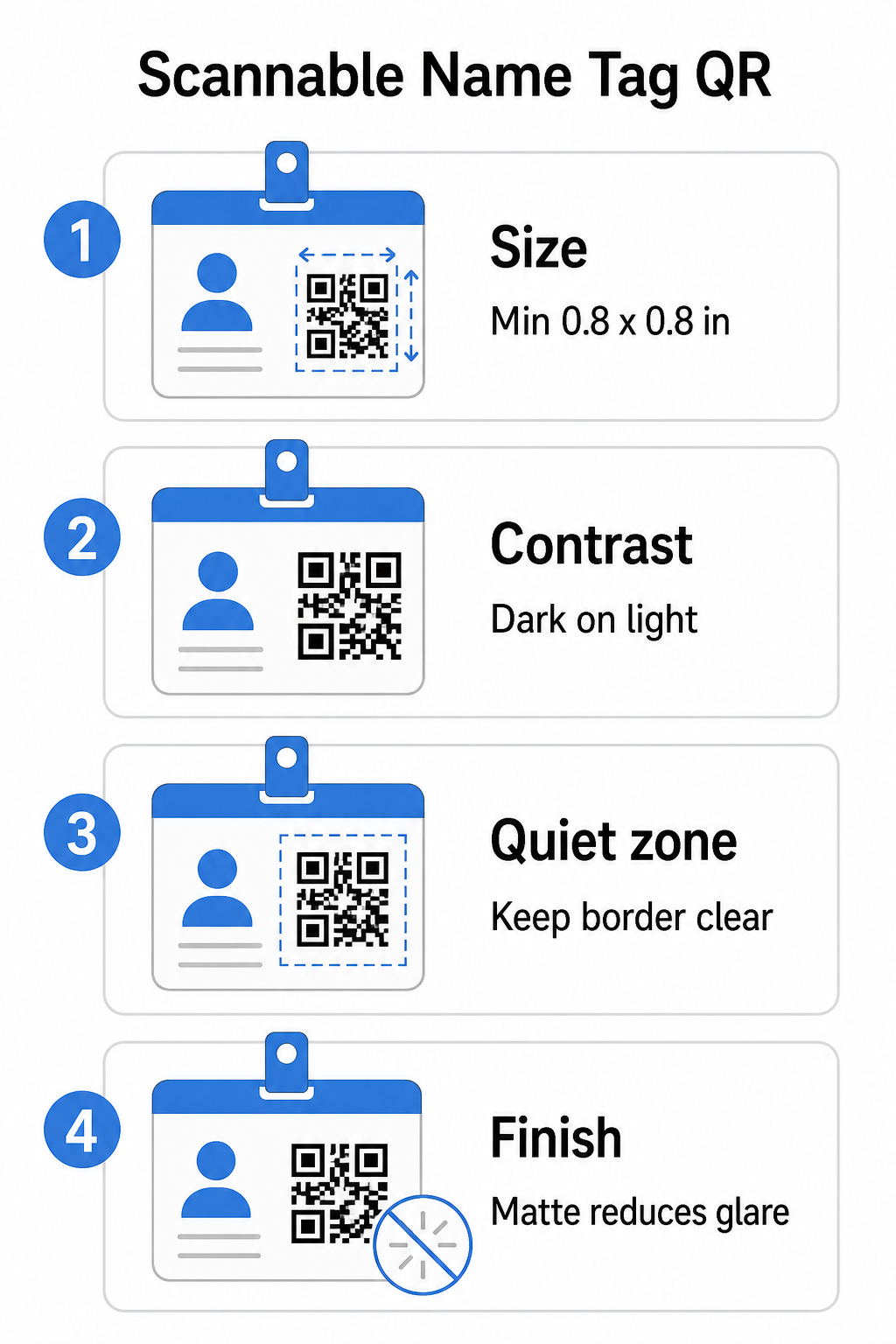
Suurus: Rakendage suhet 10:1
QR-koodi väikseim mõõde peaks olema umbes üks kümnendik eeldatavast skaneerimiskaugusest. Nimesildi puhul, mida skaneeritakse umbes 10 tolli (25 cm) kauguselt, peab kood olema vähemalt 1 toll (2,5 cm) lai. Praktiline miinimum mis tahes lähitrükitud koodi jaoks on 0,8 × 0,8 tolli (2 × 2 cm) – väiksemaks tegemine tekitab ebavajalikke skaneerimisvigu, eriti vanematel telefonidel. Kui teie rinnamärgil on ruumi, annab koodi suuruse seadmine 1 × 1 tollile lähemale usaldusväärsemaid tulemusi laiemas seadmete valikus. Suuruse valikute kohta lisateabe saamiseks vaadake QR-koodi suurused visiitkaartide jaoks – samad põhimõtted kehtivad otse nimesiltidele.
Kontrast: Ainult tume heledal
Skannerid töötavad tumedate moodulite ja heleda tausta vahelise kontrasti tuvastamise teel. Parim tava on tumeda esiplaaniga heledal taustal – must valgel jääb kõige usaldusväärsemaks kombinatsiooniks. Inverteeritud koodid (heledad moodulid tumedal taustal) põhjustavad vigu paljudes skaneerimisrakendustes, eriti vanemates. Püüdke saavutada kontrastisuhte vähemalt 4:1, mis toetab loetavust erinevates valgustingimustes ja seadmete kaameratega.
Vältige gradiente ja varje QR-koodi piirkonnas või selle ümber. Need loovad keskmisi toone, mis ajavad skanneri algoritme segadusse ja vähendavad usaldusväärsust hämaras valguses. QR-koodi värvikontrasti parimate tavade juhend pakub spetsiifilisi värvikombinatsiooni juhiseid ja kontrasti võrdlustabelit, kui soovite kasutada brändivärve tavalise mustvalge asemel.
Vaikne tsoon: Hoidke piirid selged
See vaikne tsoon on tühi äär, mis ümbritseb QR-koodi kõigil neljal küljel. See ütleb skannerile, kus kood algab ja lõpeb – ilma selleta ei suuda skanner sümbolit usaldusväärselt leida. Vastavalt ISO/IEC 18004 standardile peab see äär olema igal küljel vähemalt neli moodulit lai. Kui teie rinnamärgi kujundus paigutab teksti, logosid või dekoratiivseid elemente koodile liiga lähedale, võib skanner selle täielikult tuvastamata jätta. Praktilise reeglina: kui iga moodul teie koodis on 2 mm lai, peaks vaikne tsoon olema igal küljel vähemalt 8 mm.
Veaparandus: Suurendage seda, kui lisate logo
QR-koodidel on neli veaparandustaset, mis määravad, kui palju füüsilist kahjustust või takistust kood talub, jäädes samal ajal skaneeritavaks: L (umbes 7%), M (umbes 15%), Q (umbes 25%) ja H (umbes 30%). Kui te manustate ettevõtte logo või ikooni koodi alale – mis on tavaline bränditud rinnamärkide puhul – kasutage veaparanduse tase H ja hoidke logo mitte rohkem kui 30% koodialast. See annab skannerile piisavalt üleliigseid andmeid mustri taastamiseks isegi siis, kui osa sellest on kaetud. Kui te logo ei lisa, piisab enamiku trükirakenduste jaoks tasemest M või Q.
Kuju ja formaat: Ärge kunagi venitage ega suruge kokku
QR-kood peab jääma täiesti ruudukujuliseks. Koodi venitamisel või kokkusurumisel paigutuse sobitamiseks nihkuvad moodulid paigast ja see muutub skaneerimatuks. Skaleerige alati proportsionaalselt ja eksportige printimiseks vektorformaatides (SVG või EPS), et vältida pikseliseerumist suuremate suuruste korral.
Viimistlus: Valige matt läikiva asemel
Läikivad märkimaterjalid peegeldavad valgust ja tekitavad pimestamist, mis segab kaameraga skaneerimist. Matt lamineerimine või katmata paber toimib oluliselt paremini tegelikes ürituste valgustingimustes. Kui prindite läikivatele märkidele, testige koode oma ürituse tegelikes valgustingimustes enne trükkimise lõplikku kinnitamist. See QR-koodi loetavuse parimate tavade juhend käsitleb kõiki neid tegureid täiendava sügavusega.
Paigutus märgil
See, kus QR-kood nimesildil asub, mõjutab seda, kui tihti seda skaneeritakse. Arvestage nende paigutusprintsiipidega:
- Positsioon loomulikul silmade kõrgusel, kui seda kantakse – rinnakõrgusel oleva märgi alumine pool on lihtne skannida, ilma et peaks kedagi paluma seda eemaldada
- Märgistage kood selgelt – lisage otse koodi alla või kõrvale lühike juhis, näiteks “Skanni kontakti salvestamiseks” või “Registreeru siin”; inimesed skannivad oluliselt tõenäolisemalt, kui nad teavad, mida kood teeb
- Eraldage mitu koodi – kui teie märk sisaldab nii registreerimiskoodi kui ka kontakti jagamise koodi, märgistage need mõlemad selgelt ja andke
- Vältige koodi paigutamist nimesildi klambri või kaelapaela augu lähedale – need alad volditakse või kaetakse, mis võib blokeerida osa koodist või vaikse tsooni
Testimine enne printimist
Printige proovitrükk ja skannige see enne kogu nimesiltide tellimuse tootmisse saatmist. Testige koodi nii iOS-i kui ka Androidi seadmetel, teie ürituse toimumiskoha valgustingimustes, kauguselt, kust osalejad ja töötajad tegelikult skannivad, ning kaamera välklambiga ja ilma, et simuleerida hämarate valgustingimuste stsenaariume. Kood, mis läbib kõik neli testi, on tootmiseks valmis. Kood, mis mõnel neist ebaõnnestub, vajab disaini kohandamist – olgu selleks siis suuruse suurendamine, kontrasti parandamine või vaikse tsooni laiendamine – enne kui pühendute täielikule trükkimisele.
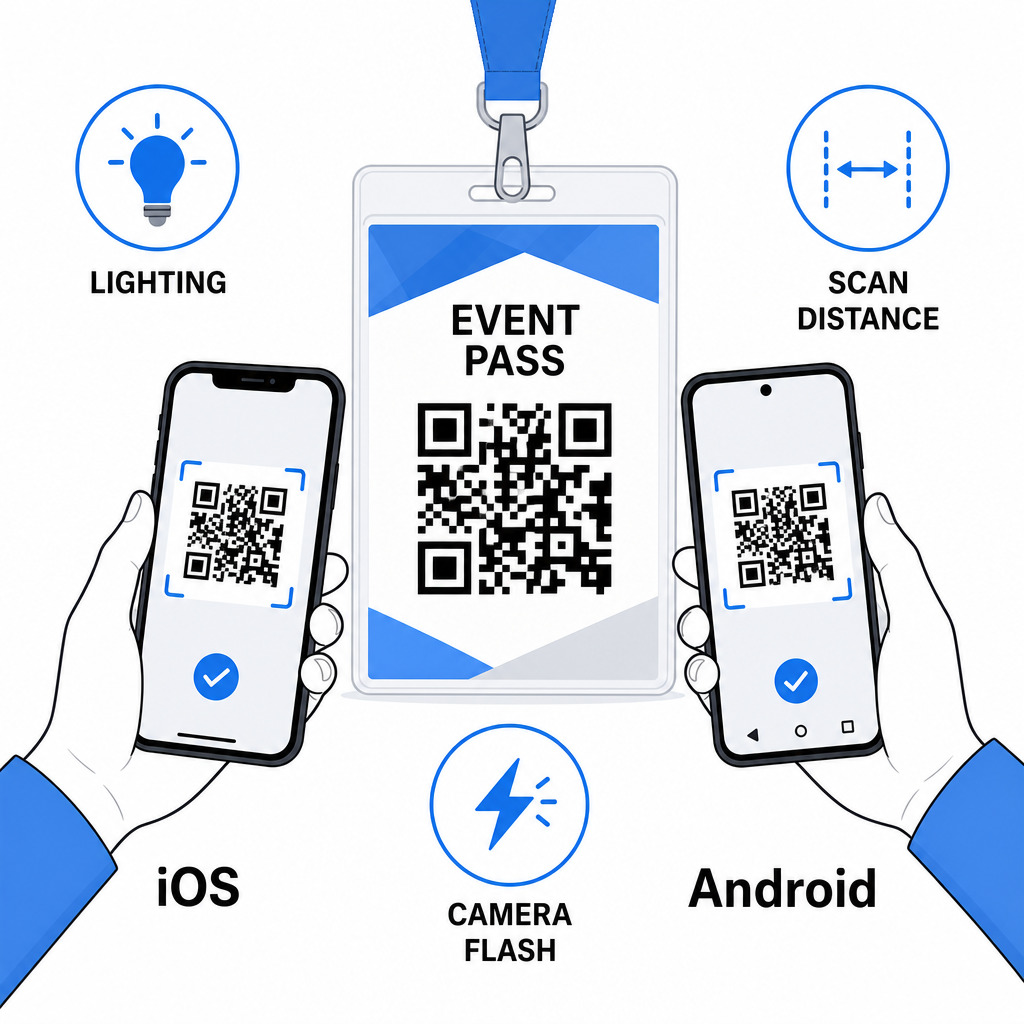
Nimesiltidel olevad QR-koodid toimivad kõige paremini, kui õige kooditüüp, puhas disain ja korrektsed trükispetsifikatsioonid on koos enne, kui ükski nimesilt trükki läheb. Valige dünaamiline kood, kui osaleja andmed võivad muutuda või kui soovite skannimisanalüütikat. Järgige suuruse, kontrasti ja vaikse tsooni reegleid, et tagada iga nimesildi usaldusväärne skannimine ürituse päeval. Ja testige alati tegelikel seadmetel enne tootmise lõplikku kinnitamist.
Looge oma nimesiltide QR-koodid Looge kohandatavaid vCardi ja osalemise QR-koode sisseehitatud analüütika ja dünaamilise redigeerimisega. Alustage Pageloot QR-koodi generaator – tasuta proovimiseks, krediitkaarti pole vaja.
Korduma kippuvad küsimused
Saate kodeerida kontaktandmeid, nagu nimi, telefon, e-post, ettevõte ja veebisait, kasutades vCardi QR-koodi, linkida sündmuse registreerimisvormile osalemise QR-koodi abil või suunata mis tahes veebisihtkohta, nagu LinkedIni profiil või digitaalne portfoolio. Õige valik sõltub sellest, kas peamine eesmärk on kontaktide jagamine, registreerimine või üldisele teabele juurdepääs.
Praktiline miinimum nimesildi QR-koodi jaoks on 0,8 × 0,8 tolli (2 × 2 cm). Väiksemaks minnes suureneb skaneerimisvigade risk, eriti vanemate nutitelefonide puhul. Kui teie märgi kujunduses on ruumi, annab koodi suuruse viimine lähemale 1 × 1 tollile usaldusväärsemaid tulemusi laiema seadmete valiku ja valgustingimuste korral.
Kui kasutasite staatilist QR-koodi, peaksite kahjustatud nimesildid uuesti trükkima. Kui kasutasite dünaamilist QR-koodi, saate sihtkohta – olgu selleks siis vCard, kontaktleht või vormilink – oma Pagelooti armatuurlaualt värskendada, puudutamata trükitud nimesilti. See on üks peamisi põhjuseid kasutada dünaamilisi koode mis tahes ürituse puhul, kus osalejate teave on muutuv.