Een snellere manier nodig om contactgegevens te delen of deelnemers in te checken op uw volgende evenement? Handmatig ingevoerde gegevens gaan verloren, papieren visitekaartjes stapelen zich op en lange incheckrijen frustreren iedereen. Deze gids leidt u door hoe u scanbare QR-codes kunt toevoegen aan naambadges – met aandacht voor het juiste codetype, ontwerpregels en printspecificaties die daadwerkelijk werken.
Waarom QR-codes thuishoren op naambadges
Een naambadge toont traditioneel een naam en misschien een bedrijf. Dat is nuttig voor ongeveer drie seconden conversatie. Een QR-code verandert dezelfde badge in een persistent, scanbaar middel dat gedurende het hele evenement werkt.
Dit is wat een QR-code op een naambadge kan doen:
- Deel direct contactgegevens – Eén scan slaat een volledige vCard direct op de telefoon van de scanner op, geen typen vereist
- Automatiseer evenement-check-in – Deelnemers scannen in bij de deur, registreren hun aankomst zonder papieren lijsten of handmatig opzoeken
- Verbind met een digitaal profiel – Link naar een LinkedIn-pagina, persoonlijke website, portfolio of evenementbio
- Betrokkenheid volgen – Met een dynamische code kunt u precies zien hoe vaak een badge is gescand, wanneer en vanaf welk apparaat
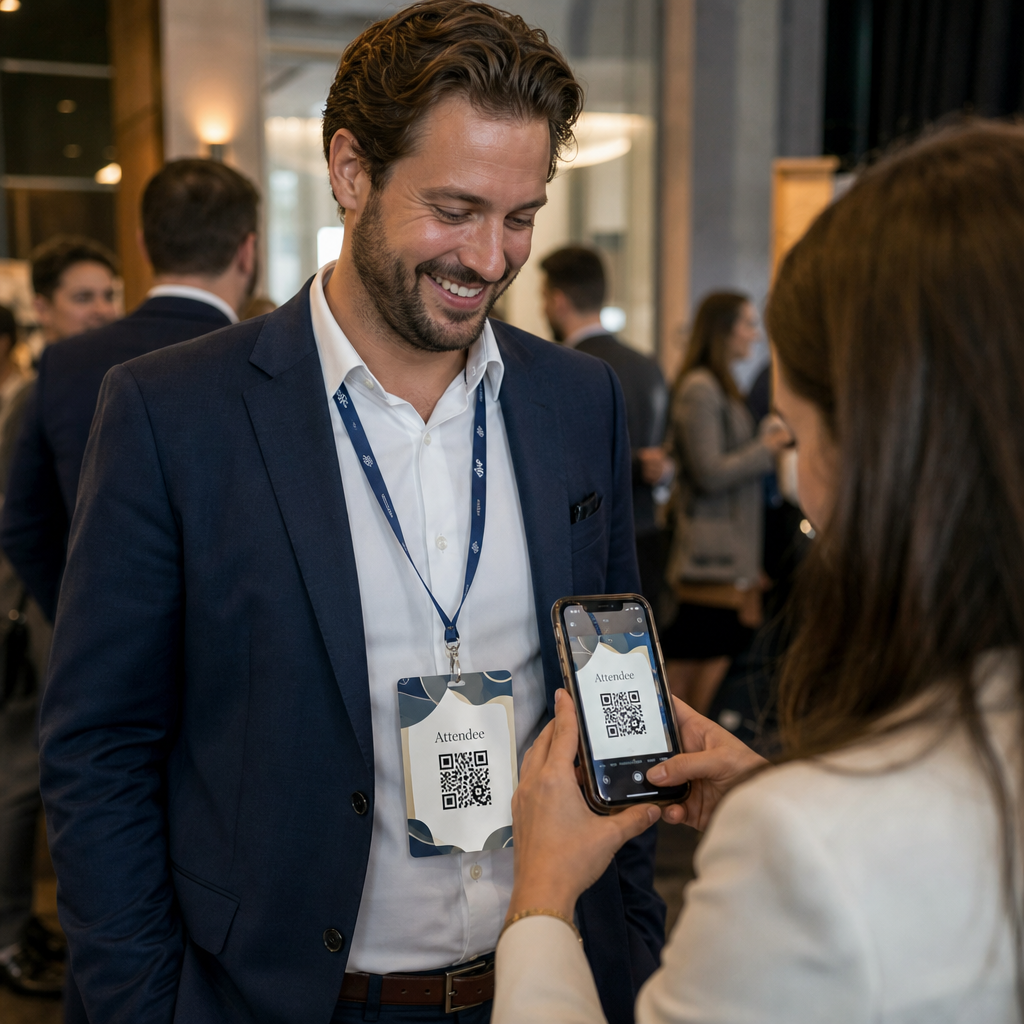
Alleen al het gebruiksscenario voor het delen van contactgegevens rechtvaardigt de toevoeging. Een vCard QR-code codeert een naam, telefoonnummer, e-mail, bedrijf en website in een formaat dat iOS en Android native herkennen. Wanneer iemand het scant, vraagt de telefoon hen onmiddellijk om het contact toe te voegen – geen app vereist, geen handmatige invoer, geen verloren kaarten.
Het juiste QR-codetype kiezen voor uw naambadge
Niet elke QR-code dient hetzelfde doel. Voordat u iets afdrukt, stemt u het codetype af op uw doel.
| Doel | QR-codetype | Wat het doet |
|---|---|---|
| Deel contactinfo | vCard QR-code | Codeert naam, telefoon, e-mail, bedrijf; slaat direct op in telefooncontacten |
| Evenement-check-in | Aanwezigheid/evenement QR-code | Linkt naar een registratieformulier of check-in systeem |
| Link naar een profiel of website | URL QR-code | Leidt naar elke webbestemming |
| Deel een digitale visitekaartje | Visitekaartje QR-code | Linkt naar een volledige digitale kaart met sociale profielen en aangepaste inhoud |
Voor de meeste netwerkevenementen is een vCard QR-code of een visitekaartje QR-code de juiste keuze. Voor conferenties waar u ook moet bijhouden wie er kwam en wanneer, handelt een aanwezigheids-QR-code of QR-code voor evenementen die laag af.
Statisch vs. Dynamisch: Welke moet u gebruiken?
EEN statische QR-code codeert gegevens direct in zijn patroon. Eenmaal afgedrukt, kan het niet worden gewijzigd. Als de gekoppelde URL kapot is of de contactgegevens van een deelnemer veranderen, moet u elke badge opnieuw afdrukken.
EEN dynamische QR-code gebruikt een korte omleidingslink. Het afgedrukte patroon blijft hetzelfde, maar u kunt de bestemming op elk moment bijwerken – zelfs nadat badges al in handen van deelnemers zijn. Dynamische codes bieden ook analyses: aantal scans, tijd van scan, apparaattype en locatie. Voor elk evenement met meer dan een handvol deelnemers, dynamische QR-codes zijn de extra instapstap waard.
Belangrijk: Om toegang te krijgen tot tracking- en bewerkingsfuncties, moet u een dynamische code genereren voordat het afdrukproces begint.
Stel traceerbare naambadge QR-codes in Maak dynamische QR-codes die u kunt bijwerken en monitoren vanuit één dashboard. Gebruik de QR-codegenerator om te beginnen – geen herdruk nodig als details veranderen.
Hoe een vCard QR-code te maken voor een naambadge
Dit is het meest voorkomende gebruiksscenario voor naambadges – direct contact delen op netwerkevenementen, conferenties en beurzen. Om te beginnen, opent u de vCard QR-code generator voor contactgegevens en voer de vereiste velden in: minimaal een volledige naam en één contactmethode zoals een telefoonnummer of e-mailadres. Voeg van daaruit optionele velden toe – bedrijfsnaam, functie, website, sociale profielen – om de opgeslagen contactgegevens nuttiger te maken voor de persoon die scant.
Zodra de gegevens zijn ingevoerd, past u het ontwerp aan door kleuren aan te passen, een logo toe te voegen en een framestijl te kiezen die past bij uw evenementbranding. Download de code in een printklaar formaat – SVG of EPS voor schaalbare uitvoer, PNG voor digitaal gebruik – en test deze op zowel iOS als Android voordat u bestanden naar de printer stuurt.
Herhaal dit proces voor elke deelnemer als u geïndividualiseerde badges maakt, of maak een enkele gedeelde code voor een bedrijfsstand of team-check-in punt. Voor een diepere blik op vCard-instellingen en best practices, de gids voor vCard QR-codes behandelt de volledige workflow in detail.
Hoe QR-codes te gebruiken voor evenement-check-in op badges
Voor conferenties, workshops of elk evenement met tickets, dient een QR-code op de badge zowel als incheckbewijs en als netwerkinstrument. Begin met het maken van een registratieformulier met Google Forms, Typeform of uw evenementbeheerplatform. Genereer vervolgens een aanwezigheids-QR-code die direct linkt naar het formulier of check-in systeem en print deze op elke deelnemersbadge vóór het evenement – of neem deze op in een pre-evenement e-mail voor zelfbedieningsprinten.
Bij de deur scant personeel elke badge met een smartphone of handscanner om aankomst te registreren. Het systeem registreert de scan automatisch, zonder papieren lijsten of handmatig opzoeken. QR-code check-ins kunnen de verwerkingstijd verkorten tot minder dan twee seconden per persoon, wat de totale toegangstijd aanzienlijk verkort vergeleken met handmatige methoden. Voor een volledige handleiding voor het instellen van evenement check-in, zie de gids voor QR-codes voor evenement-check-ins.
U kunt ook beide functies combineren op één enkele badge: een vCard QR-code voor het delen van contactgegevens en een aparte aanwezigheidscode voor check-in. Plaats ze op verschillende plaatsen op de badge met duidelijke labels, zodat deelnemers en personeel weten welke ze moeten scannen en wanneer.
Automatiseer uw evenement check-in Stop met het beheren van papieren lijsten en handmatige zoekopdrachten. Gebruik de Aanwezigheid QR Code tool om een scan-gebaseerd check-in systeem op te zetten dat aankomsten in realtime registreert.
Ontwerpregels die naamkaartje QR-codes scanbaar houden
Een QR-code die er goed uitziet maar niet scant, is nutteloos. Naamkaartjes creëren specifieke uitdagingen: klein afdrukgebied, uiteenlopende lichtomstandigheden, badges gedragen onder verschillende hoeken, en mensen die scannen vanaf armlengte. De volgende regels pakken elk van deze problemen direct aan.
Grootte: Pas de 10:1 verhouding toe
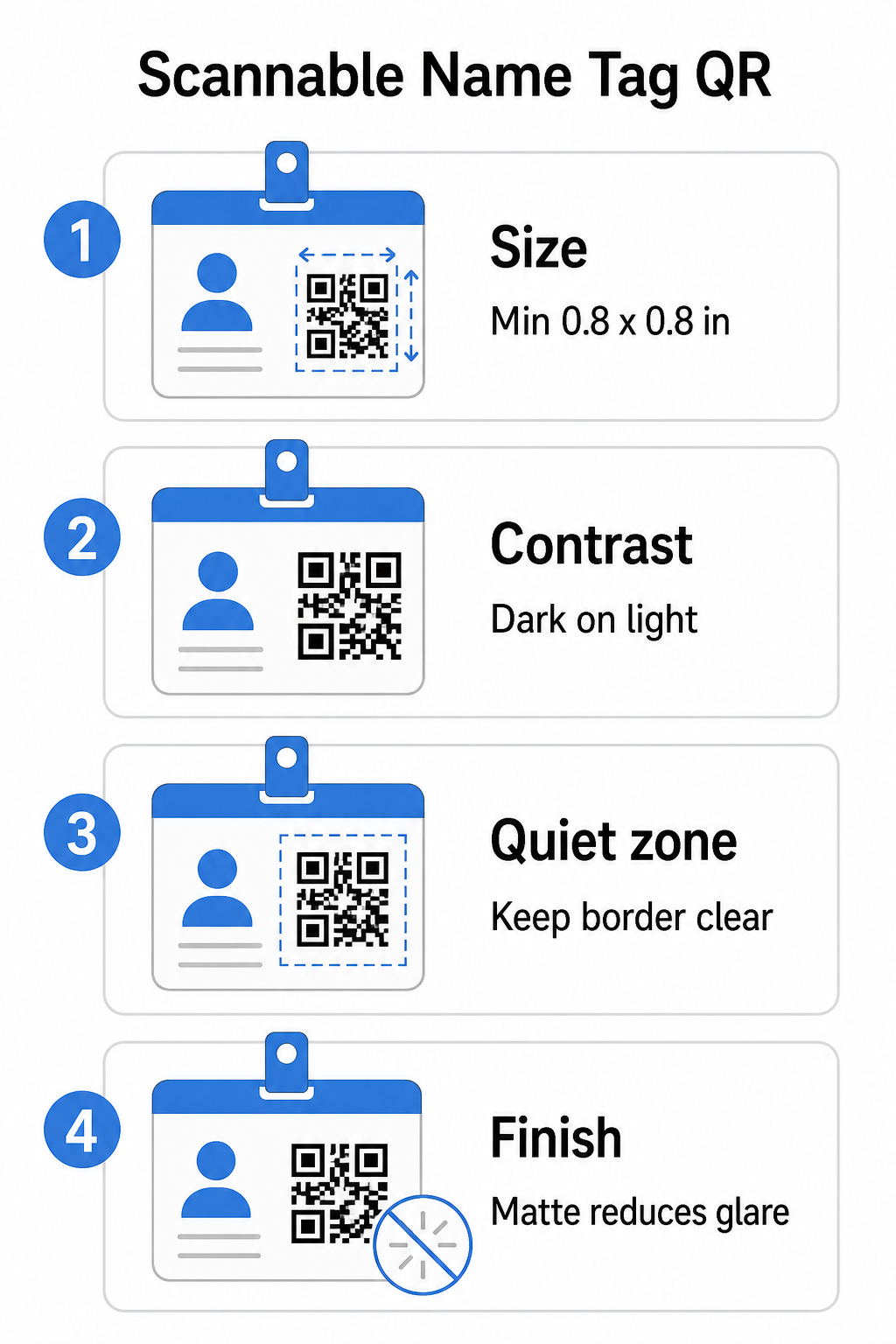
De kleinste afmeting van de QR-code moet ongeveer een tiende zijn van de verwachte scanafstand. Voor een naamkaartje dat vanaf ongeveer 10 inch (25 cm) afstand wordt gescand, moet de code minstens 1 inch (2,5 cm) breed zijn. Het praktische minimum voor elke geprinte code op korte afstand is 0,8 × 0,8 inch (2 × 2 cm) – kleiner gaan creëert onnodige scanfouten, vooral op oudere telefoons. Als uw badge de ruimte heeft, geeft het dimensioneren van de code dichter bij 1 × 1 inch betrouwbaardere resultaten op een breder scala aan apparaten. Voor meer details over maatbeslissingen, zie QR-code formaten voor visitekaartjes – dezelfde principes zijn direct van toepassing op naamkaartjes.
Contrast: Alleen donker op licht
Scanners werken door het contrast te detecteren tussen donkere modules en een lichte achtergrond. De beste praktijk is een donkere voorgrond op een lichte achtergrond – zwart op wit blijft de meest betrouwbare combinatie. Omgekeerde codes (lichte modules op een donkere achtergrond) veroorzaken storingen op veel scan-apps, vooral oudere. Streef naar een contrastverhouding van minimaal 4:1, wat de leesbaarheid ondersteunt in verschillende lichtomgevingen en met diverse apparaatcamera's.
Vermijd verlopen en schaduwen in of rond het QR-codegebied. Deze creëren middentonen die scanner-algoritmes verwarren en de betrouwbaarheid verminderen in omstandigheden met weinig licht. De gids voor best practices voor kleurcontrast van QR-codes biedt specifieke richtlijnen voor kleurencombinaties en een contrastvergelijkingstabel als u merkkleuren wilt gebruiken in plaats van effen zwart en wit.
Stille Zone: Houd de randen vrij
De stille zone is de blanco marge rond de QR-code aan alle vier de zijden. Het vertelt de scanner waar de code begint en eindigt – zonder deze kan de scanner het symbool niet betrouwbaar lokaliseren. Volgens de ISO/IEC 18004-standaard moet deze marge aan elke zijde minstens vier modules breed zijn. Als uw badgeontwerp tekst, logo's of decoratieve elementen te dicht bij de code plaatst, kan de scanner deze mogelijk helemaal niet detecteren. Als praktische regel: als elke module in uw code 2 mm breed is, moet de stille zone aan elke zijde minstens 8 mm zijn.
Foutcorrectie: Verhoog deze bij het toevoegen van een logo
QR-codes hebben vier foutcorrectieniveaus die bepalen hoeveel fysieke schade of obstructie de code kan verdragen terwijl deze scanbaar blijft: L (ongeveer 7%), M (ongeveer 15%), Q (ongeveer 25%) en H (ongeveer 30%). Als u een bedrijfslogo of pictogram in het codegebied insluit – gebruikelijk voor branded badges – gebruik foutcorrectieniveau H en houd het logo tot niet meer dan 30% van het codegebied. Dit geeft de scanner voldoende redundante gegevens om het patroon te reconstrueren, zelfs als een deel ervan bedekt is. Als u geen logo toevoegt, is niveau M of Q voldoende voor de meeste printtoepassingen.
Vorm en formaat: Nooit uitrekken of comprimeren
Een QR-code moet perfect vierkant blijven. Het uitrekken of comprimeren van de code om in een lay-out te passen, veroorzaakt een verkeerde uitlijning van de modules en maakt deze onscanbaar. Schaal altijd proportioneel en exporteer in vectorformaten (SVG of EPS) voor afdrukken om pixelatie bij grotere formaten te voorkomen.
Afwerking: Kies mat boven glanzend
Glanzende badge materialen reflecteren licht en creëren schittering die het scannen met de camera verstoort. Matte laminering of ongestreken papier presteert aanzienlijk beter in de praktijk van evenementverlichting. Als u op glanzende badges print, test de codes dan onder de werkelijke lichtomstandigheden van uw locatie voordat u de printopdracht afrondt. De gids voor best practices voor de leesbaarheid van QR-codes behandelt elk van deze factoren met extra diepgang.
Plaatsing op de badge
Waar de QR-code op een naamkaartje zit, beïnvloedt hoe vaak deze wordt gescand. Overweeg deze plaatsingsprincipes:
- Plaats op natuurlijke ooghoogte wanneer gedragen – de onderste helft van een badge op borsthoogte is gemakkelijk te scannen zonder iemand te vragen deze te verwijderen
- Label de code duidelijk – voeg een korte instructie toe zoals “Scan om contact op te slaan” of “Hier inchecken” direct onder of naast de code; mensen zijn aanzienlijk vaker geneigd te scannen wanneer ze weten wat de code doet
- Scheid meerdere codes – als uw badge zowel een incheckcode als een contactdeelcode bevat, label elk dan duidelijk en geef ze voldoende ruimte om individueel gescand te worden zonder verwarring
- Vermijd het plaatsen van de code nabij de badgeclip of het sleutelkoordgat – deze gebieden worden gevouwen of bedekt, wat een deel van de code of de rustzone kan blokkeren
Testen voordat u print
Druk een proef af en scan deze voordat u de volledige badgebestelling naar productie stuurt. Test de code op zowel iOS- als Android-apparaten, onder de lichtomstandigheden van uw evenementenlocatie, op de afstand van waaruit deelnemers en personeel daadwerkelijk zullen scannen, en met en zonder de cameraflits om scenario's met weinig licht te simuleren. Een code die alle vier de tests doorstaat, is klaar voor productie. Een die faalt op een van deze, heeft een ontwerpaanpassing nodig – of dat nu het vergroten van de grootte is, het verbeteren van het contrast, of het uitbreiden van de rustzone – voordat u zich verbindt aan een volledige printrun.
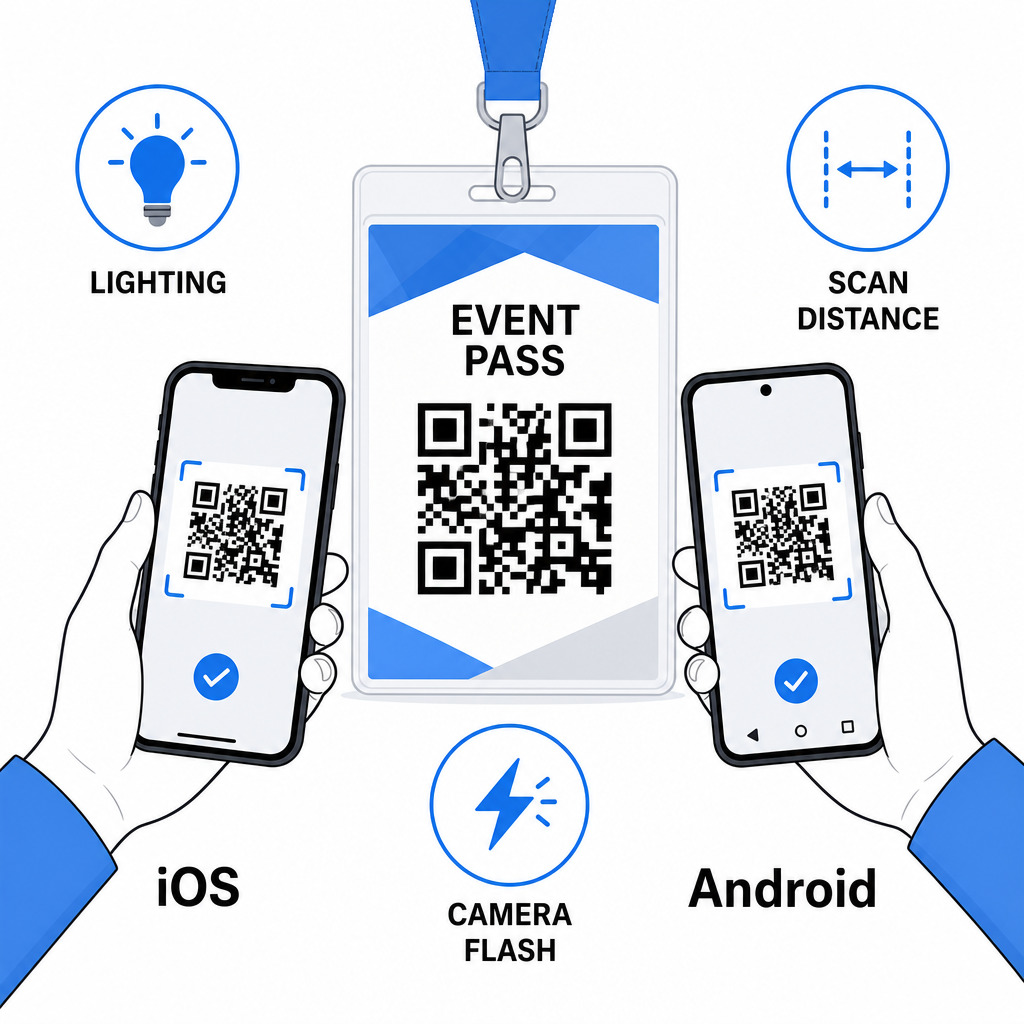
QR-codes op naamkaartjes werken het beste wanneer het juiste codetype, een strak ontwerp en de juiste printspecificaties samenkomen voordat een enkele badge wordt afgedrukt. Kies een dynamische code als de gegevens van deelnemers kunnen veranderen of als u scananalyses wilt. Volg de regels voor formaat, contrast en rustzone om ervoor te zorgen dat elke badge op de dag betrouwbaar scant. En test altijd op echte apparaten voordat u de productie afrondt.
Maak uw Naamkaartje QR-codes Maak aanpasbare vCard en aanwezigheids-QR-codes met ingebouwde analyses en dynamische bewerking. Begin met de Pageloot QR-codegenerator – gratis te proberen, geen creditcard vereist.
Veelgestelde vragen
U kunt contactgegevens coderen zoals naam, telefoon, e-mail, bedrijf en website met behulp van een vCard QR-code, koppelen aan een evenement-incheckformulier met behulp van een aanwezigheids-QR-code, of verwijzen naar elke webbestemming zoals een LinkedIn-profiel of digitaal portfolio. De juiste keuze hangt af van of het primaire doel het delen van contactgegevens, inchecken of algemene informatietoegang is.
Het praktische minimum voor een naamplaatje QR-code is 0,8 × 0,8 inch (2 × 2 cm). Kleiner gaan verhoogt het risico op scanfouten, vooral op oudere smartphones. Als uw badgeontwerp de ruimte heeft, geeft het dimensioneren van de code dichter bij 1 × 1 inch betrouwbaardere resultaten over een breder scala aan apparaten en lichtomstandigheden.
Als u een statische QR-code heeft gebruikt, zou u de betreffende badges opnieuw moeten afdrukken. Als u een dynamische QR-code heeft gebruikt, kunt u de bestemming – of dat nu een vCard is, een contactpagina, of een formulierlink – vanuit uw Pageloot-dashboard bijwerken zonder de afgedrukte badge aan te raken. Dit is een van de belangrijkste redenen om dynamische codes te gebruiken voor elk evenement met variabele deelnemersinformatie.