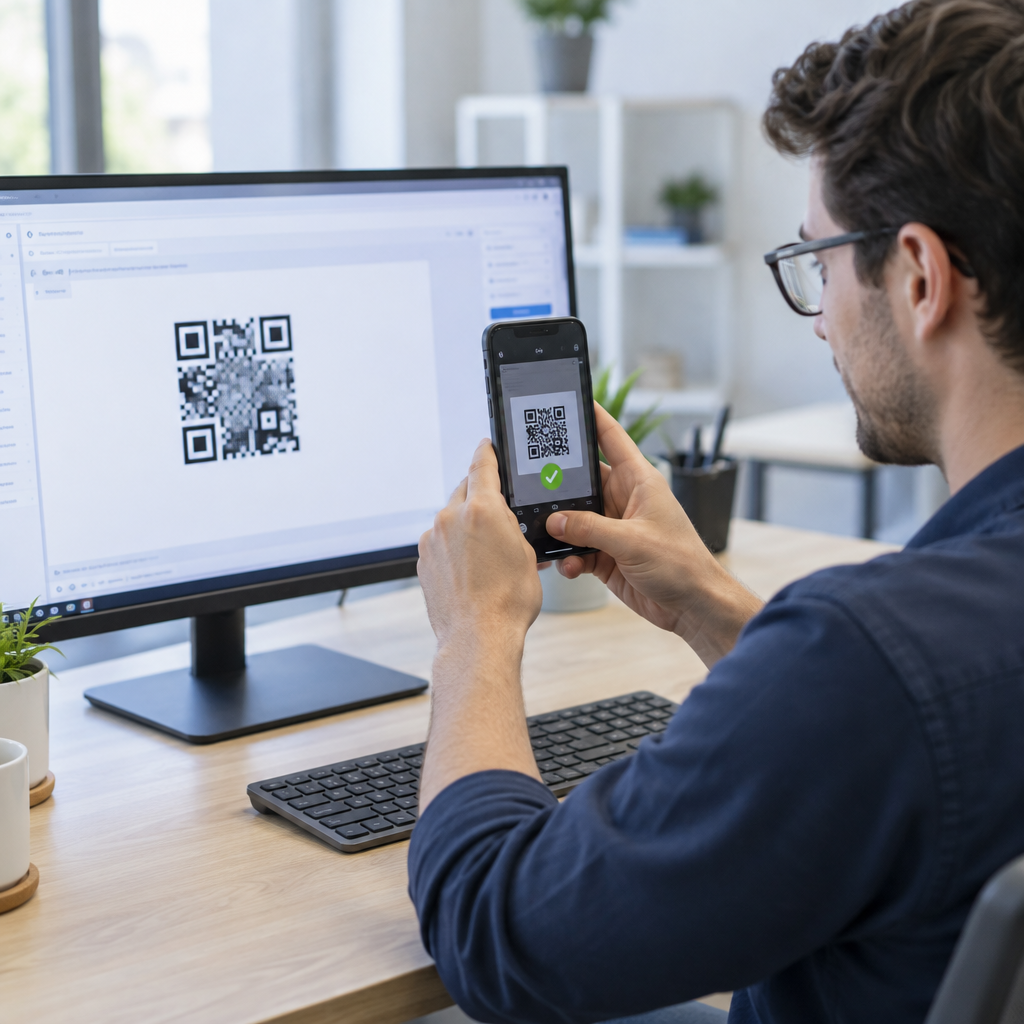
Are you struggling to ensure your app’s QR code features scan reliably across every device and operating system? A single scanning failure in production can break user onboarding, disrupt authentication, or halt payment workflows. This guide delivers structured test strategies, decoding checks, and automation routines to ensure your application handles QR codes seamlessly.
Technical Factors for Scan Accuracy and Readability
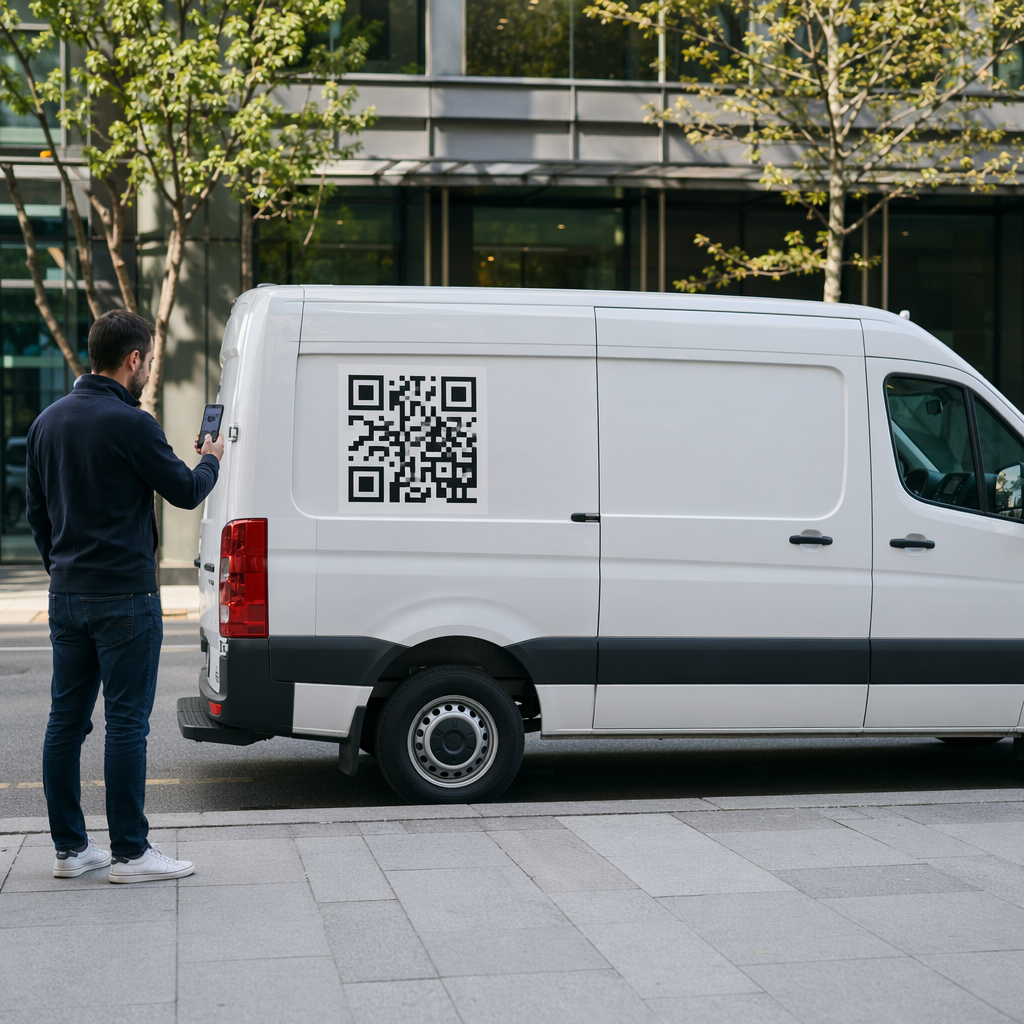
The most frequent point of failure in any QR-driven workflow is the physical or digital rendering of the code itself. If the code is too small or lacks sufficient contrast, a scanner cannot decode the data modules. To maintain scan accuracy, follow a 10:1 scanning-distance ratio. This means for every 10 inches of distance between the camera lens and the code, the QR code must measure at least 1 inch wide. For standard close-range mobile interactions, render symbols at a minimum size of 0.8 x 0.8 inches (2 x 2 cm) for simple data, or 1.2 x 1.2 inches (3 x 3 cm) for complex payloads. On digital screens, maintain an image resolution of at least 240×240 pixels.
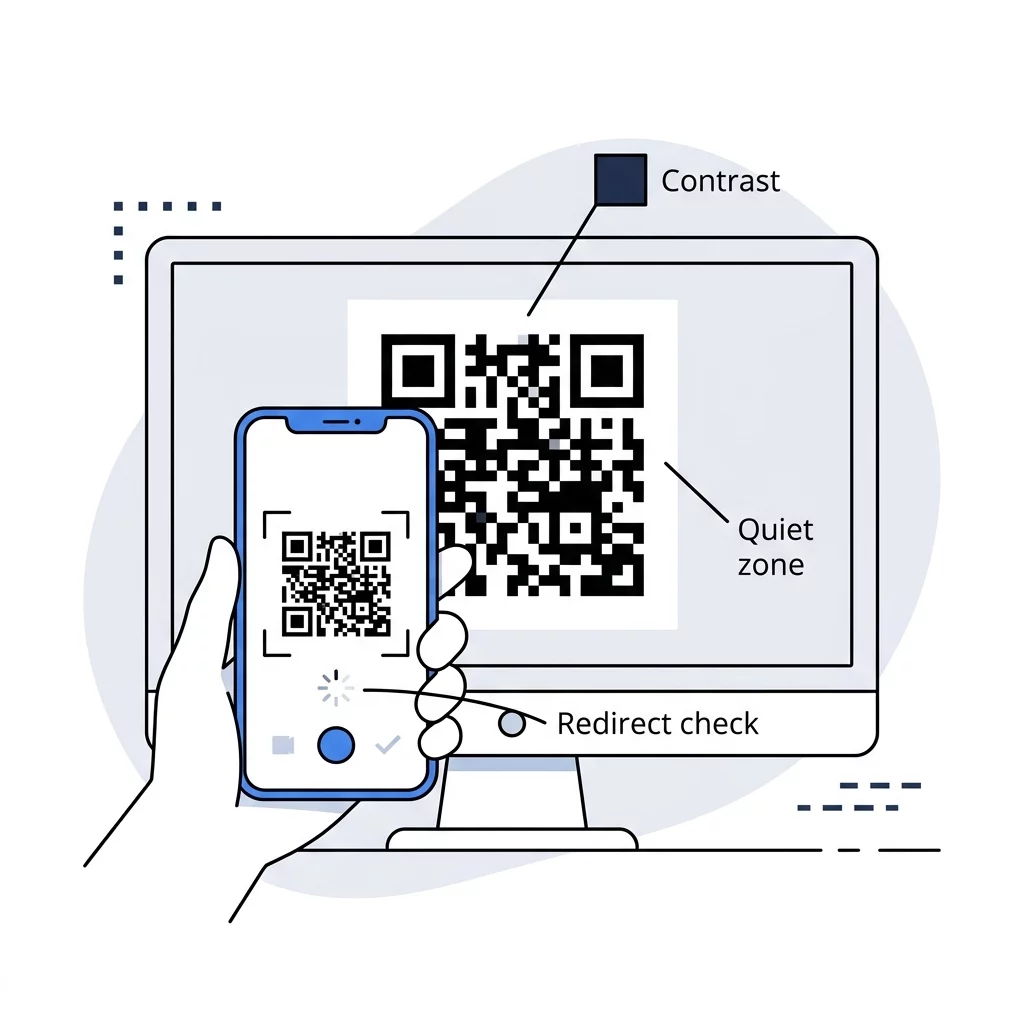
Beyond dimensions, the internal structure of the symbol dictates how easily scanners register markers. Standard symbols scale from Version 1 (21 x 21 modules) up to Version 40 (177 x 177 modules). Every QR code requires a clear quiet zone – an unprinted margin measuring at least four modules wide on all four sides. Removing or encroaching on this border with UI elements prevents scanner edge detection. Reviewing best practices for QR code readability ensures that your layout respects these physical and digital constraints.
Payload size directly impacts visual density. As you pack more characters into a static symbol, the grid grows denser and individual modules shrink, demanding higher camera resolution to decode. To avoid dense grids that fail on lower-tier hardware, review our guide to understand QR code data limits before locking in your data schemas.
Error Correction and Contrast Guidelines
QR codes rely on Reed-Solomon error correction to reconstruct data if the symbol is partially obscured, damaged, or poorly lit. The specification defines four standard levels:
- Level L (Low) restores up to 7% of missing data codewords, offering the smallest symbol footprint.
- Level M (Medium) restores up to 15% of damaged data, serving as the standard balance for consumer apps.
- Level Q (Quartile) restores up to 25% of corrupted data, ideal for industrial or high-glare environments.
- Level H (High) restores up to 30% of lost data, recommended when embedding central logos or icons.
Higher recovery levels increase the number of modules within the grid. For a deeper look at balancing recovery resilience with data density, read how error correction works in editable QR codes.
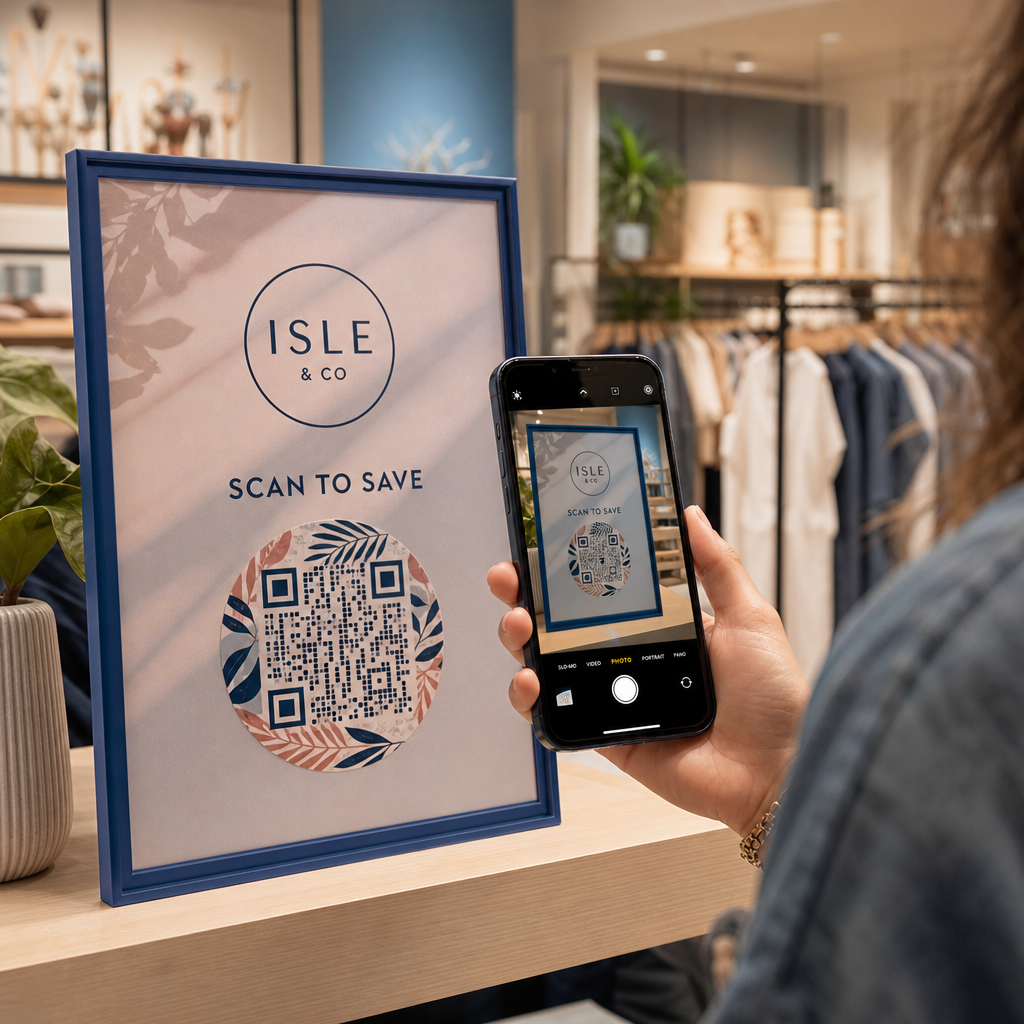
Color contrast is equally critical. Maintain at least a 4:1 contrast ratio between foreground modules and the background. The most reliable configuration uses dark modules on a light background. Avoid inverted designs featuring light modules on dark backdrops, as many native camera decoders fail to recognize inverted alignment patterns.
Generate Test Codes Instantly Need flexible barcodes for staging environments? Use Pageloot’s free QR code generator to build dynamic test assets and update destination URLs without changing your source files.
Device and Operating System Compatibility
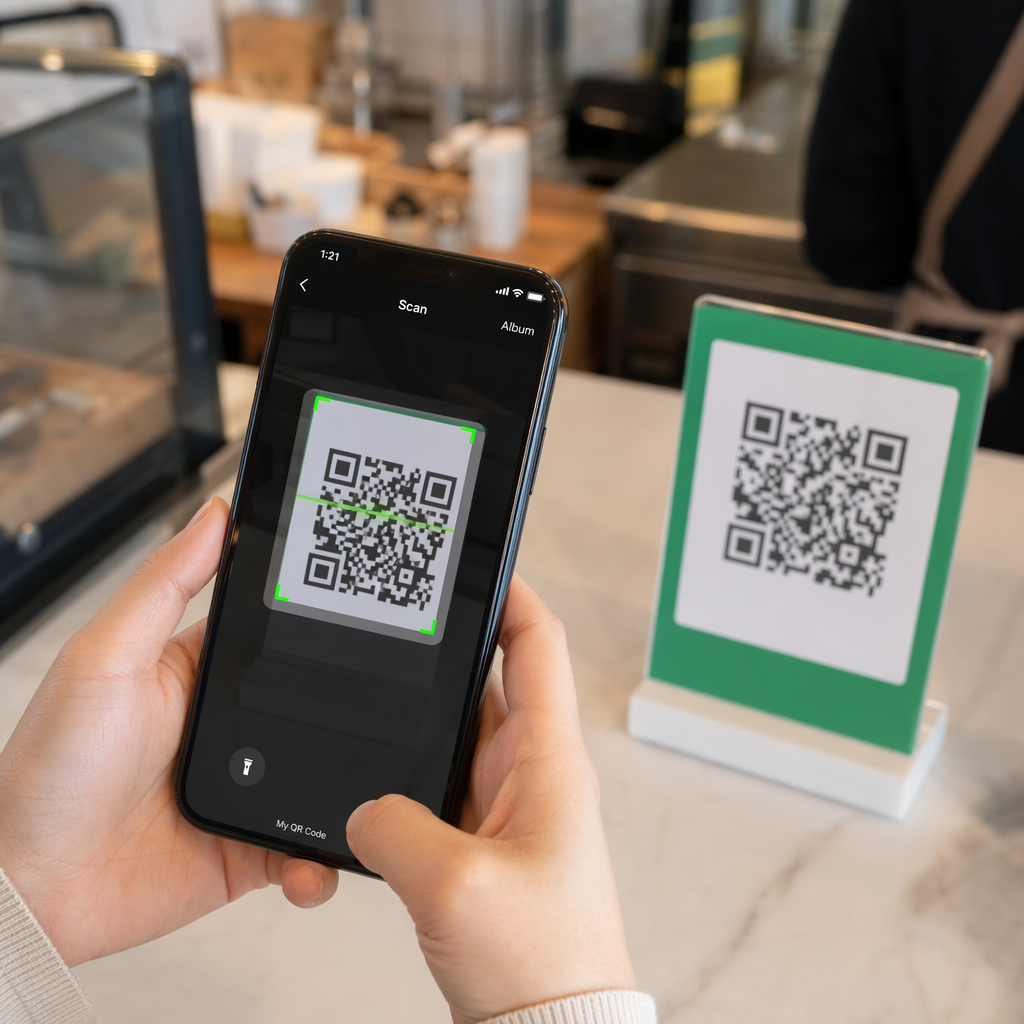
The mobile device landscape features severe fragmentation across camera hardware, operating systems, and image-processing pipelines. Modern iOS and Android operating systems feature native scanning within default camera apps, but users also interact through third-party scanners and custom in-app camera viewports. Understanding how a QR code scanner works helps QA engineers pinpoint whether a scanning bug stems from image capture, sensor conversion, or algorithmic decoding.
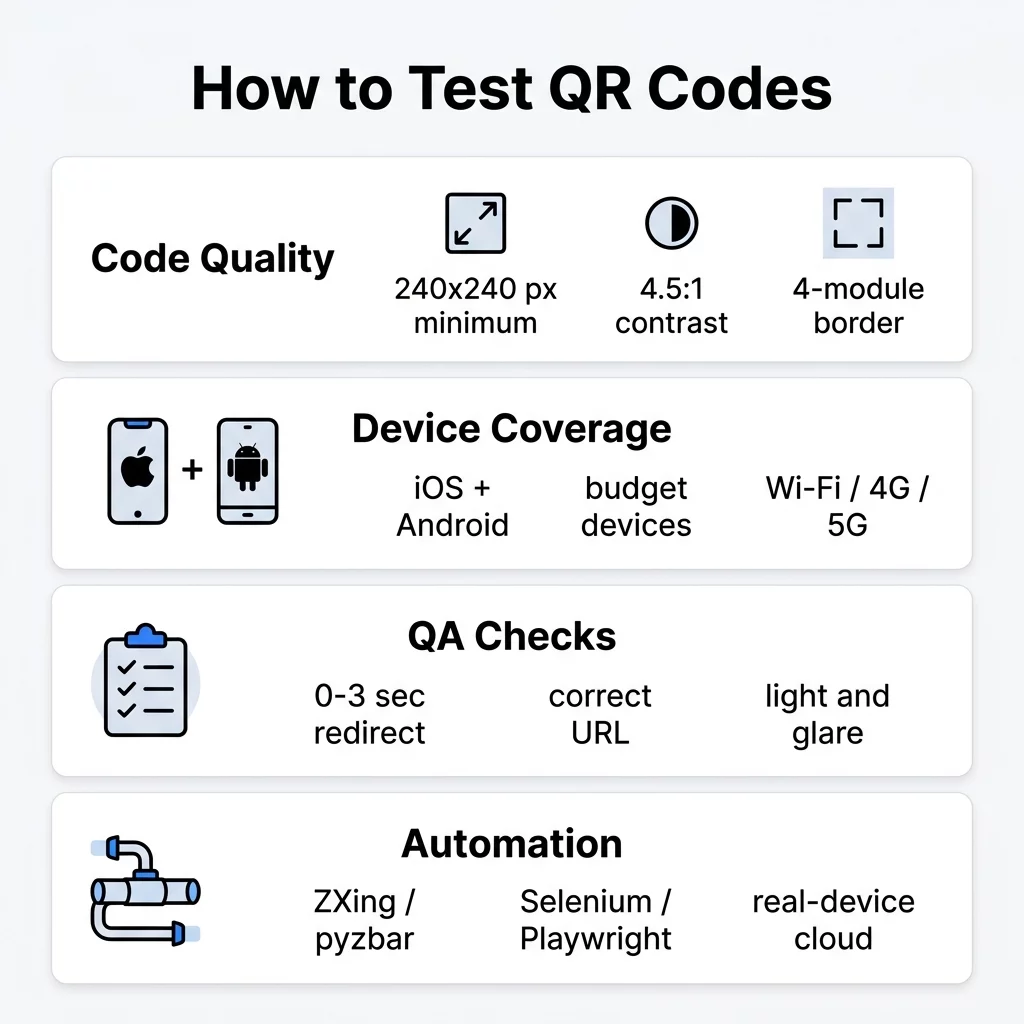
Testing suites must incorporate budget devices alongside flagship phones. Budget hardware frequently utilizes fixed-focus lenses, lower-resolution sensors, and aggressive compression algorithms that struggle with dense codes. When evaluating software workflows, follow how to test QR codes for mobile usability across varied conditions:
- Validate camera permission workflows, confirming the application prompts users gracefully and handles denied camera permissions without crashing.
- Test auto-zoom functionality when scanning small or distant codes using native scanning SDKs like Google Code Scanner or Apple Vision framework.
- Evaluate scan performance under harsh real-world lighting, including direct sunlight glare, dim indoor environments, and off-angle perspectives.
- Verify network fallbacks by testing redirects on fluctuating 4G, 5G, and offline networks to confirm that latency does not drop scan attribution.
Manual Validation for QA Teams
Before configuring automated pipelines, QA teams should execute manual test runs to evaluate the end-to-end user journey. A test is only successful if the entire downstream action completes as expected.
- Confirm that the scan-to-action transition executes in under 3 seconds to maintain acceptable UX standards.
- Validate that encoded URLs parse cleanly, returning valid endpoints while rejecting malformed inputs.
- Confirm that deep links correctly route authenticated users into specific in-app views rather than generic home screens.
- Test fallback behaviors when a user scans an expired temporary session token or invalid one-time code.
- Use a web-based free QR code scanner to quickly inspect raw payloads directly in your desktop browser without relying on mobile hardware.
For dynamic workflows where landing pages change frequently across staging and production builds, using a dedicated link QR code generator allows engineers to update the target endpoint on the fly without regenerating visual code assets.
Automating QR Code Test Cases
Manual testing verifies interface ergonomics, but automated test suites prevent regression bugs across ongoing deployments. You can integrate QR validation directly into CI/CD pipelines through decoding libraries and camera mocking.
- Headless Decoding: Use tools like ZXing or pyzbar in your unit tests to extract encoded payloads directly from generated image buffers, ensuring backend generation scripts produce valid data.
- End-to-End Browser Testing: Configure Playwright or Selenium to capture screenshots of QR codes rendered in web dashboards, piping the captured element to a software decoder to assert URL accuracy.
- Virtual Camera Injection: Utilize mobile cloud testing platforms to inject synthetic QR images directly into the virtual camera feed of simulated iOS and Android devices, automating native scan interactions.
- API Assertions: Assert that dynamic redirect services return successful HTTP status codes in the 200–299 range, checking that redirect hops preserve required analytics and session parameters.
Security, Analytics, and Redirect Verification
Scanning a QR code is functionally identical to clicking an unverified link. Applications accepting QR code inputs must implement strict security layers to protect users against malicious attacks and destination tampering.
- Implement URL allowlists to ensure scanning engines only auto-navigate to trusted hostnames and secure HTTPS endpoints.
- Provide an intermediate confirmation modal displaying the resolved URL before navigating to untrusted external destinations.
- Protect authentication and login workflows against replay attacks by issuing short-lived, single-use tokens; follow testing QR code authentication best practices to harden MFA flows.
- Verify that dynamic short links properly record scan event metadata – such as timestamp, device OS, and approximate location – before completing redirects.
- Check that query parameters, including UTM tracking tags and internal session IDs, pass through redirect chains without data loss.
Common QR Code Troubleshooting
When codes fail during QA validation, use this diagnostic reference to identify the cause and apply the appropriate resolution:
| Failure Pattern | Probable Cause | Recommended Fix |
|---|---|---|
| Code will not scan on lower-end mobile devices | Module density too high for budget camera sensors | Shorten destination URLs or switch to dynamic QR codes to reduce version grid size. |
| Code scans in studio lighting but fails on screens | Excessive glare, low screen contrast, or improper DPI | Maintain a contrast ratio above 4:1 and render web codes at 240×240 px or higher. |
| Decoder throws FormatException or ChecksumException | Damaged modules or missing quiet zone | Ensure a clear 4-module quiet zone on all sides and increase error correction to Q or H. |
| Scanner detects pattern but navigation fails | Malformed URL string or broken staging redirect | Validate URL schema formatting and confirm staging server redirect routes return 200-level HTTP responses. |
Deploying Resilient QR Workflows
Validating QR code workflows requires balancing technical specifications with realistic user environments. By verifying physical sizing, tuning error correction levels, testing across varied mobile devices, and automating decoder checks within CI/CD pipelines, you protect your software against broken customer journeys. Implement these QA strategies across your staging environments today, and utilize dynamic code management platforms to keep your production workflows flexible, secure, and fully trackable.
Frequently Asked Questions
Digital QR codes should measure at least 240×240 pixels at 72 DPI for close-range mobile scanning. For complex payloads with higher data density, increase the resolution to ensure modules remain sharp and distinct across all display types.
You can use cloud testing platforms that support camera image injection. These tools feed a static image of the QR code directly into the virtual camera stream of a remote iOS or Android device, allowing automated end-to-end scanning tests.
Discrepancies usually stem from differing camera APIs, hardware auto-focus capabilities, and default decoding libraries. Native iOS cameras often handle high-density or low-contrast codes more forgivingly than budget Android devices with fixed-focus lenses.