Haben Sie jemals einen Screenshot eines QR-Codes gespeichert, nur um festzustellen, dass die Kamera Ihres Telefons Ihren eigenen Bildschirm nicht scannen kann? Der Versuch, Links aus gespeicherten Bildern zu öffnen, ist frustrierend, wenn Standard-Kamera-Apps ein physisches Objekt erwarten. Glücklicherweise können Sie jeden QR-Code-Screenshot einfach mit integrierten Smartphone-Tools oder webbasierten Tools dekodieren.
Scannen eines QR-Code-Screenshots auf iPhone und iOS-Geräten
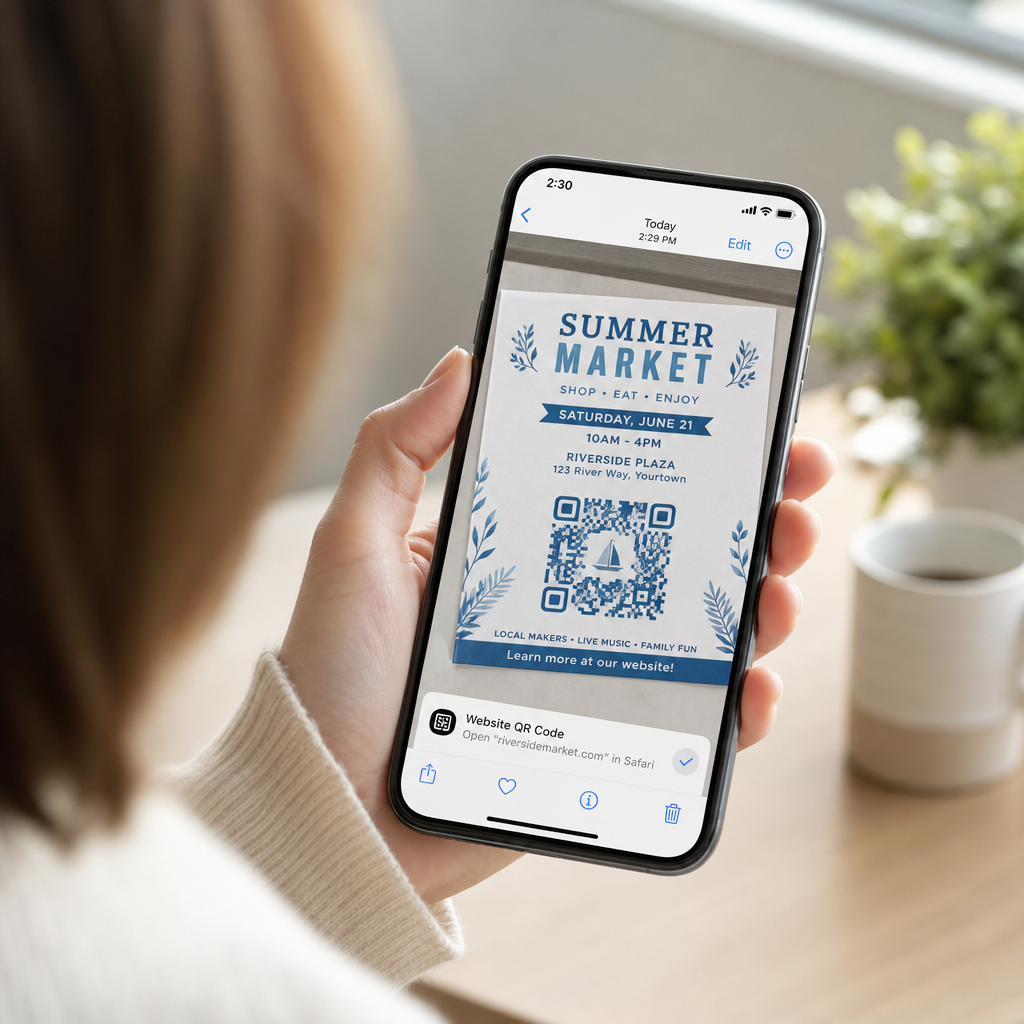
Moderne iPhones mit iOS 11 oder höher enthalten native Systemfunktionen, die Bilddaten analysieren, die in Ihrer Fotobibliothek gespeichert sind. Sie müssen keine Drittanbietersoftware herunterladen, nur um einen gespeicherten Link aus einer Bilddatei zu extrahieren.
Befolgen Sie diese Schritte, um einen Screenshot in iOS zu dekodieren:
- Öffnen Sie die Fotos-App und suchen Sie Ihren gespeicherten Screenshot.
- Drücken und halten Sie den QR-Code Matrix, bis das Auswahlmenü erscheint.
- Wählen Sie Ihre bevorzugte Aktion um den Link in Safari zu öffnen, die URL zu kopieren oder den Inhalt zu teilen.
Wenn Ihr Gerät Live Text unterstützt (iOS 15 und höher), erscheint auch ein Live Text-Symbol in der unteren rechten Ecke des Bildbetrachters. Das Tippen auf dieses Symbol hebt den QR-Code automatisch hervor und zeigt ein klickbares Aktionsbanner darunter an. Für ältere iOS-Versionen oder spezielle Hardware-Setups finden Sie in unserem vollständigen Leitfaden zu Scannen von QR-Codes auf dem iPhone zusätzliche manuelle Workarounds.
Extrahieren von QR-Code-Links aus Screenshots unter Android
Android-Betriebssysteme nutzen optische Zeichenerkennung, um Bilddateien zu verarbeiten, die in Ihrem lokalen Speicher gespeichert sind. Geräte, die mit Google Play Services ausgestattet sind, können eingebettete Daten sofort über Ihre Fotogalerie extrahieren.
Befolgen Sie diese Schritte, um einen Screenshot unter Android zu verarbeiten:
- Starten Sie Google Fotos und wählen Sie den gespeicherten Screenshot aus Ihrer Galerie aus.
- Tippen Sie auf das Google Lens-Symbol unten auf Ihrem Bildschirm, um das Bild zu analysieren.
- Wählen Sie die hervorgehobene Pop-up-URL um den Ziel-Link zu öffnen oder die gespeicherte Aktion auszuführen.
Wenn Ihre Standard-Kamera- oder Galerie-App keine native optische Erkennung hat, können Sie mehr über alternative Geräte-Shortcuts erfahren, indem Sie unseren Leitfaden zu Scannen von QR-Codes auf Android-Geräten.
lesen Gespeicherte QR-Code-Bilder sofort scannen Pageloot-QR-Code-Scanner Müssen Sie einen auf Ihrem Gerät gespeicherten QR-Code dekodieren, ohne zusätzliche Software zu installieren? Verwenden Sie die.
um Ihren Screenshot hochzuladen und Ihre Daten sofort zu extrahieren.
QR-Code-Screenshots auf Desktop und Webbrowsern lesen.
Desktop-Betriebssysteme wie Windows und macOS verfügen nicht immer über Point-and-Click-Kamera-Shortcuts für gespeicherte Dateien. Moderne Webbrowser bieten jedoch schnelle Möglichkeiten, Bilddateien direkt von Ihrer Festplatte zu analysieren.
Methode 1: Google Lens in Desktop Chrome
- Wenn Sie beim Surfen oder auf Ihrem Computer auf ein QR-Code-Bild stoßen, bietet Google Chrome integrierte Bilderkennungsfunktionen: Ziehen Sie die Screenshot-Datei per Drag & Drop.
- Rechtsklick auf das Bild direkt in einen geöffneten Chrome-Browser-Tab.
- sobald es im Browserfenster geladen ist.“ Wählen Sie „Bild mit Google suchen“.
um den dekodierten Link im Seitenbereich anzuzeigen.
Methode 2: Webbasierte Datei-Upload-Tools
- Wenn Sie mit mehreren Desktop-Betriebssystemen arbeiten, ist das Hochladen einer Bilddatei in einen webbasierten Decoder die konsistenteste Lösung: Speichern Sie den Screenshot.
- auf Ihrem lokalen Desktop oder im Downloads-Ordner. Navigieren Sie zu einem Online-Scanner.
- mit einem beliebigen modernen Webbrowser. Laden Sie die Bilddatei hoch.
in die Dropzone, um die kodierte Nutzlast sofort zu analysieren. Um zusätzliche Desktop-Techniken für Windows und macOS zu erkunden, konsultieren Sie unser Tutorial zu.
Scannen von QR-Codes auf Laptops
Fehlerbehebung bei nicht lesbaren QR-Code-Screenshots.
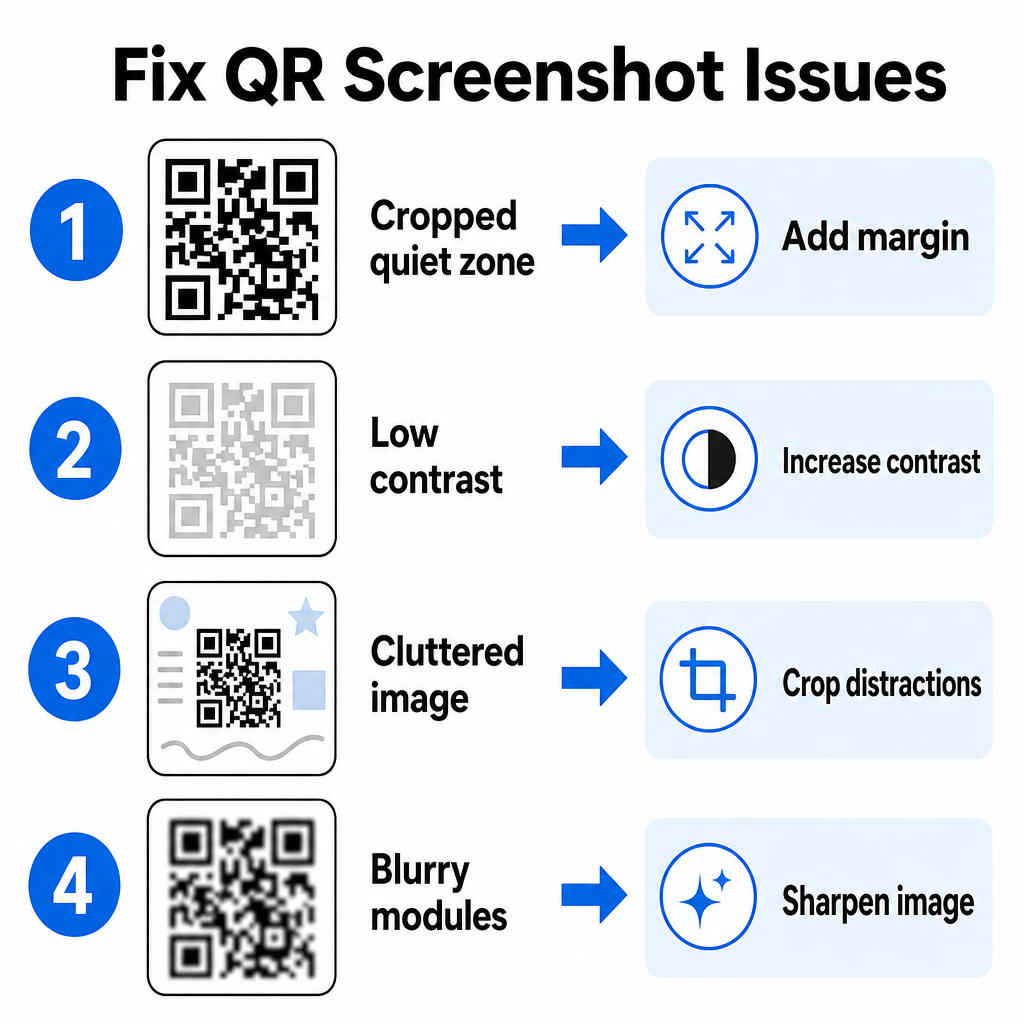
| Problem | Manchmal erkennt ein Bilddecoder einen QR-Code in einem Screenshot nicht. Technische Störungen entstehen normalerweise durch Bildauflösung, komprimierte Matrixmuster oder unzureichende Ränder. | Lösung |
|---|---|---|
| Fehlende Ruhezone | Ursache. | Bearbeiten Sie das Foto, um mindestens einen weißen Rand von 4 Modulen Breite um die Matrix herum hinzuzufügen. |
| Schwacher Kontrast | Hintergrundfarben gehen in die dunklen Datenmodule über. | Erhöhen Sie den Kontrast oder hellen Sie den Hintergrund mit einem einfachen Bildbearbeitungsprogramm auf. |
| Überladenes Bild | Umliegender Text oder Grafiken verwirren den optischen Scanner. | Schneiden Sie den Screenshot so zu, dass der QR-Code den größten Teil des Rahmens ausfüllt. |
| Verschwommene Module | Niedrige Auflösung verzerrt das Datenmuster und die Ausrichtungsmarkierungen. | Schärfen oder skalieren Sie die Screenshot-Bilddatei, bevor Sie sie erneut scannen. |
Das Verständnis dieser technischen Anforderungen hilft Ihnen, unleserliche Bilder schnell zu beheben. Wenn Sie häufig mit Bildern mit niedriger Auflösung oder beschädigten Dateien umgehen, Vergleich von Top-QR-Code-Scanner-Apps kann Ihnen helfen, spezielle Tools auszuwählen, die mit stärkeren Fehlerkorrekturalgorithmen ausgestattet sind.
Welche Daten können aus einem QR-Code-Screenshot extrahiert werden?
QR-Codes speichern strukturierte Datenformate, die über einfache Website-Adressen hinausgehen. Je nachdem, wie der Ersteller den Code erstellt hat, kann das Lesen eines gespeicherten Bildes verschiedene Aktionen direkt auf Ihrem Bildschirm auslösen:
- Web-URLs: Leitet Ihren Browser zu Landingpages, digitalen Menüs oder Online-Formularen weiter.
- vCard-Kontaktdaten: Speichert Namen, Telefonnummern und E-Mail-Adressen direkt in Ihren Kontakten.
- Wi-Fi-Anmeldeinformationen: Verbindet Ihr Gerät mit drahtlosen Netzwerken, indem SSID-Namen und Passwörter übertragen werden.
- Nur-Text-Notizen: Zeigt unformatierte Nachrichten, Aktionscodes oder Anweisungen offline an.
- Kommunikationsvorlagen: Füllt SMS-Textnachrichten oder E-Mail-Entwürfe mit den angegebenen Empfängerdaten vor.
Wenn Sie wissen, welche Datentypen existieren, ist es einfacher, Eingabeaufforderungen bei der Verarbeitung gespeicherter Dateien auf verschiedenen Smartphones und Mobilgeräten.
zu navigieren.
Sicherheitsbest Practices für das Scannen gespeicherter QR-Code-Bilder.
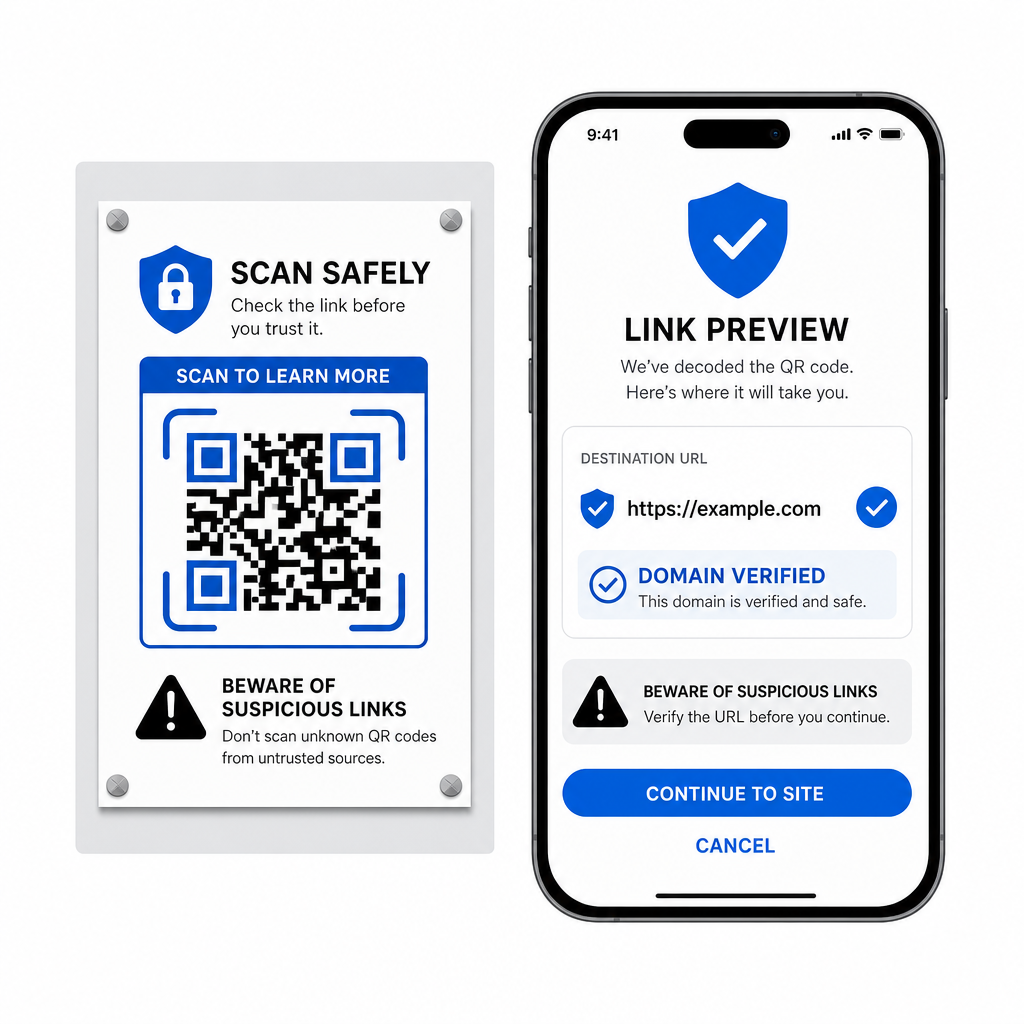
- Da Screenshots das endgültige Ziel eines eingebetteten Links verbergen, bis sie dekodiert sind, verwenden Cyberkriminelle manchmal betrügerische QR-Codes – eine Praxis, die als Quishing bekannt ist –, um Benutzer zu bösartigen Websites zu leiten. Der Schutz Ihrer persönlichen Daten erfordert eine grundlegende Überprüfung, bevor Sie dekodierte Inhalte öffnen. Ziel-URLs in der Scanner-Pop-up-Menü anzeigen.
- bevor Sie sie öffnen. Überprüfen Sie die Domain-Schreibweise.
- , um sicherzustellen, dass die Webadresse mit dem offiziellen Markennamen übereinstimmt. Vermeiden Sie die Eingabe sensibler Anmeldeinformationen.
- oder Zahlungsinformationen auf Seiten, die direkt von gescannten Codes geöffnet werden. Lehnen Sie unerwartete Download-Aufforderungen.
oder Berechtigungsanfragen ab, die unmittelbar nach dem Scannen erscheinen.
Dekodieren Sie jedes QR-Code-Bild ganz einfach.
Sie benötigen kein zweites Telefon oder eine physische Kameralinse, um einen QR-Code zu lesen, der auf Ihrem Bildschirm gespeichert ist. Egal, ob Sie ein Bild in Apple Fotos lange drücken, eine Datei mit Google Lens unter Android scannen oder einen gespeicherten Screenshot in einem Desktop-Browser hochladen, das Extrahieren eingebetteter Links dauert nur wenige Sekunden.
Häufig gestellte Fragen
Ja. iOS und Android verfügen über integrierte Galerie-Decoder wie Apple Fotos und Google Lens, die Daten direkt aus gespeicherten Bildern extrahieren. Alternativ können Sie Ihre Bilddatei direkt in den webbasierten Pageloot QR-Code-Scanner hochladen.
Für den schnellsten plattformübergreifenden Workflow ohne Installation zusätzlicher Software, behalten Sie einen browserbasierten Scanner als Lesezeichen, damit Sie Screenshot-Dateien einfügen können, wann immer Sie deren versteckte Inhalte aufdecken müssen.
Schneiden Sie den Screenshot eng um die QR-Code-Matrix zu, um Hintergrundstörungen zu entfernen. Stellen Sie sicher, dass der weiße Rand (Ruhezone) um die quadratischen Module intakt bleibt, und erhöhen Sie die Bildhelligkeit oder den Kontrast, wenn das Design dunkel aussieht.