Are you tired of potential clients making typos when manually entering your contact details? A single transcription error can result in a lost connection and missed revenue. By creating a vCard QR code, you can ensure your professional information is saved to a smartphone instantly and accurately with one simple scan.
The Role of vCard QR Codes in Modern Networking
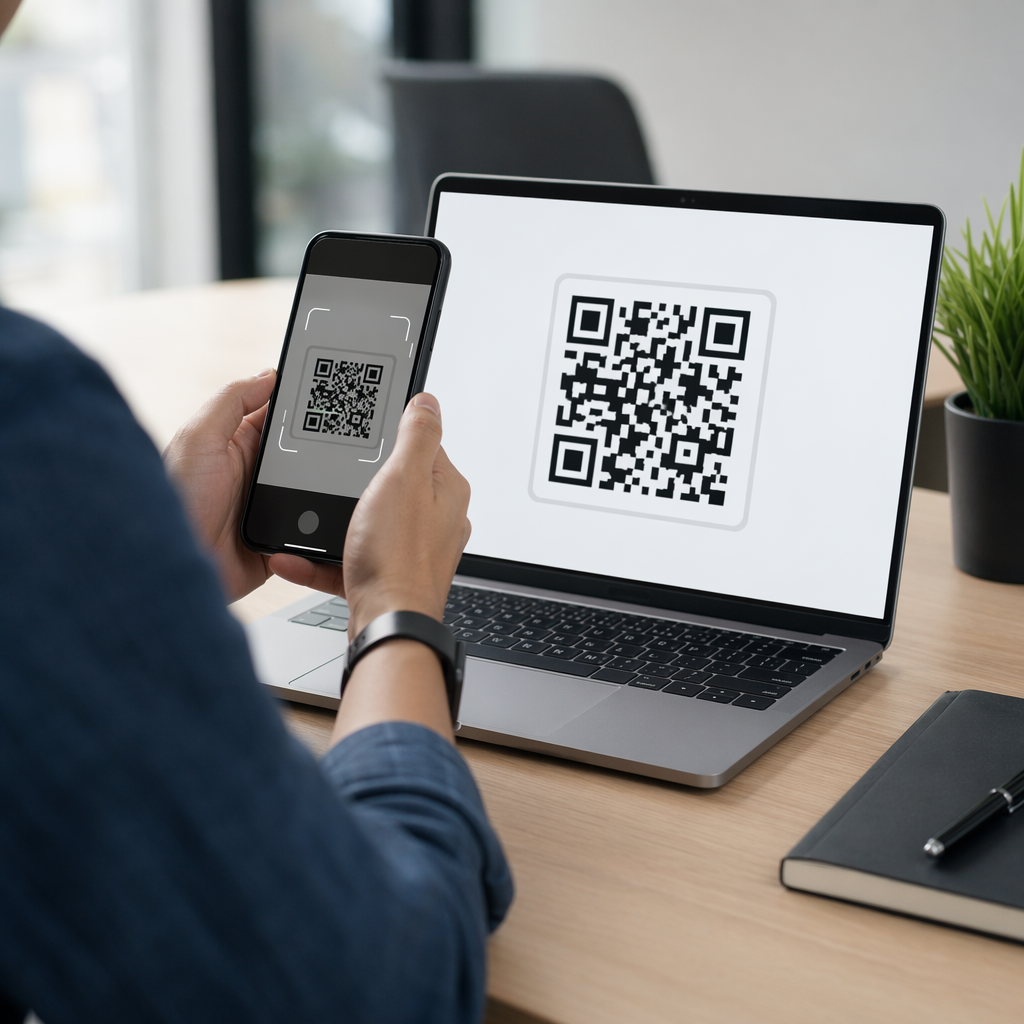
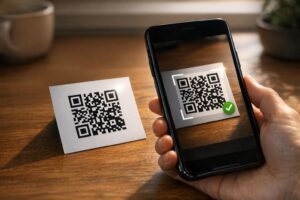
A vCard QR code functions as a digital bridge between a physical business card and a recipient’s contact list. It encodes data using the .vcf file standard, which modern smartphones – including iPhones running iOS 11 or later and most Android devices – recognize natively through their camera apps. When scanned, the device automatically parses the information and prompts the user to “Add to Contacts,” eliminating the need for manual typing.
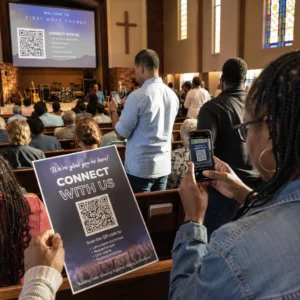
With nearly 100 million Americans expected to scan QR codes by 2025, providing a scannable contact option is becoming a professional standard. This technology transforms a traditional card into an interactive tool, allowing you to share your name, phone number, email, organization, and even a website URL in seconds. Using a professional vCard QR code generator allows you to consolidate this information into a clean, scannable format that respects the limited space of a standard business card.
How to Create Your Professional Contact Code
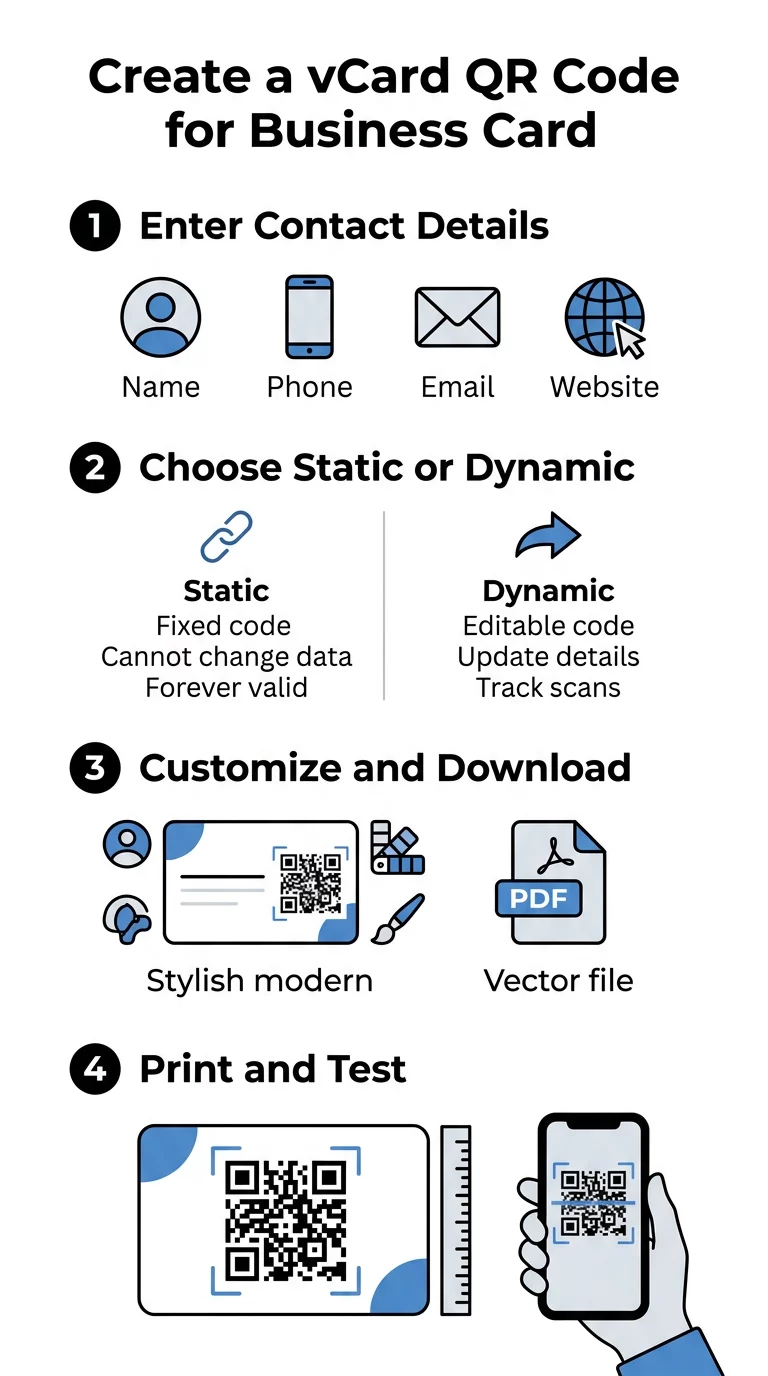
The process of generating a contact code begins by entering your specific professional details into a generator. You should prioritize essential fields such as your full name, primary phone number, and professional email address. While it is possible to include social media profiles or physical addresses, keeping the data concise ensures the resulting QR code remains less dense and easier for older smartphone cameras to read.
After entering your details, you must decide between a static or dynamic format. Static codes are permanent and store data directly in the pattern, whereas dynamic codes utilize a redirect that allows you to update your information without reprinting your cards. Once the data is set, you can customize the visual elements to align with your brand identity. The final step is to download the code in a vector format, such as SVG or EPS, which preserves the sharp edges of the modules even when scaled down to fit on a small card.
Streamline your networking today. Use Pageloot’s vCard QR code generator to create a custom, print-ready contact code for your business cards.
Technical Standards for Scannability
A QR code is only effective if it scans reliably under various lighting conditions and distances. Think of the smartphone scanner like a high-speed reader that needs a clear view to interpret the data modules accurately. To achieve this, you must adhere to several critical technical specifications:
- Minimum Print Size: Ensure the code is at least 0.8 x 0.8 inches (2 x 2 cm). Smaller codes often fail to scan on devices with lower-resolution cameras.
- The Quiet Zone: Maintain a clear border of white space around the entire code, known as the “quiet zone.” According to ISO 18004 standards, this should be at least four modules wide to separate the code from surrounding design elements.
- Contrast and Visibility: Always use dark modules on a light background. A high contrast ratio is essential because scanners distinguish the code by the way modules reflect or absorb light.
- Error Correction: Utilize Level M (15%) or Q (25%) error correction. This adds a layer of digital redundancy, allowing the code to remain functional even if the business card is slightly scratched or smudged.
Following best QR code sizes for business cards and QR code color contrast best practices will help you avoid the most common technical pitfalls that lead to scanning failures.
Static vs. Dynamic: Making the Strategic Choice
Choosing the right type of code depends on your long-term networking goals. Static QR codes are fixed; the data is hard-coded into the pattern and cannot be changed once printed. These are best for individual professionals whose contact details are unlikely to change for several years. However, as you add more fields to a static vCard, the pattern becomes increasingly dense, which may require a larger print size to remain readable.
Dynamic QR codes offer significantly more flexibility by using a short redirect URL. This allows you to static vs dynamic QR codes to edit your phone number, job title, or email address even after you have distributed hundreds of business cards. Dynamic codes also provide valuable analytics, such as the number of times your card was scanned and the general location of those scans. Because the encoded data is a short link, the QR pattern remains simple and scans faster than a high-density static code. You can learn more about how to understand QR code data limits to determine which format fits your specific needs.
Design and Placement Best Practices
The placement of your QR code significantly impacts how often it is used. Most professionals place the code on the back of the card to keep the front design clean, or in the lower-right corner of the front for visibility. It should occupy roughly 20% of the card area to be prominent without overwhelming other design elements. Integrating the code into your business card design with a QR code requires a balance between aesthetic appeal and functional scanability.
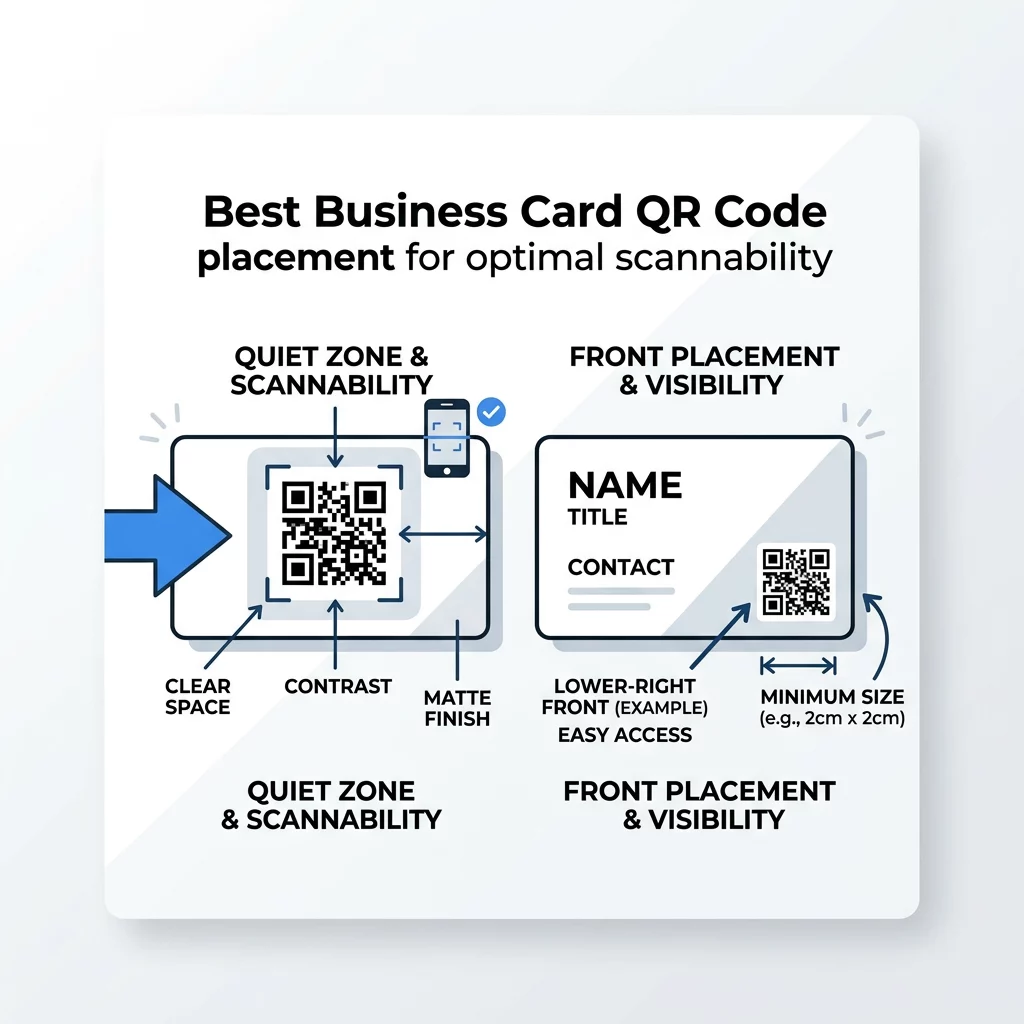
The material of the card also plays a role in performance. Avoid glossy or reflective coatings, as they can create a glare that confuses the camera lens. A matte finish on high-quality paper stock (300+ DPI) is the preferred choice for professional results. Before finalizing a print run, you should always test a physical proof using a QR code scanner across multiple devices and lighting environments to ensure QR code readability best practices are met.
FAQ
A standard vCard can include your full name, organization, job title, multiple phone numbers, email address, and website. It is best to keep the total character count under 400 to maintain a scan-friendly code density. Do I need a special app to scan a business card QR code? No, most modern smartphones have built-in scanners within the native camera app. Users simply point their camera at the code, and a notification will appear asking if they would like to save the contact information. Why does my QR code fail to scan on some devices? The most common reasons for scan failure are insufficient contrast, a missing quiet zone, or a print size that is too small. Testing your design on at least five different devices can help identify these issues before you commit to a full print run. To ensure your digital contact card works flawlessly every time, start by using a high-quality QR code generator. By applying these optimization steps, you turn every professional encounter into a permanent digital connection.