Are you struggling to see which of your physical marketing materials are actually driving website traffic? Without proper tracking, every scan from a poster or flyer disappears into the “Direct” traffic bucket in Google Analytics, making it impossible to calculate your ROI. This guide explains how to use UTM parameters to turn every QR code scan into measurable data.
Why Your QR Code Needs UTM Parameters
When a user scans a standard QR code, Google Analytics (specifically GA4) often struggles to identify the origin of that visit. Because the smartphone camera app opens the browser directly without passing a referral header, the session is usually categorized as Direct traffic. This technical limitation leaves marketers in the dark about whether a visitor engaged via QR codes on flyers or QR codes on business cards.
UTM (Urchin Tracking Module) parameters are simple text tags appended to the end of a URL. When a visitor scans a code containing these tags, GA4 extracts the information and attributes the session to the correct campaign, source, and medium. Implementing this setup is the primary foundation for tracking QR codes effectively across different physical touchpoints.
Selecting the Correct UTM Tags for Accurate Data
To maintain clean data, you must follow strict naming conventions. Google Analytics is case-sensitive, which means that labels like “QRCode” and “qrcode” will appear as separate entries in your reports, fragmenting your insights. Consistency is key to ensuring your QR code analytics are easy to read and interpret.
The following table summarizes the primary parameters you should use for your offline campaigns:
| Parameter | Purpose | Example |
|---|---|---|
| utm_source | Identifies the physical location or material. | billboard, flyer, vehicles |
| utm_medium | Identifies the marketing channel (use `qr_code`). | qr_code |
| utm_campaign | The name of your specific marketing effort. | summerpromo2024 |
| utm_content | Distinguishes between different versions of an ad. | leftsidebar, bluedesign |
Pro Tip: Always use lowercase letters for all UTM parameters. This prevents the accidental creation of duplicate categories and ensures that all your scan data remains consolidated in a single report.
Steps to Build Your Trackable QR Link
Creating a trackable URL is a straightforward process, but it requires precision to avoid technical errors. If a URL is formatted incorrectly, it may lead to a 404 error or result in why your QR code is not working during a live campaign.
- Generate the tagged URL: Use a reliable campaign URL builder to input your destination link and the corresponding UTM parameters.
- Address URL length: Long URLs with multiple UTM tags create dense, complex QR patterns. These tiny modules are often difficult for older smartphone cameras to read, especially in low-light conditions.
- Choose a generator: Enter your final URL into a website QR code generator to create the visual code.
- Perform a scan test: Before proceeding to mass printing, scan the code with several different devices to verify that the mobile browser correctly displays the UTM-tagged URL.
To maintain high scannability and the ability to update your tracking links even after your materials are printed, use a Dynamic QR Code Generator. This tool allows you to fix typos or change destination links without reprinting your flyers or brochures.
Why Dynamic QR Codes are Essential for Analytics
While you can technically add UTM parameters to a static QR code, it is rarely recommended for professional marketing. A static QR code embeds the entire long URL directly into its pixel pattern. As the URL grows with tracking tags, the code becomes increasingly dense. This density significantly increases the risk of scanning failures if the print is small or the environment is poorly lit.
Dynamic QR codes solve this problem by acting as a digital bridge. The physical code contains a short, permanent redirect link that sends the user to your final UTM-tagged URL. This offers two significant advantages:
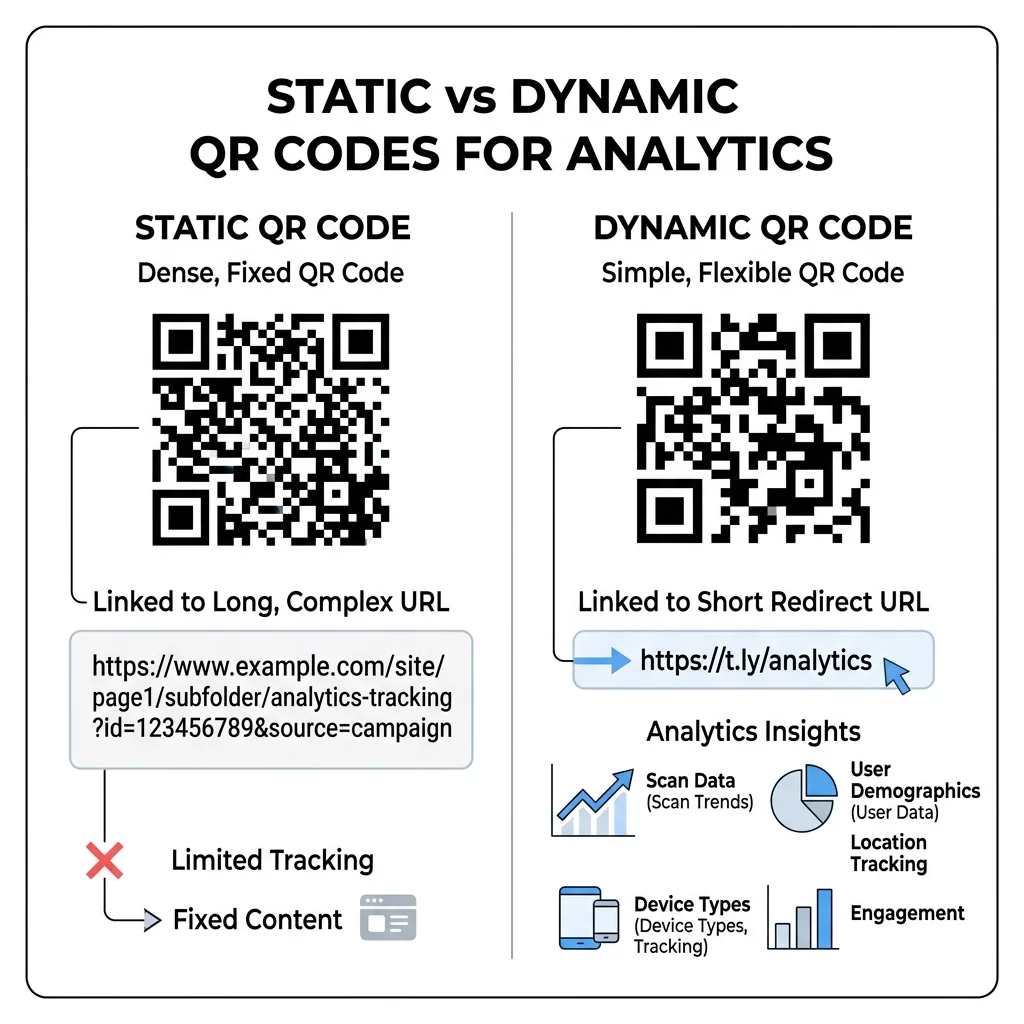
- Improved Scannability: The physical pattern of the code remains simple and easy to read, regardless of how many tracking parameters you append to the destination link.
- Operational Flexibility: If you discover a mistake in your campaign name or need to change the landing page after printing, you can edit the QR code instantly through your management dashboard.
Viewing Your QR Scan Data in Google Analytics 4
Once your campaign is active, you can monitor the performance of your offline materials directly within the GA4 interface. This allows you to see exactly which physical placements are generating the most engagement and conversions.
- Open GA4 and navigate to the Reports section, then select Acquisition and Traffic Acquisition.
- Locate the primary dimension dropdown and change it to Session medium. You should see `qr_code` listed if you used the recommended naming convention.
- Add a secondary dimension by clicking the blue “+” icon and searching for Session source.
This customized view reveals the specific sources – such as different store locations or print materials – that are driving traffic. By tracking QR code scans over time, you can identify seasonal trends and determine which physical channels provide the best return on your marketing investment.
FAQ
Adding UTM tags to a static QR code makes the pattern more complex and harder to scan. However, when you use a dynamic QR code, the density remains low because the code only contains a short redirect URL, ensuring a fast and reliable scanning experience.
Traffic is categorized as “Unassigned” when GA4 does not recognize the `utmmedium` tag. To avoid this, use a standard medium like `qrcode`. If the traffic still appears as unassigned, you may need to create a Custom Channel Group in your GA4 settings to tell the system how to group your offline traffic.
Google Analytics provides approximate geographic data based on the user’s IP address. For more precise insights, you can use geolocation analytics for QR codes provided by your QR management platform, which can often show scan data down to the city level in real-time. Properly tagging your links removes the guesswork from your offline marketing strategy. By combining UTM parameters with dynamic technology, you bridge the gap between your physical touchpoints and your digital reporting. If you are ready to start measuring the impact of your print materials, use our link QR code generator to create your first trackable campaign.