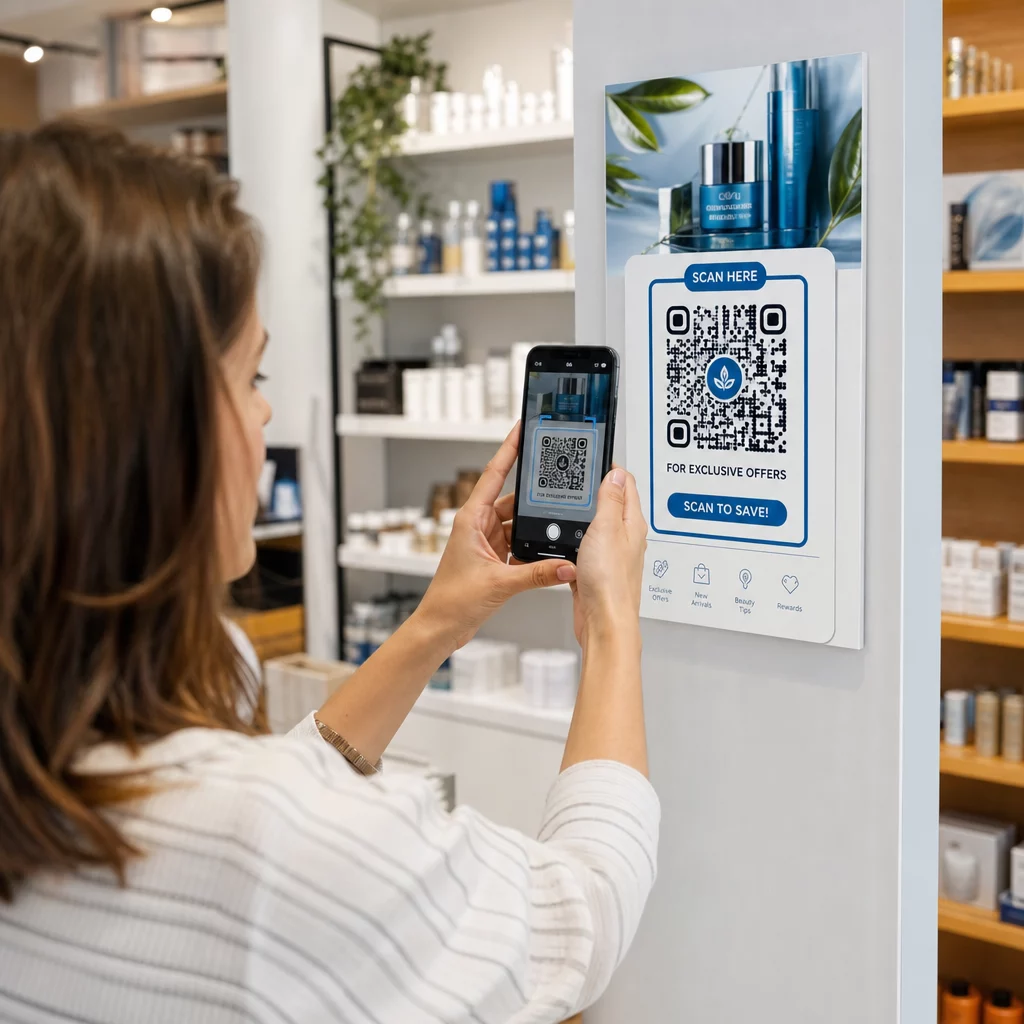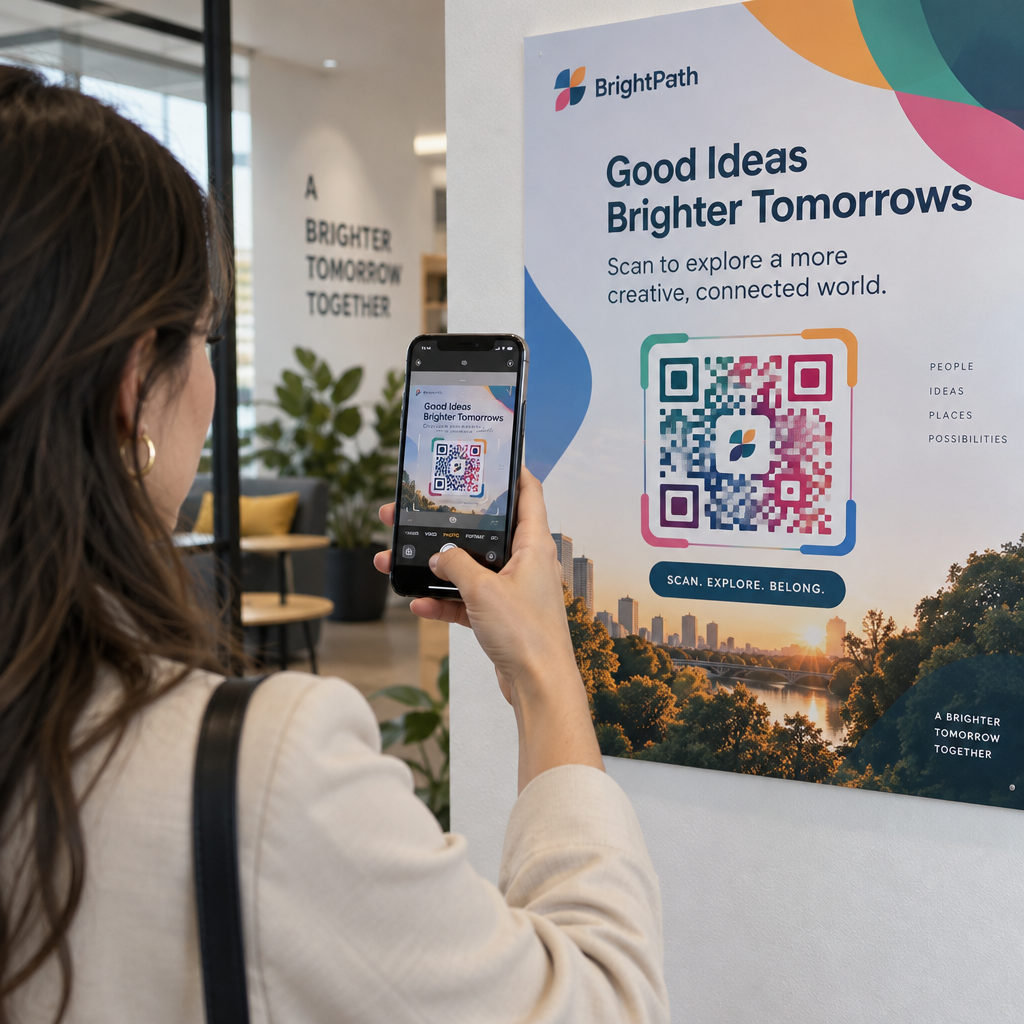
Are your offline marketing campaigns disappearing into generic direct traffic in Google Analytics? Without campaign tags, smartphone scans cannot pass referral headers, making it impossible to measure physical promotion performance. Adding UTM parameters to your destination URLs solves this issue by attributing every scan to its exact campaign, medium, and source.
Why QR Codes Require UTM Parameters
When someone scans a printed QR code with a smartphone camera, the operating system launches the default mobile browser directly. Because this interaction does not originate from a hyperlinked web page, the browser does not pass an HTTP referrer header. Web analytics platforms like Google Analytics 4 (GA4) cannot identify where the visitor originated, so they automatically categorize the session as Direct traffic.
This reporting gap makes it difficult to evaluate marketing spend across print ads, event signage, product packaging, and direct mail. Urchin Tracking Module (UTM) parameters solve this by attaching campaign tracking tags to the end of your web address.
When the destination page loads, GA4 extracts these tags and assigns the session to the designated channel. Using UTM parameters allows you to accurately track offline marketing ROI with QR codes across individual print materials and distribution channels.
Selecting the Correct UTM Tags for Offline Campaigns
Consistent naming conventions are critical for clean reporting. Google Analytics is case-sensitive, meaning that `Flyer`, `flyer`, and `Flyers` appear as three separate entries in your reports. Standardizing your tagging structure prevents fragmented data and simplifies your campaign analysis.
Google strongly recommends setting `utmsource`, `utm
medium`, and `utm_campaign` at a minimum to avoid `(not set)` values in your traffic acquisition reports.
| Parametrs | Mērķis | Recommended Convention | Piemēra vērtība |
|---|---|---|---|
| `utm_source` | Identifies the specific placement, venue, or physical asset | Placement name or material type | `storewindow`, `mailerq3` |
| `utm_medium` | Identifies the marketing vehicle or delivery mechanism | Standardized channel tag | `qr` or `qr_code` |
| `utm_campaign` | Identifies the broader marketing initiative or product launch | Overall campaign title | `springlaunch2026` |
| `utm_content` | Differentiates creative variants, sizes, or calls to action | Creative or layout identifier | `sidebarbanner`, `frontcover` |
| `utm_term` | Tracks specific audience segments or paid keywords | Keyword or audience identifier | `retargeting_event` |
To maintain data integrity across all offline assets, follow these best practices:
- Always write parameter values in lowercase letters to prevent split channel groupings.
- Replace spaces with hyphens or underscores, as spaces create encoded characters that complicate reporting.
- Standardize your medium tag across the entire organization so all scans roll up into a single channel.
- Maintain a central tracking spreadsheet or URL documentation log to avoid duplicate parameter values across team members.
How to Build and Convert Your Trackable QR Link
Building a trackable URL follows a strict technical syntax. The parameters sit at the end of the base URL, separated from the path by a question mark (`?`). Each parameter connects to its value with an equals sign (`=`), and multiple parameters connect with an ampersand (`&`).
A properly structured campaign URL appears in this format:
`https://example.com/promo?utmsource=downtownbillboard&utmmedium=qr&utmcampaign=vasarasale&utmcontent=blue_creative`
You can assemble this link manually or use Google’s Campaign URL Builder to generate the string. Once your URL is ready, follow these steps to turn it into a production-ready marketing asset:
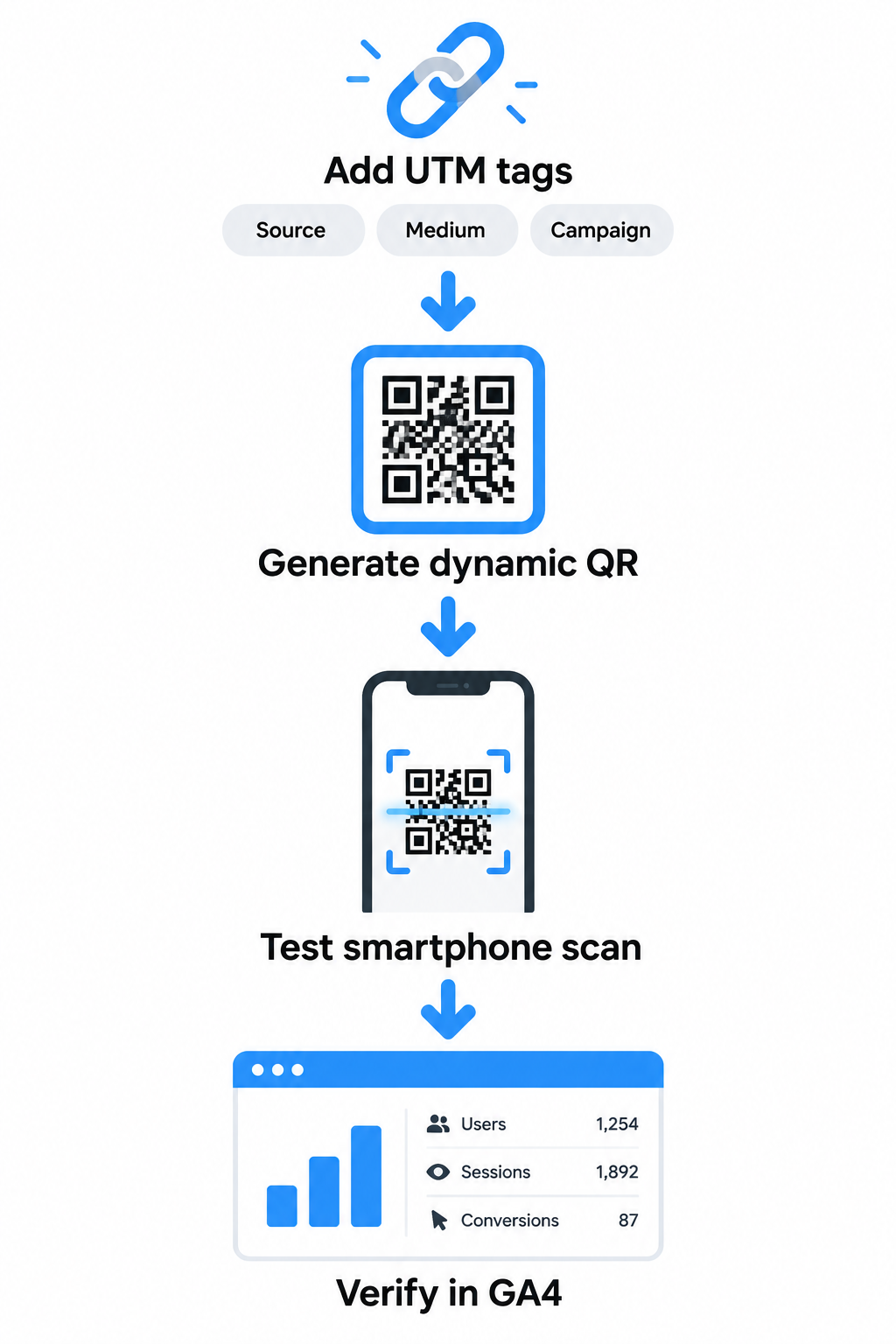
- Enter your complete UTM-tagged URL into a reliable saites QR koda ģenerators to encode the destination.
- Ensure the base webpage is mobile-responsive and functions properly on small screens before finalizing the graphic.
- Follow established technical guidelines to pārvērst saiti par QR kodu graphics that maintain sufficient size and contrast for rapid mobile scanning.
- Open the generated URL on a mobile device to verify that your analytics platform captures the session in real-time.
- Check the GA4 Realtime report or DebugView to confirm that `source`, `medium`, and `campaign` parameters populate as expected before sending materials to print.
Why Dynamic QR Codes Are Essential for Analytics
While static codes can technically encode UTM parameters, they introduce severe physical limitations for print marketing. A static QR code stores the entire text string directly within its black-and-white module pattern. Because UTM parameters add significant length to web addresses, the resulting static code becomes extremely dense.
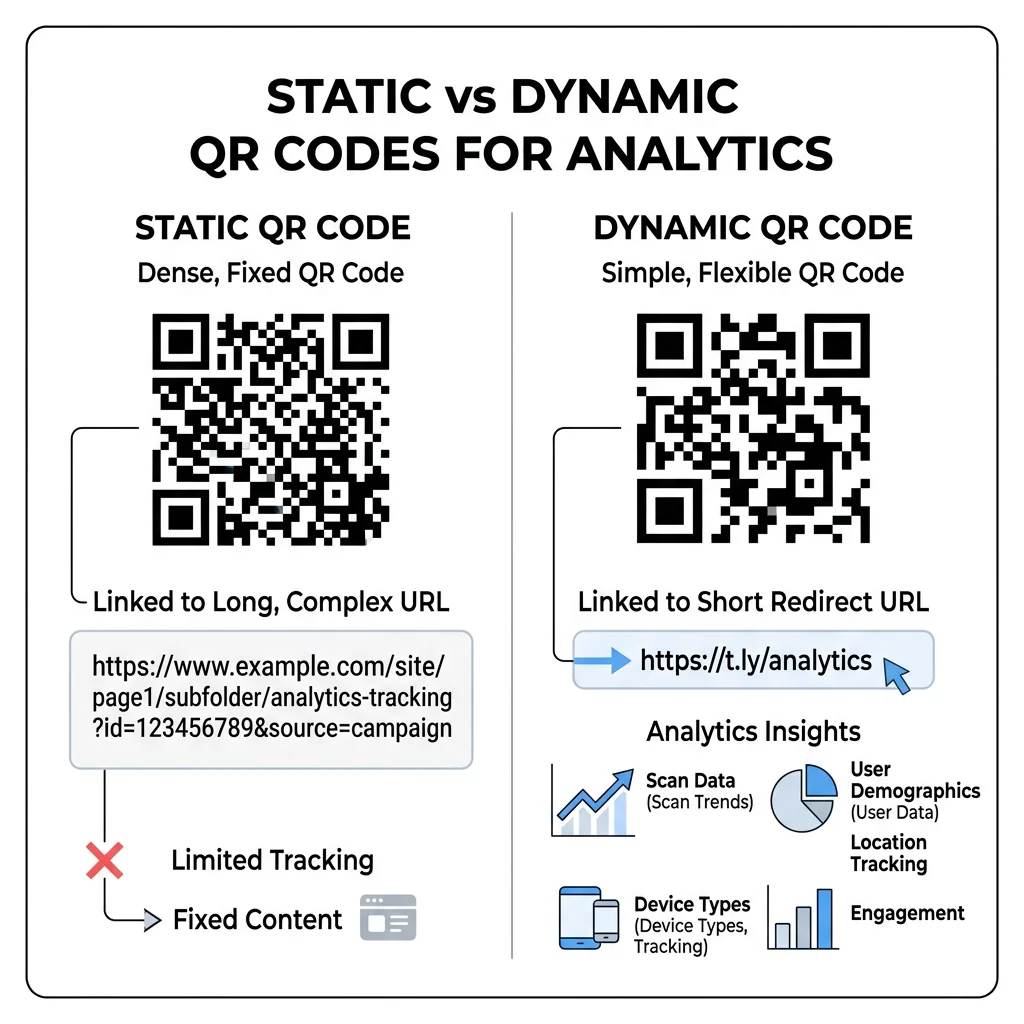
A high-density static pattern contains thousands of tiny blocks that require high visual clarity to scan. If you print a complex static code on small assets like business cards, or if the code appears in low-light environments, smartphone cameras frequently fail to decode it.
Comparing statiskajiem un dinamiskajiem QR kodiem reveals why dynamic technology is the industry standard for tracked campaigns:
- Preserved Scannability: Dynamic QR codes encode a short redirect link rather than your full, tag-heavy URL. This keeps the visual pattern clean and easily readable at any print size.
- Post-Print Editing: If you spot a typo in a UTM parameter or need to change the destination landing page after printing thousands of flyers, dynamic codes allow you to edit the target URL instantly from your dashboard.
- Dual-Layer Analytics: Combining dynamic redirection with UTM tags allows you to measure both top-of-funnel scan metrics and deeper on-site web conversions.
Uzraugiet savu kampaņu reāllaikā Vai vēlaties precīzi redzēt, kur un kad jūsu klienti skenē jūsu materiālus? Izmantojiet Dinamisks QR kodu ģenerators lai izveidotu izsekojamus kodus un piekļūtu pilnam veiktspējas informācijas panelim jau šodien.
Using dynamic routing also provides environmental insights that Google Analytics cannot capture on its own, illustrating kā QR kodi izseko drukāto reklāmu iesaisti at the physical point of contact.
Viewing QR Scan Data in Google Analytics 4
Once your physical assets are distributed and users begin scanning, GA4 captures the embedded UTM parameters to populate manual campaign and traffic-source dimensions.
To review incoming scan traffic in the standard acquisition reports:
- Navigate to Reports in the left sidebar, expand the Acquisition folder, and select Traffic acquisition.
- Locate the primary dimension dropdown menu above the data table and switch it to Session source / medium.
- Type `qr` or `qr_code` into the table search bar to filter the view exclusively to your offline scan traffic.
- Add a secondary dimension by clicking the plus icon (`+`) next to the search bar and selecting Session campaign to see performance by individual initiative.
To view manual campaign dimensions in a consolidated report:
- Navigate to Reports, expand Acquisition, and select Overview.
- Scroll down to the Sessions by Session manual source card and click View manual campaigns.
- Review campaign volume, engagement rates, average session duration, and goal completions tied directly to your offline collateral.
Combining web analytics with specialized software for QR kodu izsekošana gives you a complete view of campaign performance. While GA4 records post-scan behavior like pageviews, time on site, and e-commerce purchases, your QR dashboard captures raw scan counts, device operating systems, and scan timestamps directly at the physical touchpoint.
Connecting Scan Data to Campaign Conversions
Tracking scan volume shows customer curiosity, but measuring campaign return on investment requires connecting top-of-funnel scans to concrete bottom-of-funnel actions. When you configure key events in GA4 – such as lead form submissions, account registrations, or completed checkouts – the platform attributes those digital conversions back to your original offline UTM tags.
By pairing structured UTM tagging with dynamic QR code technology, you transform static print assets into measurable digital acquisition channels. Establishing clear naming standards, validating URLs before printing, and monitoring traffic through GA4 reports ensures every dollar invested in physical marketing is fully accountable.
Biežāk uzdotie jautājumi
Long URLs create dense patterns when encoded into static QR codes, which can cause scanning delays or failures on smaller print items. Using a dynamic QR code solves this by storing a short redirect link in the code matrix, keeping the pattern clean and scannable while routing visitors through your complete UTM URL.
Scans appear as Direct when the destination URL lacks UTM parameters, because mobile camera apps do not pass referral headers to web browsers. Traffic appears as Unassigned if you use non-standard medium values that do not match default channel grouping rules in GA4, which you can resolve by using a consistent medium such as `qr` or `qr_code`.
You can only change UTM parameters after printing if you use a dynamic QR code. Dynamic codes point to a backend redirect that you can edit anytime in your dashboard, whereas static QR codes hardcode the URL permanently into the visual pattern and require a full reprint to update.