Wysłanie kodu QR do druku bez wcześniejszego przetestowania jest jednym z najczęstszych – i najdroższych – błędów w marketingu drukowanym. Kod, który wygląda idealnie na ekranie, może całkowicie zawieść, gdy trafi na papier, winyl lub opakowanie. Ten przewodnik przeprowadzi Cię przez każdą kontrolę, którą musisz wykonać przed zatwierdzeniem serii wydruków.
Dlaczego kody QR zawodzą po wydrukowaniu
Kod QR, który skanuje się czysto na monitorze, może zawieść w rzeczywistym świecie z powodów, które stają się widoczne dopiero po wydrukowaniu. Zrozumienie tych punktów awarii pomaga stworzyć niezawodną listę kontrolną przed drukiem.
Najczęstsze przyczyny to:
- Zbyt mały rozmiar w stosunku do oczekiwanej odległości skanowania
- Niska rozdzielczość powodująca rozmyte lub pikselowane moduły
- Niewystarczający kontrast między kodem a jego tłem
- Brak strefy ciszy (przejrzysta ramka otaczająca kod)
- Wysoka gęstość danych tworząca wzór zbyt drobny, aby kamery mogły go odczytać
- Niewłaściwy format pliku użyty do wydruku
Każdy z tych problemów jest całkowicie do uniknięcia, jeśli wykryjesz go, zanim maszyna drukarska ruszy. Poniższe sekcje omawiają każdy z nich po kolei.
Sprawdź rozmiar kodu QR w stosunku do odległości skanowania
Rozmiar jest najczęstszą przyczyną awarii wydrukowanego kodu QR. Standardowa zasada to the współczynnika 10:1: szerokość kodu QR powinna wynosić co najmniej 1 cm (lub 1 cal) na każde 10 cm (lub 10 cali) oczekiwanej odległości skanowania. Kod na wizytówce trzymanej na wyciągnięcie ręki wymaga zupełnie innego rozmiaru niż ten na plakacie czytanym z drugiego końca pokoju.
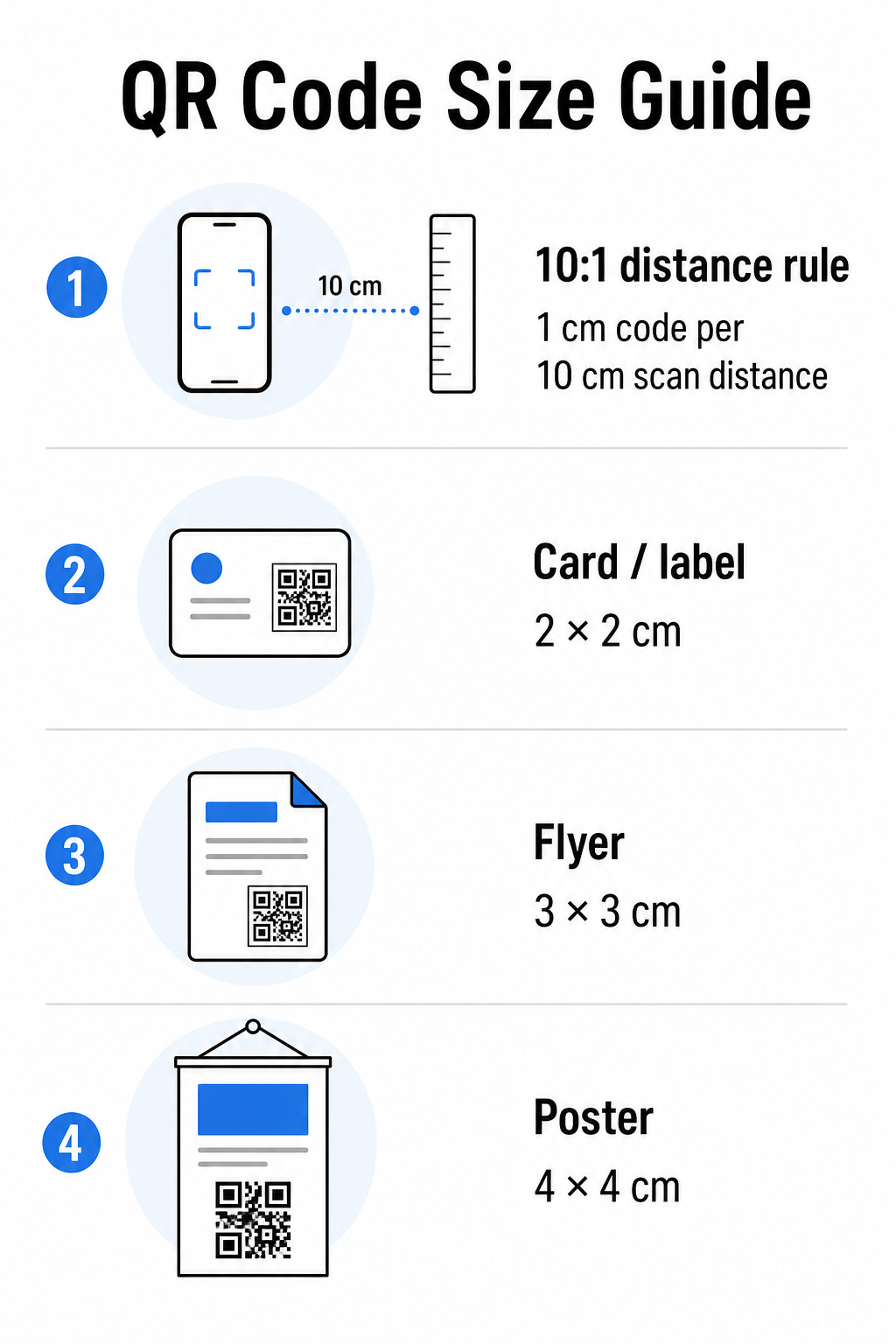
Użyj tej tabeli jako punktu wyjścia dla typowych materiałów drukowanych:
| Materiał do druku | Minimalny zalecany rozmiar | Typowa odległość skanowania |
|---|---|---|
| Wizytówka / etykieta | 2 × 2 cm (0.8 × 0.8 cala) | 20–30 cm (8–12 cali) |
| Broszura / ulotka | 3 × 3 cm (1.2 × 1.2 cala) | 30 cm (12 cali) |
| Plakat / oznakowanie | 4 × 4 cm (1.6 × 1.6 cala) | 40 cm (16 cali) |
| Billboard / baner | 40 × 40 cm (16 × 16 cali) | 4 m (13 stóp) |
Przed zatwierdzeniem jakiegokolwiek pliku do druku, upewnij się, że wymiary kodu odpowiadają Twojemu oczekiwanemu zastosowaniu. The przewodniku po rozmiarach kodów QR zawiera pełne zestawienie według typu materiału, w tym, jak gęstość danych wpływa na minimalny możliwy rozmiar.
Zweryfikuj format pliku i rozdzielczość druku
Format, w którym eksportujesz, jest równie ważny jak sam projekt. Obrazy rastrowe, takie jak PNG i JPEG, składają się z pikseli. Po przeskalowaniu do druku wielkoformatowego stają się rozmyte, a drobne moduły w kodzie QR tracą ostre krawędzie – co sprawia, że kod jest trudny lub niemożliwy do zeskanowania.
Dla każdego drukowanego kodu QR używaj formatów wektorowych: SVG, EPS lub PDF. Pliki wektorowe skalują się do dowolnego rozmiaru bez utraty jakości, ponieważ są zdefiniowane matematycznie, a nie piksel po pikselu. Jeśli musisz użyć formatu rastrowego, upewnij się, że rozdzielczość wynosi co najmniej 300 DPI przy zamierzonym rozmiarze wydruku – a nie przy rozmiarze podglądu na ekranie.
Szybka kontrola rozdzielczości: otwórz plik obrazu, zanotuj jego wymiary w pikselach i podziel przez zamierzony rozmiar wydruku w calach. Jeśli kod QR o rozmiarze 1 cala jest zapisany jako obraz 100 × 100 pikseli, ma tylko 100 DPI – znacznie poniżej minimum 300 DPI i prawie na pewno wydrukuje się rozmyty.
Aby uzyskać głębsze spojrzenie na ten temat, the przewodniku po rozdzielczości druku kodów QR omawia szczegółowo wymagania dotyczące DPI i wybory formatów.
Twórz gotowe do druku kody QR w kilka sekund Plik Pageloot Generator kodów QR umożliwia pobieranie kodów w formatach SVG, EPS i PDF – gotowych do druku w dowolnym rozmiarze bez utraty jakości.
Przetestuj kontrast przed drukiem
Skanery kodów QR działają poprzez rozróżnianie ciemnych modułów od jasnego tła. Gdy kontrast jest zbyt niski, skaner nie może niezawodnie zidentyfikować wzoru – nawet jeśli kod wygląda dobrze dla ludzkiego oka.
Techniczny punkt odniesienia do spełnienia to a minimalnego współczynnika kontrastu 4:1 między ciemnymi modułami a jasnym tłem. W przypadku aplikacji płatniczych lub zastosowań skoncentrowanych na dostępności, dąż do 5:1 lub wyżej. Czarne moduły na białym tle dają współczynnik 21:1 – złoty standard, do którego porównuje się każdą inną kombinację kolorów.
Typowe błędy kontrastu do sprawdzenia przed drukiem:
- Jasnoszare moduły na białym tle: niewystarczający kontrast, który zawiedzie w słabym oświetleniu
- Odwrócone kolory (jasny kod na ciemnym tle): niektóre skanery sobie z tym radzą, wiele nie – nigdy na tym nie polegaj
- Wypełnienia gradientowe na modułach: tworzy nierówny kontrast, który myli skanery
- Kolory marki, które są zbyt zbliżone w tonacji: przetestuj z konwersją na skalę szarości, aby zobaczyć prawdziwy kontrast
Praktyczny test przed drukiem polega na konwersji obrazu kodu QR na skalę szarości i sprawdzeniu, czy moduły są nadal wyraźnie odróżnialne od tła. Jeśli zaczną się zlewać w skali szarości, zawiodą w szerokim zakresie kamer urządzeń i warunków oświetleniowych. The przewodnikiem po najlepszych praktykach kontrastu kolorów kodów QR zawiera tabelę kombinacji kolorów pokazującą współczynniki kontrastu i oczekiwane wyniki skanowania dla typowych par.
Potwierdź, że strefa ciszy jest nienaruszona
Plik strefy ciszy jest pustym marginesem otaczającym wszystkie cztery strony kodu QR. Nie jest to preferencja projektowa – to wymóg techniczny zdefiniowany przez normę ISO/IEC 18004. Bez niego skanery nie mogą zlokalizować początku i końca kodu, a skanowanie zakończy się niepowodzeniem.
Strefa ciszy musi mieć co najmniej cztery moduły szerokości z każdej strony, gdzie jeden moduł to jeden z małych kwadratów w siatce kodu. Jako praktyczne odniesienie:
- Dla 1-calowy kod QR, należy pozostawić około 0,15 cala wolnej przestrzeni z każdej strony
- Dla kod QR wizytówki, zachowaj strefę ciszy o szerokości co najmniej 0,25 cala
Przed wysłaniem do druku, powiększ plik układu i upewnij się, że żaden tekst, obraz, obramowanie ani wzór tła nie narusza tej strefy. Umieszczenie kodu zbyt blisko krawędzi projektu lub nakładanie go na elementy dekoracyjne to jedna z najczęstszych przyczyn niepowodzeń skanowania, które ujawniają się dopiero po wydrukowaniu.
Sprawdź poziom korekcji błędów
Kody QR posiadają wbudowany system odzyskiwania danych, zwany korekcja błędów, który pozwala na odczytanie kodu nawet jeśli jego część jest uszkodzona, zasłonięta lub zużyta. Istnieją cztery poziomy, z których każdy oferuje inny kompromis między odpornością a gęstością danych:
| Poziom | Zdolność odzyskiwania | Najlepszy przypadek użycia |
|---|---|---|
| L (Niski) | ~7% | Czyste, nieuszkodzone powierzchnie; maksymalna gęstość danych |
| M (średni) | ~15% | Standardowe materiały drukowane z pewnym zużyciem |
| Q (kwartyl) | ~25% | Kody z nakładkami logo lub umiarkowanym ryzykiem uszkodzenia |
| H (Wysoki) | ~30% | Użycie na zewnątrz, opakowania, kody z dużymi nakładkami logo |
Jeśli Twój kod QR zawiera logo nałożone na wzór – co jest częstym wyborem brandingowym – potrzebujesz co najmniej poziomu Q, a idealnie poziomu H. Logo skutecznie zasłania część kodu, więc korekcja błędów musi to zrekompensować. Przed finalizacją potwierdź, z jakim poziomem został wygenerowany Twój kod, i zawsze testuj kod z logo z nałożoną grafiką. Dokument przewodnik po najlepszych praktykach czytelności kodów QR szczegółowo opisuje, jak korekcja błędów współdziała z umieszczeniem logo.
Wykonaj fizyczny test druku przed pełnym nakładem
Żadna ilość sprawdzania na ekranie nie zastąpi wydrukowania fizycznej próbki. Wydrukuj pojedynczą kopię w dokładnym rozmiarze końcowym na dokładnie tym samym materiale którego zamierzasz użyć, a następnie przetestuj go w warunkach odzwierciedlających rzeczywiste użytkowanie.
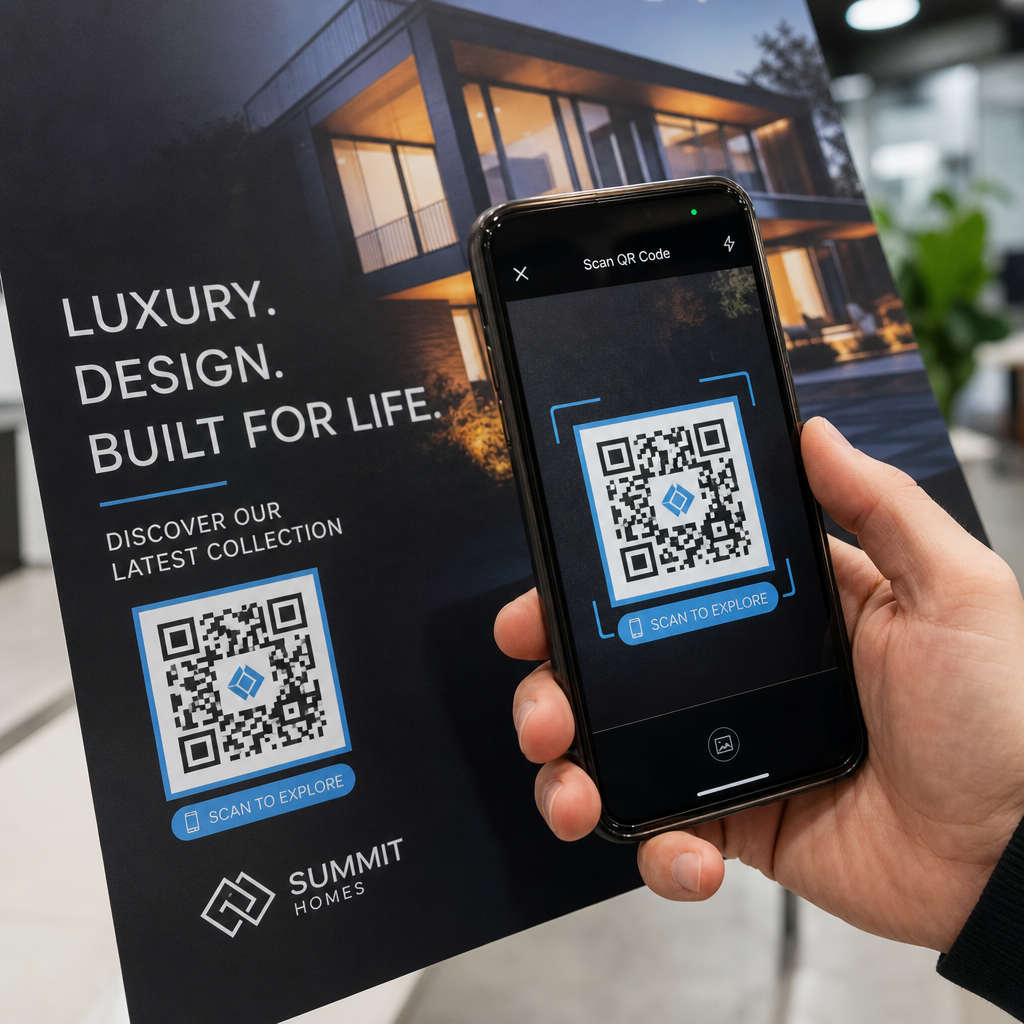
Twój fizyczny test powinien obejmować:
- Wiele urządzeń: testuj na co najmniej dwóch różnych smartfonach – jednym z systemem iOS i jednym z Androidem – używając zarówno natywnej aplikacji aparatu, jak i skanera innej firmy
- Wiele odległości: skanuj z typowej odległości użytkownika, a także z nieco większej odległości, aby potwierdzić margines błędu
- Wiele warunków oświetleniowych: testuj w jasnym świetle naturalnym, standardowym oświetleniu wewnętrznym i przy słabym oświetleniu, jeśli kod będzie pojawiał się w którymkolwiek z tych środowisk
- Rzeczywista powierzchnia: błyszczące powierzchnie odbijają światło i mogą powodować błędy skanowania, nawet jeśli projekt kodu jest poprawny; matowe wykończenia działają bardziej niezawodnie w różnych warunkach
Możesz również zweryfikować kod cyfrowo, przesyłając obraz swojego projektu do Pageloot Skaner kodów QR aby potwierdzić, że dekoduje się poprawnie, zanim zdecydujesz się na pełną serię. Jeśli Twój kod nie przejdzie któregokolwiek z tych testów, użyj przewodnika rozwiązywania problemów z kodami QR aby zdiagnozować konkretny punkt awarii przed dostosowaniem i ponownym testowaniem.
Aby uzyskać ustrukturyzowany przegląd tego, co powinno obejmować testowanie mobilne, przewodnik po testowaniu kodów QR pod kątem użyteczności mobilnej szczegółowo omawia kompatybilność urządzeń, kąty skanowania i wydajność docelową.
Uwzględnij metodę drukowania i powierzchnię
Sposób drukowania kodu QR wpływa na jego skanowalność niezależnie od samego projektu kodu. Różne metody dają różny poziom ostrości modułów, a różne powierzchnie oddziałują ze światłem w sposób, który może wspomagać lub utrudniać skanowanie.
Kluczowe uwagi dotyczące metody i materiału:
- Matowe wykończenia rozpraszają światło zamiast je odbijać, co sprawia, że są prawie zawsze lepsze od błyszczących wykończeń pod względem niezawodności skanowania
- Druk offsetowy tworzy bardzo ostre krawędzie modułów i doskonale nadaje się do druku wysokonakładowego
- Druk cyfrowy sprawdza się w przypadku krótkich serii i niestandardowych kodów, ale jakość atramentu jest różna i może blaknąć z czasem
- Druk termiczny jest ekonomiczny dla etykiet, ale może rozmywać drobne krawędzie modułów – zwiększ rozmiar kodu, aby to skompensować
- Teksturowane lub zakrzywione powierzchnie wprowadzają zniekształcenia, które mogą mylić skanery; użyj większego kodu, aby to uwzględnić
Aby uzyskać pełne omówienie, jak każda technika wpływa na skanowalność, przewodnik na temat jak techniki druku wpływają na skanowalność kodów QR obejmuje wybór metody, przygotowanie podłoża i trwałość atramentu.
Użyj dynamicznego kodu QR, aby chronić przed zmianami po wydruku
Nawet doskonale przetestowany kod QR może zawieść po wydrukowaniu, jeśli zmieni się docelowy adres URL, powiązana strona zostanie usunięta lub zawartość kampanii wymaga aktualizacji.
Dynamiczne kody QR rozwiązać to poprzez zakodowanie krótkiego adresu URL przekierowania zamiast bezpośrednio końcowego miejsca docelowego. Przekierowanie można zaktualizować w dowolnym momencie z Twojego pulpitu nawigacyjnego, dzięki czemu wydrukowany kod pozostaje ważny nawet gdy Twoja kampania ewoluuje. Oznacza to również, że możesz naprawić uszkodzony link natychmiast po dystrybucji – bez ponownego drukowania ani jednego egzemplarza.
Poza zapobieganiem błędom, kody dynamiczne dają dostęp do analityki skanowania: całkowita liczba skanów, lokalizacje skanowania, czas skanowania i typy urządzeń. Te dane mówią Ci, czy Twoje materiały drukowane faktycznie działają w terenie i gdzie skupić optymalizację. Ten przewodniku po używaniu kodów QR w mediach drukowanych obejmuje, jak kody dynamiczne pasują do szerszej strategii kampanii drukowanej.
Chroń swoją inwestycję w druk Stworzyć Dynamiczny kod QR aby Twoje materiały drukowane były aktualne i śledzić rzeczywistą wydajność skanowania – bez konieczności ponownego drukowania.
Lista kontrolna testowania kodów QR przed drukiem
Przed zatwierdzeniem jakiegokolwiek kodu QR do produkcji druku, przejdź przez każdy z poniższych punktów:
- Rozmiar kodu odpowiada zasadzie 10:1 dla oczekiwanej odległości skanowania
- Plik jest eksportowany w formacie SVG, EPS lub PDF (lub rastrowy o minimalnej rozdzielczości 300 DPI w końcowym rozmiarze wydruku)
- Współczynnik kontrastu między modułami a tłem wynosi co najmniej 4:1
- Cicha strefa co najmniej czterech modułów jest wyraźna ze wszystkich stron
- Poziom korekcji błędów jest odpowiedni (Q lub H, jeśli obecna jest nakładka z logo)
- Kod dekoduje się poprawnie po zeskanowaniu z przesłanego obrazu
- Fizyczny dowód testowany na urządzeniach iOS i Android
- Fizyczny dowód testowany w realistycznych warunkach oświetleniowych i na rzeczywistym materiale do druku
- Docelowy adres URL jest aktywny, zoptymalizowany pod kątem urządzeń mobilnych i ładuje się szybko
- Użyto dynamicznego kodu QR, jeśli miejsce docelowe może wymagać zmiany po wydrukowaniu
Przeprowadzenie tych kontroli przed każdym zleceniem druku zajmuje znacznie mniej czasu niż ponowne zamawianie serii wydruków. Dobra wydajność kodu QR zaczyna się od pliku, a nie od skanera. Ustaw rozmiar, format, kontrast i cichą strefę prawidłowo na etapie projektowania, wydrukuj próbę na rzeczywistym materiale i przetestuj go w sposób, w jaki Twoja publiczność faktycznie go użyje.
Najczęściej zadawane pytania
Niezawodne minimum dla skanowania z bliskiej odległości – takie jak na wizytówkach lub etykietach produktów – wynosi 2 × 2 cm (0,8 × 0,8 cala). W przypadku większych materiałów drukowanych, zastosuj zasadę 10:1: szerokość kodu powinna wynosić co najmniej 1 cm na każde 10 cm oczekiwanej odległości skanowania. Plakat skanowany z odległości 1 metra, na przykład, potrzebuje kodu o szerokości co najmniej 10 cm.
Zawsze używaj formatu wektorowego – SVG, EPS, lub PDF – do druku. Pliki wektorowe skalują się do dowolnego rozmiaru bez rozmywania się lub pikselizacji. Jeśli musisz użyć formatu rastrowego, takiego jak PNG, upewnij się, że rozdzielczość wynosi co najmniej 300 DPI przy końcowym rozmiarze wydruku. Pliki rastrowe o niskiej rozdzielczości są jedną z najczęstszych przyczyn nieczytelnych wydrukowanych kodów QR.
Wydrukuj pojedynczą próbkę w dokładnie zamierzonym rozmiarze na dokładnie tym materiale, którego planujesz użyć, a następnie przetestuj ją na co najmniej dwóch różnych urządzeniach (iOS i Android) w realistycznych warunkach oświetleniowych. Możesz również przesłać obraz swojego kodu do skanera kodów QR Pageloot, aby sprawdzić, czy dekoduje się poprawnie przed oddaniem do druku. Użycie dynamicznego kodu QR dodaje kolejną warstwę ochrony – jeśli coś wymaga zmiany po wydrukowaniu, możesz zaktualizować miejsce docelowe bez ponownego drukowania.