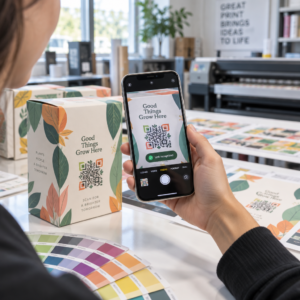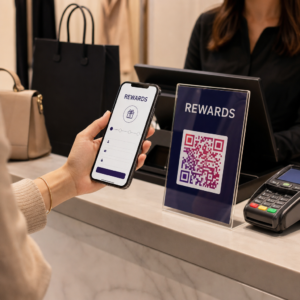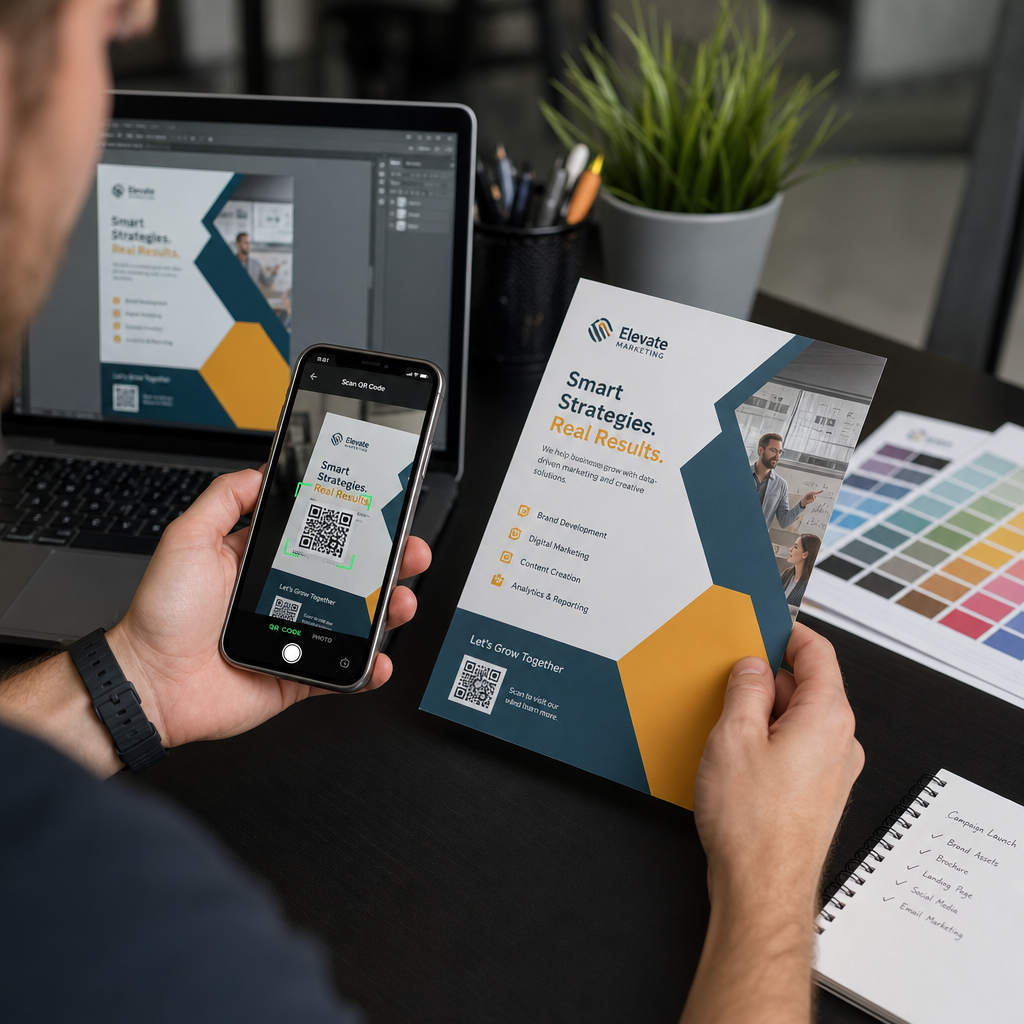
שליחת קוד QR להדפסה מבלי לבדוק אותו תחילה היא אחת הטעויות הנפוצות ביותר – והיקרות ביותר – בשיווק בדפוס. קוד שנראה מושלם על המסך יכול להיכשל לחלוטין ברגע שהוא מגיע לנייר, ויניל, או אריזה. מדריך זה מלווה אותך בכל בדיקה שאתה צריך לבצע לפני אישור הפקת הדפסה.
מדוע קודי QR נכשלים לאחר ההדפסה
קוד QR שנסרק בצורה נקייה על המסך שלך יכול להיכשל בעולם האמיתי מסיבות שמתגלות רק לאחר ההדפסה. הבנת נקודות כשל אלו עוזרת לך לבנות רשימת בדיקה אמינה לפני ההדפסה.
הגורמים הנפוצים ביותר הם:
- גודל קטן מדי עבור מרחק הסריקה הצפוי
- רזולוציה נמוכה הגורמת למודולים מטושטשים או מפוקסלים
- ניגודיות לא מספקת בין הקוד לרקע שלו
- אזור שקט חסר (הגבול הברור המקיף את הקוד)
- צפיפות נתונים גבוהה יצירת תבנית עדינה מדי למצלמות לקריאה
- פורמט קובץ שגוי המשמש לפלט הדפסה
כל אחת מהבעיות הללו ניתנת למניעה לחלוטין אם תתפוס אותה לפני ההדפסה. הסעיפים הבאים מתייחסים לכל אחד מהם ברצף.
בדוק את גודל קוד ה-QR שלך מול מרחק הסריקה
גודל הוא הסיבה הנפוצה ביותר שקוד QR מודפס נכשל. הכלל הסטנדרטי הוא ה- יחס 10:1: רוחב קוד ה-QR צריך להיות לפחות 1 ס"מ (או 1 אינץ') עבור כל 10 ס"מ (או 10 אינץ') של מרחק סריקה צפוי. קוד על כרטיס ביקור המוחזק במרחק זרוע זקוק לגודל שונה מאוד מזה שעל פוסטר הנקרא ממרחק חדר.
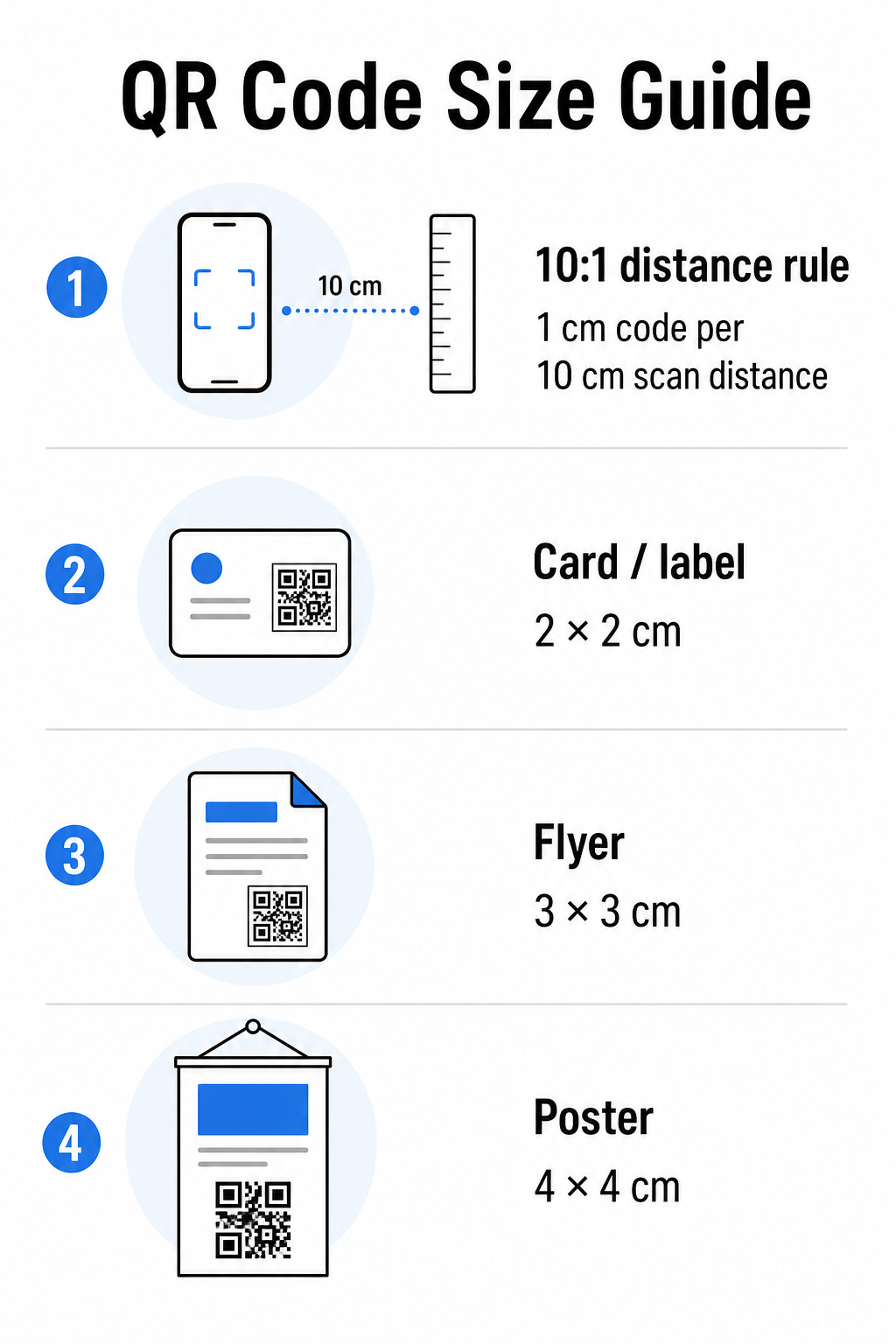
השתמש בטבלה זו כנקודת התחלה עבור חומרי הדפסה נפוצים:
| חומר הדפסה | גודל מינימלי מומלץ | מרחק סריקה אופייני |
|---|---|---|
| כרטיס ביקור / תווית | 2 × 2 ס"מ (0.8 × 0.8 אינץ') | 20–30 ס"מ (8–12 אינץ') |
| ברושור / פלייר | 3 × 3 ס"מ (1.2 × 1.2 אינץ') | 30 ס"מ (12 אינץ') |
| פוסטר / שילוט | 4 × 4 ס"מ (1.6 × 1.6 אינץ') | 40 ס"מ (16 אינץ') |
| שלט חוצות / באנר | 40 × 40 ס"מ (16 × 16 אינץ') | 4 מ' (13 רגל) |
לפני אישור כל קובץ הדפסה, ודא שמידות הקוד תואמות את מקרה השימוש הצפוי שלך. ה- מדריך גודל קוד QR מספק פירוט מלא לפי סוג חומר, כולל כיצד צפיפות הנתונים משפיעה על הגודל המינימלי הניתן לשימוש.
ודא את פורמט הקובץ שלך ורזולוציית ההדפסה
הפורמט שאתה מייצא חשוב לא פחות מהעיצוב עצמו. תמונות רסטר כמו PNG ו-JPEG מורכבות מפיקסלים. כאשר הן מוגדלות להדפסה בפורמט גדול, הן הופכות מטושטשות והמודולים העדינים בקוד QR מאבדים את קצוותיהם החדים – מה שהופך את הקוד לקשה או בלתי אפשרי לסריקה.
עבור כל קוד QR מודפס, השתמש בפורמטים וקטוריים: SVG, EPS, או PDF. קבצים וקטוריים ניתנים להגדלה לכל גודל מבלי לאבד איכות מכיוון שהם מוגדרים מתמטית ולא פיקסל-אחר-פיקסל. אם עליך להשתמש בפורמט רסטר, ודא שהרזולוציה היא לפחות 300 DPI בגודל ההדפסה המיועד – לא בגודל תצוגה מקדימה על המסך.
בדיקת רזולוציה מהירה: פתח את קובץ התמונה שלך, רשום את מימדי הפיקסלים שלו, וחלק בגודל ההדפסה המיועד באינצ'ים. אם קוד QR בגודל 1 אינץ' נשמר כתמונה בגודל 100 × 100 פיקסלים, הוא רק 100 DPI – הרבה מתחת למינימום של 300 DPI וכמעט מובטח שיודפס מטושטש.
למבט מעמיק יותר בנושא זה, ה- מדריך רזולוציית הדפסה של קוד QR מכסה דרישות DPI ובחירות פורמט בפירוט.
צור קודי QR מוכנים להדפסה בשניות ה מחולל קוד QR של Pageloot מאפשר לך להוריד את הקודים שלך בפורמטים SVG, EPS ו-PDF – מוכנים לכל גודל הדפסה ללא אובדן איכות.
בדוק ניגודיות לפני שהוא עובר להדפסה
סורקי קודי QR פועלים על ידי הבחנה בין מודולים כהים לרקע בהיר. כאשר הניגודיות נמוכה מדי, הסורק אינו יכול לזהות באופן אמין את התבנית – גם אם הקוד נראה בסדר לעין האנושית.
אמת המידה הטכנית שיש לעמוד בה היא יחס ניגודיות מינימלי של 4:1 בין המודולים הכהים לרקע הבהיר. עבור יישומי תשלום או מקרי שימוש ממוקדי נגישות, כוון ל- 5:1 או גבוה יותר. מודולים שחורים על רקע לבן מייצרים יחס של 21:1 – תקן הזהב שלפיו נמדד כל שילוב צבעים אחר.
טעויות ניגודיות נפוצות לבדיקה לפני ההדפסה:
- מודולים אפורים בהירים על לבן: ניגודיות לא מספקת שתכשל בתאורה חלשה
- צבעים הפוכים (קוד בהיר על רקע כהה): חלק מהסורקים מטפלים בזה, רבים לא – לעולם אל תסתמך על זה
- מילויים הדרגתיים במודולים: יוצר ניגודיות לא אחידה שמבלבלת סורקים
- צבעי מותג קרובים מדי בגוון: בדוק עם המרה לגווני אפור כדי לראות ניגודיות אמיתית
בדיקה מעשית לפני ההדפסה היא להמיר את תמונת קוד ה-QR שלך לגווני אפור ולבדוק אם המודולים עדיין ניתנים להבחנה ברורה מהרקע. אם הם מתחילים להתמזג יחד בגווני אפור, הם ייכשלו במגוון רחב של מצלמות מכשירים ותנאי תאורה. ה- מדריך שיטות עבודה מומלצות לניגודיות צבע של קוד QR כולל טבלת שילובי צבעים המציגה יחסי ניגודיות ותוצאות סריקה צפויות עבור שילובים נפוצים.
ודא שאזור השקט שלם
ה אזור שקט הוא השוליים הריקים המקיפים את כל ארבעת הצדדים של קוד QR. זו אינה העדפה עיצובית – זו דרישה טכנית המוגדרת על ידי תקן ISO/IEC 18004. בלעדיה, סורקים אינם יכולים לאתר היכן הקוד מתחיל ונגמר, והסריקה תיכשל.
האזור השקט חייב להיות ברוחב של לפחות ארבעה מודולים מכל הצדדים, כאשר מודול אחד הוא אחד מהריבועים הקטנים ברשת הקוד. כהתייחסות מעשית:
- עבור קוד QR בגודל 1 אינץ', אפשר בערך 15 אינץ' של שטח פנוי מכל הצדדים
- עבור קוד QR של כרטיס ביקור, שמור על אזור שקט של לפחות 0.25 אינץ'
לפני השליחה להדפסה, התקרב לקובץ הפריסה שלך ואשר שאף טקסט, תמונה, גבול או דפוס רקע אינם פולשים לאזור זה. הצבת קוד קרוב מדי לקצה עיצוב או חפיפה שלו עם אלמנטים דקורטיביים היא אחת הסיבות הנפוצות ביותר לכשלים בסריקה המתגלים רק לאחר שהעבודה מודפסת.
בדוק את רמת תיקון השגיאות
לקודי QR יש מערכת שחזור מובנית הנקראת תיקון שגיאות, המאפשרת לקרוא את הקוד גם אם חלק ממנו פגום, מוסתר או בלוי. ישנן ארבע רמות, כל אחת מציעה פשרה שונה בין עמידות לצפיפות נתונים:
| רמה | יכולת שחזור | מקרה השימוש הטוב ביותר |
|---|---|---|
| L (נמוך) | ~7% | משטחים נקיים, ללא נזקים; צפיפות נתונים מקסימלית |
| M (בינוני) | ~15% | חומרי הדפסה סטנדרטיים עם בלאי מסוים |
| ש (רבעון) | ~25% | קודים עם שכבות לוגו או סיכון בינוני לנזק |
| H (גבוה) | ~30% | שימוש חיצוני, אריזות, קודים עם שכבות לוגו גדולות |
אם קוד ה-QR שלך כולל לוגו המונח על הדפוס – בחירת מיתוג נפוצה – אתה צריך לפחות רמה Q, ובאופן אידיאלי רמה H. הלוגו מסתיר למעשה חלק מהקוד, ולכן תיקון השגיאות חייב לפצות. אשר באיזו רמה נוצר הקוד שלך לפני הסיום, ותמיד בדוק קוד ממותג כשהשכבה במקומה. ה מדריך שיטות עבודה מומלצות לקריאות קוד QR מכסה בפירוט כיצד תיקון שגיאות מתקיים עם מיקום לוגו.
בצע בדיקת הדפסה פיזית לפני ההרצה המלאה
שום כמות של בדיקה על המסך אינה מחליפה הדפסת הוכחה פיזית. הדפס עותק בודד ב גודל סופי מדויק על החומר המדויק שאתה מתכנן להשתמש בו, ולאחר מכן בדוק אותו בתנאים המשקפים שימוש בעולם האמיתי.
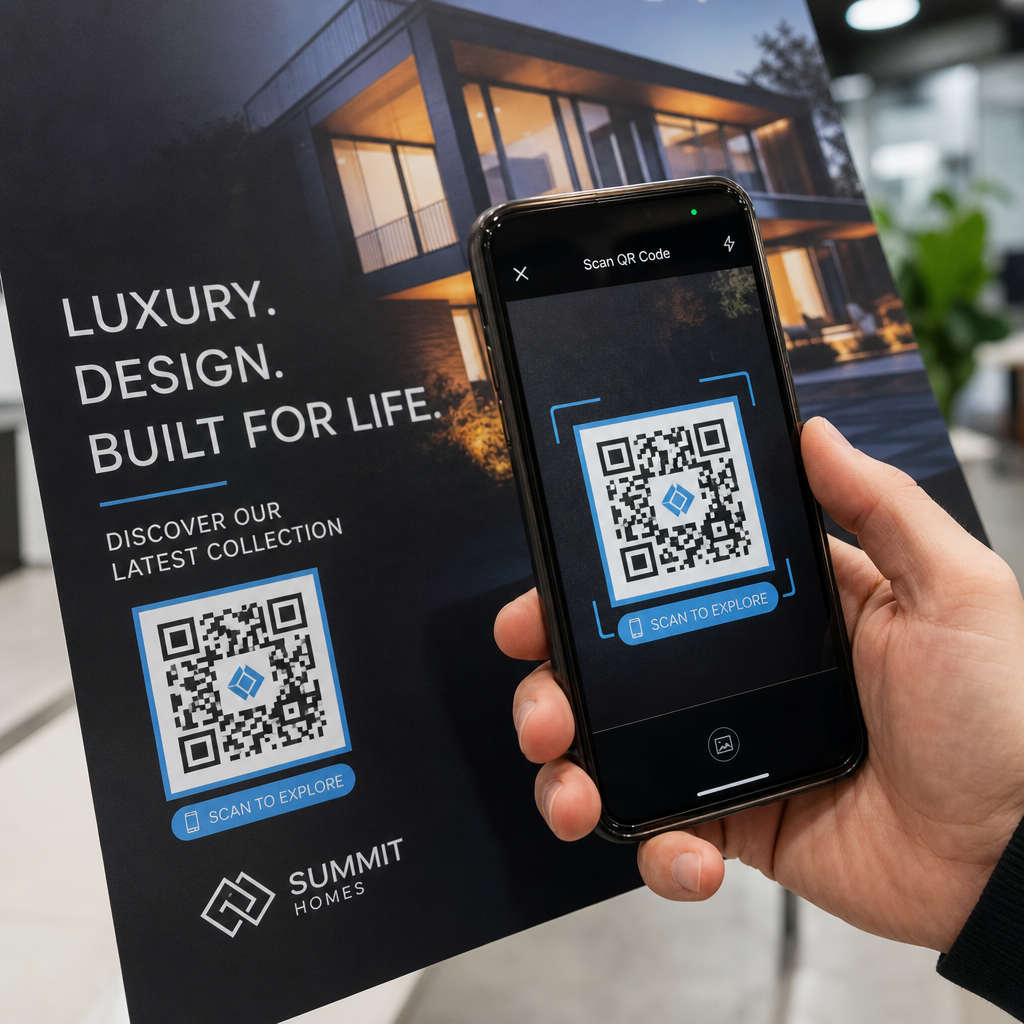
הבדיקה הפיזית שלך צריכה לכלול:
- מכשירים מרובים: בדוק על לפחות שני סמארטפונים שונים – אחד iOS ואחד אנדרואיד – באמצעות אפליקציית המצלמה המובנית וסורק צד שלישי
- מרחקים מרובים: סרוק ממרחק המשתמש הטיפוסי, וגם ממרחק מעט רחוק יותר כדי לוודא שיש מרווח טעות
- תנאי תאורה מרובים: בדוק באור טבעי בהיר, תאורת פנים סטנדרטית, ותאורה חלשה אם הקוד יופיע באחד מהסביבות הללו
- המשטח בפועל: משטחים מבריקים מחזירים אור ויכולים לגרום לכשלים בסריקה גם כאשר עיצוב הקוד נכון; גימורים מט פועלים באופן אמין יותר בכל התנאים
אתה יכול גם לאמת את הקוד דיגיטלית על ידי העלאת תמונה של העיצוב שלך ל סורק קודי QR של Pageloot כדי לוודא שהוא מפוענח נכון לפני התחייבות להרצה מלאה. אם הקוד שלך נכשל באחת מהבדיקות הללו, השתמש ב מדריך פתרון בעיות נפוצות של קוד QR כדי לאבחן את נקודת הכשל הספציפית לפני התאמה ובדיקה חוזרת.
לסקירה מובנית של מה שבדיקות ניידות צריכות לכלול, ה מדריך לבדיקת קודי QR לשימושיות במובייל עובר על תאימות מכשירים, זוויות סריקה, וביצועי יעד בפירוט.
קח בחשבון את שיטת ההדפסה שלך ומשטח
האופן שבו קוד QR מודפס משפיע על יכולת הסריקה ללא קשר לעיצוב הקוד עצמו. שיטות שונות מייצרות רמות שונות של חדות מודולים, ומשטחים שונים מתקשרים עם האור בדרכים שיכולות לעזור או להפריע לסריקה.
שיקולים מרכזיים לפי שיטה וחומר:
- גימורים מט מפזרים אור במקום להחזיר אותו, מה שהופך אותם כמעט תמיד לעדיפים על גימורים מבריקים לאמינות סריקה
- דפוס אופסט מייצר קצוות מודולים חדים מאוד ומתאים היטב להרצות הדפסה בנפח גבוה
- הדפסה דיגיטלית עובדת היטב להרצות קצרות ולקודים מותאמים אישית, אך איכות הדיו משתנה ויכולה לדהות עם הזמן
- הדפסה תרמית חסכונית עבור תוויות אך יכולה לטשטש קצוות מודולים עדינים – הגדל את גודל הקוד כדי לפצות
- משטחים בעלי טקסטורה או מעוקלים מציגים עיוות שיכול לבלבל סורקים; השתמש בקוד גדול יותר כדי להתחשב בכך
לפירוט מלא של האופן שבו כל טכניקה משפיעה על יכולת הסריקה, המדריך בנושא כיצד טכניקות הדפסה משפיעות על סריקות קוד QR מכסה בחירת שיטה, הכנת מצע, ועמידות דיו.
השתמש בקוד QR דינמי כדי להגן מפני שינויים לאחר ההדפסה
אפילו קוד QR שנבדק בצורה מושלמת יכול להיכשל לאחר ההדפסה אם כתובת ה-URL של היעד משתנה, הדף המקושר יורד, או שתוכן הקמפיין דורש עדכון. עם קוד QR סטטי, כל שינוי ביעד פירושו הדפסה מחדש של הכל.
קודי QR דינמיים פותרים זאת על ידי קידוד כתובת URL קצרה להפניה מחדש במקום היעד הסופי ישירות. ההפניה מחדש ניתנת לעדכון בכל עת מלוח המחוונים שלך, כך שהקוד המודפס נשאר תקף גם כאשר הקמפיין שלך מתפתח. זה גם אומר שאתה יכול לתקן קישור שבור מיד לאחר ההפצה – מבלי להדפיס מחדש פריט בודד.
מעבר למניעת שגיאות, קודים דינמיים מעניקים לך גישה לניתוח סריקות: סך הסריקות, מיקומי סריקה, זמן סריקה, וסוגי מכשירים. נתונים אלה אומרים לך האם החומרים המודפסים שלך אכן עובדים בשטח, והיכן למקד את האופטימיזציה. ה- מדריך לשימוש בקודי QR במדיה מודפסת מכסה כיצד קודים דינמיים משתלבים באסטרטגיית קמפיין הדפסה רחבה יותר.
הגן על השקעת ההדפסה שלך ליצור קוד QR דינמי כדי לשמור על החומרים המודפסים שלך מעודכנים ולעקוב אחר ביצועי סריקה בעולם האמיתי – מבלי לחזור אי פעם לדפוס.
רשימת בדיקה לקוד QR לפני הדפסה
לפני אישור כל קוד QR לייצור הדפסה, עברו על כל אחד מהבאים:
- גודל הקוד תואם את כלל 10:1 למרחק סריקה צפוי
- הקובץ מיוצא בפורמט SVG, EPS, או PDF (או רסטר במינימום 300 DPI בגודל הדפסה סופי)
- יחס ניגודיות בין מודולים לרקע עומד על לפחות 4:1
- אזור שקט של לפחות ארבעה מודולים נקי מכל הצדדים
- רמת תיקון שגיאות מתאימה (Q או H אם קיימת שכבת לוגו)
- הקוד מפוענח נכון כאשר הוא נסרק מתמונה שהועלתה
- הוכחה פיזית נבדקה גם במכשירי iOS וגם במכשירי אנדרואיד
- הוכחה פיזית נבדקה בתנאי תאורה מציאותיים ועל חומר ההדפסה בפועל
- כתובת ה-URL של היעד פעילה, מותאמת למובייל, ונטענת במהירות
- קוד QR דינמי בשימוש אם היעד עשוי להזדקק לשינוי לאחר ההדפסה
מעבר על בדיקות אלו לפני כל עבודת הדפסה לוקח הרבה פחות זמן מאשר הזמנה מחדש של ריצת הדפסה. ביצועי קוד QR טובים מתחילים בקובץ, לא בסורק. קבל את הגודל, הפורמט, הניגודיות והאזור השקט נכון בשלב העיצוב, הדפס הגהה על החומר האמיתי, ובדוק אותו באופן שבו הקהל שלך באמת ישתמש בו.
שאלות נפוצות
המינימום האמין לסריקה מטווח קרוב – כגון על כרטיסי ביקור או תוויות מוצר – הוא 2 × 2 ס"מ (0.8 × 0.8 אינץ'). עבור חומרי הדפסה גדולים יותר, יש ליישם את כלל 10:1: רוחב הקוד צריך להיות לפחות 1 ס"מ לכל 10 ס"מ של מרחק סריקה צפוי. פוסטר שנסרק ממרחק של מטר אחד, לדוגמה, זקוק לקוד ברוחב של לפחות 10 ס"מ.
תמיד השתמש בפורמט וקטורי – SVG, EPS, או PDF – להדפסה. קבצים וקטוריים ניתנים להגדלה לכל גודל מבלי להיות מטושטשים או מפוקסלים. אם עליך להשתמש בפורמט רסטר כמו PNG, ודא שהרזולוציה היא לפחות 300 DPI בגודל ההדפסה הסופי. קבצי רסטר ברזולוציה נמוכה הם אחת הסיבות הנפוצות ביותר לקודי QR מודפסים שאינם ניתנים לקריאה.
הדפס הוכחה בודדת בגודל המדויק המיועד על החומר המדויק שאתה מתכנן להשתמש בו, ולאחר מכן בדוק אותה על לפחות שני מכשירים שונים (iOS ואנדרואיד) בתנאי תאורה מציאותיים. אתה יכול גם להעלות תמונה של הקוד שלך לסורק קודי ה-QR של Pageloot כדי לוודא שהוא מפוענח נכון לפני היציאה לדפוס. שימוש בקוד QR דינמי מוסיף שכבת הגנה נוספת – אם משהו צריך להשתנות לאחר ההדפסה, תוכל לעדכן את היעד ללא הדפסה מחדש.