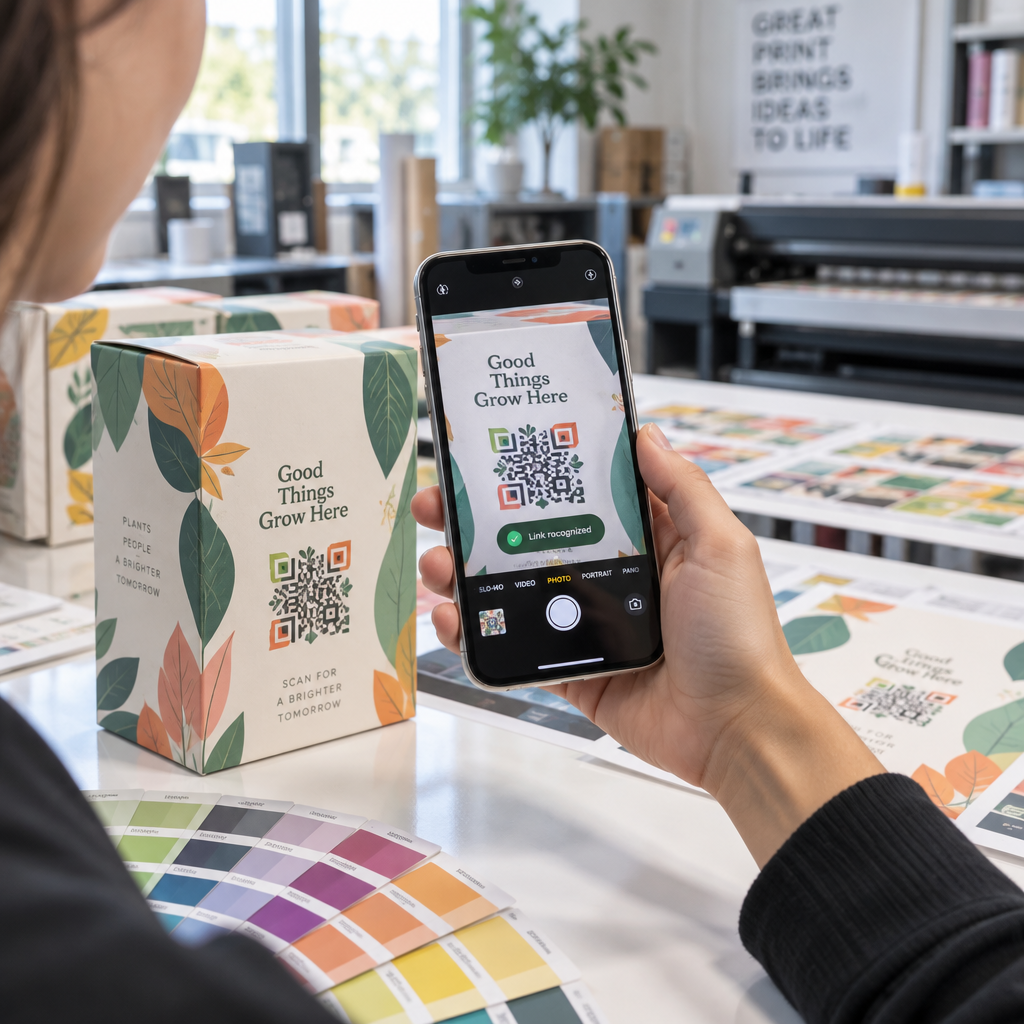
Å sende en QR-kode til utskrift uten å teste den først er en av de vanligste – og dyreste – feilene innen trykt markedsføring. En kode som ser perfekt ut på skjermen kan feile fullstendig når den treffer papir, vinyl eller emballasje. Denne guiden tar deg gjennom hver sjekk du må utføre før du godkjenner en trykkjobb.
Hvorfor QR-koder feiler etter utskrift
En QR-kode som skanner rent på skjermen din kan feile i den virkelige verden av årsaker som først blir synlige etter utskrift. Å forstå disse feilpunktene hjelper deg med å bygge en pålitelig sjekkliste før utskrift.
De vanligste synderne er:
- Størrelse som er for liten for den forventede skanneavstanden
- Lav oppløsning som forårsaker uskarpe eller pikselerte moduler
- Utilstrekkelig kontrast mellom koden og dens bakgrunn
- Manglende stille sone (den klare rammen rundt koden)
- Høy datatetthet som skaper et mønster som er for fint for kameraer å lese
- Feil filformat brukt for utskriftsutdata
Hver av disse problemene er fullstendig forebyggbare hvis du oppdager dem før trykkpressen kjører. Seksjonene nedenfor tar for seg hver enkelt i rekkefølge.
Sjekk QR-kodens størrelse mot skanneavstanden
Størrelse er den enkeltstående vanligste grunnen til at en trykt QR-kode feiler. Standardregelen er 10:1 forhold: QR-kodens bredde bør være minst 1 cm (eller 1 tomme) for hver 10 cm (eller 10 tommer) av forventet skanneavstand. En kode på et visittkort holdt på armlengdes avstand trenger en veldig annen størrelse enn en på en plakat lest fra den andre siden av et rom.
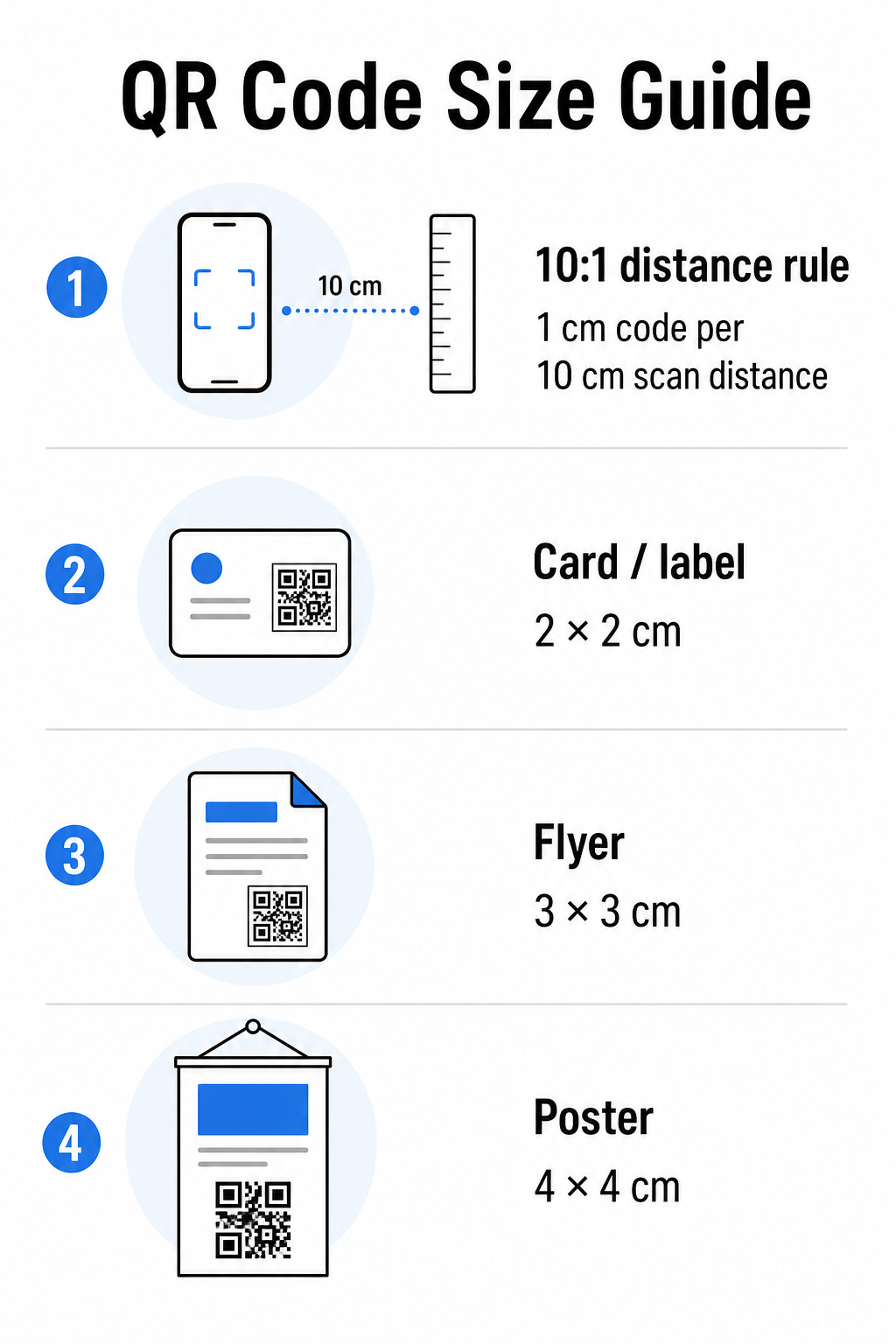
Bruk denne tabellen som et utgangspunkt for vanlige trykkmaterialer:
| Trykkmateriale | Minimum anbefalt størrelse | Typisk skanneavstand |
|---|---|---|
| Visittkort / etikett | 2 × 2 cm (0,8 × 0,8 tommer) | 20–30 cm (8–12 tommer) |
| Brosjyre / flygeblad | 3 × 3 cm (1,2 × 1,2 tommer) | 30 cm (12 tommer) |
| Plakat / skilting | 4 × 4 cm (1,6 × 1,6 tommer) | 40 cm (16 tommer) |
| Billboard / banner | 40 × 40 cm (16 × 16 tommer) | 4 m (13 fot) |
Før du godkjenner en trykkfil, bekreft at kodens dimensjoner samsvarer med ditt forventede bruksområde. Den størrelsesguide for QR-koder gir en komplett oversikt etter materialtype, inkludert hvordan datatetthet påvirker den minste levedyktige størrelsen.
Verifiser filformat og utskriftsoppløsning
Formatet du eksporterer er like viktig som selve designet. Rasterbilder som PNG og JPEG er laget av piksler. Når de skaleres opp for storformatutskrift, blir de uskarpe og de fine modulene i en QR-kode mister sine skarpe kanter – noe som gjør koden vanskelig eller umulig å skanne.
For enhver trykt QR-kode, bruk vektorformater: SVG, EPS eller PDF. Vektorfiler skaleres til enhver størrelse uten kvalitetstap fordi de er definert matematisk snarere enn piksel for piksel. Hvis du må bruke et rasterformat, sørg for at oppløsningen er minst 300 DPI ved den tiltenkte utskriftsstørrelsen – ikke ved skjermforhåndsvisningsstørrelsen.
En rask oppløsningssjekk: åpne bildefilen din, noter pikseldimensjonene, og del med den tiltenkte utskriftsstørrelsen i tommer. Hvis en 1-tommers QR-kode er lagret som et 100 × 100 pikselbilde, er det bare 100 DPI – godt under minimum 300 DPI og nesten garantert å skrive ut uskarpt.
For en dypere titt på dette emnet, veiledning for utskriftsoppløsning for QR-kode dekker DPI-krav og formatvalg i detalj.
Lag utskriftsklare QR-koder på sekunder De Pageloot QR-kodegenerator lar deg laste ned kodene dine i SVG-, EPS- og PDF-formater – klare for enhver utskriftsstørrelse uten kvalitetstap.
Test kontrast før det går til trykk
QR-kodeskannere fungerer ved å skille mørke moduler fra en lys bakgrunn. Når kontrasten er for lav, kan skanneren ikke pålitelig identifisere mønsteret – selv om koden ser fin ut for det menneskelige øye.
Den tekniske referansen å møte er en minimum kontrastforhold på 4:1 mellom de mørke modulene og den lyse bakgrunnen. For betalingsapplikasjoner eller tilgjengelighetsfokuserte bruksområder, sikt mot 4,5:1 eller høyere. Svarte moduler på en hvit bakgrunn produserer et forhold på 21:1 – gullstandarden som alle andre fargekombinasjoner måles mot.
Vanlige kontrastfeil å sjekke for før utskrift:
- Lysegrå moduler på hvit: utilstrekkelig kontrast som vil feile i dårlig lys
- Omvendte farger (lys kode på mørk bakgrunn): noen skannere håndterer dette, mange gjør det ikke – stol aldri på det
- Gradientfyll på moduler: skaper ujevn kontrast som forvirrer skannere
- Merkefarger som er for like i tone: test med en gråtonekonvertering for å se sann kontrast
En praktisk test før utskrift er å konvertere QR-kodebildet ditt til gråtoner og sjekke om modulene fortsatt er tydelig skillebare fra bakgrunnen. Hvis de begynner å blande seg sammen i gråtoner, vil de feile på tvers av et bredt spekter av enhetskameraer og lysforhold. Den veiledningen for beste praksis for fargekontrast i QR-koder inkluderer en fargekombinasjonstabell som viser kontrastforhold og forventede skanneresultater for vanlige paringer.
Bekreft at den stille sonen er intakt
De stille sone er den blanke marga som omgir alle fire sider av en QR-kode. Det er ikke en designpreferanse – det er et teknisk krav definert av ISO/IEC 18004-standarden. Uten den kan skannere ikke finne hvor koden begynner og slutter, og skanningen vil mislykkes.
Den stille sonen må være minst fire moduler bred på alle sider, der én modul er en av de små rutene i koderutenettet. Som en praktisk referanse:
- For en 1-tommers QR-kode, tillat omtrent 0,15 tommer med klar plass på alle sider
- For en visittkort QR-kode, oppretthold en stille sone på minst 0,25 tommer
Før du sender til trykk, zoom inn på layoutfilen din og bekreft at ingen tekst, bilder, rammer eller bakgrunnsmønstre trenger inn i denne sonen. Å plassere en kode for nær kanten av et design eller overlappe den med dekorative elementer er en av de vanligste årsakene til skannefeil som først dukker opp etter at jobben er trykt.
Sjekk feilrettingsnivået
QR-koder har et innebygd gjenopprettingssystem kalt feilretting, som gjør at koden kan leses selv om deler av den er skadet, tildekket eller slitt. Det er fire nivåer, hver med en forskjellig avveining mellom robusthet og datatetthet:
| Nivå | Gjenopprettingskapasitet | Beste brukstilfelle |
|---|---|---|
| L (lav) | ~7% | Rene, uskadde overflater; maksimal datatetthet |
| M (middels) | ~15% | Standard trykkmaterialer med noe slitasje |
| Q (kvartil) | ~25% | Koder med logooverlegg eller moderat risiko for skade |
| H (høy) | ~30% | Utendørs bruk, emballasje, koder med store logooverlegg |
Hvis QR-koden din inkluderer en logo overlagt på mønsteret – et vanlig merkevarevalg – trenger du minst nivå Q, og ideelt sett nivå H. Logoen skjuler effektivt deler av koden, så feilrettingen må kompensere. Bekreft hvilket nivå koden din ble generert med før du ferdigstiller, og test alltid en merket kode med overlegget på plass. Den veiledningen for beste praksis for lesbarhet av QR-koder dekker hvordan feilretting samhandler med logoplassering i detalj.
Utfør en fysisk utskriftstest før full produksjon
Ingen mengde skjermkontroll erstatter utskrift av et fysisk prøvetrykk. Skriv ut en enkelt kopi i nøyaktig endelig størrelse på nøyaktig det materialet du planlegger å bruke, test den deretter under forhold som gjenspeiler reell bruk.
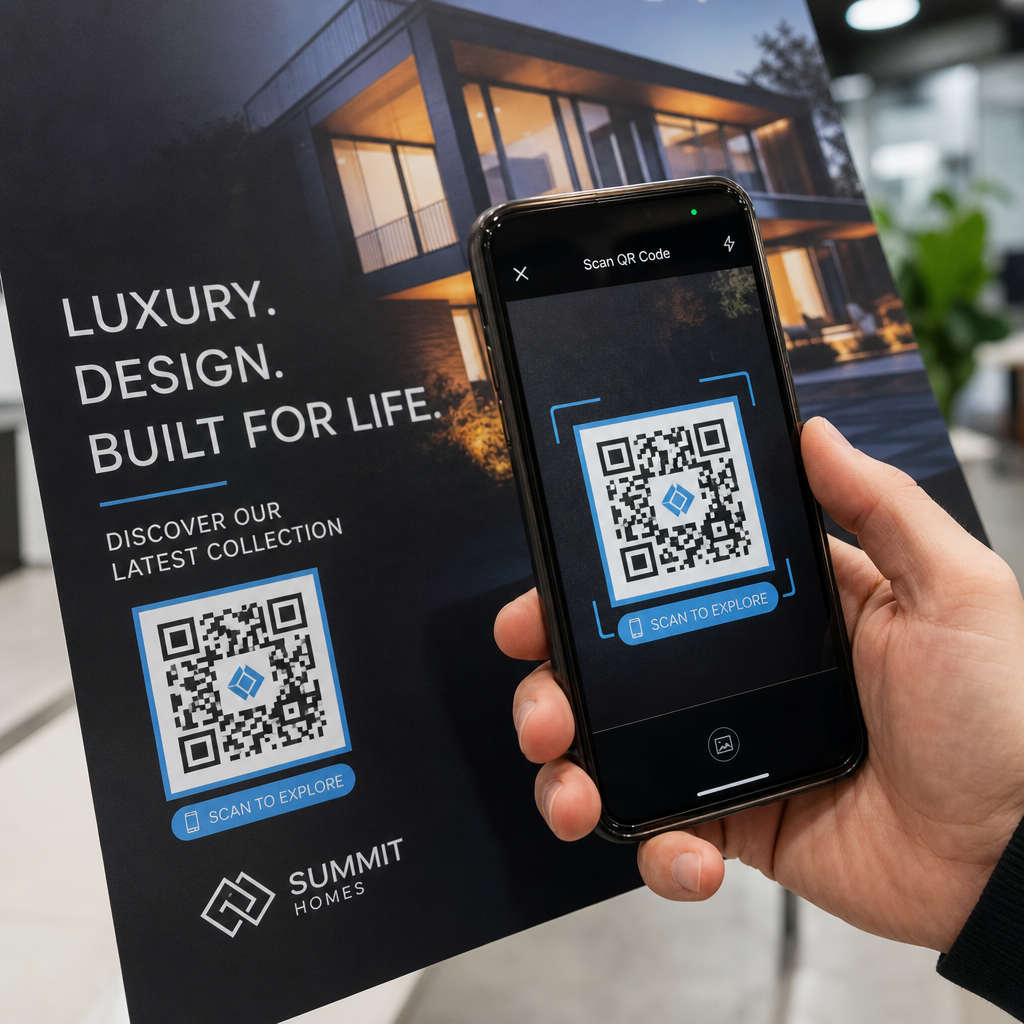
Din fysiske test bør dekke:
- Flere enheter: test på minst to forskjellige smarttelefoner – én iOS og én Android – ved å bruke både den innebygde kameraappen og en tredjeparts skanner
- Flere avstander: skann fra den typiske brukeravstanden, og også fra litt lenger unna for å bekrefte at det er feilmargin
- Flere lysforhold: test i sterkt naturlig lys, standard innendørsbelysning, og lite lys hvis koden vil vises i noen av disse miljøene
- Den faktiske overflaten: blanke overflater reflekterer lys og kan forårsake skannefeil selv når kodedesignet er korrekt; matte overflater fungerer mer pålitelig under ulike forhold
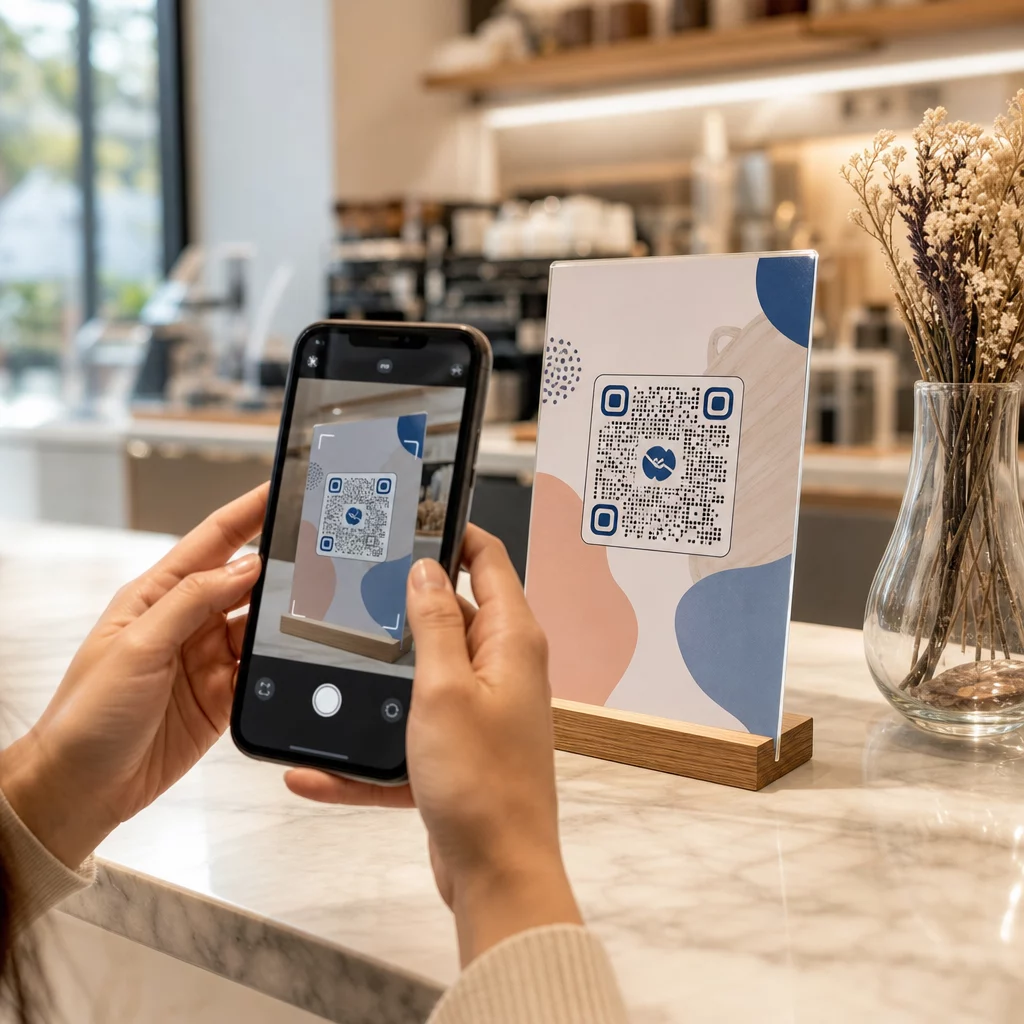
Du kan også verifisere koden digitalt ved å laste opp et bilde av designet ditt til Pageloot QR-kodeskanner for å bekrefte at den dekoder riktig før du forplikter deg til en full produksjon. Hvis koden din mislykkes i noen av disse testene, bruk vanlige feilsøkingsguide for QR-koder for å diagnostisere det spesifikke feilpunktet før du justerer og tester på nytt.
For en strukturert oversikt over hva mobiltesting bør dekke, den veiledning for testing av QR-koder for mobil brukervennlighet går gjennom enhetskompatibilitet, skannevinkler og destinasjonsytelse i detalj.
Ta hensyn til utskriftsmetoden din og overflaten
Måten en QR-kode skrives ut påvirker skannbarheten uavhengig av selve kodedesignet. Ulike metoder produserer forskjellige nivåer av modulskarphet, og forskjellige overflater samhandler med lys på måter som enten kan hjelpe eller hindre skanning.
Viktige hensyn etter metode og materiale:
- Matte overflater diffuserer lys i stedet for å reflektere det, noe som gjør dem nesten alltid overlegne blanke overflater for skannepålitelighet
- Offsettrykk produserer svært skarpe modulkanter og er godt egnet for store opplag
- Digitaltrykk fungerer bra for små opplag og tilpassede koder, men blekkkvaliteten varierer og kan falme over tid
- Termisk utskrift er økonomisk for etiketter, men kan gjøre fine modulkanter uskarpe – øk kodestørrelsen for å kompensere
- Teksturerte eller buede overflater introduserer forvrengning som kan forvirre skannere; bruk en større kode for å ta hensyn til det
For en fullstendig oversikt over hvordan hver teknikk påvirker skannbarheten, guiden om hvordan utskriftsteknikker påvirker QR-kodens skannbarhet dekker metodevalg, substratforberedelse og blekkholdbarhet.
Bruk en dynamisk QR-kode for å beskytte mot endringer etter utskrift
Selv en perfekt testet QR-kode kan mislykkes etter utskrift hvis destinasjons-URL-en endres, den lenkede siden blir fjernet, eller kampanjeinnholdet må oppdateres. Med en statisk QR-kode betyr enhver endring av destinasjonen at alt må trykkes på nytt.
Dynamiske QR-koder løser dette ved å kode en kort omdirigerings-URL i stedet for den endelige destinasjonen direkte. Omdirigeringen kan oppdateres når som helst fra dashbordet ditt, slik at den trykte koden forblir gyldig selv når kampanjen din utvikler seg. Dette betyr også at du kan fikse en ødelagt lenke umiddelbart etter distribusjon – uten å skrive ut et eneste stykke på nytt.
Utover feilforebygging gir dynamiske koder deg tilgang til skanneanalyser: totale skanninger, skannesteder, tidspunkt for skanning og enhetstyper. Disse dataene forteller deg om dine trykte materialer faktisk fungerer i felten, og hvor du skal fokusere optimaliseringen. Det guide for bruk av QR-koder i trykte medier dekker hvordan dynamiske koder passer inn i en bredere trykkampanjestrategi.
Beskytt Din Trykkinvestering Lage en Dynamisk QR-kode for å holde dine trykte materialer oppdaterte og spore skanneytelse i den virkelige verden – uten å måtte gå tilbake til trykkpressen.
Sjekkliste for testing av QR-kode før utskrift
Før du godkjenner en QR-kode for trykkproduksjon, gå gjennom hver av følgende:
- Kodestørrelse samsvarer med 10:1-regelen for forventet skanneavstand
- Filen er eksportert i SVG-, EPS- eller PDF-format (eller raster med minimum 300 DPI ved endelig utskriftsstørrelse)
- Kontrastforhold mellom moduler og bakgrunn oppfyller minst 4:1
- Stille sone på minst fire moduler er klar på alle sider
- Feilrettingsnivå er passende (Q eller H hvis et logooverlegg er til stede)
- Koden dekodes riktig når den skannes fra et opplastet bilde
- Fysisk prøve testet på både iOS- og Android-enheter
- Fysisk prøve testet under realistiske lysforhold og på selve trykkmaterialet
- Destinasjons-URL er live, mobiloptimalisert og lastes raskt
- Dynamisk QR-kode brukt hvis destinasjonen kan måtte endres etter utskrift
Å gå gjennom disse kontrollene før hver utskriftsjobb tar mye mindre tid enn å bestille en ny utskrift. God QR-kodeytelse starter med filen, ikke skanneren. Få størrelsen, formatet, kontrasten og den stille sonen riktig på designstadiet, skriv ut en prøve på det virkelige materialet, og test den slik publikummet ditt faktisk vil bruke den.
Ofte stilte spørsmål
Det pålitelige minimum for nærfeltsskanning – som på visittkort eller produktetiketter – er 2 × 2 cm (0,8 × 0,8 tommer). For større trykt materiale gjelder 10:1-regelen: kodebredden bør være minst 1 cm for hver 10 cm forventet skanneavstand. En plakat skannet fra 1 meter unna, for eksempel, trenger en kode som er minst 10 cm bred.
Bruk alltid et vektorformat – SVG, EPS, eller PDF – for trykk. Vektorfiler skalerer til enhver størrelse uten å bli uskarpe eller pikselerte. Hvis du må bruke et rasterformat som PNG, sørg for at oppløsningen er minst 300 DPI ved den endelige utskriftsstørrelsen. Rasterfiler med lav oppløsning er en av de vanligste årsakene til uleselige trykte QR-koder.
Skriv ut et enkelt prøvetrykk i nøyaktig tiltenkt størrelse på nøyaktig det materialet du planlegger å bruke, test det deretter på minst to forskjellige enheter (iOS og Android) under realistiske lysforhold. Du kan også laste opp et bilde av koden din til Pageloot QR-kodeskanneren for å bekrefte at den dekoder riktig før den går i trykken. Bruk av en dynamisk QR-kode legger til et ekstra lag med beskyttelse – hvis noe må endres etter utskrift, kan du oppdatere destinasjonen uten å skrive ut på nytt.