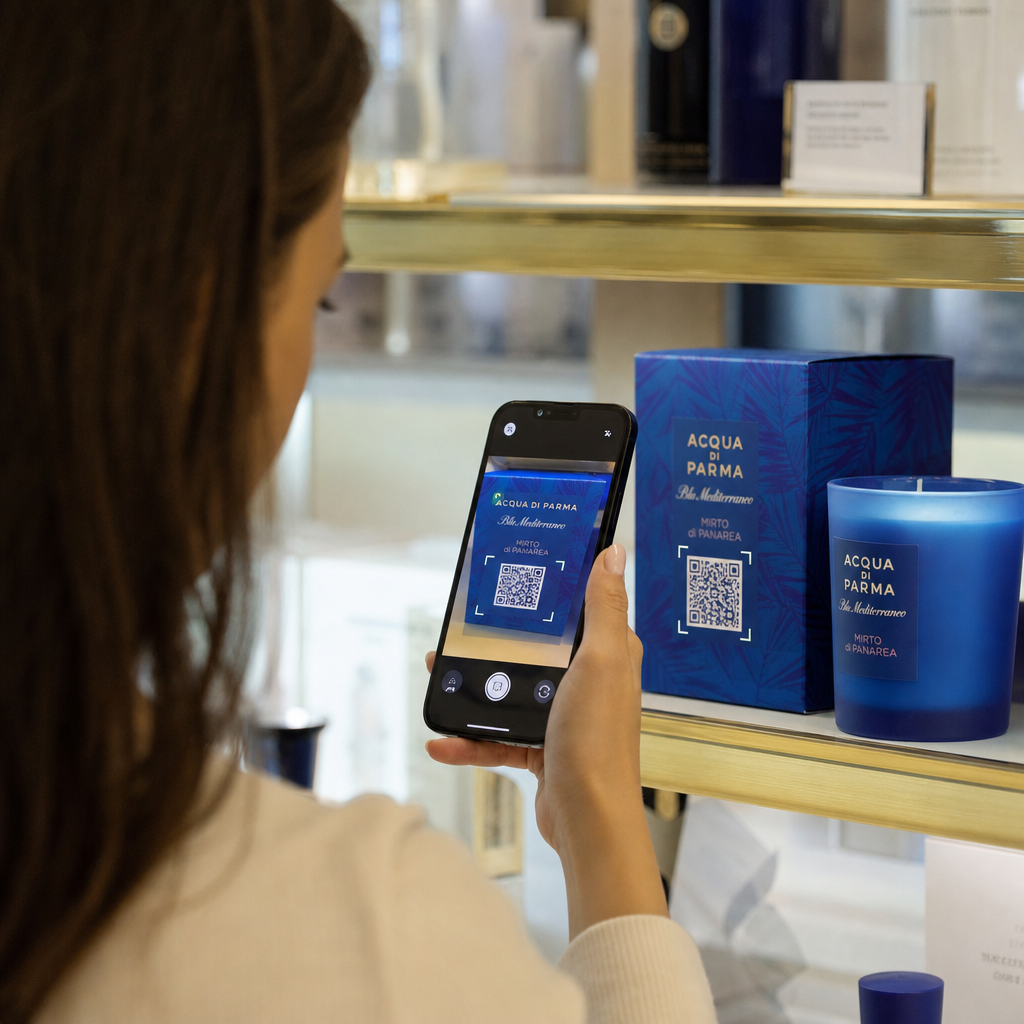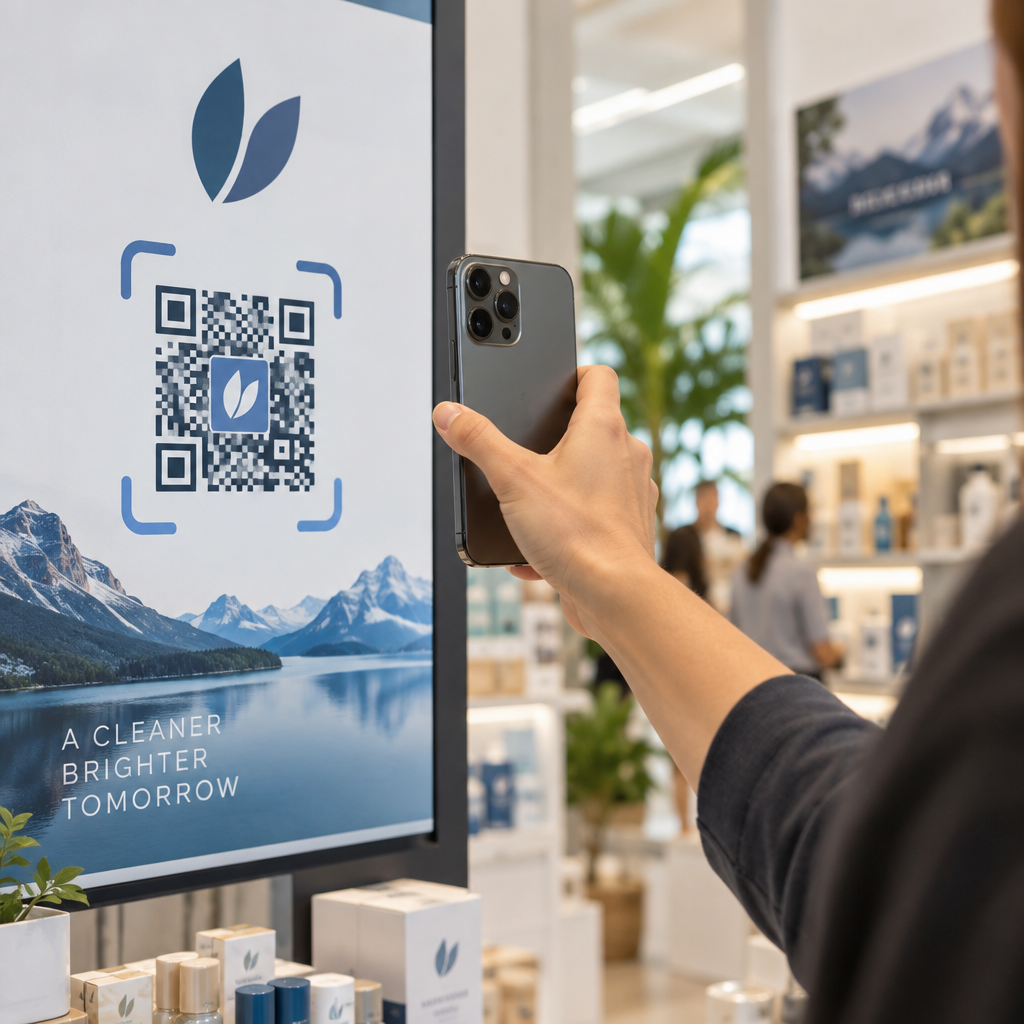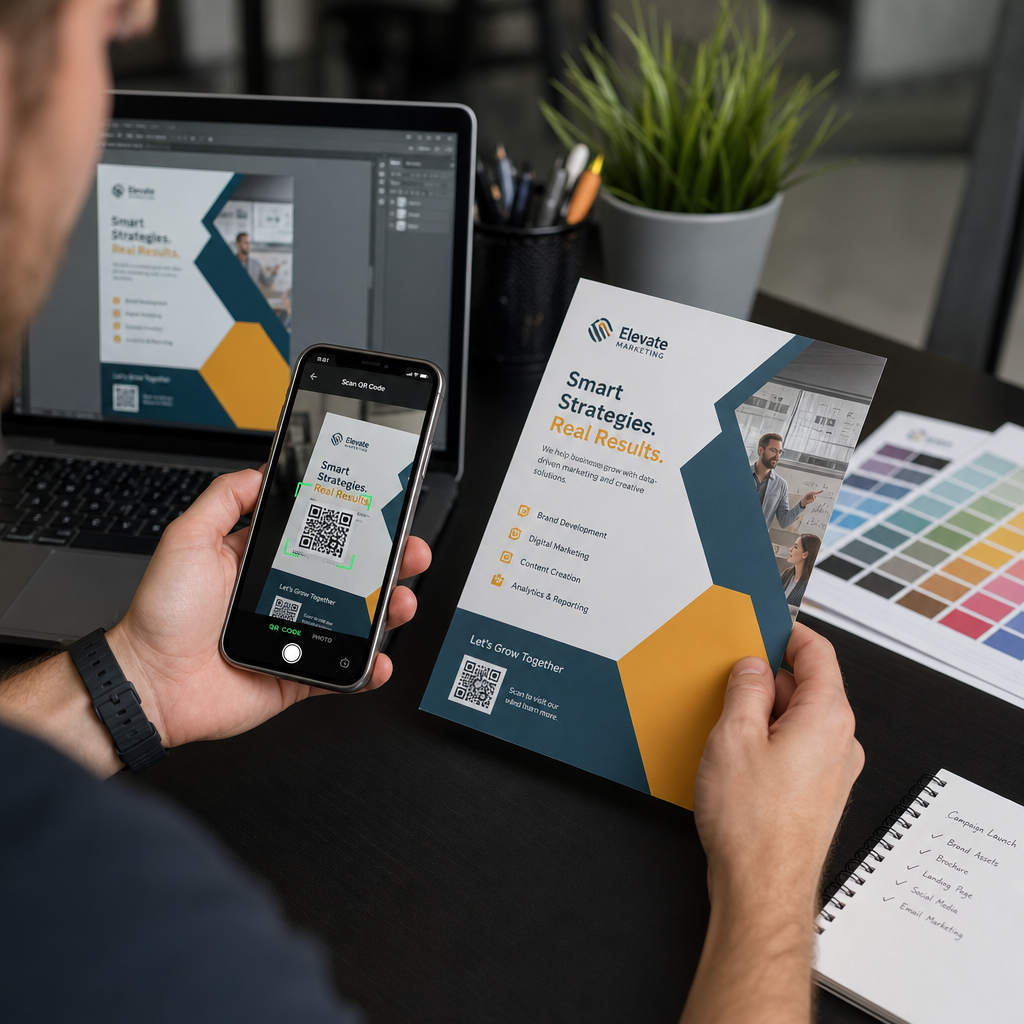
Een QR-code naar de drukker sturen zonder deze eerst te testen, is een van de meest voorkomende – en kostbare – fouten in printmarketing. Een code die er perfect uitziet op het scherm, kan volledig mislukken zodra deze op papier, vinyl of verpakking terechtkomt. Deze gids leidt u door elke controle die u moet uitvoeren voordat u een drukrun goedkeurt.
Waarom QR-codes mislukken na het afdrukken
Een QR-code die schoon scant op uw monitor, kan in de echte wereld mislukken om redenen die pas na het afdrukken zichtbaar worden. Het begrijpen van deze faalpunten helpt u bij het opstellen van een betrouwbare pre-print checklist.
De meest voorkomende boosdoeners zijn:
- Grootte die te klein is voor de verwachte scanafstand
- Lage resolutie waardoor modules wazig of gepixelde worden
- Onvoldoende contrast tussen de code en de achtergrond
- Ontbrekende rustzone (de duidelijke rand rond de code)
- Hoge gegevensdichtheid waardoor een patroon ontstaat dat te fijn is voor camera's om te lezen
- Verkeerd bestandsformaat gebruikt voor printuitvoer
Elk van deze problemen is volledig te voorkomen als u het opmerkt voordat de pers draait. De onderstaande secties behandelen elk probleem achtereenvolgens.
Controleer de grootte van uw QR-code ten opzichte van de scanafstand
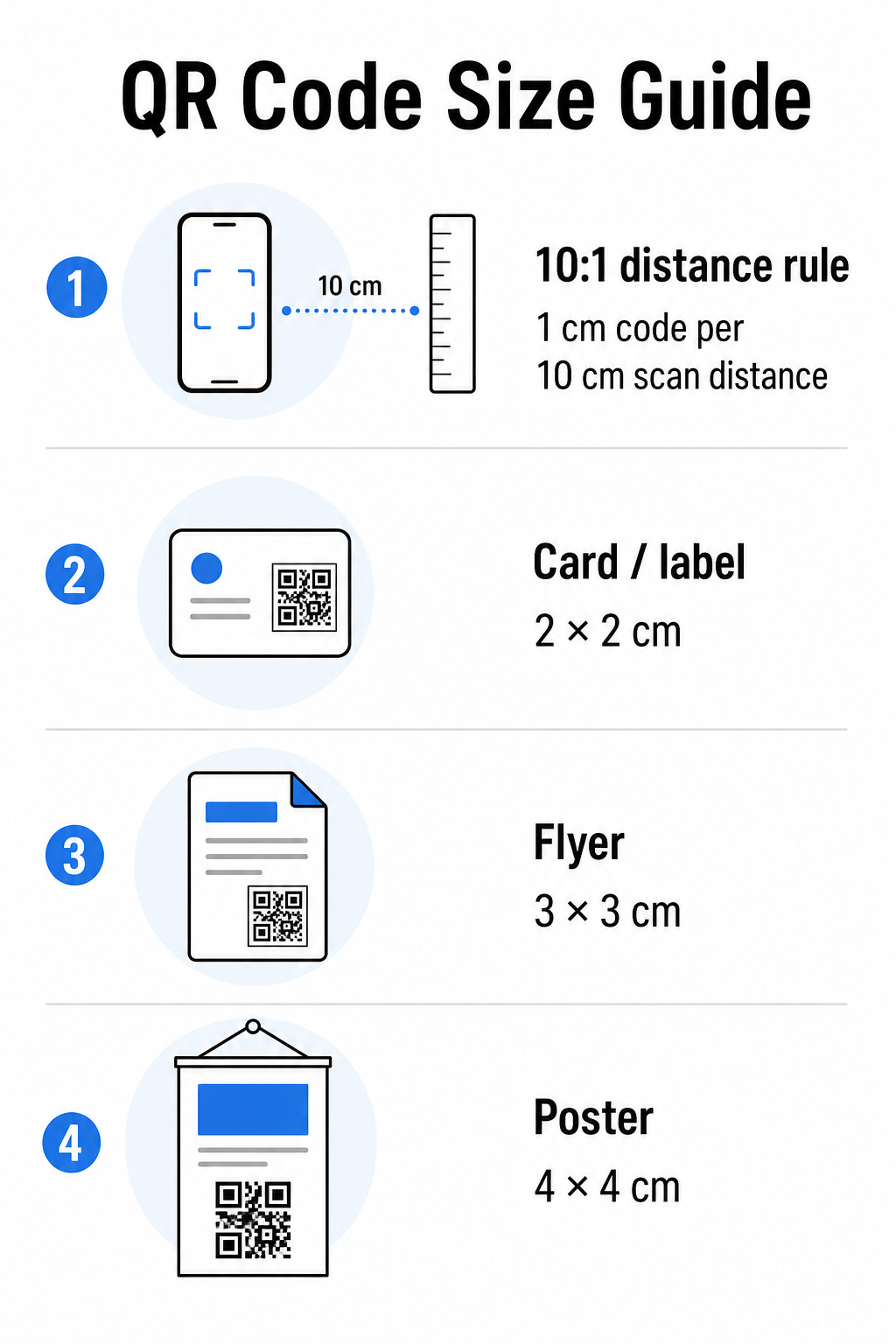
Grootte is de meest voorkomende reden waarom een afgedrukte QR-code mislukt. De standaardregel is de 10:1 verhouding: de breedte van de QR-code moet minimaal 1 cm (of 1 inch) zijn voor elke 10 cm (of 10 inch) verwachte scanafstand. Een code op een visitekaartje dat op armlengte wordt gehouden, heeft een heel andere grootte nodig dan een code op een poster die van de andere kant van een kamer wordt gelezen.
Gebruik deze tabel als uitgangspunt voor veelvoorkomende printmaterialen:
| Printmateriaal | Minimaal aanbevolen formaat | Typische Scanafstand |
|---|---|---|
| Visitekaartje / etiket | 2 × 2 cm (0,8 × 0,8 inch) | 20–30 cm (8–12 inch) |
| Brochure / folder | 3 × 3 cm (1,2 × 1,2 inch) | 30 cm (12 inch) |
| Poster / bewegwijzering | 4 × 4 cm (1,6 × 1,6 inch) | 40 cm (16 inch) |
| Reclamebord / banner | 40 × 40 cm (16 × 16 inch) | 4 m (13 voet) |
Voordat u een printbestand goedkeurt, controleert u of de afmetingen van de code overeenkomen met uw verwachte gebruiksscenario. De gids voor QR-codeformaten biedt een complete uitsplitsing per materiaalsoort, inclusief hoe datadichtheid de minimaal haalbare grootte beïnvloedt.
Controleer uw bestandsformaat en printresolutie
Het formaat dat u exporteert, is net zo belangrijk als het ontwerp zelf. Rasterafbeeldingen zoals PNG en JPEG bestaan uit pixels. Wanneer ze worden opgeschaald voor grootformaat printen, worden ze wazig en verliezen de fijne modules in een QR-code hun scherpe randen – waardoor de code moeilijk of onmogelijk te scannen is.
Gebruik voor elke afgedrukte QR-code vectorformaten: SVG, EPS of PDF. Vectorbestanden schalen naar elke grootte zonder kwaliteitsverlies omdat ze wiskundig zijn gedefinieerd in plaats van pixel voor pixel. Als u een rasterformaat moet gebruiken, zorg er dan voor dat de resolutie is minimaal 300 DPI op de beoogde printgrootte – niet op de schermvoorbeeldgrootte.
Een snelle resolutiecontrole: open uw afbeeldingsbestand, noteer de pixelafmetingen en deel door de beoogde printgrootte in inches. Als een QR-code van 1 inch wordt opgeslagen als een afbeelding van 100 × 100 pixels, is dit slechts 100 DPI – ver onder het minimum van 300 DPI en vrijwel gegarandeerd wazig afgedrukt.
Voor een diepere blik op dit onderwerp, de handleiding voor de afdrukresolutie van QR-codes behandelt DPI-vereisten en formaatkeuzes in detail.
Maak printklare QR-codes in seconden De Pageloot QR-codegenerator laat u uw codes downloaden in SVG-, EPS- en PDF-formaten – klaar voor elke printgrootte zonder kwaliteitsverlies.
Test contrast voordat het naar de drukker gaat
QR-codescanners werken door donkere modules te onderscheiden van een lichte achtergrond. Wanneer dat contrast te laag is, kan de scanner het patroon niet betrouwbaar identificeren – zelfs als de code er voor het menselijk oog goed uitziet.
De technische benchmark die moet worden gehaald, is een minimale contrastverhouding van 4:1 tussen de donkere modules en de lichte achtergrond. Voor betaaltoepassingen of toegankelijkheidsgerichte gebruiksscenario's, streef naar 4,5:1 of hoger. Zwarte modules op een witte achtergrond produceren een verhouding van 21:1 – de gouden standaard waartegen elke andere kleurencombinatie wordt gemeten.
Veelvoorkomende contrastfouten om te controleren voordat u afdrukt:
- Lichtgrijze modules op wit: onvoldoende contrast dat zal mislukken bij weinig licht
- Omgekeerde kleuren (lichte code op donkere achtergrond): sommige scanners kunnen dit aan, veel niet – vertrouw er nooit op
- Verloopvullingen op modules: creëert ongelijkmatig contrast dat scanners in verwarring brengt
- Merkkleuren die te dicht bij elkaar liggen in toon: test met een grijswaardenconversie om het ware contrast te zien
Een praktische pre-print test is om uw QR-codeafbeelding naar grijswaarden te converteren en te controleren of de modules nog steeds duidelijk te onderscheiden zijn van de achtergrond. Als ze in grijswaarden beginnen samen te vloeien, zullen ze mislukken bij een breed scala aan apparaatcamera's en lichtomstandigheden. De gids voor best practices voor kleurcontrast van QR-codes bevat een kleurencombinatietabel met contrastverhoudingen en verwachte scanresultaten voor veelvoorkomende combinaties.
Bevestig dat de rustzone intact is
De stille zone is de blanco marge rondom alle vier zijden van een QR-code. Het is geen ontwerpreferentie – het is een technische vereiste gedefinieerd door de ISO/IEC 18004-standaard. Zonder deze kunnen scanners niet lokaliseren waar de code begint en eindigt, en de scan zal mislukken.
De rustzone moet zijn minimaal vier modules breed aan alle zijden, waarbij één module een van de kleine vierkantjes in het codenetwerk is. Als praktische referentie:
- Voor een QR-code van 1 inch, houd ongeveer 0,15 inch vrije ruimte aan alle zijden aan
- Voor een visitekaartje QR-code, handhaaf een rustzone van minimaal 0,25 inch
Voordat u naar de drukker stuurt, zoom in op uw lay-outbestand en bevestig dat geen tekst, afbeeldingen, rand of achtergrondpatroon deze zone binnendringt. Een code te dicht bij de rand van een ontwerp plaatsen of deze overlappen met decoratieve elementen is een van de meest voorkomende oorzaken van scanfouten die pas na het drukken van de opdracht aan het licht komen.
Controleer het foutcorrectieniveau
QR-codes hebben een ingebouwd herstelsysteem genaamd foutcorrectie, waardoor de code kan worden gelezen zelfs als een deel ervan beschadigd, verduisterd of versleten is. Er zijn vier niveaus, elk met een andere afweging tussen veerkracht en gegevensdichtheid:
| Niveau | Herstelcapaciteit | Beste gebruikscasus |
|---|---|---|
| L (Laag) | ~7% | Schone, onbeschadigde oppervlakken; maximale gegevensdichtheid |
| M (Gemiddeld) | ~15% | Standaard drukmaterialen met enige slijtage |
| Q (kwartiel) | ~25% | Codes met logo-overlays of matig risico op schade |
| H (Hoog) | ~30% | Buitengebruik, verpakkingen, codes met grote logo-overlays |
Als uw QR-code een logo bevat dat over het patroon is gelegd – een veelvoorkomende merkkeuze – heeft u minimaal nodig niveau Q, en idealiter niveau H. Het logo verbergt effectief een deel van de code, dus de foutcorrectie moet compenseren. Bevestig met welk niveau uw code is gegenereerd voordat u deze definitief maakt, en test altijd een merkcode met de overlay op zijn plaats. De gids voor best practices voor de leesbaarheid van QR-codes behandelt gedetailleerd hoe foutcorrectie samenwerkt met de plaatsing van logo's.
Voer een fysieke printtest uit vóór de volledige oplage
Geen enkele hoeveelheid schermcontrole vervangt het afdrukken van een fysieke proef. Druk één exemplaar af op het exacte uiteindelijke formaat op het exacte materiaal dat u van plan bent te gebruiken, test het vervolgens onder omstandigheden die het gebruik in de praktijk weerspiegelen.
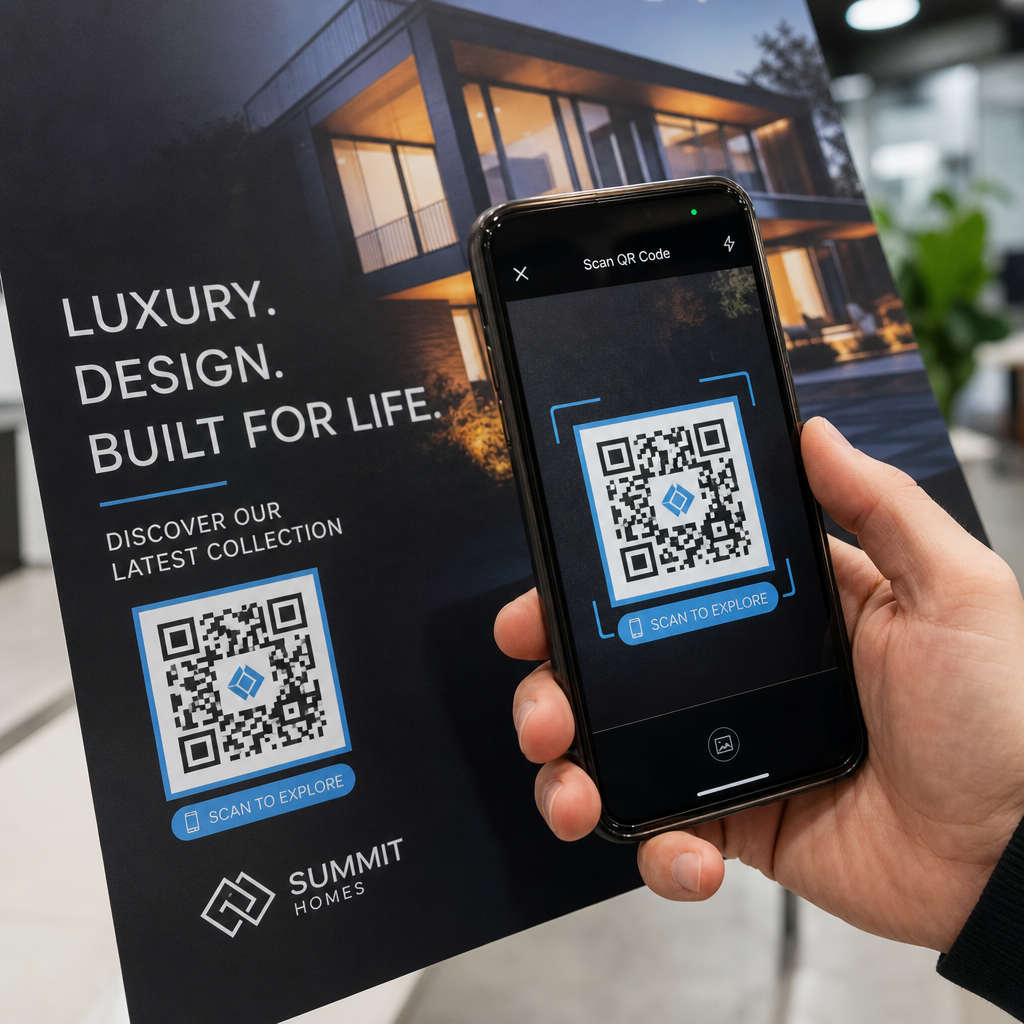
Uw fysieke test moet het volgende omvatten:
- Meerdere apparaten: test op minimaal twee verschillende smartphones – één iOS en één Android – met zowel de native camera-app als een scanner van derden
- Meerdere afstanden: scan vanaf de typische gebruikersafstand, en ook van iets verder weg om te bevestigen dat er foutmarge is
- Meerdere lichtomstandigheden: test in fel natuurlijk licht, standaard binnenverlichting, en weinig licht als de code in een van die omgevingen zal verschijnen
- Het daadwerkelijke oppervlak: glanzende oppervlakken reflecteren licht en kunnen scanfouten veroorzaken, zelfs als het codeontwerp correct is; matte afwerkingen presteren betrouwbaarder onder verschillende omstandigheden
U kunt de code ook digitaal verifiëren door een afbeelding van uw ontwerp te uploaden naar de Pageloot QR-code scanner om te bevestigen dat deze correct decodeert voordat u een volledige oplage start. Als uw code een van deze tests niet doorstaat, gebruik dan de veelvoorkomende gids voor het oplossen van problemen met QR-codes om het specifieke faalpunt te diagnosticeren voordat u aanpast en opnieuw test.
Voor een gestructureerd overzicht van wat mobiel testen moet omvatten, de gids voor het testen van QR-codes op mobiele bruikbaarheid loopt gedetailleerd door apparaatcompatibiliteit, scanhoeken en bestemmingsprestaties.
Houd rekening met uw printmethode en oppervlak
De manier waarop een QR-code wordt afgedrukt, beïnvloedt de scanbaarheid onafhankelijk van het codeontwerp zelf. Verschillende methoden produceren verschillende niveaus van modulescherpte, en verschillende oppervlakken interageren met licht op manieren die het scannen kunnen helpen of belemmeren.
Belangrijke overwegingen per methode en materiaal:
- Matte afwerkingen verspreiden licht in plaats van het te reflecteren, waardoor ze bijna altijd superieur zijn aan glanzende afwerkingen voor scanbetrouwbaarheid
- Offsetdruk produceert zeer scherpe module randen en is zeer geschikt voor grote oplages
- Digitaal printen werkt goed voor kleine oplages en aangepaste codes, maar de inktkwaliteit varieert en kan na verloop van tijd vervagen
- Thermisch printen is voordelig voor etiketten maar kan fijne module randen vervagen – vergroot de code om dit te compenseren
- Gestructureerde of gebogen oppervlakken introduceren vervorming die scanners kan verwarren; gebruik een grotere code om hiermee rekening te houden
Voor een volledig overzicht van hoe elke techniek de scanbaarheid beïnvloedt, de gids over hoe printtechnieken de scanbaarheid van QR-codes beïnvloeden behandelt methodeselectie, substraatvoorbereiding en inktduurzaamheid.
Gebruik een dynamische QR-code om te beschermen tegen wijzigingen na het printen
Zelfs een perfect geteste QR-code kan na het printen mislukken als de bestemmings-URL verandert, de gekoppelde pagina wordt verwijderd, of de campagne-inhoud moet worden bijgewerkt. Met een statische QR-code betekent elke wijziging van de bestemming het opnieuw afdrukken van alles.
Dynamische QR codes dit oplossen door een korte omleidings-URL te coderen in plaats van de uiteindelijke bestemming direct. De omleiding kan op elk moment worden bijgewerkt vanuit uw dashboard, zodat de geprinte code geldig blijft, zelfs wanneer uw campagne evolueert. Dit betekent ook dat u een kapotte link onmiddellijk na distributie kunt repareren – zonder één enkel stuk opnieuw te printen.
Naast foutpreventie, geven dynamische codes u toegang tot scananalyses: totaal aantal scans, scanlocaties, tijd van scan, en apparaattypen. Deze gegevens vertellen u of uw geprinte materialen daadwerkelijk werken in het veld, en waar u zich moet richten op optimalisatie. De gids voor het gebruik van QR-codes in printmedia behandelt hoe dynamische codes passen in een bredere printcampagnestrategie.
Bescherm Uw Printinvestering Maak een Dynamische QR-code om uw geprinte materialen actueel te houden en de scanprestaties in de praktijk te volgen – zonder ooit terug te hoeven naar de pers.
Pre-Print QR-code Testchecklist
Voordat u een QR-code goedkeurt voor printproductie, doorloop elk van de volgende punten:
- Codeformaat komt overeen met de 10:1 regel voor de verwachte scanafstand
- Bestand is geëxporteerd in SVG-, EPS- of PDF-formaat (of raster met minimaal 300 DPI op uiteindelijke printformaat)
- Contrastverhouding tussen modules en achtergrond voldoet aan minimaal 4:1
- Stille zone van minimaal vier modules is aan alle zijden vrij
- Foutcorrectieniveau is passend (Q of H als een logo-overlay aanwezig is)
- Code decodeert correct wanneer gescand vanaf een geüploade afbeelding
- Fysieke proef getest op zowel iOS- als Android-apparaten
- Fysieke proef getest in realistische lichtomstandigheden en op het daadwerkelijke printmateriaal
- Bestemmings-URL is live, mobiel-geoptimaliseerd, en laadt snel
- Dynamische QR-code gebruikt als de bestemming mogelijk moet veranderen na het printen
Het doorlopen van deze controles vóór elke printopdracht kost veel minder tijd dan het opnieuw bestellen van een printrun. Goede QR-codeprestaties beginnen met het bestand, niet met de scanner. Zorg dat het formaat, de indeling, het contrast en de stille zone kloppen in de ontwerpfase, print een proef op het echte materiaal, en test het op de manier waarop uw publiek het daadwerkelijk zal gebruiken.
Veelgestelde vragen
Het betrouwbare minimum voor scannen op korte afstand – zoals op visitekaartjes of productetiketten – is 2 × 2 cm (0,8 × 0,8 inch). Voor grotere printmaterialen geldt de 10:1-regel: de codebreedte moet minstens 1 cm zijn voor elke 10 cm verwachte scanafstand. Een poster die vanaf 1 meter afstand wordt gescand, heeft bijvoorbeeld een code nodig van minstens 10 cm breed.
Gebruik altijd een vectorformaat – SVG, EPS, of PDF – voor afdrukken. Vectorbestanden schalen naar elk formaat zonder wazig of korrelig te worden. Als u een rasterformaat zoals PNG moet gebruiken, zorg er dan voor dat de resolutie minimaal 300 DPI is op de uiteindelijke afdrukmaat. Rasterbestanden met lage resolutie zijn een van de meest voorkomende oorzaken van onleesbare afgedrukte QR-codes.
Druk een enkele proef af op het exacte beoogde formaat op het exacte materiaal dat u van plan bent te gebruiken, test het vervolgens op ten minste twee verschillende apparaten (iOS en Android) in realistische lichtomstandigheden. U kunt ook een afbeelding van uw code uploaden naar de Pageloot QR Code Scanner om te controleren of deze correct decodeert voordat u naar de pers gaat. Het gebruik van een dynamische QR-code voegt een extra beschermingslaag toe – als er iets moet veranderen na het afdrukken, kunt u de bestemming bijwerken zonder opnieuw af te drukken.