QR-koodin lähettäminen tulostettavaksi testaamatta sitä ensin on yksi yleisimmistä – ja kalleimmista – virheistä painomarkkinoinnissa. Koodi, joka näyttää täydelliseltä näytöllä, voi epäonnistua täysin, kun se päätyy paperille, vinyylille tai pakkaukseen. Tämä opas käy läpi kaikki tarkistukset, jotka sinun on tehtävä ennen painoksen hyväksymistä.
Miksi QR-koodit epäonnistuvat tulostuksen jälkeen
QR-koodi, joka skannautuu puhtaasti näytölläsi, voi epäonnistua todellisessa maailmassa syistä, jotka tulevat näkyviin vasta tulostuksen jälkeen. Näiden epäonnistumispisteiden ymmärtäminen auttaa sinua rakentamaan luotettavan esipainatuksen tarkistuslistan.
Yleisimmät syylliset ovat:
- Liian pieni koko odotettuun skannausetäisyyteen nähden
- Matala resoluutio aiheuttaen sumeita tai pikselöityneitä moduuleja
- Riittämätön kontrasti koodin ja sen taustan välillä
- Puuttuva hiljainen vyöhyke (koodia ympäröivä selkeä reunus)
- Korkea datatiheys luoden kuvion, joka on liian hieno kameroiden luettavaksi
- Väärä tiedostomuoto käytettynä tulostuslähtöön
Jokainen näistä ongelmista on täysin ehkäistävissä, jos havaitset sen ennen painokoneen käynnistymistä. Alla olevat osiot käsittelevät kutakin niistä järjestyksessä.
Tarkista QR-koodin koko skannausetäisyyteen nähden
Koko on yleisin syy painetun QR-koodin epäonnistumiseen. Vakiintunut sääntö on seuraava: 10:1 suhdetta: QR-koodin leveyden tulisi olla vähintään 1 cm (tai 1 tuuma) jokaista 10 cm (tai 10 tuumaa) kohden odotettua skannausetäisyyttä. Kädenmitan päässä pidetyn käyntikortin koodi tarvitsee hyvin erilaisen koon kuin huoneen toiselta puolelta luettavan julisteen koodi.
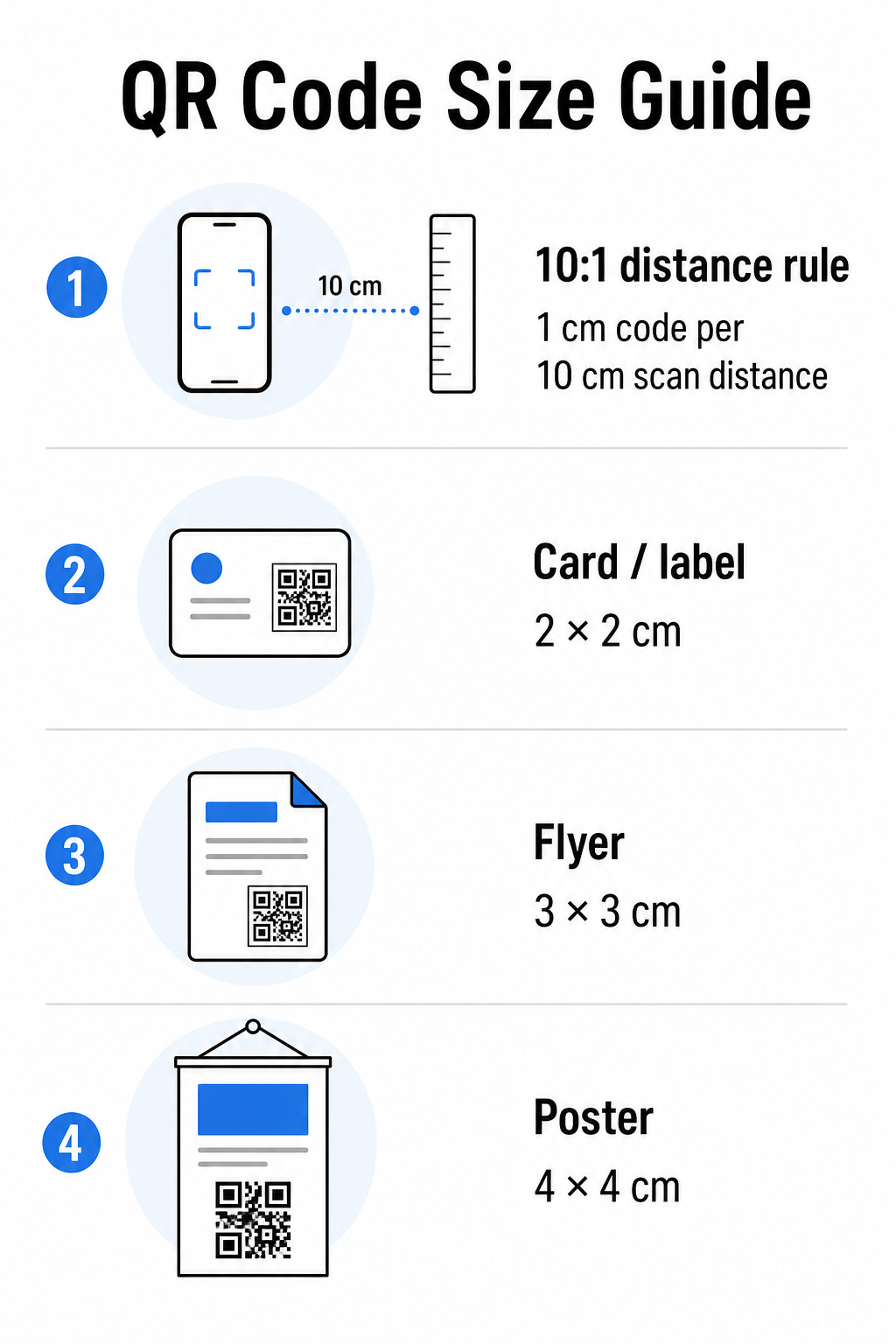
Käytä tätä taulukkoa lähtökohtana yleisille painomateriaaleille:
| Painomateriaali | Suositeltu vähimmäiskoko | Tyypillinen skannausetäisyys |
|---|---|---|
| Käyntikortti / etiketti | 2 × 2 cm (0,8 × 0,8 tuumaa) | 20–30 cm (8–12 tuumaa) |
| Esite / lentolehtinen | 3 × 3 cm (1,2 × 1,2 tuumaa) | 30 cm (12 tuumaa) |
| Juliste / opaste | 4 × 4 cm (1,6 × 1,6 tuumaa) | 40 cm (16 tuumaa) |
| Mainostaulu / banderolli | 40 × 40 cm (16 × 16 tuumaa) | 4 m (13 jalkaa) |
Ennen minkään painotiedoston hyväksymistä varmista, että koodin mitat vastaavat odotettua käyttötarkoitusta. Tämä QR-koodin kokooppaastamme tarjoaa täydellisen erittelyn materiaalityypin mukaan, mukaan lukien miten datatiheys vaikuttaa pienimpään käyttökelpoiseen kokoon.
Tarkista tiedostomuoto ja tulostusresoluutio
Vientimuodolla on yhtä suuri merkitys kuin itse suunnittelulla. Rasterikuvat, kuten PNG ja JPEG, koostuvat pikseleistä. Kun niitä skaalataan suurikokoiseen tulostukseen, niistä tulee sumeita ja QR-koodin hienot moduulit menettävät terävät reunansa – tehden koodista vaikean tai mahdottoman skannata.
Käytä kaikkien painettujen QR-koodien kanssa vektorimuotoja: SVG, EPS tai PDF. Vektoritiedostot skaalautuvat mihin tahansa kokoon menettämättä laatua, koska ne on määritelty matemaattisesti pikseli pikseliltä -menetelmän sijaan. Jos sinun on käytettävä rasterimuotoa, varmista, että resoluutio on vähintään 300 DPI aiotussa tulostuskoossa – ei näytön esikatselukoossa.
Nopea resoluution tarkistus: avaa kuvatiedostosi, merkitse sen pikselimitat ja jaa aiotulla tulostuskoolla tuumina. Jos 1 tuuman QR-koodi tallennetaan 100 × 100 pikselin kuvana, se on vain 100 DPI – selvästi alle 300 DPI:n minimin ja lähes varmasti tulostuu sumeana.
Syvemmän katsauksen tähän aiheeseen tarjoaa QR-koodin tulostusresoluutio-oppaastamme käsittelee DPI-vaatimuksia ja muotovalintoja yksityiskohtaisesti.
Luo tulostusvalmiita QR-koodeja sekunneissa Se Pageloot QR-koodigeneraattori antaa sinun ladata koodisi SVG-, EPS- ja PDF-muodoissa – valmiina mihin tahansa tulostuskokoon ilman laadun heikkenemistä.
Testaa kontrastia ennen tulostusta
QR-koodinlukijat toimivat erottamalla tummat moduulit vaaleasta taustasta. Kun kontrasti on liian matala, lukija ei pysty luotettavasti tunnistamaan kuviota – vaikka koodi näyttäisi hyvältä ihmissilmälle.
Tekninen vertailuarvo, joka on täytettävä, on vähintään 4:1 kontrastisuhteeseen tummien moduulien ja vaalean taustan välillä. Maksusovelluksissa tai saavutettavuuteen keskittyvissä käyttötapauksissa tavoittele 5:1 tai korkeampaa. Mustat moduulit valkoisella taustalla tuottavat 21:1 suhteen – kultaisen standardin, johon kaikkia muita väriyhdistelmiä verrataan.
Yleisiä kontrastivirheitä, jotka on tarkistettava ennen tulostusta:
- Vaaleanharmaat moduulit valkoisella: riittämätön kontrasti, joka epäonnistuu heikossa valaistuksessa
- Käännetyt värit (vaalea koodi tummalla taustalla): jotkut skannerit käsittelevät tämän, monet eivät – älä koskaan luota siihen
- Liukuvärjäykset moduuleissa: luo epätasaisen kontrastin, joka hämmentää skannereita
- Brändivärit, jotka ovat liian lähellä toisiaan sävyltään: testaa harmaasävykonversiolla nähdäksesi todellisen kontrastin
Käytännöllinen esipainatustesti on muuntaa QR-koodikuvasi harmaasävyksi ja tarkistaa, ovatko moduulit edelleen selvästi erotettavissa taustasta. Jos ne alkavat sulautua yhteen harmaasävyssä, ne epäonnistuvat monissa laitekameroissa ja valaistusolosuhteissa. Tämä QR-koodin värikontrastin parhaiden käytäntöjen opas sisältää väriyhdistelmätaulukon, joka näyttää kontrastisuhteet ja odotetut skannaustulokset yleisille yhdistelmille.
Varmista, että hiljainen vyöhyke on ehjä
Se hiljaisen alueen on tyhjä marginaali, joka ympäröi QR-koodin kaikki neljä sivua. Se ei ole suunnittelumieltymys – se on tekninen vaatimus, jonka määrittelee ISO/IEC 18004 -standardi. Ilman sitä skannerit eivät voi paikantaa, mistä koodi alkaa ja mihin se päättyy, ja skannaus epäonnistuu.
Hiljainen vyöhyke on oltava vähintään neljä moduulia leveä kaikilta sivuilta, missä yksi moduuli on yksi koodiruudukon pienistä neliöistä. Käytännön viitteenä:
- Eräässä 1 tuuman QR-koodi, varaa noin 0,15 tuumaa tyhjää tilaa kaikilta sivuilta
- Eräässä käyntikortin QR-koodi, ylläpidä hiljaista vyöhykettä, joka on vähintään 0,25 tuumaa
Ennen tulostukseen lähettämistä, zoomaa asettelutiedostoosi ja varmista, ettei teksti, kuvitus, reunus tai taustakuvio tunkeudu tälle vyöhykkeelle. Koodin sijoittaminen liian lähelle suunnittelun reunaa tai sen päällekkäin asettaminen koriste-elementtien kanssa on yksi yleisimmistä skannausvirheiden syistä, jotka ilmenevät vasta työn tulostamisen jälkeen.
Tarkista virheenkorjaustaso
QR-koodeissa on sisäänrakennettu palautusjärjestelmä nimeltään virheenkorjaus, joka mahdollistaa koodin lukemisen, vaikka osa siitä olisi vaurioitunut, peittynyt tai kulunut. Tasoja on neljä, ja jokainen tarjoaa erilaisen kompromissin kestävyyden ja datatiheyden välillä:
| Taso | Palautumiskyky | Paras käyttökotelo |
|---|---|---|
| L (matala) | ~7% | Puhtaat, vahingoittumattomat pinnat; suurin datatiheys |
| M (Keskitaso) | ~15% | Vakiopainomateriaalit, joissa on jonkin verran kulumista |
| Q (kvartiili) | ~25% | Koodit, joissa on logoja päällekkäin tai kohtalainen vaurioitumisriski |
| H (korkea) | ~30% | Ulkokäyttö, pakkaukset, koodit, joissa on suuria logoja päällekkäin |
Jos QR-koodisi sisältää kuvion päällekkäin asetetun logon – yleinen brändäysvalinta – tarvitset vähintään tason Q, ja ihanteellisesti tason H. Logo peittää tehokkaasti osan koodista, joten virheenkorjauksen on kompensoitava. Varmista, millä tasolla koodisi on luotu ennen viimeistelyä, ja testaa aina brändätty koodi päällekkäisyyden ollessa paikallaan. QR-koodin luettavuuden parhaiden käytäntöjen opas käsittelee yksityiskohtaisesti, miten virheenkorjaus vaikuttaa logon sijoitteluun.
Suorita fyysinen tulostustesti ennen täyttä ajoa
Mikään määrä näytöllä tarkistamista ei korvaa fyysisen vedoksen tulostamista. Tulosta yksi kappale tarkassa lopullisessa koossa tarkalle materiaalille , jota aiot käyttää, ja testaa se sitten olosuhteissa, jotka heijastavat todellista käyttöä.
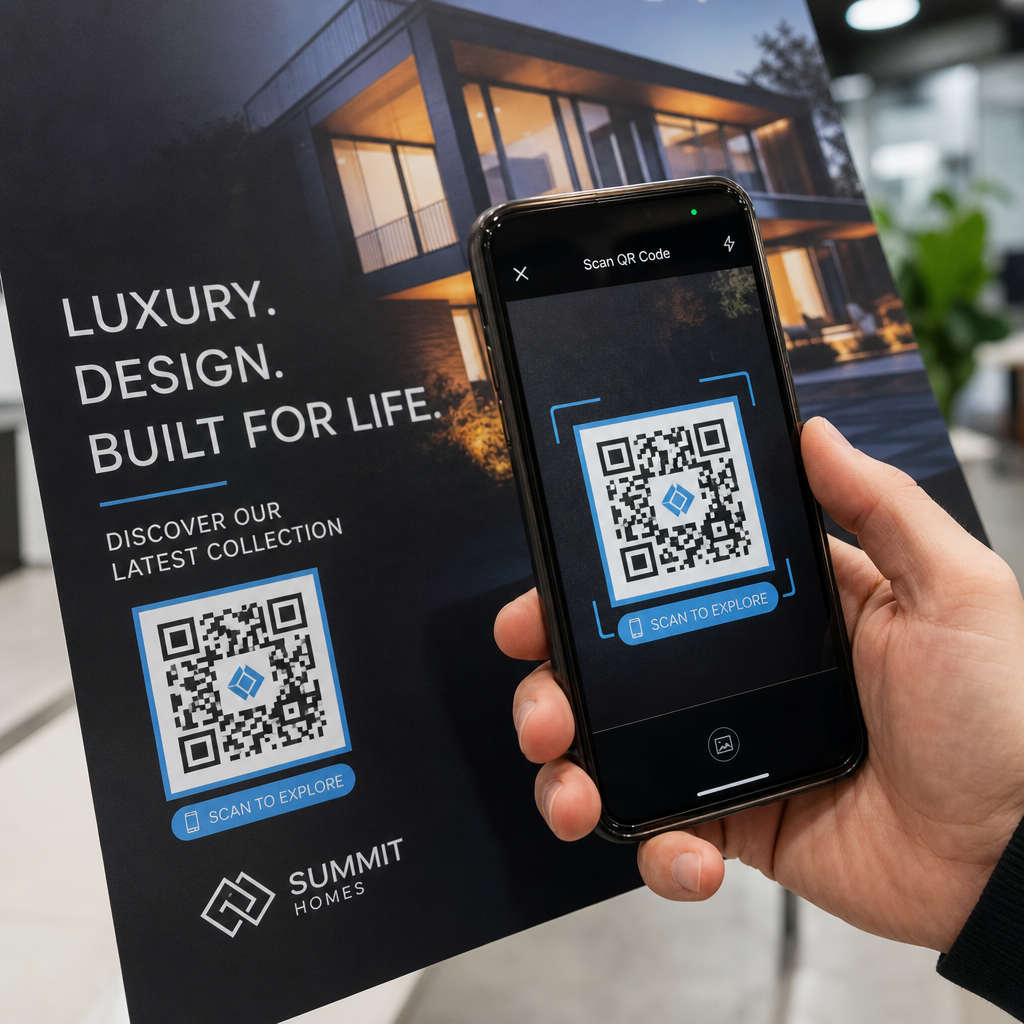
Fyysisen testisi tulisi kattaa:
- Useita laitteita: testaa vähintään kahdella eri älypuhelimella – yhdellä iOS- ja yhdellä Android-laitteella – käyttäen sekä alkuperäistä kamerasovellusta että kolmannen osapuolen skanneria
- Useita etäisyyksiä: skannaa tyypilliseltä käyttäjäetäisyydeltä ja myös hieman kauempaa varmistaaksesi, että virhemarginaalia on
- Useita valaistusolosuhteita: testaa kirkkaassa luonnonvalossa, tavallisessa sisävalaistuksessa ja hämärässä valossa, jos koodi ilmestyy johonkin näistä ympäristöistä
- Todellinen pinta: kiiltävät pinnat heijastavat valoa ja voivat aiheuttaa skannausvirheitä, vaikka koodin suunnittelu olisi oikea; mattapinnat toimivat luotettavammin kaikissa olosuhteissa
Voit myös varmistaa koodin digitaalisesti lataamalla kuvan suunnittelustasi Pageloot QR-koodinlukija varmistaaksesi, että se dekoodaa oikein ennen täyteen ajoon sitoutumista. Jos koodisi epäonnistuu jossakin näistä testeistä, käytä yleistä QR-koodin vianmääritysohjetta diagnosoidaksesi tietyn vikaantumiskohdan ennen säätämistä ja uudelleentestausta.
Jäsennellyn yleiskatsauksen saamiseksi siitä, mitä mobiilitestauksen tulisi kattaa, opas QR-koodien testaamiseen mobiilikäytettävyyden osalta käy läpi laitteiden yhteensopivuuden, skannauskulmat ja kohdesuorituskyvyn yksityiskohtaisesti.
Ota huomioon tulostusmenetelmäsi ja pintasi
Tapa, jolla QR-koodi tulostetaan, vaikuttaa skannattavuuteen riippumatta itse koodin suunnittelusta. Eri menetelmät tuottavat erilaisia moduulin terävyystasoja, ja eri pinnat vuorovaikuttavat valon kanssa tavoilla, jotka voivat joko auttaa tai haitata skannausta.
Tärkeimmät huomioitavat asiat menetelmän ja materiaalin mukaan:
- Mattapinnat hajottavat valoa sen sijaan, että heijastaisivat sitä, mikä tekee niistä lähes aina parempia kuin kiiltävät pinnat skannauksen luotettavuuden kannalta
- Offsetpainatus tuottaa erittäin teräviä moduulin reunoja ja soveltuu hyvin suuriin painosmääriin
- Digitaalinen painatus toimii hyvin lyhyissä sarjoissa ja räätälöidyissä koodeissa, mutta musteen laatu vaihtelee ja voi haalistua ajan myötä
- Lämpöpainatus on taloudellinen etiketeille, mutta voi sumentaa hienoja moduulin reunoja – suurenna koodin kokoa kompensoidaksesi
- Teksturoituja tai kaarevia pintoja aiheuttavat vääristymiä, jotka voivat hämmentää skannereita; käytä suurempaa koodia ottaaksesi sen huomioon
Täydellisen erittelyn saamiseksi siitä, miten kukin tekniikka vaikuttaa skannattavuuteen, opas aiheesta miten tulostustekniikat vaikuttavat QR-koodin skannattavuuteen käsittelee menetelmän valintaa, alustan valmistelua ja musteen kestävyyttä.
Käytä dynaamista QR-koodia suojautuaksesi tulostuksen jälkeisiltä muutoksilta
Jopa täydellisesti testattu QR-koodi voi epäonnistua tulostuksen jälkeen, jos kohde-URL muuttuu, linkitetty sivu poistetaan tai kampanjan sisältöä on päivitettävä. Staattisen QR-koodin kanssa mikä tahansa muutoksen kohteeseen tarkoittaa kaiken uudelleentulostamista.
Dynaamiset QR-koodit ratkaise tämä koodaamalla lyhyt uudelleenohjaus-URL-osoite suoran lopullisen kohteen sijaan. Uudelleenohjausta voidaan päivittää milloin tahansa hallintapaneelista, joten painettu koodi pysyy voimassa, vaikka kampanjasi kehittyisi. Tämä tarkoittaa myös sitä, että voit korjata rikkinäisen linkin välittömästi jakelun jälkeen – ilman yhdenkään kappaleen uudelleenpainamista.
Virheiden ehkäisyn lisäksi dynaamiset koodit antavat sinulle pääsyn skannausanalytiikkaan: kokonaisskannaukset, skannauspaikat, skannausaika oppaasta QR-koodien käytöstä painetussa mediassa Käsittelee, miten dynaamiset koodit sopivat laajempaan painokampanjastrategiaan.
Suojaa painoinvestointisi Luo Dynaaminen QR-koodi pitääksesi painetut materiaalisi ajan tasalla ja seurataksesi todellista skannaussuorituskykyä – ilman, että sinun tarvitsee koskaan palata painoon.
QR-koodin esipainatustestauksen tarkistuslista
Ennen minkään QR-koodin hyväksymistä painotuotantoon, käy läpi jokainen seuraavista:
- Koodin koko vastaa 10:1-sääntöä odotetun skannausetäisyyden suhteen
- Tiedosto on viety SVG-, EPS- tai PDF-muodossa (tai rasterina vähintään 300 DPI:n tarkkuudella lopullisessa painokoossa)
- Moduulien ja taustan välinen kontrastisuhde on vähintään 4:1
- Vähintään neljän moduulin kokoinen hiljainen vyöhyke on selkeä kaikilta puolilta
- Virheenkorjaustaso on asianmukainen (Q tai H, jos logopeittokuva on läsnä)
- Koodi purkautuu oikein, kun se skannataan ladatusta kuvasta
- Fyysinen vedos testattu sekä iOS- että Android-laitteilla
- Fyysinen vedos testattu realistisissa valaistusolosuhteissa ja varsinaisella painomateriaalilla
- Kohde-URL on aktiivinen, mobiilioptimoitu ja latautuu nopeasti
- Dynaamista QR-koodia käytetään, jos kohdetta on ehkä muutettava painatuksen jälkeen
Näiden tarkistusten läpikäyminen ennen jokaista painotyötä vie paljon vähemmän aikaa kuin uuden painoksen tilaaminen. Hyvä QR-koodin suorituskyky alkaa tiedostosta, ei skannerista. Varmista koko, muoto, kontrasti ja hiljainen vyöhyke oikein suunnitteluvaiheessa, paina vedos oikealle materiaalille ja testaa se tavalla, jolla yleisösi sitä todella käyttää.
Usein kysytyt kysymykset
Luotettava minimi lähiskannaukseen – kuten käyntikorteissa tai tuotetarroissa – on 2 × 2 cm (0,8 × 0,8 tuumaa). Suuremmille painomateriaaleille sovelletaan 10:1-sääntöä: koodin leveyden tulisi olla vähintään 1 cm jokaista 10 cm:n odotettua skannausetäisyyttä kohden. Esimerkiksi metrin etäisyydeltä skannattu juliste tarvitsee vähintään 10 cm leveän koodin.
Käytä aina vektorimuotoa – SVG, EPS tai PDF – painatukseen. Vektoritiedostot skaalautuvat mihin tahansa kokoon tulematta sumeiksi tai pikselöityneiksi. Jos sinun on pakko käyttää rasterimuotoa, kuten PNG:tä, varmista, että resoluutio on vähintään 300 DPI lopullisessa painatuskoossa. Matalaresoluutioiset rasteritiedostot ovat yksi yleisimmistä syistä lukukelvottomiin painettuihin QR-koodeihin.
Tulosta yksi vedos tarkalleen aiotussa koossa tarkalleen sillä materiaalilla, jota aiot käyttää, ja testaa se sitten vähintään kahdella eri laitteella (iOS ja Android) realistisissa valaistusolosuhteissa. Voit myös ladata kuvan koodistasi Pageloot QR-koodinlukijaan varmistaaksesi, että se purkautuu oikein ennen painoon menoa. Dynaamisen QR-koodin käyttäminen lisää uuden suojakerroksen – jos jotain on muutettava tulostuksen jälkeen, voit päivittää kohteen ilman uudelleentulostusta.