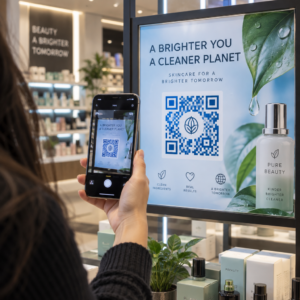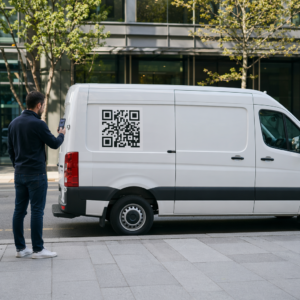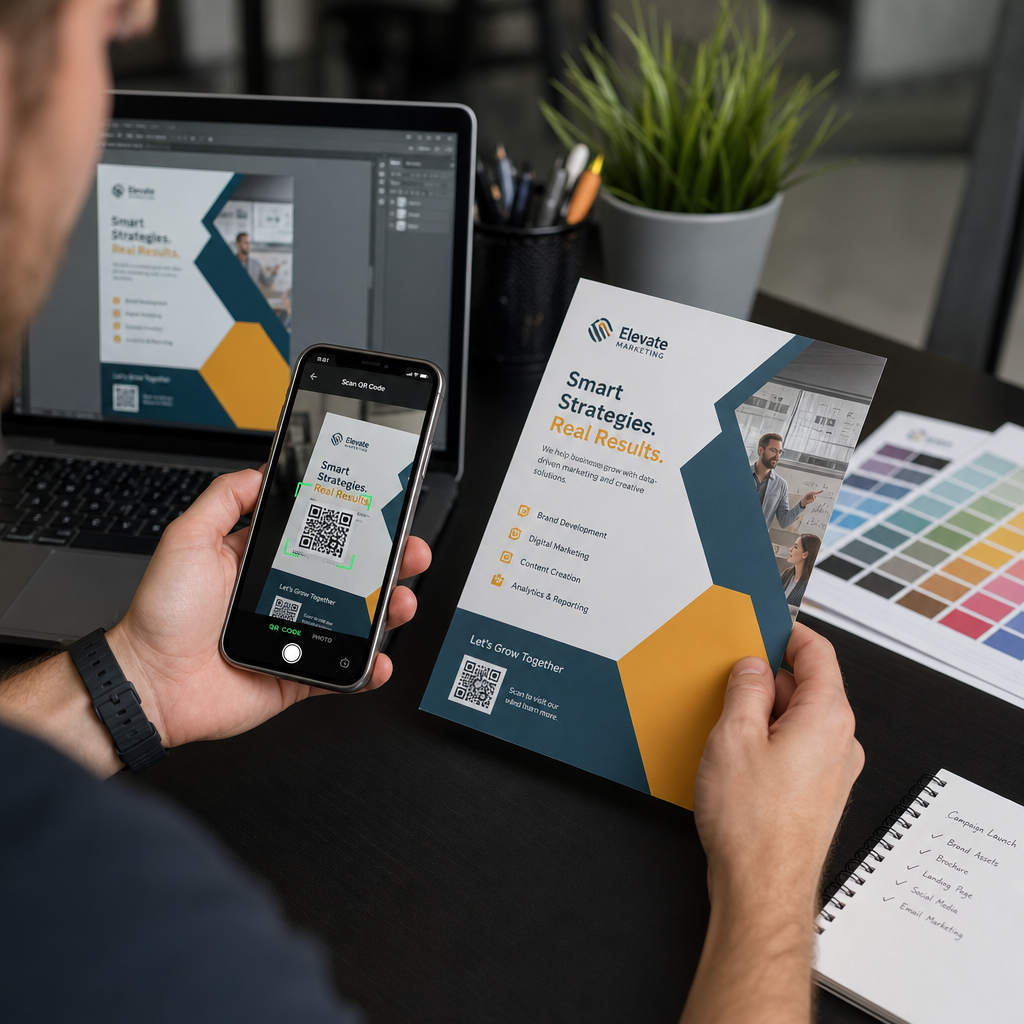
Sūtīt QR kodu drukāšanai, to iepriekš nepārbaudot, ir viena no visbiežākajām – un dārgākajām – kļūdām drukas mārketingā. Kods, kas ekrānā izskatās perfekti, var pilnībā sabojāties, nonākot uz papīra, vinila vai iepakojuma. Šis ceļvedis palīdzēs jums veikt visas pārbaudes, kas jāveic pirms drukas apstiprināšanas.
Kāpēc QR kodi sabojājas pēc drukāšanas
QR kods, kas tīri skenējas monitorā, reālajā pasaulē var sabojāties iemeslu dēļ, kas kļūst redzami tikai pēc drukāšanas. Izpratne par šiem kļūmju punktiem palīdz izveidot uzticamu pirmsdrukas kontrolsarakstu.
Visbiežākie vaininieki ir:
- Pārāk mazs izmērs paredzētajam skenēšanas attālumam
- Zema izšķirtspēja izraisot izplūdušus vai pikseļotus moduļus
- Nepietiekams kontrasts starp kodu un tā fonu
- Trūkst klusās zonas (skaidra apmale ap kodu)
- Augsts datu blīvums radot pārāk smalku rakstu, ko kameras nespēj nolasīt
- Nepareizs faila formāts izmantots drukas izvadei
Katra no šīm problēmām ir pilnībā novēršama, ja to pamanāt pirms drukas uzsākšanas. Zemāk esošajās sadaļās katra no tām tiek aplūkota secīgi.
Pārbaudiet QR koda izmēru atbilstoši skenēšanas attālumam
Izmērs ir visbiežākais iemesls, kāpēc drukāts QR kods sabojājas. Standarta noteikums ir 10:1 attiecību: QR koda platumam jābūt vismaz 1 cm (vai 1 collai) uz katriem 10 cm (vai 10 collām) paredzētā skenēšanas attāluma. Vizītkartes kodam, kas tiek turēts rokas stiepiena attālumā, ir nepieciešams ļoti atšķirīgs izmērs nekā plakātam, kas tiek lasīts no istabas otra gala.
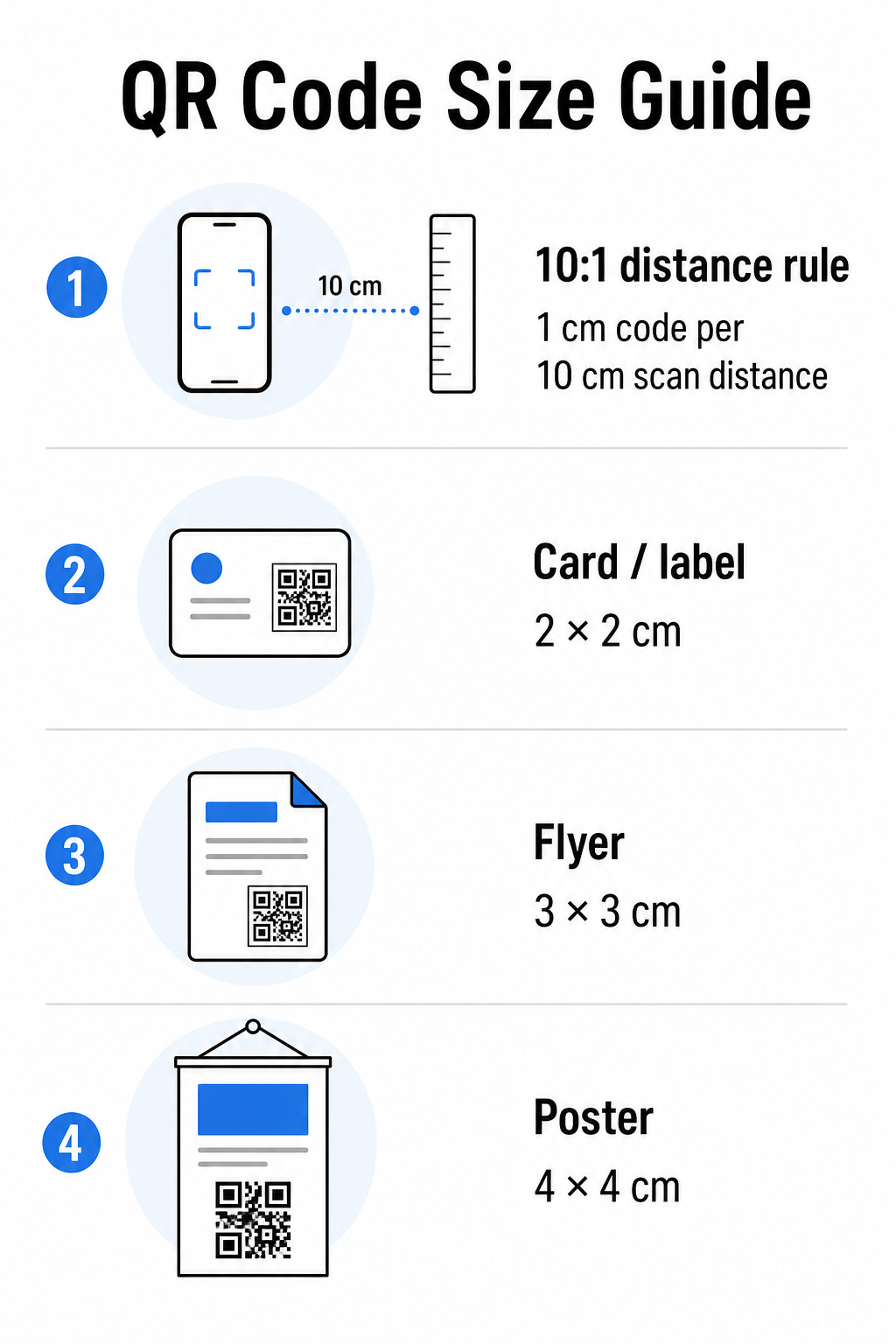
Izmantojiet šo tabulu kā sākumpunktu bieži sastopamiem drukas materiāliem:
| Drukas materiāls | Minimālais ieteicamais izmērs | Tipiskais skenēšanas attālums |
|---|---|---|
| Vizītkarte / etiķete | 2 × 2 cm (0,8 × 0,8 collas) | 20–30 cm (8–12 collas) |
| Brošūra / skrejlapa | 3 × 3 cm (1,2 × 1,2 collas) | 30 cm (12 collas) |
| Plakāts / izkārtne | 4 × 4 cm (1,6 × 1,6 collas) | 40 cm (16 collas) |
| Lielformāta reklāma / baneris | 40 × 40 cm (16 × 16 collas) | 4 m (13 pēdas) |
Pirms jebkura drukas faila apstiprināšanas pārliecinieties, vai koda izmēri atbilst jūsu paredzētajam lietošanas gadījumam. QR kodu izmēru ceļvedī sniedz pilnīgu sadalījumu pēc materiāla veida, ieskaitot to, kā datu blīvums ietekmē minimālo piemēroto izmēru.
Pārbaudiet faila formātu un drukas izšķirtspēju
Eksportēšanas formātam ir tikpat liela nozīme kā pašam dizainam. Rastru attēli, piemēram, PNG un JPEG, sastāv no pikseļiem. Palielinot tos liela formāta drukāšanai, tie kļūst izplūduši, un QR koda smalkie moduļi zaudē savas asās malas – padarot kodu grūti vai neiespējami skenējamu.
Jebkuram drukātam QR kodam izmantojiet vektoru formātus: SVG, EPS vai PDF. Vektoru faili mērogojas jebkurā izmērā, nezaudējot kvalitāti, jo tie ir definēti matemātiski, nevis pikseli pa pikselim. Ja jums obligāti jāizmanto rastra formāts, pārliecinieties, ka izšķirtspēja ir vismaz 300 DPI paredzētajā drukas izmērā – nevis ekrāna priekšskatījuma izmērā.
Ātra izšķirtspējas pārbaude: atveriet attēla failu, atzīmējiet tā pikseļu izmērus un daliet ar paredzēto drukas izmēru collās. Ja 1 collas QR kods tiek saglabāts kā 100 × 100 pikseļu attēls, tā izšķirtspēja ir tikai 100 DPI – krietni zem minimālajiem 300 DPI un gandrīz garantēti drukāsies izplūdis.
Lai padziļināti aplūkotu šo tēmu, QR koda drukas izšķirtspējas ceļvedis detalizēti aplūko DPI prasības un formātu izvēli.
Izveidojiet drukāšanai gatavus QR kodus sekundēs Portāls Pageloot QR kodu ģenerators ļauj lejupielādēt kodus SVG, EPS un PDF formātos – gatavus jebkuram drukas izmēram bez kvalitātes zuduma.
Pārbaudiet kontrastu pirms drukāšanas
QR kodu skeneri darbojas, atšķirot tumšus moduļus no gaiša fona. Ja kontrasts ir pārāk zems, skeneris nevar droši identificēt rakstu – pat ja kods cilvēka acij izskatās labi.
Tehniskais etalons, kas jāsasniedz, ir minimālo kontrasta attiecību 4:1 starp tumšajiem moduļiem un gaišo fonu. Maksājumu lietojumprogrammām vai pieejamības orientētiem lietošanas gadījumiem, mērķējiet uz 5:1 vai augstāku. Melni moduļi uz balta fona rada attiecību 21:1 – zelta standarts, pret kuru tiek mērītas visas pārējās krāsu kombinācijas.
Biežākās kontrasta kļūdas, kas jāpārbauda pirms drukāšanas:
- Gaiši pelēki moduļi uz balta: nepietiekams kontrasts, kas neizdosies vājā apgaismojumā
- Apgrieztas krāsas (gaišs kods uz tumša fona): daži skeneri to apstrādā, daudzi ne – nekad nepaļaujieties uz to
- Gradienta aizpildījumi moduļos: rada nevienmērīgu kontrastu, kas mulsina skenerus
- Zīmola krāsas, kas ir pārāk līdzīgas tonī: pārbaudiet ar pelēktoņu konversiju, lai redzētu patieso kontrastu
Praktisks pirmsdrukas tests ir pārvērst jūsu QR koda attēlu pelēktoņos un pārbaudīt, vai moduļi joprojām ir skaidri atšķirami no fona. Ja tie sāk saplūst pelēktoņos, tie nedarbosies ar plašu ierīču kameru un apgaismojuma apstākļu klāstu. Šis QR koda krāsu kontrasta labākās prakses rokasgrāmatu ietver krāsu kombināciju tabulu, kas parāda kontrasta attiecības un paredzamos skenēšanas rezultātus bieži sastopamām kombinācijām.
Apstipriniet, ka klusā zona ir neskarta
Portāls klusā zona ir tukšā mala, kas ieskauj visas četras QR koda puses. Tā nav dizaina izvēle – tā ir tehniska prasība, ko nosaka ISO/IEC 18004 standarts. Bez tās skeneri nevar noteikt, kur kods sākas un beidzas, un skenēšana neizdosies.
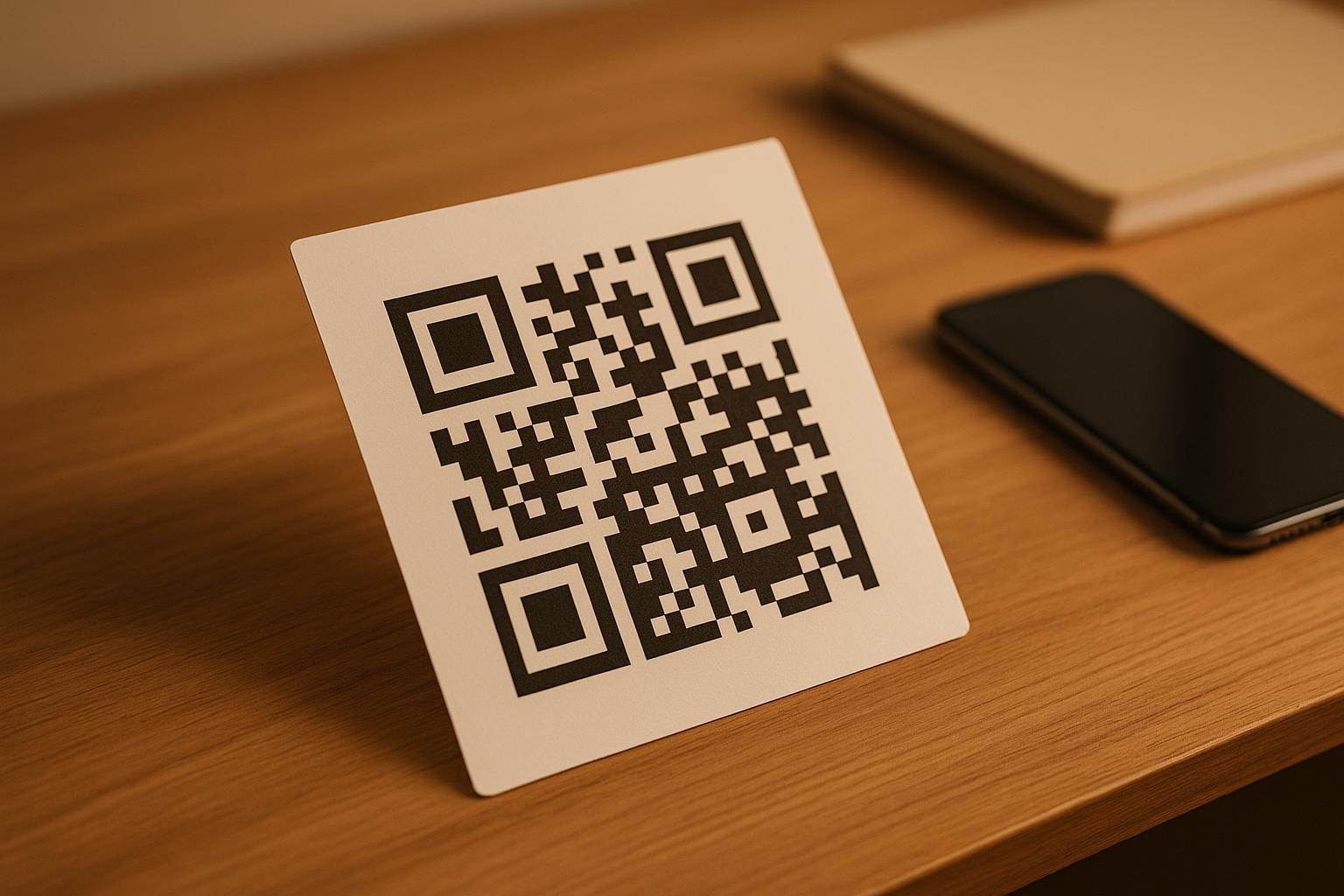
Klusajai zonai jābūt vismaz četru moduļu platumā visās pusēs, kur viens modulis ir viens no mazajiem kvadrātiem koda režģī. Kā praktiska atsauce:
- Priekš 1 collas QR kods, atstājiet aptuveni 0,15 collas brīvas vietas visās pusēs
- Priekš vizītkartes QR kods, saglabājiet kluso zonu vismaz 0,25 collu platumā
Pirms nosūtīšanas drukāšanai, pietuviniet savu izkārtojuma failu un apstipriniet, ka neviens teksts, attēls, apmale vai fona raksts neaizskar šo zonu. Koda novietošana pārāk tuvu dizaina malai vai tā pārklāšanās ar dekoratīviem elementiem ir viens no visbiežākajiem skenēšanas kļūmju cēloņiem, kas parādās tikai pēc darba izdrukāšanas.
Pārbaudiet kļūdu labošanas līmeni
QR kodiem ir iebūvēta atkopšanas sistēma, ko sauc par kļūdu labošana, kas ļauj nolasīt kodu pat tad, ja daļa no tā ir bojāta, aizsegta vai nodilusi. Ir četri līmeņi, katrs piedāvā atšķirīgu kompromisu starp noturību un datu blīvumu:
| Līmenis | Atjaunošanas spēja | Labākais izmantošanas gadījums |
|---|---|---|
| L (zems) | ~7% | Tīras, nebojātas virsmas; maksimālais datu blīvums |
| M (vidēja) | ~15% | Standarta drukas materiāli ar nelielu nodilumu |
| Q (kvartile) | ~25% | Kodi ar logotipu pārklājumiem vai mērenu bojājumu risku |
| H (augsts) | ~30% | Lietošana ārpus telpām, iepakojums, kodi ar lieliem logotipu pārklājumiem |
Ja jūsu QR kods ietver logotipu, kas pārklāts ar rakstu – bieži izvēlēta zīmola izvēle – jums ir nepieciešams vismaz Q līmenis, un ideāli H līmenis. Logotips efektīvi aizsedz daļu koda, tāpēc kļūdu labošanai ir jākompensē. Pirms pabeigšanas apstipriniet, ar kādu līmeni jūsu kods tika ģenerēts, un vienmēr pārbaudiet zīmola kodu ar uzklātu pārklājumu. The QR kodu lasāmības labākās prakses ceļvedis detalizēti apraksta, kā kļūdu labošana mijiedarbojas ar logotipa izvietojumu.
Veiciet fizisku drukas testu pirms pilnas tirāžas
Nekāda ekrāna pārbaude neaizstāj fiziska parauga drukāšanu. Izdrukājiet vienu kopiju precīzā galīgajā izmērā uz precīza materiāla ko plānojat izmantot, un pēc tam pārbaudiet to apstākļos, kas atspoguļo reālo lietošanu.
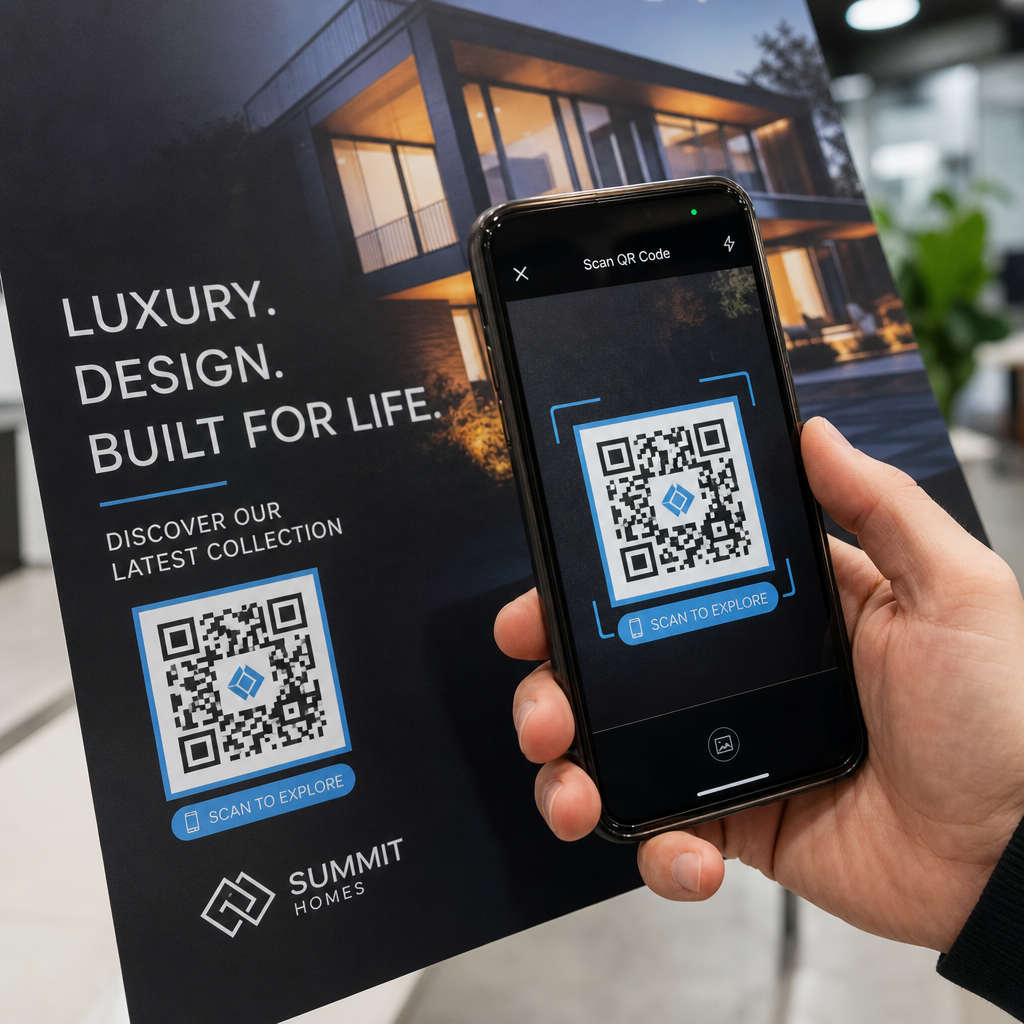
Jūsu fiziskajam testam jāaptver:
- Vairākas ierīces: testējiet vismaz divos dažādos viedtālruņos – vienā iOS un vienā Android – izmantojot gan vietējo kameras lietotni, gan trešās puses skeneri
- Vairāki attālumi: skenējiet no tipiska lietotāja attāluma, kā arī no nedaudz tālāk, lai pārliecinātos, ka ir kļūdu rezerve
- Vairāki apgaismojuma apstākļi: testējiet spilgtā dabiskā gaismā, standarta iekštelpu apgaismojumā un vājā apgaismojumā, ja kods parādīsies kādā no šīm vidēm
- Faktiskā virsma: glancētas virsmas atstaro gaismu un var izraisīt skenēšanas kļūmes pat tad, ja koda dizains ir pareizs; matētas virsmas darbojas uzticamāk dažādos apstākļos
Varat arī digitāli pārbaudīt kodu, augšupielādējot sava dizaina attēlu Pageloot QR Code Scanner , lai apstiprinātu, ka tas tiek pareizi atšifrēts pirms pilnas tirāžas. Ja jūsu kods neiztur kādu no šiem testiem, izmantojiet bieži sastopamo QR koda problēmu novēršanas rokasgrāmatu , lai diagnosticētu konkrēto kļūmes punktu pirms pielāgošanas un atkārtotas testēšanas.
Lai iegūtu strukturētu pārskatu par to, kas jāaptver mobilajai testēšanai, ceļvedis QR kodu testēšanai mobilajai lietojamībai detalizēti apraksta ierīču saderību, skenēšanas leņķus un galamērķa veiktspēju.
Ņemiet vērā savu drukāšanas metodi un virsmu
QR koda drukāšanas veids ietekmē skenējamību neatkarīgi no paša koda dizaina. Dažādas metodes rada atšķirīgu moduļu asuma līmeni, un dažādas virsmas mijiedarbojas ar gaismu tā, ka tas var gan palīdzēt, gan traucēt skenēšanu.
Galvenie apsvērumi pēc metodes un materiāla:
- Matētas virsmas izkliedē gaismu, nevis atstaro to, padarot tos gandrīz vienmēr pārākus par spīdīgām apdarēm skenēšanas uzticamībai
- Ofseta druka rada ļoti asas moduļu malas un ir labi piemērota liela apjoma drukas tirāžām
- Digitālā druka labi darbojas īsiem tirāžām un pielāgotiem kodiem, taču tintes kvalitāte atšķiras un laika gaitā var izbalēt
- Termodruka ir ekonomiska etiķetēm, taču var izpludināt smalkas moduļu malas – palieliniet koda izmēru, lai to kompensētu
- Teksturētas vai izliektas virsmas rada kropļojumus, kas var apmulsināt skenerus; izmantojiet lielāku kodu, lai to ņemtu vērā
Lai iegūtu pilnīgu analīzi par to, kā katra tehnika ietekmē skenējamību, ceļvedis par kā drukas tehnikas ietekmē QR koda skenējamību aptver metodes izvēli, pamatnes sagatavošanu un tintes izturību.
Izmantojiet dinamisku QR kodu, lai pasargātu no izmaiņām pēc drukāšanas
Pat perfekti pārbaudīts QR kods var nedarboties pēc drukāšanas, ja mainās galamērķa URL, saistītā lapa tiek noņemta vai kampaņas saturs ir jāatjaunina. Ar statisku QR kodu jebkuras izmaiņas galamērķī nozīmē visu pārdrukāšanu.
Dinamiskie QR kodi atrisināt to, kodējot īsu novirzīšanas URL, nevis tieši galīgo galamērķi. Novirzīšanu var atjaunināt jebkurā laikā no jūsu informācijas paneļa, tāpēc izdrukātais kods paliek derīgs pat tad, ja jūsu kampaņa attīstās. Tas nozīmē arī to, ka varat nekavējoties labot bojātu saiti pēc izplatīšanas – bez neviena gabala atkārtotas drukāšanas.
Papildus kļūdu novēršanai, dinamiskie kodi sniedz piekļuvi skenēšanas analīzei: kopējais skenējumu ceļvedī par QR kodu izmantošanu drukātajos medijos Aptver, kā dinamiskie kodi iekļaujas plašākā drukas kampaņas stratēģijā.
Aizsargājiet savu ieguldījumu drukā Izveidot Dinamiskais QR kods lai jūsu drukātie materiāli būtu aktuāli un sekotu reālās pasaules skenēšanas veiktspējai – nekad neatgriežoties pie drukas.
Pirmsdrukas QR koda testēšanas kontrolsaraksts
Pirms jebkura QR koda apstiprināšanas drukas ražošanai, izpildiet katru no tālāk minētajiem punktiem:
- Koda izmērs atbilst 10:1 noteikumam paredzētajam skenēšanas attālumam
- Fails ir eksportēts SVG, EPS vai PDF formātā (vai rastra formātā ar vismaz 300 DPI galīgajā drukas izmērā)
- Kontrasta attiecība starp moduļiem un fonu ir vismaz 4:1
- Klusā zona vismaz četru moduļu platumā ir brīva no visām pusēm
- Kļūdu labošanas līmenis ir piemērots (Q vai H, ja ir logotipa pārklājums)
- Kods tiek pareizi atšifrēts, skenējot no augšupielādēta attēla
- Fizisks paraugs testēts gan iOS, gan Android ierīcēs
- Fizisks paraugs testēts reālistiskos apgaismojuma apstākļos un uz faktiskā drukas materiāla
- Galamērķa URL ir aktīvs, optimizēts mobilajām ierīcēm un ielādējas ātri
- Tiek izmantots dinamiskais QR kods, ja galamērķis varētu mainīties pēc drukāšanas
Šo pārbaužu veikšana pirms katra drukas darba aizņem daudz mazāk laika nekā atkārtota drukas pasūtīšana. Laba QR koda veiktspēja sākas ar failu, nevis skeneri. Iegūstiet pareizu izmēru, formātu, kontrastu un kluso zonu dizaina posmā, izdrukājiet paraugu uz reālā materiāla un pārbaudiet to tā, kā jūsu auditorija to patiešām izmantos.
Biežāk uzdotie jautājumi
Uzticamais minimums tuvplāna skenēšanai – piemēram, uz vizītkartēm vai produktu etiķetēm – ir 2 × 2 cm (0,8 × 0,8 collas). Lielākiem drukas materiāliem piemērojiet 10:1 likumu: koda platumam jābūt vismaz 1 cm uz katriem 10 cm paredzamā skenēšanas attāluma. Plakātam, skenētam no 1 metra attāluma, piemēram, ir nepieciešams kods vismaz 10 cm plats.
Vienmēr izmantojiet vektora formātu – SVG, EPS vai PDF – drukāšanai. Vektora faili mērogojas jebkurā izmērā, nekļūstot izplūduši vai pikseļoti. Ja jums noteikti jāizmanto rastra formāts, piemēram, PNG, pārliecinieties, ka izšķirtspēja ir vismaz 300 DPI galīgajā drukas izmērā. Zemas izšķirtspējas rastra faili ir viens no visbiežāk sastopamajiem iemesliem nesalasāmiem drukātiem QR kodiem.
Izdrukājiet vienu paraugu precīzā paredzētajā izmērā uz precīzā materiāla, ko plānojat izmantot, pēc tam pārbaudiet to uz vismaz divām dažādām ierīcēm (iOS un Android) reālistiskos apgaismojuma apstākļos. Varat arī augšupielādēt sava koda attēlu uz Pageloot QR koda skeneri, lai pārbaudītu, vai tas dekodējas pareizi pirms došanās uz druku. Dinamiska QR koda izmantošana pievieno vēl vienu aizsardzības slāni – ja kaut kas jāmaina pēc drukāšanas, varat atjaunināt galamērķi bez atkārtotas drukāšanas.