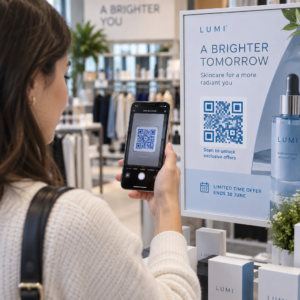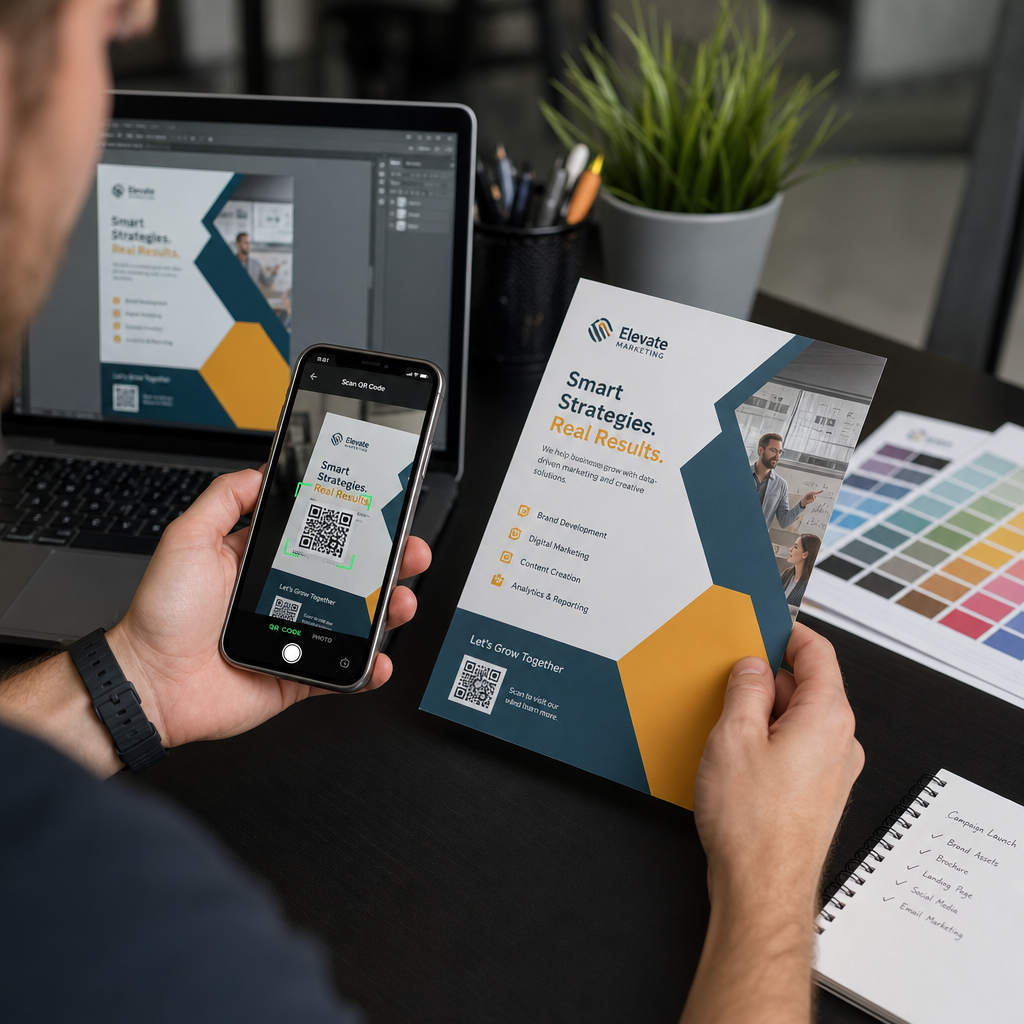
Bir QR kodunu önce test etmeden baskıya göndermek, baskı pazarlamasındaki en yaygın – ve maliyetli – hatalardan biridir. Ekranda mükemmel görünen bir kod, kağıda, vinile veya ambalaja ulaştığında tamamen başarısız olabilir. Bu kılavuz, bir baskı çalışmasını onaylamadan önce yapmanız gereken her kontrolü size gösterir.
QR Kodları Baskı Sonrası Neden Başarısız Olur?
Monitörünüzde sorunsuz taranan bir QR kodu, yalnızca baskıdan sonra görünür hale gelen nedenlerle gerçek dünyada başarısız olabilir. Bu hata noktalarını anlamak, güvenilir bir baskı öncesi kontrol listesi oluşturmanıza yardımcı olur.
En yaygın nedenler şunlardır:
- Çok küçük boyut beklenen tarama mesafesi için
- Düşük çözünürlük bulanık veya pikselli modüllere neden olan
- Yetersiz kontrast kod ile arka planı arasında
- Eksik sessiz bölge (kodu çevreleyen net kenarlık)
- Yüksek veri yoğunluğu kameraların okuyamayacağı kadar ince bir desen oluşturma
- Yanlış dosya formatı baskı çıktısı için kullanılan
Bu sorunların her biri, baskı başlamadan önce yakalarsanız tamamen önlenebilir. Aşağıdaki bölümler her birini sırayla ele almaktadır.
QR Kod Boyutunuzu Tarama Mesafesine Göre Kontrol Edin
Boyut, basılı bir QR kodunun başarısız olmasının en yaygın tek nedenidir. Standart kural şudur: 10:1 oranı: QR kodu genişliği, beklenen her 10 cm (veya 10 inç) tarama mesafesi için en az 1 cm (veya 1 inç) olmalıdır. Kol mesafesinde tutulan bir kartvizitteki kod, bir odanın karşısından okunan bir posterdeki koddan çok farklı bir boyuta ihtiyaç duyar.
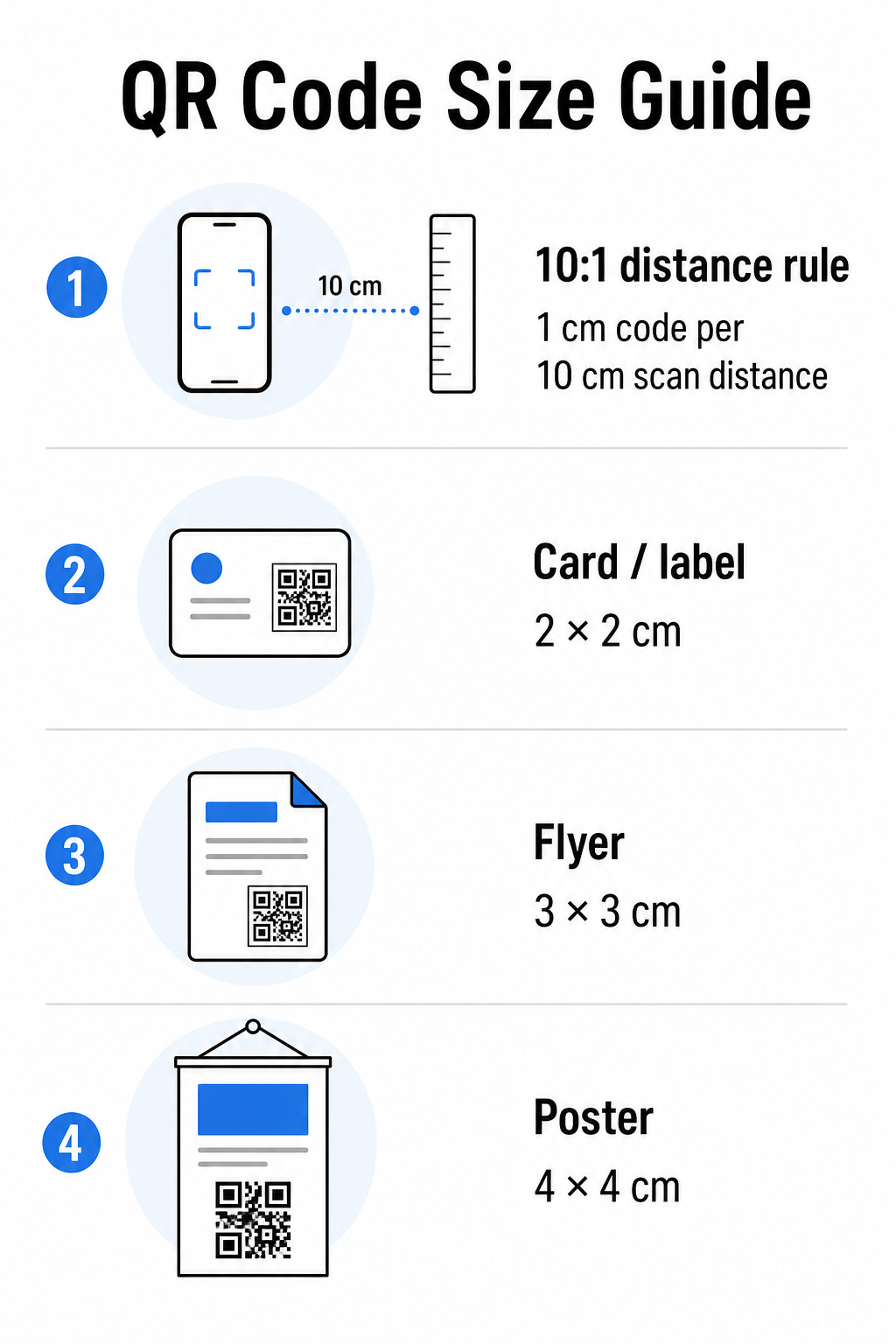
Yaygın baskı malzemeleri için bu tabloyu bir başlangıç noktası olarak kullanın:
| Baskı Malzemesi | Minimum Önerilen Boyut | Tipik Tarama Mesafesi |
|---|---|---|
| Kartvizit / etiket | 2 × 2 cm (0.8 × 0.8 inç) | 20–30 cm (8–12 inç) |
| Broşür / el ilanı | 3 × 3 cm (1.2 × 1.2 inç) | 30 cm (12 inç) |
| Poster / tabela | 4 × 4 cm (1.6 × 1.6 inç) | 40 cm (16 inç) |
| Billboard / afiş | 40 × 40 cm (16 × 16 inç) | 4 m (13 ft) |
Herhangi bir baskı dosyasını onaylamadan önce, kod boyutlarının beklenen kullanım durumunuza uygun olduğunu doğrulayın. Bu QR kodu boyut kılavuzu malzeme türüne göre eksiksiz bir döküm sağlar, veri yoğunluğunun minimum uygulanabilir boyutu nasıl etkilediği de dahil.
Dosya Formatınızı ve Baskı Çözünürlüğünüzü Doğrulayın
Dışa aktardığınız format, tasarımın kendisi kadar önemlidir. PNG ve JPEG gibi raster görüntüler piksellerden oluşur. Büyük formatlı baskı için büyütüldüğünde, bulanıklaşırlar ve bir QR kodundaki ince modüller keskin kenarlarını kaybeder – bu da kodu taramayı zor veya imkansız hale getirir.
Herhangi bir basılı QR kodu için vektör formatlarını kullanın: SVG, EPS veya PDF. Vektör dosyaları, piksel piksel yerine matematiksel olarak tanımlandıkları için kaliteden ödün vermeden her boyuta ölçeklenebilir. Bir raster formatı kullanmanız gerekiyorsa, çözünürlüğün olduğundan emin olun en az 300 DPI amaçlanan baskı boyutunda – ekran önizleme boyutunda değil.
Hızlı bir çözünürlük kontrolü: görüntü dosyanızı açın, piksel boyutlarını not edin ve inç cinsinden amaçlanan baskı boyutuna bölün. Eğer 1 inçlik bir QR kodu 100 × 100 piksellik bir görüntü olarak kaydedilirse, bu sadece 100 DPI'dır – 300 DPI minimumunun çok altında ve neredeyse kesinlikle bulanık basılacaktır.
Bu konuya daha derinlemesine bakmak için, QR kodu baskı çözünürlüğü rehberi DPI gereksinimlerini ve format seçimlerini ayrıntılı olarak ele alır.
Saniyeler İçinde Baskıya Hazır QR Kodları Oluşturun Bu Pageloot QR Kodu Oluşturucu kodlarınızı SVG, EPS ve PDF formatlarında indirmenizi sağlar – kalite kaybı olmadan her baskı boyutuna hazır.
Baskıya Gitmeden Önce Kontrastı Test Edin
QR kodu tarayıcıları, koyu modülleri açık bir arka plandan ayırt ederek çalışır. Bu kontrast çok düşük olduğunda, tarayıcı deseni güvenilir bir şekilde tanımlayamaz – kod insan gözüne iyi görünse bile.
Karşılanması gereken teknik ölçüt şudur: minimum 4:1 kontrast oranı koyu modüller ile açık arka plan arasında. Ödeme uygulamaları veya erişilebilirlik odaklı kullanım durumları için, hedefleyin 5:1 veya daha yüksek. Beyaz arka plan üzerindeki siyah modüller 21:1 oranı üretir – diğer her renk kombinasyonunun ölçüldüğü altın standart.
Baskıdan önce kontrol edilmesi gereken yaygın kontrast hataları:
- Beyaz üzerinde açık gri modüller: düşük ışıkta başarısız olacak yetersiz kontrast
- Ters renkler (koyu arka plan üzerinde açık kod): bazı tarayıcılar bunu halleder, çoğu yapmaz – asla buna güvenmeyin
- Modüllerde gradyan dolgular: tarayıcıları karıştıran düzensiz kontrast oluşturur
- Ton olarak birbirine çok yakın marka renkleri: gerçek kontrastı görmek için gri tonlamalı bir dönüştürme ile test edin
Pratik bir baskı öncesi test, QR kodu görüntünüzü gri tonlamaya dönüştürmek ve modüllerin arka plandan hala net bir şekilde ayırt edilip edilemediğini kontrol etmektir. Gri tonlamada birbirine karışmaya başlarlarsa, çok çeşitli cihaz kameralarında ve aydınlatma koşullarında başarısız olurlar. Bu QR kodu renk kontrastı en iyi uygulamalar kılavuzu yaygın eşleşmeler için kontrast oranlarını ve beklenen tarama sonuçlarını gösteren bir renk kombinasyonu tablosu içerir.
Sessiz Bölgenin Bozulmadığını Onaylayın
Bu sessiz alan bir QR kodunun dört tarafını da çevreleyen boş kenar boşluğudur. Bu bir tasarım tercihi değildir – ISO/IEC 18004 standardı tarafından tanımlanmış teknik bir gerekliliktir. Olmadan, tarayıcılar kodun nerede başlayıp bittiğini bulamaz ve tarama başarısız olur.
Sessiz bölge olmalıdır tüm kenarlarında en az dört modül genişliğinde, burada bir modül, kod ızgarasındaki küçük karelerden biridir. Pratik bir referans olarak:
- İçin 1 inçlik QR kodu, yaklaşık olarak izin verin 0,15 inç tüm kenarlarında boş alan
- İçin kartvizit QR kodu, bir en az 0,25 inçlik sessiz bölge
Baskıya göndermeden önce, düzen dosyanızı yakınlaştırın ve hiçbir metin, görsel, kenarlık veya arka plan deseninin bu bölgeye tecavüz etmediğini onaylayın. Bir kodu bir tasarımın kenarına çok yakın yerleştirmek veya dekoratif öğelerle üst üste bindirmek, iş basıldıktan sonra ortaya çıkan tarama hatalarının en yaygın nedenlerinden biridir.
Hata Düzeltme Seviyesini Kontrol Edin
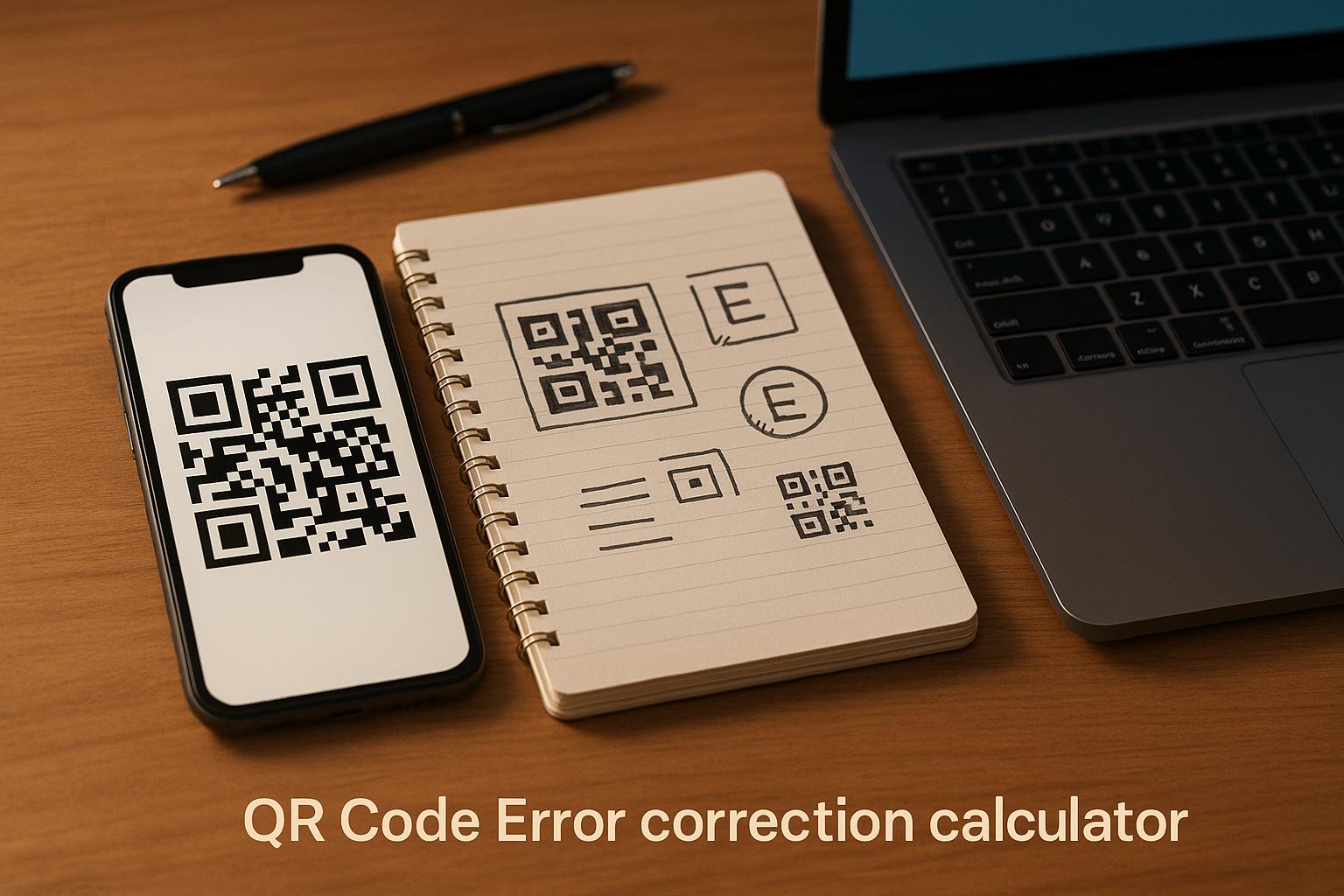
QR kodları yerleşik bir kurtarma sistemine sahiptir hata düzeltme, bu da kodun bir kısmı hasar görmüş, gizlenmiş veya yıpranmış olsa bile okunmasını sağlar. Dört seviye vardır, her biri dayanıklılık ve veri yoğunluğu arasında farklı bir denge sunar:
| Seviye | Kurtarma Kapasitesi | En İyi Kullanım Örneği |
|---|---|---|
| L (Düşük) | ~7% | Temiz, hasarsız yüzeyler; maksimum veri yoğunluğu |
| M (Orta) | ~15% | Biraz aşınmış standart baskı malzemeleri |
| Q (Çeyreklik) | ~25% | Logo kaplamalı veya orta derecede hasar riski olan kodlar |
| H (Yüksek) | ~30% | Dış mekan kullanımı, ambalaj, büyük logo kaplamalı kodlar |
QR kodunuz desene yerleştirilmiş bir logo içeriyorsa – yaygın bir marka seçimi – en az Q seviyesi, ve ideal olarak H seviyesi. Logo, kodun bir kısmını etkili bir şekilde gizler, bu nedenle hata düzeltme telafi etmelidir. Sonlandırmadan önce kodunuzun hangi seviyede oluşturulduğunu onaylayın ve her zaman kaplama yerindeyken markalı bir kodu test edin. Bu QR kodu okunabilirlik en iyi uygulamalar kılavuzu hata düzeltmenin logo yerleşimiyle nasıl etkileşime girdiğini ayrıntılı olarak ele alır.
Tam Baskıdan Önce Fiziksel Bir Baskı Testi Yapın
Hiçbir ekran kontrolü, fiziksel bir prova basmanın yerini tutmaz. Tek bir kopyayı tam nihai boyutta tam malzemeye kullanmayı planladığınız, ardından gerçek dünya kullanımını yansıtan koşullar altında test edin.
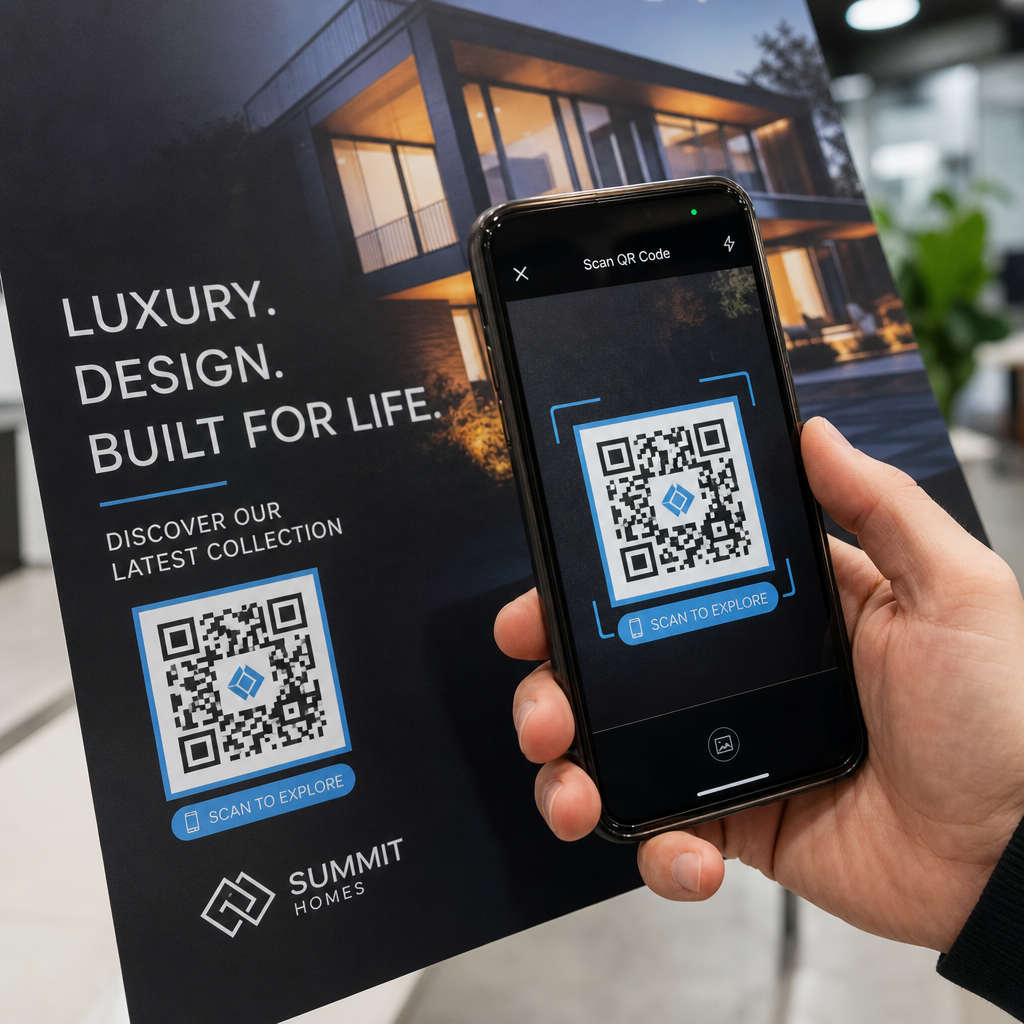
Fiziksel testiniz şunları kapsamalıdır:
- Birden fazla cihaz: en az iki farklı akıllı telefonda test edin – biri iOS ve biri Android – hem yerel kamera uygulamasını hem de üçüncü taraf bir tarayıcıyı kullanarak
- Birden fazla mesafe: tipik kullanıcı mesafesinden tarayın ve ayrıca hata payı olduğunu doğrulamak için biraz daha uzaktan
- Birden fazla aydınlatma koşulu: parlak doğal ışıkta, standart iç mekan aydınlatmasında ve düşük ışıkta test edin, kod bu ortamlardan herhangi birinde görünecekse
- Gerçek yüzey: parlak yüzeyler ışığı yansıtır ve kod tasarımı doğru olsa bile tarama hatalarına neden olabilir; mat yüzeyler koşullar arasında daha güvenilir performans gösterir
Kodu dijital olarak da doğrulayabilirsiniz, tasarımınızın bir görüntüsünü şuraya yükleyerek Pageloot QR Kod Tarayıcı tam bir baskıya başlamadan önce doğru şekilde çözüldüğünü onaylamak için. Kodunuz bu testlerden herhangi birinde başarısız olursa, yaygın QR kodu sorun giderme kılavuzu ayarlama ve yeniden test etmeden önce belirli hata noktasını teşhis etmek için.
Mobil testin neleri kapsaması gerektiğine dair yapılandırılmış bir genel bakış için, bu QR kodlarını mobil kullanılabilirlik açısından test etme rehberi cihaz uyumluluğunu, tarama açılarını ve hedef performansını ayrıntılı olarak ele alır.
Baskı Yönteminizi ve Yüzeyinizi Dikkate Alın
Bir QR kodunun basılma şekli taranabilirliği, kod tasarımının kendisinden bağımsız olarak etkiler. Farklı yöntemler farklı modül keskinliği seviyeleri üretir ve farklı yüzeyler ışıkla taramayı ya kolaylaştıracak ya da engelleyecek şekillerde etkileşime girer.
Yöntem ve malzemeye göre temel hususlar:
- Mat yüzeyler ışığı yansıtmak yerine dağıtır, bu da onları tarama güvenilirliği açısından parlak yüzeylerden neredeyse her zaman üstün kılar
- Ofset baskı çok keskin modül kenarları üretir ve yüksek hacimli baskı işleri için çok uygundur
- Dijital baskı kısa süreli baskılar ve özelleştirilmiş kodlar için iyi çalışır, ancak mürekkep kalitesi değişir ve zamanla solabilir
- Termal baskı etiketler için ekonomiktir ancak ince modül kenarlarını bulanıklaştırabilir – telafi etmek için kod boyutunu artırın
- Dokulu veya kavisli yüzeyler bozulma yaratır, bu da tarayıcıları karıştırabilir; bunu telafi etmek için daha büyük bir kod kullanın
Her tekniğin taranabilirliği nasıl etkilediğine dair tam bir döküm için, üzerindeki kılavuz baskı tekniklerinin QR kodu taranabilirliğini nasıl etkilediği yöntem seçimini, alt tabaka hazırlığını ve mürekkep dayanıklılığını kapsar.
Baskı Sonrası Değişikliklere Karşı Korumak İçin Dinamik Bir QR Kodu Kullanın
Mükemmel test edilmiş bir QR kodu bile baskıdan sonra başarısız olabilir, hedef URL değişirse, bağlantılı sayfa kaldırılırsa veya kampanya içeriğinin güncellenmesi gerekirse. Statik bir QR koduyla, hedefteki herhangi bir değişiklik her şeyi yeniden basmak anlamına gelir.
Dinamik QR kodları bu sorunu doğrudan nihai hedefi değil, kısa bir yönlendirme URL'sini kodlayarak çözer. Yönlendirme, kontrol panelinizden istediğiniz zaman güncellenebilir, böylece kampanyanız geliştikçe basılı kod geçerliliğini korur. Bu aynı zamanda, dağıtımdan hemen sonra bozuk bir bağlantıyı tek bir parça bile yeniden basmadan düzeltebileceğiniz anlamına gelir.
Hata önlemenin ötesinde, dinamik kodlar size tarama analizi erişimi sağlar: toplam taramalar, tarama konumları, tarama zamanı ve cihaz türleri. Bu veriler, basılı materyallerinizin sahada gerçekten işe yarayıp yaramadığını ve optimizasyona nerede basılı medyada QR kodlarını kullanma kılavuzu Dinamik kodların daha geniş baskı kampanyası stratejisine nasıl uyduğunu ele alır.
Baskı Yatırımınızı Koruyun Oluşturmak Dinamik QR Kodu Basılı materyallerinizi güncel tutmak ve gerçek dünya tarama performansını takip etmek için – asla tekrar baskıya gitmeden.
Baskı Öncesi QR Kodu Test Kontrol Listesi
Herhangi bir QR kodunu baskı üretimi için onaylamadan önce, aşağıdakilerin her birini uygulayın:
- Kod boyutu, beklenen tarama mesafesi için 10:1 kuralına uygundur
- Dosya SVG, EPS veya PDF formatında dışa aktarılmıştır (veya son baskı boyutunda minimum 300 DPI'da raster olarak)
- Modüller ve arka plan arasındaki kontrast oranı en az 4:1'i karşılar
- En az dört modül genişliğinde sessiz bölge tüm kenarlarda açıktır
- Hata düzeltme seviyesi uygundur (bir logo yerleşimi varsa Q veya H)
- Kod, yüklenmiş bir görselden tarandığında doğru şekilde çözülür
- Fiziksel prova hem iOS hem de Android cihazlarda test edildi
- Fiziksel prova gerçekçi aydınlatma koşullarında ve gerçek baskı materyali üzerinde test edildi
- Hedef URL aktif, mobil uyumlu ve hızlı yüklenir
- Baskıdan sonra hedefin değişmesi gerekebilirse dinamik QR kodu kullanılır
Her baskı işinden önce bu kontrolleri yapmak, yeni bir baskı sipariş etmekten çok daha az zaman alır. İyi QR kodu performansı dosyadan başlar, tarayıcıdan değil. Boyutu, formatı, kontrastı ve sessiz bölgeyi tasarım aşamasında doğru ayarlayın, gerçek materyal üzerine bir prova basın ve hedef kitlenizin gerçekten kullanacağı şekilde test edin.
Sıkça sorulan sorular
Yakın mesafeli tarama için güvenilir minimum – örneğin kartvizitlerde veya ürün etiketlerinde – 2 × 2 cm'dir (0.8 × 0.8 inç). Daha büyük basılı materyaller için 10:1 kuralını uygulayın: kod genişliği, beklenen tarama mesafesinin her 10 cm'si için en az 1 cm olmalıdır. Örneğin, 1 metre uzaktan taranan bir posterin en az 10 cm genişliğinde bir koda ihtiyacı vardır.
Her zaman bir vektör biçimi – SVG, EPS veya PDF – baskı için kullanın. Vektör dosyaları, bulanıklaşmadan veya piksellenmeden herhangi bir boyuta ölçeklenebilir. PNG gibi bir raster biçimi kullanmanız gerekiyorsa, çözünürlüğün nihai baskı boyutunda en az 300 DPI olduğundan emin olun. Düşük çözünürlüklü raster dosyaları, okunamayan basılı QR kodlarının en yaygın nedenlerinden biridir.
Kullanmayı planladığınız tam malzemede, tam olarak hedeflenen boyutta tek bir prova basın, ardından gerçekçi aydınlatma koşullarında en az iki farklı cihazda (iOS ve Android) test edin. Baskıya gitmeden önce kodunuzun doğru çözüldüğünü doğrulamak için kodunuzun bir görüntüsünü Pageloot QR Kod Tarayıcısına da yükleyebilirsiniz. Dinamik bir QR kod kullanmak başka bir koruma katmanı ekler – baskıdan sonra herhangi bir şeyin değişmesi gerekirse, yeniden baskı yapmadan hedefi güncelleyebilirsiniz.