QR kodo siuntimas spausdinti jo iš anksto neišbandžius yra viena dažniausių – ir brangiausių – klaidų spausdintinės rinkodaros srityje. Kodas, kuris ekrane atrodo tobulai, gali visiškai neveikti, kai atsiduria ant popieriaus, vinilo ar pakuotės. Šis vadovas padės jums atlikti visus patikrinimus, kuriuos reikia atlikti prieš patvirtinant spausdinimą.
Kodėl QR kodai neveikia po spausdinimo
QR kodas, kuris švariai nuskaitomas monitoriuje, gali neveikti realiame pasaulyje dėl priežasčių, kurios tampa matomos tik po spausdinimo. Šių gedimo taškų supratimas padeda sudaryti patikimą paruošimo spausdinimui kontrolinį sąrašą.
Dažniausios priežastys yra:
- Per mažas dydis numatomam nuskaitymo atstumui
- Maža raiška sukelianti neryškius arba pikseliuotus modulius
- Nepakankamas kontrastas tarp kodo ir jo fono
- Trūkstama rami zona (aiškus kraštas aplink kodą)
- Didelis duomenų tankis sukuriantis per smulkų raštą, kad kameros galėtų jį perskaityti
- Neteisingas failo formatas naudojamas spausdinimo išvestyje
Kiekvienos iš šių problemų galima visiškai išvengti, jei jas pastebėsite prieš pradedant spausdinti. Toliau pateiktuose skyriuose kiekviena iš jų aptariama nuosekliai.
Patikrinkite QR kodo dydį pagal nuskaitymo atstumą
Dydis yra pati dažniausia priežastis, kodėl atspausdintas QR kodas neveikia. Standartinė taisyklė yra 10:1 santykį: QR kodo plotis turėtų būti bent 1 cm (arba 1 colis) kiekvieniems 10 cm (arba 10 colių) numatomo nuskaitymo atstumo. Vizitinės kortelės kodui, laikomam ištiesta ranka, reikia labai skirtingo dydžio nei plakatui, skaitomam iš kito kambario galo.
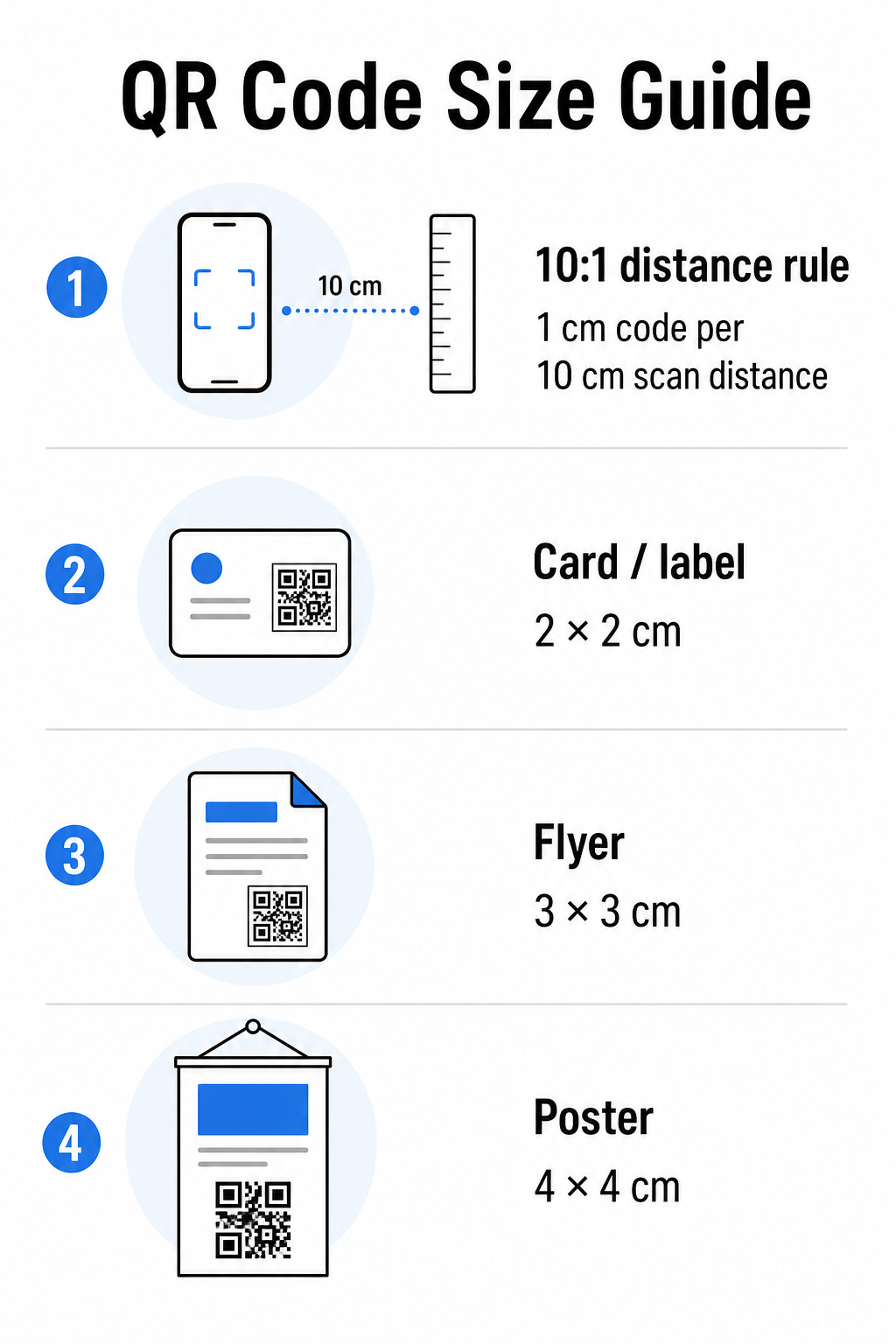
Naudokite šią lentelę kaip atskaitos tašką įprastoms spausdinimo medžiagoms:
| Spausdinimo medžiaga | Minimum Recommended Size | Tipinis nuskaitymo atstumas |
|---|---|---|
| Vizitinė kortelė / etiketė | 2 × 2 cm (0,8 × 0,8 col.) | 20–30 cm (8–12 col.) |
| Brošiūra / skrajutė | 3 × 3 cm (1,2 × 1,2 col.) | 30 cm (12 col.) |
| Plakatas / iškaba | 4 × 4 cm (1,6 × 1,6 col.) | 40 cm (16 col.) |
| Reklaminis stendas / reklaminis skydelis | 40 × 40 cm (16 × 16 col.) | 4 m (13 pėd.) |
Prieš tvirtindami bet kokį spausdinimo failą, patvirtinkite, kad kodo matmenys atitinka numatomą naudojimo atvejį. The QR kodo dydžio vadove pateikia išsamią analizę pagal medžiagos tipą, įskaitant tai, kaip duomenų tankis veikia minimalų tinkamą dydį.
Patikrinkite failo formatą ir spausdinimo raišką
Eksportuojamas formatas yra toks pat svarbus kaip ir pats dizainas. Rastriniai vaizdai, tokie kaip PNG ir JPEG, sudaryti iš pikselių. Padidinus juos didelio formato spausdinimui, jie tampa neryškūs, o smulkūs QR kodo moduliai praranda aštrius kraštus – todėl kodą sunku arba neįmanoma nuskaityti.
Bet kokiam spausdinamam QR kodui naudokite vektorinius formatus: SVG, EPS arba PDF. Vektoriniai failai keičia dydį be kokybės praradimo, nes jie apibrėžiami matematiškai, o ne pikselis po pikselio. Jei privalote naudoti rastrinį formatą, įsitikinkite, kad skiriamoji geba yra bent 300 DPI numatytu spausdinimo dydžiu – ne ekrano peržiūros dydžiu.
Greitas skiriamosios gebos patikrinimas: atidarykite vaizdo failą, atkreipkite dėmesį į jo pikselių matmenis ir padalykite iš numatyto spausdinimo dydžio coliais. Jei 1 colio QR kodas išsaugotas kaip 100 × 100 pikselių vaizdas, tai tik 100 DPI – gerokai žemiau minimalaus 300 DPI ir beveik garantuotai bus atspausdintas neryškiai.
Norėdami išsamiau susipažinti su šia tema, QR kodo spausdinimo raiškos vadove išsamiai aprašo DPI reikalavimus ir formatų pasirinkimą.
Sukurkite spausdinimui paruoštus QR kodus per kelias sekundes Tas „Pageloot“ QR kodų generatorius leidžia atsisiųsti kodus SVG, EPS ir PDF formatais – paruoštus bet kokiam spausdinimo dydžiui be kokybės praradimo.
Patikrinkite kontrastą prieš spausdinant
QR kodų skaitytuvai veikia atskirdami tamsius modulius nuo šviesaus fono. Kai kontrastas per mažas, skaitytuvas negali patikimai identifikuoti modelio – net jei kodas žmogaus akiai atrodo gerai.
Techninis etalonas, kurį reikia atitikti, yra minimalaus kontrasto santykio 4:1 tarp tamsių modulių ir šviesaus fono. Mokėjimo programoms ar prieinamumo tikslais skirtiems naudojimo atvejams siekite 4,5:1 ar didesnio. Juodi moduliai baltame fone sukuria 21:1 santykį – auksinį standartą, pagal kurį vertinami visi kiti spalvų deriniai.
Dažnos kontrasto klaidos, kurias reikia patikrinti prieš spausdinant:
- Šviesiai pilki moduliai ant balto fono: nepakankamas kontrastas, kuris nepavyks esant silpnam apšvietimui
- Atvirkštinės spalvos (šviesus kodas tamsiame fone): kai kurie skaitytuvai tai apdoroja, daugelis ne – niekada nepasikliaukite tuo
- Modulių gradientiniai užpildai: sukuria netolygų kontrastą, kuris klaidina skaitytuvus
- Prekės ženklo spalvos, kurios yra per arti tono: išbandykite su pilkumo atspalvių konversija, kad pamatytumėte tikrąjį kontrastą
Praktinis spausdinimo išankstinis testas yra konvertuoti QR kodo vaizdą į pilkumo atspalvius ir patikrinti, ar moduliai vis dar aiškiai atskiriami nuo fono. Jei jie pradeda susilieti pilkumo atspalviuose, jie neveiks su įvairiomis įrenginių kameromis ir apšvietimo sąlygomis. The QR kodo spalvų kontrasto geriausios praktikos vadovas apima spalvų derinių lentelę, rodančią kontrasto santykius ir numatomus nuskaitymo rezultatus dažniausiems deriniams.
Patvirtinkite, kad rami zona yra nepažeista
Tas ramioji zona yra tuščia paraštė, supanti visas keturias QR kodo puses. Tai nėra dizaino pasirinkimas – tai techninis reikalavimas, apibrėžtas ISO/IEC 18004 standarto. Be jos skaitytuvai negali nustatyti, kur kodas prasideda ir baigiasi, ir nuskaitymas nepavyks.
Rami zona turi būti mažiausiai keturių modulių pločio iš visų pusių, kur vienas modulis yra vienas iš mažų kvadratėlių kodo tinklelyje. Kaip praktinė nuoroda:
- Dėl 1 colio QR kodas, leiskite maždaug 0,15 colio laisvos erdvės iš visų pusių
- Dėl vizitinės kortelės QR kodas, išlaikykite ramią zoną, ne mažesnę kaip 0,25 colio
Prieš siunčiant spausdinti, priartinkite savo maketo failą ir patvirtinkite, kad joks tekstas, vaizdai, kraštinės ar fono raštai nepažeidžia šios zonos. Kodo įdėjimas per arti dizaino krašto arba jo persidengimas su dekoratyviniais elementais yra viena dažniausių nuskaitymo gedimų priežasčių, kurios išryškėja tik atspausdinus darbą.
Patikrinkite klaidų taisymo lygį
QR kodai turi įmontuotą atkūrimo sistemą, vadinamą klaidų taisymas, kuri leidžia nuskaityti kodą net jei dalis jo yra pažeista, uždengta ar nusidėvėjusi. Yra keturi lygiai, kiekvienas siūlantis skirtingą atsparumą ir duomenų tankį:
| Lygis | Atkūrimo pajėgumas | Geriausias naudojimo dėklas |
|---|---|---|
| L (žemas) | ~7% | Švarūs, nepažeisti paviršiai; maksimalus duomenų tankis |
| M (vidutinis) | ~15% | Standartinės spausdinimo medžiagos su nedideliu nusidėvėjimu |
| Q (kvartilis) | ~25% | Kodai su logotipų perdangomis arba vidutine pažeidimo rizika |
| H (didelis) | ~30% | Naudojimas lauke, pakuotės, kodai su didelėmis logotipų perdangomis |
Jei jūsų QR kodas apima logotipą, uždėtą ant rašto – dažnas prekės ženklo pasirinkimas – jums reikia bent Q lygio, ir idealiu atveju H lygio. Logotipas efektyviai užstoja dalį kodo, todėl klaidų taisymas turi tai kompensuoti. Prieš baigdami patvirtinkite, kokiu lygiu buvo sugeneruotas jūsų kodas, ir visada išbandykite firminį kodą su uždėtu perdangos sluoksniu. The QR kodo skaitomumo geriausios praktikos vadovas išsamiai aprašo, kaip klaidų taisymas sąveikauja su logotipo išdėstymu.
Atlikite fizinį spausdinimo testą prieš visą tiražą
Joks patikrinimas ekrane nepakeičia fizinio atspaudo spausdinimo. Išspausdinkite vieną kopiją tiksliai galutinio dydžio ant tikslios medžiagos kurią planuojate naudoti, tada išbandykite ją sąlygomis, atspindinčiomis realų naudojimą.
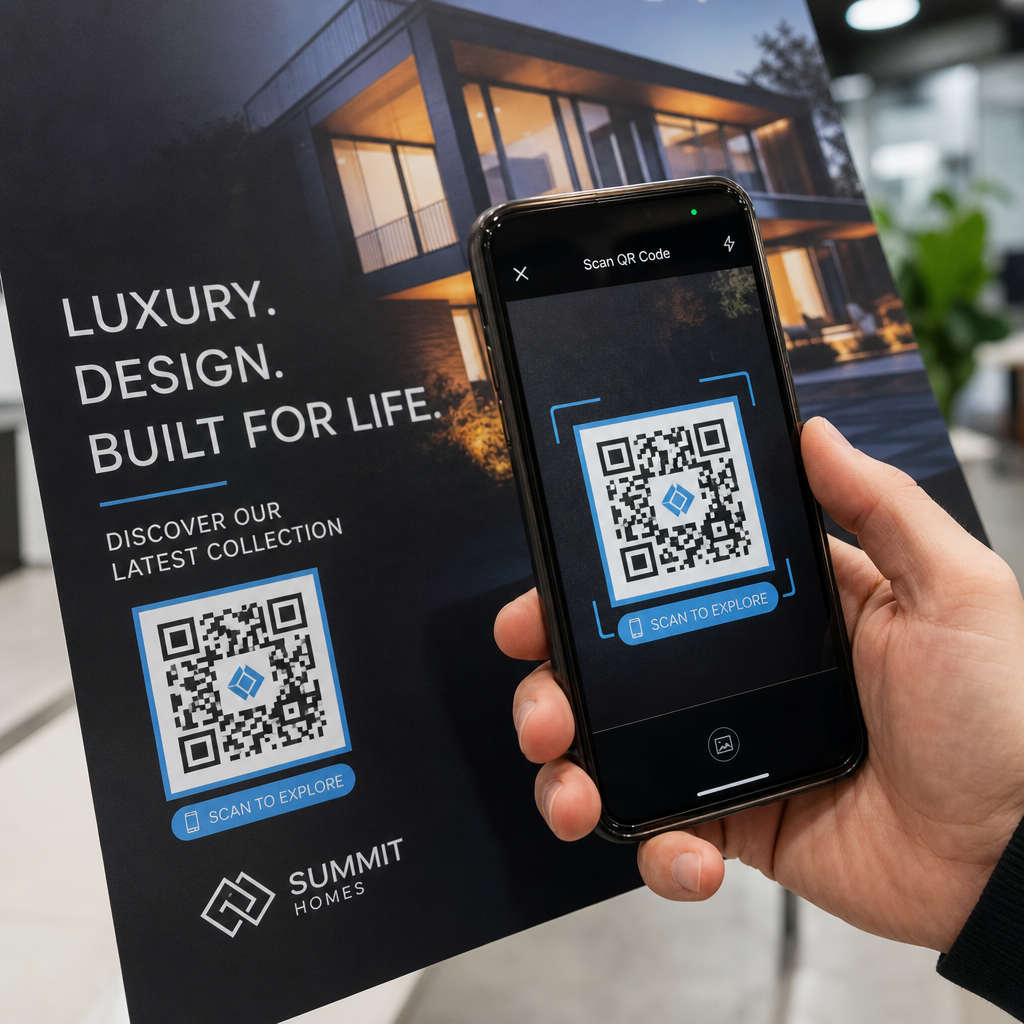
Jūsų fizinis testas turėtų apimti:
- Keli įrenginiai: išbandykite bent dviejuose skirtinguose išmaniuosiuose telefonuose – viename iOS ir viename Android – naudodami tiek vietinę kameros programėlę, tiek trečiosios šalies skaitytuvą
- Keli atstumai: nuskaitykite iš tipinio vartotojo atstumo, taip pat iš šiek tiek toliau, kad patvirtintumėte, jog yra klaidų tolerancija
- Keli apšvietimo sąlygos: išbandykite ryškioje natūralioje šviesoje, standartiniame patalpų apšvietime ir prastoje šviesoje, jei kodas bus rodomas bet kurioje iš šių aplinkų
- Tikrasis paviršius: blizgūs paviršiai atspindi šviesą ir gali sukelti nuskaitymo gedimus, net jei kodo dizainas yra teisingas; matinės dangos veikia patikimiau įvairiomis sąlygomis
Taip pat galite patikrinti kodą skaitmeniniu būdu, įkeldami savo dizaino vaizdą į „Pageloot“ QR kodų skaitytuvas kad patvirtintumėte, jog jis teisingai iššifruojamas prieš pradedant visą tiražą. Jei jūsų kodas neatlaiko nė vieno iš šių testų, naudokite įprastą QR kodo trikčių šalinimo vadovą kad diagnozuotumėte konkretų gedimo tašką prieš koreguodami ir pakartotinai testuodami.
Norėdami gauti struktūrizuotą apžvalgą, ką turėtų apimti mobilusis testavimas, QR kodų testavimo mobiliajam naudojimui vadovas išsamiai aprašo įrenginių suderinamumą, nuskaitymo kampus ir paskirties vietos veikimą.
Atsižvelkite į savo spausdinimo metodą ir paviršių
QR kodo spausdinimo būdas veikia nuskaitymo galimybes nepriklausomai nuo paties kodo dizaino. Skirtingi metodai sukuria skirtingą modulio ryškumo lygį, o skirtingi paviršiai sąveikauja su šviesa taip, kad gali padėti arba trukdyti nuskaityti.
Pagrindiniai aspektai pagal metodą ir medžiagą:
- Matinės dangos išsklaido šviesą, užuot ją atspindėjusios, todėl nuskaitymo patikimumui jos beveik visada pranašesnės už blizgias dangas
- Ofsetinė spauda sukuria labai ryškius modulio kraštus ir puikiai tinka didelės apimties spaudos tiražams
- Skaitmeninė spauda gerai tinka mažiems tiražams ir individualizuotiems kodams, tačiau rašalo kokybė skiriasi ir laikui bėgant gali išblukti
- Terminis spausdinimas yra ekonomiškas etiketėms, tačiau gali sulieti smulkius modulio kraštus – padidinkite kodo dydį, kad tai kompensuotumėte
- Tekstūruoti arba išlenkti paviršiai sukelia iškraipymus, kurie gali suklaidinti skaitytuvus; naudokite didesnį kodą, kad tai atsižvelgtumėte
Išsamiai apžvelgiant, kaip kiekviena technika veikia nuskaitymo galimybes, vadovas apie kaip spausdinimo technikos veikia QR kodo nuskaitomumą apima metodo pasirinkimą, pagrindo paruošimą ir rašalo ilgaamžiškumą.
Naudokite dinaminį QR kodą, kad apsisaugotumėte nuo pokyčių po spausdinimo
Net ir puikiai patikrintas QR kodas gali sugesti po spausdinimo, jei paskirties URL pasikeičia, susietas puslapis pašalinamas arba kampanijos turinį reikia atnaujinti. Su statiniu QR kodu bet koks paskirties pakeitimas reiškia visko perspausdinimą.
Dinaminiai QR kodai tai išsprendžia užkoduodami trumpą nukreipimo URL, o ne tiesiogiai galutinę paskirties vietą. Nukreipimą galima atnaujinti bet kuriuo metu iš jūsų prietaisų skydelio, todėl atspausdintas kodas išlieka galiojantis net ir vystantis jūsų kampanijai. Tai taip pat reiškia, kad galite ištaisyti neveikiančią nuorodą iškart po platinimo – neperspausdindami nė vieno gabalo.
Be klaidų prevencijos, dinaminiai kodai suteikia prieigą prie nuskaitymo analizės: bendro nuskaitymų skaičiaus, nuskaitymo vietų, nuskaitymo laiko ir įrenginių tipų. Šie duomenys parodo, ar jūsų spausdintos medžiagos iš tikrųjų veikia lauke, ir kur sutelkti optimizavimą. Į vadove apie QR kodų naudojimą spausdintinėje žiniasklaidoje apima, kaip dinaminiai kodai dera prie platesnės spausdinimo kampanijos strategijos.
Apsaugokite savo spausdinimo investicijas Sukurti Dinaminis QR kodas kad jūsų spausdintos medžiagos būtų atnaujintos ir būtų galima stebėti realaus pasaulio nuskaitymo našumą – niekada negrįžtant prie spaudos.
QR kodo testavimo kontrolinis sąrašas prieš spausdinimą
Prieš patvirtindami bet kokį QR kodą spausdinimui, peržiūrėkite kiekvieną iš šių punktų:
- Kodo dydis atitinka 10:1 taisyklę numatomam nuskaitymo atstumui
- Failas eksportuojamas SVG, EPS arba PDF formatu (arba rastru, kurio minimali raiška yra 300 DPI galutiniame spausdinimo dydyje)
- Kontrasto santykis tarp modulių ir fono yra bent 4:1
- Tyli zona, sudaryta iš bent keturių modulių, yra aiški iš visų pusių
- Klaidų taisymo lygis yra tinkamas (Q arba H, jei yra logotipo perdanga)
- Kodas teisingai iššifruojamas, kai nuskaitomas iš įkeltos nuotraukos
- Fizinis pavyzdys išbandytas tiek iOS, tiek Android įrenginiuose
- Fizinis pavyzdys išbandytas realiomis apšvietimo sąlygomis ir ant tikros spausdinimo medžiagos
- Paskirties URL yra aktyvus, optimizuotas mobiliesiems įrenginiams ir greitai įkeliamas
- Naudojamas dinaminis QR kodas, jei paskirties vieta gali keistis po spausdinimo
Atlikti šiuos patikrinimus prieš kiekvieną spausdinimo užduotį užtrunka daug mažiau laiko nei pakartotinai užsakyti spausdinimą. Geras QR kodo veikimas prasideda nuo failo, o ne nuo skaitytuvo. Nustatykite tinkamą dydį, formatą, kontrastą ir tyliąją zoną projektavimo etape, atspausdinkite pavyzdį ant tikros medžiagos ir išbandykite jį taip, kaip jūsų auditorija iš tikrųjų jį naudos.
Dažniausiai užduodami klausimai
Patikimas minimumas artimo nuotolio nuskaitymui – pvz., ant vizitinių kortelių ar produktų etikečių – yra 2 × 2 cm (0,8 × 0,8 colio). Didesnėms spausdintoms medžiagoms taikykite taisyklę 10:1: kodo plotis turėtų būti bent 1 cm kiekvieniems 10 cm numatomo nuskaitymo atstumo. Plakatui, nuskaitomam iš 1 metro atstumo, pavyzdžiui, reikia bent 10 cm pločio kodo.
Visada naudokite vektorinį formatą – SVG, EPS arba PDF – spaudai. Vektoriniai failai keičia dydį iki bet kokio dydžio, netapdami neryškūs arba pikseliuoti. Jei privalote naudoti rastrinį formatą, pvz., PNG, užtikrinkite, kad skiriamoji geba būtų bent 300 DPI ties galutiniu spaudos dydžiu. Mažos raiškos rastriniai failai yra viena iš dažniausių neįskaitomų atspausdintų QR kodų priežasčių.
Atspausdinkite vieną bandomąjį egzempliorių tiksliu numatytu dydžiu ant tikslios medžiagos, kurią planuojate naudoti, tada išbandykite jį bent dviejuose skirtinguose įrenginiuose (iOS ir Android) realiomis apšvietimo sąlygomis. Taip pat galite įkelti savo kodo vaizdą į Pageloot QR kodo skaitytuvą, kad patikrintumėte, ar jis teisingai iššifruojamas prieš spausdinant. Naudojant dinaminį QR kodą pridedamas dar vienas apsaugos sluoksnis – jei ką nors reikia pakeisti po spausdinimo, galite atnaujinti paskirties vietą be pakartotinio spausdinimo.