At sende en QR-kode til print uden at teste den først er en af de mest almindelige – og dyre – fejl inden for printmarkedsføring. En kode, der ser perfekt ud på skærmen, kan fejle fuldstændigt, når den rammer papir, vinyl eller emballage. Denne guide fører dig gennem hvert tjek, du skal udføre, før du godkender en printkørsel.
Hvorfor QR-koder fejler efter print
En QR-kode, der scanner rent på din skærm, kan fejle i den virkelige verden af årsager, der først bliver synlige efter print. At forstå disse fejlpunkter hjælper dig med at opbygge en pålidelig tjekliste før print.
De mest almindelige syndere er:
- Størrelse, der er for lille til den forventede scanningsafstand
- Lav opløsning der forårsager slørede eller pixelerede moduler
- Utilstrækkelig kontrast mellem koden og dens baggrund
- Manglende stille zone (den klare kant omkring koden)
- Høj datatæthed der skaber et mønster, der er for fint til, at kameraer kan læse det
- Forkert filformat brugt til printoutput
Hvert af disse problemer er fuldstændig forebyggeligt, hvis du opdager det, før pressen kører. Afsnittene nedenfor behandler hvert enkelt i rækkefølge.
Tjek din QR-kodes størrelse mod scanningsafstand
Størrelse er den enkeltstående mest almindelige årsag til, at en printet QR-kode fejler. Standardreglen er 10:1 forhold: QR-kodens bredde skal være mindst 1 cm (eller 1 tomme) for hver 10 cm (eller 10 tommer) af forventet scanningsafstand. En kode på et visitkort holdt i armslængde har brug for en meget anderledes størrelse end en på en plakat læst fra den anden side af et rum.
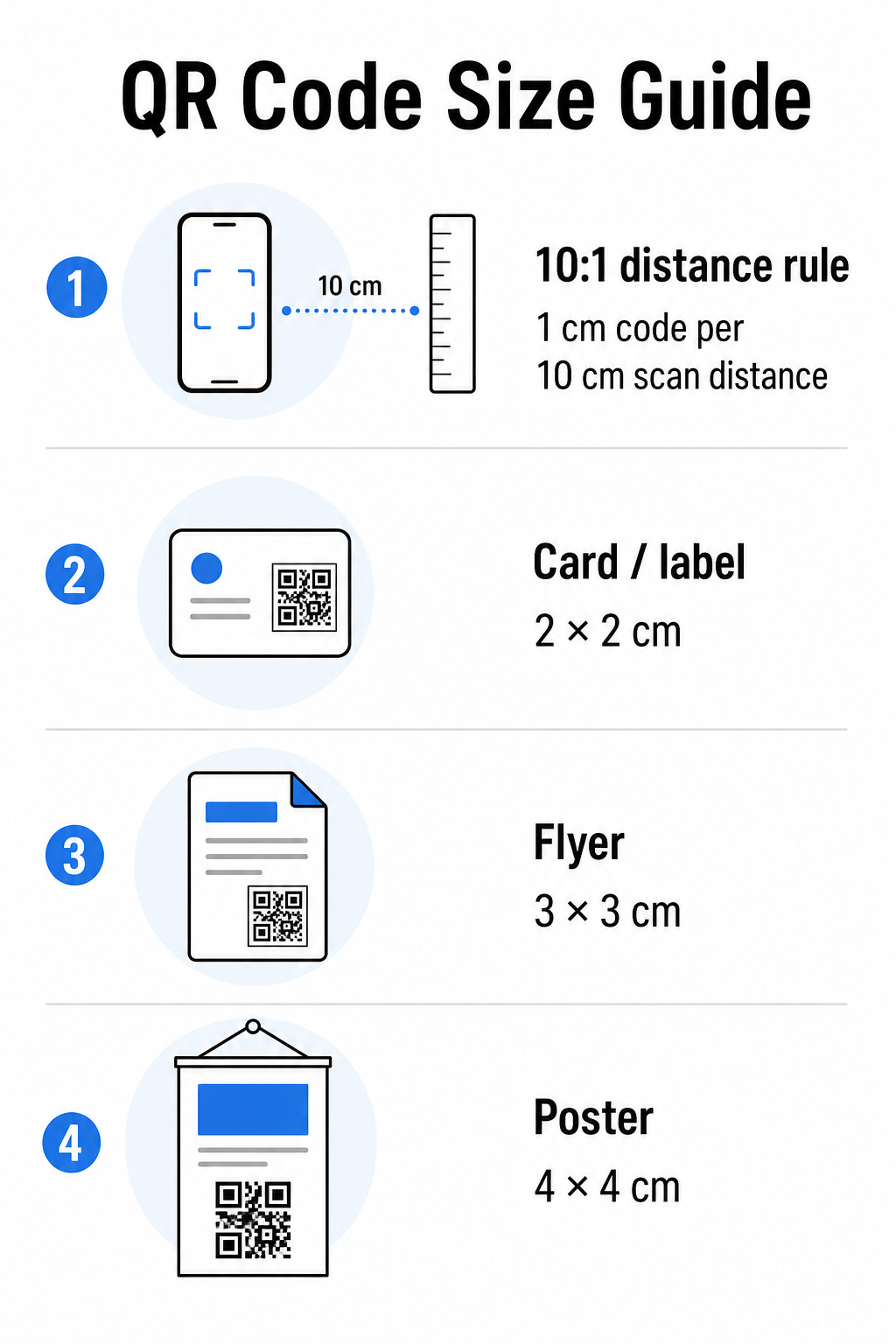
Brug denne tabel som et udgangspunkt for almindelige printmaterialer:
| Printmateriale | Minimum anbefalet størrelse | Typisk scanningsafstand |
|---|---|---|
| Visitkort / etiket | 2 × 2 cm (0,8 × 0,8 tommer) | 20–30 cm (8–12 tommer) |
| Brochure / flyer | 3 × 3 cm (1,2 × 1,2 tommer) | 30 cm (12 tommer) |
| Plakat / skiltning | 4 × 4 cm (1,6 × 1,6 tommer) | 40 cm (16 tommer) |
| Reklameskilt / banner | 40 × 40 cm (16 × 16 tommer) | 4 m (13 fod) |
Før du godkender en printfil, bekræft, at kodens dimensioner matcher dit forventede brugsscenarie. Den guide til QR-kodestørrelse giver en komplet oversigt efter materialetype, inklusive hvordan datatæthed påvirker den mindste levedygtige størrelse.
Bekræft dit filformat og printopløsning
Formatet du eksporterer, betyder lige så meget som selve designet. Rasterbilleder som PNG og JPEG er lavet af pixels. Når de skaleres op til storformatprint, bliver de slørede, og de fine moduler i en QR-kode mister deres skarpe kanter – hvilket gør koden svær eller umulig at scanne.
For enhver printet QR-kode, brug vektorformater: SVG, EPS eller PDF. Vektorfiler skalerer til enhver størrelse uden kvalitetstab, fordi de er defineret matematisk snarere end pixel for pixel. Hvis du skal bruge et rasterformat, sørg for, at opløsningen er mindst 300 DPI ved den tilsigtede printstørrelse – ikke ved skærmens forhåndsvisningsstørrelse.
Et hurtigt opløsningstjek: åbn din billedfil, noter dens pixeldimensioner, og divider med den tilsigtede printstørrelse i tommer. Hvis en 1-tomme QR-kode er gemt som et 100 × 100 pixel billede, er det kun 100 DPI – langt under de 300 DPI minimum og næsten garanteret at printe sløret.
For et dybere kig på dette emne, vejledning til QR-kode printopløsning dækker DPI-krav og formatvalg i detaljer.
Opret printklare QR-koder på få sekunder Det Pageloot QR-kodegenerator lader dig downloade dine koder i SVG-, EPS- og PDF-formater – klar til enhver printstørrelse uden kvalitetstab.
Test kontrast, før det går i print
QR-kodescannere fungerer ved at skelne mørke moduler fra en lys baggrund. Når den kontrast er for lav, kan scanneren ikke pålideligt identificere mønsteret – selv hvis koden ser fin ud for det menneskelige øje.
Den tekniske benchmark at opfylde er en minimum kontrastforhold på 4:1 mellem de mørke moduler og den lyse baggrund. For betalingsapplikationer eller tilgængelighedsfokuserede brugsscenarier, sigt efter 4,5:1 eller højere. Sorte moduler på en hvid baggrund producerer et forhold på 21:1 – guldstandarden, som enhver anden farvekombination måles imod.
Almindelige kontrastfejl at tjekke for før print:
- Lysegrå moduler på hvid: utilstrækkelig kontrast, der vil fejle i svagt lys
- Omvendte farver (lys kode på mørk baggrund): nogle scannere håndterer dette, mange gør ikke – stol aldrig på det
- Gradientfyld på moduler: skaber ujævn kontrast, der forvirrer scannere
- Brandfarver, der er for tæt i tone: test med en gråtonekonvertering for at se ægte kontrast
En praktisk test før print er at konvertere dit QR-kodebillede til gråtoner og tjekke, om modulerne stadig er tydeligt adskillelige fra baggrunden. Hvis de begynder at smelte sammen i gråtoner, vil de fejle på tværs af en bred vifte af enhedskameraer og lysforhold. Den vejledningen til bedste praksis for QR-kode farvekontrast inkluderer en farvekombinationstabel, der viser kontrastforhold og forventede scanningsresultater for almindelige parringer.
Bekræft, at den stille zone er intakt
Det stille zone er den tomme margen, der omgiver alle fire sider af en QR-kode. Det er ikke en designpræference – det er et teknisk krav defineret af ISO/IEC 18004-standarden. Uden den kan scannere ikke lokalisere, hvor koden begynder og slutter, og scanningen vil mislykkes.
Den stille zone skal være mindst fire moduler bred på alle sider, hvor et modul er en af de små firkanter i koderasteret. Som en praktisk reference:
- For en 1-tommers QR-kode, tillad cirka 0,15 tommer fri plads på alle sider
- For en visitkort QR-kode, oprethold en stille zone på mindst 0,25 tommer
Før du sender til print, zoom ind på din layoutfil og bekræft, at ingen tekst, billeder, rammer eller baggrundsmønstre trænger ind i denne zone. At placere en kode for tæt på kanten af et design eller overlappe den med dekorative elementer er en af de mest almindelige årsager til scanningsfejl, der først viser sig, efter at jobbet er printet.
Kontroller fejlkorrektionsniveauet
QR-koder har et indbygget genoprettelsessystem kaldet fejlkorrektion, som gør det muligt at læse koden, selvom en del af den er beskadiget, skjult eller slidt. Der er fire niveauer, hver tilbyder en forskellig afvejning mellem modstandsdygtighed og datatæthed:
| Niveau | Genoprettelseskapacitet | Bedste brugssag |
|---|---|---|
| L (lav) | ~7% | Rene, ubeskadigede overflader; maksimal datatæthed |
| M (Medium) | ~15% | Standard printmaterialer med noget slid |
| Q (kvartil) | ~25% | Koder med logo-overlays eller moderat risiko for skade |
| H (høj) | ~30% | Udendørs brug, emballage, koder med store logo-overlays |
Hvis din QR-kode inkluderer et logo overlejret på mønsteret – et almindeligt brandingvalg – skal du bruge mindst niveau Q, og ideelt set niveau H. Logoet skjuler effektivt en del af koden, så fejlkorrektionen skal kompensere. Bekræft hvilket niveau din kode blev genereret med, før du afslutter, og test altid en brandet kode med overlayet på plads. Den vejledning i bedste praksis for læsbarhed af QR-koder dækker hvordan fejlkorrektion interagerer med logoets placering i detaljer.
Udfør en fysisk printtest før den fulde kørsel
Ingen mængde af skærmkontrol erstatter udskrivning af et fysisk prøvetryk. Print en enkelt kopi i den nøjagtige endelige størrelse på det nøjagtige materiale du planlægger at bruge, test den derefter under forhold, der afspejler brug i den virkelige verden.
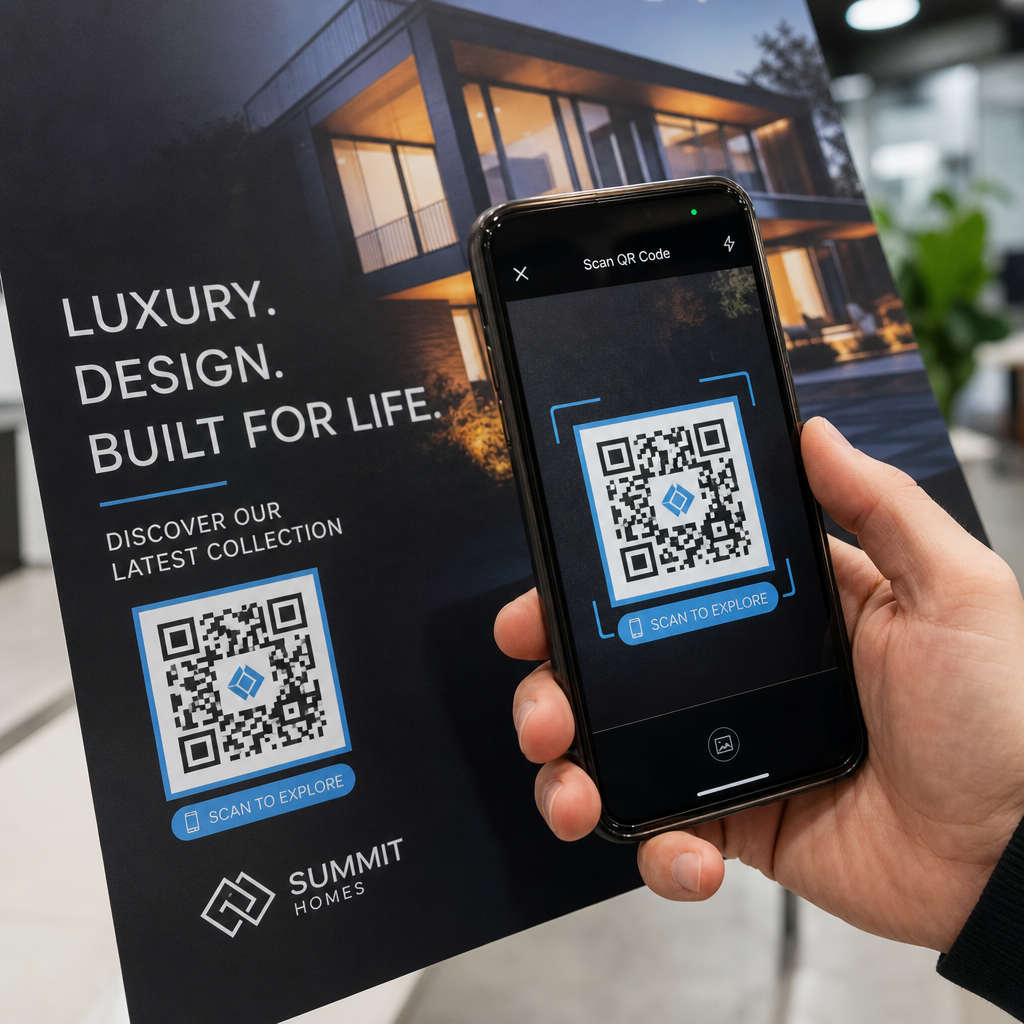
Din fysiske test bør dække:
- Flere enheder: test på mindst to forskellige smartphones – en iOS og en Android – ved hjælp af både den indbyggede kamera-app og en tredjeparts-scanner
- Flere afstande: scan fra den typiske brugerafstand, og også fra lidt længere væk for at bekræfte, at der er plads til fejl
- Flere lysforhold: test i skarpt naturligt lys, standard indendørs belysning og svagt lys, hvis koden vil vises i et af disse miljøer
- Den faktiske overflade: blanke overflader reflekterer lys og kan forårsage scanningsfejl, selv når kodedesignet er korrekt; matte overflader fungerer mere pålideligt under forskellige forhold
Du kan også verificere koden digitalt ved at uploade et billede af dit design til den Pageloot QR-kodescanner for at bekræfte, at den afkoder korrekt, før du forpligter dig til en fuld kørsel. Hvis din kode fejler i nogen af disse tests, brug den almindelige fejlfindingsguide for QR-koder for at diagnosticere det specifikke fejlpunkt, før du justerer og gentester.
For en struktureret oversigt over hvad mobiltestning bør dække, gennemgår den guide til test af QR-koder for mobil brugervenlighed enhedskompatibilitet, scanningsvinkler og destinationsydelse i detaljer.
Tag højde for din printmetode og overflade
Måden en QR-kode printes på, påvirker scanningsmuligheden uafhængigt af selve kodedesignet. Forskellige metoder producerer forskellige niveauer af modulskarphed, og forskellige overflader interagerer med lys på måder, der enten kan hjælpe eller hindre scanning.
Nøgleovervejelser efter metode og materiale:
- Matte overflader spreder lys i stedet for at reflektere det, hvilket gør dem næsten altid overlegne i forhold til blanke overflader for scanningspålidelighed
- Offsettryk producerer meget skarpe modulkanter og er velegnet til store printoplag
- Digital print fungerer godt til små oplag og tilpassede koder, men blækkvaliteten varierer og kan falme over tid
- Termisk print er økonomisk til etiketter, men kan sløre fine modulkanter – øg kodestørrelsen for at kompensere
- Teksturerede eller buede overflader introducerer forvrængning, der kan forvirre scannere; brug en større kode for at tage højde for det
For en fuld gennemgang af hvordan hver teknik påvirker scanningsmuligheden, dækker guiden om hvordan printteknikker påvirker QR-kodens scanbarhed metodevalg, substratforberedelse og blækholdbarhed.
Brug en dynamisk QR-kode for at beskytte mod ændringer efter print
Selv en perfekt testet QR-kode kan fejle efter print, hvis destinations-URL'en ændres, den linkede side fjernes, eller kampagneindholdet skal opdateres. Med en statisk QR-kode betyder enhver ændring af destinationen, at alt skal printes igen.
Dynamiske QR-koder løser dette ved at kode en kort omdirigerings-URL i stedet for den endelige destination direkte. Omdirigeringen kan opdateres når som helst fra dit dashboard, så den udskrevne kode forbliver gyldig, selv når din kampagne udvikler sig. Dette betyder også, at du kan rette et ødelagt link umiddelbart efter distribution – uden at genudskrive et eneste stykke.
Ud over fejlforebyggelse giver dynamiske koder dig adgang til scanningsanalyser: samlede scanninger, scanningssteder, tidspunkt for scanning og enhedstyper. Disse data fortæller dig, om dine trykte materialer faktisk virker i felten, og hvor du skal fokusere optimeringen. Den guide til brug af QR-koder i printmedier dækker, hvordan dynamiske koder passer ind i en bredere printkampagnestrategi.
Beskyt din printinvestering Lave en Dynamisk QR-kode for at holde dine trykte materialer opdaterede og spore scanningsydelse i den virkelige verden – uden nogensinde at skulle tilbage til trykkeriet.
Tjekliste for QR-kodetest før udskrivning
Før du godkender en QR-kode til printproduktion, gennemgå hver af følgende:
- Kodestørrelse matcher 10:1-reglen for forventet scanningsafstand
- Filen er eksporteret i SVG-, EPS- eller PDF-format (eller raster med mindst 300 DPI ved endelig printstørrelse)
- Kontrastforhold mellem moduler og baggrund opfylder mindst 4:1
- Stillezone på mindst fire moduler er klar på alle sider
- Fejlkorrektionsniveau er passende (Q eller H, hvis et logo-overlay er til stede)
- Koden afkoder korrekt, når den scannes fra et uploadet billede
- Fysisk prøve testet på både iOS- og Android-enheder
- Fysisk prøve testet under realistiske lysforhold og på det faktiske printmateriale
- Destinations-URL'en er live, mobiloptimeret og indlæses hurtigt
- Dynamisk QR-kode brugt, hvis destinationen muligvis skal ændres efter udskrivning
At gennemgå disse tjek før hvert printjob tager langt mindre tid end at genbestille et printjob. God QR-kodeydelse starter med filen, ikke scanneren. Få størrelse, format, kontrast og stillezone rigtigt på designstadiet, print en prøve på det rigtige materiale, og test den på den måde, dit publikum faktisk vil bruge den.
Ofte stillede spørgsmål
Det pålidelige minimum til scanning på nært hold – såsom på visitkort eller produktetiketter – er 2 × 2 cm (0,8 × 0,8 tommer). For større tryksager gælder 10:1-reglen: kodebredden bør være mindst 1 cm for hver 10 cm forventet scanningsafstand. En plakat scannet fra 1 meters afstand kræver for eksempel en kode på mindst 10 cm i bredden.
Brug altid et vektorformat – SVG, EPS, eller PDF – til print. Vektorfiler skalerer til enhver størrelse uden at blive slørede eller pixelerede. Hvis du skal bruge et rasterformat som PNG, sørg for, at opløsningen er mindst 300 DPI ved den endelige printstørrelse. Rasterfiler med lav opløsning er en af de mest almindelige årsager til ulæselige printede QR-koder.
Udskriv et enkelt prøvetryk i den nøjagtige tilsigtede størrelse på det nøjagtige materiale, du planlægger at bruge, test det derefter på mindst to forskellige enheder (iOS og Android) under realistiske lysforhold. Du kan også uploade et billede af din kode til Pageloot QR Code Scanneren for at verificere, at den afkoder korrekt, før den går i trykken. Brug af en dynamisk QR-kode tilføjer et ekstra lag beskyttelse – hvis noget skal ændres efter udskrivning, kan du opdatere destinationen uden at genudskrive.