首页 > 指南 > How to Test a QR Code Before Printing
Testing printed QR code

How to Test a QR Code Before Printing

Prevent QR code failure by testing before you print. Learn the 10:1 size rule, optimal file formats, contrast ratios, and quiet zone checks for every run.
Updated on 7 月 2, 2026
目录

Sending a QR code to print without testing it first is one of the most common – and costly – mistakes in print marketing. A code that looks perfect on screen can fail completely once it hits paper, vinyl, or packaging. This guide walks you through every check you need to run before approving a print run.

Why QR Codes Fail After Printing

A QR code that scans cleanly on your monitor can fail in the real world for reasons that only become visible after printing. Understanding these failure points helps you build a reliable pre-print checklist.

The most common culprits are:

  • Size that’s too small for the expected scanning distance
  • Low resolution causing blurry or pixelated modules
  • Insufficient contrast between the code and its background
  • Missing quiet zone (the clear border surrounding the code)
  • 高数据密度 creating a pattern too fine for cameras to read
  • Wrong file format used for print output

Each of these issues is entirely preventable if you catch it before the press runs. The sections below address each one in sequence.

Check Your QR Code Size Against Scanning Distance

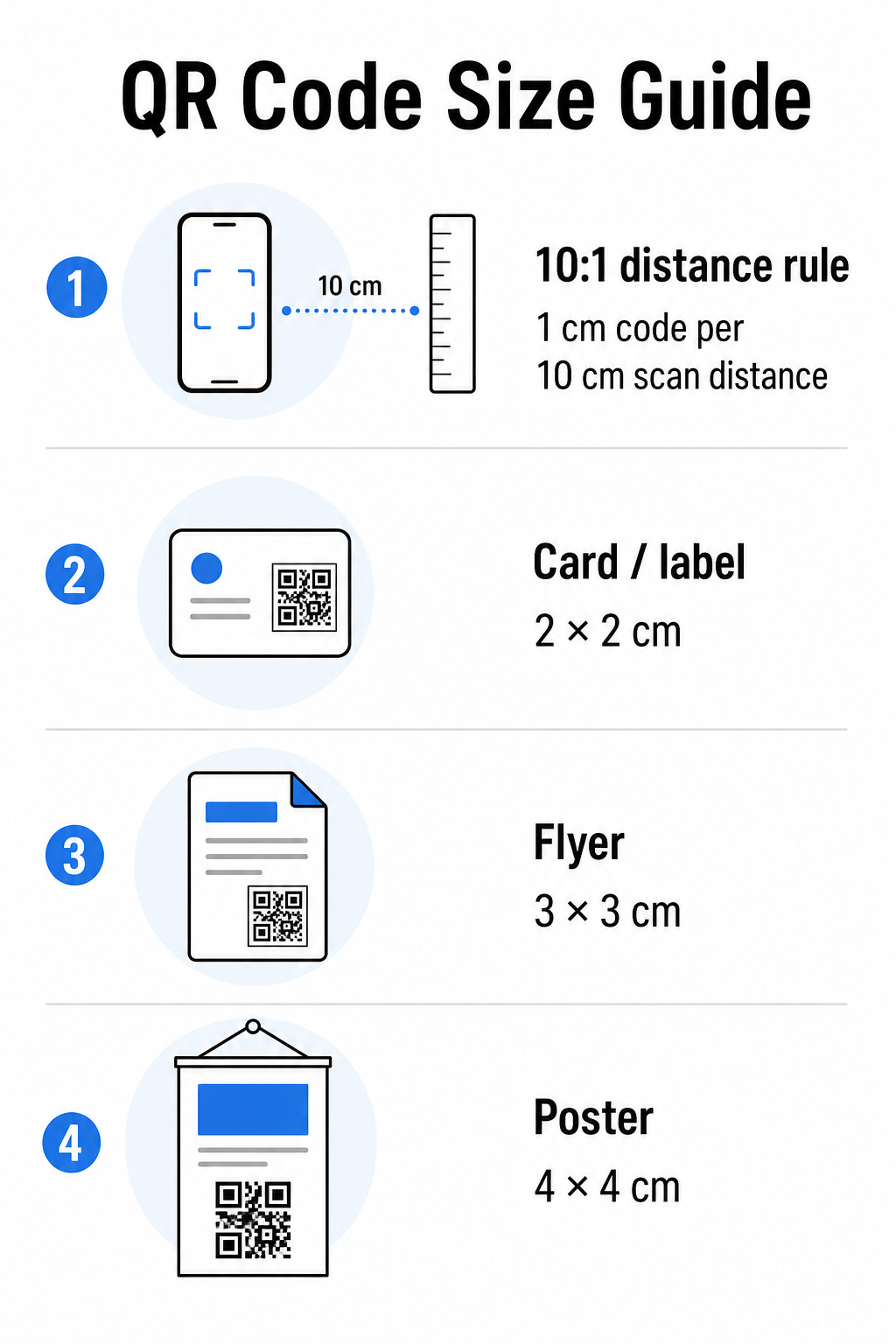
Size is the single most common reason a printed QR code fails. The standard rule is the 10:1 的比例: the QR code width should be at least 1 cm (or 1 inch) for every 10 cm (or 10 inches) of expected scanning distance. A code on a business card held at arm’s length needs a very different size than one on a poster read from across a room.

二维码尺寸指南

Use this table as a starting point for common print materials:

Print Material Minimum Recommended Size 典型扫描距离
Business card / label 2 × 2 cm (0.8 × 0.8 in) 20–30 cm (8–12 in)
Brochure / flyer 3 × 3 cm (1.2 × 1.2 in) 30 cm (12 in)
Poster / signage 4 × 4 cm (1.6 × 1.6 in) 40 cm (16 in)
Billboard / banner 40 × 40 cm (16 × 16 in) 4 m (13 ft)

Before approving any print file, confirm the code dimensions match your expected use case. The 二维码尺寸指南 provides a complete breakdown by material type, including how data density affects the minimum viable size.

Verify Your File Format and Print Resolution

The format you export matters as much as the design itself. Raster images like PNG and JPEG are made of pixels. When scaled up for large-format printing, they become blurry and the fine modules in a QR code lose their sharp edges – making the code difficult or impossible to scan.

For any printed QR code, use vector formats: SVG, EPS, or PDF. Vector files scale to any size without losing quality because they are defined mathematically rather than pixel-by-pixel. If you must use a raster format, ensure the resolution is at least 300 DPI at the intended print size – not at the screen preview size.

A quick resolution check: open your image file, note its pixel dimensions, and divide by the intended print size in inches. If a 1-inch QR code is saved as a 100 × 100 pixel image, it’s only 100 DPI – well below the 300 DPI minimum and almost guaranteed to print blurry.

For a deeper look at this topic, the 二维码打印分辨率指南 covers DPI requirements and format choices in detail.

Create Print-Ready QR Codes in SecondsPageloot QR码生成器 lets you download your codes in SVG, EPS, and PDF formats – ready for any print size without quality loss.

Test Contrast Before It Goes to Print

QR code scanners work by distinguishing dark modules from a light background. When that contrast is too low, the scanner cannot reliably identify the pattern – even if the code looks fine to the human eye.

The technical benchmark to meet is a 最小对比度为 4:1 between the dark modules and the light background. For payment applications or accessibility-focused use cases, aim for 4.5:1 or higher. Black modules on a white background produce a 21:1 ratio – the gold standard that every other color combination is measured against.

Common contrast mistakes to check for before printing:

  • Light gray modules on white: insufficient contrast that will fail in low light
  • Reversed colors (light code on dark background): some scanners handle this, many do not – never rely on it
  • Gradient fills on modules: creates uneven contrast that confuses scanners
  • Brand colors that are too close in tone: test with a grayscale conversion to see true contrast

A practical pre-print test is to convert your QR code image to grayscale and check whether the modules are still clearly distinguishable from the background. If they start to blend together in grayscale, they will fail across a wide range of device cameras and lighting conditions. The QR code color contrast best practices guide includes a color combination table showing contrast ratios and expected scan outcomes for common pairings.

Confirm the Quiet Zone Is Intact

静区 is the blank margin surrounding all four sides of a QR code. It is not a design preference – it is a technical requirement defined by the ISO/IEC 18004 standard. Without it, scanners cannot locate where the code begins and ends, and the scan will fail.

The quiet zone must be at least four modules wide on all sides, where one module is one of the small squares in the code grid. As a practical reference:

  • For a 1-inch QR code, allow approximately 0.15 inches of clear space on all sides
  • For a 名片二维码, maintain a quiet zone of at least 0.25 inches

Before sending to print, zoom into your layout file and confirm that no text, imagery, border, or background pattern encroaches on this zone. Placing a code too close to the edge of a design or overlapping it with decorative elements is one of the most common causes of scan failures that only surface after the job is printed.

Check the Error Correction Level

QR codes have a built-in recovery system called 纠错级别, which allows the code to be read even if part of it is damaged, obscured, or worn. There are four levels, each offering a different trade-off between resilience and data density:

级别 恢复能力 最佳使用案例
L(低) ~7% Clean, undamaged surfaces; maximum data density
M(中型) ~15% Standard print materials with some wear
Q(四分位数) ~25% Codes with logo overlays or moderate risk of damage
H(高) ~30% Outdoor use, packaging, codes with large logo overlays

If your QR code includes a logo overlaid on the pattern – a common branding choice – you need at least level Q, and ideally level H. The logo effectively obscures part of the code, so the error correction must compensate. Confirm what level your code was generated with before finalizing, and always test a branded code with the overlay in place. The QR code readability best practices guide covers how error correction interacts with logo placement in detail.

Run a Physical Print Test Before the Full Run

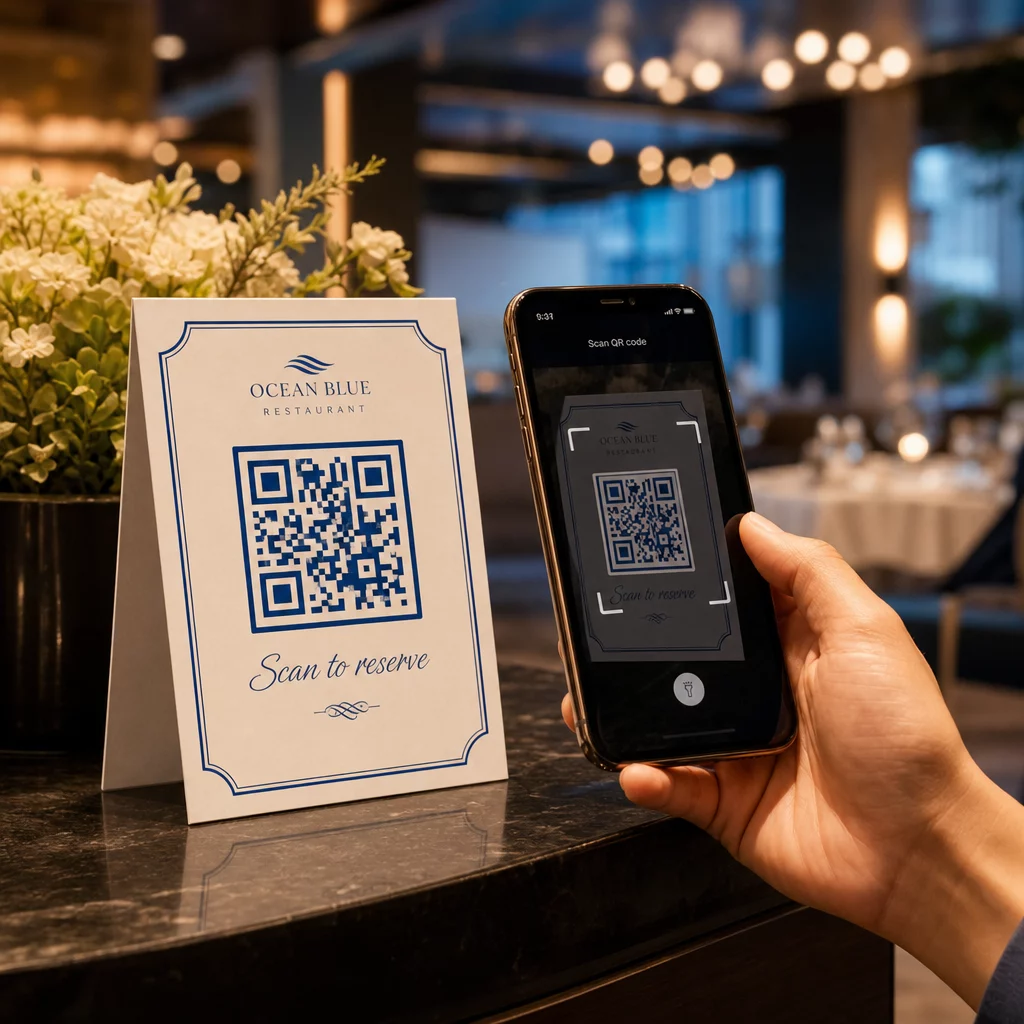
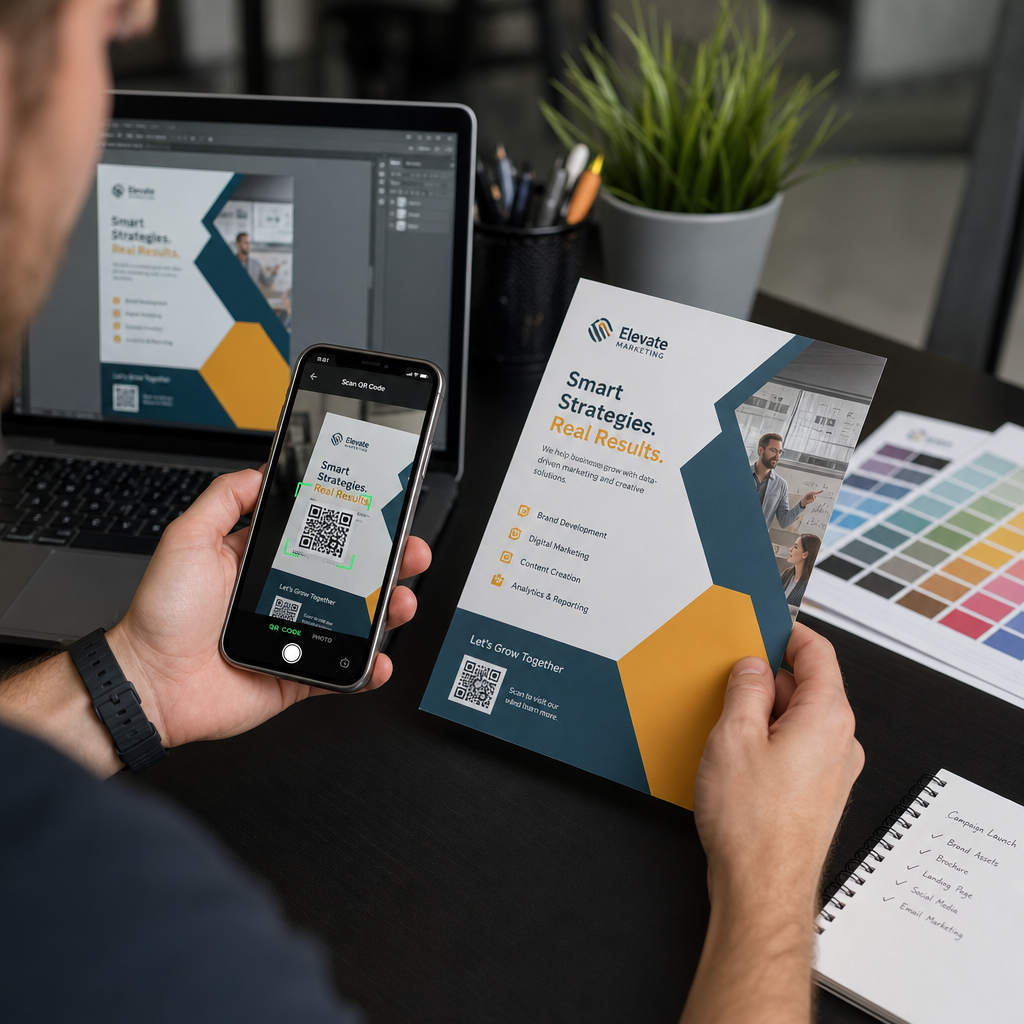
No amount of on-screen checking replaces printing a physical proof. Print a single copy at the exact final size on the exact material you plan to use, then test it under conditions that reflect real-world use.

Scanning QR print proof

Your physical test should cover:

  • Multiple devices: test on at least two different smartphones – one iOS and one Android – using both the native camera app and a third-party scanner
  • Multiple distances: scan from the typical user distance, and also from slightly farther away to confirm there is margin for error
  • Multiple lighting conditions: test in bright natural light, standard indoor lighting, and low light if the code will appear in any of those environments
  • The actual surface: glossy surfaces reflect light and can cause scan failures even when the code design is correct; matte finishes perform more reliably across conditions

You can also verify the code digitally by uploading an image of your design to the Pageloot QR码扫描仪 to confirm it decodes correctly before committing to a full run. If your code fails any of these tests, use the common QR code troubleshooting guide to diagnose the specific failure point before adjusting and retesting.

For a structured overview of what mobile testing should cover, the guide to testing QR codes for mobile usability walks through device compatibility, scan angles, and destination performance in detail.

Account for Your Printing Method and Surface

The way a QR code is printed affects scannability independent of the code design itself. Different methods produce different levels of module sharpness, and different surfaces interact with light in ways that can either help or hinder scanning.

Key considerations by method and material:

  • Matte finishes diffuse light rather than reflecting it, making them nearly always superior to glossy finishes for scanning reliability
  • Offset printing produces very sharp module edges and is well suited to high-volume print runs
  • Digital printing works well for short runs and customized codes, but ink quality varies and can fade over time
  • Thermal printing is economical for labels but can blur fine module edges – increase the code size to compensate
  • Textured or curved surfaces introduce distortion that can confuse scanners; use a larger code to account for it

For a full breakdown of how each technique affects scannability, the guide on 打印技术如何影响二维码的可扫描性 covers method selection, substrate preparation, and ink durability.

Use a Dynamic QR Code to Protect Against Post-Print Changes

Even a perfectly tested QR code can fail after printing if the destination URL changes, the linked page is taken down, or the campaign content needs updating. With a static QR code, any change to the destination means reprinting everything.

动态 QR 码 solve this by encoding a short redirect URL rather than the final destination directly. The redirect can be updated at any time from your dashboard, so the printed code stays valid even when your campaign evolves. This also means you can fix a broken link immediately after distribution – without reprinting a single piece.

Beyond error prevention, dynamic codes give you access to scan analytics: total scans, scan locations, time of scan, and device types. This data tells you whether your printed materials are actually working in the field, and where to focus optimization. The guide to using QR codes in print media covers how dynamic codes fit into broader print campaign strategy.

Protect Your Print Investment 创建一个 动态二维码 to keep your printed materials current and track real-world scan performance – without ever going back to press.

Pre-Print QR Code Testing Checklist

Before approving any QR code for print production, work through each of the following:

  • Code size matches the 10:1 rule for expected scanning distance
  • File is exported in SVG, EPS, or PDF format (or raster at a minimum of 300 DPI at final print size)
  • Contrast ratio between modules and background meets at least 4:1
  • Quiet zone of at least four modules is clear on all sides
  • Error correction level is appropriate (Q or H if a logo overlay is present)
  • Code decodes correctly when scanned from an uploaded image
  • Physical proof tested on both iOS and Android devices
  • Physical proof tested in realistic lighting conditions and on the actual print material
  • Destination URL is live, mobile-optimized, and loads quickly
  • Dynamic QR code used if the destination may need to change after printing

Running through these checks before every print job takes far less time than reordering a print run. Good QR code performance starts with the file, not the scanner. Get the size, format, contrast, and quiet zone right at the design stage, print a proof on the real material, and test it the way your audience will actually use it.

常见问题

What is the minimum size a QR code should be for print?

The reliable minimum for close-range scanning – such as on business cards or product labels – is 2 × 2 cm (0.8 × 0.8 inches). For larger print materials, apply the 10:1 rule: the code width should be at least 1 cm for every 10 cm of expected scanning distance. A poster scanned from 1 meter away, for example, needs a code at least 10 cm wide.

What file format should I use when sending a QR code to print?

Always use a vector format – SVG, EPS, or PDF – for print. Vector files scale to any size without becoming blurry or pixelated. If you must use a raster format like PNG, ensure the resolution is at least 300 DPI at the final print size. Low-resolution raster files are one of the most common causes of unreadable printed QR codes.

How do I know if my QR code will scan after printing without running a full print job?

Print a single proof at the exact intended size on the exact material you plan to use, then test it on at least two different devices (iOS and Android) in realistic lighting conditions. You can also upload an image of your code to the Pageloot QR Code Scanner to verify it decodes correctly before going to press. Using a dynamic QR code adds another layer of protection – if anything needs to change after printing, you can update the destination without reprinting.

关于作者

Siim Kostabi 是 Pageloot 的内容主管,负责撰写关于我们创新型二维码生成器服务的文章。凭借五年多来在二维码领域积累的深厚专业知识,Siim 是该领域的专家。他致力于利用二维码技术简化和增强数字交互,并取得了显著的成果。.

类别
了解更多关于
扫描营销二维码
的QR码 麦客齐
客户使用AR二维码
制作二维码 增强现实
QR QR码的#1解决方案

如果您需要在线创建QR码,则可以 制作二维码 就在这里免费!
Pageloot是 #1转到解决方案 创建和扫描QR码。

BL-0276

博客生成器

受到超过 20,000 个品牌的信赖,可获得更多销售、评论和关注者。

客户徽标
受到顶级品牌的信赖
评分为 4.8(共 5)

4.86 / 5 星评级

雨果·劳伦特
雨果·劳伦特
餐馆老板
有史以来最容易和最可靠的QR码生成器。PDF文件可以立即上传。我们的餐厅菜单现在是数字化的。
卢卡斯-詹森
卢卡斯-詹森
房地产开发商
这是一个很好的工具,二维码带你到你想要的地方。我们只使用位置二维码,但有许多有用的功能。
艾玛-莫雷蒂
艾玛-莫雷蒂
零售产品
易于使用和快速。它工作得很好,创造了一个完美的图像,所以员工可以下载我的vCard。
雨果·劳伦特
雨果·劳伦特
餐馆老板
有史以来最容易和最可靠的QR码生成器。PDF文件可以立即上传。我们的餐厅菜单现在是数字化的。
卢卡斯-詹森
卢卡斯-詹森
房地产开发商
这是一个很好的工具,二维码带你到你想要的地方。我们只使用位置二维码,但有许多有用的功能。
艾玛-莫雷蒂
艾玛-莫雷蒂
零售产品
易于使用和快速。它工作得很好,创造了一个完美的图像,所以员工可以下载我的vCard。
查看更多QR码
将一切转化为数字体验 不到3分钟。

免费试用 14 天。

无需信用卡。

首次购买可享受 30% 折扣

使用代码:

分享您的 MP3 文件

注册以创建 PDF QR 码

上传和显示你需要的一切。

  • 音频文件
  • 播客
  • 音乐

注册即可享 14 天免费试用。.
试用期结束后,二维码将失效。.

注册以创建音频 mp3 二维码

使用边框获得更多扫描

注册以向您的二维码添加更多框架

呼叫行动框架帮助您的客户与QR码轻松互动。试试吧!

注册即可享 14 天免费试用。.
试用期结束后,二维码将失效。.

注册以向您的二维码添加更多框架

使用形状添加更多样式

注册以创建更多形状

二维码不一定是方形的。试着改变它以适应你的品牌形象。

注册即可享 14 天免费试用。.
试用期结束后,二维码将失效。.

注册以创建更多形状

为您的二维码添加徽标

注册以将您的徽标添加到二维码中

通过在二维码上添加你的标志和品牌,使你的二维码脱颖而出。

注册即可享 14 天免费试用。.
试用期结束后,二维码将失效。.

注册以将您的徽标添加到二维码中

智能应用商店重定向

注册以创建应用商店二维码

将您的应用程序链接添加到我们的智能应用程序商店QR码。用户会根据他们的设备被重新定向。

注册即可享 14 天免费试用。.
试用期结束后,二维码将失效。.

注册以创建应用商店二维码

将图片上传到二维码

注册以创建图像二维码

轻松分享你的图像。在几秒钟内动态地改变任何图像。

注册即可享 14 天免费试用。.
试用期结束后,二维码将失效。.

注册以创建图像二维码

分享您的 PDF 文件

注册以创建 PDF QR 码

上传和显示你需要的一切。

  • 菜单和价格表
  • 使用说明
  • 任何文件

注册即可享 14 天免费试用。.
试用期结束后,二维码将失效。.

注册以创建 PDF QR 码

稍后编辑,无需打印

注册即可编辑您的二维码,无需再次打印

动态QR码让你改变你的QR码的内容,而不需要打印新的QR码。

注册即可享 14 天免费试用。.
试用期结束后,二维码将失效。.

注册即可编辑您的二维码,无需再次打印

何时?何地?追踪您的二维码扫描

注册以追踪您的二维码

发现你的哪些二维码收到了最多的扫描,以及什么最能让你的客户兴奋。

注册即可享 14 天免费试用。.
试用期结束后,二维码将失效。.

注册以追踪您的二维码

提供可打印文件

注册以创建 PDF 和 SVG 等矢量二维码

.EPS, .PDF, .SVG

想下载高清分辨率的QR码吗?获得矢量或像素格式,可随时打印。

注册即可享 14 天免费试用。.
试用期结束后,二维码将失效。.

注册以创建 PDF 和 SVG 等矢量二维码

请等待。您的二维码是 正在加载... 正在加载...

打造专属

注册以保存您的二维码以供日后使用

通过创建具有不同颜色、标识和行动呼吁框架的出色的QR码,获得更多的扫描。

注册即可享 14 天免费试用。.
试用期结束后,二维码将失效。.

注册以保存您的二维码以供日后使用