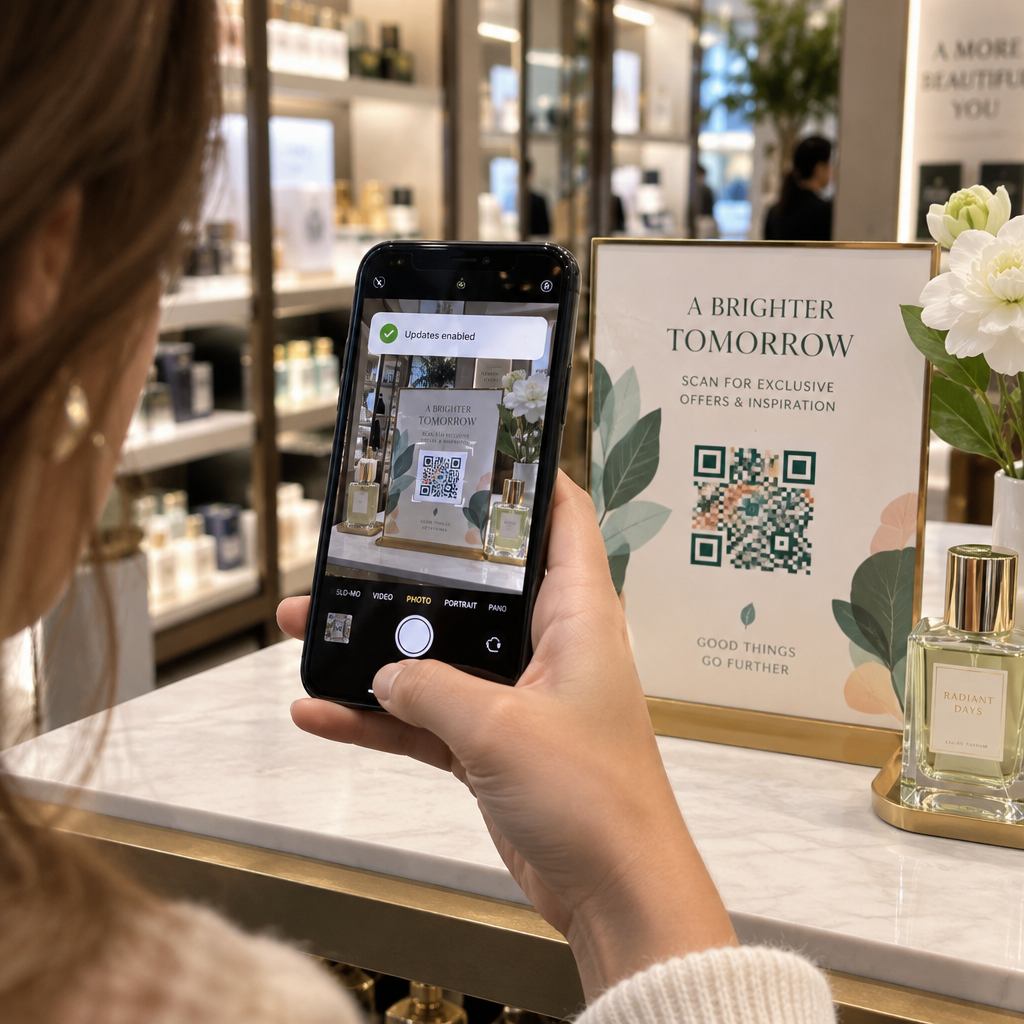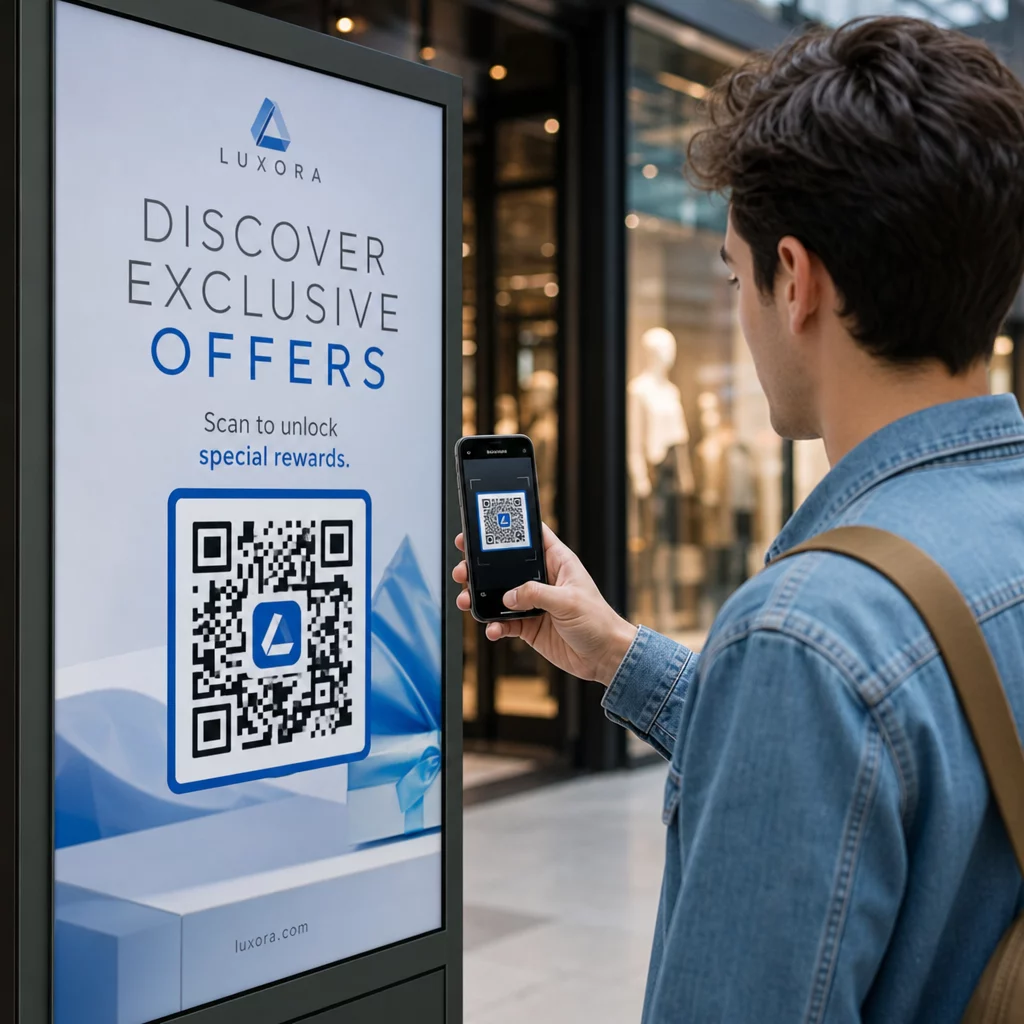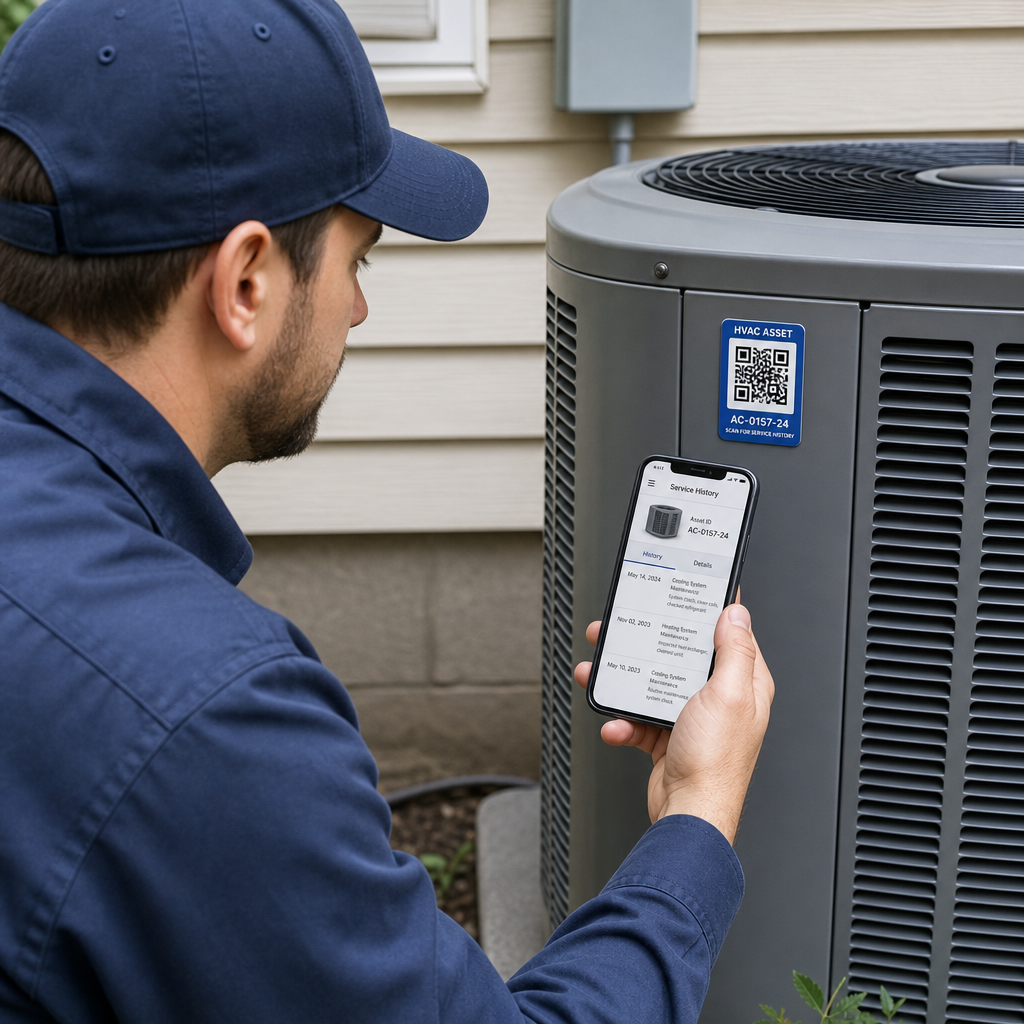
Trimiterea unui cod QR la imprimare fără a-l testa mai întâi este una dintre cele mai comune – și costisitoare – greșeli în marketingul tipărit. Un cod care arată perfect pe ecran poate eșua complet odată ce ajunge pe hârtie, vinil sau ambalaj. Acest ghid vă prezintă fiecare verificare pe care trebuie să o efectuați înainte de a aproba o serie de imprimări.
De ce eșuează codurile QR după imprimare
Un cod QR care scanează curat pe monitorul dumneavoastră poate eșua în lumea reală din motive care devin vizibile doar după imprimare. Înțelegerea acestor puncte de eșec vă ajută să construiți o listă de verificare pre-imprimare fiabilă.
Cei mai comuni vinovați sunt:
- Dimensiune prea mică pentru distanța de scanare așteptată
- Rezoluție scăzută cauzând module neclare sau pixelate
- Contrast insuficient între cod și fundalul său
- Zonă liniștită lipsă (marginea clară care înconjoară codul)
- Densitate mare de date creând un model prea fin pentru ca aparatele foto să-l citească
- Format de fișier greșit utilizat pentru ieșirea la imprimare
Fiecare dintre aceste probleme este în întregime prevenibilă dacă o detectați înainte de a începe tipărirea. Secțiunile de mai jos abordează fiecare problemă în ordine.
Verificați dimensiunea codului QR în raport cu distanța de scanare
Dimensiunea este cel mai comun motiv pentru care un cod QR tipărit eșuează. Regula standard este raport 10:1: lățimea codului QR ar trebui să fie de cel puțin 1 cm (sau 1 inch) pentru fiecare 10 cm (sau 10 inch) de distanță de scanare așteptată. Un cod de pe o carte de vizită ținută la lungimea brațului necesită o dimensiune foarte diferită față de unul de pe un poster citit de la capătul unei încăperi.
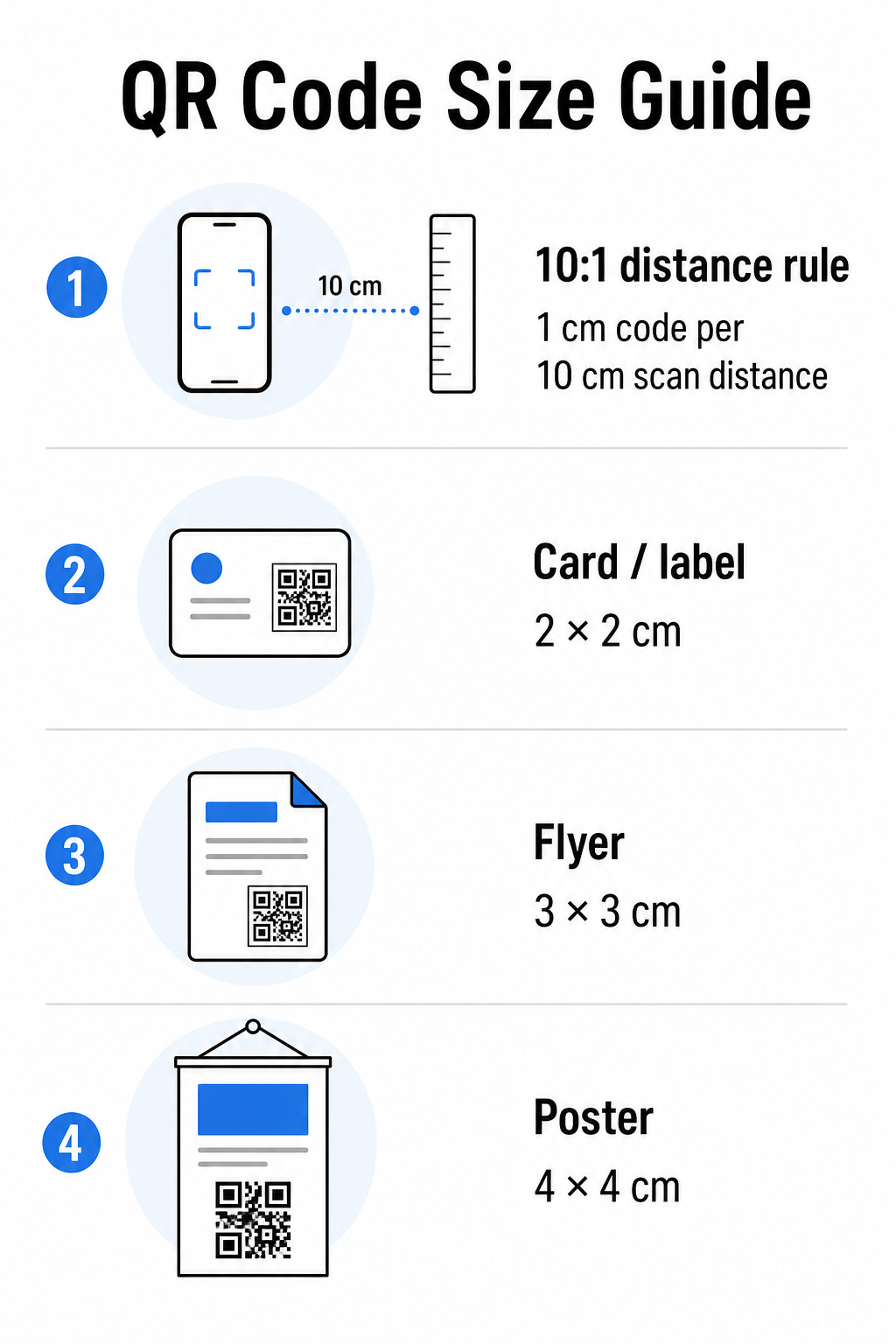
Utilizați acest tabel ca punct de plecare pentru materialele tipărite comune:
| Material de imprimare | Dimensiune minimă recomandată | Distanța Tipică de Scanare |
|---|---|---|
| Carte de vizită / etichetă | 2 × 2 cm (0,8 × 0,8 in) | 20–30 cm (8–12 in) |
| Broșură / pliant | 3 × 3 cm (1,2 × 1,2 in) | 30 cm (12 in) |
| Poster / semnalistică | 4 × 4 cm (1,6 × 1,6 in) | 40 cm (16 in) |
| Panou publicitar / banner | 40 × 40 cm (16 × 16 in) | 4 m (13 ft) |
Înainte de a aproba orice fișier de imprimare, confirmați că dimensiunile codului corespund cazului dumneavoastră de utilizare așteptat. ghidul nostru de dimensiuni pentru coduri QR oferă o defalcare completă pe tip de material, inclusiv modul în care densitatea datelor afectează dimensiunea minimă viabilă.
Verificați formatul fișierului și rezoluția de imprimare
Formatul pe care îl exportați contează la fel de mult ca și designul în sine. Imaginile raster precum PNG și JPEG sunt formate din pixeli. Atunci când sunt mărite pentru imprimarea de format mare, ele devin neclare, iar modulele fine dintr-un cod QR își pierd marginile ascuțite – făcând codul dificil sau imposibil de scanat.
Pentru orice cod QR tipărit, utilizați formate vectoriale: SVG, EPS sau PDF. Fișierele vectoriale se scalează la orice dimensiune fără a pierde din calitate, deoarece sunt definite matematic, nu pixel cu pixel. Dacă trebuie să utilizați un format raster, asigurați-vă că rezoluția este de cel puțin 300 DPI la dimensiunea de imprimare intenționată – nu la dimensiunea de previzualizare pe ecran.
O verificare rapidă a rezoluției: deschideți fișierul imagine, notați dimensiunile sale în pixeli și împărțiți la dimensiunea de imprimare intenționată în inchi. Dacă un cod QR de 1 inch este salvat ca o imagine de 100 × 100 pixeli, are doar 100 DPI – mult sub minimul de 300 DPI și aproape garantat că se va imprima neclar.
Pentru o analiză mai aprofundată a acestui subiect, ghidul nostru de rezoluție a imprimării codurilor QR acoperă în detaliu cerințele DPI și opțiunile de format.
Creați coduri QR gata de imprimare în câteva secunde Cel Generator de coduri QR Pageloot vă permite să descărcați codurile în formate SVG, EPS și PDF – gata pentru orice dimensiune de imprimare fără pierderi de calitate.
Testați contrastul înainte de a imprima
Scanerele de coduri QR funcționează prin distingerea modulelor întunecate de un fundal deschis. Atunci când contrastul este prea scăzut, scanerul nu poate identifica în mod fiabil modelul – chiar dacă codul arată bine pentru ochiul uman.
Punctul de referință tehnic de îndeplinit este un raport de contrast minim de 4:1 între modulele întunecate și fundalul deschis. Pentru aplicații de plată sau cazuri de utilizare axate pe accesibilitate, vizați 5:1 sau mai mare. Modulele negre pe un fundal alb produc un raport de 21:1 – standardul de aur față de care se măsoară orice altă combinație de culori.
Greșeli comune de contrast de verificat înainte de imprimare:
- Module gri deschis pe alb: contrast insuficient care va eșua în condiții de lumină slabă
- Culori inversate (cod deschis pe fundal întunecat): unele scanere gestionează acest lucru, multe nu – nu vă bazați niciodată pe el
- Umpleri cu gradient pe module: creează un contrast neuniform care derutează scanerele
- Culori de brand care sunt prea apropiate ca ton: testați cu o conversie în tonuri de gri pentru a vedea contrastul real
Un test practic înainte de imprimare este să convertiți imaginea codului QR în tonuri de gri și să verificați dacă modulele sunt încă clar distincte de fundal. Dacă încep să se amestece în tonuri de gri, vor eșua într-o gamă largă de camere de dispozitive și condiții de iluminare. de bune practici privind contrastul culorilor codurilor QR include un tabel de combinații de culori care arată rapoartele de contrast și rezultatele așteptate ale scanării pentru perechi comune.
Confirmați că zona de liniște este intactă
Cel zonă de liniște este zona albă din jurul tuturor celor patru laturi ale unui cod QR. Nu este o preferință de design – este o cerință tehnică definită de standardul ISO/IEC 18004. Fără ea, scanerele nu pot localiza unde începe și se termină codul, și scanarea va eșua.
Zona de liniște trebuie să fie de cel puțin patru module lățime pe toate laturile, unde un modul este unul dintre pătratele mici din grila codului. Ca referință practică:
- Pentru o cod QR de 1 inch, permiteți aproximativ 0,15 inch de spațiu liber pe toate laturile
- Pentru o codul QR al cărții de vizită, mențineți o zonă de liniște de cel puțin 0,25 inch
Înainte de a trimite la imprimare, măriți fișierul de machetare și confirmați că niciun text, imagine, chenar sau model de fundal nu încalcă această zonă. Plasarea unui cod prea aproape de marginea unui design sau suprapunerea acestuia cu elemente decorative este una dintre cele mai comune cauze ale eșecurilor de scanare care apar doar după imprimarea lucrării.
Verificați Nivelul de Corecție a Ererilor
Codurile QR au un sistem de recuperare încorporat numit corecția erorilor, care permite citirea codului chiar dacă o parte a acestuia este deteriorată, obturată sau uzată. Există patru niveluri, fiecare oferind un compromis diferit între rezistență și densitatea datelor:
| Nivel | Capacitate de Recuperare | Cel mai bun caz de utilizare |
|---|---|---|
| L (scăzut) | ~7% | Suprafețe curate, nedeteriorate; densitate maximă de date |
| M (Mediu) | ~15% | Materiale de imprimare standard cu o anumită uzură |
| Q (Cuartilă) | ~25% | Coduri cu suprapuneri de logo sau risc moderat de deteriorare |
| H (ridicat) | ~30% | Utilizare în exterior, ambalaje, coduri cu suprapuneri mari de logo |
Dacă codul dvs. QR include un logo suprapus peste model – o alegere comună de branding – aveți nevoie de cel puțin nivelul Q, și ideal nivelul H. Logoul obturează efectiv o parte a codului, deci corecția erorilor trebuie să compenseze. Confirmați cu ce nivel a fost generat codul dvs. înainte de finalizare, și testați întotdeauna un cod branduit cu suprapunerea la locul ei. Ghidul de bune practici pentru lizibilitatea codurilor QR acoperă în detaliu modul în care corecția erorilor interacționează cu plasarea logo-ului.
Efectuați un Test de Imprimare Fizică Înainte de Rularea Completă
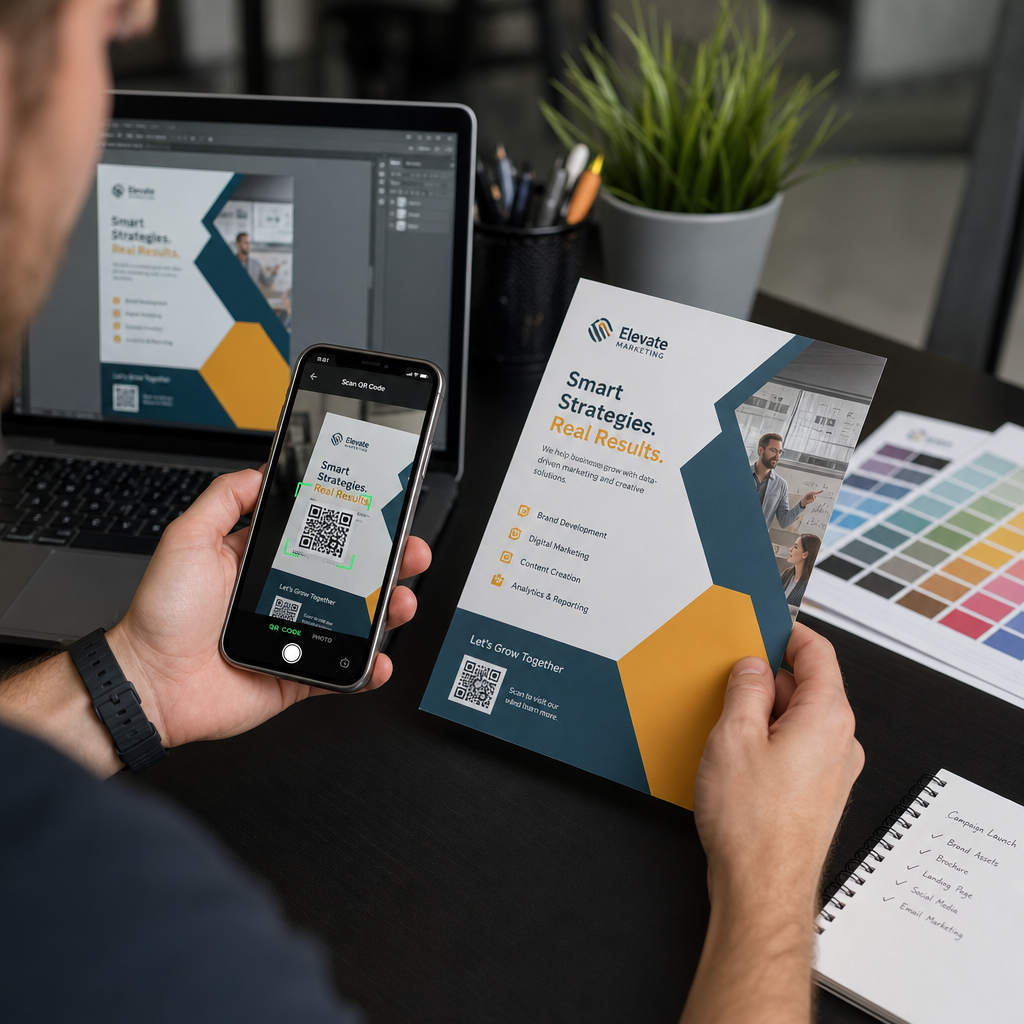
Nicio verificare pe ecran nu înlocuiește imprimarea unei dovezi fizice. Imprimați o singură copie la dimensiunea finală exactă pe materialul exact pe care intenționați să-l utilizați, apoi testați-l în condiții care reflectă utilizarea în lumea reală.
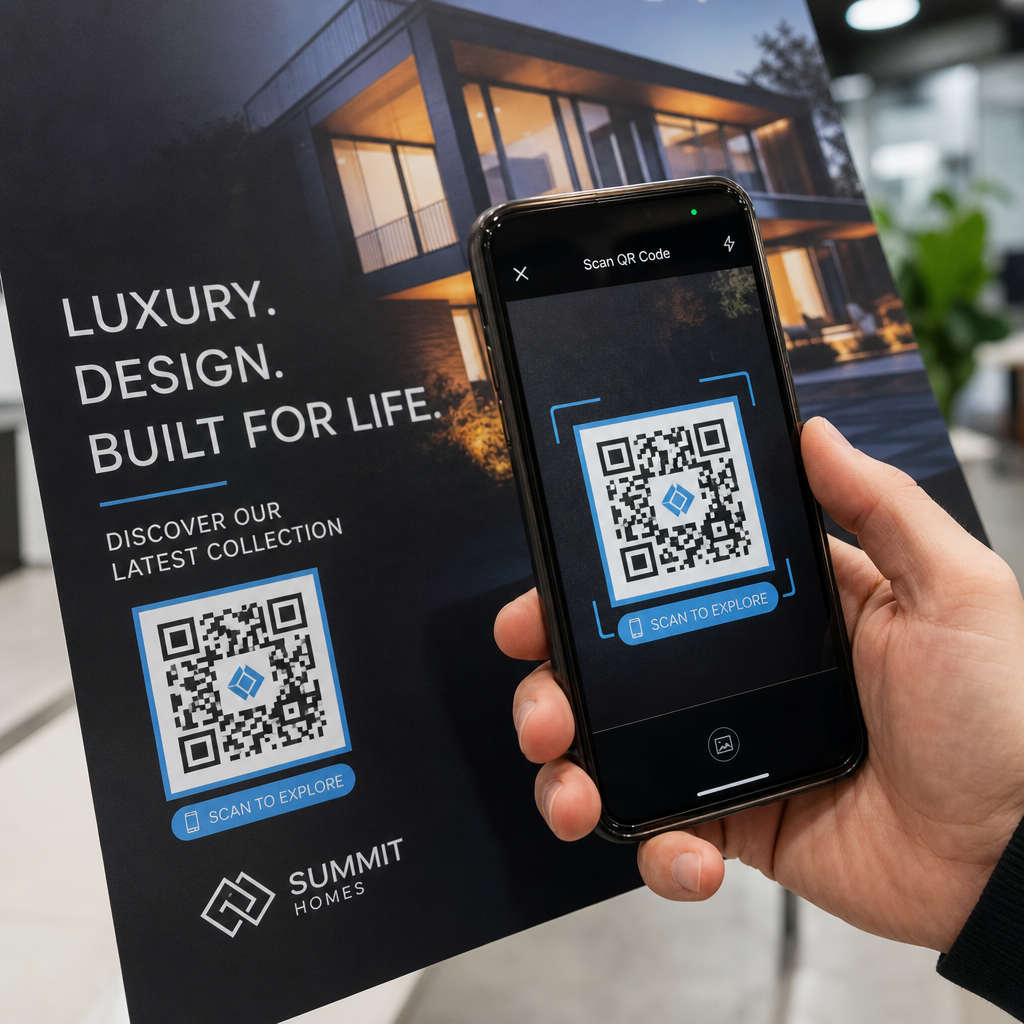
Testul dvs. fizic ar trebui să acopere:
- Dispozitive multiple: testați pe cel puțin două smartphone-uri diferite – unul iOS și unul Android – utilizând atât aplicația nativă a camerei, cât și un scaner terț
- Distanțe multiple: scanați de la distanța tipică a utilizatorului, și, de asemenea, de la o distanță puțin mai mare pentru a confirma că există o marjă de eroare
- Condiții multiple de iluminare: testați în lumină naturală puternică, iluminare interioară standard, și lumină slabă dacă codul va apărea în oricare dintre aceste medii
- Suprafața reală: suprafețele lucioase reflectă lumina și pot cauza eșecuri de scanare chiar și atunci când designul codului este corect; finisajele mate funcționează mai fiabil în diverse condiții
Puteți verifica, de asemenea, codul digital încărcând o imagine a designului dvs. pe Pageloot QR Code Scanner pentru a confirma că se decodează corect înainte de a vă angaja la o rulare completă. Dacă codul dvs. eșuează la oricare dintre aceste teste, utilizați ghidul comun de depanare a codurilor QR pentru a diagnostica punctul specific de eșec înainte de a ajusta și retesta.
Pentru o prezentare structurată a ceea ce ar trebui să acopere testarea mobilă, ghidul ghid pentru testarea codurilor QR pentru utilizabilitate mobilă detaliază compatibilitatea dispozitivelor, unghiurile de scanare și performanța destinației.
Țineți cont de Metoda de Imprimare și Suprafață
Modul în care este imprimat un cod QR afectează scanabilitatea independent de designul codului în sine. Metodele diferite produc niveluri diferite de claritate a modulelor, și suprafețele diferite interacționează cu lumina în moduri care pot fie ajuta, fie împiedica scanarea.
Considerații cheie în funcție de metodă și material:
- Finisaje mate difuzează lumina în loc să o reflecte, făcându-le aproape întotdeauna superioare finisajelor lucioase pentru fiabilitatea scanării
- Imprimare offset produce margini de modul foarte clare și este bine adaptată pentru tiraje mari
- Imprimare digitală funcționează bine pentru tiraje scurte și coduri personalizate, dar calitatea cernelii variază și se poate estompa în timp
- Imprimare termică este economică pentru etichete dar poate estompa marginile fine ale modulelor – măriți dimensiunea codului pentru a compensa
- Suprafețe texturate sau curbate introduc distorsiuni care pot confunda scanerele; utilizați un cod mai mare pentru a ține cont de acest lucru
Pentru o defalcare completă a modului în care fiecare tehnică afectează scanabilitatea, ghidul despre modul în care tehnicile de imprimare influențează scanabilitatea codurilor QR acoperă selecția metodei, pregătirea substratului și durabilitatea cernelii.
Utilizați un Cod QR Dinamic pentru a Proteja Împotriva Modificărilor Post-Imprimare
Chiar și un cod QR perfect testat poate eșua după imprimare dacă URL-ul destinație se modifică, pagina legată este eliminată, sau conținutul campaniei necesită actualizare. Cu un cod QR static, orice modificare a destinației înseamnă reimprimarea a tot.
Coduri QR dinamice rezolvați acest lucru prin codificarea unei adrese URL scurte de redirecționare, mai degrabă decât a destinației finale direct. Redirecționarea poate fi actualizată oricând din tabloul de bord, astfel încât codul tipărit rămâne valid chiar și atunci când campania evoluează. Acest lucru înseamnă, de asemenea, că puteți remedia un link rupt imediat după distribuire – fără a retipări o singură bucată.
Dincolo de prevenirea erorilor, codurile dinamice vă oferă acces la analize de scanare: scanări totale, locații de scanare, ora scanării și tipuri de dispozitive. Aceste date vă ghidul de utilizare a codurilor QR în media tipărită Acoperă modul în care codurile dinamice se încadrează într-o strategie mai amplă de campanie tipărită.
Protejați-vă investiția în tipar Creeaza o Cod QR dinamic pentru a vă menține materialele tipărite actualizate și a urmări performanța reală a scanărilor – fără a mai fi nevoie să reveniți la tipografie.
Listă de verificare pentru testarea codurilor QR înainte de tipărire
Înainte de a aproba orice cod QR pentru tipărire, parcurgeți fiecare dintre următoarele puncte:
- Dimensiunea codului respectă regula 10:1 pentru distanța de scanare estimată
- Fișierul este exportat în format SVG, EPS sau PDF (sau raster la un minim de 300 DPI la dimensiunea finală de tipărire)
- Raportul de contrast între module și fundal este de cel puțin 4:1
- Zona de liniște de cel puțin patru module este liberă pe toate laturile
- Nivelul de corecție a erorilor este adecvat (Q sau H dacă este prezent un logo suprapus)
- Codul se decodifică corect atunci când este scanat dintr-o imagine încărcată
- Proba fizică este testată pe dispozitive iOS și Android
- Proba fizică este testată în condiții de iluminare realiste și pe materialul de tipar real
- Adresa URL de destinație este activă, optimizată pentru mobil și se încarcă rapid
- Se utilizează un cod QR dinamic dacă destinația ar putea necesita modificări după tipărire
Parcurgerea acestor verificări înainte de fiecare lucrare de tipar durează mult mai puțin timp decât retipărirea unei serii. Performanța bună a codurilor QR începe cu fișierul, nu cu scanerul. Stabiliți corect dimensiunea, formatul, contrastul și zona de liniște încă din faza de proiectare, tipăriți o probă pe materialul real și testați-o în modul în care publicul dumneavoastră o va folosi de fapt.
Întrebări frecvente
Minimul fiabil pentru scanare de aproape – cum ar fi pe cărți de vizită sau etichete de produse – este de 2 × 2 cm (0,8 × 0,8 inchi). Pentru materiale tipărite mai mari, aplicați regula 10:1: lățimea codului ar trebui să fie de cel puțin 1 cm pentru fiecare 10 cm de distanță de scanare estimată. Un poster scanat de la 1 metru distanță, de exemplu, necesită un cod de cel puțin 10 cm lățime.
Întotdeauna utilizați un format vectorial – SVG, EPS, sau PDF – pentru imprimare. Fișierele vectoriale se scalează la orice dimensiune fără a deveni neclare sau pixelate. Dacă trebuie să utilizați un format raster precum PNG, asigurați-vă că rezoluția este de cel puțin 300 DPI la dimensiunea finală de imprimare. Fișierele raster de rezoluție scăzută sunt una dintre cele mai comune cauze ale codurilor QR imprimate ilizibile.
Imprimați o singură probă la dimensiunea exactă intenționată pe materialul exact pe care intenționați să-l utilizați, apoi testați-o pe cel puțin două dispozitive diferite (iOS și Android) în condiții de iluminare realiste. Puteți, de asemenea, să încărcați o imagine a codului dumneavoastră în Pageloot QR Code Scanner pentru a verifica dacă se decodifică corect înainte de a merge la tipar. Utilizarea unui cod QR dinamic adaugă un alt strat de protecție – dacă este nevoie să se schimbe ceva după imprimare, puteți actualiza destinația fără a reimprima.