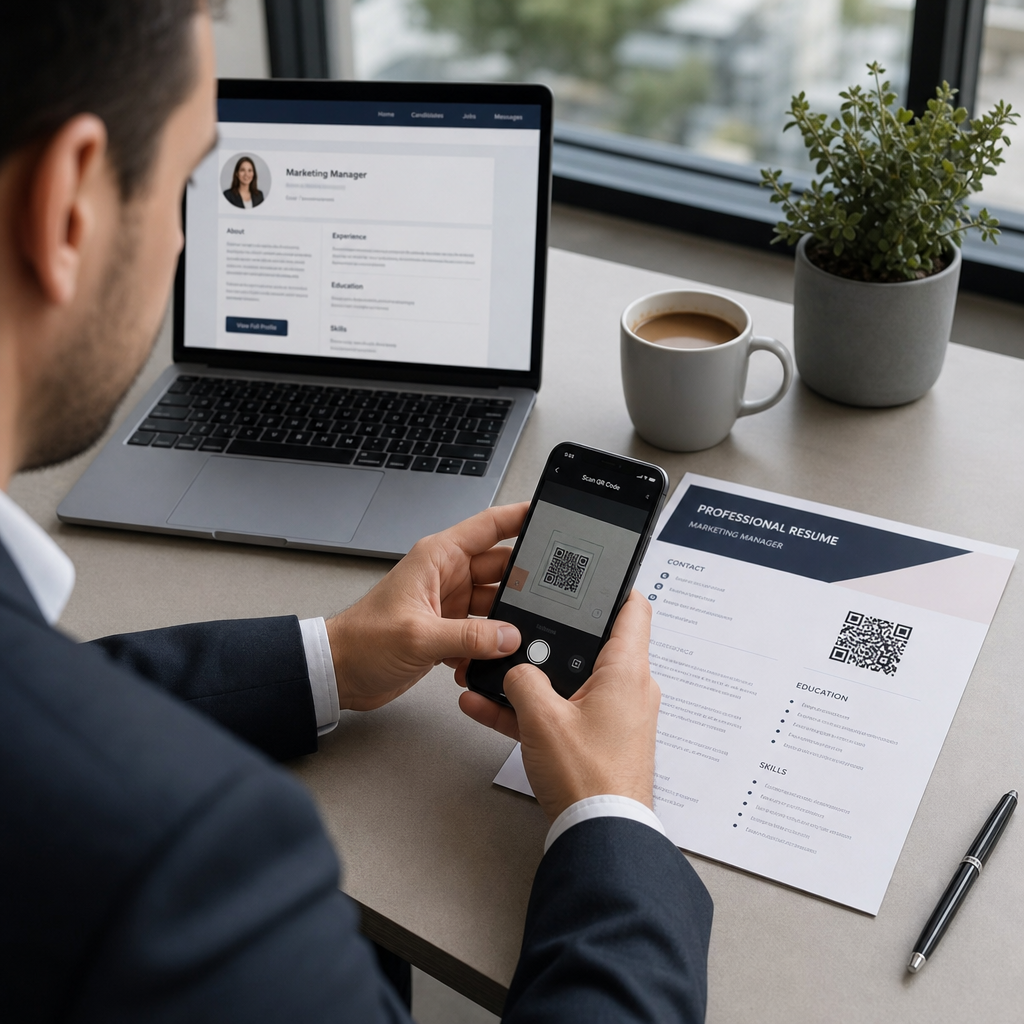
¿Te cuesta conseguir que los reclutadores noten tu portafolio o perfil de LinkedIn? Un código QR en tu currículum cierra la brecha entre una página impresa y tu presencia digital completa – esta guía explica cómo crear uno, dónde colocarlo y cómo evitar los errores que lo hacen parecer poco profesional.
Qué hace realmente un código QR en un currículum
Un código QR es una imagen escaneable que codifica una URL u otros datos. Cuando un reclutador apunta la cámara de su teléfono hacia él, abre tu portafolio, perfil de LinkedIn o currículum digital directamente en su navegador – no se requiere escribir.
En un currículum, esto resuelve un problema real: los reclutadores que leen una copia impresa no tienen una forma fácil de hacer clic en tus enlaces. Un código QR convierte una página estática en una interactiva sin añadir desorden. Los tipos de destinos a los que puedes enlazar incluyen:
- perfil de LinkedIn – permite a los reclutadores revisar tu historial laboral completo, recomendaciones y actividad
- Portafolio en línea – muestra trabajos de proyectos, estudios de caso o muestras creativas
- Currículum en PDF – da acceso a una versión ampliada o formateada de tu currículum
- Tarjeta de contacto digital (vCard) – permite a los reclutadores guardar tus datos de contacto directamente en su teléfono
Cuándo tiene sentido añadir un código QR
Un código QR añade valor en situaciones específicas. Funciona mejor cuando tu currículum se imprimirá y entregará a alguien en persona – en entrevistas, ferias de empleo o eventos de networking – y cuando tienes un portafolio, sitio personal o perfil de LinkedIn que vale la pena visitar. Es particularmente efectivo en campos donde mostrar el trabajo importa: diseño, desarrollo, escritura, marketing o cualquier disciplina creativa donde un reclutador se beneficia de ver muestras más allá de lo que cabe en una página.
Añade menos valor cuando tu currículum solo se enviará a través de un portal de solicitud en línea. En esos casos, los reclutadores rara vez imprimen currículums, por lo que el código QR no se escanea. Piénsalo como una característica para la experiencia en persona, no como un sustituto de los enlaces de texto plano que funcionan en todas partes.
Cómo los sistemas ATS manejan los códigos QR
Antes de añadir un código QR, debes entender cómo funcionan los sistemas de seguimiento de candidatos (ATS). Las plataformas ATS leen texto y en gran medida ignoran los elementos de imagen – un código QR se trata como un gráfico no textual y simplemente se omite durante el análisis. Esto significa que el código en sí no perjudicará tu puntuación ATS, pero tampoco la ayudará. Lo que importa para el ATS es el texto de tu currículum.
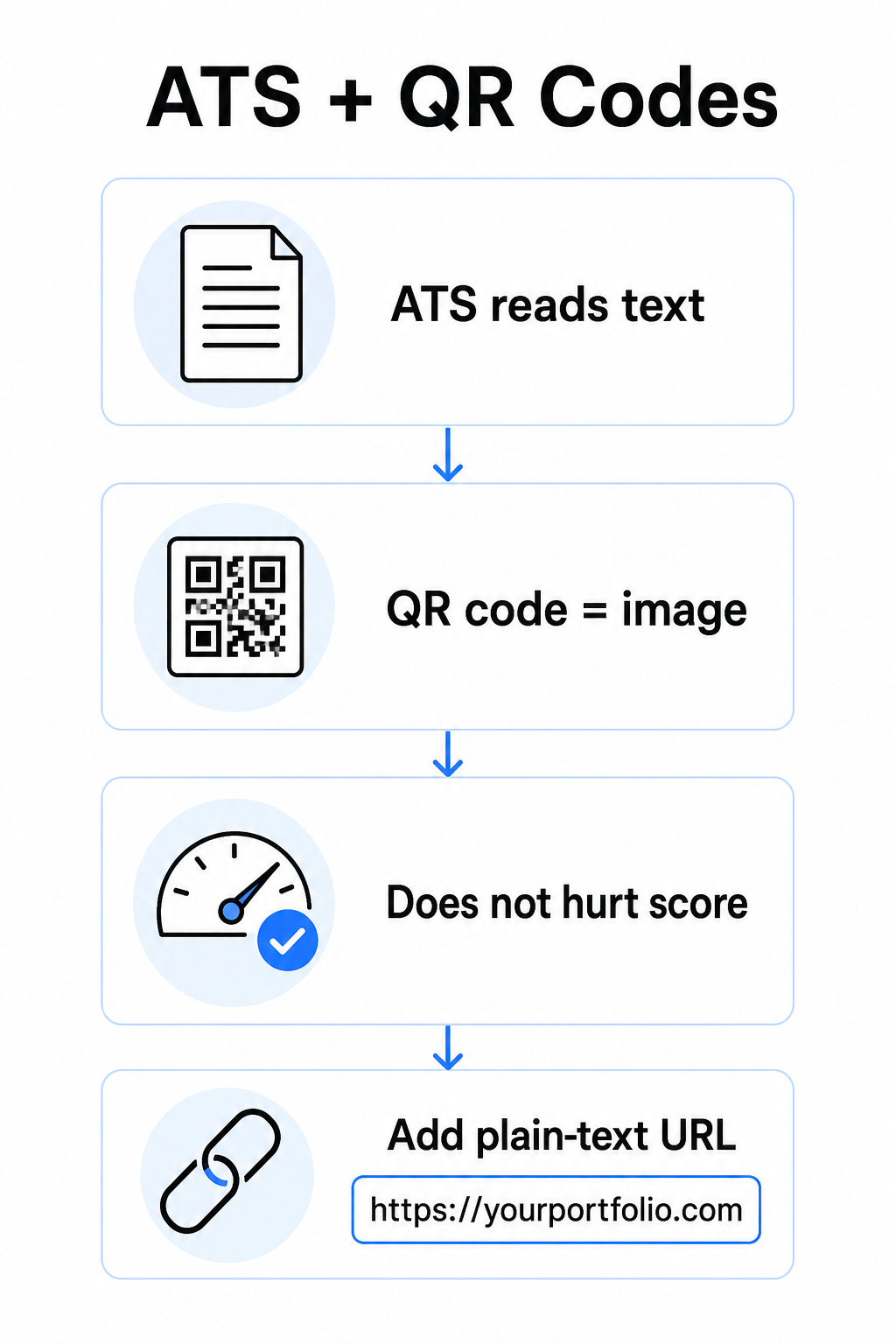
Incluye siempre una URL de texto plano junto a tu código QR. Escribe el enlace completo en texto legible (por ejemplo, `linkedin.com/in/yourname`) para que el destino siga siendo accesible tanto para el software ATS como para cualquier reclutador que revise una copia digital y no pueda escanear una imagen.
Mantén el formato general de tu currículum simple. Los diseños complejos, los cuadros de texto, las múltiples columnas y los gráficos pesados pueden confundir a los analizadores ATS – por lo que tu código QR debe encajar perfectamente dentro de un diseño limpio y estándar en lugar de dominar el diseño.
Crea un código QR para tu currículum ¿Listo para vincular tu portafolio o perfil de LinkedIn con un código escaneable? Usa el Generador de códigos QR para crear un código QR personalizado y profesional en minutos – no se necesita experiencia en diseño.
Prepara tu destino antes de generar
El código QR es tan fuerte como aquello a lo que enlaza. Antes de crear uno, asegúrate de que el destino esté listo para los ojos de un reclutador.
Perfil en LinkedIn
Comienza creando una URL de LinkedIn personalizada – algo como `linkedin.com/in/firstname-lastname` – para que el enlace se vea limpio en lugar de una cadena de caracteres aleatorios. Añade una foto de perfil profesional, lo que aumenta la credibilidad y las visitas al perfil. Escribe un titular y un resumen claros y relevantes para palabras clave, utilizando títulos de trabajo familiares y logros medibles extraídos de tus roles objetivo. Luego, actualiza tu historial laboral, educación y cualquier muestra multimedia que muestre tu trabajo antes de compartir el enlace en cualquier lugar.
Puedes aprender más sobre Cómo encontrar y usar tu código QR de LinkedIn y genera uno personalizado con el Generador de código QR de LinkedIn.
Sitio de Portafolio
Selecciona 4-6 proyectos que sean directamente relevantes para los roles a los que te postulas, e incluye resultados medibles para cada uno – resultados, impacto y lo que contribuiste específicamente. Escribe descripciones en inglés sencillo y revisa a fondo la ortografía y la gramática. Prueba el sitio tanto en dispositivos móviles como de escritorio para confirmar una carga rápida y un formato limpio, y usa una URL corta y profesional con un slug personalizado. Evita enlaces que parezcan una cadena de números y guiones, lo que puede parecer spam o poco confiable para los reclutadores.
Currículum en PDF
Si quieres enlazar a una versión más larga o visualmente formateada de tu currículum, un código QR de PDF es una opción sencilla. Usa el Generador de código QR para PDF para subir tu documento y generar un enlace escaneable directamente a él.
Tarjeta de contacto (vCard)
Un código QR de vCard codifica tus datos de contacto – nombre, teléfono, correo electrónico y sitio web – directamente en el código. Cuando alguien lo escanea, puede guardarte en sus contactos al instante sin escribir un solo carácter. Esto funciona especialmente bien en la sección de contacto de un currículum o en una tarjeta de presentación que entregues en las entrevistas. El Generador de códigos QR de contacto vCard facilita su creación, y puedes leer más sobre cómo crear un código QR para información de contacto para sacar el máximo partido a este formato.
Cómo crear tu código QR de currículum
Una vez que tu destino esté listo, generar el código QR solo requiere unos pocos pasos.
Primero, elige el generador adecuado para tu destino. Usa el Generador de código QR de LinkedIn para un enlace de perfil, el Generador de código QR para PDF para un documento, el Generador de códigos QR de contacto vCard para datos de contacto, o el Generador de códigos QR de enlace para cualquier otra URL. Luego pega tu URL de destino o sube tu archivo.
En esta etapa, considera si usar un código QR dinámico. Los códigos dinámicos almacenan una URL de redirección corta dentro del código en lugar de codificar el destino completo directamente. Esto significa que puedes actualizar a dónde apunta el código – incluso después de imprimir – sin cambiar el código en sí. Si tu URL de portafolio cambia o actualizas tu dirección de LinkedIn, un código dinámico te evita reimprimir tu currículum.
A continuación, personaliza el diseño. Ajusta los colores para que coincidan con la paleta de tu currículum, manteniendo el primer plano oscuro y el fondo claro. El negro sobre blanco sigue siendo la combinación más fiable para los escáneres. Evita los degradados, las sombras o los diseños invertidos (código claro sobre fondo oscuro), ya que estos pueden causar fallos de escaneo en algunos dispositivos.
Cuando estés listo para descargar, exporta como SVG o EPS para obtener el resultado más nítido. Estos formatos vectoriales escalan sin perder calidad, evitando la borrosidad que causa fallos de escaneo en materiales impresos. Finalmente, prueba el código en múltiples dispositivos y en diferentes condiciones de iluminación antes de añadirlo a tu currículum. Confirma que el destino se carga correcta y rápidamente tanto en conexiones Wi-Fi como celulares.
Enlaza cualquier URL a un código escaneable Ya sea que tu destino sea un portafolio, un sitio personal o cualquier otra página web, el Generador de códigos QR de enlace te permite crear un código personalizado y rastreable en segundos.
Estándares de diseño de códigos QR para currículums
Un código QR en un currículum debe parecer intencional, no añadido como una ocurrencia tardía. Las siguientes pautas técnicas aseguran que se escanee de forma fiable y se ajuste limpiamente a la página.
Tamaño
El tamaño mínimo recomendado para un código QR en un contexto de escaneo a corta distancia – como un currículum sostenido a la distancia de un brazo – es 0.8 x 0.8 pulgadas (2 x 2 cm). Ir más pequeño arriesga fallos de escaneo; cualquier cosa alrededor de 0.4 x 0.4 pulgadas (1 x 1 cm) es demasiado pequeño para un uso consistente. Las Guía de tamaños de código QR para tarjetas de visita se aplican igualmente a los currículums y vale la pena revisarlas antes de finalizar tu diseño.
Contraste de color
Los escáneres funcionan detectando el contraste entre módulos oscuros y claros. Busca una relación de contraste de al menos 5:1 para códigos QR pequeños, en línea con las pautas de accesibilidad. El negro sobre blanco logra una relación de 21:1 y es la opción más segura. Evita el gris claro sobre blanco, el amarillo sobre blanco, o cualquier combinación donde el código se fusione con el fondo de la página. La guía completa mejores prácticas de contraste de color de códigos QR proporciona recomendaciones detalladas de combinación y ejemplos de relación de contraste.
Zona tranquila
La zona tranquila es el borde en blanco que rodea el código QR. Según ISO/IEC 18004, debe ser de al menos cuatro módulos de ancho en todos los lados – es decir, cuatro veces el ancho de un pequeño cuadrado en la cuadrícula del código. Nunca coloques texto, líneas u otros elementos de diseño dentro de este margen. Una zona tranquila faltante o abarrotada es una de las razones más comunes por las que un código QR no se escanea, y es fácil de violar accidentalmente al encajar un código en un diseño de currículum ajustado.
Resolución
Exporta tu código QR con un mínimo de 300 PPP para imprimir. Mejor aún, usa un formato vectorial (SVG o EPS) para que el código escale limpiamente independientemente del tamaño de impresión, sin pixelación. La las mejores prácticas para la legibilidad de los códigos QR cubre la resolución, las zonas tranquilas y el contraste en un solo lugar si quieres una referencia completa.
Dónde colocar el código QR en tu currículum
La ubicación indica profesionalismo. Un código QR colocado al azar en medio de tu sección de experiencia parece un accidente. Las dos posiciones más efectivas son cerca de tu información de contacto en la parte superior de la página – donde los reclutadores buscan primero formas de contactarte – o en la esquina superior derecha, lo que mantiene el código visible sin competir con el texto principal del currículum.
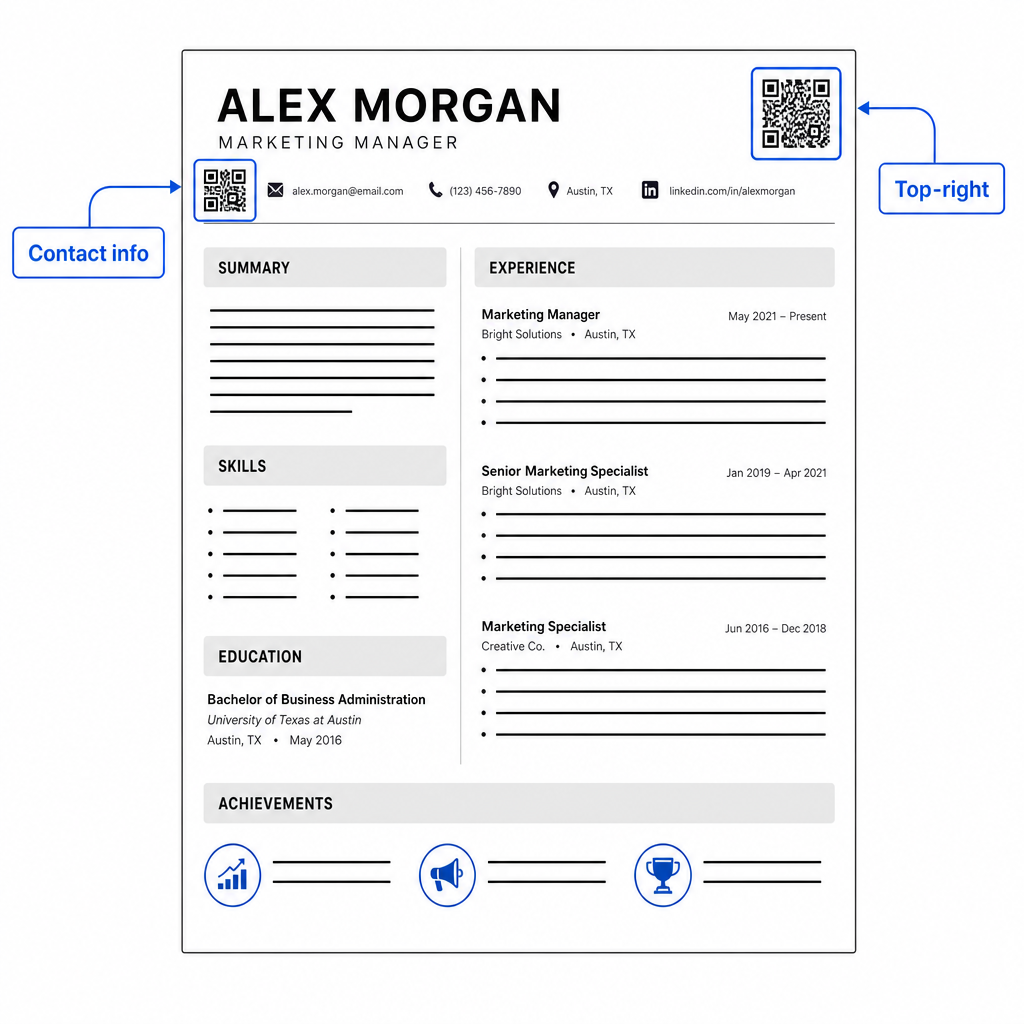
Mantén el código lo suficientemente pequeño para que no sea intrusivo: aproximadamente de 0.8 a 1 pulgada cuadrada se adapta a un currículum estándar. Añade una breve etiqueta de texto debajo, como Escanear para ver portafolio o Escanear para LinkedIn, para que un reclutador sepa de un vistazo a qué lleva el código. Coloca la URL de texto sin formato directamente al lado o debajo del código.
La siguiente tabla compara los enfoques de ubicación comunes:
| UBICACIÓN DEL CÓDIGO | Ventajas | Contras |
|---|---|---|
| Cerca de la información de contacto en la parte superior | Ubicación natural, vista inmediatamente | Necesita permanecer pequeño para evitar aglomeraciones |
| Esquina superior derecha | Limpio, no intrusivo | Puede pasarse por alto si el reclutador lee de izquierda a derecha |
| Pie de página del currículum | Mantiene el contenido principal limpio | Puede pasarse por alto o cortarse al imprimir |
| Junto a un rol específico | Vincula contextualmente el portafolio a ese trabajo | Solo tiene sentido para un único elemento vinculado |
Errores comunes que hay que evitar
- Hacer del código QR la única ruta de acceso – Incluye siempre la URL de texto sin formato. Un reclutador que revisa un PDF en pantalla no puede escanear un código QR.
- Vincular a un destino no preparado – Un perfil de LinkedIn sin foto, un resumen escaso o experiencia desactualizada se refleja mal. Solo enlaza cuando el destino esté completo y actualizado.
- Usar un código QR estático cuando tus enlaces puedan cambiar – Si la URL de tu portafolio o la dirección de LinkedIn cambian, un código estático se rompe y se vuelve inútil. Un código dinámico puede actualizarse sin reimprimir nada.
- Saltarse la prueba – Escanea siempre tu código final desde una copia impresa – no solo desde tu pantalla – antes de enviar o entregar tu currículum.
- Contraste deficiente o una zona tranquila abarrotada – Ambos harán que el código falle en algunos dispositivos. Sigue las pautas de tamaño y contraste anteriores y deja espacio libre alrededor del código por todos los lados.
- Usar una imagen de baja resolución – Un código QR pixelado en un currículum impreso se ve poco profesional y puede que no escanee. Exporta en SVG o EPS, o con un mínimo de 300 DPI PNG.
Abordar el escepticismo del reclutador
No todos los reclutadores escanearán un código QR. Algunos pueden no estar familiarizados con el hábito, ser cautelosos con enlaces desconocidos o simplemente revisar currículums en un escritorio donde el escaneo es poco práctico. Esta no es una razón para evitar los códigos QR por completo, pero sí es una razón para tratarlos como un suplemento, no como un reemplazo, para los enlaces de texto sin formato.
Etiqueta tu código claramente y mantén la URL visible en texto. Un reclutador que no escanee seguirá viendo la URL y podrá escribirla o hacer clic en ella. Un reclutador que revise tu currículum en persona tiene la opción de escanear inmediatamente. El objetivo es dar a cada lector el camino más fácil posible a tu trabajo, independientemente de cómo estén leyendo tu currículum.
Haz tu currículum más interactivo Añade un código QR profesional a tu currículum que enlace directamente a tu portafolio, perfil de LinkedIn o currículum digital. Empieza con el Generador de códigos QR – gratis para crear, con opciones para rastrear escaneos y actualizar tu destino en cualquier momento.
Añadir un código QR a tu currículum es un pequeño cambio que puede causar una impresión significativa, especialmente cuando entregas tu currículum a alguien en persona. La clave es la preparación: asegúrate de que tu destino esté pulido, tu código cumpla con los estándares básicos de diseño y siempre incluyas una URL de texto sin formato legible junto a él. Usa un código dinámico para que puedas actualizar el destino sin reimprimir, y prueba todo en una copia física antes de tu próxima entrevista o feria de empleo.
Preguntas frecuentes
No – Las plataformas ATS tratan los códigos QR como imágenes y los omiten durante el análisis de texto, por lo tanto, el código en sí no afecta negativamente tu puntuación ATS. Sin embargo, para asegurar que tu portafolio o URL de LinkedIn también sea legible por máquina, incluye siempre la versión de texto plano del enlace junto al código QR.
El mejor destino depende de tu campo. Un sitio de portafolio o un portafolio PDF funciona bien para roles creativos y técnicos. Un perfil de LinkedIn se adapta a la mayoría de las industrias. Un código QR de vCard es útil si tu objetivo principal es facilitar que los reclutadores guarden tus datos de contacto. A lo que sea que enlaces, asegúrate de que esté completo, actualizado y optimizado antes de imprimir.
Un código QR estático codifica tu URL de destino directamente en el patrón del código – si la URL cambia, el código se rompe y necesitas reimprimir. Un código QR dinámico codifica una URL de redirección corta que puedes actualizar en cualquier momento sin cambiar el código impreso. Para un currículum que puedes entregar durante varios meses, un código dinámico es la opción más segura y flexible.