> 산업 > QR Codes for Resumes: How to Add One and Make It Work
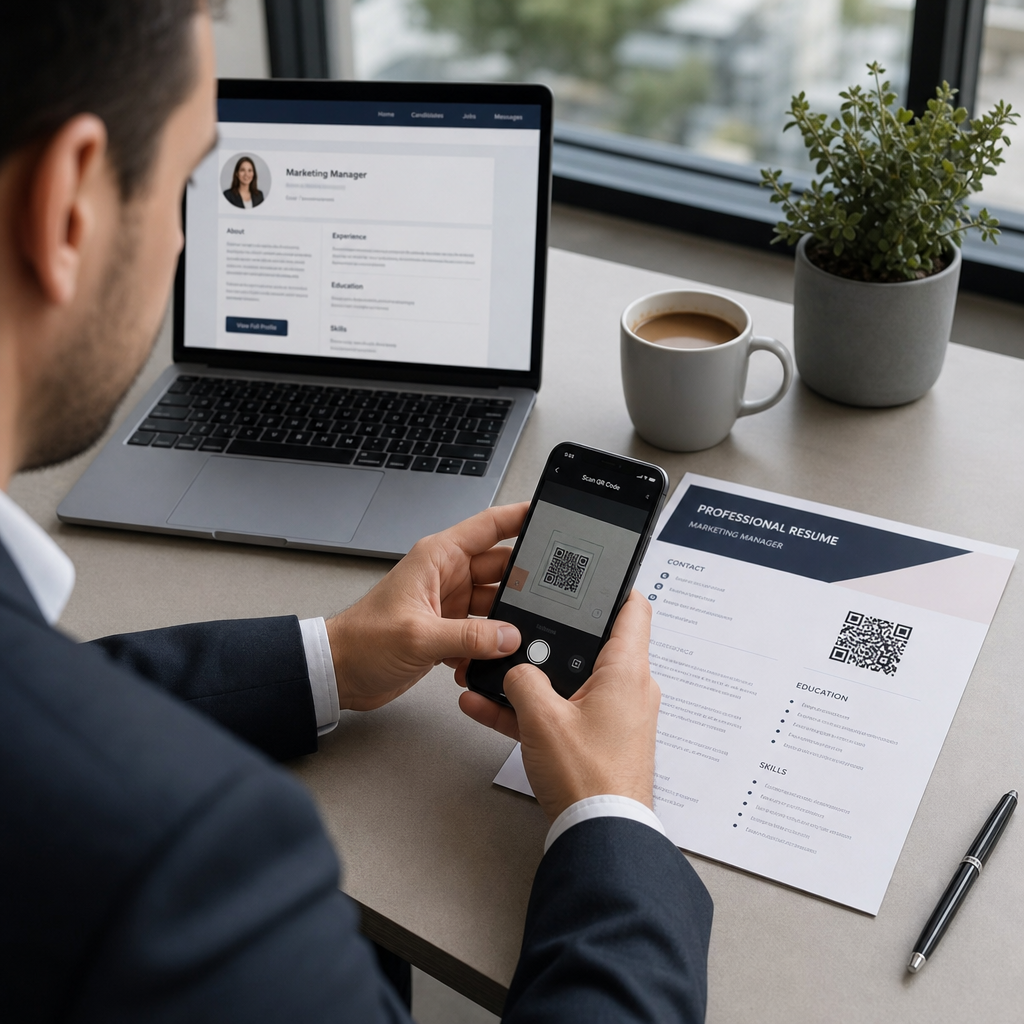
Recruiter scans resume

QR Codes for Resumes: How to Add One and Make It Work

Learn how to add a QR code to your resume to link to your portfolio or LinkedIn. This guide explains professional placement, size, and ATS best practices.
Updated on 7월 2, 2026
목차

Are you struggling to get recruiters to notice your portfolio or LinkedIn profile? A QR code on your resume bridges the gap between a printed page and your full digital presence – this guide explains how to create one, where to place it, and how to avoid the mistakes that make it look unprofessional.

What a Resume QR Code Actually Does

A QR code is a scannable image that encodes a URL or other data. When a recruiter points their phone camera at it, it opens your portfolio, LinkedIn profile, or digital resume directly in their browser – no typing required.

On a resume, this solves a real problem: recruiters reading a printed copy have no easy way to click your links. A QR code turns a static page into an interactive one without adding clutter. The types of destinations you can link to include:

  • LinkedIn profile – lets recruiters review your full work history, recommendations, and activity
  • Online portfolio – shows project work, case studies, or creative samples
  • PDF resume – gives access to an expanded or formatted version of your resume
  • Digital contact card (vCard) – lets recruiters save your contact details directly to their phone

When Adding a QR Code Makes Sense

A QR code adds value in specific situations. It works best when your resume will be printed and handed to someone in person – at interviews, career fairs, or networking events – and when you have a portfolio, personal site, or LinkedIn profile worth visiting. It is particularly effective in fields where showing work matters: design, development, writing, marketing, or any creative discipline where a recruiter benefits from seeing samples beyond what fits on a page.

It adds less value when your resume will only be submitted through an online application portal. In those cases, recruiters rarely print resumes, so the QR code goes unscanned. Think of it as a feature for the in-person experience, not a substitute for the plain-text links that work everywhere.

How ATS Systems Handle QR Codes

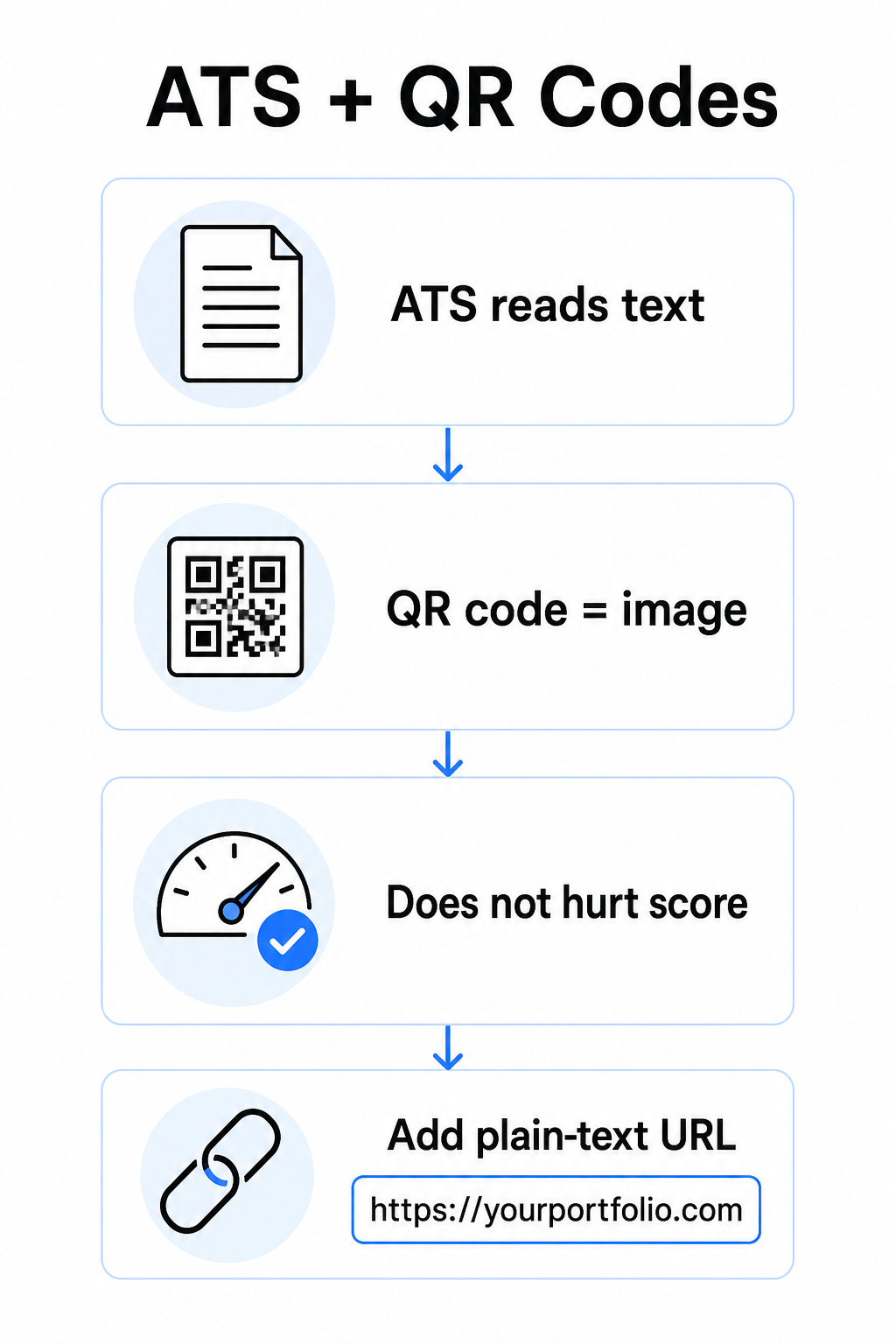
Before adding a QR code, you need to understand how applicant tracking systems work. ATS platforms read text and largely ignore image elements – a QR code is treated as a non-text graphic and is simply skipped during parsing. This means the code itself will not hurt your ATS score, but it also will not help it. What matters for ATS is the text on your resume.

ATS and QR codes

Always include a plain-text URL alongside your QR code. Write out the full link in readable text (for example, `linkedin.com/in/yourname`) so the destination remains accessible to both ATS software and any recruiter reviewing a digital copy who cannot scan an image.

Keep your overall resume format simple. Complex layouts, text boxes, multiple columns, and heavy graphics can confuse ATS parsers – so your QR code should sit neatly within a clean, standard layout rather than dominating the design.

Create a QR Code for Your Resume Ready to link your portfolio or LinkedIn profile with a scannable code? Use the QR 코드 생성기 to create a customized, professional QR code in minutes – no design experience needed.

Preparing Your Destination Before You Generate

The QR code is only as strong as what it links to. Before you create one, make sure the destination is ready for a recruiter’s eyes.

LinkedIn 프로필

Start by creating a custom LinkedIn URL – something like `linkedin.com/in/firstname-lastname` – so the link looks clean rather than a string of random characters. Add a professional profile photo, which increases credibility and profile views. Write a clear, keyword-relevant headline and summary using familiar job titles and measurable achievements drawn from your target roles. Then update your work history, education, and any media samples that showcase your work before sharing the link anywhere.

You can learn more about how to find and use your LinkedIn QR code and generate a custom one with the LinkedIn QR 코드 생성기.

Portfolio Site

Curate 4–6 projects that are directly relevant to the roles you are applying for, and include measurable outcomes for each – results, impact, and what you specifically contributed. Write descriptions in plain English and check thoroughly for spelling and grammar. Test the site on both mobile and desktop to confirm fast loading and clean formatting, and use a short, professional URL with a custom slug. Avoid links that look like a string of numbers and hyphens, which can appear spammy or untrustworthy to recruiters.

PDF Resume

If you want to link to a longer or more visually formatted version of your resume, a PDF QR code is a straightforward option. Use the PDF QR 코드 생성기 to upload your document and generate a scannable link directly to it.

Contact Card (vCard)

A vCard QR code encodes your contact details – name, phone, email, and website – directly into the code. When someone scans it, they can save you to their contacts instantly without typing a single character. This works especially well in the contact section of a resume or on a business card you hand out at interviews. The vCard QR 코드 생성기 makes creating one straightforward, and you can read more about how to create a QR code for contact info to get the most out of this format.

How to Create Your Resume QR Code

Once your destination is ready, generating the QR code takes only a few steps.

First, choose the right generator for your destination. Use the LinkedIn QR 코드 생성기 for a profile link, the PDF QR 코드 생성기 for a document, the vCard QR 코드 생성기 for contact details, or the 링크 QR 코드 생성기 for any other URL. Then paste in your destination URL or upload your file.

At this stage, consider whether to use a 동적 QR 코드. Dynamic codes store a short redirect URL inside the code rather than encoding the full destination directly. This means you can update where the code points – even after printing – without changing the code itself. If your portfolio URL changes or you update your LinkedIn address, a dynamic code saves you from reprinting your resume.

Next, customize the design. Adjust colors to match your resume’s palette, keeping the foreground dark and the background light. Black on white remains the most reliable combination for scanners. Avoid gradients, shadows, or reversed designs (light code on dark background), as these can cause scan failures on some devices.

When you are ready to download, export as SVG or EPS for the sharpest result. These vector formats scale without losing quality, preventing the blurriness that causes scan failures on printed materials. Finally, test the code on multiple devices and in different lighting conditions before adding it to your resume. Confirm the destination loads correctly and quickly on both Wi-Fi and cellular connections.

Link Any URL to a Scannable Code Whether your destination is a portfolio, personal site, or any other web page, the 링크 QR 코드 생성기 lets you create a customized, trackable code in seconds.

QR Code Design Standards for Resumes

A QR code on a resume needs to look intentional, not dropped in as an afterthought. The following technical guidelines ensure it scans reliably and fits the page cleanly.

크기

The minimum recommended size for a QR code in a close-range scanning context – such as a resume held at arm’s length – is 0.8 x 0.8인치 (2 x 2 cm). Going smaller risks scan failures; anything around 0.4 x 0.4 inches (1 x 1 cm) is too small for consistent use. The guidelines for QR code sizes on business cards apply equally to resumes and are worth reviewing before you finalize your layout.

색상 대비

Scanners work by detecting the contrast between dark and light modules. Aim for a contrast ratio of at least 4.5:1 for small QR codes, in line with accessibility guidelines. Black on white achieves a ratio of 21:1 and is the safest choice. Avoid light gray on white, yellow on white, or any pairing where the code blends into the page background. The full QR 코드 색상 대비 모범 사례 guide provides detailed pairing recommendations and contrast ratio examples.

조용한 영역

The quiet zone is the blank border surrounding the QR code. According to ISO/IEC 18004, it must be at least four modules wide on all sides – that is, four times the width of one small square in the code’s grid. Never place text, lines, or other design elements inside this margin. A missing or crowded quiet zone is one of the most common reasons a QR code fails to scan, and it is easy to accidentally violate when fitting a code into a tight resume layout.

해상도

Export your QR code at a minimum of 300 DPI for print. Better still, use a vector format (SVG or EPS) so the code scales cleanly regardless of print size, with no pixelation. The QR 코드 가독성을 위한 모범 사례 covers resolution, quiet zones, and contrast in one place if you want a comprehensive reference.

Where to Place the QR Code on Your Resume

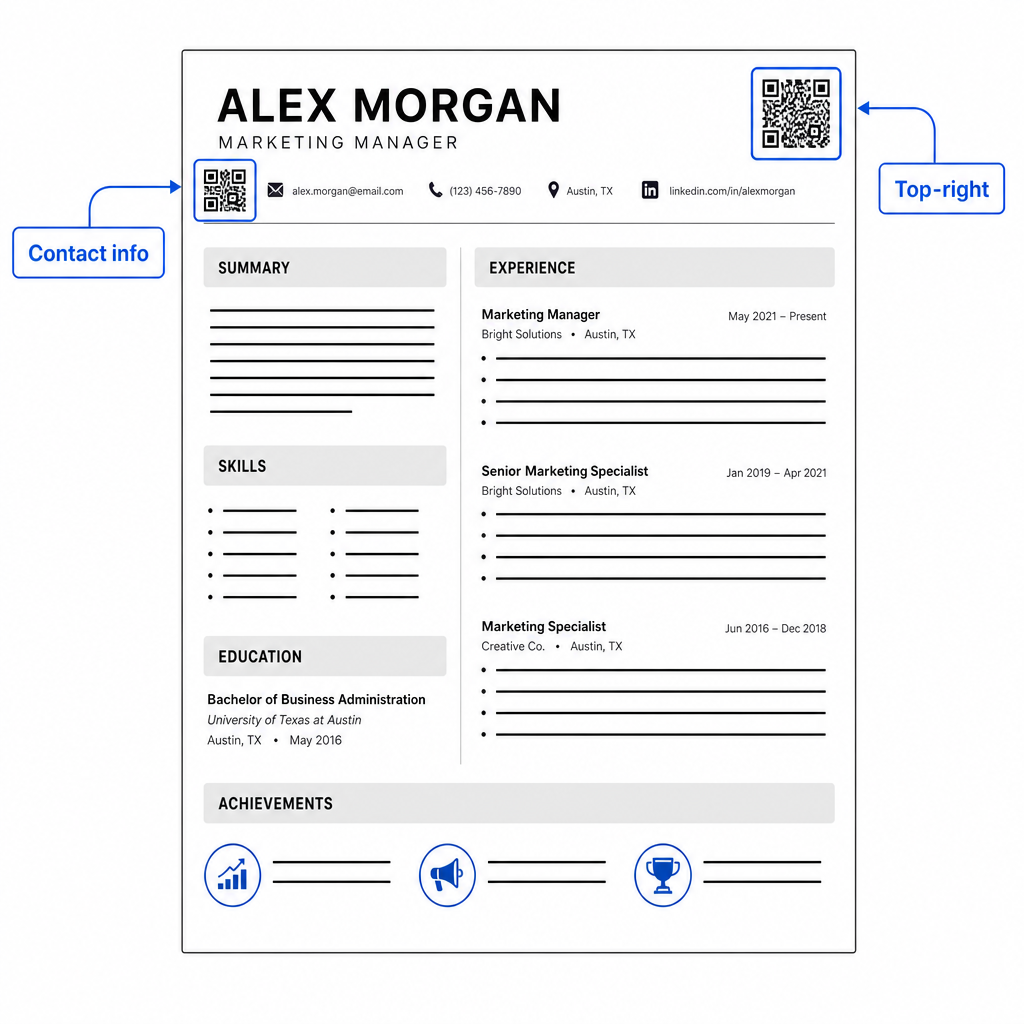
Placement signals professionalism. A QR code dropped randomly into the middle of your experience section looks like an accident. The two most effective positions are near your contact information at the top of the page – where recruiters look first for ways to reach you – or in the top-right corner, which keeps the code visible without competing with the resume’s main text.

Resume QR placement

Keep the code small enough to stay unobtrusive: approximately 0.8 to 1 inch square suits a standard resume. Add a brief text label beneath it, such as Scan to view portfolio 또는 Scan for LinkedIn, so a recruiter knows at a glance what the code leads to. Place the plain-text URL directly alongside or below the code.

The table below compares common placement approaches:

Placement 장점 단점
Near contact info at top Natural location, seen immediately Needs to stay small to avoid crowding
Top-right corner Clean, non-intrusive May be missed if recruiter reads left to right
Resume footer Keeps main content clean May be overlooked or cut off when printing
Beside a specific role Contextually links portfolio to that job Only makes sense for a single linked item

피해야 할 일반적인 실수

  • Making the QR code the only access route – Always include the plain-text URL. A recruiter reviewing a PDF on screen cannot scan a QR code.
  • Linking to an unprepared destination – A LinkedIn profile with no photo, a sparse summary, or outdated experience reflects poorly. Only link when the destination is complete and current.
  • Using a static QR code when your links might change – If your portfolio URL or LinkedIn address changes, a static code becomes broken and useless. A dynamic code can be updated without reprinting anything.
  • Skipping the test – Always scan your final code from a printed copy – not just from your screen – before submitting or handing out your resume.
  • Poor contrast or a crowded quiet zone – Both will cause the code to fail on some devices. Follow the size and contrast guidelines above and leave clear space around the code on all sides.
  • Using a low-resolution image – A pixelated QR code on a printed resume looks unprofessional and may not scan. Export in SVG or EPS, or at minimum 300 DPI PNG.

Addressing Recruiter Skepticism

Not every recruiter will scan a QR code. Some may be unfamiliar with the habit, cautious about unknown links, or simply reviewing resumes on a desktop where scanning is impractical. This is not a reason to avoid QR codes entirely – but it is a reason to treat them as a supplement, not a replacement, for plain-text links.

Label your code clearly and keep the URL visible in text. A recruiter who does not scan will still see the URL and can type or click it. A recruiter reviewing your resume in person has the option to scan immediately. The goal is to give every reader the easiest possible path to your work, regardless of how they are reading your resume.

Make Your Resume More Interactive Add a professional QR code to your resume that links directly to your portfolio, LinkedIn profile, or digital resume. Get started with the QR 코드 생성기 – free to create, with options to track scans and update your destination anytime.

Adding a QR code to your resume is a small change that can make a meaningful impression – particularly when you hand your resume to someone in person. The key is preparation: make sure your destination is polished, your code meets basic design standards, and you always include a readable plain-text URL alongside it. Use a dynamic code so you can update the destination without reprinting, and test everything on a physical printout before your next interview or career fair.

자주 묻는 질문

Will a QR code on my resume hurt my chances with applicant tracking systems?

No – ATS platforms treat QR codes as images and skip them during text parsing, so the code itself does not negatively affect your ATS score. However, to ensure your portfolio or LinkedIn URL is also machine-readable, always include the plain-text version of the link alongside the QR code.

What should my resume QR code link to?

The best destination depends on your field. A portfolio site or PDF portfolio works well for creative and technical roles. A LinkedIn profile suits most industries. A vCard QR code is useful if your primary goal is making it easy for recruiters to save your contact details. Whatever you link to, make sure it is complete, current, and optimized before printing.

What is the difference between a static and dynamic QR code for a resume?

A static QR code encodes your destination URL directly into the code pattern – if the URL changes, the code becomes broken and you need to reprint. A dynamic QR code encodes a short redirect URL that you can update anytime without changing the printed code. For a resume you may hand out over several months, a dynamic code is the safer and more flexible choice.

작성자 정보

시임 코스타비는 페이지루트의 콘텐츠 책임자입니다. 그는 페이지루트의 혁신적인 QR 코드 생성 서비스에 대한 글을 쓰고 있습니다. 5년 이상 QR 코드 분야에서 쌓아온 깊이 있는 전문 지식을 바탕으로, 시임은 이 분야의 전문가로 인정받고 있습니다. 그는 QR 기술을 활용하여 디지털 상호작용을 간소화하고 향상시키는 데 크게 기여하고 있습니다.

범주
에 대해 자세히 알아보기
쇼핑객이 QR 코드를 스캔한다
QR 코드 소매상
브랜드 QR 코드 스캔
어떻게 이미지 삽입

온라인으로 QR 코드를 생성해야하는 경우 QR 코드 만들기 무료로 여기!
Pageloot는 #1 Go-To 솔루션 QR 코드를 만들고 스캔합니다.

BL-0275

블로그 세대

20,000개 이상의 브랜드로부터 신뢰를 받아 더 많은 매출, 리뷰, 팔로워를 확보했습니다.

클라이언트 로고
최고 브랜드의 신뢰
5 중 4.8 평가

4.86 / 5 별점

휴고 로랑
휴고 로랑
레스토랑 주인
가장 쉽고 안정적인 QR 코드 생성기. PDF 파일을 즉시 업로드할 수 있습니다. 이제 레스토랑 메뉴가 디지털화되었습니다.
루카스 얀센
루카스 얀센
부동산 개발사
이것은 훌륭한 도구이며 QR 코드를 사용하면 원하는 곳으로 이동할 수 있습니다. 우리는 위치 QR 코드만 사용하지만 유용한 기능이 너무 많습니다.
엠마 모레티
엠마 모레티
소매 제품
사용하기 쉽고 빠릅니다. 그것은 훌륭하게 작동하고 완벽한 이미지를 생성하므로 직원들이 내 vCard를 다운로드할 수 있습니다.
휴고 로랑
휴고 로랑
레스토랑 주인
가장 쉽고 안정적인 QR 코드 생성기. PDF 파일을 즉시 업로드할 수 있습니다. 이제 레스토랑 메뉴가 디지털화되었습니다.
루카스 얀센
루카스 얀센
부동산 개발사
이것은 훌륭한 도구이며 QR 코드를 사용하면 원하는 곳으로 이동할 수 있습니다. 우리는 위치 QR 코드만 사용하지만 유용한 기능이 너무 많습니다.
엠마 모레티
엠마 모레티
소매 제품
사용하기 쉽고 빠릅니다. 그것은 훌륭하게 작동하고 완벽한 이미지를 생성하므로 직원들이 내 vCard를 다운로드할 수 있습니다.
더 많은 QR 코드보기
무엇이든 디지털 경험으로 전환하세요 3분 이내에.

14일 무료 체험.

신용카드는 필요 없습니다.

첫 구매 시 30% 할인

코드를 사용하세요:

MP3 파일 공유

PDF QR 코드를 생성하려면 가입하세요

필요한 모든 것을 업로드하고 표시합니다.

  • 오디오 파일
  • 팟캐스트
  • 음악

가입 시 14일 무료 체험.
체험 기간 후 QR 코드 만료.

오디오 mp3 QR 코드를 생성하려면 가입하세요

프레임으로 더 많은 스캔 확보

QR 코드에 더 많은 프레임을 추가하려면 가입하세요

클릭 유도 문안 프레임은 고객이 QR 코드와 쉽게 상호 작용할 수 있도록 도와줍니다. 사용해 보세요!

가입 시 14일 무료 체험.
체험 기간 후 QR 코드 만료.

QR 코드에 더 많은 프레임을 추가하려면 가입하세요

도형으로 더 많은 스타일 추가

더 많은 도형을 만들려면 가입하세요

QR 코드는 정사각형일 필요가 없습니다. 브랜드 이미지에 맞게 전환해 보세요.

가입 시 14일 무료 체험.
체험 기간 후 QR 코드 만료.

더 많은 도형을 만들려면 가입하세요

QR 코드에 로고 추가

QR 코드에 로고를 추가하려면 가입하세요

로고와 브랜드를 추가하여 QR 코드를 돋보이게 만드세요.

가입 시 14일 무료 체험.
체험 기간 후 QR 코드 만료.

QR 코드에 로고를 추가하려면 가입하세요

스마트 앱 스토어 리디렉션

앱 스토어 QR 코드를 생성하려면 가입하세요

스마트 앱 스토어 QR 코드에 앱 링크를 추가하세요. 사용자는 장치에 따라 리디렉션됩니다.

가입 시 14일 무료 체험.
체험 기간 후 QR 코드 만료.

앱 스토어 QR 코드를 생성하려면 가입하세요

QR 코드에 이미지 업로드

이미지 QR 코드를 생성하려면 가입하세요

이미지를 쉽게 공유하세요. 몇 초 안에 동적으로 이미지를 변경하십시오.

가입 시 14일 무료 체험.
체험 기간 후 QR 코드 만료.

이미지 QR 코드를 생성하려면 가입하세요

PDF 파일 공유

PDF QR 코드를 생성하려면 가입하세요

필요한 모든 것을 업로드하고 표시합니다.

  • 메뉴 및 가격표
  • 명령
  • 모든 문서

가입 시 14일 무료 체험.
체험 기간 후 QR 코드 만료.

PDF QR 코드를 생성하려면 가입하세요

인쇄 없이 나중에 편집

다시 인쇄하지 않고 QR 코드를 편집하려면 가입하세요

동적 QR 코드를 사용하면 새 QR 코드를 인쇄하지 않고도 QR 코드의 내용을 변경할 수 있습니다.

가입 시 14일 무료 체험.
체험 기간 후 QR 코드 만료.

다시 인쇄하지 않고 QR 코드를 편집하려면 가입하세요

언제? 어디서? QR 코드 스캔 추적

QR 코드를 추적하려면 가입하세요

어떤 QR 코드가 가장 많이 스캔되고 무엇이 고객을 가장 흥분시키는지 알아보십시오.

가입 시 14일 무료 체험.
체험 기간 후 QR 코드 만료.

QR 코드를 추적하려면 가입하세요

인쇄 준비 파일 제공

PDF 및 SVG와 같은 벡터 QR 코드를 생성하려면 가입하세요.

.EPS, .PDF, .SVG

HD 해상도로 QR 코드를 다운로드하고 싶으신가요? 인쇄할 준비가 된 벡터 또는 픽셀 형식을 가져옵니다.

가입 시 14일 무료 체험.
체험 기간 후 QR 코드 만료.

PDF 및 SVG와 같은 벡터 QR 코드를 생성하려면 가입하세요.

기다리세요. 귀하의 QR 코드는 로드 중... 로드 중...

나만의 것으로 만들기

나중을 위해 QR 코드를 저장하려면 가입하세요.

다양한 색상, 로고 및 클릭 유도문안 프레임으로 멋진 QR 코드를 만들어 더 많은 스캔을 받으세요.

가입 시 14일 무료 체험.
체험 기간 후 QR 코드 만료.

나중을 위해 QR 코드를 저장하려면 가입하세요.