Te chinui să faci recrutorii să observe portofoliul tău sau profilul tău de LinkedIn? Un cod QR pe CV-ul tău face legătura între o pagină tipărită și prezența ta digitală completă – acest ghid explică cum să creezi unul, unde să-l plasezi și cum să eviți greșelile care îl fac să pară neprofesionist.
Ce face de fapt un cod QR pe un CV
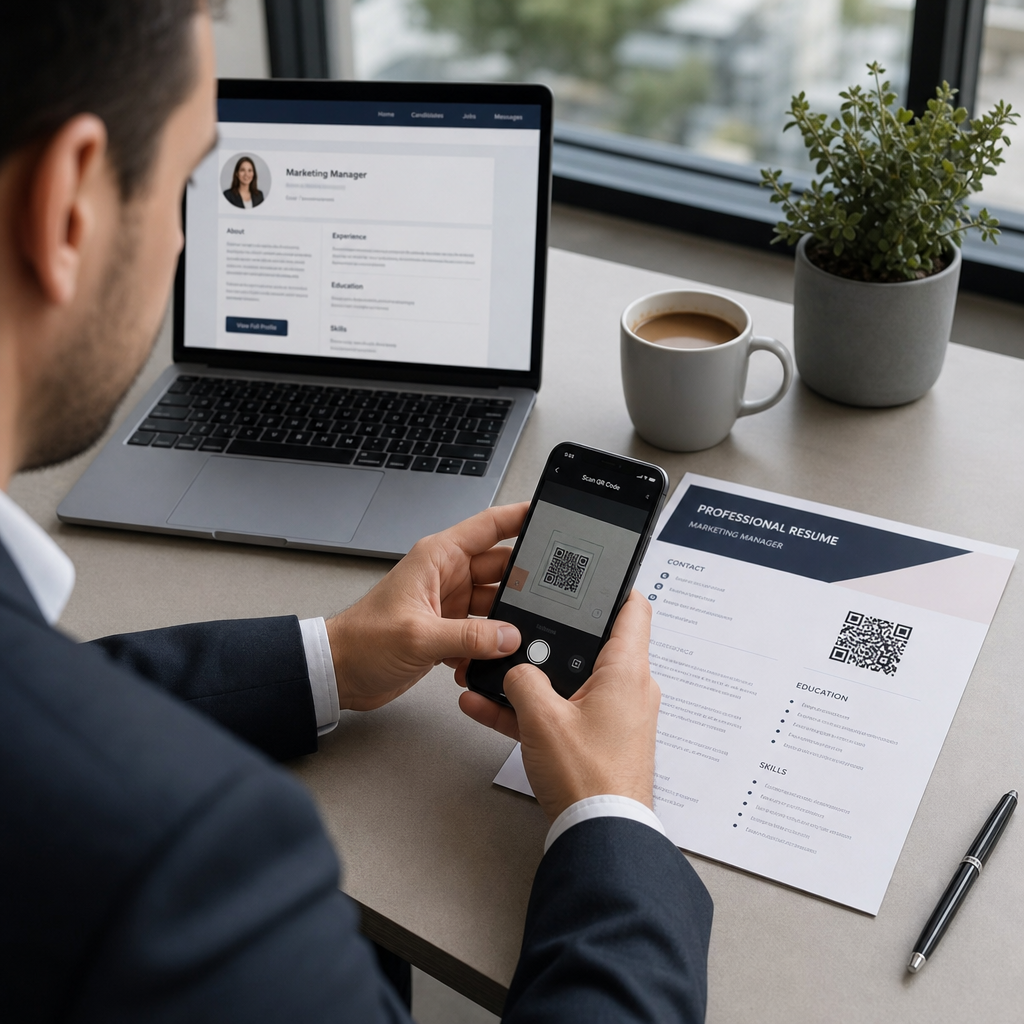
Un cod QR este o imagine scanabilă care codifică o adresă URL sau alte date. Când un recrutor își îndreaptă camera telefonului către el, îți deschide portofoliul, profilul de LinkedIn sau CV-ul digital direct în browserul lor – nu este necesară tastarea.
Pe un CV, acest lucru rezolvă o problemă reală: recrutorii care citesc o copie tipărită nu au o modalitate ușoară de a da click pe linkurile tale. Un cod QR transformă o pagină statică într-una interactivă fără a adăuga dezordine. Tipurile de destinații către care poți face legătura includ:
- profilul tău de LinkedIn – permite recrutorilor să-ți revizuiască istoricul complet de muncă, recomandările și activitatea
- Portofoliu online – prezintă proiecte, studii de caz sau mostre creative
- CV în format PDF – oferă acces la o versiune extinsă sau formatată a CV-ului tău
- Carte de vizită digitală (vCard) – permite recrutorilor să-și salveze detaliile de contact direct în telefonul lor
Când are sens să adaugi un cod QR
Un cod QR adaugă valoare în situații specifice. Funcționează cel mai bine atunci când CV-ul tău va fi tipărit și înmânat cuiva personal – la interviuri, târguri de carieră sau evenimente de networking – și când ai un portofoliu, un site personal sau un profil de LinkedIn care merită vizitat. Este deosebit de eficient în domenii în care prezentarea muncii contează: design, dezvoltare, scriere, marketing sau orice disciplină creativă în care un recrutor beneficiază de pe urma vizualizării unor mostre dincolo de ceea ce încape pe o pagină.
Adaugă mai puțină valoare atunci când CV-ul tău va fi trimis doar printr-un portal de aplicații online. În aceste cazuri, recrutorii rareori tipăresc CV-uri, așa că codul QR rămâne nescanat. Gândește-te la el ca la o funcționalitate pentru experiența în persoană, nu ca la un substitut pentru linkurile în text simplu care funcționează peste tot.
Cum gestionează sistemele ATS codurile QR
Înainte de a adăuga un cod QR, trebuie să înțelegeți cum funcționează sistemele de urmărire a candidaților (ATS). Platformele ATS citesc textul și ignoră în mare parte elementele de imagine – un cod QR este tratat ca o grafică non-text și este pur și simplu omis în timpul parsării. Aceasta înseamnă că codul în sine nu vă va afecta scorul ATS, dar nici nu vă va ajuta. Ceea ce contează pentru ATS este textul din CV-ul dumneavoastră.
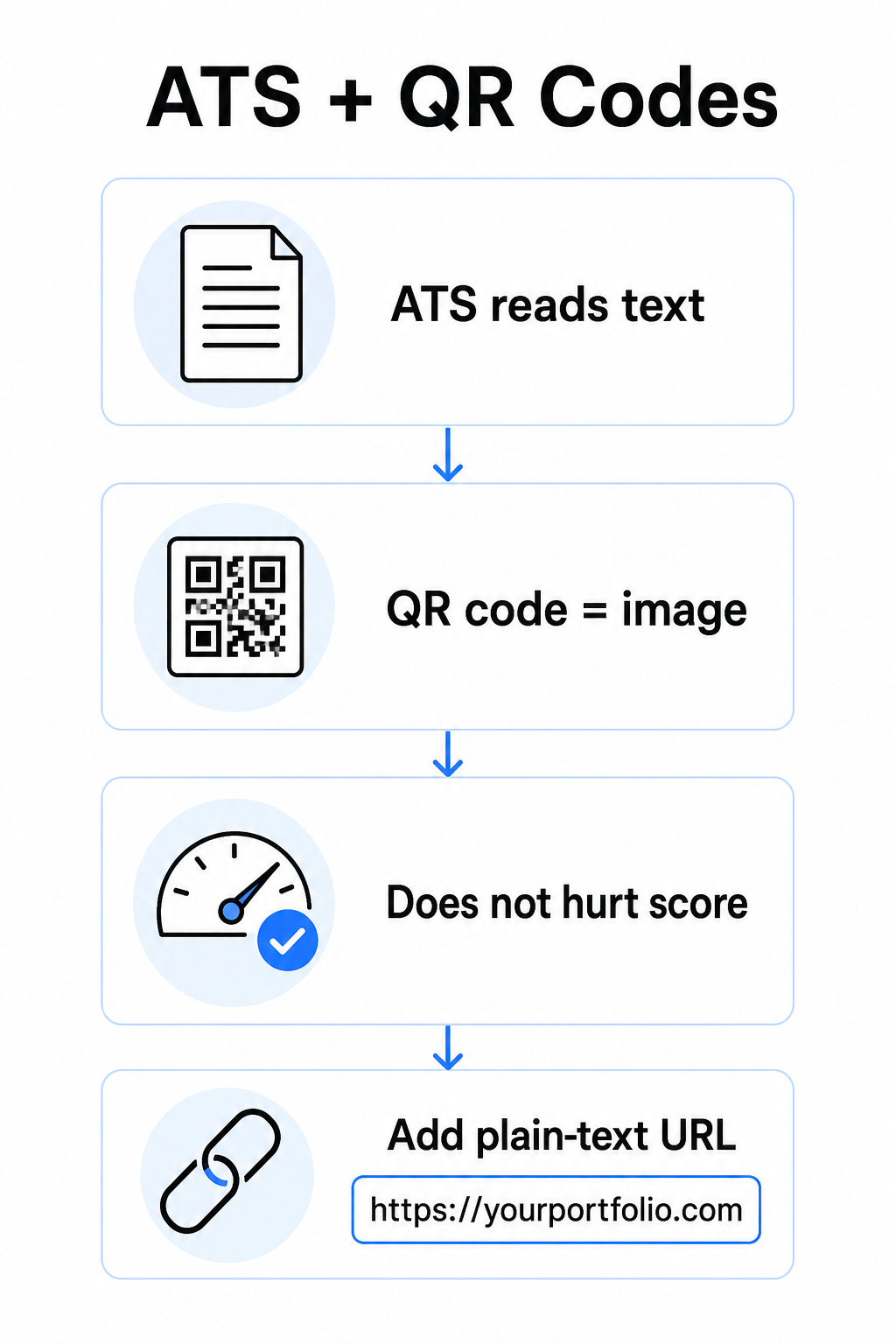
Includeți întotdeauna o adresă URL în format text simplu alături de codul dumneavoastră QR. Scrieți linkul complet în text lizibil (de exemplu, `linkedin.com/in/numelevostru`) astfel încât destinația să rămână accesibilă atât software-ului ATS, cât și oricărui recrutor care examinează o copie digitală și nu poate scana o imagine.
Păstrați formatul general al CV-ului simplu. Layout-urile complexe, casetele de text, coloanele multiple și grafica încărcată pot confuza analizoarele ATS – așa că codul dumneavoastră QR ar trebui să se încadreze frumos într-un layout curat, standard, mai degrabă decât să domine designul.
Creați un cod QR pentru CV-ul dumneavoastră Sunteți gata să vă conectați portofoliul sau profilul LinkedIn cu un cod scanabil? Utilizați Generator de coduri QR pentru a crea un cod QR personalizat, profesional, în câteva minute – nu este necesară experiență în design.
Pregătirea destinației înainte de a genera
Codul QR este la fel de puternic precum ceea ce leagă. Înainte de a crea unul, asigurați-vă că destinația este pregătită pentru ochii unui recrutor.
Profilul LinkedIn
Începeți prin a crea o adresă URL personalizată pentru LinkedIn – ceva de genul `linkedin.com/in/prenume-nume` – astfel încât linkul să arate curat, mai degrabă decât un șir de caractere aleatorii. Adăugați o fotografie de profil profesională, care crește credibilitatea și vizualizările profilului. Scrieți un titlu și un rezumat clare, relevante pentru cuvintele cheie, folosind titluri de posturi familiare și realizări măsurabile extrase din rolurile vizate. Apoi actualizați istoricul muncii, educația și orice mostre media care vă prezintă munca înainte de a partaja linkul oriunde.
Puteți afla mai multe despre cum să găsiți și să utilizați codul QR LinkedIn și generați unul personalizat cu Generator cod QR LinkedIn.
Site de portofoliu
Selectează 4–6 proiecte care sunt direct relevante pentru rolurile pentru care aplici și include rezultate măsurabile pentru fiecare – rezultate, impact și ce ai contribuit tu în mod specific. Scrie descrierile într-o engleză simplă și verifică temeinic ortografia și gramatica. Testează site-ul atât pe mobil, cât și pe desktop pentru a confirma încărcarea rapidă și formatarea curată și utilizează o adresă URL scurtă, profesională, cu un slug personalizat. Evită linkurile care arată ca un șir de numere și cratime, care pot părea spam sau nedemne de încredere pentru recrutori.
CV PDF
Dacă vrei să faci legătura către o versiune mai lungă sau mai formatată vizual a CV-ului tău, un cod QR PDF este o opțiune simplă. Folosește Generator cod QR PDF pentru a încărca documentul dvs. și a genera un link scanabil direct către acesta.
Carte de Contact (vCard)
Un cod QR vCard codifică detaliile dvs. de contact – nume, telefon, e-mail și site web – direct în cod. Când cineva îl scanează, vă poate salva în contactele sale instantaneu fără a tasta un singur caracter. Acest lucru funcționează deosebit de bine în secțiunea de contact a unui CV sau pe o carte de vizită pe care o distribuiți la interviuri. Cel Creare vCard cu cod QR face crearea unuia simplă, și puteți citi mai multe despre cum să creați un cod QR pentru informații de contact pentru a profita la maximum de acest format.
Cum să creați Codul QR al CV-ului dvs.
Odată ce destinația dvs. este gata, generarea codului QR durează doar câțiva pași.
Mai întâi, alegeți generatorul potrivit pentru destinația dvs. Utilizați Generator cod QR LinkedIn pentru un link de profil, cel Generator cod QR PDF pentru un document, cel Creare vCard cu cod QR pentru detalii de contact, sau cel Generator de coduri QR pentru linkuri pentru orice alt URL. Apoi lipiți URL-ul destinației dvs. sau încărcați fișierul dvs.
În această etapă, luați în considerare dacă să utilizați un cod QR dinamic. Codurile dinamice stochează un URL scurt de redirecționare în interiorul codului, mai degrabă decât să codifice destinația completă direct. Acest lucru înseamnă că puteți actualiza unde indică codul – chiar și după imprimare – fără a schimba codul în sine. Dacă URL-ul portofoliului dvs. se schimbă sau actualizați adresa dvs. de LinkedIn, un cod dinamic vă scutește de la reimprimarea CV-ului dvs.
Apoi, personalizați designul. Ajustați culorile pentru a se potrivi cu paleta CV-ului dvs., menținând prim-planul întunecat și fundalul deschis. Negru pe alb rămâne cea mai fiabilă combinație pentru scanere. Evitați gradienții, umbrele sau designurile inversate (cod deschis pe fundal întunecat), deoarece acestea pot cauza eșecuri de scanare pe unele dispozitive.
Când sunteți gata să descărcați, exportați ca SVG sau EPS pentru cel mai clar rezultat. Aceste formate vectoriale se scalează fără a pierde calitatea, prevenind neclaritatea care cauzează eșecuri de scanare pe materialele tipărite. În cele din urmă, testați codul pe mai multe dispozitive și în diferite condiții de iluminare înainte de a-l adăuga la CV-ul dvs. Confirmați că destinația se încarcă corect și rapid atât pe conexiuni Wi-Fi, cât și celulare.
Conectați orice URL la un Cod Scanabil Indiferent dacă destinația dvs. este un portofoliu, un site personal sau orice altă pagină web, cel Generator de coduri QR pentru linkuri vă permite să creați un cod personalizat, urmăribil în câteva secunde.
Standarde de Design pentru Coduri QR pentru CV-uri
Un cod QR pe un CV trebuie să arate intenționat, nu adăugat ca o idee ulterioară. Următoarele ghiduri tehnice asigură că scanează fiabil și se potrivește curat pe pagină.
mărimea
Dimensiunea minimă recomandată pentru un cod QR într-un context de scanare de aproape – cum ar fi un CV ținut la lungimea brațului – este 0.8 x 0.8 inchi (2 x 2 cm). O dimensiune mai mică riscă eșecuri de scanare; orice în jurul a 0.4 x 0.4 inci (1 x 1 cm) este prea mic pentru o utilizare consecventă. Cel Ghid pentru dimensiunile codurilor QR pe cărțile de vizită se aplică în egală măsură CV-urilor și merită revizuite înainte de a finaliza aspectul dvs.
Contrast de culoare
Scanerele funcționează prin detectarea contrastului dintre modulele întunecate și cele deschise. Vizați un raport de contrast de cel puțin 5:1 pentru coduri QR mici, în conformitate cu ghidurile de accesibilitate. Negru pe alb atinge un raport de 21:1 și este cea mai sigură alegere. Evitați gri deschis pe alb, galben pe alb, sau orice combinație în care codul se amestecă cu fundalul paginii. Ghidul complet cele mai bune practici de contrast de culoare pentru codurile QR oferă recomandări detaliate de asociere și exemple de raport de contrast.
Zona de liniste
Zona de liniște este marginea goală care înconjoară codul QR. Conform ISO/IEC 18004, trebuie să fie de cel puțin patru module lățime pe toate laturile – adică, de patru ori lățimea unui pătrat mic din grila codului. Nu plasați niciodată text, linii sau alte elemente de design în interiorul acestei margini. O zonă de liniște lipsă sau aglomerată este unul dintre cele mai comune motive pentru care un cod QR nu reușește să scaneze, și este ușor de încălcat accidental atunci când se potrivește un cod într-un aspect strâns de CV.
Rezoluție
Exportați codul QR al dvs. la un minim de 300 DPI pentru imprimare. Mai bine, utilizați un format vectorial (SVG sau EPS) astfel încât codul să se scaleze curat indiferent de dimensiunea imprimării, fără pixelare. Cel cele mai bune practici pentru lizibilitatea codurilor QR acoperă rezoluția, zonele de liniște și contrastul într-un singur loc dacă doriți o referință cuprinzătoare.
Unde să plasați codul QR pe CV-ul dvs.
Plasarea semnalează profesionalism. Un cod QR plasat la întâmplare în mijlocul secțiunii dvs. de experiență arată ca un accident. Cele două poziții cele mai eficiente sunt lângă informațiile dvs. de contact din partea de sus a paginii – unde recrutorii caută mai întâi modalități de a vă contacta – sau în colțul din dreapta sus, ceea ce menține codul vizibil fără a concura cu textul principal al CV-ului.
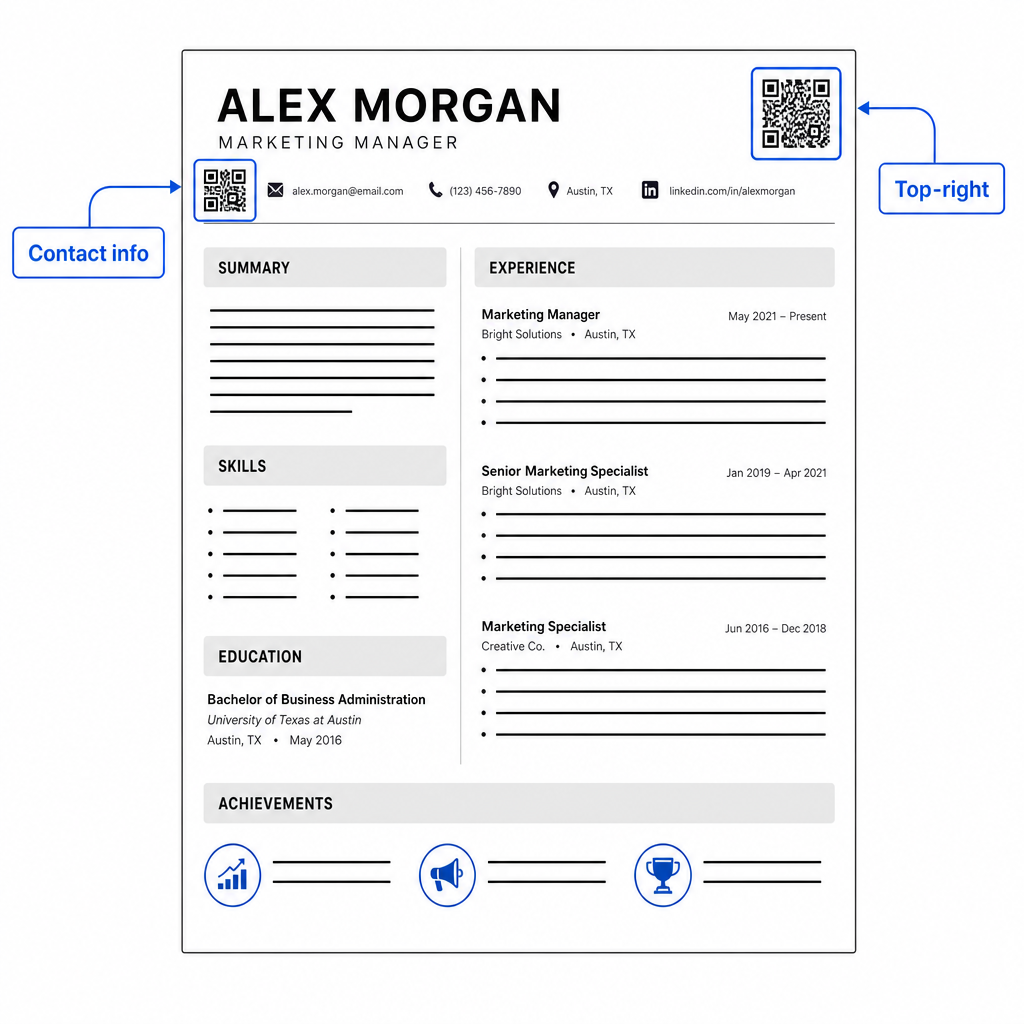
Păstrați codul suficient de mic pentru a rămâne discret: aproximativ 0.8 până la 1 inch pătrat se potrivește unui CV standard. Adăugați o scurtă etichetă text sub el, cum ar fi Scanați pentru a vizualiza portofoliul sau Scanați pentru LinkedIn, astfel încât un recrutor să știe dintr-o privire la ce duce codul. Plasați URL-ul în text simplu direct alături sau sub cod.
Tabelul de mai jos compară abordările comune de plasare:
| POZIȚIE | Pro | Contra |
|---|---|---|
| Lângă informațiile de contact, în partea de sus | Locație naturală, văzută imediat | Trebuie să rămână mic pentru a evita aglomerarea |
| Colțul din dreapta sus | Curat, neintruziv | Poate fi ratat dacă recrutorul citește de la stânga la dreapta |
| Subsolul CV-ului | Păstrează conținutul principal curat | Poate fi trecut cu vederea sau tăiat la imprimare |
| Lângă un rol specific | Leagă contextual portofoliul de acel loc de muncă | Are sens doar pentru un singur element legat |
Greșeli frecvente de evitat
- Transformarea codului QR în singura rută de acces – Includeți întotdeauna URL-ul în text simplu. Un recrutor care examinează un PDF pe ecran nu poate scana un cod QR.
- Legarea la o destinație nepregătită – Un profil LinkedIn fără fotografie, un rezumat sumar sau o experiență depășită reflectă negativ. Legați doar atunci când destinația este completă și actuală.
- Utilizarea unui cod QR static atunci când linkurile dvs. s-ar putea schimba – Dacă URL-ul portofoliului dvs. sau adresa LinkedIn se schimbă, un cod static devine rupt și inutil. Un cod dinamic poate fi actualizat fără a reimprima nimic.
- Omiterea testului – Scanați întotdeauna codul final dintr-o copie tipărită – nu doar de pe ecran – înainte de a trimite sau a distribui CV-ul.
- Contrast slab sau o zonă liniștită aglomerată – Ambele vor face ca codul să eșueze pe unele dispozitive. Urmați ghidurile de dimensiune și contrast de mai sus și lăsați spațiu liber în jurul codului pe toate părțile.
- Utilizarea unei imagini cu rezoluție scăzută – Un cod QR pixelat pe un CV tipărit arată neprofesionist și s-ar putea să nu poată fi scanat. Exportați în SVG sau EPS, sau la minimum 300 DPI PNG.
Abordarea scepticismului recrutorilor
Nu fiecare recrutor va scana un cod QR. Unii ar putea fi nefamiliarizați cu acest obicei, precauți în privința linkurilor necunoscute sau pur și simplu examinează CV-uri pe un desktop unde scanarea este nepractică. Acesta nu este un motiv pentru a evita complet codurile QR – dar este un motiv pentru a le trata ca pe un supliment, nu ca pe un înlocuitor, pentru linkurile în text simplu.
Etichetați-vă codul clar și păstrați URL-ul vizibil în text. Un recrutor care nu scanează va vedea totuși URL-ul și îl poate tasta sau face clic pe el. Un recrutor care examinează CV-ul dvs. în persoană are opțiunea de a scana imediat. Scopul este de a oferi fiecărui cititor cea mai ușoară cale posibilă către munca dvs., indiferent de modul în care citește CV-ul dvs.
Faceți-vă CV-ul mai interactiv Adăugați un cod QR profesional la CV-ul dvs. care se leagă direct la portofoliul dvs., profilul LinkedIn sau CV-ul digital. Începeți cu Generator de coduri QR – gratuit de creat, cu opțiuni de a urmări scanările și de a actualiza destinația oricând.
Adăugarea unui cod QR la CV-ul dvs. este o mică schimbare care poate face o impresie semnificativă – în special atunci când înmânați CV-ul cuiva în persoană. Cheia este pregătirea: asigurați-vă că destinația dvs. este lustruită, codul dvs. îndeplinește standardele de design de bază și includeți întotdeauna un URL lizibil în text simplu alături de acesta. Utilizați un cod dinamic pentru a putea actualiza destinația fără a reimprima, și testați totul pe o imprimare fizică înainte de următorul interviu sau târg de cariere.
Întrebări frecvente
Nu – platformele ATS tratează codurile QR ca imagini și le omit în timpul analizei textului, deci codul în sine nu afectează negativ scorul dvs. ATS. Cu toate acestea, pentru a vă asigura că portofoliul dvs. sau URL-ul de LinkedIn este, de asemenea, lizibil de către mașină, includeți întotdeauna versiunea text simplu a linkului alături de codul QR.
Cea mai bună destinație depinde de domeniul tău. Un site de portofoliu sau un portofoliu PDF funcționează bine pentru roluri creative și tehnice. Un profil LinkedIn se potrivește majorității industriilor. Un cod QR vCard este util dacă scopul tău principal este să le faci ușor recrutorilor să-ți salveze detaliile de contact. Indiferent la ce faci legătura, asigură-te că este complet, actual și optimizat înainte de a imprima.
Un cod QR static codifică adresa ta URL de destinație direct în modelul codului – dacă adresa URL se schimbă, codul devine invalid și trebuie să-l reimprimi. Un cod QR dinamic codifică o adresă URL scurtă de redirecționare pe care o poți actualiza oricând fără a schimba codul imprimat. Pentru un CV pe care îl poți distribui pe parcursul mai multor luni, un cod dinamic este alegerea mai sigură și mai flexibilă.