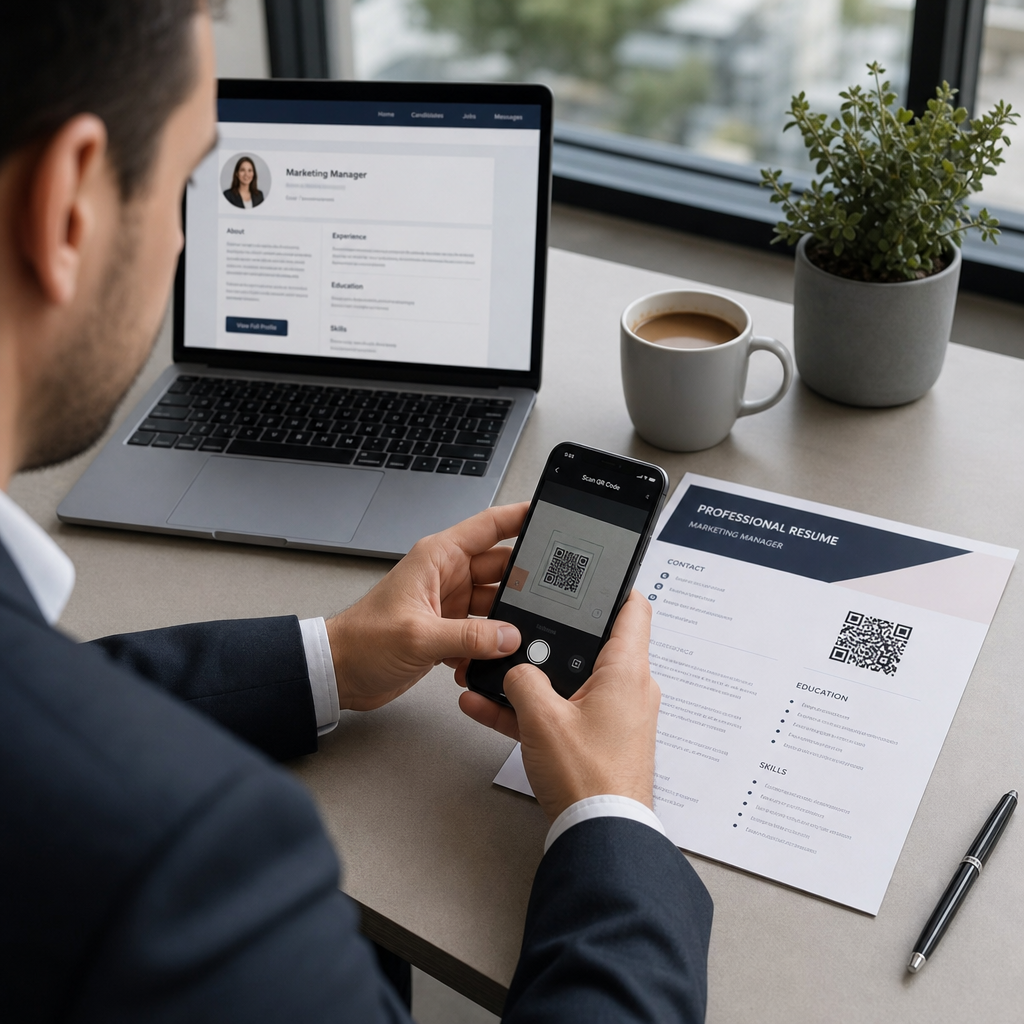
Bạn đang gặp khó khăn trong việc khiến nhà tuyển dụng chú ý đến hồ sơ năng lực hoặc hồ sơ LinkedIn của mình? Mã QR trên sơ yếu lý lịch của bạn sẽ thu hẹp khoảng cách giữa một trang in và sự hiện diện kỹ thuật số đầy đủ của bạn – hướng dẫn này giải thích cách tạo mã, nơi đặt mã và cách tránh những lỗi khiến mã trông thiếu chuyên nghiệp.
Mã QR trên Sơ yếu lý lịch Thực sự Làm được Gì
Mã QR là một hình ảnh có thể quét được, mã hóa một URL hoặc dữ liệu khác. Khi nhà tuyển dụng hướng camera điện thoại vào đó, nó sẽ mở hồ sơ năng lực, hồ sơ LinkedIn hoặc sơ yếu lý lịch kỹ thuật số của bạn trực tiếp trong trình duyệt của họ – không cần gõ phím.
Trên sơ yếu lý lịch, điều này giải quyết một vấn đề thực sự: nhà tuyển dụng đọc bản in không có cách nào dễ dàng để nhấp vào các liên kết của bạn. Mã QR biến một trang tĩnh thành một trang tương tác mà không gây lộn xộn. Các loại đích bạn có thể liên kết đến bao gồm:
- hồ sơ LinkedIn của bạn – cho phép nhà tuyển dụng xem lại toàn bộ lịch sử làm việc, thư giới thiệu và hoạt động của bạn
- Hồ sơ năng lực trực tuyến – hiển thị các dự án, nghiên cứu điển hình hoặc mẫu sáng tạo
- Sơ yếu lý lịch PDF – cung cấp quyền truy cập vào phiên bản mở rộng hoặc được định dạng của sơ yếu lý lịch của bạn
- Thẻ liên hệ kỹ thuật số (vCard) – cho phép nhà tuyển dụng lưu thông tin liên hệ của bạn trực tiếp vào điện thoại của họ
Khi nào việc Thêm Mã QR có Ý nghĩa
Mã QR tăng thêm giá trị trong các tình huống cụ thể. Nó hoạt động tốt nhất khi sơ yếu lý lịch của bạn được in và trao tận tay cho ai đó – tại các buổi phỏng vấn, hội chợ việc làm hoặc sự kiện kết nối – và khi bạn có một hồ sơ năng lực, trang web cá nhân hoặc hồ sơ LinkedIn đáng để truy cập. Nó đặc biệt hiệu quả trong các lĩnh vực mà việc thể hiện công việc là quan trọng: thiết kế, phát triển, viết lách, tiếp thị hoặc bất kỳ ngành sáng tạo nào mà nhà tuyển dụng được hưởng lợi từ việc xem các mẫu vượt ra ngoài những gì có thể hiển thị trên một trang.
Nó ít giá trị hơn khi sơ yếu lý lịch của bạn chỉ được gửi qua cổng ứng tuyển trực tuyến. Trong những trường hợp đó, nhà tuyển dụng hiếm khi in sơ yếu lý lịch, vì vậy mã QR sẽ không được quét. Hãy coi nó như một tính năng cho trải nghiệm trực tiếp, không phải là sự thay thế cho các liên kết văn bản thuần túy hoạt động ở mọi nơi.
Cách Hệ thống ATS Xử lý Mã QR
Trước khi thêm mã QR, bạn cần hiểu cách hoạt động của hệ thống theo dõi ứng viên. Các nền tảng ATS đọc văn bản và phần lớn bỏ qua các yếu tố hình ảnh – mã QR được coi là một đồ họa không phải văn bản và đơn giản là bị bỏ qua trong quá trình phân tích cú pháp. Điều này có nghĩa là bản thân mã sẽ không làm giảm điểm ATS của bạn, nhưng nó cũng sẽ không giúp ích gì. Điều quan trọng đối với ATS là văn bản trên sơ yếu lý lịch của bạn.
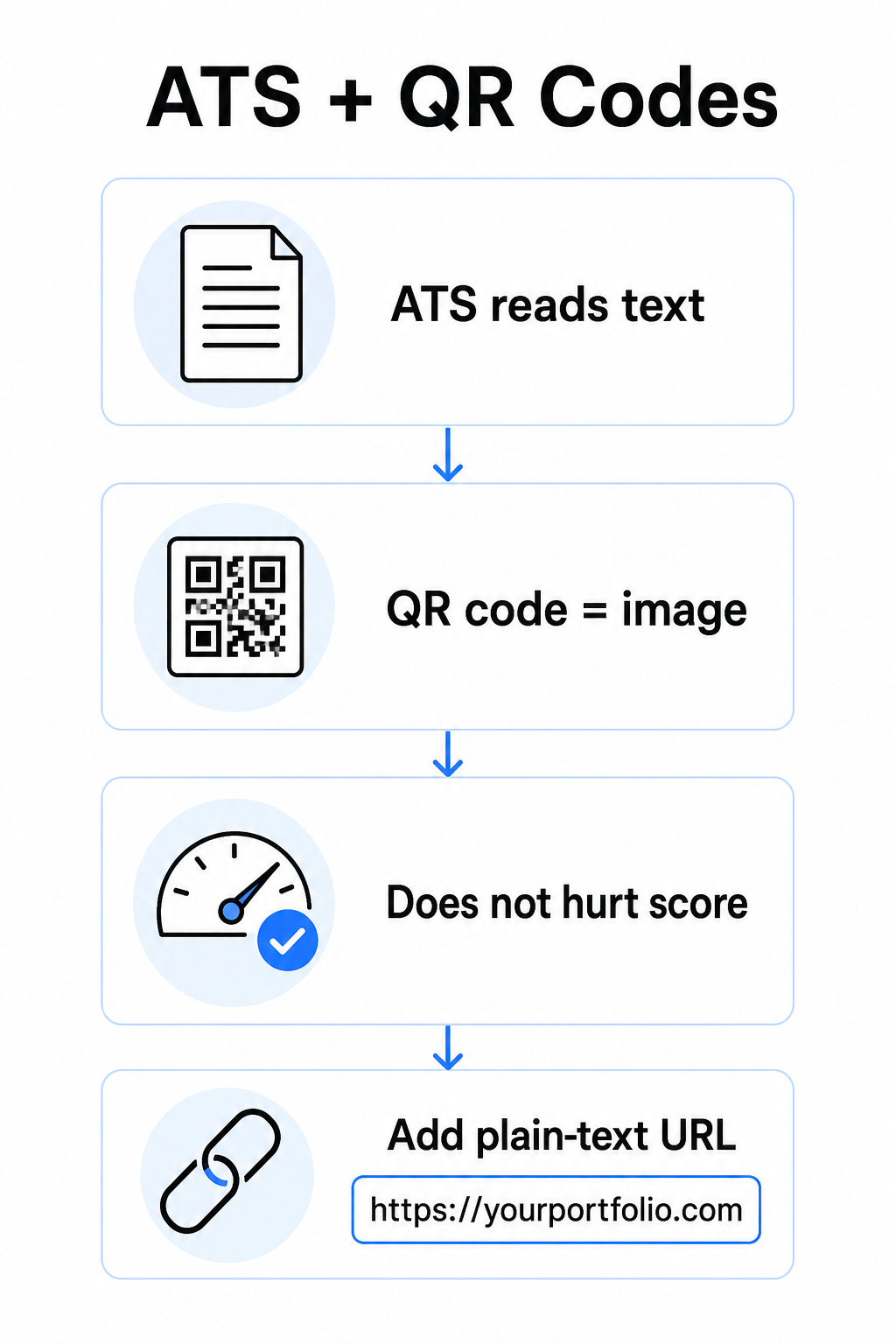
Luôn bao gồm một URL văn bản thuần túy bên cạnh mã QR của bạn. Viết đầy đủ liên kết bằng văn bản dễ đọc (ví dụ: `linkedin.com/in/yourname`) để đích đến vẫn có thể truy cập được cho cả phần mềm ATS và bất kỳ nhà tuyển dụng nào xem xét bản sao kỹ thuật số mà không thể quét hình ảnh.
Giữ định dạng sơ yếu lý lịch tổng thể của bạn đơn giản. Các bố cục phức tạp, hộp văn bản, nhiều cột và đồ họa nặng có thể gây nhầm lẫn cho các trình phân tích cú pháp ATS – vì vậy mã QR của bạn nên nằm gọn gàng trong một bố cục sạch sẽ, tiêu chuẩn thay vì chiếm ưu thế trong thiết kế.
Tạo Mã QR cho Sơ yếu lý lịch của Bạn Sẵn sàng liên kết hồ sơ năng lực hoặc hồ sơ LinkedIn của bạn với một mã có thể quét được? Sử dụng Trình tạo mã QR để tạo một mã QR chuyên nghiệp, tùy chỉnh trong vài phút – không cần kinh nghiệm thiết kế.
Chuẩn bị Điểm đến của Bạn Trước Khi Tạo
Mã QR chỉ mạnh mẽ như những gì nó liên kết đến. Trước khi tạo mã, hãy đảm bảo điểm đến đã sẵn sàng cho mắt nhà tuyển dụng.
Hồ sơ LinkedIn
Bắt đầu bằng cách tạo một URL LinkedIn tùy chỉnh – chẳng hạn như `linkedin.com/in/firstname-lastname` – để liên kết trông gọn gàng thay vì một chuỗi ký tự ngẫu nhiên. Thêm ảnh hồ sơ chuyên nghiệp, điều này làm tăng độ tin cậy và lượt xem hồ sơ. Viết một tiêu đề và tóm tắt rõ ràng, liên quan đến từ khóa, sử dụng các chức danh công việc quen thuộc và các thành tích có thể đo lường được từ các vai trò mục tiêu của bạn. Sau đó, cập nhật lịch sử làm việc, học vấn và bất kỳ mẫu phương tiện nào thể hiện công việc của bạn trước khi chia sẻ liên kết ở bất cứ đâu.
Bạn có thể tìm hiểu thêm về cách tìm và sử dụng mã QR LinkedIn của bạn và tạo một mã tùy chỉnh với QR code LinkedIn.
Trang web Hồ sơ năng lực
Tuyển chọn 4–6 dự án liên quan trực tiếp đến các vai trò bạn đang ứng tuyển và bao gồm các kết quả có thể đo lường được cho mỗi dự án – kết quả, tác động và những gì bạn đã đóng góp cụ thể. Viết mô tả bằng tiếng Anh đơn giản và kiểm tra kỹ lưỡng lỗi chính tả và ngữ pháp. Kiểm tra trang web trên cả thiết bị di động và máy tính để bàn để xác nhận tốc độ tải nhanh và định dạng sạch sẽ, đồng thời sử dụng một URL ngắn, chuyên nghiệp với một slug tùy chỉnh. Tránh các liên kết trông giống như một chuỗi số và dấu gạch ngang, điều này có thể khiến nhà tuyển dụng cảm thấy spam hoặc không đáng tin cậy.
Sơ yếu lý lịch PDF
Nếu bạn muốn liên kết đến một phiên bản sơ yếu lý lịch dài hơn hoặc được định dạng trực quan hơn, mã QR PDF là một lựa chọn đơn giản. Sử dụng Chuyển PDF sang QR để tải tài liệu của bạn lên và tạo một liên kết có thể quét được trực tiếp đến đó.
Thẻ liên hệ (vCard)
Mã QR vCard mã hóa thông tin liên hệ của bạn – tên, số điện thoại, email và trang web – trực tiếp vào mã. Khi ai đó quét nó, họ có thể lưu bạn vào danh bạ của họ ngay lập tức mà không cần gõ một ký tự nào. Điều này đặc biệt hiệu quả trong phần liên hệ của sơ yếu lý lịch hoặc trên một danh thiếp bạn phát tại các cuộc phỏng vấn. Cái Tạo mã QR vCard giúp việc tạo một cái trở nên đơn giản, và bạn có thể đọc thêm về cách tạo mã QR cho thông tin liên hệ để tận dụng tối đa định dạng này.
Cách tạo mã QR sơ yếu lý lịch của bạn
Khi điểm đến của bạn đã sẵn sàng, việc tạo mã QR chỉ mất vài bước.
Đầu tiên, hãy chọn trình tạo phù hợp cho điểm đến của bạn. Sử dụng QR code LinkedIn cho một liên kết hồ sơ, cái Chuyển PDF sang QR cho một tài liệu, cái Tạo mã QR vCard cho thông tin liên hệ, hoặc cái Trình tạo mã QR liên kết cho bất kỳ URL nào khác. Sau đó dán URL điểm đến của bạn hoặc tải tệp của bạn lên.
Ở giai đoạn này, hãy cân nhắc xem có nên sử dụng mã QR động. Mã động lưu trữ một URL chuyển hướng ngắn bên trong mã thay vì mã hóa trực tiếp toàn bộ điểm đến. Điều này có nghĩa là bạn có thể cập nhật nơi mã trỏ đến – ngay cả sau khi in – mà không thay đổi chính mã đó. Nếu URL danh mục đầu tư của bạn thay đổi hoặc bạn cập nhật địa chỉ LinkedIn của mình, một mã động giúp bạn không phải in lại sơ yếu lý lịch của mình.
Tiếp theo, tùy chỉnh thiết kế. Điều chỉnh màu sắc để phù hợp với bảng màu của sơ yếu lý lịch của bạn, giữ cho tiền cảnh tối và hậu cảnh sáng. Đen trên trắng vẫn là sự kết hợp đáng tin cậy nhất cho máy quét. Tránh các gradient, bóng đổ hoặc thiết kế đảo ngược (mã sáng trên nền tối), vì những điều này có thể gây ra lỗi quét trên một số thiết bị.
Khi bạn đã sẵn sàng tải xuống, hãy xuất dưới dạng SVG hoặc EPS để có kết quả sắc nét nhất. Các định dạng vector này có thể mở rộng mà không làm mất chất lượng, ngăn ngừa sự mờ nhòe gây ra lỗi quét trên vật liệu in. Cuối cùng, hãy kiểm tra mã trên nhiều thiết bị và trong các điều kiện ánh sáng khác nhau trước khi thêm nó vào sơ yếu lý lịch của bạn. Xác nhận điểm đến tải đúng và nhanh chóng trên cả kết nối Wi-Fi và di động.
Liên kết bất kỳ URL nào với một mã có thể quét được Cho dù điểm đến của bạn là một danh mục đầu tư, trang web cá nhân, hoặc bất kỳ trang web nào khác, cái Trình tạo mã QR liên kết cho phép bạn tạo một mã tùy chỉnh, có thể theo dõi trong vài giây.
Tiêu chuẩn thiết kế mã QR cho sơ yếu lý lịch
Một mã QR trên sơ yếu lý lịch cần trông có chủ ý, không phải được thêm vào như một ý nghĩ sau. Các hướng dẫn kỹ thuật sau đây đảm bảo nó quét đáng tin cậy và phù hợp với trang một cách gọn gàng.
Kích thước
Kích thước tối thiểu được khuyến nghị cho một mã QR trong bối cảnh quét tầm gần – chẳng hạn như sơ yếu lý lịch được giữ ở khoảng cách một cánh tay – là 0.8 x 0.8 inch (2 x 2 cm). Nhỏ hơn sẽ có nguy cơ lỗi quét; bất cứ thứ gì khoảng 0.4 x 0.4 inch (1 x 1 cm) là quá nhỏ để sử dụng nhất quán. Cái Hướng dẫn kích thước mã QR trên danh thiếp áp dụng tương tự cho sơ yếu lý lịch và đáng để xem xét trước khi bạn hoàn thiện bố cục của mình.
Độ tương phản màu sắc
Máy quét hoạt động bằng cách phát hiện độ tương phản giữa các mô-đun tối và sáng. Đặt mục tiêu tỷ lệ tương phản ít nhất là 5:1 cho mã QR nhỏ, phù hợp với hướng dẫn về khả năng tiếp cận. Đen trên trắng đạt tỷ lệ 21:1 và là lựa chọn an toàn nhất. Tránh màu xám nhạt trên trắng, vàng trên trắng, hoặc bất kỳ cặp nào mà mã hòa vào nền trang. Hướng dẫn đầy đủ các phương pháp hay nhất về độ tương phản màu của mã QR cung cấp các khuyến nghị ghép nối chi tiết và các ví dụ về tỷ lệ tương phản.
Vùng yên tĩnh
Vùng yên tĩnh là đường viền trống bao quanh mã QR. Theo ISO/IEC 18004, nó phải là rộng ít nhất bốn mô-đun ở tất cả các cạnh – tức là, gấp bốn lần chiều rộng của một ô vuông nhỏ trong lưới của mã. Không bao giờ đặt văn bản, đường kẻ hoặc các yếu tố thiết kế khác bên trong lề này. Một vùng yên tĩnh bị thiếu hoặc quá đông là một trong những lý do phổ biến nhất khiến mã QR không quét được, và rất dễ vô tình vi phạm khi đặt mã vào một bố cục sơ yếu lý lịch chật hẹp.
Độ phân giải
Xuất mã QR của bạn ở mức tối thiểu 300 DPI để in. Tốt hơn nữa, hãy sử dụng định dạng vector (SVG hoặc EPS) để mã có thể mở rộng một cách rõ ràng bất kể kích thước in, mà không bị vỡ pixel. Cái các phương pháp hay nhất để đọc mã QR bao gồm độ phân giải, vùng yên tĩnh và độ tương phản ở một nơi nếu bạn muốn có một tài liệu tham khảo toàn diện.
Nơi đặt mã QR trên sơ yếu lý lịch của bạn
Vị trí đặt báo hiệu sự chuyên nghiệp. Một mã QR được đặt ngẫu nhiên vào giữa phần kinh nghiệm của bạn trông giống như một sự cố. Hai vị trí hiệu quả nhất là gần thông tin liên hệ của bạn ở đầu trang – nơi nhà tuyển dụng tìm kiếm cách liên hệ với bạn đầu tiên – hoặc ở góc trên bên phải, giúp mã hiển thị mà không cạnh tranh với văn bản chính của sơ yếu lý lịch.
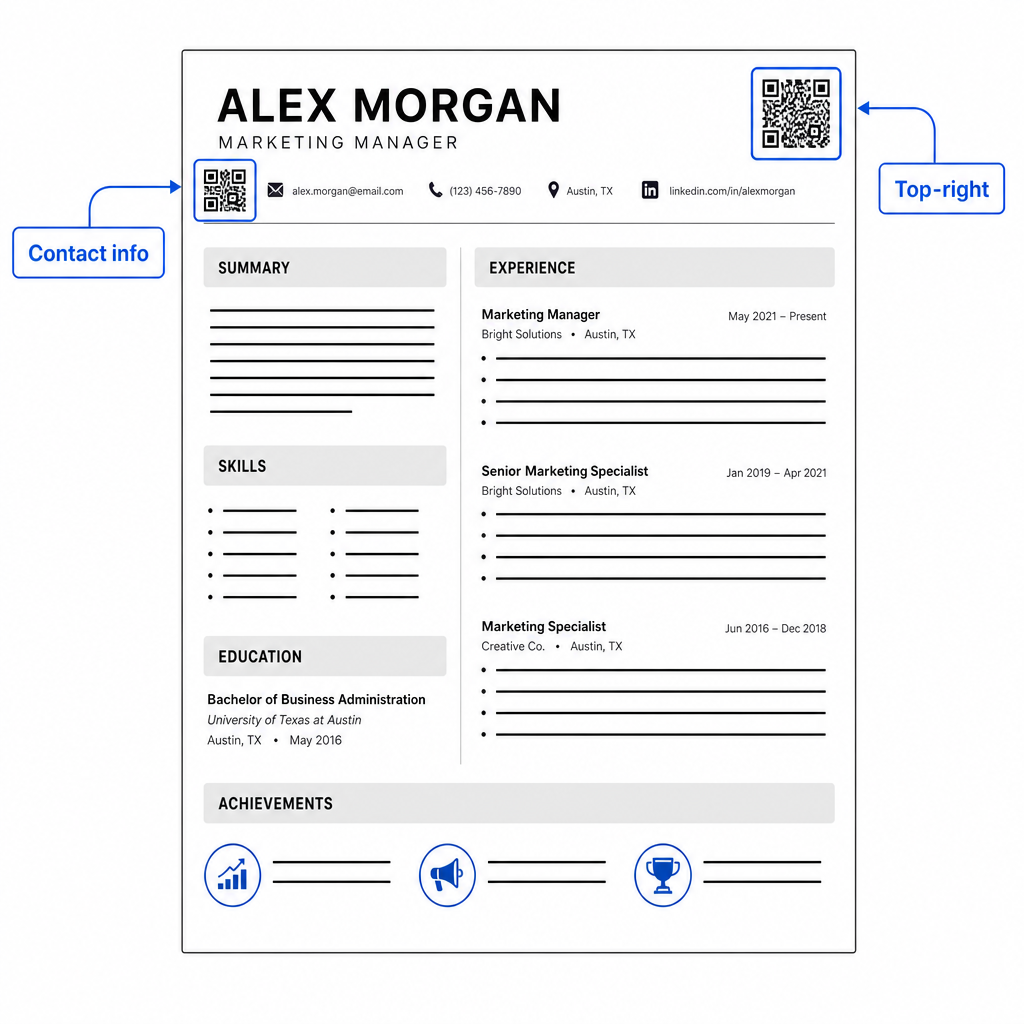
Giữ mã đủ nhỏ để không gây chú ý: khoảng 0.8 đến 1 inch vuông phù hợp với một sơ yếu lý lịch tiêu chuẩn. Thêm một nhãn văn bản ngắn bên dưới nó, chẳng hạn như Quét để xem danh mục đầu tư hoặc là Quét để xem LinkedIn, để một nhà tuyển dụng biết ngay mã dẫn đến đâu. Đặt URL văn bản thuần túy trực tiếp bên cạnh hoặc bên dưới mã.
Bảng dưới đây so sánh các cách tiếp cận vị trí phổ biến:
| VỊ TRÍ ĐẶT MÃ | Ưu điểm | Nhược điểm |
|---|---|---|
| Gần thông tin liên hệ ở trên cùng | Vị trí tự nhiên, được nhìn thấy ngay lập tức | Cần giữ nhỏ để tránh gây lộn xộn |
| Góc trên bên phải | Sạch sẽ, không gây khó chịu | Có thể bị bỏ qua nếu nhà tuyển dụng đọc từ trái sang phải |
| Chân trang sơ yếu lý lịch | Giữ nội dung chính sạch sẽ | Có thể bị bỏ qua hoặc bị cắt khi in |
| Bên cạnh một vai trò cụ thể | Liên kết danh mục đầu tư theo ngữ cảnh với công việc đó | Chỉ có ý nghĩa đối với một mục được liên kết duy nhất |
Những Sai Lầm Thường Gặp Cần Tránh
- Biến mã QR thành tuyến đường truy cập duy nhất – Luôn bao gồm URL văn bản thuần túy. Một nhà tuyển dụng xem PDF trên màn hình không thể quét mã QR.
- Liên kết đến một điểm đến chưa được chuẩn bị – Một hồ sơ LinkedIn không có ảnh, tóm tắt sơ sài hoặc kinh nghiệm lỗi thời sẽ phản ánh không tốt. Chỉ liên kết khi điểm đến hoàn chỉnh và cập nhật.
- Sử dụng mã QR tĩnh khi các liên kết của bạn có thể thay đổi – Nếu URL danh mục đầu tư hoặc địa chỉ LinkedIn của bạn thay đổi, một mã tĩnh sẽ bị hỏng và vô dụng. Một mã động có thể được cập nhật mà không cần in lại bất cứ thứ gì.
- Bỏ qua việc kiểm tra – Luôn quét mã cuối cùng của bạn từ một bản in – không chỉ từ màn hình của bạn – trước khi nộp hoặc phát sơ yếu lý lịch của bạn.
- Độ tương phản kém hoặc vùng yên tĩnh bị lộn xộn – Cả hai điều này sẽ khiến mã không hoạt động trên một số thiết bị. Hãy làm theo các hướng dẫn về kích thước và độ tương phản ở trên và để lại không gian trống rõ ràng xung quanh mã ở tất cả các phía.
- Sử dụng hình ảnh độ phân giải thấp – Một mã QR bị vỡ nét trên sơ yếu lý lịch in trông không chuyên nghiệp và có thể không quét được. Xuất ở định dạng SVG hoặc EPS, hoặc tối thiểu là PNG 300 DPI.
Giải quyết sự hoài nghi của nhà tuyển dụng
Không phải mọi nhà tuyển dụng đều sẽ quét mã QR. Một số có thể không quen với thói quen này, thận trọng về các liên kết không xác định, hoặc đơn giản là xem xét sơ yếu lý lịch trên máy tính để bàn nơi việc quét không thực tế. Đây không phải là lý do để tránh hoàn toàn mã QR – nhưng đó là lý do để coi chúng là một phần bổ sung, không phải là sự thay thế, cho các liên kết văn bản thuần túy.
Gắn nhãn mã của bạn rõ ràng và giữ URL hiển thị bằng văn bản. Một nhà tuyển dụng không quét vẫn sẽ thấy URL và có thể gõ hoặc nhấp vào đó. Một nhà tuyển dụng xem xét sơ yếu lý lịch của bạn trực tiếp có tùy chọn quét ngay lập tức. Mục tiêu là cung cấp cho mọi người đọc con đường dễ dàng nhất có thể đến công việc của bạn, bất kể họ đang đọc sơ yếu lý lịch của bạn như thế nào.
Làm cho sơ yếu lý lịch của bạn tương tác hơn Thêm một mã QR chuyên nghiệp vào sơ yếu lý lịch của bạn liên kết trực tiếp đến danh mục đầu tư, hồ sơ LinkedIn hoặc sơ yếu lý lịch kỹ thuật số của bạn. Bắt đầu với Trình tạo mã QR – miễn phí để tạo, với các tùy chọn để theo dõi lượt quét và cập nhật điểm đến của bạn bất cứ lúc nào.
Thêm mã QR vào sơ yếu lý lịch của bạn là một thay đổi nhỏ có thể tạo ấn tượng có ý nghĩa – đặc biệt là khi bạn trao sơ yếu lý lịch của bạn cho ai đó trực tiếp. Điều quan trọng là sự chuẩn bị: hãy đảm bảo điểm đến của bạn được trau chuốt, mã của bạn đáp ứng các tiêu chuẩn thiết kế cơ bản và bạn luôn bao gồm một URL văn bản thuần túy dễ đọc bên cạnh nó. Sử dụng mã động để bạn có thể cập nhật điểm đến mà không cần in lại, và kiểm tra mọi thứ trên một bản in vật lý trước cuộc phỏng vấn hoặc hội chợ việc làm tiếp theo của bạn.
Câu hỏi thường gặp
Không – Các nền tảng ATS coi mã QR là hình ảnh và bỏ qua chúng trong quá trình phân tích văn bản, vì vậy bản thân mã không ảnh hưởng tiêu cực đến điểm ATS của bạn. Tuy nhiên, để đảm bảo URL danh mục đầu tư hoặc LinkedIn của bạn cũng có thể đọc được bằng máy, hãy luôn bao gồm phiên bản văn bản thuần túy của liên kết cùng với mã QR.
Điểm đến tốt nhất phụ thuộc vào lĩnh vực của bạn. Một trang web portfolio hoặc portfolio PDF hoạt động tốt cho các vai trò sáng tạo và kỹ thuật. Một hồ sơ LinkedIn phù hợp với hầu hết các ngành. Mã QR vCard hữu ích nếu mục tiêu chính của bạn là giúp nhà tuyển dụng dễ dàng lưu thông tin liên hệ của bạn. Dù bạn liên kết đến đâu, hãy đảm bảo nó hoàn chỉnh, cập nhật và được tối ưu hóa trước khi in.
Một mã QR tĩnh mã hóa URL đích của bạn trực tiếp vào mẫu mã – nếu URL thay đổi, mã sẽ bị hỏng và bạn cần in lại. Một mã QR động mã hóa một URL chuyển hướng ngắn mà bạn có thể cập nhật bất cứ lúc nào mà không cần thay đổi mã đã in. Đối với một bản lý lịch mà bạn có thể phát trong vài tháng, một mã động là lựa chọn an toàn hơn và linh hoạt hơn.