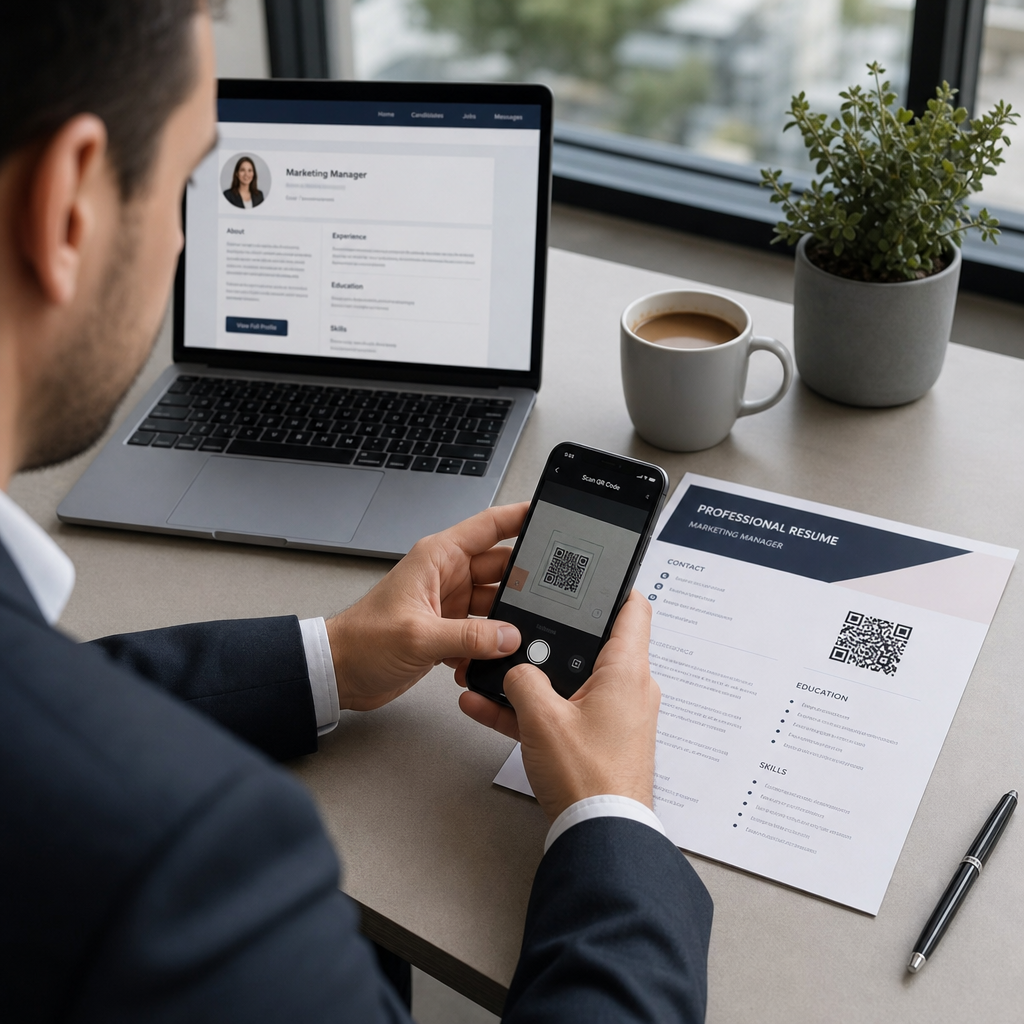
Stai faticando a far notare il tuo portfolio o il tuo profilo LinkedIn ai selezionatori? Un codice QR sul tuo curriculum colma il divario tra una pagina stampata e la tua completa presenza digitale – questa guida spiega come crearne uno, dove posizionarlo e come evitare gli errori che lo fanno sembrare poco professionale.
Cosa fa realmente un codice QR per curriculum
Un codice QR è un'immagine scansionabile che codifica un URL o altri dati. Quando un selezionatore punta la fotocamera del suo telefono su di esso, apre il tuo portfolio, il tuo profilo LinkedIn o il tuo curriculum digitale direttamente nel suo browser – senza bisogno di digitare.
Su un curriculum, questo risolve un problema reale: i selezionatori che leggono una copia stampata non hanno un modo semplice per cliccare i tuoi link. Un codice QR trasforma una pagina statica in una interattiva senza aggiungere disordine. I tipi di destinazioni a cui puoi collegarti includono:
- profilo LinkedIn – permette ai selezionatori di esaminare la tua cronologia lavorativa completa, le raccomandazioni e l'attività
- Portfolio online – mostra lavori di progetto, casi di studio o campioni creativi
- Curriculum PDF – dà accesso a una versione espansa o formattata del tuo curriculum
- Biglietto da visita digitale (vCard) – permette ai selezionatori di salvare i tuoi dettagli di contatto direttamente sul loro telefono
Quando ha senso aggiungere un codice QR
Un codice QR aggiunge valore in situazioni specifiche. Funziona meglio quando il tuo curriculum verrà stampato e consegnato a qualcuno di persona – durante colloqui, fiere del lavoro o eventi di networking – e quando hai un portfolio, un sito personale o un profilo LinkedIn che vale la pena visitare. È particolarmente efficace in settori in cui mostrare il lavoro è importante: design, sviluppo, scrittura, marketing o qualsiasi disciplina creativa in cui un selezionatore trae beneficio dal vedere campioni oltre ciò che sta su una pagina.
Aggiunge meno valore quando il tuo curriculum verrà inviato solo tramite un portale di candidatura online. In questi casi, i selezionatori raramente stampano i curriculum, quindi il codice QR non viene scansionato. Pensalo come una funzionalità per l'esperienza di persona, non un sostituto per i link in testo semplice che funzionano ovunque.
Come i sistemi ATS gestiscono i codici QR
Prima di aggiungere un codice QR, devi capire come funzionano i sistemi di tracciamento dei candidati (ATS). Le piattaforme ATS leggono il testo e ignorano in gran parte gli elementi immagine – un codice QR è trattato come una grafica non testuale e viene semplicemente saltato durante l'analisi. Ciò significa che il codice stesso non danneggerà il tuo punteggio ATS, ma non lo aiuterà nemmeno. Ciò che conta per l'ATS è il testo sul tuo curriculum.
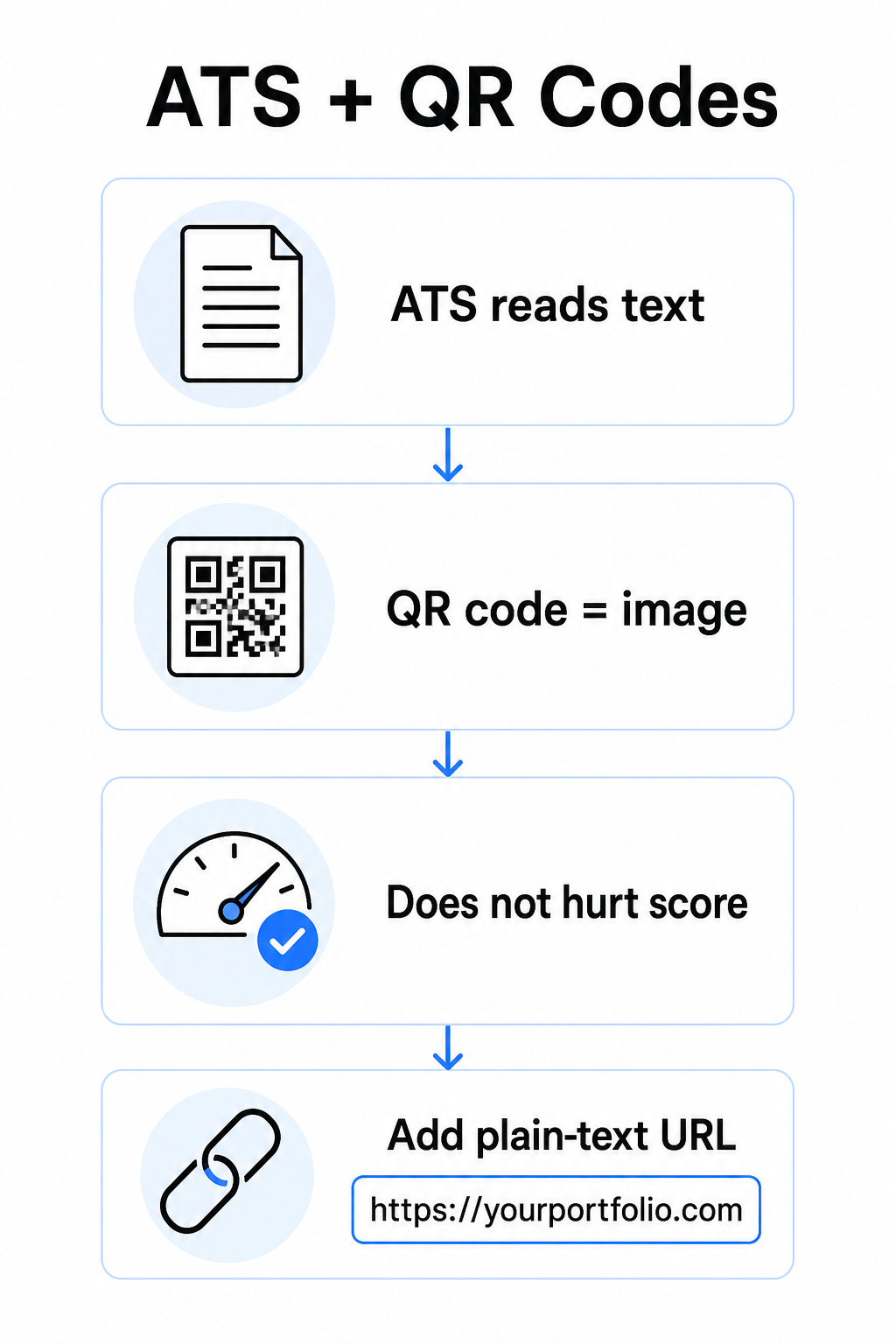
Includi sempre un URL in testo semplice accanto al tuo codice QR. Scrivi il link completo in testo leggibile (ad esempio, `linkedin.com/in/yourname`) in modo che la destinazione rimanga accessibile sia al software ATS sia a qualsiasi selezionatore che esamini una copia digitale e non possa scansionare un'immagine.
Mantieni semplice il formato generale del tuo curriculum. Layout complessi, caselle di testo, colonne multiple e grafici pesanti possono confondere i parser ATS – quindi il tuo codice QR dovrebbe essere posizionato ordinatamente all'interno di un layout pulito e standard piuttosto che dominare il design.
Crea un codice QR per il tuo curriculum Pronto a collegare il tuo portfolio o il tuo profilo LinkedIn con un codice scansionabile? Usa il Generatore di codici QR per creare un codice QR personalizzato e professionale in pochi minuti – nessuna esperienza di design necessaria.
Prepara la tua destinazione prima di generare
Il codice QR è forte solo quanto ciò a cui si collega. Prima di crearne uno, assicurati che la destinazione sia pronta per gli occhi di un selezionatore.
Profilo LinkedIn
Inizia creando un URL LinkedIn personalizzato – qualcosa come `linkedin.com/in/firstname-lastname` – in modo che il link appaia pulito piuttosto che una stringa di caratteri casuali. Aggiungi una foto profilo professionale, che aumenta la credibilità e le visualizzazioni del profilo. Scrivi un titolo e un riepilogo chiari e pertinenti alle parole chiave, utilizzando titoli di lavoro familiari e risultati misurabili tratti dai tuoi ruoli target. Quindi aggiorna la tua cronologia lavorativa, l'istruzione e qualsiasi campione multimediale che mostri il tuo lavoro prima di condividere il link ovunque.
Puoi saperne di più su Come trovare e usare il tuo QR code di LinkedIn e generane uno personalizzato con il Generatore di QR code LinkedIn.
Sito Portfolio
Cura 4-6 progetti direttamente pertinenti ai ruoli per cui ti stai candidando e includi risultati misurabili per ciascuno – risultati, impatto e ciò che hai specificamente contribuito. Scrivi descrizioni in inglese semplice e controlla attentamente l'ortografia e la grammatica. Testa il sito sia su mobile che su desktop per confermare un caricamento veloce e una formattazione pulita, e usa un URL breve e professionale con uno slug personalizzato. Evita link che assomigliano a una stringa di numeri e trattini, che possono apparire come spam o inaffidabili ai selezionatori.
Curriculum PDF
Se vuoi collegarti a una versione più lunga o più formattata visivamente del tuo curriculum, un codice QR PDF è un'opzione semplice. Usa il Generatore di QR code per PDF per caricare il tuo documento e generare un link scansionabile direttamente ad esso.
Scheda Contatto (vCard)
Un codice QR vCard codifica i tuoi dettagli di contatto – nome, telefono, email e sito web – direttamente nel codice. Quando qualcuno lo scansiona, può salvarti nei suoi contatti istantaneamente senza digitare un singolo carattere. Questo funziona particolarmente bene nella sezione contatti di un curriculum o su un biglietto da visita che distribuisci ai colloqui. Il Generatore di QR code vCard rende la creazione di uno semplice, e puoi leggere di più su come creare un codice QR per le informazioni di contatto per ottenere il massimo da questo formato.
Come Creare Il Tuo Codice QR per il Curriculum
Una volta che la tua destinazione è pronta, generare il codice QR richiede solo pochi passaggi.
Per prima cosa, scegli il generatore giusto per la tua destinazione. Usa il Generatore di QR code LinkedIn per un link del profilo, il Generatore di QR code per PDF per un documento, il Generatore di QR code vCard per i dettagli di contatto, o il Generatore di codici QR per link per qualsiasi altro URL. Poi incolla il tuo URL di destinazione o carica il tuo file.
A questo punto, considera se utilizzare un codice QR dinamico. I codici dinamici memorizzano un URL di reindirizzamento breve all'interno del codice piuttosto che codificare direttamente la destinazione completa. Ciò significa che puoi aggiornare dove punta il codice – anche dopo la stampa – senza cambiare il codice stesso. Se il tuo URL del portfolio cambia o aggiorni il tuo indirizzo LinkedIn, un codice dinamico ti evita di ristampare il tuo curriculum.
Successivamente, personalizza il design. Regola i colori per abbinarli alla palette del tuo curriculum, mantenendo il primo piano scuro e lo sfondo chiaro. Il nero su bianco rimane la combinazione più affidabile per gli scanner. Evita sfumature, ombre o design invertiti (codice chiaro su sfondo scuro), poiché questi possono causare errori di scansione su alcuni dispositivi.
Quando sei pronto per scaricare, esporta come SVG o EPS per il risultato più nitido. Questi formati vettoriali si scalano senza perdere qualità, prevenendo la sfocatura che causa errori di scansione sui materiali stampati. Infine, testa il codice su più dispositivi e in diverse condizioni di illuminazione prima di aggiungerlo al tuo curriculum. Conferma che la destinazione si carichi correttamente e rapidamente sia su connessioni Wi-Fi che cellulari.
Collega Qualsiasi URL a un Codice Scansionabile Sia che la tua destinazione sia un portfolio, un sito personale o qualsiasi altra pagina web, il Generatore di codici QR per link ti permette di creare un codice personalizzato e tracciabile in pochi secondi.
Standard di Design del Codice QR per i Curriculum
Un codice QR su un curriculum deve apparire intenzionale, non inserito come un ripensamento. Le seguenti linee guida tecniche assicurano che scansioni in modo affidabile e si adatti alla pagina in modo pulito.
Dimensione
La dimensione minima raccomandata per un codice QR in un contesto di scansione a distanza ravvicinata – come un curriculum tenuto a distanza di un braccio – è 0.8 x 0.8 pollici (2 x 2 cm). Andare più piccolo rischia errori di scansione; qualsiasi cosa intorno a 0,4 x 0,4 pollici (1 x 1 cm) è troppo piccola per un uso consistente. Le Linee guida sulle dimensioni del QR code sui biglietti da visita si applicano ugualmente ai curriculum e meritano di essere esaminate prima di finalizzare il tuo layout.
Contrasto di colore
Gli scanner funzionano rilevando il contrasto tra moduli scuri e chiari. Punta a un rapporto di contrasto di almeno 5:1 per codici QR piccoli, in linea con le linee guida sull'accessibilità. Il nero su bianco raggiunge un rapporto di 21:1 ed è la scelta più sicura. Evita il grigio chiaro su bianco, il giallo su bianco o qualsiasi abbinamento in cui il codice si confonde con lo sfondo della pagina. La completa migliori pratiche di contrasto cromatico dei codici QR guida fornisce raccomandazioni dettagliate per l'abbinamento ed esempi di rapporto di contrasto.
Zona tranquilla
La zona di silenzio è il bordo vuoto che circonda il codice QR. Secondo ISO/IEC 18004, deve essere larga almeno quattro moduli su tutti i lati – cioè, quattro volte la larghezza di un piccolo quadrato nella griglia del codice. Non posizionare mai testo, linee o altri elementi di design all'interno di questo margine. Una zona di silenzio mancante o affollata è una delle ragioni più comuni per cui un codice QR non riesce a scansionare, ed è facile violarla accidentalmente quando si inserisce un codice in un layout di curriculum stretto.
Risoluzione
Esporta il tuo codice QR a un minimo di 300 DPI per la stampa. Meglio ancora, usa un formato vettoriale (SVG o EPS) in modo che il codice si scali in modo pulito indipendentemente dalla dimensione di stampa, senza pixelazione. La le migliori pratiche per la leggibilità dei codici QR copre risoluzione, zone di silenzio e contrasto in un unico posto se desideri un riferimento completo.
Dove Posizionare il Codice QR sul Tuo Curriculum
Il posizionamento segnala professionalità. Un codice QR inserito casualmente al centro della tua sezione esperienza sembra un incidente. Le due posizioni più efficaci sono vicino alle tue informazioni di contatto nella parte superiore della pagina – dove i selezionatori cercano per primi i modi per raggiungerti – o nell'angolo in alto a destra, il che mantiene il codice visibile senza competere con il testo principale del curriculum.
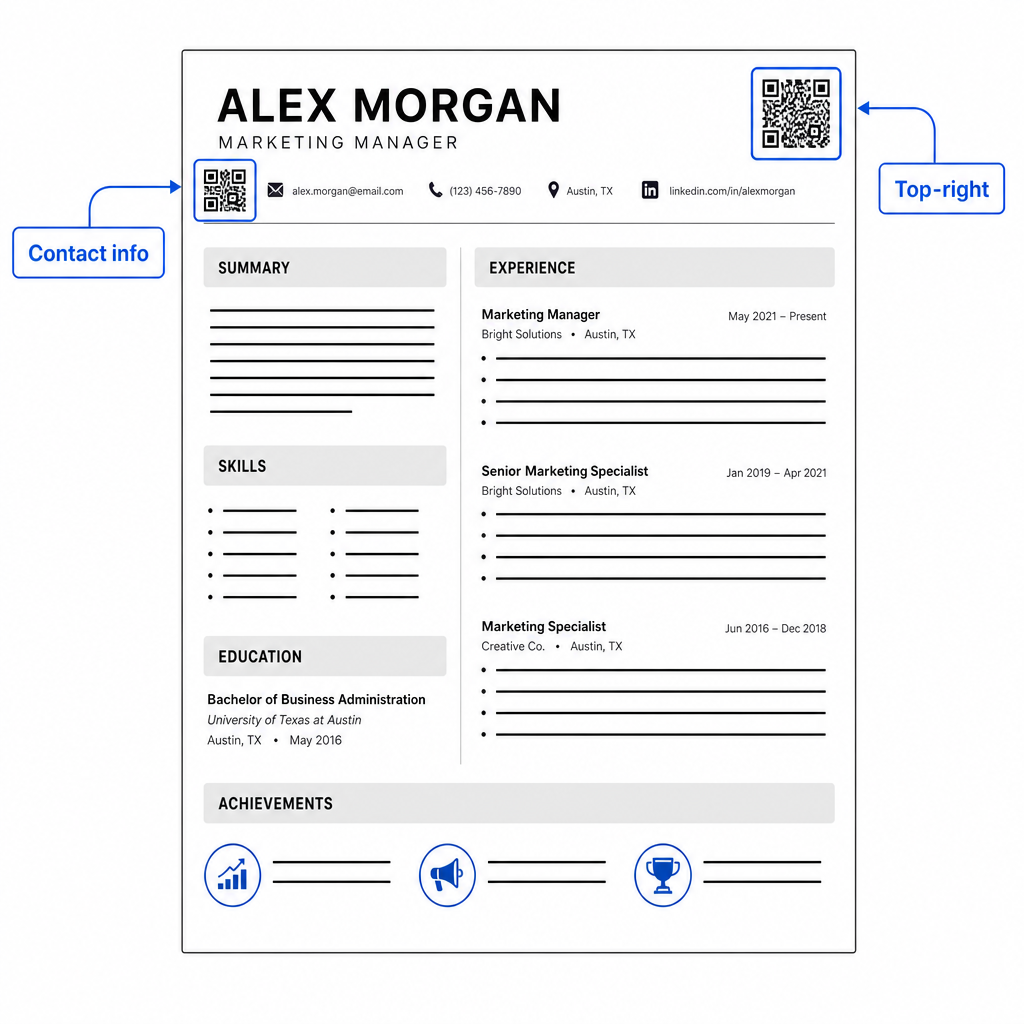
Mantieni il codice abbastanza piccolo da rimanere discreto: circa 0,8 a 1 pollice quadrato si adatta a un curriculum standard. Aggiungi una breve etichetta di testo sotto di esso, come Scansiona per visualizzare il portfolio oppure Scansiona per LinkedIn, in modo che un selezionatore sappia a colpo d'occhio a cosa porta il codice. Posiziona l'URL in chiaro direttamente accanto o sotto il codice.
La tabella seguente confronta gli approcci di posizionamento comuni:
| posizionamento | Pro | Contro |
|---|---|---|
| Vicino alle informazioni di contatto in alto | Posizione naturale, vista immediatamente | Deve rimanere piccolo per evitare l'affollamento |
| Angolo in alto a destra | Pulito, non invasivo | Potrebbe essere perso se il selezionatore legge da sinistra a destra |
| Piè di pagina del curriculum | Mantiene pulito il contenuto principale | Potrebbe essere trascurato o tagliato durante la stampa |
| Accanto a un ruolo specifico | Collega contestualmente il portfolio a quel lavoro | Ha senso solo per un singolo elemento collegato |
Errori comuni da evitare
- Rendere il codice QR l'unica via di accesso – Includi sempre l'URL in chiaro. Un selezionatore che esamina un PDF sullo schermo non può scansionare un codice QR.
- Collegamento a una destinazione non preparata – Un profilo LinkedIn senza foto, un riassunto scarno o un'esperienza obsoleta si riflette negativamente. Collega solo quando la destinazione è completa e attuale.
- Utilizzare un codice QR statico quando i tuoi link potrebbero cambiare – Se l'URL del tuo portfolio o l'indirizzo LinkedIn cambia, un codice statico diventa rotto e inutile. Un codice dinamico può essere aggiornato senza ristampare nulla.
- Saltare il test – Scansiona sempre il tuo codice finale da una copia stampata – non solo dal tuo schermo – prima di inviare o consegnare il tuo curriculum.
- Scarso contrasto o una zona tranquilla affollata – Entrambi faranno fallire il codice su alcuni dispositivi. Segui le linee guida sulle dimensioni e il contrasto sopra e lascia spazio libero intorno al codice su tutti i lati.
- Utilizzare un'immagine a bassa risoluzione – Un codice QR pixelato su un curriculum stampato sembra poco professionale e potrebbe non essere scansionato. Esporta in SVG o EPS, o almeno 300 DPI PNG.
Affrontare lo scetticismo del selezionatore
Non tutti i selezionatori scansioneranno un codice QR. Alcuni potrebbero non avere familiarità con l'abitudine, essere cauti riguardo a link sconosciuti o semplicemente esaminare i curriculum su un desktop dove la scansione è impraticabile. Questo non è un motivo per evitare completamente i codici QR – ma è un motivo per trattarli come un supplemento, non un sostituto, per i link in chiaro.
Etichetta chiaramente il tuo codice e mantieni l'URL visibile nel testo. Un selezionatore che non scansiona vedrà comunque l'URL e potrà digitarlo o cliccarlo. Un selezionatore che esamina il tuo curriculum di persona ha la possibilità di scansionare immediatamente. L'obiettivo è dare a ogni lettore il percorso più semplice possibile al tuo lavoro, indipendentemente da come stia leggendo il tuo curriculum.
Rendi il tuo curriculum più interattivo Aggiungi un codice QR professionale al tuo curriculum che si collega direttamente al tuo portfolio, profilo LinkedIn o curriculum digitale. Inizia con il Generatore di codici QR – gratuito da creare, con opzioni per tracciare le scansioni e aggiornare la tua destinazione in qualsiasi momento.
Aggiungere un codice QR al tuo curriculum è un piccolo cambiamento che può fare un'impressione significativa – in particolare quando consegni il tuo curriculum a qualcuno di persona. La chiave è la preparazione: assicurati che la tua destinazione sia curata, il tuo codice soddisfi gli standard di design di base e includi sempre un URL in chiaro leggibile accanto ad esso. Usa un codice dinamico in modo da poter aggiornare la destinazione senza ristampare, e testa tutto su una stampa fisica prima del tuo prossimo colloquio o fiera del lavoro.
Domande frequenti
No – Le piattaforme ATS trattano i codici QR come immagini e li saltano durante l'analisi del testo, quindi il codice stesso non influisce negativamente sul tuo punteggio ATS. Tuttavia, per assicurarti che il tuo portfolio o l'URL di LinkedIn sia anche leggibile dalla macchina, includi sempre la versione in testo semplice del link accanto al codice QR.
La destinazione migliore dipende dal tuo settore. Un sito portfolio o un portfolio PDF funziona bene per ruoli creativi e tecnici. Un profilo LinkedIn si adatta alla maggior parte dei settori. Un codice QR vCard è utile se il tuo obiettivo principale è rendere facile per i recruiter salvare i tuoi dettagli di contatto. Qualunque cosa tu colleghi, assicurati che sia completa, attuale e ottimizzata prima di stampare.
Un codice QR statico codifica il tuo URL di destinazione direttamente nel modello del codice – se l'URL cambia, il codice si rompe e devi ristampare. Un codice QR dinamico codifica un URL di reindirizzamento breve che puoi aggiornare in qualsiasi momento senza cambiare il codice stampato. Per un curriculum che potresti distribuire per diversi mesi, un codice dinamico è la scelta più sicura e flessibile.