Küzdesz azzal, hogy a toborzók észrevegyék a portfóliódat vagy a LinkedIn profilodat? Egy QR-kód az önéletrajzodon áthidalja a szakadékot egy nyomtatott oldal és a teljes digitális jelenléted között – ez az útmutató elmagyarázza, hogyan hozhatsz létre egyet, hová helyezd el, és hogyan kerüld el azokat a hibákat, amelyek professzionálatlanná teszik.
Mit is csinál valójában egy önéletrajz QR-kód?
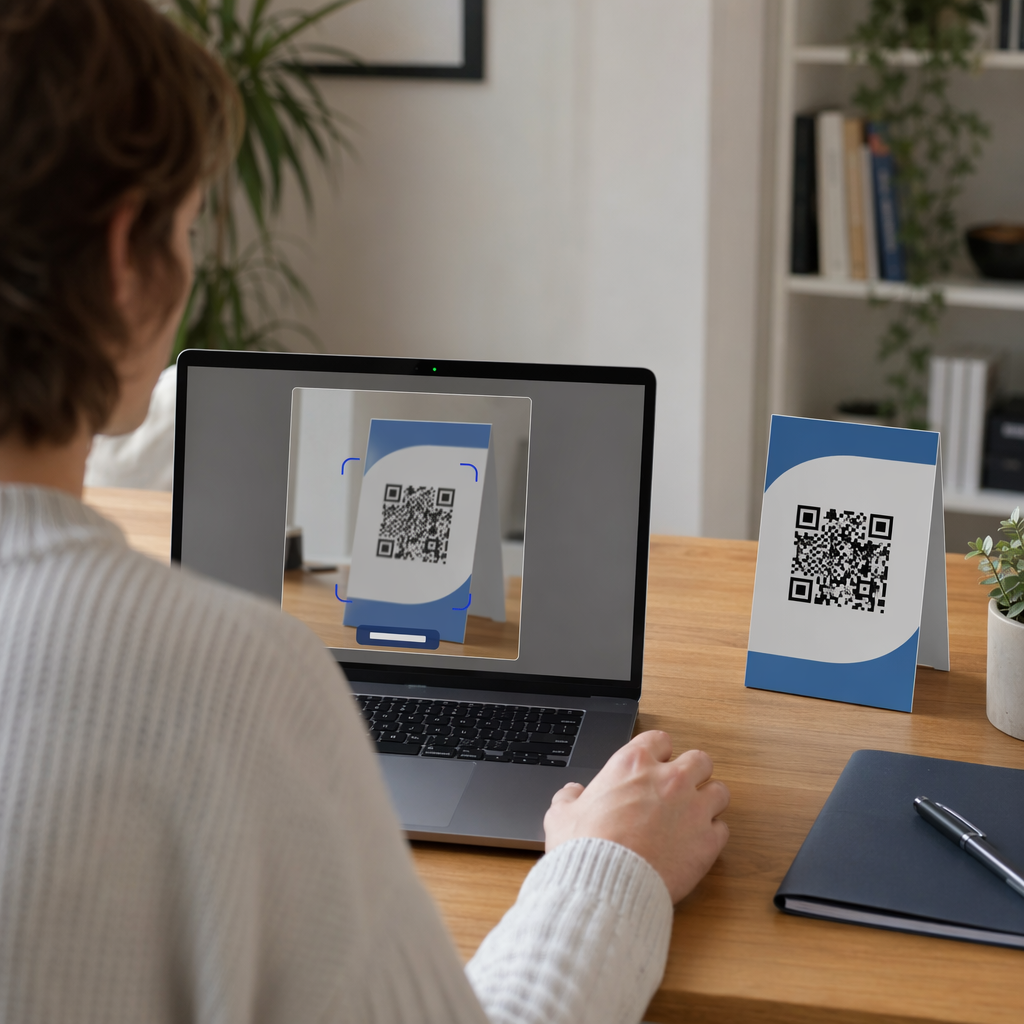
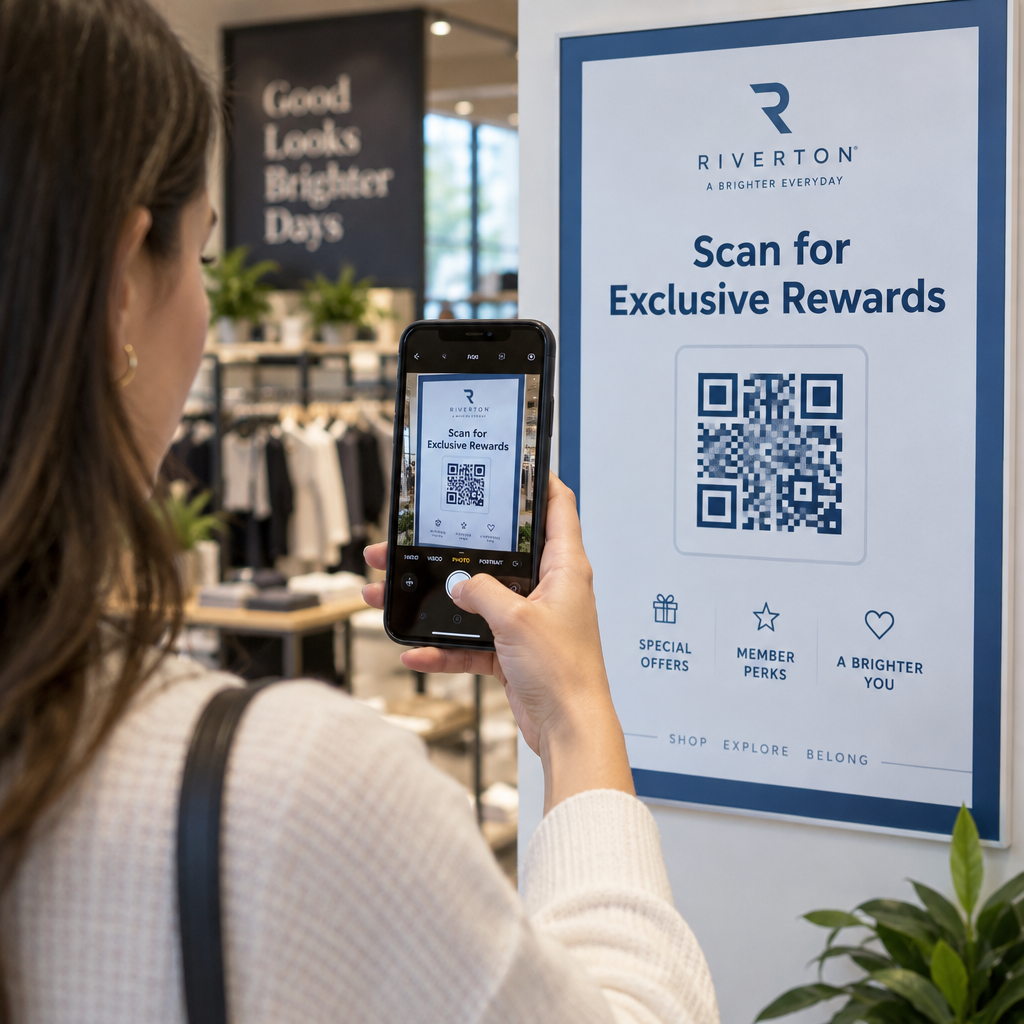
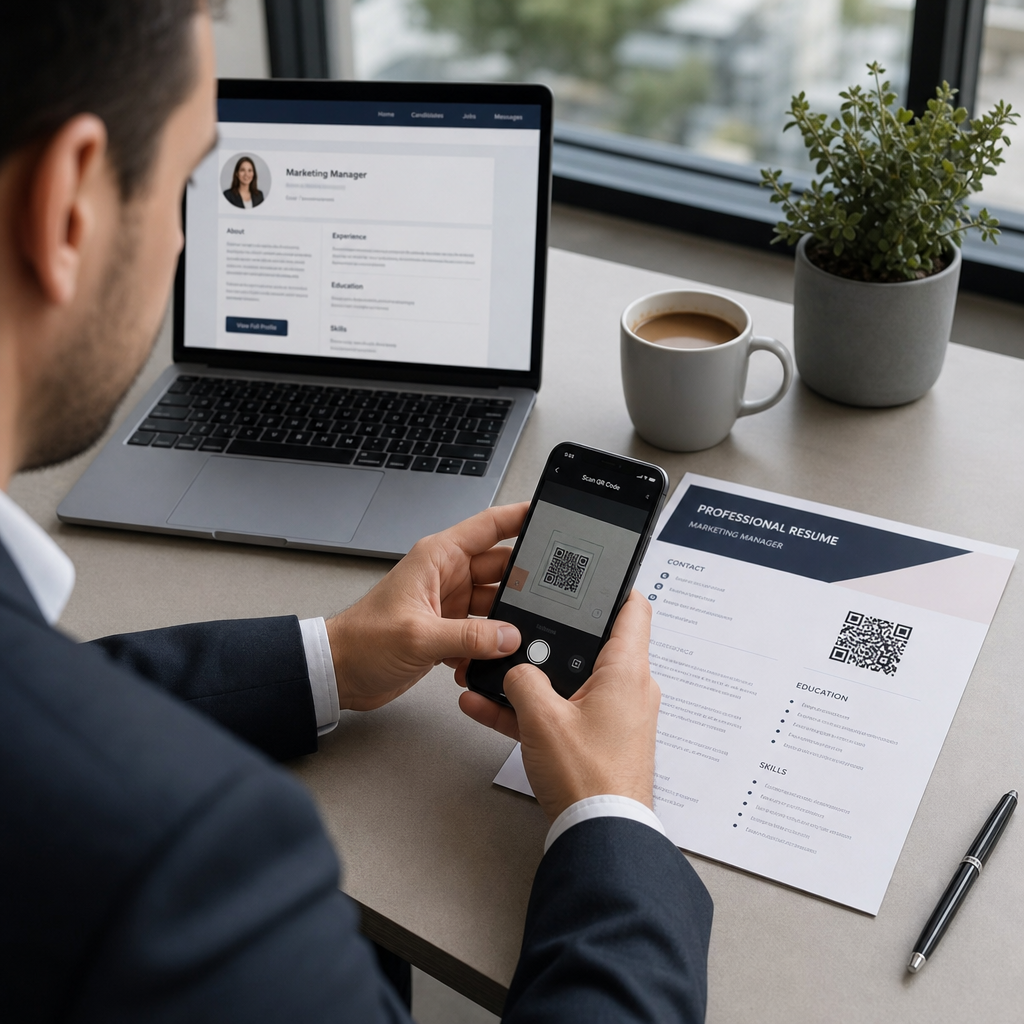
Egy QR-kód egy szkennelhető kép, amely egy URL-t vagy más adatot kódol. Amikor egy toborzó a telefonja kameráját ráirányítja, az közvetlenül megnyitja a portfóliódat, LinkedIn profilodat vagy digitális önéletrajzodat a böngészőjében – gépelés nélkül.
Egy önéletrajzon ez egy valós problémát old meg: a nyomtatott példányt olvasó toborzóknak nincs egyszerű módjuk a linkjeidre kattintani. Egy QR-kód egy statikus oldalt interaktívvá alakít át, anélkül, hogy zsúfoltságot okozna. A célhelyek típusai, amelyekre hivatkozhatsz, a következők:
- LinkedIn profiljához – lehetővé teszi a toborzóknak, hogy áttekintsék a teljes munkatörténetedet, ajánlásaidat és tevékenységedet
- Online portfólió – projektmunkákat, esettanulmányokat vagy kreatív mintákat mutat be
- PDF önéletrajz – hozzáférést biztosít az önéletrajzod kibővített vagy formázott változatához
- Digitális névjegykártya (vCard) – lehetővé teszi a toborzóknak, hogy közvetlenül a telefonjukra mentsék az elérhetőségeidet
Mikor van értelme QR-kódot hozzáadni?
Egy QR-kód hozzáadott értéket képvisel bizonyos helyzetekben. Akkor működik a legjobban, ha az önéletrajzodat kinyomtatják és személyesen adják át valakinek – interjúkon, állásbörzéken vagy networking eseményeken –, és ha van egy látogatásra érdemes portfóliód, személyes webhelyed vagy LinkedIn profilod. Különösen hatékony azokon a területeken, ahol a munka bemutatása számít: tervezés, fejlesztés, írás, marketing vagy bármely kreatív diszciplína, ahol egy toborzó számára előnyös, ha olyan mintákat lát, amelyek túlmutatnak azon, ami egy oldalra elfér.
Kevesebb értéket ad hozzá, ha az önéletrajzodat csak online jelentkezési portálon keresztül nyújtod be. Ilyen esetekben a toborzók ritkán nyomtatnak önéletrajzokat, így a QR-kód szkennelés nélkül marad. Gondolj rá úgy, mint egy funkcióra a személyes élményhez, nem pedig a mindenhol működő egyszerű szöveges linkek helyettesítőjére.
Hogyan kezelik az ATS rendszerek a QR-kódokat?
Mielőtt QR-kódot adnál hozzá, meg kell értened, hogyan működnek a jelentkezőkövető rendszerek (ATS). Az ATS platformok szöveget olvasnak, és nagyrészt figyelmen kívül hagyják a képelemeket – egy QR-kódot nem szöveges grafikaként kezelnek, és egyszerűen kihagyják a feldolgozás során. Ez azt jelenti, hogy maga a kód nem fogja rontani az ATS pontszámodat, de nem is fogja segíteni. Ami az ATS számára számít, az az önéletrajzodon lévő szöveg.
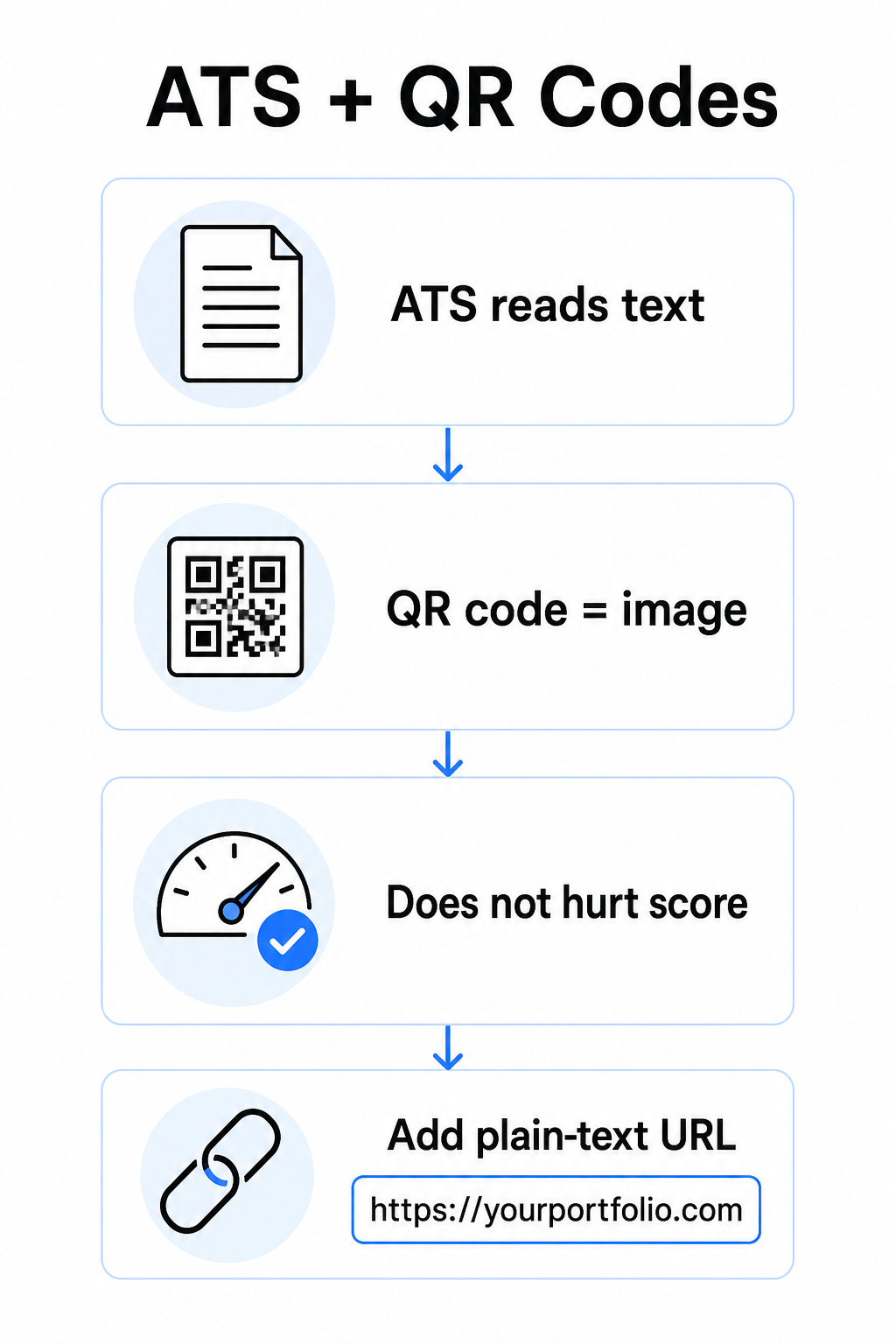
Mindig mellékelj egy egyszerű szöveges URL-t a QR-kódod mellé. Írd ki a teljes linket olvasható szövegben (például: `linkedin.com/in/yourname`), hogy a célhely hozzáférhető maradjon mind az ATS szoftver, mind pedig bármely toborzó számára, aki digitális másolatot tekint át, és nem tud képet szkennelni.
Tartsd egyszerűen az önéletrajzod általános formátumát. A komplex elrendezések, szövegdobozok, több oszlop és a túlzott grafika összezavarhatja az ATS elemzőket – így a QR-kódodnak szépen kell illeszkednie egy tiszta, szabványos elrendezésbe, ahelyett, hogy uralná a designt.
Hozz létre QR-kódot az önéletrajzodhoz Készen állsz, hogy összekapcsold a portfóliódat vagy a LinkedIn profilodat egy szkennelhető kóddal? Használd a QR Kód Generátor hogy percek alatt létrehozz egy testreszabott, professzionális QR-kódot – tervezési tapasztalat nélkül.
A célhely előkészítése a generálás előtt
A QR-kód csak annyira erős, amennyire az, amire hivatkozik. Mielőtt létrehoznál egyet, győződj meg róla, hogy a célhely készen áll egy toborzó szemeire.
LinkedIn profil
Kezdd egy egyedi LinkedIn URL létrehozásával – valami olyasmivel, mint `linkedin.com/in/firstname-lastname` – hogy a link tisztán nézzen ki, ne pedig véletlenszerű karakterek sorozatának. Tölts fel egy professzionális profilfotót, ami növeli a hitelességet és a profilmegtekintések számát. Írj egy világos, kulcsszó-releváns címsort és összefoglalót, ismerős munkakörök és mérhető eredmények felhasználásával, amelyek a célzott szerepkörökből származnak. Ezután frissítsd a munkatörténetedet, végzettségedet és bármilyen média mintát, amely bemutatja a munkádat, mielőtt bárhol megosztanád a linket.
Többet megtudhat a hogyan találd meg és használd a LinkedIn QR-kódodat és generálj egy egyedit a LinkedIn QR-kód generátor.
Portfólió webhely
Válassz ki 4–6 projektet, amelyek közvetlenül relevánsak azokra a szerepkörökre, amelyekre jelentkezel, és mindegyikhez mellékelj mérhető eredményeket – eredmények, hatás és amit konkrétan hozzájárultál. Írj leírásokat egyszerű angol nyelven, és alaposan ellenőrizd a helyesírást és a nyelvtant. Teszteld a webhelyet mobilon és asztali gépen is, hogy megerősítsd a gyors betöltést és a tiszta formázást, és használj rövid, professzionális URL-t egyedi sluggal. Kerüld azokat a linkeket, amelyek számok és kötőjelek sorozatának tűnnek, mivel ezek spamnek vagy megbízhatatlannak tűnhetnek a toborzók számára.
PDF önéletrajz
Ha az önéletrajzod hosszabb vagy vizuálisan formázottabb változatára szeretnél hivatkozni, egy PDF QR-kód egy egyszerű opció. Használd a PDF QR kód generátor feltölteni a dokumentumát és generálni egy szkennelhető linket közvetlenül hozzá.
Névjegykártya (vCard)
Egy vCard QR-kód kódolja az Ön elérhetőségi adatait – név, telefonszám, e-mail és weboldal – közvetlenül a kódba. Amikor valaki beolvassa, azonnal elmentheti Önt a névjegyei közé anélkül, hogy egyetlen karaktert is beírna. Ez különösen jól működik egy önéletrajz elérhetőségi részében vagy egy névjegykártyán, amelyet interjúkon ad át. A vCard QR kód generátor elkészítése egyszerű, és többet olvashat arról, hogy hogyan hozzon létre QR-kódot elérhetőségi adatokhoz hogy a legtöbbet hozza ki ebből a formátumból.
Hogyan hozza létre önéletrajza QR-kódját
Miután a célkódja készen áll, a QR-kód generálása csak néhány lépést vesz igénybe.
Először válassza ki a megfelelő generátort a céljához. Használja a LinkedIn QR-kód generátor profil linkhez, a PDF QR kód generátor dokumentumhoz, a vCard QR kód generátor elérhetőségi adatokhoz, vagy a Link QR-kód generátor bármilyen más URL-hez. Ezután illessze be a cél URL-jét vagy töltse fel a fájlját.
Ebben a szakaszban fontolja meg, hogy használ-e egy dinamikus QR-kód. A dinamikus kódok egy rövid átirányítási URL-t tárolnak a kódon belül, ahelyett, hogy a teljes célhelyet közvetlenül kódolnák. Ez azt jelenti, hogy frissítheti, hová mutat a kód – akár nyomtatás után is – anélkül, hogy magát a kódot megváltoztatná. Ha a portfóliója URL-je megváltozik, vagy frissíti a LinkedIn címét, egy dinamikus kód megkíméli Önt az önéletrajza újranyomtatásától.
Ezután szabja testre a designt. Igazítsa a színeket önéletrajza palettájához, tartsa sötéten az előteret és világosan a hátteret. A fekete-fehér marad a legmegbízhatóbb kombináció a szkennerek számára. Kerülje a színátmeneteket, árnyékokat vagy fordított mintákat (világos kód sötét háttéren), mivel ezek szkennelési hibákat okozhatnak egyes eszközökön.
Amikor készen áll a letöltésre, exportálja SVG vagy EPS formátumban a legélesebb eredmény érdekében. Ezek a vektorformátumok minőségromlás nélkül skálázhatók, megakadályozva azt az elmosódást, amely szkennelési hibákat okoz a nyomtatott anyagokon. Végül tesztelje a kódot több eszközön és különböző fényviszonyok között, mielőtt hozzáadná az önéletrajzához. Győződjön meg arról, hogy a célhely helyesen és gyorsan betöltődik Wi-Fi és mobilhálózati kapcsolaton egyaránt.
Bármilyen URL linkelése beolvasható kódhoz Akár portfólió, személyes oldal, akár bármilyen más weboldal a cél, a Link QR-kód generátor segítségével másodpercek alatt létrehozhat egy testreszabott, nyomon követhető kódot.
QR-kód tervezési szabványok önéletrajzokhoz
Az önéletrajzon lévő QR-kódnak szándékosnak kell tűnnie, nem pedig utólagosan bedobottnak. Az alábbi technikai irányelvek biztosítják, hogy megbízhatóan beolvasható legyen és tisztán illeszkedjen az oldalra.
Méret
A QR-kód minimális ajánlott mérete közeli szkennelési környezetben – például karnyújtásnyira tartott önéletrajz esetén – 0,8 x 0,8 hüvelyk (2 x 2 cm). A kisebb méret szkennelési hibákat kockáztat; a 0,4 x 0,4 hüvelyk (1 x 1 cm) körüli méret túl kicsi a következetes használathoz. A Irányelvek a QR-kód méretéhez névjegykártyákon egyaránt érvényesek az önéletrajzokra, és érdemes áttekinteni őket a végleges elrendezés előtt.
Színkontraszt
A szkennerek a sötét és világos modulok közötti kontraszt érzékelésével működnek. Törekedjen legalább 4,5:1 kontrasztarányra kis QR-kódok esetén, az akadálymentességi irányelveknek megfelelően. A fekete fehéren 21:1 arányt ér el, és a legbiztonságosabb választás. Kerülje a világosszürke fehéren, a sárga fehéren, vagy bármilyen olyan párosítást, ahol a kód beleolvad az oldal hátterébe. A teljes QR-kód színkontrasztra vonatkozó legjobb gyakorlatokat útmutató részletes párosítási ajánlásokat és kontrasztarány-példákat tartalmaz.
Csendes zóna
A csendes zóna a QR-kódot körülvevő üres szegély. Az ISO/IEC 18004 szerint ennek legalább négy modul szélesnek kell lennie minden oldalon kell lennie – azaz négyszerese a kód rácsában lévő egy kis négyzet szélességének. Soha ne helyezzen szöveget, vonalakat vagy egyéb tervezési elemeket ebbe a margóba. A hiányzó vagy zsúfolt csendes zóna az egyik leggyakoribb oka annak, hogy egy QR-kód nem olvasható be, és könnyen véletlenül megsérthető, amikor egy kódot egy szűk önéletrajz-elrendezésbe illesztenek.
Felbontás
Exportálja QR-kódját legalább 300 DPI-vel nyomtatáshoz. Még jobb, ha vektoros formátumot (SVG vagy EPS) használ, így a kód tisztán skálázható, függetlenül a nyomtatási mérettől, pixelizáció nélkül. A a QR-kód olvashatóságára vonatkozó legjobb gyakorlatokat egy helyen tárgyalja a felbontást, a csendes zónákat és a kontrasztot, ha átfogó referenciát szeretne.
Hová helyezze a QR-kódot az önéletrajzán?
Az elhelyezés a professzionalizmus jele. Egy véletlenszerűen a tapasztalatok szekciójának közepére helyezett QR-kód balesetnek tűnik. A két leghatékonyabb pozíció az oldal tetején lévő elérhetőségi adatai közelében van – ahol a toborzók először keresik az Ön elérésének módjait – vagy a jobb felső sarokban, ami láthatóvá teszi a kódot anélkül, hogy versenyezne az önéletrajz fő szövegével.
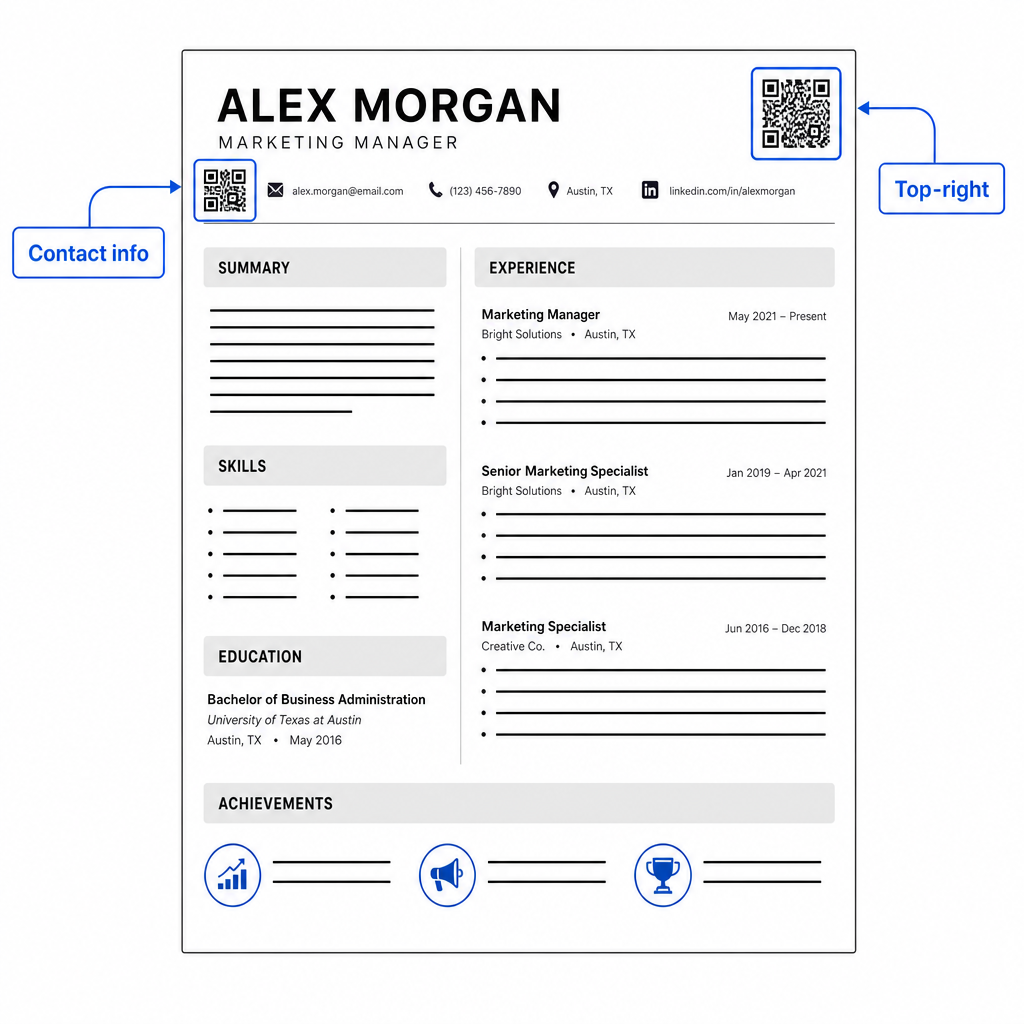
Tartsa a kódot elég kicsinek ahhoz, hogy ne legyen feltűnő: körülbelül 0,8-1 hüvelyk négyzet alakú méret megfelelő egy szabványos önéletrajzhoz. Helyezzen alá egy rövid szöveges címkét, például: Szkennelje be a portfólió megtekintéséhez vagy Szkennelje be a LinkedIn-hez, így a toborzó egy pillantásra tudja, hova vezet a kód. Helyezze az egyszerű szöveges URL-t közvetlenül a kód mellé vagy alá.
Az alábbi táblázat összehasonlítja a gyakori elhelyezési megközelítéseket:
| elhelyezés | Előnyök | Hátrányok |
|---|---|---|
| A kapcsolattartási adatok közelében, felül | Természetes elhelyezkedés, azonnal látható | Kicsinek kell maradnia a zsúfoltság elkerülése érdekében |
| Jobb felső sarok | Tiszta, nem tolakodó | Előfordulhat, hogy elkerüli a figyelmet, ha a toborzó balról jobbra olvas |
| Önéletrajz lábléc | Tisztán tartja a fő tartalmat | Előfordulhat, hogy figyelmen kívül hagyják vagy levágják nyomtatáskor |
| Egy adott szerepkör mellett | Kontextuálisan összekapcsolja a portfóliót az adott állással | Csak egyetlen hivatkozott elem esetén van értelme |
Gyakori hibák elkerülése
- A QR-kód az egyetlen hozzáférési útvonal – Mindig mellékelje az egyszerű szöveges URL-t. Egy toborzó, aki PDF-et néz a képernyőn, nem tud QR-kódot beolvasni.
- Hivatkozás egy előkészítetlen célra – Egy LinkedIn profil fotó nélkül, egy hiányos összefoglaló vagy elavult tapasztalat rossz fényt vet. Csak akkor hivatkozzon, ha a cél teljes és aktuális.
- Statikus QR-kód használata, amikor az Ön linkjei megváltozhatnak – Ha az Ön portfólió URL-je vagy LinkedIn címe megváltozik, egy statikus kód elromlik és használhatatlanná válik. Egy dinamikus kód frissíthető anélkül, hogy bármit újra nyomtatna.
- A teszt kihagyása – Mindig olvassa be az Ön végső kódját egy nyomtatott példányról – nem csak a képernyőről – mielőtt benyújtja vagy kiosztja az Ön önéletrajzát.
- Gyenge kontraszt vagy zsúfolt csendes zóna – Mindkettő azt okozza, hogy a kód hibásan működjön egyes eszközökön. Kövesse a fenti méret- és kontrasztirányelveket, és hagyjon tiszta teret a kód körül minden oldalon.
- Alacsony felbontású kép használata – Egy pixeles QR-kód egy nyomtatott önéletrajzon szakszerűtlennek tűnik, és előfordulhat, hogy nem olvasható be. Exportálja SVG vagy EPS formátumban, vagy legalább 300 DPI PNG-ben.
A toborzói szkepticizmus kezelése
Nem minden toborzó fog QR-kódot beolvasni. Néhányan nem ismerik a szokást, óvatosak az ismeretlen linkekkel kapcsolatban, vagy egyszerűen asztali gépen nézik át az önéletrajzokat, ahol a beolvasás nem praktikus. Ez nem ok arra, hogy teljesen elkerüljük a QR-kódokat – de ok arra, hogy kiegészítésként kezeljük őket, ne helyettesítésként, az egyszerű szöveges linkekhez.
Címkézze fel egyértelműen az Ön kódját, és tartsa láthatóan az URL-t szöveges formában. Egy toborzó, aki nem olvas be, továbbra is látni fogja az URL-t, és beírhatja vagy rákattinthat. Egy toborzó, aki személyesen nézi át az Ön önéletrajzát, azonnal beolvashatja. A cél az, hogy minden olvasónak a lehető legkönnyebb utat biztosítsa az Ön munkájához, függetlenül attól, hogyan olvassák az Ön önéletrajzát.
Tegye interaktívabbá az Ön önéletrajzát Adjon hozzá egy professzionális QR-kódot az Ön önéletrajzához, amely közvetlenül hivatkozik az Ön portfóliójára, LinkedIn profiljára QR Kód Generátor – ingyenesen létrehozható, a szkennelések nyomon követésének és a cél bármikori frissítésének lehetőségével.
QR-kód hozzáadása az önéletrajzhoz egy apró változtatás, amely jelentős benyomást kelthet – különösen, ha személyesen adja át az önéletrajzát valakinek. A kulcs az előkészítés: győződjön meg róla, hogy a céloldal kifogástalan, a kódja megfelel az alapvető tervezési szabványoknak, és mindig mellékeljen egy olvasható, egyszerű szöveges URL-t. Használjon dinamikus kódot, hogy újranyomtatás nélkül frissíthesse a célt, és teszteljen mindent egy fizikai nyomtatványon a következő interjú vagy állásbörze előtt.
Gyakori kérdések
Nem – az ATS platformok a QR kódokat képként kezelik és kihagyják őket a szövegelemzés során, így maga a kód nem befolyásolja negatívan az Ön ATS pontszámát. Azonban, annak érdekében, hogy az Ön portfóliója vagy LinkedIn URL-je is géppel olvasható legyen, mindig mellékelje a link egyszerű szöveges változatát a QR kód mellé.
A legjobb úti cél az Ön szakterületétől függ. Egy portfólió webhely vagy PDF portfólió jól működik kreatív és technikai szerepkörökben. Egy LinkedIn profil a legtöbb iparágban megfelelő. Egy vCard QR-kód hasznos, ha az Ön elsődleges célja az, hogy megkönnyítse a toborzók számára az Ön elérhetőségeinek mentését. Bármire is hivatkozik, győződjön meg róla, hogy az teljes, aktuális és optimalizált a nyomtatás előtt.
Egy statikus QR kód közvetlenül a kód mintájába kódolja az Ön cél URL-jét – ha az URL változik, a kód elromlik, és újra kell nyomtatnia. Egy dinamikus QR kód egy rövid átirányító URL-t kódol, amelyet bármikor frissíthet anélkül, hogy megváltoztatná a kinyomtatott kódot. Egy önéletrajzhoz, amelyet több hónapon keresztül oszthat ki, a dinamikus kód a biztonságosabb és rugalmasabb választás.