Avez-vous du mal à faire en sorte que les recruteurs remarquent votre portfolio ou votre profil LinkedIn ? Un code QR sur votre CV fait le lien entre une page imprimée et votre présence numérique complète – ce guide explique comment en créer un, où le placer et comment éviter les erreurs qui le rendent non professionnel.
Ce qu'un code QR de CV fait réellement
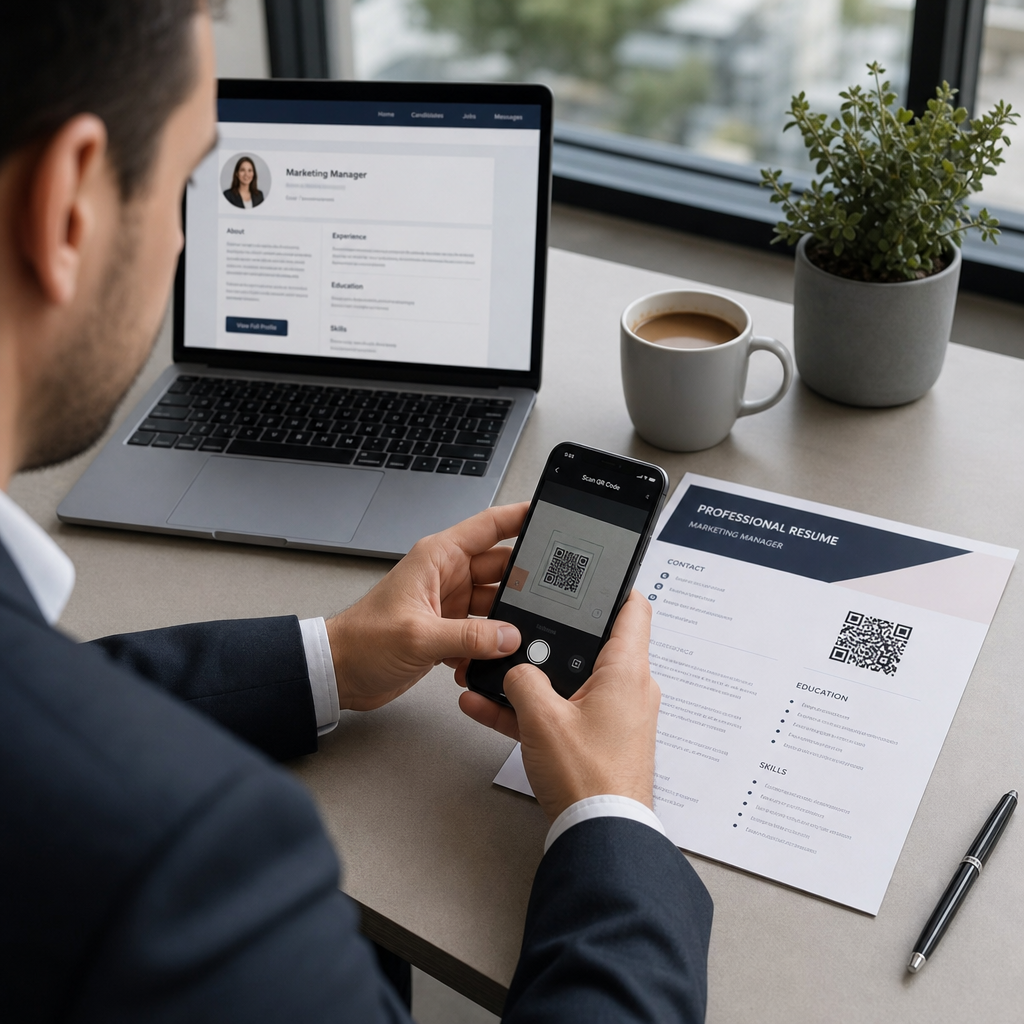
Un code QR est une image scannable qui encode une URL ou d'autres données. Lorsqu'un recruteur pointe l'appareil photo de son téléphone dessus, il ouvre votre portfolio, votre profil LinkedIn ou votre CV numérique directement dans son navigateur – aucune saisie n'est requise.
Sur un CV, cela résout un vrai problème : les recruteurs lisant une copie imprimée n'ont aucun moyen facile de cliquer sur vos liens. Un code QR transforme une page statique en une page interactive sans ajouter d'encombrement. Les types de destinations vers lesquelles vous pouvez créer un lien incluent :
- profil LinkedIn – permet aux recruteurs d'examiner votre historique de travail complet, vos recommandations et votre activité
- Portfolio en ligne – présente des projets, des études de cas ou des échantillons créatifs
- CV PDF – donne accès à une version étendue ou formatée de votre CV
- Carte de contact numérique (vCard) – permet aux recruteurs d'enregistrer vos coordonnées directement sur leur téléphone
Quand l'ajout d'un code QR a du sens
Un code QR ajoute de la valeur dans des situations spécifiques. Il fonctionne mieux lorsque votre CV sera imprimé et remis en personne – lors d'entretiens, de salons de l'emploi ou d'événements de réseautage – et lorsque vous avez un portfolio, un site personnel ou un profil LinkedIn qui vaut la peine d'être visité. Il est particulièrement efficace dans les domaines où la présentation du travail est importante : design, développement, rédaction, marketing ou toute discipline créative où un recruteur bénéficie de la visualisation d'échantillons au-delà de ce qui tient sur une page.
Il ajoute moins de valeur lorsque votre CV ne sera soumis que via un portail de candidature en ligne. Dans ces cas, les recruteurs impriment rarement les CV, de sorte que le code QR n'est pas scanné. Considérez-le comme une fonctionnalité pour l'expérience en personne, et non comme un substitut aux liens en texte brut qui fonctionnent partout.
Comment les systèmes ATS gèrent les codes QR
Avant d'ajouter un code QR, vous devez comprendre comment fonctionnent les systèmes de suivi des candidatures (ATS). Les plateformes ATS lisent le texte et ignorent largement les éléments d'image – un code QR est traité comme un graphique non textuel et est simplement ignoré lors de l'analyse. Cela signifie que le code lui-même ne nuira pas à votre score ATS, mais il ne l'aidera pas non plus. Ce qui compte pour l'ATS, c'est le texte de votre CV.
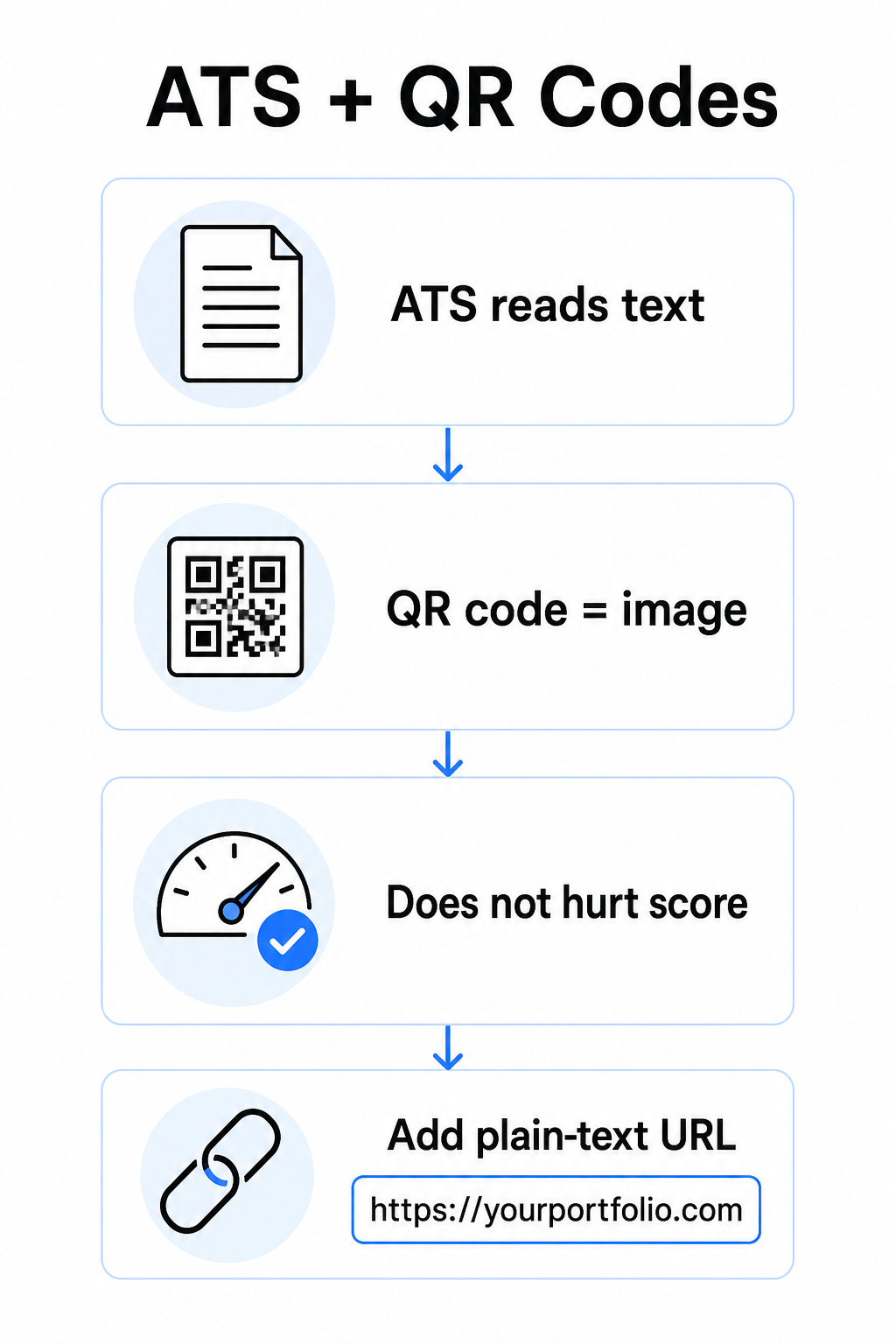
Incluez toujours une URL en texte brut à côté de votre code QR. Écrivez le lien complet en texte lisible (par exemple, `linkedin.com/in/yourname`) afin que la destination reste accessible à la fois au logiciel ATS et à tout recruteur examinant une copie numérique qui ne peut pas scanner une image.
Gardez votre format de CV global simple. Les mises en page complexes, les zones de texte, les colonnes multiples et les graphiques lourds peuvent perturber les analyseurs ATS – votre code QR doit donc s'intégrer parfaitement dans une mise en page propre et standard plutôt que de dominer le design.
Créez un code QR pour votre CV Prêt à lier votre portfolio ou votre profil LinkedIn avec un code scannable ? Utilisez le Générateur de codes QR pour créer un code QR personnalisé et professionnel en quelques minutes – aucune expérience en design n'est nécessaire.
Préparer votre destination avant de générer
Le code QR n'est aussi efficace que ce vers quoi il mène. Avant d'en créer un, assurez-vous que la destination est prête pour les yeux d'un recruteur.
Profil LinkedIn
Commencez par créer une URL LinkedIn personnalisée – quelque chose comme `linkedin.com/in/prenom-nom` – afin que le lien ait l'air propre plutôt qu'une chaîne de caractères aléatoires. Ajoutez une photo de profil professionnelle, ce qui augmente la crédibilité et les vues de profil. Rédigez un titre et un résumé clairs et pertinents pour les mots-clés, en utilisant des titres de poste familiers et des réalisations mesurables tirées de vos rôles cibles. Ensuite, mettez à jour votre historique de travail, votre formation et tout échantillon multimédia qui met en valeur votre travail avant de partager le lien n'importe où.
Vous pouvez en apprendre davantage sur QR code LinkedIn : où le trouver et comment l'utiliser et générer un code personnalisé avec le Générateur de QR code LinkedIn.
Site de portfolio
Sélectionnez 4 à 6 projets directement pertinents pour les rôles auxquels vous postulez, et incluez des résultats mesurables pour chacun – résultats, impact et ce que vous avez spécifiquement contribué. Rédigez des descriptions en langage clair et vérifiez minutieusement l'orthographe et la grammaire. Testez le site sur mobile et sur ordinateur pour confirmer un chargement rapide et un formatage propre, et utilisez une URL courte et professionnelle avec un slug personnalisé. Évitez les liens qui ressemblent à une chaîne de chiffres et de tirets, qui peuvent paraître spammés ou indignes de confiance pour les recruteurs.
CV PDF
Si vous souhaitez créer un lien vers une version plus longue ou plus visuellement formatée de votre CV, un code QR PDF est une option simple. Utilisez le Générateur de QR code PDF pour télécharger votre document et générer un lien scannable directement vers celui-ci.
Carte de contact (vCard)
Un code QR vCard encode vos coordonnées – nom, téléphone, e-mail et site web – directement dans le code. Quand quelqu'un le scanne, il peut vous enregistrer dans ses contacts instantanément sans taper un seul caractère. Cela fonctionne particulièrement bien dans la section contact d'un CV ou sur une carte de visite que vous distribuez lors d'entretiens. Le Générateur de QR code vCard rend sa création simple, et vous pouvez en savoir plus sur comment créer un code QR pour les informations de contact pour tirer le meilleur parti de ce format.
Comment créer votre code QR de CV
Une fois votre destination prête, la génération du code QR ne prend que quelques étapes.
Tout d'abord, choisissez le bon générateur pour votre destination. Utilisez le Générateur de QR code LinkedIn pour un lien de profil, le Générateur de QR code PDF pour un document, le Générateur de QR code vCard pour les coordonnées, ou le Générateur de codes QR de liens pour toute autre URL. Ensuite, collez votre URL de destination ou téléchargez votre fichier.
À ce stade, déterminez si vous souhaitez utiliser un code QR dynamique. Les codes dynamiques stockent une courte URL de redirection à l'intérieur du code plutôt que d'encoder directement la destination complète. Cela signifie que vous pouvez mettre à jour où le code pointe – même après l'impression – sans modifier le code lui-même. Si l'URL de votre portfolio change ou si vous mettez à jour votre adresse LinkedIn, un code dynamique vous évite de réimprimer votre CV.
Ensuite, personnalisez le design. Ajustez les couleurs pour qu'elles correspondent à la palette de votre CV, en gardant le premier plan sombre et l'arrière-plan clair. Le noir sur blanc reste la combinaison la plus fiable pour les scanners. Évitez les dégradés, les ombres ou les designs inversés (code clair sur fond sombre), car ceux-ci peuvent provoquer des échecs de scan sur certains appareils.
Lorsque vous êtes prêt à télécharger, exportez au format SVG ou EPS pour un résultat plus net. Ces formats vectoriels s'adaptent sans perte de qualité, évitant le flou qui provoque des échecs de scan sur les documents imprimés. Enfin, testez le code sur plusieurs appareils et dans différentes conditions d'éclairage avant de l'ajouter à votre CV. Confirmez que la destination se charge correctement et rapidement sur les connexions Wi-Fi et cellulaires.
Liez n'importe quelle URL à un code scannable Que votre destination soit un portfolio, un site personnel ou toute autre page web, le Générateur de codes QR de liens vous permet de créer un code personnalisé et traçable en quelques secondes.
Normes de conception des codes QR pour les CV
Un code QR sur un CV doit paraître intentionnel, et non ajouté comme une réflexion après coup. Les directives techniques suivantes garantissent qu'il scanne de manière fiable et s'intègre proprement à la page.
Taille
La taille minimale recommandée pour un code QR dans un contexte de scan à courte portée – comme un CV tenu à bout de bras – est 0,8 x 0,8 pouces (2 x 2 cm). Réduire la taille risque de provoquer des échecs de scan ; tout ce qui est d'environ 0,4 x 0,4 pouces (1 x 1 cm) est trop petit pour une utilisation cohérente. Les QR code carte de visite : conseils sur la taille s'appliquent également aux CV et méritent d'être examinées avant de finaliser votre mise en page.
Contraste des couleurs
Les scanners fonctionnent en détectant le contraste entre les modules sombres et clairs. Visez un rapport de contraste d'au moins 4,5:1 pour les petits codes QR, conformément aux directives d'accessibilité. Le noir sur blanc atteint un rapport de 21:1 et est le choix le plus sûr. Évitez le gris clair sur blanc, le jaune sur blanc ou toute combinaison où le code se fond dans l'arrière-plan de la page. Le guide complet meilleures pratiques de contraste des couleurs des codes QR fournit des recommandations détaillées d'appariement et des exemples de rapports de contraste.
Zone de calme
La zone de silence est la bordure vierge entourant le code QR. Selon la norme ISO/IEC 18004, elle doit être d'au moins quatre modules de large sur tous les côtés – c'est-à-dire quatre fois la largeur d'un petit carré dans la grille du code. Ne placez jamais de texte, de lignes ou d'autres éléments de design à l'intérieur de cette marge. Une zone de silence manquante ou encombrée est l'une des raisons les plus courantes pour lesquelles un code QR ne parvient pas à scanner, et il est facile de la violer accidentellement lors de l'intégration d'un code dans une mise en page de CV serrée.
Résolution
Exportez votre code QR à un minimum de 300 DPI pour l'impression. Mieux encore, utilisez un format vectoriel (SVG ou EPS) afin que le code s'adapte proprement quelle que soit la taille d'impression, sans pixellisation. Le les meilleures pratiques pour la lisibilité des codes QR couvre la résolution, les zones de silence et le contraste en un seul endroit si vous souhaitez une référence complète.
Où placer le code QR sur votre CV
Le placement est un signe de professionnalisme. Un code QR placé au hasard au milieu de votre section expérience ressemble à un accident. Les deux positions les plus efficaces sont près de vos coordonnées en haut de la page – où les recruteurs cherchent d'abord les moyens de vous joindre – ou dans le coin supérieur droit, ce qui maintient le code visible sans concurrencer le texte principal du CV.
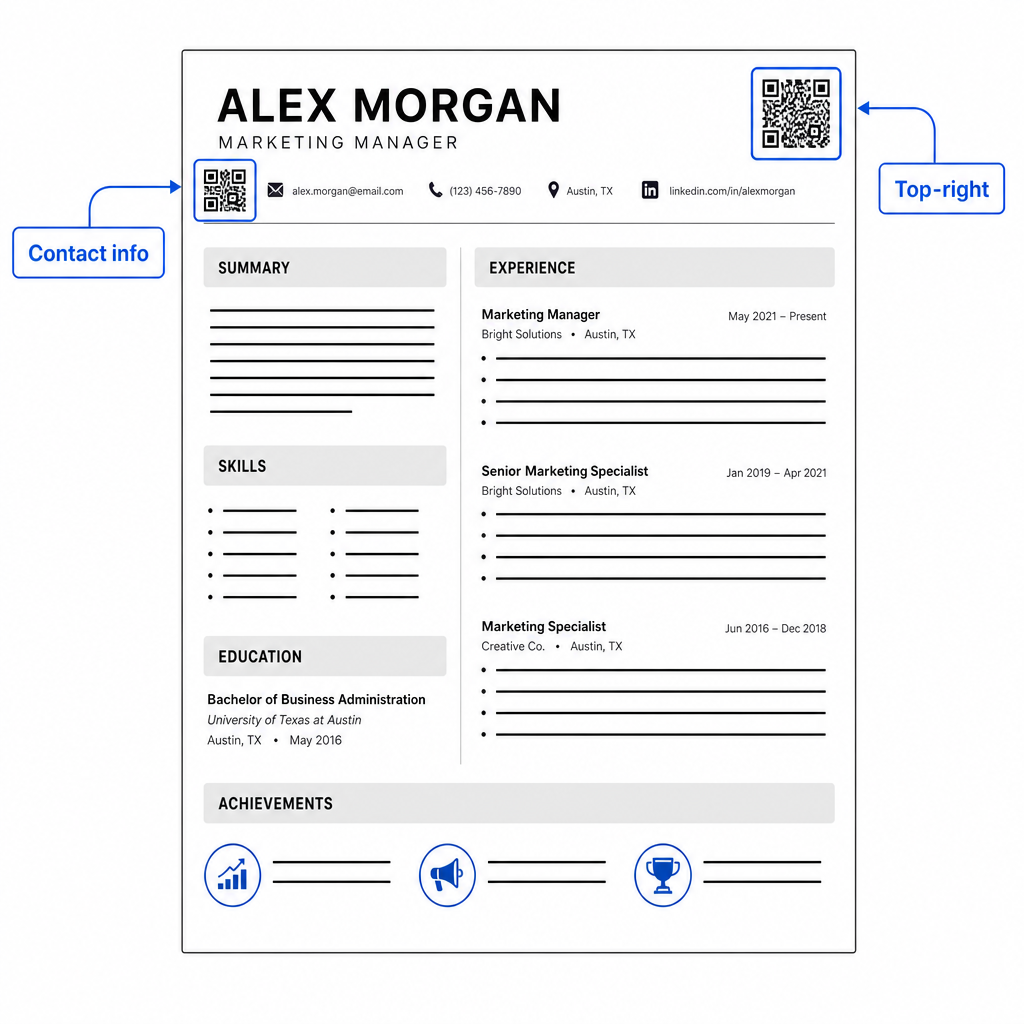
Gardez le code suffisamment petit pour rester discret : environ 0,8 à 1 pouce carré convient à un CV standard. Ajoutez une brève étiquette de texte en dessous, telle que Scannez pour voir le portfolio ou Scannez pour LinkedIn, afin qu'un recruteur sache en un coup d'œil où mène le code. Placez l'URL en texte brut directement à côté ou en dessous du code.
Le tableau ci-dessous compare les approches de placement courantes :
| EMPLACEMENT | Pour | Inconvénients |
|---|---|---|
| Près des informations de contact en haut | Emplacement naturel, vu immédiatement | Doit rester petit pour éviter l'encombrement |
| Coin supérieur droit | Propre, non-intrusif | Peut être manqué si le recruteur lit de gauche à droite |
| Pied de page du CV | Garde le contenu principal propre | Peut être négligé ou coupé lors de l'impression |
| À côté d'un rôle spécifique | Lie contextuellement le portfolio à ce poste | N'a de sens que pour un seul élément lié |
Les erreurs courantes à éviter
- Faire du code QR la seule voie d'accès – Incluez toujours l'URL en texte brut. Un recruteur qui examine un PDF à l'écran ne peut pas scanner un code QR.
- Liens vers une destination non préparée – Un profil LinkedIn sans photo, un résumé succinct ou une expérience obsolète reflète mal. Ne liez que lorsque la destination est complète et à jour.
- Utiliser un code QR statique lorsque vos liens pourraient changer – Si l'URL de votre portfolio ou l'adresse LinkedIn change, un code statique devient cassé et inutile. Un code dynamique peut être mis à jour sans rien réimprimer.
- Sauter le test – Scannez toujours votre code final à partir d'une copie imprimée – pas seulement depuis votre écran – avant de soumettre ou de distribuer votre CV.
- Mauvais contraste ou zone de silence encombrée – Les deux feront échouer le code sur certains appareils. Suivez les directives de taille et de contraste ci-dessus et laissez un espace clair autour du code de tous les côtés.
- Utiliser une image basse résolution – Un code QR pixélisé sur un CV imprimé semble non professionnel et pourrait ne pas scanner. Exportez en SVG ou EPS, ou au minimum en PNG 300 DPI.
Aborder le scepticisme des recruteurs
Tous les recruteurs ne scanneront pas un code QR. Certains peuvent ne pas être familiers avec cette habitude, prudents vis-à-vis des liens inconnus, ou simplement examiner des CV sur un ordinateur de bureau où le scan est peu pratique. Ce n'est pas une raison d'éviter entièrement les codes QR – mais c'est une raison de les traiter comme un supplément, pas un remplacement, pour les liens en texte brut.
Étiquetez clairement votre code et gardez l'URL visible en texte. Un recruteur qui ne scanne pas verra toujours l'URL et pourra la taper ou cliquer dessus. Un recruteur qui examine votre CV en personne a la possibilité de scanner immédiatement. L'objectif est de donner à chaque lecteur le chemin le plus facile possible vers votre travail, quelle que soit la manière dont ils lisent votre CV.
Rendez votre CV plus interactif Ajoutez un code QR professionnel à votre CV qui renvoie directement à votre portfolio, profil LinkedIn ou CV numérique. Commencez avec le Générateur de codes QR – gratuit à créer, avec des options pour suivre les scans et mettre à jour votre destination à tout moment.
L'ajout d'un code QR à votre CV est un petit changement qui peut faire une impression significative – en particulier lorsque vous remettez votre CV à quelqu'un en personne. La clé est la préparation : assurez-vous que votre destination est soignée, que votre code respecte les normes de conception de base, et que vous incluez toujours une URL en texte brut lisible à côté. Utilisez un code dynamique afin de pouvoir mettre à jour la destination sans réimpression, et testez tout sur une impression physique avant votre prochain entretien ou salon de l'emploi.
Questions fréquentes
Non – les plateformes ATS traitent les codes QR comme des images et les ignorent lors de l'analyse du texte, donc le code lui-même n'affecte pas négativement votre score ATS. Cependant, pour vous assurer que l'URL de votre portfolio ou de votre profil LinkedIn est également lisible par une machine, incluez toujours la version en texte brut du lien à côté du code QR.
La meilleure destination dépend de votre domaine. Un site de portfolio ou un portfolio PDF fonctionne bien pour les rôles créatifs et techniques. Un profil LinkedIn convient à la plupart des industries. Un code QR vCard est utile si votre objectif principal est de faciliter la tâche des recruteurs pour enregistrer vos coordonnées. Quoi que vous liiez, assurez-vous qu'il est complet, à jour et optimisé avant d'imprimer.
Un code QR statique encode votre URL de destination directement dans le motif du code – si l'URL change, le code devient cassé et vous devez réimprimer. Un code QR dynamique encode une courte URL de redirection que vous pouvez mettre à jour à tout moment sans changer le code imprimé. Pour un CV que vous pourriez distribuer sur plusieurs mois, un code dynamique est le choix le plus sûr et le plus flexible.