首页 > 指南 > How to Link a QR Code to a Calendly Booking Page
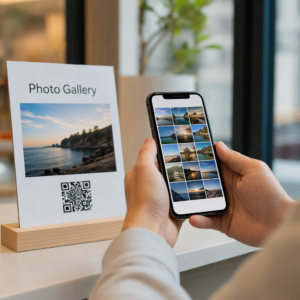
Scanning a booking code

How to Link a QR Code to a Calendly Booking Page

Learn how to link a QR code to your Calendly booking page. Follow this guide to generate, customize, and place dynamic QR codes to simplify scheduling.
Updated on 8 月 29, 2026
目录

Are you losing prospective clients to long email threads when scheduling appointments? Requiring contacts to manually copy or type web links creates unnecessary friction that leads to dropped bookings. Connecting a QR code directly to your Calendly booking page allows anyone to scan and schedule a meeting instantly.

Before generating your QR code, you need to locate your specific booking URL within your account. Make sure your availability, meeting buffers, minimum notice rules, and custom invitee questions are properly configured so your scheduling page is ready for visitors.

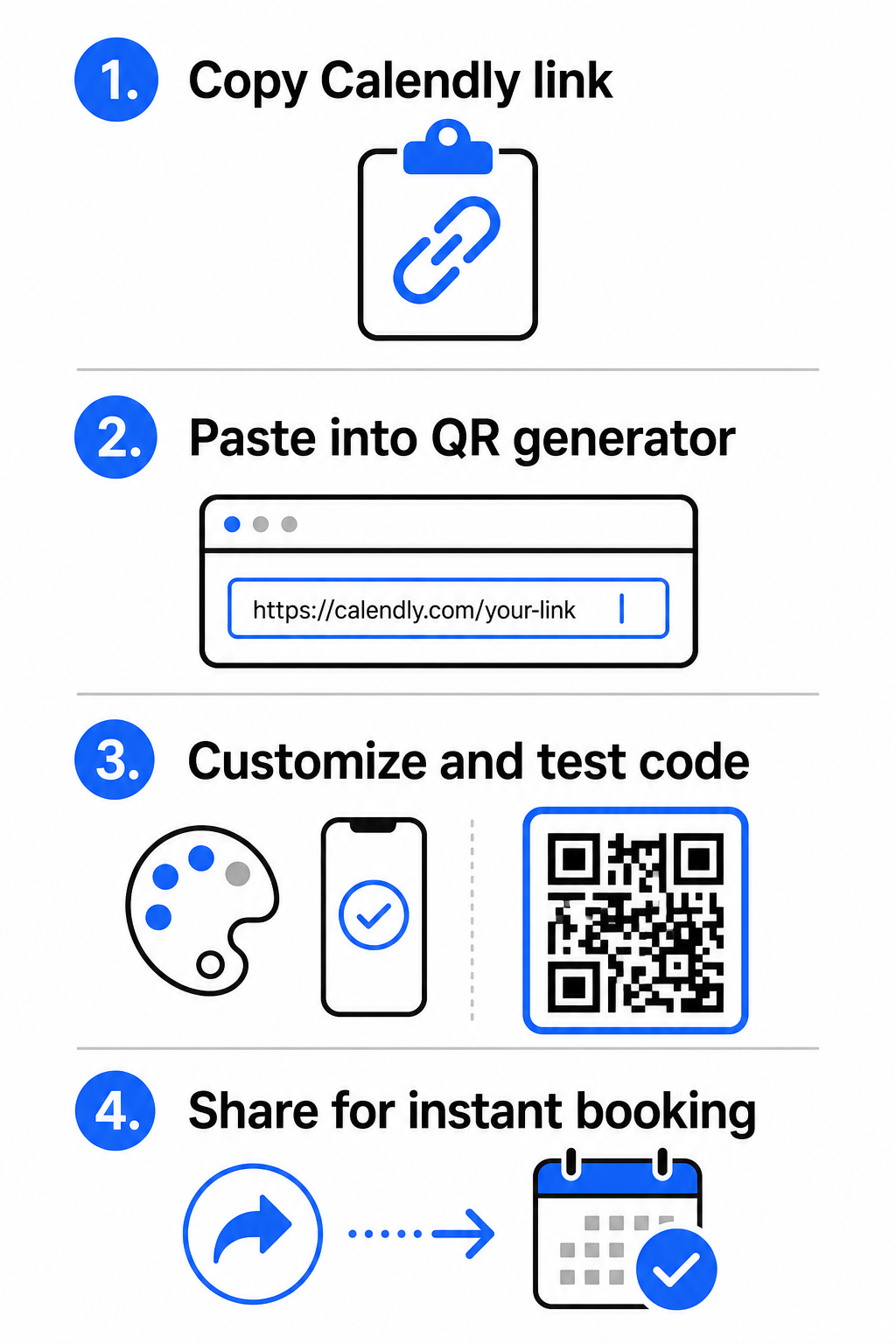
  • Share a specific event type: Log in to your Calendly account, navigate to the Scheduling dashboard, hover over the card for your desired meeting type (such as a 30-minute consultation), and click 复制链接.
  • Share your main landing page: Go to the Scheduling dashboard, select the three dots in the top-right corner, and click 复制链接 to share a central page displaying all your available event types.

Generate Your Calendly QR Code

Once you have copied your URL, you can convert it into a scannable image that opens your calendar upon scanning.

Calendly QR creation steps
  • 打开 链接二维码生成器 in your web browser.
  • Paste your copied Calendly URL directly into the destination input field.
  • Click 下一页 to build your initial QR code pattern.

Create Your Custom Booking QR Code Simplify your scheduling workflow today by converting your Calendly link with our 链接二维码生成器.

Customize Visual Design for High Scannability

Customizing your QR code integrates your branding while preserving rapid camera detection. Light sensors inside smartphone cameras depend on clear geometric patterns to decode embedded data quickly.

  • Maintain high contrast: Use a dark foreground color on a light background, such as black on white. Avoid low-contrast pairings like yellow on white or light blue on gray, which prevent optical sensors from reading the matrix.
  • Incorporate your brand logo: Add your company logo to the center of the QR code to build visual trust and encourage users to scan.
  • 保护静区: Maintain an unobstructed border around the outer edges of the code that is at least four modules wide (approximately 0.15 inches for a 1-inch code). Keep this space entirely free of text, background patterns, or visual elements.

Optimize Sizing, Materials, and Print Quality

Testing your code across physical materials and screen environments ensures reliable performance before distributing your materials to clients.

  • Adhere to minimum print dimensions: Keep physical codes at a minimum size of 0.8 × 0.8 英寸(2 × 2 厘米) for close-range scanning, following our detailed 二维码尺寸指南.
  • Apply the distance ratio: Use the 10:1 scanning ratio rule for signage and banners, ensuring a code designed to be scanned from a distance of 10 feet measures at least 1 foot wide.
  • Select non-reflective print materials: Choose matte paper finishes or dull vinyl covers over glossy surfaces to prevent light reflections, and learn more about how printing techniques impact QR code scannability.
  • Perform live device testing: Test your physical print prototypes using both iOS and Android camera apps under bright and low-light conditions to confirm immediate loading.

Where to Place Your Booking QR Code

Positioning your QR code across key offline and online touchpoints turns everyday communications into direct meeting opportunities.

Booking QR placement ideas
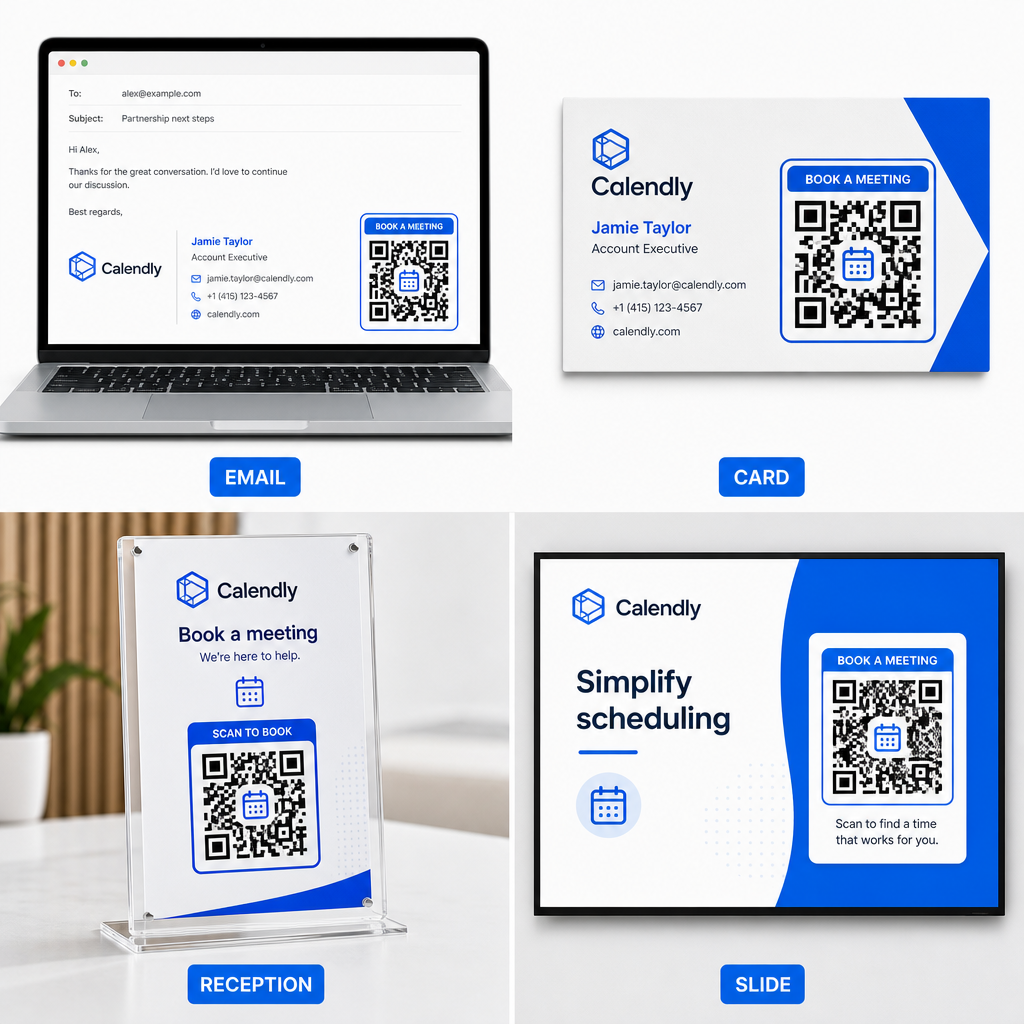
  • 电子邮件签名: Place a scheduling code beneath your contact details, following our practical guide on setting up a QR code for email signature.
  • 商业名片: Provide prospects with a direct booking shortcut immediately after networking events or trade shows.
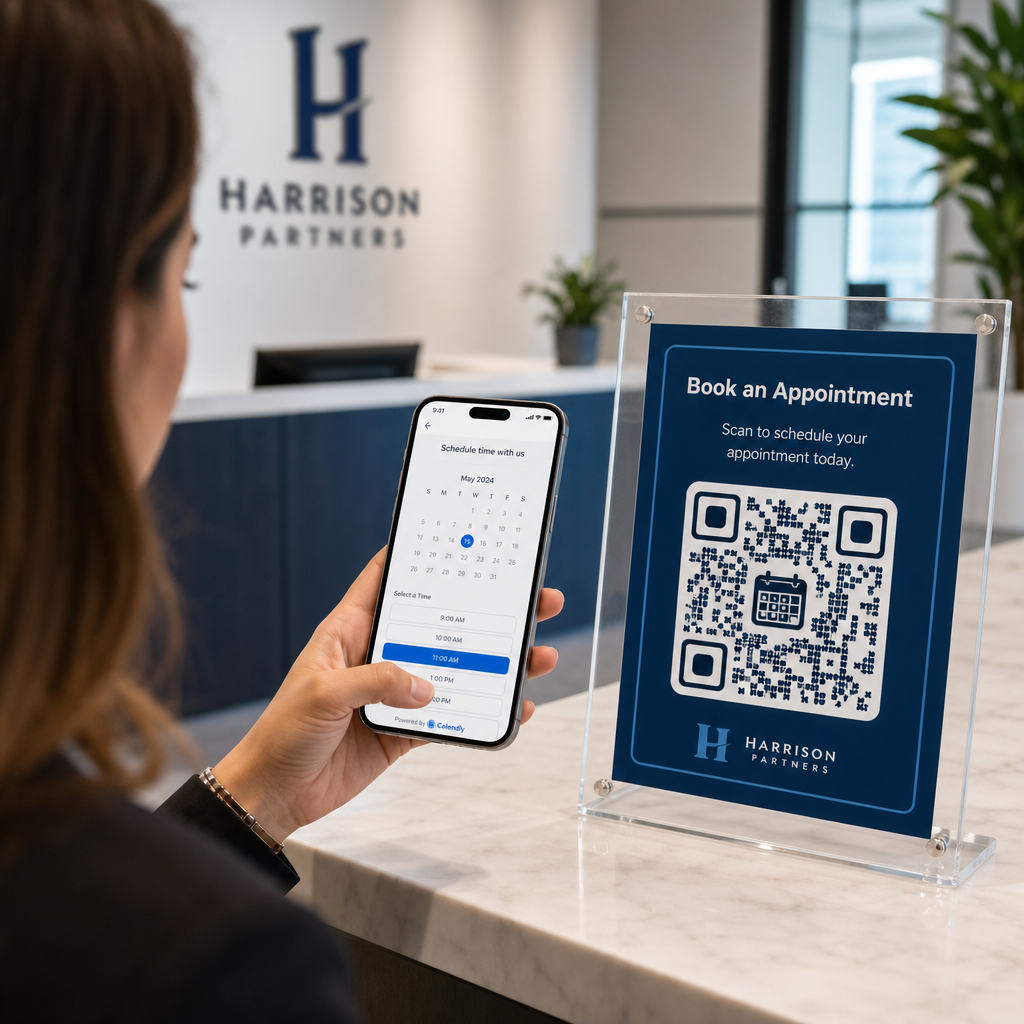
  • Reception Displays: Frame QR codes on office counters so clients and patients can schedule follow-up appointments before leaving.
  • Presentation Slides: Feature your QR code on the final slide of your decks so audience members can book follow-up consultations while your talk is top of mind.

Advantages of Using Dynamic QR Codes

While static QR codes permanently embed a single destination URL into their pixel matrix, using a 动态二维码生成器 routes scanners through an editable redirect link.

  • Update destination links without reprinting: If you update your Calendly username or switch scheduling software, you can update the destination URL inside your management dashboard without replacing your printed collateral. Review our guide on how to edit QR codes for step-by-step instructions.
  • Track scan analytics: Dynamic codes capture real-time engagement data, including scan counts and geographic locations, helping you discover which marketing channels convert best.

Streamline Your Appointment Scheduling

Replacing long URLs with a direct QR code removes booking friction and connects clients directly to your calendar. Build your personalized dynamic code with Pageloot to track engagement, update destination links easily, and automate your appointment workflow.

常见问题

Can I change the Calendly link attached to my QR code after printing?

Yes, provided you use a dynamic QR code. Dynamic codes point to a short redirect URL, allowing you to update your target Calendly link inside your management dashboard at any time without reprinting physical materials.

What is the minimum recommended size for a printed booking QR code?

For close-range scanning on business cards or flyers, print your QR code at least 0.8 × 0.8 inches (2 × 2 cm). For larger displays, scale the code using a 10:1 ratio based on the expected scanning distance.

Why does my QR code fail to open my Calendly page when scanned?

Scanning failures usually stem from low color contrast, missing space in the quiet zone, broken destination links, or surface glare on glossy printed materials.

关于作者

Siim Kostabi 是 Pageloot 的内容主管,负责撰写关于我们创新型二维码生成器服务的文章。凭借五年多来在二维码领域积累的深厚专业知识,Siim 是该领域的专家。他致力于利用二维码技术简化和增强数字交互,并取得了显著的成果。.

类别
了解更多关于
Modern barcode scanning
是条码 死的?
QR QR码的#1解决方案

如果您需要在线创建QR码,则可以 制作二维码 就在这里免费!
Pageloot是 #1转到解决方案 创建和扫描QR码。

BL-0364

博客生成器

受到超过 20,000 个品牌的信赖,可获得更多销售、评论和关注者。

客户徽标
受到顶级品牌的信赖
评分为 4.8(共 5)

4.86 / 5 星评级

雨果·劳伦特
雨果·劳伦特
餐馆老板
有史以来最容易和最可靠的QR码生成器。PDF文件可以立即上传。我们的餐厅菜单现在是数字化的。
卢卡斯-詹森
卢卡斯-詹森
房地产开发商
这是一个很好的工具,二维码带你到你想要的地方。我们只使用位置二维码,但有许多有用的功能。
艾玛-莫雷蒂
艾玛-莫雷蒂
零售产品
易于使用和快速。它工作得很好,创造了一个完美的图像,所以员工可以下载我的vCard。
雨果·劳伦特
雨果·劳伦特
餐馆老板
有史以来最容易和最可靠的QR码生成器。PDF文件可以立即上传。我们的餐厅菜单现在是数字化的。
卢卡斯-詹森
卢卡斯-詹森
房地产开发商
这是一个很好的工具,二维码带你到你想要的地方。我们只使用位置二维码,但有许多有用的功能。
艾玛-莫雷蒂
艾玛-莫雷蒂
零售产品
易于使用和快速。它工作得很好,创造了一个完美的图像,所以员工可以下载我的vCard。
查看更多QR码
客户扫描二维码
的QR码 小本生意
将一切转化为数字体验 不到3分钟。

免费试用 14 天。

无需信用卡。

首次购买可享受 30% 折扣

使用代码:

分享您的 MP3 文件

注册以创建 PDF QR 码

上传和显示你需要的一切。

  • 音频文件
  • 播客
  • 音乐

注册即可享 14 天免费试用。.
试用期结束后,二维码将失效。.

注册以创建音频 mp3 二维码

使用边框获得更多扫描

注册以向您的二维码添加更多框架

呼叫行动框架帮助您的客户与QR码轻松互动。试试吧!

注册即可享 14 天免费试用。.
试用期结束后,二维码将失效。.

注册以向您的二维码添加更多框架

使用形状添加更多样式

注册以创建更多形状

二维码不一定是方形的。试着改变它以适应你的品牌形象。

注册即可享 14 天免费试用。.
试用期结束后,二维码将失效。.

注册以创建更多形状

为您的二维码添加徽标

注册以将您的徽标添加到二维码中

通过在二维码上添加你的标志和品牌,使你的二维码脱颖而出。

注册即可享 14 天免费试用。.
试用期结束后,二维码将失效。.

注册以将您的徽标添加到二维码中

智能应用商店重定向

注册以创建应用商店二维码

将您的应用程序链接添加到我们的智能应用程序商店QR码。用户会根据他们的设备被重新定向。

注册即可享 14 天免费试用。.
试用期结束后,二维码将失效。.

注册以创建应用商店二维码

将图片上传到二维码

注册以创建图像二维码

轻松分享你的图像。在几秒钟内动态地改变任何图像。

注册即可享 14 天免费试用。.
试用期结束后,二维码将失效。.

注册以创建图像二维码

分享您的 PDF 文件

注册以创建 PDF QR 码

上传和显示你需要的一切。

  • 菜单和价格表
  • 使用说明
  • 任何文件

注册即可享 14 天免费试用。.
试用期结束后,二维码将失效。.

注册以创建 PDF QR 码

稍后编辑,无需打印

注册即可编辑您的二维码,无需再次打印

动态QR码让你改变你的QR码的内容,而不需要打印新的QR码。

注册即可享 14 天免费试用。.
试用期结束后,二维码将失效。.

注册即可编辑您的二维码,无需再次打印

何时?何地?追踪您的二维码扫描

注册以追踪您的二维码

发现你的哪些二维码收到了最多的扫描,以及什么最能让你的客户兴奋。

注册即可享 14 天免费试用。.
试用期结束后,二维码将失效。.

注册以追踪您的二维码

提供可打印文件

注册以创建 PDF 和 SVG 等矢量二维码

.EPS, .PDF, .SVG

想下载高清分辨率的QR码吗?获得矢量或像素格式,可随时打印。

注册即可享 14 天免费试用。.
试用期结束后,二维码将失效。.

注册以创建 PDF 和 SVG 等矢量二维码

请等待。您的二维码是 正在加载... 正在加载...

打造专属

注册以保存您的二维码以供日后使用

通过创建具有不同颜色、标识和行动呼吁框架的出色的QR码,获得更多的扫描。

注册即可享 14 天免费试用。.
试用期结束后,二维码将失效。.

注册以保存您的二维码以供日后使用