ホーム > ガイド > How to Link a QR Code to a Calendly Booking Page
Scanning a booking code

How to Link a QR Code to a Calendly Booking Page

Learn how to link a QR code to your Calendly booking page. Follow this guide to generate, customize, and place dynamic QR codes to simplify scheduling.
Updated on 8月 29, 2026
目次

Are you losing prospective clients to long email threads when scheduling appointments? Requiring contacts to manually copy or type web links creates unnecessary friction that leads to dropped bookings. Connecting a QR code directly to your Calendly booking page allows anyone to scan and schedule a meeting instantly.

Before generating your QR code, you need to locate your specific booking URL within your account. Make sure your availability, meeting buffers, minimum notice rules, and custom invitee questions are properly configured so your scheduling page is ready for visitors.

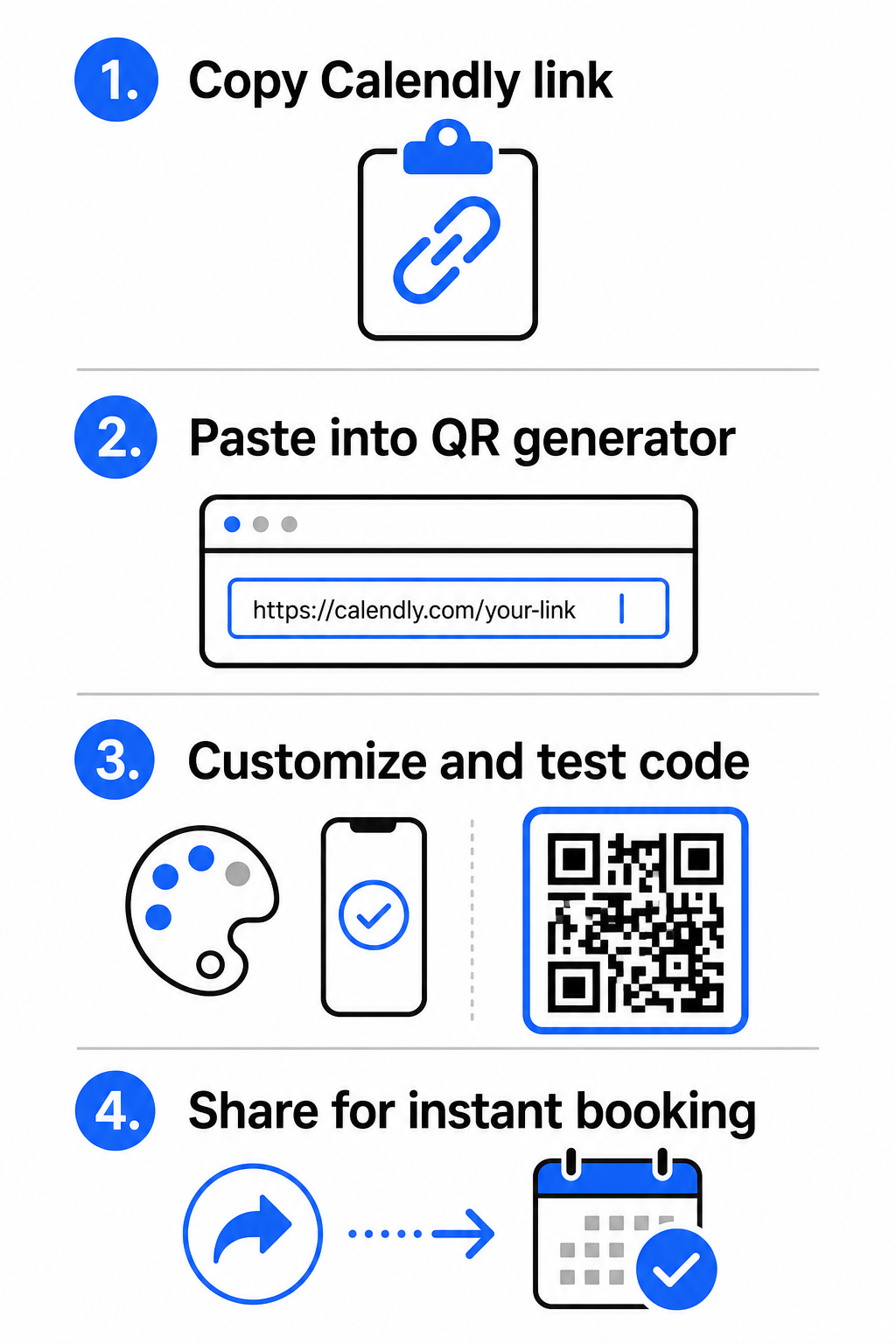
  • Share a specific event type: Log in to your Calendly account, navigate to the Scheduling dashboard, hover over the card for your desired meeting type (such as a 30-minute consultation), and click リンクをコピーする.
  • Share your main landing page: Go to the Scheduling dashboard, select the three dots in the top-right corner, and click リンクをコピーする to share a central page displaying all your available event types.

Generate Your Calendly QR Code

Once you have copied your URL, you can convert it into a scannable image that opens your calendar upon scanning.

Calendly QR creation steps
  • を開きます。 リンクQRコードジェネレーター in your web browser.
  • Paste your copied Calendly URL directly into the destination input field.
  • Click 次のページ to build your initial QR code pattern.

Create Your Custom Booking QR Code Simplify your scheduling workflow today by converting your Calendly link with our リンクQRコードジェネレーター.

Customize Visual Design for High Scannability

Customizing your QR code integrates your branding while preserving rapid camera detection. Light sensors inside smartphone cameras depend on clear geometric patterns to decode embedded data quickly.

  • Maintain high contrast: Use a dark foreground color on a light background, such as black on white. Avoid low-contrast pairings like yellow on white or light blue on gray, which prevent optical sensors from reading the matrix.
  • Incorporate your brand logo: Add your company logo to the center of the QR code to build visual trust and encourage users to scan.
  • クワイエットゾーンを保護する: Maintain an unobstructed border around the outer edges of the code that is at least four modules wide (approximately 0.15 inches for a 1-inch code). Keep this space entirely free of text, background patterns, or visual elements.

Optimize Sizing, Materials, and Print Quality

Testing your code across physical materials and screen environments ensures reliable performance before distributing your materials to clients.

  • Adhere to minimum print dimensions: Keep physical codes at a minimum size of 0.8 × 0.8インチ (2 × 2 cm) for close-range scanning, following our detailed QRコードサイズガイド.
  • Apply the distance ratio: Use the 10:1 scanning ratio rule for signage and banners, ensuring a code designed to be scanned from a distance of 10 feet measures at least 1 foot wide.
  • Select non-reflective print materials: Choose matte paper finishes or dull vinyl covers over glossy surfaces to prevent light reflections, and learn more about how printing techniques impact QR code scannability.
  • Perform live device testing: Test your physical print prototypes using both iOS and Android camera apps under bright and low-light conditions to confirm immediate loading.

Where to Place Your Booking QR Code

Positioning your QR code across key offline and online touchpoints turns everyday communications into direct meeting opportunities.

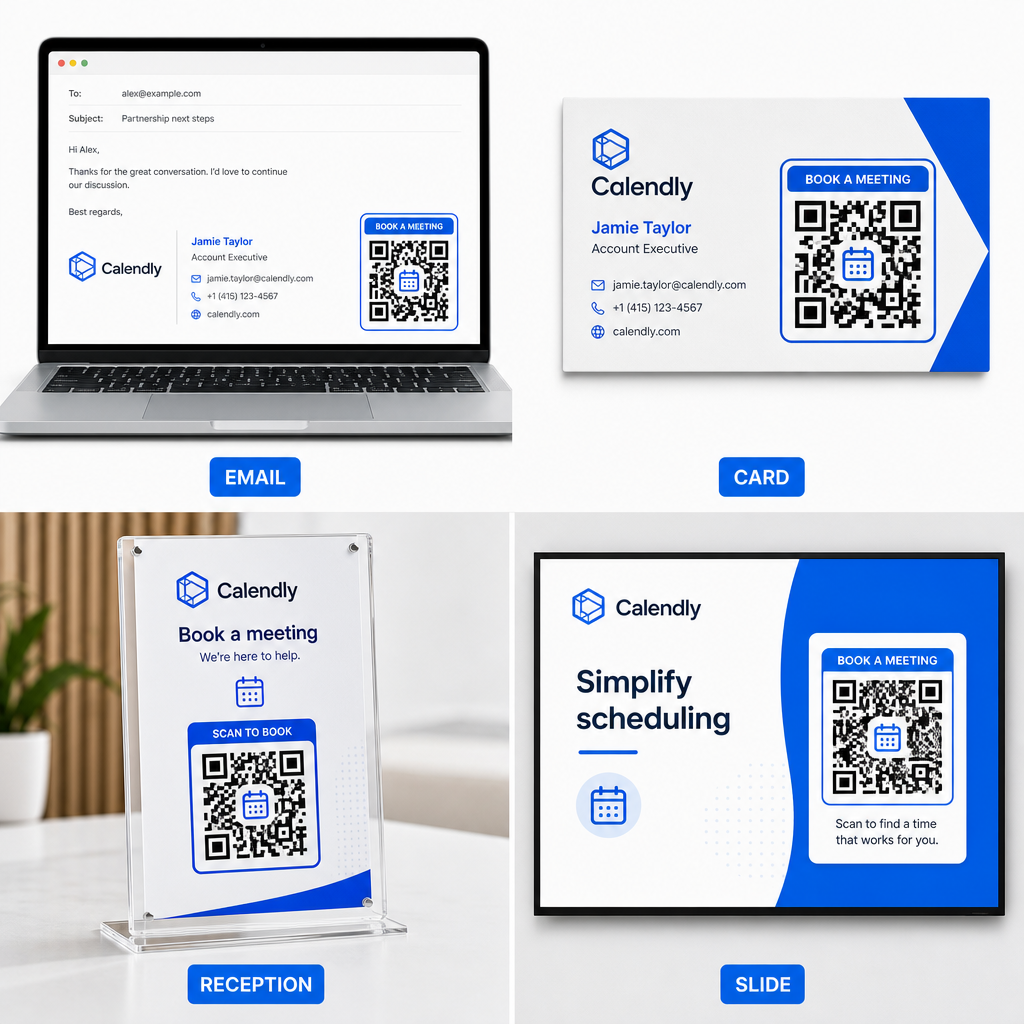
Booking QR placement ideas
  • 電子メール署名: Place a scheduling code beneath your contact details, following our practical guide on setting up a QR code for email signature.
  • 名刺: Provide prospects with a direct booking shortcut immediately after networking events or trade shows.
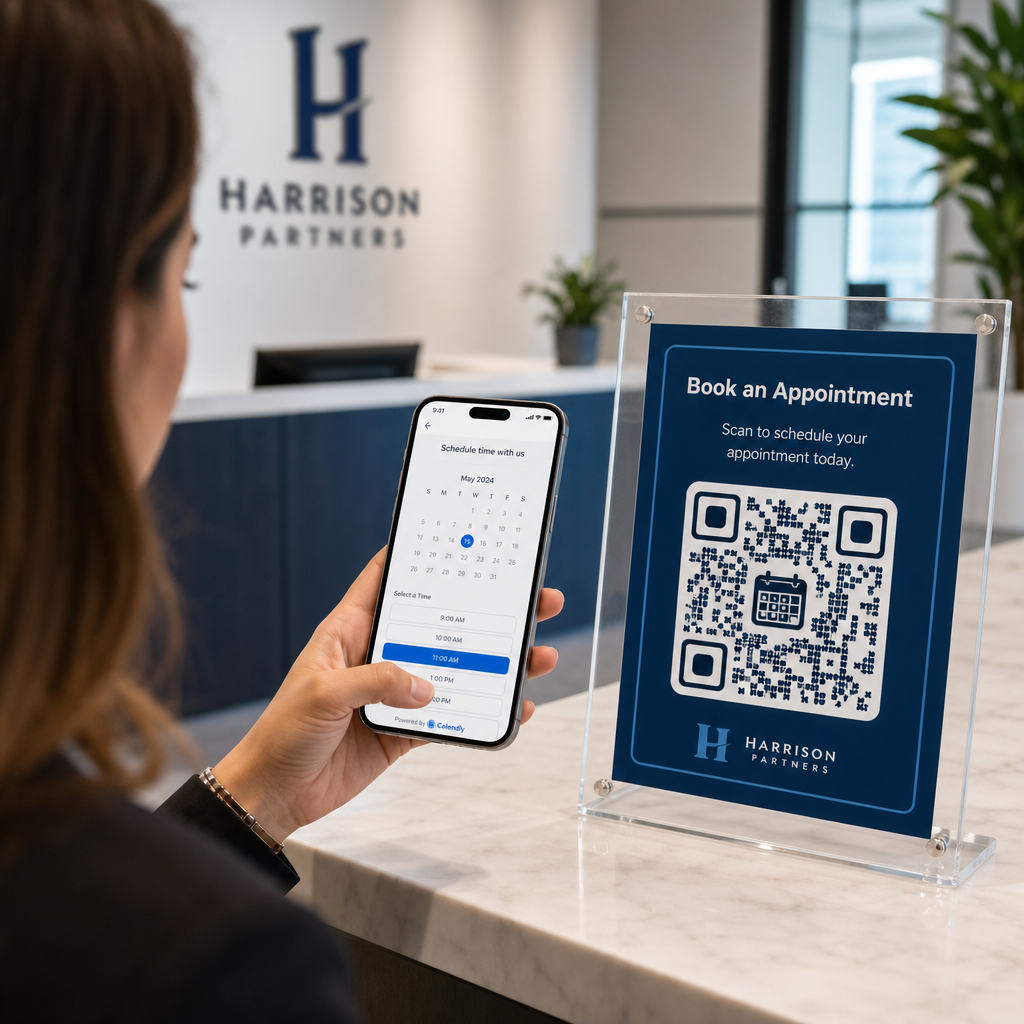
  • Reception Displays: Frame QR codes on office counters so clients and patients can schedule follow-up appointments before leaving.
  • Presentation Slides: Feature your QR code on the final slide of your decks so audience members can book follow-up consultations while your talk is top of mind.

Advantages of Using Dynamic QR Codes

While static QR codes permanently embed a single destination URL into their pixel matrix, using a ダイナミックQRコードジェネレーター routes scanners through an editable redirect link.

  • Update destination links without reprinting: If you update your Calendly username or switch scheduling software, you can update the destination URL inside your management dashboard without replacing your printed collateral. Review our guide on how to edit QR codes for step-by-step instructions.
  • Track scan analytics: Dynamic codes capture real-time engagement data, including scan counts and geographic locations, helping you discover which marketing channels convert best.

Streamline Your Appointment Scheduling

Replacing long URLs with a direct QR code removes booking friction and connects clients directly to your calendar. Build your personalized dynamic code with Pageloot to track engagement, update destination links easily, and automate your appointment workflow.

よくある質問

Can I change the Calendly link attached to my QR code after printing?

Yes, provided you use a dynamic QR code. Dynamic codes point to a short redirect URL, allowing you to update your target Calendly link inside your management dashboard at any time without reprinting physical materials.

What is the minimum recommended size for a printed booking QR code?

For close-range scanning on business cards or flyers, print your QR code at least 0.8 × 0.8 inches (2 × 2 cm). For larger displays, scale the code using a 10:1 ratio based on the expected scanning distance.

Why does my QR code fail to open my Calendly page when scanned?

Scanning failures usually stem from low color contrast, missing space in the quiet zone, broken destination links, or surface glare on glossy printed materials.

著者について

Siim KostabiはPagelootのコンテンツリードです。Pagelootの革新的なQRコード生成サービスについて執筆しています。5年以上にわたるQRコードに関する深い専門知識を持つSiimは、この分野の専門家です。QRテクノロジーを活用してデジタルインタラクションを簡素化・拡張する上で、大きな進歩を遂げています。.

カテゴリー
について詳しくはこちら
グループQRコードのスキャン
のQRコード フェイスブック・グループ
SnapchatでQRをスキャンする
QRコードをスキャンして スナップチャット
✅ QRコードの#1ソリューション

オンラインでQRコードを作成する必要がある場合は QRコードを作る ここで無料で
ページルートは #1のGo-Toソリューション でQRコードを作成してスキャンすることができます。

BL-0364

ブログジェネ

売上、レビュー、フォロワーを増やすために 20,000 を超えるブランドから信頼されています。

クライアントのロゴ
トップブランドから信頼される
5 のうち 4.8 と評価しました

4.86 / 5つ星評価

ユーゴ・ローラン
ユーゴ・ローラン
レストランオーナー
最も簡単で信頼性の高いQRコードジェネレータです。PDFファイルを即座にアップロードできます。レストランのメニューがデジタル化されました。
ルーカス・ジャンセン
ルーカス・ジャンセン
不動産開発業者
これは優れたツールで、QRコードでちょうど欲しいところに連れて行ってくれます。私たちは位置情報のQRコードしか使っていませんが、とても便利な機能がたくさんあります。
エマ・モレッティ
エマ・モレッティ
小売製品
使いやすいし、早い。素晴らしい機能で、完璧な画像を作成してくれるので、社員は私のvCardをダウンロードすることができます。
ユーゴ・ローラン
ユーゴ・ローラン
レストランオーナー
最も簡単で信頼性の高いQRコードジェネレータです。PDFファイルを即座にアップロードできます。レストランのメニューがデジタル化されました。
ルーカス・ジャンセン
ルーカス・ジャンセン
不動産開発業者
これは優れたツールで、QRコードでちょうど欲しいところに連れて行ってくれます。私たちは位置情報のQRコードしか使っていませんが、とても便利な機能がたくさんあります。
エマ・モレッティ
エマ・モレッティ
小売製品
使いやすいし、早い。素晴らしい機能で、完璧な画像を作成してくれるので、社員は私のvCardをダウンロードすることができます。
QRコードをもっと見る
Storefront QR scan
QRコードの ウィンドウズ
あらゆるものをデジタル体験に変えよう 3分以内に。

14日間の無料トライアル。

クレジットカードは必要ありません。

初回購入で30%オフ

次のコードを使用してください:

MP3ファイルを共有

PDF QRコードを作成するにはサインアップしてください

必要なものをすべてアップロードして表示する。

  • オーディオファイル
  • ポッドキャスト
  • 音楽

サインアップで14日間無料トライアル。.
トライアル終了後、QRコードは期限切れになります。.

オーディオmp3 QRコードを作成するにはサインアップしてください

フレームでより多くのスキャンを獲得

QRコードにフレームを追加するにはサインアップしてください

コールトゥアクションフレームは、お客様が簡単にQRコードと対話できるようにします。ぜひお試しください。

サインアップで14日間無料トライアル。.
トライアル終了後、QRコードは期限切れになります。.

QRコードにフレームを追加するにはサインアップしてください

シェイプでスタイルを追加

より多くの図形を作成するにはサインアップしてください

QRコードは四角いものである必要はありません。あなたのブランドのイメージに合わせて変えてみてください。

サインアップで14日間無料トライアル。.
トライアル終了後、QRコードは期限切れになります。.

より多くの図形を作成するにはサインアップしてください

QRコードにロゴを追加

QRコードにロゴを追加するにはサインアップしてください

QRコードにロゴやブランドを入れることで、目立たせることができます。

サインアップで14日間無料トライアル。.
トライアル終了後、QRコードは期限切れになります。.

QRコードにロゴを追加するにはサインアップしてください

スマートなApp Storeリダイレクト

アプリストアのQRコードを作成するにはサインアップしてください

スマートなApp StoreのQRコードに、あなたのアプリのリンクを追加します。ユーザーは、デバイスに応じてリダイレクトされます。

サインアップで14日間無料トライアル。.
トライアル終了後、QRコードは期限切れになります。.

アプリストアのQRコードを作成するにはサインアップしてください

QRコードに画像をアップロード

画像QRコードを作成するにはサインアップしてください

画像を簡単に共有できます。どんな画像も、数秒でダイナミックに変化します。

サインアップで14日間無料トライアル。.
トライアル終了後、QRコードは期限切れになります。.

画像QRコードを作成するにはサインアップしてください

PDFファイルを共有

PDF QRコードを作成するにはサインアップしてください

必要なものをすべてアップロードして表示する。

  • メニュー&プライスリスト
  • 指示
  • 任意の書類

サインアップで14日間無料トライアル。.
トライアル終了後、QRコードは期限切れになります。.

PDF QRコードを作成するにはサインアップしてください

印刷せずに後で編集

再度印刷せずにQRコードを編集するにはサインアップしてください

ダイナミックQRコードは、新たにQRコードを印刷することなく、QRコードの内容を変更することができます。

サインアップで14日間無料トライアル。.
トライアル終了後、QRコードは期限切れになります。.

再度印刷せずにQRコードを編集するにはサインアップしてください

いつ?どこで?QRコードのスキャンを追跡

QRコードを追跡するにはサインアップしてください

どのQRコードが最も多くスキャンされ、何が最も顧客を喜ばせているのかを知ることができます。

サインアップで14日間無料トライアル。.
トライアル終了後、QRコードは期限切れになります。.

QRコードを追跡するにはサインアップしてください

印刷可能なファイルが利用可能

PDFやSVGのようなベクターQRコードを作成するにはサインアップしてください

.eps、.pdf、.svg

QRコードをHD解像度でダウンロードしたいですか?すぐに印刷できるベクターまたはピクセル形式を入手しましょう。

サインアップで14日間無料トライアル。.
トライアル終了後、QRコードは期限切れになります。.

PDFやSVGのようなベクターQRコードを作成するにはサインアップしてください

しばらくお待ちください。あなたのQRコードは ロード... ロード...

あなただけのものに

サインアップしてQRコードを後で保存してください

異なる色、ロゴ、コールトゥアクションフレームで素晴らしいQRコードを作成することで、より多くのスキャンを得ることができます。

サインアップで14日間無料トライアル。.
トライアル終了後、QRコードは期限切れになります。.

サインアップしてQRコードを後で保存してください