Stai perdendo potenziali clienti a causa di lunghe conversazioni via email durante la pianificazione degli appuntamenti? Richiedere ai contatti di copiare o digitare manualmente i link web crea attriti inutili che portano alla perdita di prenotazioni. Collegare un codice QR direttamente alla tua pagina di prenotazione Calendly consente a chiunque di scansionare e programmare una riunione istantaneamente.
Come recuperare il tuo link di programmazione Calendly
Prima di generare il tuo codice QR, devi individuare l'URL specifico della tua prenotazione all'interno del tuo account. Assicurati che la tua disponibilità, i buffer delle riunioni, le regole di preavviso minimo e le domande personalizzate per gli invitati siano configurati correttamente in modo che la tua pagina di programmazione sia pronta per i visitatori.
- Condividi un tipo di evento specifico: Accedi al tuo account Calendly, vai alla sezione Programmazione dashboard, passa il mouse sopra la scheda del tipo di riunione desiderato (come una consulenza di 30 minuti) e clicca Copia link.
- Condividi la tua pagina di destinazione principale: Vai alla Programmazione dashboard, seleziona i tre puntini nell'angolo in alto a destra e clicca Copia link per condividere una pagina centrale che mostra tutti i tuoi tipi di evento disponibili.
Genera il tuo codice QR Calendly
Una volta copiato il tuo URL, puoi convertirlo in un'immagine scansionabile che apre il tuo calendario al momento della scansione.
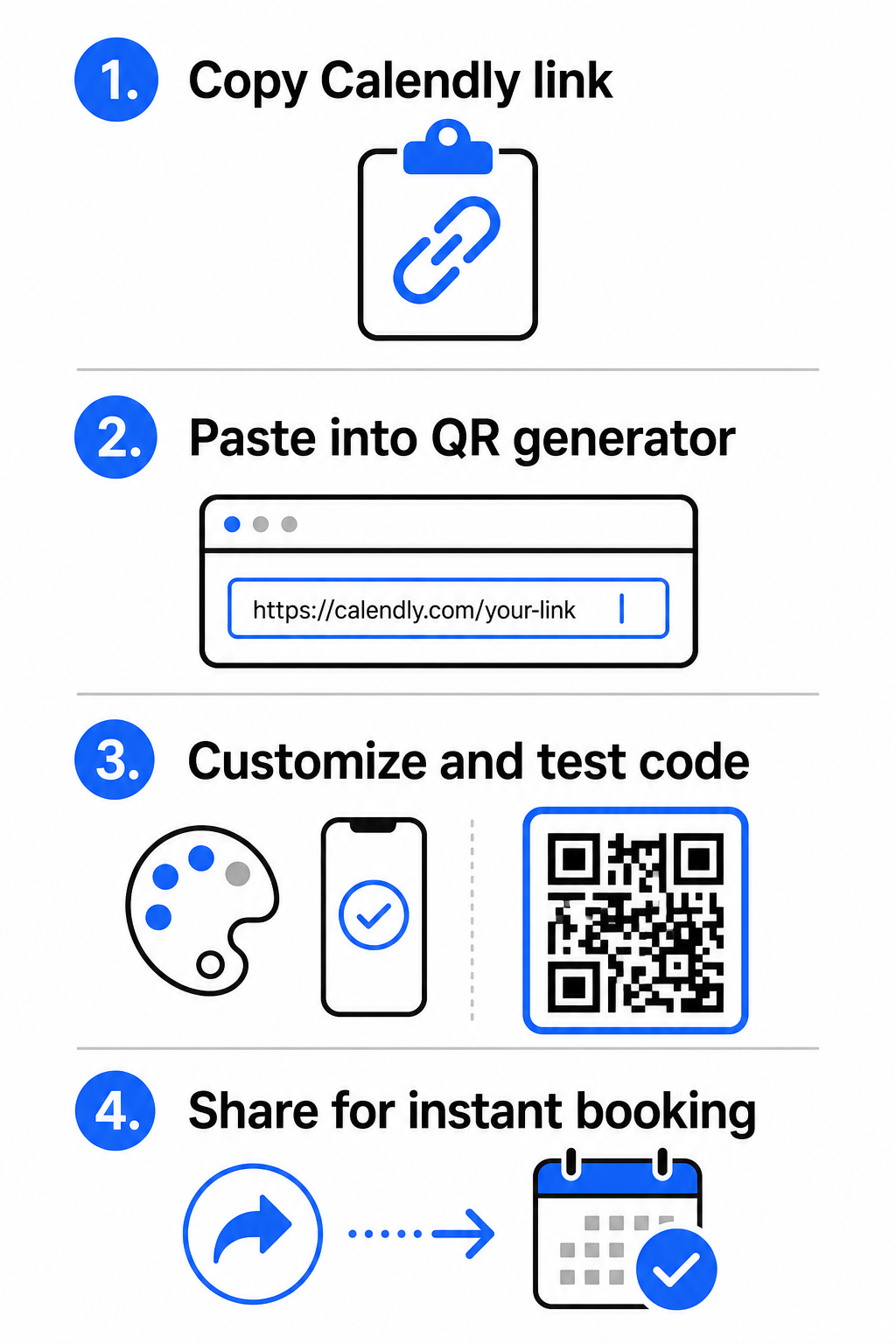
- Aprire il generatore di codici QR di link nel tuo browser web.
- Incolla l'URL Calendly copiato direttamente nel campo di input della destinazione.
- Clicca Avanti per creare il tuo modello iniziale di codice QR.
Crea il tuo codice QR di prenotazione personalizzato Semplifica oggi stesso il tuo flusso di lavoro di programmazione convertendo il tuo link Calendly con il nostro generatore di codici QR di link.
Personalizza il design visivo per un'elevata scansionabilità
La personalizzazione del tuo codice QR integra il tuo marchio preservando al contempo il rapido rilevamento da parte della fotocamera. I sensori di luce all'interno delle fotocamere degli smartphone dipendono da schemi geometrici chiari per decodificare rapidamente i dati incorporati.
- Mantieni un alto contrasto: Utilizza un colore di primo piano scuro su uno sfondo chiaro, come il nero sul bianco. Evita combinazioni a basso contrasto come il giallo sul bianco o il blu chiaro sul grigio, che impediscono ai sensori ottici di leggere la matrice.
- Incorpora il logo del tuo brand: Aggiungi il logo della tua azienda al centro del codice QR per creare fiducia visiva e incoraggiare gli utenti a scansionare.
- Proteggere la zona di silenzio: Mantieni un bordo libero attorno ai margini esterni del codice, largo almeno quattro moduli (circa 0,15 pollici per un codice da 1 pollice). Mantieni questo spazio completamente privo di testo, motivi di sfondo o elementi visivi.
Ottimizza Dimensioni, Materiali e Qualità di Stampa
Testare il tuo codice su diversi materiali fisici e ambienti di schermo garantisce prestazioni affidabili prima di distribuire i tuoi materiali ai clienti.
- Rispetta le dimensioni minime di stampa: Mantieni i codici fisici a una dimensione minima di 0,8 × 0,8 pollici (2 × 2 cm) per la scansione a distanza ravvicinata, seguendo la nostra guida dettagliata guida alle dimensioni dei codici QR.
- Applica il rapporto di distanza: Utilizza la regola del rapporto di scansione 10:1 per segnaletica e striscioni, assicurando che un codice progettato per essere scansionato da una distanza di 10 piedi misuri almeno 1 piede di larghezza.
- Seleziona materiali di stampa non riflettenti: Scegli finiture su carta opaca o coperture in vinile opaco invece di superfici lucide per prevenire i riflessi di luce, e scopri di più su come le tecniche di stampa influiscono sulla scansionabilità dei codici QR.
- Esegui test su dispositivo in tempo reale: Testa i tuoi prototipi di stampa fisica utilizzando le app fotocamera sia iOS che Android in condizioni di luce intensa e scarsa per confermare il caricamento immediato.
Dove Posizionare il Tuo Codice QR di Prenotazione
Posizionare il tuo codice QR attraverso i principali punti di contatto offline e online trasforma le comunicazioni quotidiane in opportunità di incontro diretto.
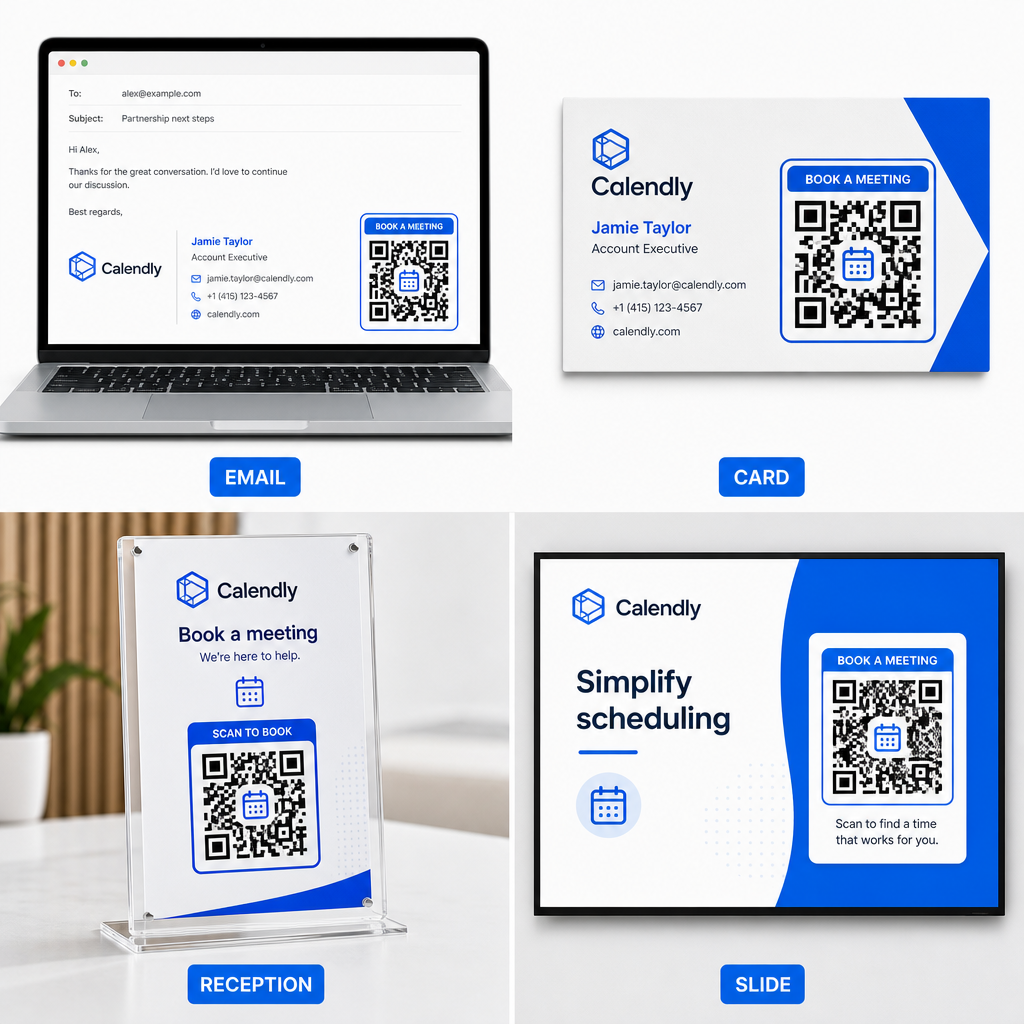
- Firme email: Posiziona un codice di pianificazione sotto i tuoi dettagli di contatto, seguendo la nostra guida pratica su come configurare un Codice QR per la firma e-mail.
- Biglietti da visita: Fornisci ai potenziali clienti una scorciatoia diretta per la prenotazione immediatamente dopo eventi di networking o fiere.
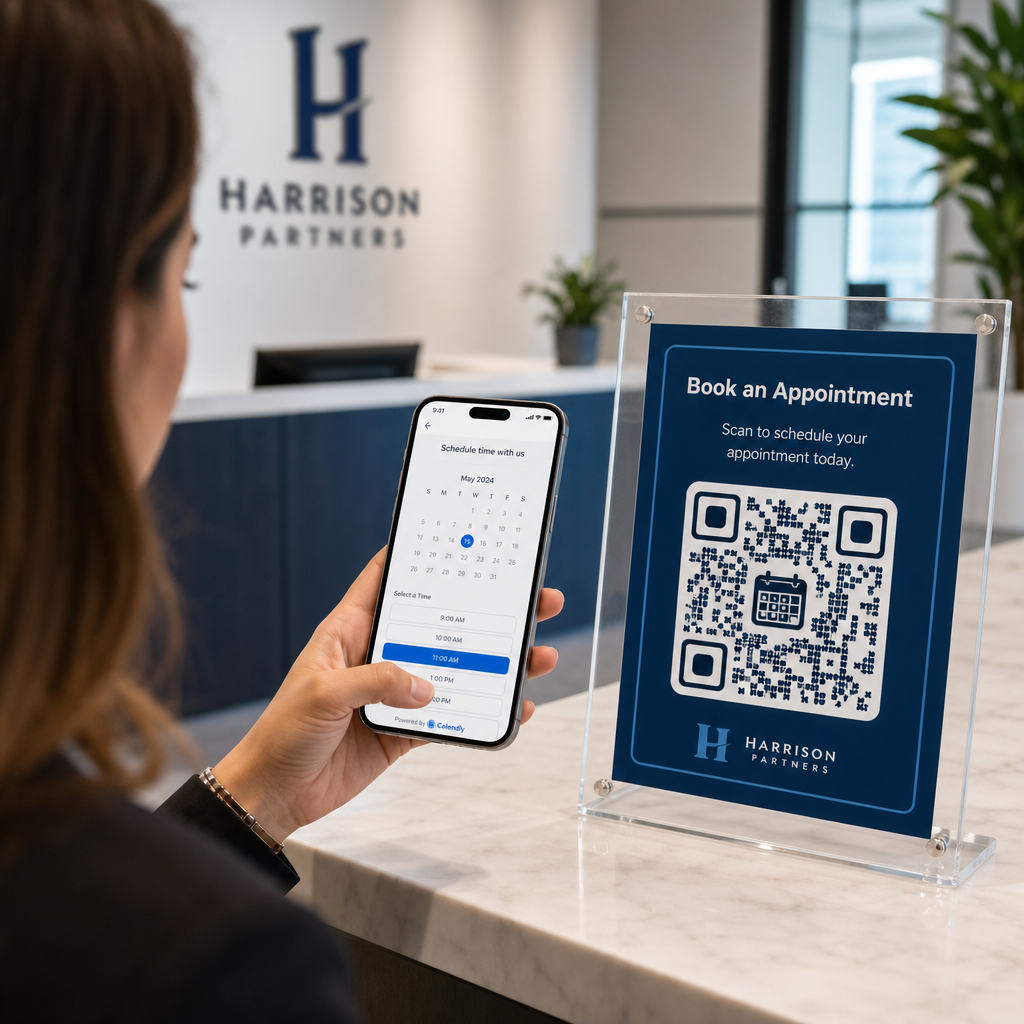
- Espositori per la reception: Inquadra i codici QR sui banconi dell'ufficio in modo che clienti e pazienti possano programmare appuntamenti di follow-up prima di andarsene.
- Diapositive di Presentazione: Includi il tuo codice QR nell'ultima diapositiva delle tue presentazioni in modo che i membri del pubblico possano prenotare consultazioni di follow-up mentre il tuo discorso è ancora ben presente nella loro mente.
Vantaggi dell'utilizzo dei codici QR dinamici
Mentre i codici QR statici incorporano permanentemente un singolo URL di destinazione nella loro matrice di pixel, l'utilizzo di un Generatore di QR code dinamici indirizza gli scanner tramite un link di reindirizzamento modificabile.
- Aggiorna i link di destinazione senza ristampare: Se aggiorni il tuo nome utente Calendly o cambi software di pianificazione, puoi aggiornare l'URL di destinazione all'interno della tua dashboard di gestione senza sostituire il tuo materiale stampato. Consulta la nostra guida su come modificare i codici QR per istruzioni passo-passo.
- Traccia le analisi delle scansioni: I codici dinamici acquisiscono dati di coinvolgimento in tempo reale, inclusi il numero di scansioni e le posizioni geografiche, aiutandoti a scoprire quali canali di marketing convertono meglio.
Semplifica la Pianificazione dei Tuoi Appuntamenti
Sostituire URL lunghi con un codice QR diretto elimina l'attrito nella prenotazione e collega i clienti direttamente al tuo calendario. Costruisci il tuo codice dinamico personalizzato con Pageloot per tracciare il coinvolgimento, aggiornare facilmente i link di destinazione e automatizzare il tuo flusso di lavoro per gli appuntamenti.
Domande frequenti
Sì, a condizione che utilizzi un codice QR dinamico. I codici dinamici puntano a un URL di reindirizzamento breve, permettendoti di aggiornare il tuo link Calendly di destinazione all'interno della tua dashboard di gestione in qualsiasi momento senza dover ristampare i materiali fisici.
Per la scansione a distanza ravvicinata su biglietti da visita o volantini, stampa il tuo codice QR di almeno 0,8 × 0,8 pollici (2 × 2 cm). Per display più grandi, scala il codice usando un rapporto 10:1 basato sulla distanza di scansione prevista.
Le mancate scansioni derivano solitamente da basso contrasto cromatico, spazio insufficiente nella zona di silenzio, collegamenti di destinazione interrotti o riflessi sulla superficie di materiali stampati lucidi.