Sie fragen sich, wie Sie einen scannbaren QR-Code auf einem Kaffeebecher anbringen können, ohne dass er jedes Mal fehlschlägt, wenn ein Kunde sein Telefon darauf richtet? Ein schlecht entworfener Code auf einer gekrümmten Oberfläche frustriert Kunden und verschwendet Ihren Drucklauf. Dieser Leitfaden führt Sie durch jede Entscheidung, von der Platzierung bis zum Inhalt, damit Ihre Becher tatsächlich Ergebnisse liefern.
Warum Kaffeebecher eine wertvolle QR-Code-Oberfläche sind
Kaffeebecher verbringen mehrere Minuten in den Händen eines Kunden. Diese Verweildauer ist eine Marketingchance, die die meisten Marken unzureichend nutzen.
Fast 83,4 Millionen US-Erwachsene haben 2022 einen QR-Code gescannt, eine Zahl, die bis 2025 voraussichtlich 42,6% der erwachsenen Smartphone-Nutzer erreichen wird. Separat haben 45% der US-Käufer innerhalb von drei Monaten einen marketingbezogenen QR-Code gescannt, wobei 18- bis 29-Jährige die Einführung anführten. Cafés, Kaffeehäuser und Markenartikelprogramme befinden sich an der Schnittstelle von zwei der wichtigsten QR-Code-Anwendungsfälle, die Verbraucher angeben: Restaurantmenüs und Produktinformationen für Lebensmittel und Getränke.
Ein Becher mit einem gut umgesetzten QR-Code kann Folgendes erreichen, ohne zusätzlichen Personalaufwand:
- Kunden zu einer digitalen Speisekarte oder saisonalen Angeboten leiten
- Sofort nach einer positiven Erfahrung eine Google-Bewertung anfordern
- Einen Rabattgutschein für einen erneuten Besuch liefern
- Social-Media-Follower oder Gewinnspielteilnahmen fördern
- Allergen- oder Herkunftsinformationen für gesundheitsbewusste Kunden bereitstellen
Die Herausforderung ist rein technischer Natur: Becher krümmen sich, QR-Codes nicht.
Wie gekrümmte Oberflächen die Scannbarkeit beeinflussen
Ein flach auf Papier gedruckter QR-Code lässt sich leicht scannen, da jedes Modul – die kleinen Quadrate, aus denen der Code besteht – auf derselben Ebene liegt. Wenn derselbe Code um einen Zylinder gewickelt wird, krümmen sich die Module an den Rändern von der Sichtlinie der Kamera weg. Der Scanner sieht ein verzerrtes Gitter, und die Dekodierung schlägt fehl.
Dies ist kein hypothetisches Problem. Es ist der häufigste Grund, warum QR-Codes auf Bechern nicht funktionieren. Das Verständnis der Geometrie hilft Ihnen, dies beim Design zu berücksichtigen.
Drei physikalische Faktoren wirken gegen Sie:
- Krümmungsverzerrung: Module an den Seiten des Codes biegen sich von der Kamera weg, wodurch sie komprimiert oder unsichtbar erscheinen.
- Reflektierende Oberflächen: Glänzende Becherbeschichtungen oder Laminate erzeugen Blendung, die den Kontrast verwischt, insbesondere unter der Deckenbeleuchtung von Cafés.
- Druckregistrierung: Die Herstellung von Papierbechern beinhaltet Nähte und Verbindungen; ein Code, der eine Naht überbrückt, lässt sich nicht zuverlässig scannen.
Jedes dieser Probleme hat eine direkte technische Lösung, die in den folgenden Abschnitten behandelt wird.
Größe und Platzierung auf einem Becher
Halten Sie den Code auf dem flachsten möglichen Bereich
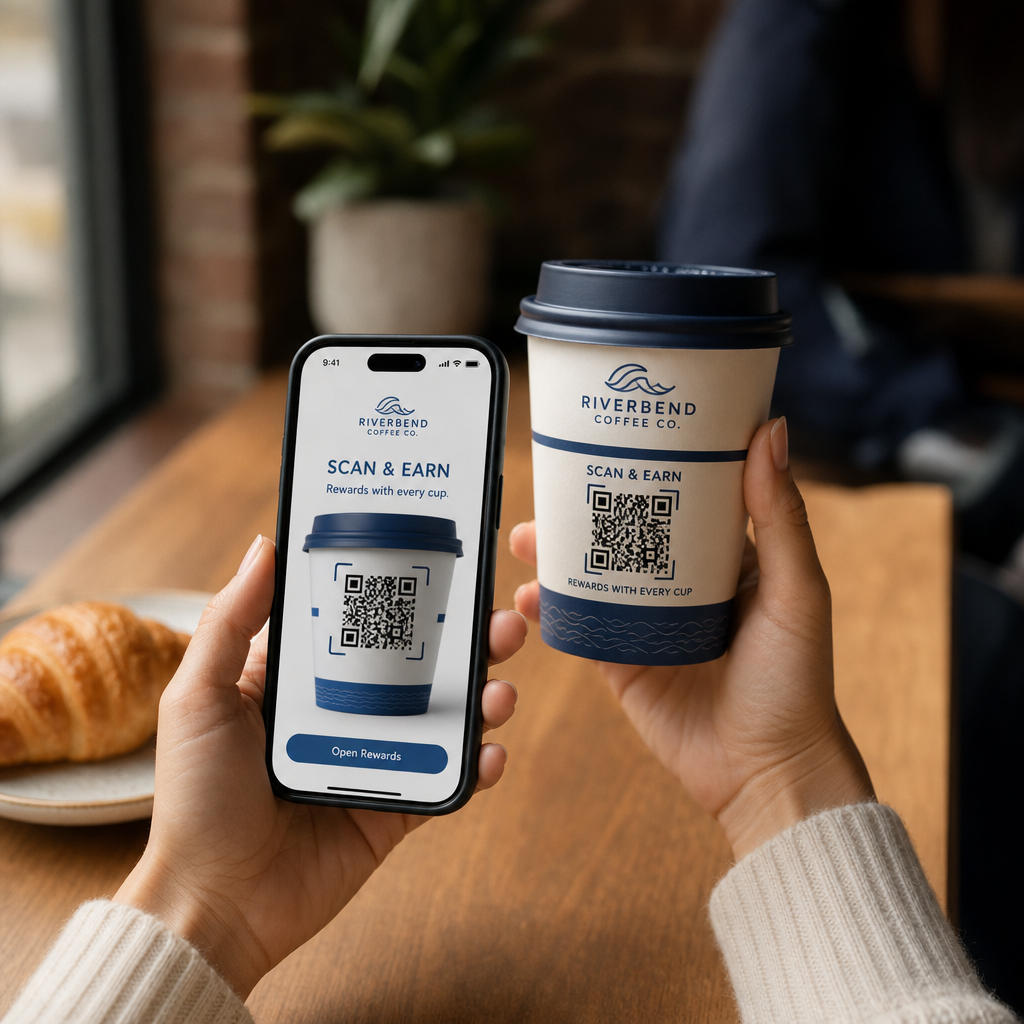
Platzieren Sie Ihren QR-Code auf dem Abschnitt des Bechers mit der geringsten Krümmung. Bei einem Standard-Papierbecher bedeutet dies, den oberen Bereich nahe dem Rand und die Verjüngung des Bodens zu vermeiden. Das mittlere Band des Bechers bietet typischerweise die flachste bedruckbare Zone.
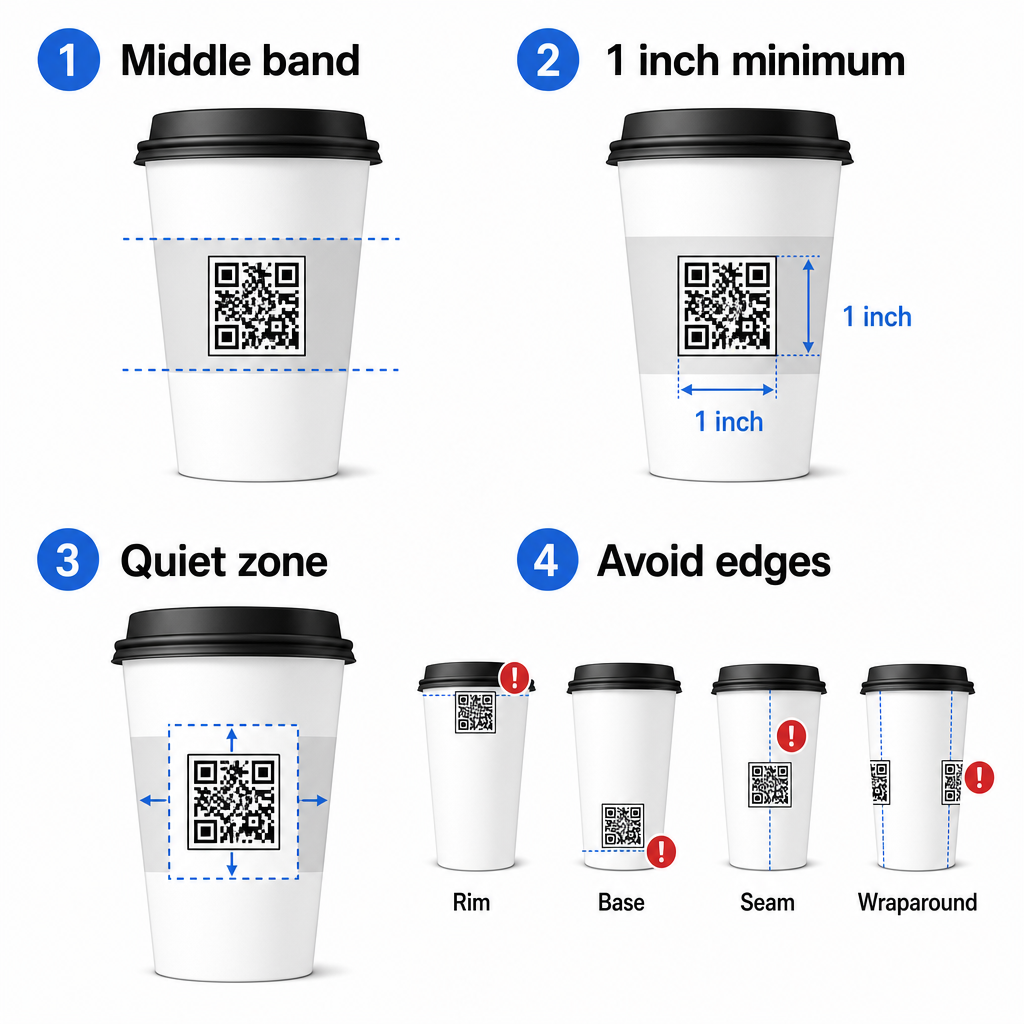
Wenn Sie mit einem flachseitigen Werbebecher oder einem eckigen Reisebecher arbeiten, haben Sie eine natürliche flache Fläche – nutzen Sie diese. Bei zylindrischen Keramikbechern behandeln Sie die Vorderseite als Ihre Zielzone.
Passen Sie die Größe des Codes für gekrümmte Oberflächen an
Für den Flachdruck beträgt eine Mindestgröße von 0,8 Zoll × 0,8 Zoll (ca. 2 cm × 2 cm) die Standardempfehlung für das Scannen aus nächster Nähe. Auf einer gekrümmten Oberfläche ist dieses Minimum nicht ausreichend. Da die Krümmung die wahrgenommene Größe des Codes verzerrt, ist es ratsam, die Code-Größe für gekrümmte Anwendungen um 20–30% zu erhöhen.
Praktisch gesehen sollten Sie mindestens 1,0 Zoll × 1,0 Zoll auf einem Standard-12-Unzen-Papierbecher anstreben, und noch größer auf einem hohen 20-Unzen-Becher, wo der Fassdurchmesser größer und die Krümmung weniger stark ist.
Der Code muss vollständig auf eine Seite des Bechers passen, ohne sich um die Seiten zu wickeln. Wenn eine Ecke des Codes um die Krümmung verschwindet, wird der Code fehlschlagen.
Die Ruhezone ist nicht verhandelbar
Die Ruhezone ist der leere Rand, der den Code umgibt. ISO-Standards schreiben ein Minimum von vier Module an freiem Raum auf allen vier Seiten vor. Auf einem Kaffeebecher dient dieser Rand auch als Puffer gegen die gekrümmte Kante.
Platzieren Sie keine Logos, Bechergrafiken, Nährwertangaben oder Markenmuster innerhalb der Ruhezone. Der Leitfaden für bewährte Verfahren zur Lesbarkeit von QR-Codes behandelt die Anforderungen an die Ruhezone detailliert zusammen mit anderen Faktoren, die die zuverlässige Scannung beeinflussen.
Kontrast und Farbe auf Becher-Materialien
Verwenden Sie Dunkel auf Hell
QR-Code-Scanner funktionieren, indem sie den Kontrast zwischen dunklen Modulen und einem hellen Hintergrund erkennen. Das empfohlene Mindestkontrastverhältnis beträgt 4:1, obwohl höher immer besser ist – Schwarz auf Weiß erreicht 21:1.
Auf Kaffeebechern reduzieren zwei Oberflächenprobleme den effektiven Kontrast:
- Kraft- oder braunes Papier: Ein dunkler Code, der direkt auf unbeschichtetes Kraftpapier gedruckt wird, verliert an Kontrast, weil der Hintergrund nicht weiß ist. Verwenden Sie ein weiß bedrucktes Feld oder eine weiße Vollfläche unter dem Code.
- Glanzlaminat: Reflektierende Oberflächen werfen Licht auf die Kamera zurück, wodurch die dunklen Module ausgewaschen werden. Fordern Sie ein mattes Finish im Bereich des Codes an, auch wenn der Rest des Bechers glänzend ist.
Vermeiden Sie Farbverläufe und gemusterte Hintergründe
Ein Farbverlaufshintergrund unter einem QR-Code erzeugt Zonen mit akzeptablem Kontrast und Zonen mit schlechtem Kontrast. Der Scanner bewertet den gesamten Code, und jede Region, die unter den Kontrastschwellenwert fällt, kann zu einem Fehler führen. Verwenden Sie einen einfarbigen, gleichmäßigen hellen Hintergrund unter dem Code.
Für gebrandete Becher, bei denen Farbe für das Design wichtig ist, können Sie eine dunkle Markenfarbe als Vordergrund auf einem weißen oder hellen Hintergrund verwenden – aber testen Sie sorgfältig vor der vollständigen Produktion. Die Leitfaden für Best Practices zum Farbkontrast von QR-Codes bietet spezifische Farbkombinationen und Kontrastverhältnisse, um diese Entscheidungen zu leiten.
Technische Spezifikationen für den Druck
Auflösung und Dateiformat
Drucken Sie den Code mit 300 DPI oder höher. Ein niedrigauflösendes Rasterbild erzeugt unscharfe Modulkanten, was die Scannbarkeit reduziert und aus nächster Nähe unprofessionell aussieht.
Verwenden Sie, wann immer möglich, ein Vektorformat (SVG oder EPS) anstatt eines PNG oder JPG. Vektordateien skalieren ohne Qualitätsverlust, was wichtig ist, da Becherhersteller Kunstwerke oft während der Druckvorstufe neu skalieren. Pageloots QR-Code-Generator exportiert druckfertige Vektordateien (.EPS, .PDF, .SVG), die direkt an Ihren Becherdrucker gesendet werden können.
Fehlerkorrektur Level
QR-Codes haben vier Fehlerkorrekturstufen: L, M, Q und H. Höhere Stufen ermöglichen es, dass mehr vom Code beschädigt oder verdeckt wird, während er immer noch erfolgreich gescannt werden kann. Für Becheranwendungen:
- Stufe H wird empfohlen, wenn Sie ein Logo in den Code einbetten, da es zulässt, dass bis zu 30 % des Codes verdeckt werden.
- Stufe Q oder H ist ratsam für jede gekrümmte Oberfläche, da Oberflächenverzerrungen Teile des Codes während des Scannens effektiv beschädigen.
Verwenden Sie Stufe L nicht auf einem Becher. Sie bietet keine Toleranz für die physikalischen Verzerrungen, die dem gekrümmten Druck eigen sind.
Suchmuster müssen klar bleiben
Die drei großen Quadrate in den Ecken eines QR-Codes sind Suchmuster. Sie sagen dem Scanner, wo der Code beginnt, endet und wie er ausgerichtet ist. Beschneiden, überlappen oder modifizieren Sie die Suchmuster nicht mit Markengrafiken. Dies ist einer der häufigsten Designfehler bei kundenspezifisch bedruckten Verpackungen, und er erzeugt Codes, die professionell aussehen, aber nie scannen.
Erstellen Sie druckfertige QR-Codes für Ihre Becher Generieren Sie einen vollständig anpassbaren, hochauflösenden QR-Code mit der richtigen Fehlerkorrekturstufe, Vektor-Export und Branding-Optionen mit dem Pageloot QR-Code-Generator. Laden Sie es im .EPS-, .PDF- oder .SVG-Format herunter, bereit zum Senden an Ihren Becherhersteller.
Auswählen, worauf der QR-Code verlinkt
Die physische Ausführung ist wichtig, aber auch, was nach dem Scan passiert. Ein Kunde, der einen Becher-Code scannt, hat sich als engagiert identifiziert – senden Sie ihn nicht auf eine generische Homepage.
Passen Sie das Ziel dem Kontext an:
| Anwendungsfall | Empfohlener QR-Typ | Tool |
|---|---|---|
| Digitale Speisekarte oder saisonale Getränke | Menü QR-Code | Menü QR-Code erstellen |
| Rabatt für einen erneuten Besuch | Gutschein-Landingpage | Gutschein QR-Code Generator |
| Google-Bewertung nach dem Kauf | Direkter Bewertungslink | QR-Code für Google Bewertung erstellen |
| Website, soziale Medien oder Promo-Landingpage | URL-Weiterleitung | Link QR-Code-Generator |
Für Cafés und Coffee Shops, Pageloots QR-Code-Tools für Restaurants unterstützen digitale Speisekarten, Bestellungen und die Sammlung von Bewertungen auf einer einzigen Plattform.
Verwenden Sie dynamische QR-Codes für Becherkampagnen
Ein statischer QR-Code kodiert die Ziel-URL dauerhaft. Wenn Ihre saisonale Aktion endet, können Sie den Code nicht aktualisieren – und alle verbleibenden Becher mit diesem Code werden zu einer Sackgasse.
EIN dynamischer QR-Code speichert eine kurze Weiterleitungs-URL im Code selbst. Sie steuern von einem Dashboard aus, wohin diese Weiterleitung zeigt, und Sie können sie jederzeit ändern, ohne einen einzigen Becher neu zu drucken. Dies ist entscheidend für Becherkampagnen, weil:
- Becherauflagen liegen oft im Tausenderbereich, und Nachdruck ist teuer
- Aktionen, Speisekarten und Angebote ändern sich saisonal
- Sie können A/B-Tests durchführen, indem Sie Ziele mitten in der Kampagne wechseln
Dynamische Codes bieten auch Scan-Analysen – Daten darüber, wann Scans stattfanden, welche Geräte verwendet wurden und wo sich Kunden befanden. Diese Daten ermöglichen es Ihnen zu messen, welche Becherdesigns oder Platzierungen das größte Engagement hervorriefen, und zukünftige Druckauflagen entsprechend anzupassen.
Verfolgen Sie jeden Scan Ihrer Becherkampagne Wechseln Sie zu einem dynamischen QR-Code, um Ziele spontan zu aktualisieren und die Leistung in Echtzeit zu überwachen. Das Pageloot QR-Code-Generator bietet Ihnen ein vollständiges Analyse-Dashboard zusammen mit Bearbeitungssteuerungen – alles ohne Ihre Becher neu zu drucken.
Branding Ihres Becher-QR-Codes
Ein einfacher Schwarz-Weiß-QR-Code funktioniert, aber ein gebrandeter Code verstärkt die Wiedererkennung und erzielt mehr Scans. Pageloots QR-Code Generator mit Logo ermöglicht Ihnen:
- Betten Sie Ihr Markenlogo in die Mitte des Codes ein
- Wenden Sie Markenfarben auf die Module und den Hintergrund an
- Wählen Sie aus Designvorlagen für Körpermuster und Kantenstil
- Fügen Sie einen Call-to-Action-Rahmen hinzu (z. B. “Scannen Sie für 10 % Rabatt auf Ihre nächste Bestellung”)
Beim Hinzufügen eines Logos halten Sie es auf nicht mehr als 30 % der Codefläche und stellen Sie die Fehlerkorrektur auf Stufe H ein. Das Logo nimmt Platz ein, der sonst kodierte Daten tragen würde, und die Fehlerkorrektur der Stufe H gleicht diese Überlappung aus.
Für Konsistenz bei einer großen Tassenbestellung oder einer Kampagne an mehreren Standorten, Pageloots QR-Code Ordner lassen Sie Codes nach Kampagne, Standort oder Tassengröße organisieren, damit Ihr Team sie verwalten kann, ohne den Überblick zu verlieren.
Für verwandte Anleitungen zu Verpackungsanwendungen, die Seiten zu QR-Codes auf Produktverpackungen und QR-Codes auf Lebensmittelverpackungen behandeln Überlegungen, die direkt auf Tassen zutreffen.
Testen vor Ihrem Drucklauf
Keine noch so sorgfältige Gestaltung ersetzt physische Tests an der tatsächlichen Tasse. Bevor Sie sich zu einem vollständigen Produktionslauf verpflichten:
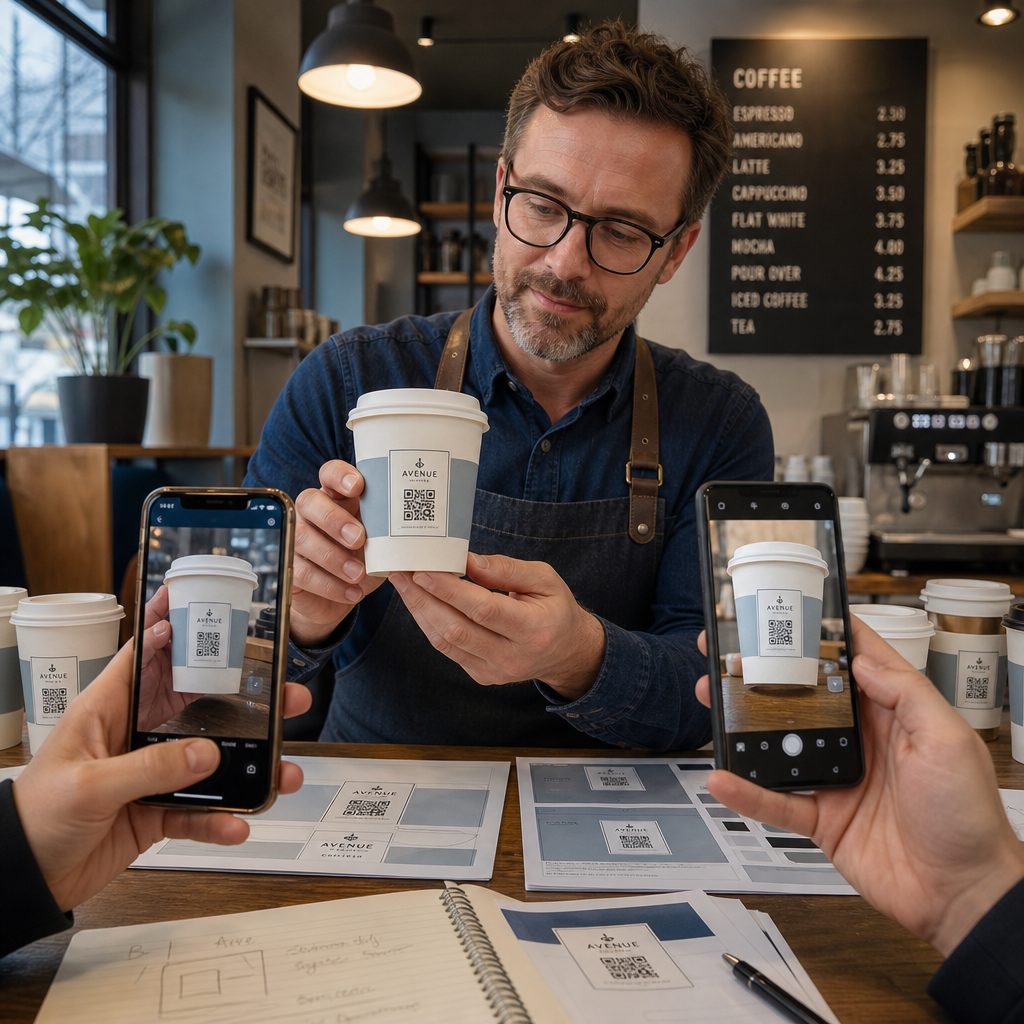
- Drucken Sie ein Muster auf dem vorgesehenen Material – nicht nur Papierproofs. Tassenmaterial, Beschichtung und Druckmethode beeinflussen alle das Endergebnis.
- Testen Sie mit mehreren Geräten – mindestens ein aktuelles iPhone und ein Android-Gerät der Mittelklasse. Ältere Geräte mit Kameras geringerer Auflösung stellen den anspruchsvollsten Test dar.
- Scannen Sie aus realistischen Winkeln – Kunden halten Tassen in verschiedenen Winkeln, nicht direkt senkrecht zum Etikett. Testen Sie bei 15° und 30° außerhalb der Achse.
- Testen Sie in der tatsächlichen Beleuchtungsumgebung – Deckenbeleuchtung in Cafés ist oft warm und gerichtet, was den Kontrast anders beeinflusst als Standard-Bürobeleuchtung.
- Überprüfen Sie, ob das Ziel korrekt geladen wird – scannen Sie den Code über Mobilfunkdaten, nicht nur über Wi-Fi, und bestätigen Sie, dass die Landingpage mobiloptimiert ist und in unter drei Sekunden lädt.
Wenn der Code einen dieser Tests nicht besteht, passen Sie Größe, Kontrast oder Platzierung an, bevor Sie Tausende von Einheiten drucken. Für eine umfassende Checkliste, die Leitfaden zu QR-Codes auf Produktetiketten geht die gleichen Qualitätskontrollprinzipien detaillierter ein.
Schreiben Sie einen Call-to-Action, der den Scan verdient
Der QR-Code selbst kommuniziert nichts darüber, warum ein Kunde ihn scannen sollte. Kombinieren Sie den Code immer mit einem kurzen Call-to-Action – typischerweise vier bis acht Wörter, die direkt über oder unter dem Code platziert sind. Beispiele:
- “Scannen Sie für die heutigen Angebote”
- “Erhalten Sie 15 % Rabatt auf Ihre nächste Bestellung”
- “Hinterlassen Sie uns eine Bewertung”
- “Sehen Sie, was in Ihrer Tasse ist”
Der Call-to-Action beantwortet die implizite Frage des Kunden: Was passiert, wenn ich das tue? Ohne ihn wird selbst ein technisch perfekter QR-Code unterdurchschnittlich abschneiden.
Einen funktionierenden, gebrandeten QR-Code auf einer Kaffeetasse anzubringen, ist mit der richtigen technischen Einrichtung vollständig erreichbar. Passen Sie ihn an gekrümmte Oberflächen an, halten Sie die Ruhezone frei, verwenden Sie hohen Kontrast auf einer matten Oberfläche, stellen Sie die Fehlerkorrektur auf Stufe H ein und testen Sie immer an einem physischen Muster vor der Produktion. Wählen Sie dynamische Codes, damit Sie Ziele aktualisieren und die Leistung messen können, ohne neu zu drucken.
Beginnen Sie mit dem Erstellen Ihres Tassen-QR-Codes mit dem Pageloot QR-Code-Generator – exportieren Sie in druckfertigen Vektorformaten, fügen Sie Ihr Logo und Ihre Markenfarben hinzu und verbinden Sie es vom ersten Tag an mit Analysen.
Häufig gestellte Fragen
Für den Flachdruck beträgt das Standardminimum 0,8 in × 0,8 in (2 cm × 2 cm). Auf einer gekrümmten Becherfläche erhöhen Sie dies um 20–30%, um Krümmungsverzerrungen auszugleichen – zielen Sie also auf mindestens 1,0 in × 1,0 in ab. Der Code muss vollständig in die flache Zone des Bechers passen, ohne sich um die Seiten zu wickeln.
Ja, aber die Platzierung ist entscheidend. Verwenden Sie die flachste Fläche der Vorderseite der Tasse, dimensionieren Sie den Code größer als für den Flachdruck, sorgen Sie für starken Kontrast mit dunklen Modulen auf hellem Hintergrund, vermeiden Sie glänzende Oberflächen im Codebereich und stellen Sie die Fehlerkorrektur auf Stufe H ein. Testen Sie immer ein physisches Muster mit mehreren Geräten, bevor Sie in großen Mengen bestellen.
Passen Sie das Ziel an Ihr Kampagnenziel an. Häufige Anwendungen umfassen digitale Speisekarten, saisonale Aktionen, Rabattgutscheine, Google-Bewertungsseiten oder Social-Media-Profile. Verwenden Sie einen dynamischen QR-Code, damit Sie das Ziel nach dem Druck aktualisieren können – dies ist besonders wichtig für Tassen, die in großen Mengen bedruckt werden, da die Codes nicht neu gedruckt werden können, wenn ein Angebot abläuft oder sich eine URL ändert.