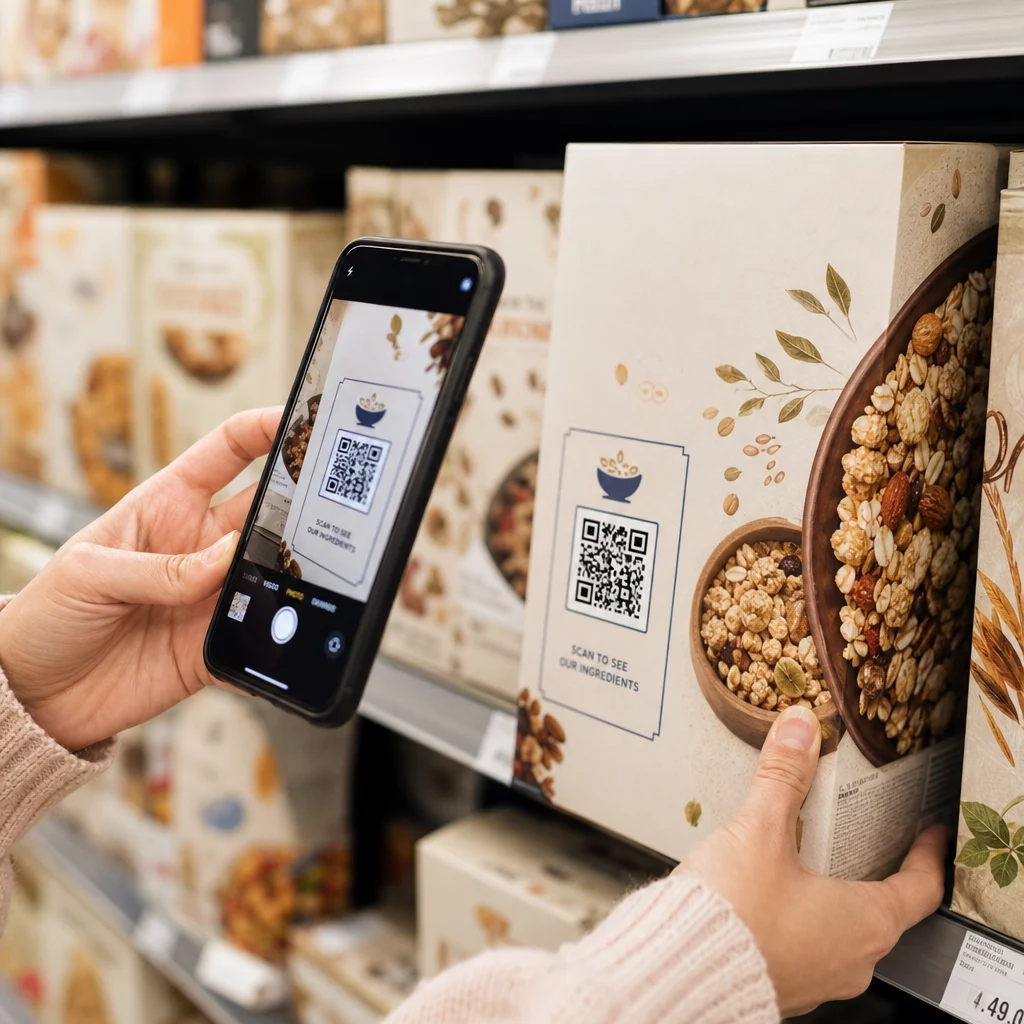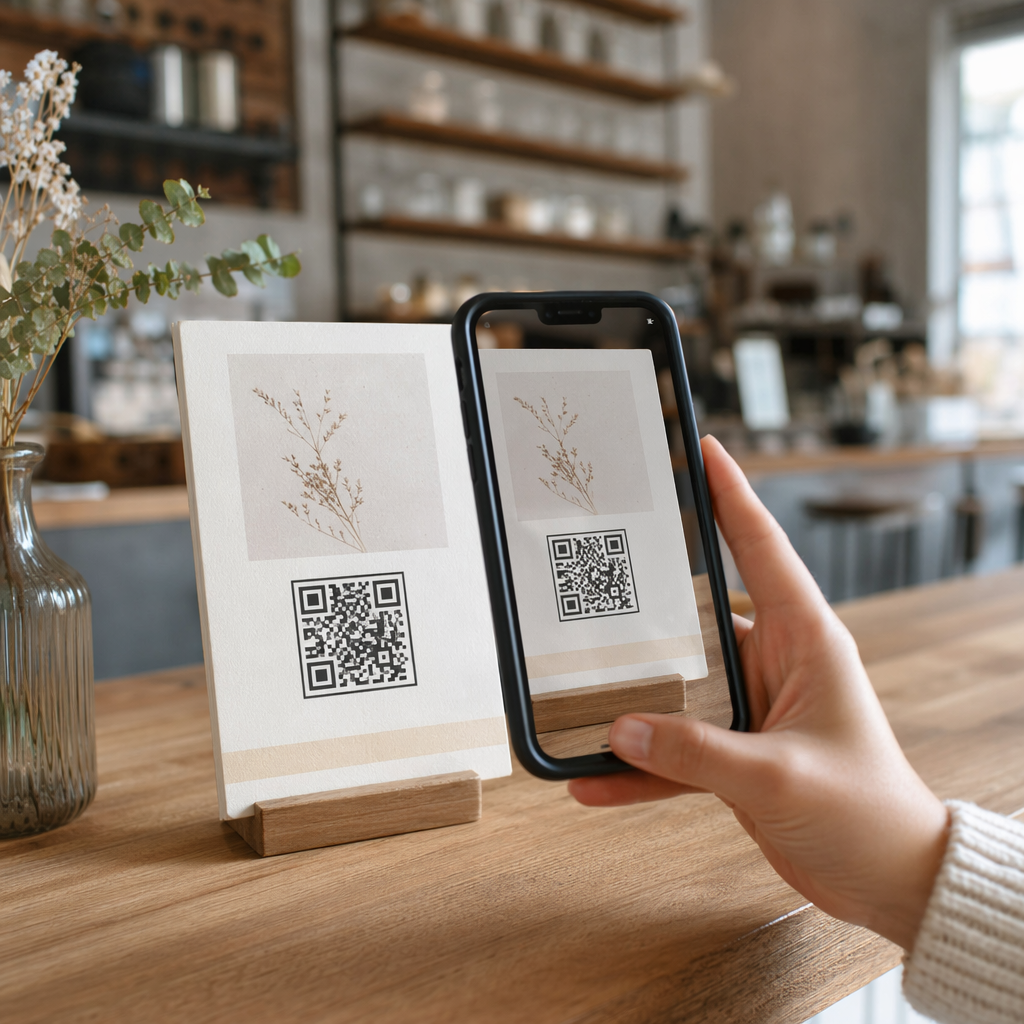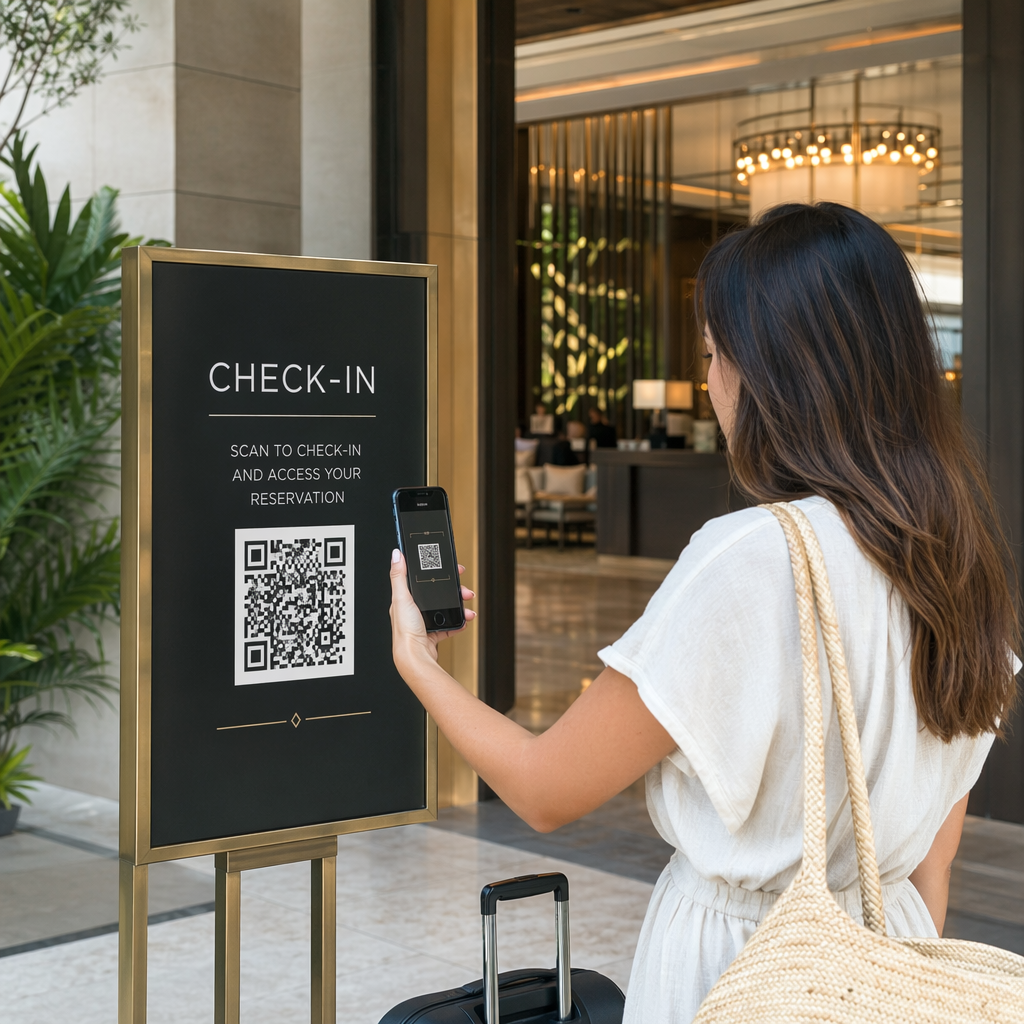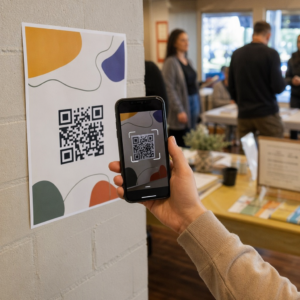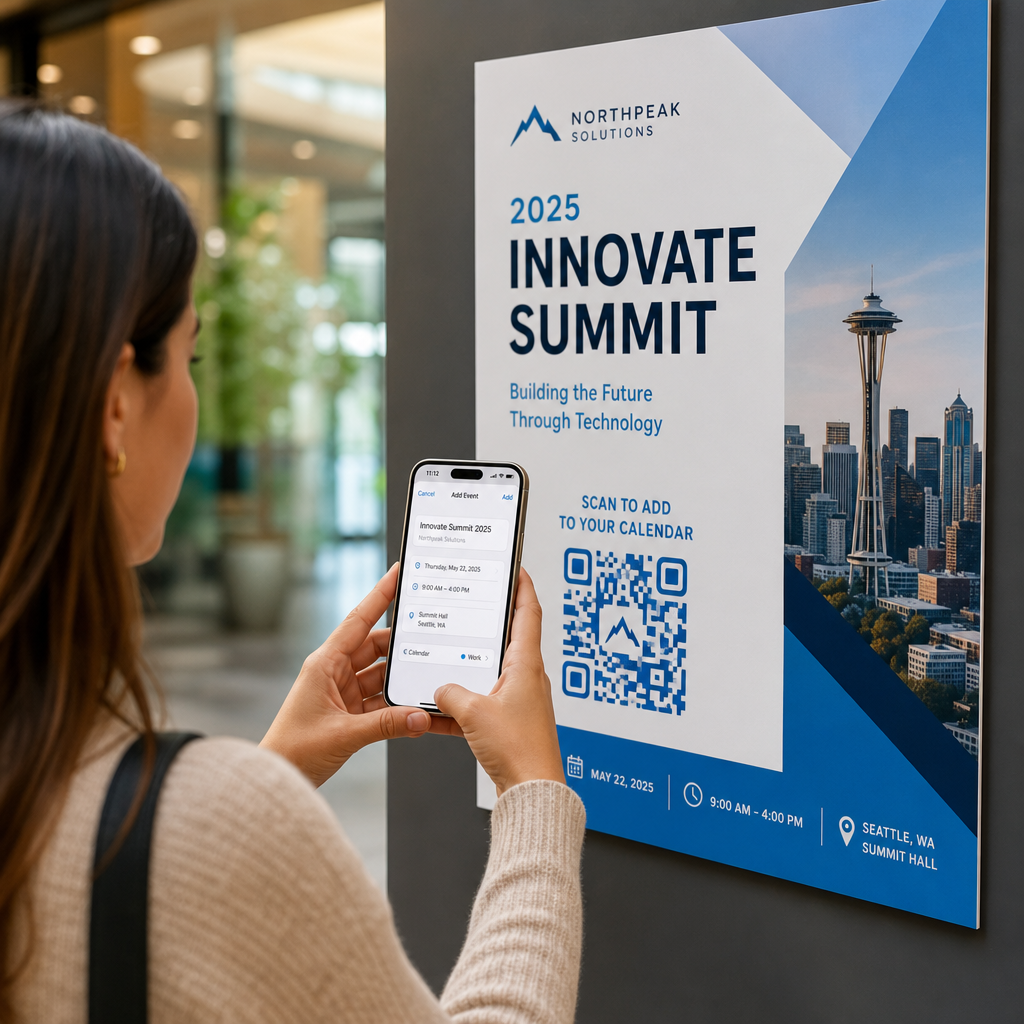
Bạn có đang mất đi những người tham dự tiềm năng vì họ quên nhập thủ công chi tiết sự kiện của bạn vào lịch trên điện thoại di động của họ không? Khi sự bất tiện ngăn cản khách mời lưu ngày, tổng số lượng người tham dự sẽ giảm đáng kể. Việc tạo mã QR lịch tùy chỉnh cho phép khán giả của bạn thêm chi tiết sự kiện trực tiếp vào lịch điện thoại thông minh của họ chỉ với một lần quét.
Cách hoạt động của mã QR sự kiện lịch
Mã QR lịch mã hóa thông tin sự kiện có cấu trúc thành một hình ảnh có thể quét được mà các hệ điều hành di động đọc ngay lập tức. Khi người dùng quét mã bằng camera điện thoại thông minh của họ, hệ điều hành sẽ phân tích dữ liệu được mã hóa và nhắc người dùng lưu sự kiện trực tiếp vào Lịch Apple, Lịch Google hoặc Microsoft Outlook.
Đằng sau hậu trường, mã QR lịch định dạng chi tiết sự kiện bằng hai phương pháp kỹ thuật chính:
- Dữ liệu iCalendar (.ics): Mã hóa cú pháp sự kiện thô trực tiếp vào mã QR dựa trên tiêu chuẩn lịch RFC 5545 phổ quát. Cấu trúc này bao gồm các trường thiết yếu như `BEGIN:VCALENDAR`, `DTSTART` (ngày và giờ bắt đầu), `DTEND` (ngày và giờ kết thúc), `SUMMARY` (tiêu đề sự kiện) và `LOCATION`. Các thiết bị di động giải thích văn bản thô này và khởi chạy ứng dụng lịch gốc để tạo một mục mới.
- URL điền sẵn lịch: Định dạng đích của mã QR dưới dạng một liên kết web chứa các tham số sự kiện đã được điền sẵn. Ví dụ, các liên kết Lịch Google sử dụng các tham số URL cụ thể như `action=TEMPLATE`, `dates` ở định dạng ISO 8601 UTC (YYYYMMDDTHHMMSSZ), `text` cho tiêu đề, `location` và `details` cho mô tả sự kiện.
Sử dụng một công cụ chuyên biệt Tạo mã QR sự kiện tự động hóa quá trình định dạng này để bạn không phải viết cú pháp mã phức tạp theo cách thủ công. Hơn nữa, việc chọn một mã QR động cho phép bạn sửa đổi các tham số sự kiện – chẳng hạn như điều chỉnh thời gian bắt đầu hoặc cập nhật vị trí – trên bảng điều khiển trực tuyến của bạn mà không cần in lại tài liệu quảng cáo vật lý của bạn.
Cách tạo mã QR sự kiện lịch
Thiết lập một mục nhập lịch tự động yêu cầu bạn cấu hình các thông số sự kiện chính trước khi tải xuống tệp đồ họa cuối cùng.
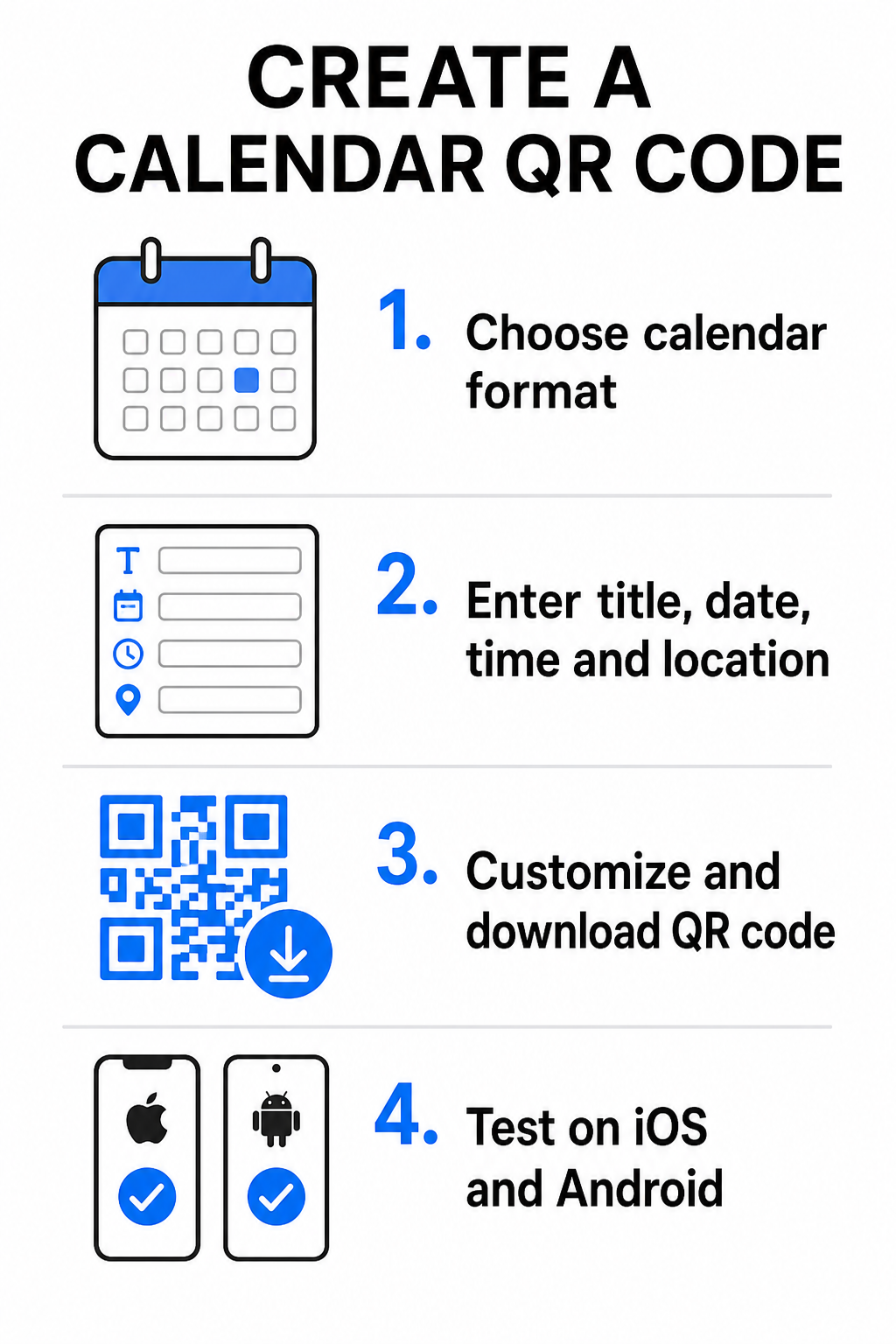
- Chọn định dạng sự kiện: Chọn liên kết trực tiếp đến lời mời Google Calendar, kích hoạt tải xuống tệp .ics, hoặc gửi người dùng đến trang đích sự kiện tùy chỉnh. Đối với liên kết lịch dựa trên web, hãy sử dụng Tạo mã QR Google Calendar.
- Nhập các thông số sự kiện thiết yếu: Nhập tiêu đề sự kiện, ngày bắt đầu và kết thúc chính xác, giờ bắt đầu và kết thúc, múi giờ, địa điểm thực tế và mô tả. Đặt liên kết hội nghị web hoặc ghi chú địa điểm vào trường mô tả.
- Tùy chỉnh thiết kế hình ảnh: Áp dụng màu sắc thương hiệu, điều chỉnh mẫu nền và chèn logo của bạn trong khi duy trì độ tương phản cao giữa các yếu tố.
- Tải xuống các tệp vector độ phân giải cao: Lưu tệp của bạn ở định dạng SVG hoặc EPS để in ấn thương mại, hoặc dưới dạng PNG mật độ cao để hiển thị kỹ thuật số. Định dạng vector đảm bảo đường nét sắc nét và ngăn ngừa hiện tượng vỡ hình khi phóng to.
- Kiểm tra trên các thiết bị di động: Quét mã đã hoàn thành bằng điện thoại thông minh iOS và Android, kiểm tra cả ứng dụng camera gốc và các trình quét trình duyệt chuyên dụng để xác nhận rằng tất cả các trường sự kiện được điền đúng cách.
Đơn Giản Hóa Thiết Lập Sự Kiện Của Bạn Ngay Hôm Nay Bạn muốn tăng cường số lượng người tham dự và hợp lý hóa việc đăng ký khách mời? Hãy sử dụng Tạo mã QR sự kiện để tạo mã lịch có thể tùy chỉnh, theo dõi được chỉ trong vài giây.
Các Thực Hành Tốt Nhất cho Vị Trí In Ấn và Kỹ Thuật Số
Để mã QR lịch thúc đẩy chuyển đổi khách mời, người dùng phải có khả năng quét nhanh chóng mà không gặp lỗi kỹ thuật. Việc áp dụng các nguyên tắc thiết kế vật lý tiêu chuẩn đảm bảo khả năng quét nhất quán trên phương tiện in ấn và kỹ thuật số.
Kích Thước và Khoảng Cách Xem
Áp dụng tỷ lệ quét 10:1 quy tắc để xác định chiều rộng vật lý tối thiểu của mã QR của bạn: chia khoảng cách quét dự kiến cho 10. Nếu người tham dự quét một áp phích từ khoảng cách 50 cm (khoảng 20 inch), mẫu mã QR phải có kích thước ít nhất 5 × 5 cm. Đối với các tài liệu in tầm gần như tờ rơi, danh thiếp hoặc thiệp cưới kỹ thuật số, duy trì kích thước in tối thiểu 2 × 2 cm (0.8 × 0.8 inch).
Độ tương phản màu sắc và Vùng yên tĩnh
Cảm biến camera dựa vào sự phản xạ ánh sáng để đọc các mô-đun mã. Màu tối hơn hấp thụ ánh sáng, trong khi màu sáng hơn phản xạ ánh sáng trở lại ống kính. Duy trì tỷ lệ tương phản ít nhất là 4:1 – hoặc đặt mục tiêu ít nhất là tương phản 55% giữa các mẫu tiền cảnh tối và nền sáng. Luôn duy trì một vùng yên tĩnh rõ ràng (vùng trống xung quanh mã) không có văn bản, lớp phủ đồ họa hoặc kết cấu nền.
Chi tiết vị trí chiến lược
Nếu sự kiện của bạn diễn ra tại một địa điểm thực tế, hãy đảm bảo người tham dự có thể đến đó mà không gặp trở ngại. Bạn có thể nhúng tọa độ địa lý vào mô tả sự kiện hoặc ghép mục lịch của bạn với một Tạo mã QR địa chỉ Google Map để mở điều hướng từng chặng trực tiếp từ lời mời.
Lời kêu gọi hành động rõ ràng
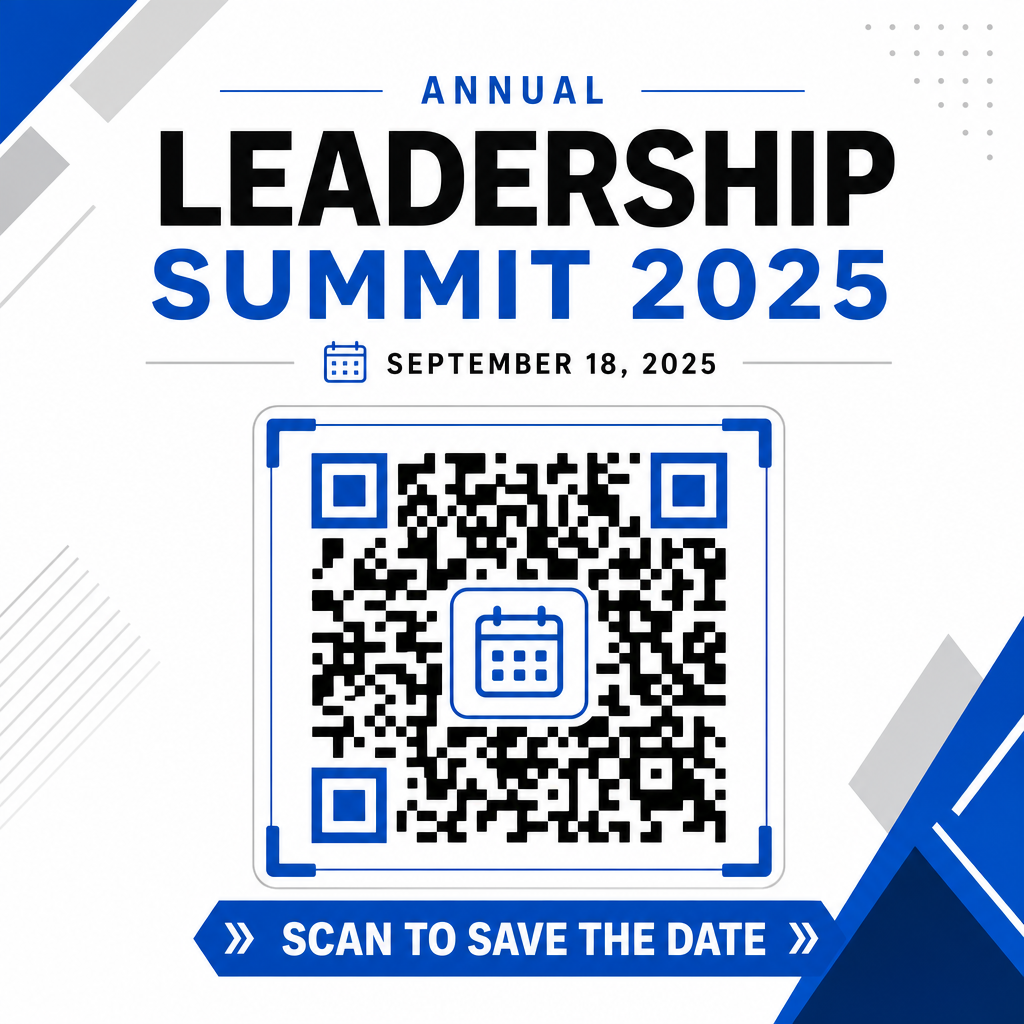
Mức độ tương tác khi quét tăng đáng kể khi người dùng biết kết quả mong đợi. Tránh hiển thị mã QR độc lập mà không có ngữ cảnh. Đặt văn bản kêu gọi hành động rõ ràng ngay bên dưới hoặc xung quanh mã, chẳng hạn như “Quét để thêm sự kiện vào lịch” hoặc là “Quét để lưu ngày.”
Tối đa hóa số lượng người tham dự với Mã sự kiện thông minh
Tích hợp các công cụ lịch tự động loại bỏ việc nhập dữ liệu thủ công cho người tham dự, giảm đáng kể tỷ lệ bỏ cuộc giữa sự quan tâm ban đầu và số lượng người tham dự thực tế. Cho dù bạn đặt mã của mình trên các tài liệu quảng cáo áp phích, bảng chỉ dẫn sự kiện hoặc lời mời vật lý, việc cung cấp cho khách một cách tức thì để đặt lịch trình của họ đảm bảo sự kiện của bạn luôn nằm trong tầm ngắm của họ.
Để khám phá các mã động cung cấp phân tích lượt quét và chỉnh sửa sau in, hãy thiết lập sự kiện tiếp theo của bạn bằng cách sử dụng các công cụ linh hoạt có sẵn trong Pageloot’s all-in-one trình tạo mã QR. Kết hợp với các trang đích chuyên biệt cho mã QR RSVP cho sự kiện và dành riêng Mã QR cho các sự kiện, bạn có thể xây dựng một quy trình kỹ thuật số liền mạch từ lượt quét ban đầu đến lượt đăng ký cuối cùng.
Câu hỏi thường gặp
Việc quét mã sẽ mở ứng dụng lịch mặc định trên điện thoại thông minh của người dùng với các trường sự kiện được điền sẵn – bao gồm tiêu đề, thời gian bắt đầu và kết thúc, địa điểm và mô tả – cho phép họ lưu sự kiện chỉ bằng một lần chạm.
Có, với điều kiện bạn tạo mã QR động. Mã động lưu trữ một URL chuyển hướng ngắn gọn, cho phép bạn chỉnh sửa ngày, giờ hoặc địa điểm sự kiện trên bảng điều khiển trực tuyến của mình mà không cần in lại tờ rơi hoặc áp phích vật lý của bạn.
Mã QR lịch tiêu chuẩn sử dụng định dạng iCalendar (.ics) phổ quát và các tham số điền trước URL web tiêu chuẩn. Chúng được hỗ trợ nguyên bản bởi Lịch Apple, Lịch Google, Microsoft Outlook và hầu hết các ứng dụng lịch của bên thứ ba lớn trên iOS và Android.