Sākums > Blogs > How to Scan a QR Code on a Laptop
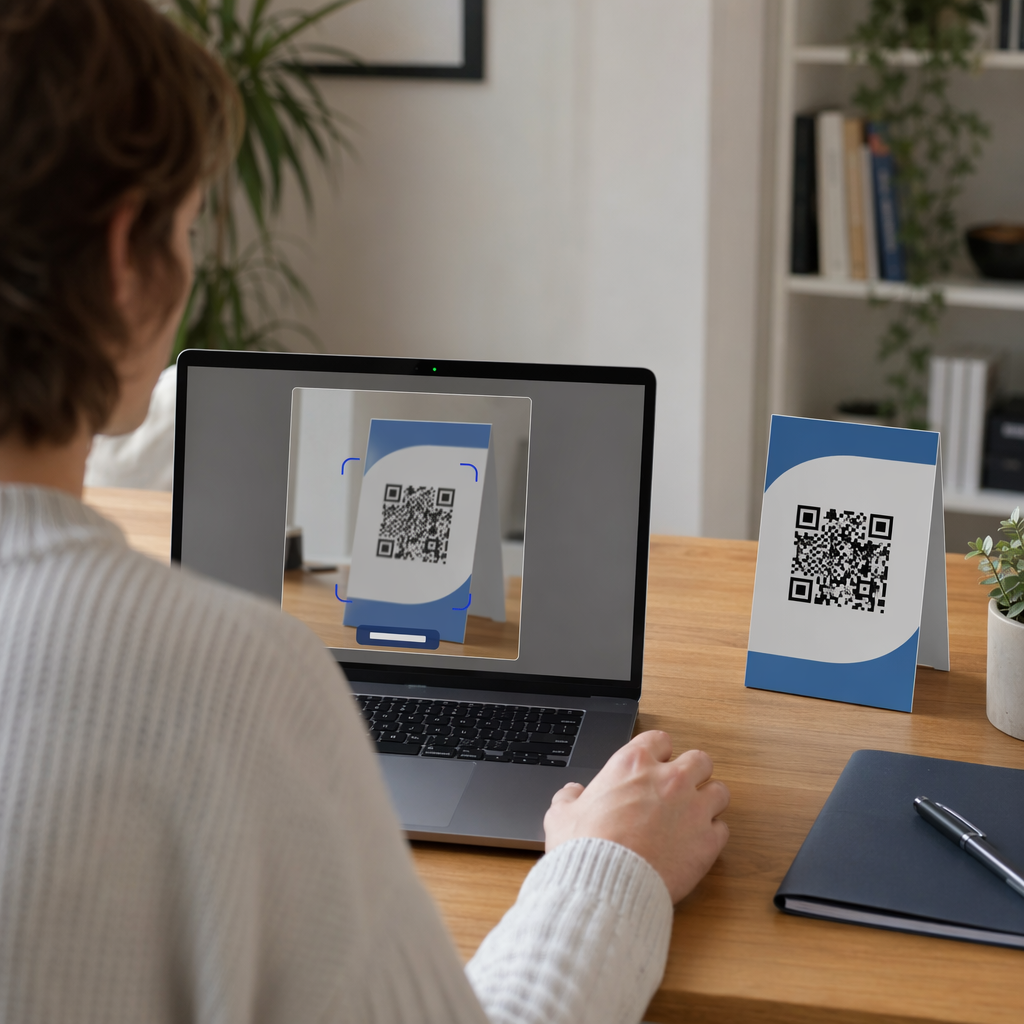
Laptop scanning QR code

How to Scan a QR Code on a Laptop

Learn how to scan a QR code on a laptop using built-in Windows and macOS tools. This guide covers scanning from your webcam, files, or directly on-screen.
Updated on jūnijs 10, 2026
Saturs

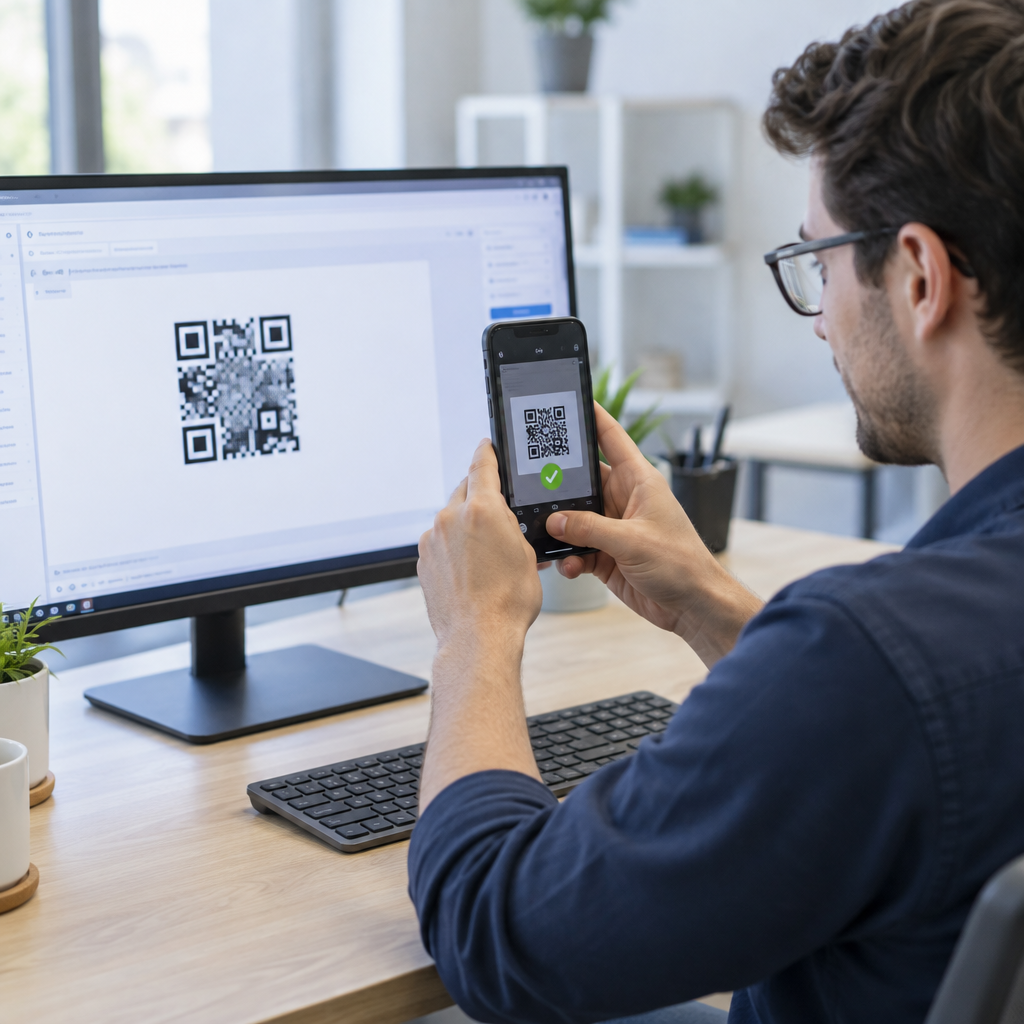
Have a QR code on your screen or desk but no phone handy? Your laptop can decode it in seconds – using built-in tools, your browser, or a lightweight web scanner. This guide walks through every practical method for Windows and macOS, so you can pick the one that fits your situation.

Scanning QR Codes on Windows

Windows 10 and 11 offer several built-in options for decoding QR codes, so you often won’t need to install anything extra.

Using the Windows Camera App

On many Windows laptops, the Camera app includes a Barcode mode that scans QR codes directly through your webcam. Here’s how to use it:

  • Open the Camera app from the Start menu.
  • Look for a Svītrkods or barcode icon in the toolbar. On some versions, you may need to go to Settings (the gear icon), enable Experimental Features, and restart the app before this option appears.
  • Click the barcode icon, then hold your physical QR code in front of the webcam.
  • The app detects the code automatically and displays a clickable URL that opens in your default browser.

For best results, make sure the code is well-lit, the webcam lens is clean, and the code fills most of the frame. Keep in mind that availability of this feature can vary depending on your laptop manufacturer and Camera app version – if you don’t see the Barcode option, the browser-based methods below are a reliable fallback.

Using Microsoft Edge’s Built-In Tools

Microsoft Edge gives you two useful options for QR codes you encounter while browsing:

  • Right-click any QR code image on a webpage and select Search images with Google. Google Lens will decode the code and display the link or content.
  • Vietnei two-factor authentication (2FA) codes, Edge integrates with the iCloud Passwords extension. Right-click a 2FA QR code and select Set Up Verification Code to sync it without needing a camera.
  • For QR codes saved as image files, drag the file into an Edge tab, right-click the image, select Inspect, press `Ctrl + Shift + P`, type “QR”, and choose Show QR Code reader from the DevTools command palette.

Using the Snipping Tool (Windows 11)

If a QR code is displayed on your screen – inside a document, email, or webpage – the Snipping Tool offers a quick, camera-free solution:

  • Press `Win + Shift + S` to open the snipping overlay.
  • Select the area containing the QR code.
  • In the Snipping Tool window, click Text Actions to extract and decode the content.

This keeps everything local on your device without uploading anything to a third-party service.

Windows Methods at a Glance

Metode Labākais izmantošanas gadījums Key Requirement
Camera App (Barcode mode) Physical or printed QR codes Feature availability varies by device
Microsoft Edge DevTools Saved image files No extra software needed
Edge + Google Lens QR codes on webpages Right-click the image
Snipping Tool On-screen QR codes Windows 11 with Text Actions

Scanning QR Codes on macOS

macOS does not include native QR scanning in any of its built-in apps – you’ll need a browser tool, third-party app, or the Pageloot web scanner to decode codes on a Mac.

Using a Browser and Google Lens

For QR codes you encounter in Chrome or Edge on a Mac:

  • Right-click the QR code image on the webpage and select Search image with Google.
  • Google Lens opens and decodes the code, showing the URL or content with an option to open or copy it.

For QR codes saved as image files, drag the file into a Chrome tab, then right-click the image and follow the same steps.

Using Third-Party Mac Apps

Apps available from the Mac App Store – such as QR Capture, QR Journalvai Code Reader – QR Scanner – use your Mac’s built-in camera or a USB webcam to scan codes in real time. Open the app, align the code within the on-screen frame, and it decodes automatically. Most apps also support dragging an image file into the window for file-based scanning.

For professional workflows, QR Journal integrates with AppleScript for automation and stores a local scan history – useful if you’re regularly processing codes as part of a business workflow.

Using Continuity with an iPhone

If you have an iPhone linked to the same Apple ID and on the same Wi-Fi network:

  • Open the Camera app on your iPhone and scan the QR code.
  • A Safari icon appears in your Mac’s Dock showing the decoded link.
  • Click it to open the URL directly on your Mac.

This is often the fastest option for occasional use without downloading any additional software.

Enabling Camera Permissions on macOS

Before any app or browser tool can use your webcam, you may need to grant permission:

  • Dodieties uz System Settings → Privacy & Security → Camera.
  • Enable access for the browser or app you’re using.

Scanning QR Codes Without a Webcam

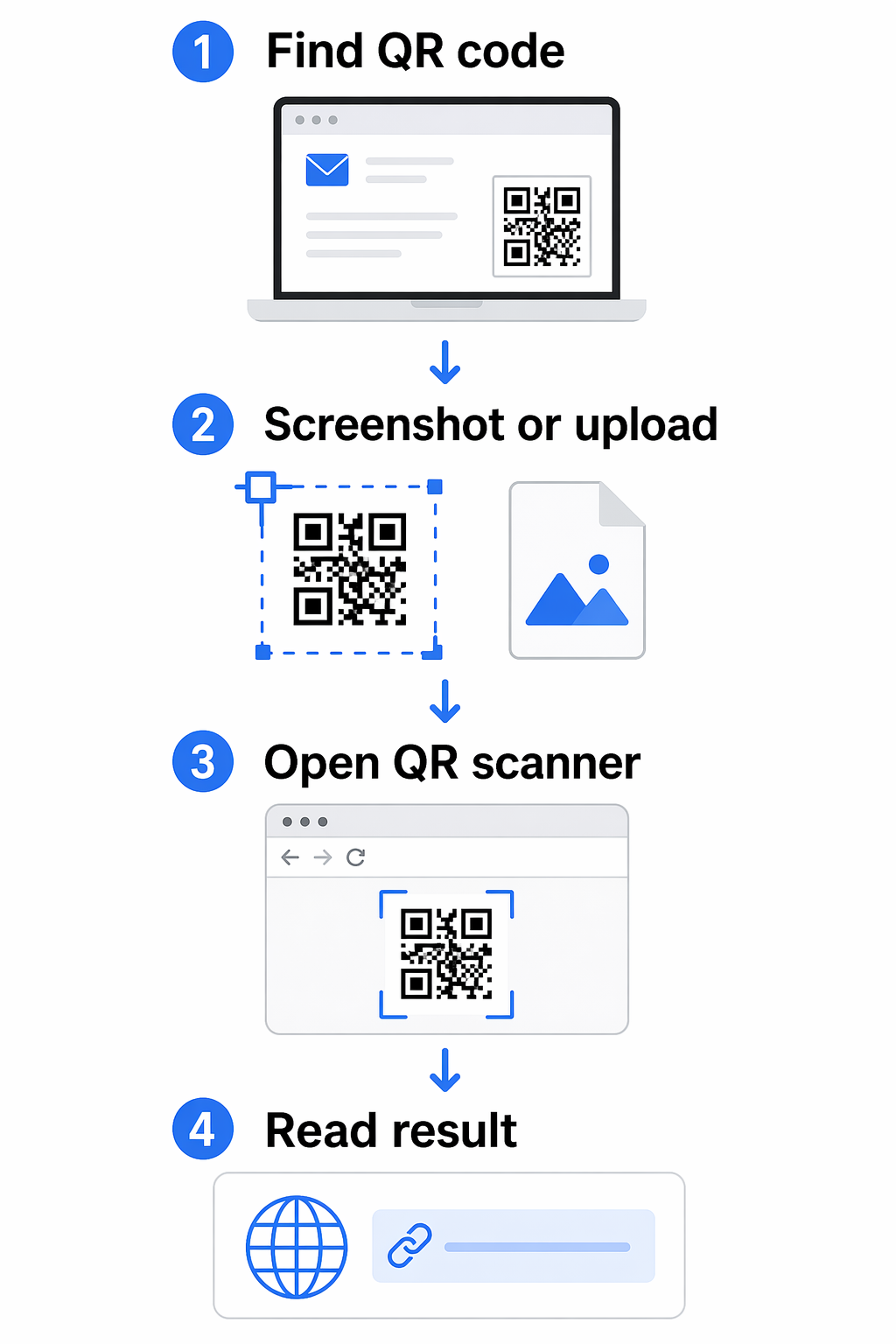
If you have a QR code saved as an image, a screenshot, or embedded in a PDF, you don’t need a camera at all.

Using an Online QR Code Scanner

Portāls Pageloot QR Code Scanner works directly in your browser on any platform – no installation required. You can either:

  • Upload an image file: Drag and drop a PNG, JPG, or screenshot of the QR code into the scanner.
  • Use your webcam: Click the camera option, grant browser permission when prompted, and hold the QR code in front of your laptop’s webcam.

Other browser-based tools like scanqr.org work similarly and support both upload and webcam input.

Scan QR Codes Directly in Your Browser Need to decode a QR code on your laptop right now? The Pageloot QR Code Scanner works with both file uploads and your webcam – no app download needed.

Granting Camera Access in Your Browser

Different browsers handle camera permissions slightly differently:

  • Chrome: Click the site control icon to the left of the URL bar, set Camera līdz Allowed, and reload the page.
  • Safari: Click Allow when prompted, or go to Safari → Settings for [site] → Camera and set it to Allow, then refresh.
  • Edge: Click Allow in the prompt, or open the lock icon → Permission for this site, set Camera to Allow, and reload.

Scanning from Screenshots or PDFs

Most PDF viewers don’t include QR code recognition. The simplest workaround:

  • Take a screenshot of the QR code section using `Shift + Command + 4` (Mac) or the Snipping Tool (Windows 11).
  • Upload the screenshot to the Pageloot scanner or another browser-based tool.
  • On Windows 11, you can also use the Snipping Tool’s Text Actions feature directly on the captured image.

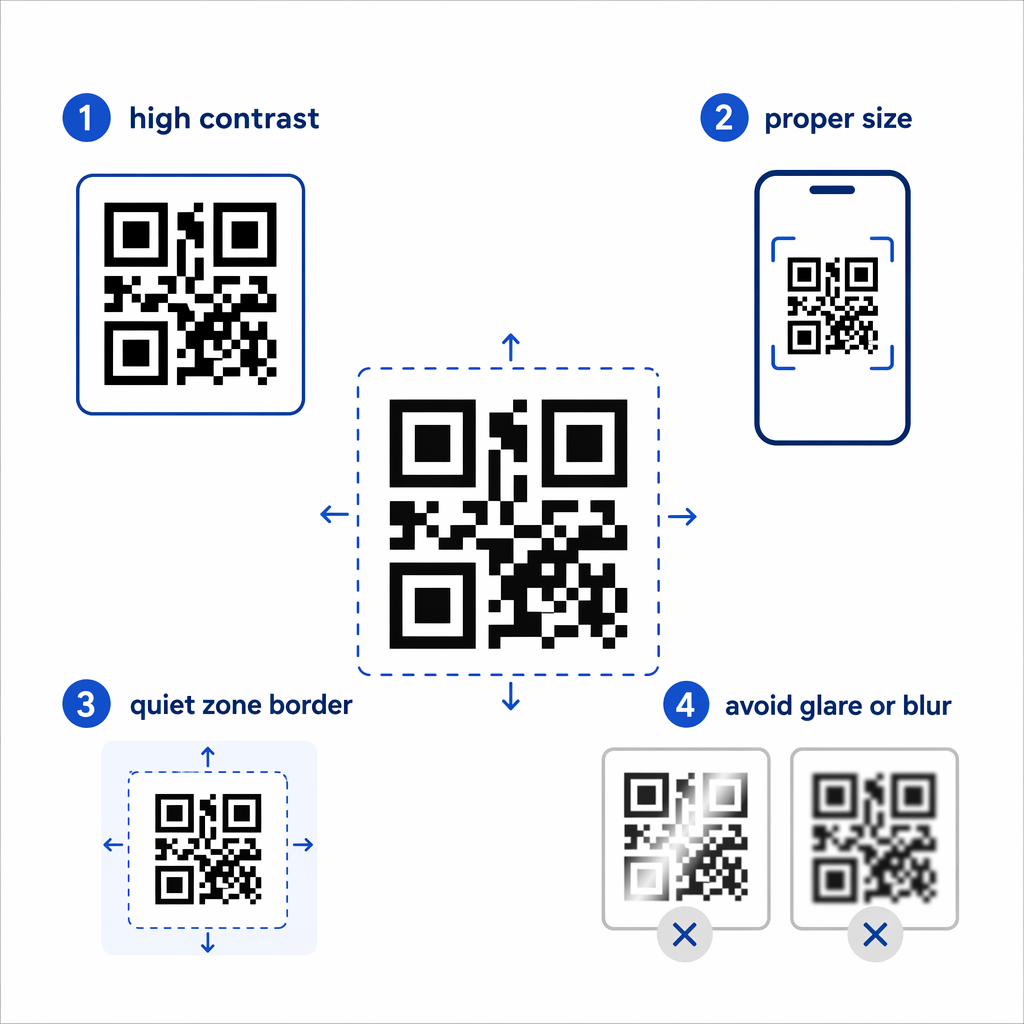
Tips for Better Image Quality

A blurry or poorly cropped image is the most common reason a file-based scan fails. Keep these points in mind:

  • Zoom in before screenshotting if the QR code appears small – use `Ctrl + +` (Windows) or `Command + +` (Mac) to enlarge it in your browser.
  • Crop tightly around the QR code, but keep the white border (called the “quiet zone”) intact – removing it prevents the scanner from detecting the code boundaries.
  • Increase screen brightness when screenshotting a code displayed on a monitor, to improve contrast.
  • If the image is still too blurry, try opening it in a photo editor and adjusting the contrast before uploading.

Choosing the Right Method for Your Situation

QR scanning methods
Situation Windows macOS
Physical or printed QR code Camera App (Barcode mode) Browser-based scanner or third-party app
QR code on a webpage Right-click → Google Lens in Chrome/Edge Right-click → Google Lens in Chrome
Saved image or screenshot Snipping Tool or online scanner Online scanner or QR Capture
Regular or professional use CodeTwo QR Code Desktop Reader QR Journal or QR Capture
No webcam, no install Upload to Pageloot QR Scanner Upload to Pageloot QR Scanner

For a deeper comparison of dedicated scanner apps – including security features and analytics – see the best QR code scanning apps comparison.

Staying Safe When Scanning QR Codes

Scanning a QR code on a laptop is generally safe, but the link it contains might not be. Before opening anything a scanned code returns, take a moment to:

Droša QR skenēšana
  • Review the URL before clicking. Check for misspellings, unrelated domains, or anything that doesn’t match the expected source.
  • Consider the context. Did you receive this code in an unsolicited email? Was it a sticker placed over another code? Treat unfamiliar codes with the same caution you’d apply to unknown links.
  • Use a scanner that shows the URL first, rather than opening it automatically. This gives you a chance to evaluate the link before committing.
  • Close the browser if a decoded link leads to an unexpected login page, payment form, or request for personal data. Verify the site independently before returning.

If a QR code simply won’t scan despite good lighting and a clear image, the problem may be with the code itself. Common causes include a broken destination URL, low contrast, or a code that’s too small – see the QR code not working guide for a full breakdown of fixes.11The method you choose will depend on how often you scan, whether you’re working with physical codes or digital files, and which platform you’re on. For one-off situations, a browser upload or the Windows Snipping Tool handles most cases without any setup. For regular use, a dedicated desktop app or the Pageloot QR Code Scanner gives you more control, including webcam scanning and a scan history.

If you’re also creating QR codes from your laptop – for campaigns, documents, or business cards – learn how to scan QR codes across different devices to make sure your codes work before you distribute them.

Bieži uzdotie jautājumi

Why won’t my laptop camera scan a QR code?

The most common reasons are poor lighting, an out-of-focus webcam, or a camera app that doesn’t support QR scanning on your specific device. Try cleaning the webcam lens, improving the lighting, and ensuring the QR code fills most of the frame. If the Camera app still doesn’t detect the code, switch to a browser-based tool or upload a screenshot to the Pageloot QR Code Scanner instead.

How do I scan a QR code on my screen without a camera?

Take a screenshot of the QR code – use `Win + Shift + S` on Windows 11 or `Shift + Command + 4` on macOS – then upload the image to a browser-based scanner like the Pageloot QR Code Scanner. On Windows 11, the Snipping Tool’s Text Actions feature can also decode on-screen codes directly without any upload.

Is it safe to use an online QR code scanner?

It can be, as long as you use a reputable tool that doesn’t store your images or require unnecessary account sign-ups. More importantly, always review the URL the scanner returns before clicking it – check for misspellings, unexpected domains, or anything that doesn’t match the source you expect. Treat QR codes from unsolicited emails or unfamiliar public locations as potentially suspicious until verified.

Par autoru

Sīms Kostabi ir Pageloot satura vadītājs. Viņš raksta par mūsu inovatīvajiem QR kodu ģeneratora pakalpojumiem. Ar vairāk nekā piecu gadu pieredzi QR kodu jomā Sīms ir šīs jomas eksperts. Viņš veic ievērojamus panākumus QR tehnoloģiju izmantošanā, lai vienkāršotu un uzlabotu digitālo mijiedarbību.

Kategorija
Uzzini vairāk par
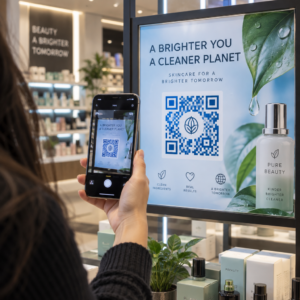
Storefront QR scan
QR kodi Windows

Ja jums ir nepieciešams izveidot QR kodus tiešsaistē, varat QR koda izveide tepat šeit bez maksas!
Pageloot ir #1 Go-To risinājums izveidot un skenēt QR kodus.

Vairāk nekā 20 000 zīmolu uzticas, lai iegūtu vairāk pārdošanas apjomu, atsauksmju un sekotāju.

Klientu logotipi
Uzticami labākie zīmoli
Novērtēts 4.8 no 5

4,86 / 5 zvaigznes

Hugo Lorāns
Hugo Lorāns
Restorāna īpašnieks
Visvienkāršākais un uzticamākais QR kodu ģenerators. PDF failus var augšupielādēt uzreiz. Mūsu restorānu ēdienkartes tagad ir digitālas.
Lūkass Jansens
Lūkass Jansens
Nekustamā īpašuma attīstītājs
Šis ir lielisks rīks, un QR kodi aizvedīs jūs uz vajadzīgo vietu. Mēs izmantojam tikai atrašanās vietas QR kodu, taču ir tik daudz noderīgu funkciju.
Emma Moretti
Emma Moretti
Mazumtirdzniecības produkti
Viegli un ātri lietojams. Tas darbojas lieliski un rada ideālus attēlus, lai darbinieki varētu lejupielādēt manu vCard.
Hugo Lorāns
Hugo Lorāns
Restorāna īpašnieks
Visvienkāršākais un uzticamākais QR kodu ģenerators. PDF failus var augšupielādēt uzreiz. Mūsu restorānu ēdienkartes tagad ir digitālas.
Lūkass Jansens
Lūkass Jansens
Nekustamā īpašuma attīstītājs
Šis ir lielisks rīks, un QR kodi aizvedīs jūs uz vajadzīgo vietu. Mēs izmantojam tikai atrašanās vietas QR kodu, taču ir tik daudz noderīgu funkciju.
Emma Moretti
Emma Moretti
Mazumtirdzniecības produkti
Viegli un ātri lietojams. Tas darbojas lieliski un rada ideālus attēlus, lai darbinieki varētu lejupielādēt manu vCard.
Skatīt vairāk QR kodu
Pārvērtiet jebko digitālā pieredzē mazāk nekā 3 minūtēs.

Bezmaksas 14 dienu izmēģinājuma versija.

Kredītkarte nav nepieciešama.

Iegūt 30% pie pirmā pirkuma

Izmantojiet kodu:

Kopīgojiet savus MP3 failus

Reģistrējieties, lai izveidotu PDF QR kodus

Augšupielādējiet un parādiet visu nepieciešamo:

  • Audio faili
  • Podkāsti
  • Mūzika

14 dienu bezmaksas izmēģinājums ar reģistrāciju.
QR kodi beidzas pēc izmēģinājuma.

pierakstīties, lai izveidotu audio mp3 QR kodu.

Iegūstiet vairāk skenējumu ar rāmjiem

Reģistrējieties, lai QR kodiem pievienotu vairāk kadru

Uzaicinājuma uz darbību rāmji palīdz klientiem viegli mijiedarboties ar QR kodu. Izmēģiniet tos!

14 dienu bezmaksas izmēģinājums ar reģistrāciju.
QR kodi beidzas pēc izmēģinājuma.

Reģistrējieties, lai QR kodiem pievienotu vairāk kadru

Pievienojiet vairāk stila ar formām

Reģistrējieties, lai izveidotu vairāk formu

QR kodiem nav jābūt kvadrātveida. Mēģiniet tos mainīt, lai tie atbilstu jūsu zīmola tēlam.

14 dienu bezmaksas izmēģinājums ar reģistrāciju.
QR kodi beidzas pēc izmēģinājuma.

Reģistrējieties, lai izveidotu vairāk formu

Pievienojiet logotipu savā QR kodā

Reģistrējieties, lai pievienotu savu logotipu QR kodiem

Padariet savu QR kodu izteiksmīgu, pievienojot tam savu logotipu un zīmolu.

14 dienu bezmaksas izmēģinājums ar reģistrāciju.
QR kodi beidzas pēc izmēģinājuma.

Reģistrējieties, lai pievienotu savu logotipu QR kodiem

Viedie lietotņu veikala novirzījumi

Reģistrējieties, lai izveidotu lietotņu veikala QR kodu

Pievienojiet savas lietotņu saites mūsu viedajam App Store QR kodam. Lietotāji tiek novirzīti, pamatojoties uz viņu ierīci.

14 dienu bezmaksas izmēģinājums ar reģistrāciju.
QR kodi beidzas pēc izmēģinājuma.

Reģistrējieties, lai izveidotu lietotņu veikala QR kodu

Augšupielādējiet attēlu QR kodā

Reģistrējieties, lai izveidotu attēlu QR kodus

Viegli kopīgojiet attēlus. Dinamiski mainiet jebkuru attēlu dažu sekunžu laikā.

14 dienu bezmaksas izmēģinājums ar reģistrāciju.
QR kodi beidzas pēc izmēģinājuma.

Reģistrējieties, lai izveidotu attēlu QR kodus

Kopīgojiet savus PDF failus

Reģistrējieties, lai izveidotu PDF QR kodus

Augšupielādējiet un parādiet visu nepieciešamo:

  • Ēdienkartes un cenrāži
  • Instrukcijas
  • Jebkuri dokumenti

14 dienu bezmaksas izmēģinājums ar reģistrāciju.
QR kodi beidzas pēc izmēģinājuma.

Reģistrējieties, lai izveidotu PDF QR kodus

Rediģēt vēlāk bez drukāšanas

Reģistrējieties, lai rediģētu savus QR kodus bez atkārtotas drukāšanas

Dinamiskie QR kodi ļauj mainīt QR koda saturu bez nepieciešamības drukāt jaunus kodus.

14 dienu bezmaksas izmēģinājums ar reģistrāciju.
QR kodi beidzas pēc izmēģinājuma.

Reģistrējieties, lai rediģētu savus QR kodus bez atkārtotas drukāšanas

Kad? Kur? Izsekojiet savu QR kodu skenējumus

Reģistrējieties, lai izsekotu savus QR kodus

Uzziniet, kuri no jūsu QR kodiem tiek visvairāk skenēti un kas visvairāk uzrunā jūsu klientus.

14 dienu bezmaksas izmēģinājums ar reģistrāciju.
QR kodi beidzas pēc izmēģinājuma.

Reģistrējieties, lai izsekotu savus QR kodus

Drukai gatavi faili pieejami

Reģistrējieties, lai izveidotu vektoru QR kodus, piemēram, PDF un SVG

.EPS, .PDF, .SVG

Vai vēlaties lejupielādēt QR kodus HD izšķirtspējā? Iegūstiet vektora vai pikseļu formātus, kas ir gatavi drukāšanai.

14 dienu bezmaksas izmēģinājums ar reģistrāciju.
QR kodi beidzas pēc izmēģinājuma.

Reģistrējieties, lai izveidotu vektoru QR kodus, piemēram, PDF un SVG

Lūdzu, uzgaidiet. Jūsu QR kods ir iekraušana... iekraušana...

Padariet to par savu

Reģistrējieties, lai saglabātu savu QR kodu vēlāk

Iegūstiet vairāk skenējumu, izveidojot lieliskus QR kodus ar dažādām krāsām, logotipiem un aicinājuma uz darbību rāmjiem.

14 dienu bezmaksas izmēģinājums ar reģistrāciju.
QR kodi beidzas pēc izmēģinājuma.

Reģistrējieties, lai saglabātu savu QR kodu vēlāk