ノートパソコンでQRコードをスキャンする方法:WindowsとmacOSの完全ガイド

ノートパソコンでQRコードをスキャンする方法:WindowsとmacOSの完全ガイド

Easy methods to scan QR codes on Windows and macOS—use webcams, browser tools, screenshots, online scanners, or desktop apps.
Updated on 2月 26, 2026
目次

Scanning QR codes on your laptop is easier than you think. Whether you’re using Windows or macOS, you can decode QR codes with built-in tools, browser features, or third-party apps. Here’s a quick summary of your options:

  • ウィンドウズ: Use the Camera app (enable QR scanning in settings), Microsoft Edge‘s Developer Tools, or the Snipping Tool for on-screen codes.
  • macOS: Install apps like QR Capture or use browser tools like Google レンズ in Chrome. For saved images, upload them to online scanners.
  • Universal Methods: Online QR code scanners (e.g., scanqr.org) work on both platforms for one-time use or file-based scanning.

For frequent use, desktop apps like CodeTwo (Windows) または QR Journal (macOS) offer advanced options like history tracking and offline scanning. If you’re scanning physical codes, ensure proper lighting and a clean webcam lens. Simple, effective, and no smartphone required.

QR Code Scanning Methods Comparison for Windows and macOS Laptops

QR Code Scanning Methods Comparison for Windows and macOS Laptops

How To Scan QR Code on PC | Step by Step

Scanning QR Codes on Windows

Windows 10 and 11 come equipped with tools to scan QR codes, eliminating the need for third-party software. Both the built-in Camera app and Microsoft Edge have this capability, though each works a bit differently and has its own set of requirements.

Using the Windows Camera App

The Camera app on Windows can scan QR codes, but you’ll need to enable an experimental feature first. Here’s how:

  1. Open the Camera app and click the gear icon to access Settings.
  2. Under "Related settings", enable the Experimental Features option.
  3. Restart the app, and you’ll see a barcode icon appear.

Once this feature is active, click the barcode icon and position the QR code in front of your laptop’s webcam. The app will automatically detect and display the content, whether it’s a URL or other information. To ensure the best results, make sure your workspace is well-lit, the camera is focused, and the lens is clean. If you’d rather avoid using a webcam, Microsoft Edge offers a camera-free alternative.

を使用しています。 Microsoft Edge‘s QR Features

Microsoft Edge

Microsoft Edge includes a QR code reader hidden within its Developer Tools, which can decode images without needing a webcam. To use it:

  1. Open a QR code image in Edge by dragging the file into the browser or opening it in a new tab.
  2. Right-click the image and select Inspect.
  3. Press Ctrl + Shift + P, type "QR", and choose Show QR Code reader to decode the image.

For two-factor authentication (2FA) codes, Edge integrates with the iCloud Passwords extension for Windows. Simply right-click a 2FA QR code on a webpage and select Set Up Verification Code to sync it directly – no need for a camera. Additionally, Edge’s right-click option to "Search images with Google" (via Google Lens) can decode QR codes you encounter while browsing.

Limitations of Native Windows Tools

While these built-in tools are convenient, they have some limitations. Most laptop webcams top out at 720p resolution, making it tough to scan small or intricate QR codes. The Camera app also doesn’t have optical zoom, which means codes that are too small or far away might not register. Poor lighting, screen glare, or curved surfaces (like product packaging) can also cause issues.

方法 ベスト・ユースケース Key Requirement
Windows Camera App Physical objects or printed codes Enable experimental features in settings
Snipping Tool On-screen content (e.g., websites) Windows 11 with "Text actions" (Win + Shift + S)
Microsoft Edge DevTools Saved image files No extra software; requires using DevTools
iCloud Passwords Two-factor authentication codes iCloud for Windows extension

If you don’t see the barcode icon in the Camera app after enabling experimental features, check for updates to ensure your system is running the latest version. For QR codes displayed on your laptop screen, the Snipping Tool is often the easiest option to use.

Scanning QR Codes on macOS

On macOS, scanning QR codes requires some workarounds since the Camera app doesn’t offer built-in QR code recognition. To get the job done, Mac users need to rely on third-party apps, browser tools, or web-based platforms.

"Neither macOS itself or any of the built-in apps allow you to [point the camera at a QR code to recognize a link]." – Igor Degtiarenko, Writer, MacPaw

Using the Built-in Camera with Supported Apps

To scan QR codes, you can download apps like QR Capture, Code Reader – QR Scannerあるいは QR Journal from the Mac App Store. These apps work similarly to smartphone QR scanners – just open the app, align the QR code within the on-screen frame, and the app will decode it automatically. If the QR code contains a URL, most apps will prompt you to open the link in your default browser.

For a browser-based option, try web tools like ME-QR (highly rated with 4.5/5 from 272 users) or ScanQR. Visit the website, click "Scan" or "Webcam", and grant camera access when prompted. Hold the QR code steady in front of your webcam until the tool decodes it. Remember to enable camera permissions in System Settings > Privacy & Security > Camera before using any scanning tool.

These methods echo the options available on Windows but are fine-tuned for macOS’s ecosystem. If you already have a QR code saved as an image, you can use other tools, as explained below.

QR Code Detection via Preview and Photos

While Preview and Photos can open images of QR codes, they can’t decode them. Instead, you can upload the image to an online scanner or use a browser-based tool. A quick option is Google Chrome – right-click the image containing the QR code, select "Search Image with Google", and let Google Lens detect and decode it automatically.

Safari users can visit Google.com and use the Search by image (camera) icon in the search bar to upload a screenshot or paste an image URL. To take a screenshot of a QR code displayed on your screen, press Shift-Command-4, then open the file in Preview to crop it or upload it directly to an online QR code reader.

Using Spotlight and Safari for QR Code Recognition

For QR codes you encounter online or within apps, you can use browser-based methods to decode them quickly. Although Safari doesn’t have native QR scanning, you can access Google Lens through image search to handle QR codes.

のために two-factor authentication (2FA) codes, macOS 15 and later includes a built-in solution. Open the Passwords app, find the relevant account, and use the integrated feature to scan a 2FA QR code directly. This eliminates the need for third-party authenticator apps when setting up verification codes.

If you have an iPhone linked to the same Apple ID, Handoff offers a convenient alternative. Use your iPhone’s camera to scan the QR code, and the link will appear in your Mac’s Dock. Just make sure both devices are connected to the same Wi-Fi network. While not a direct macOS method, this approach is often quicker than downloading additional software for occasional QR code scanning.

Scanning QR Codes from Images or Screenshots

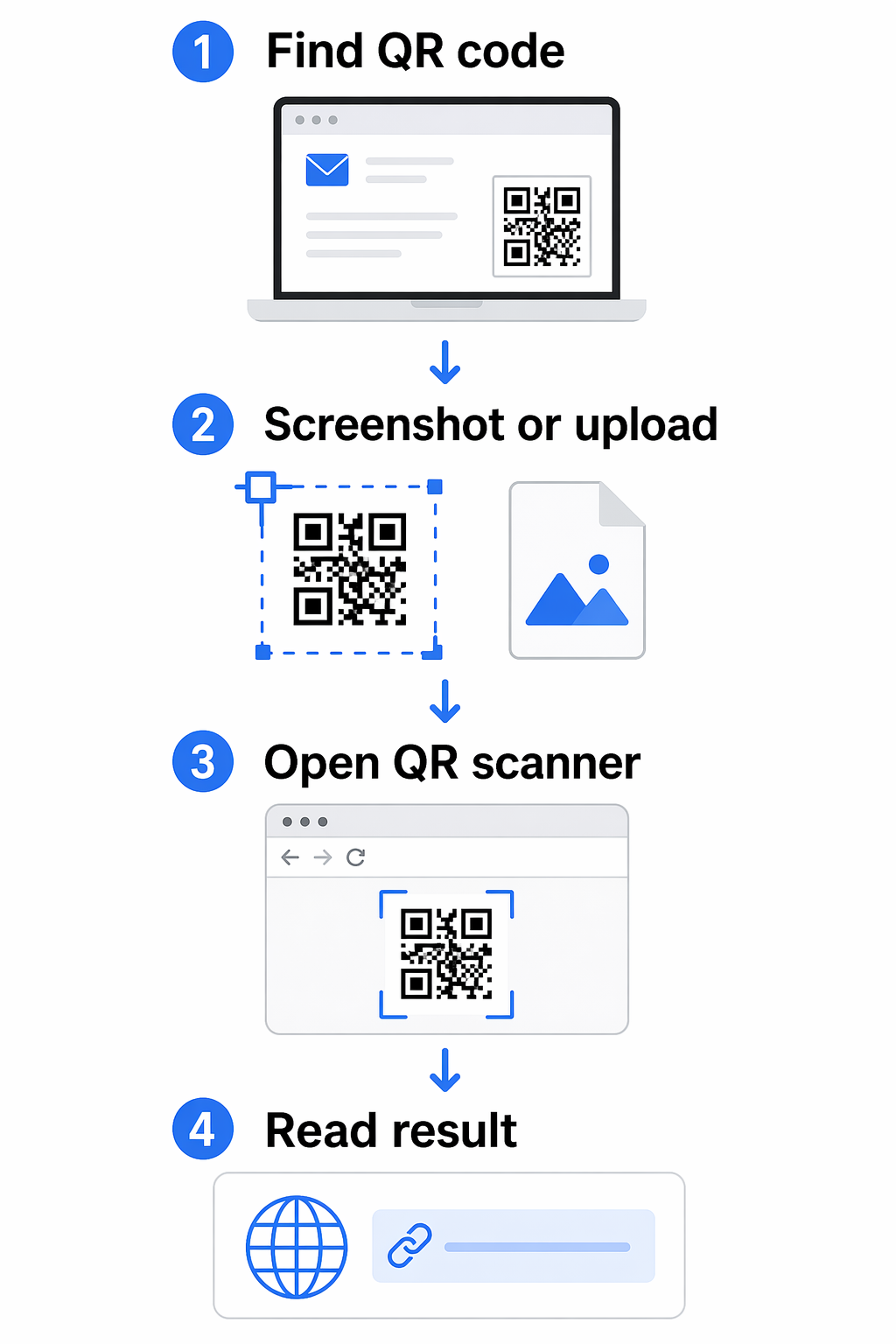
If you’ve saved a QR code as an image or captured it in a screenshot, you don’t need a webcam to decode it. Both Windows and macOS provide several ways to scan QR codes directly from saved files. This section focuses on methods specifically designed for file-based QR code scanning.

Scanning QR Codes from Downloaded Images

If you have a QR code saved as an image, decoding it is straightforward. One of the easiest ways is to upload the image to an online QR code scanner. Websites like scanqr.org, me-qr.comとしています。 zxing.org allow you to drag and drop PNG or JPG files directly into your browser for instant decoding – no software installation required.

Prefer a browser-based solution? Use Google レンズ through Chrome or Edge for quick decoding. If you’re on Windows 11, the Snipping Tool (discussed earlier) can also help you extract and scan QR codes from saved images.

Scanning QR Codes from Screenshots or PDFs

For QR codes embedded in screenshots or PDFs, you can follow a simple process. Open the PDF, take a screenshot of the QR code section, and upload the screenshot to an online scanner or use the Windows 11 Snipping Tool. Since most PDF viewers don’t support built-in QR code recognition, this workaround is often necessary.

On macOS, you can use Google Chrome to decode images by right-clicking and selecting “Search Image with Google.” Google Lens will handle the rest. Alternatively, apps like QR Capture from the Mac App Store let you drag a frame over any visible QR code on your screen for instant decoding.

For professional workflows, CleanShot X on macOS combines screenshot capabilities with OCR technology, allowing it to recognize and open links from QR codes automatically. On Windows, tools like CodeTwo QR Code Desktop Reader offer similar functionality, letting you scan codes from files, the clipboard, or specific regions of your screen.

Tips for Ensuring Image Quality

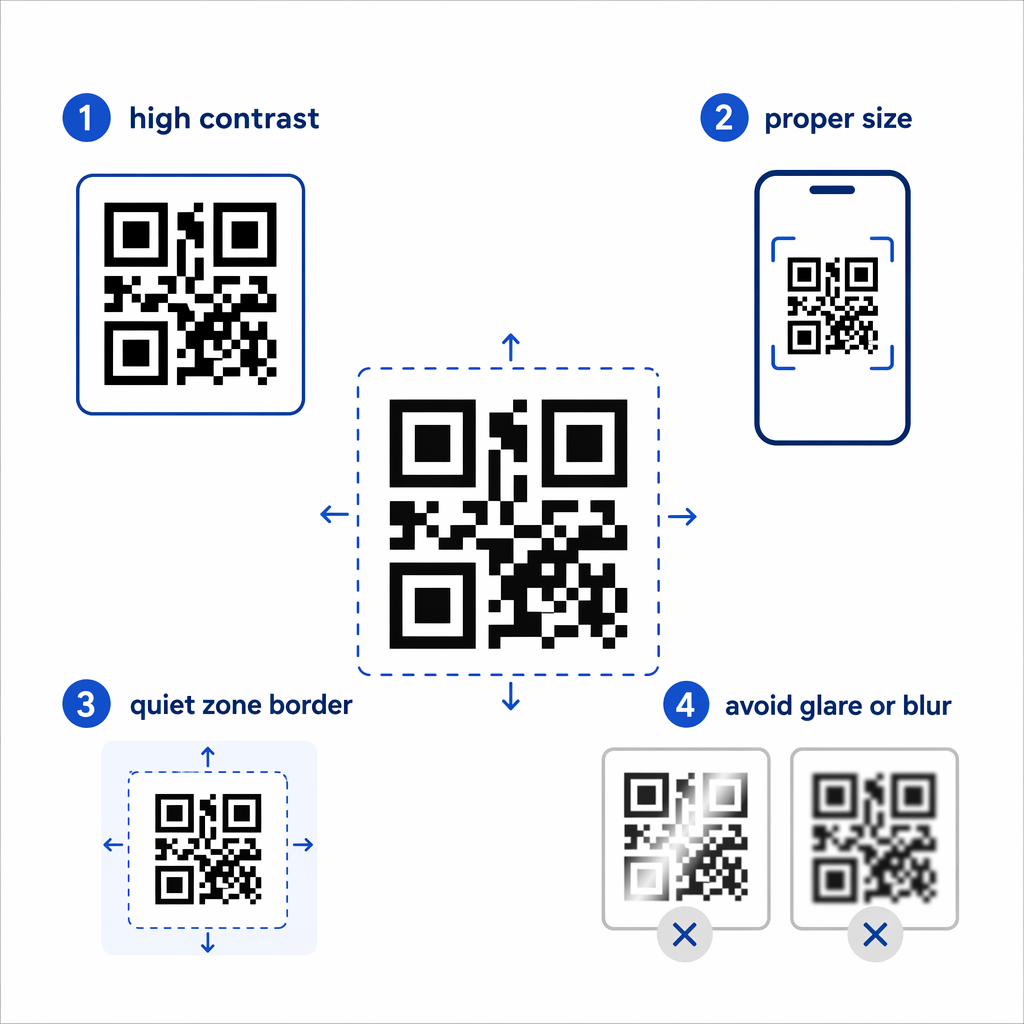
The clarity and contrast of your image play a big role in successful QR code scanning. If the QR code is too small on a webpage, zoom in using Ctrl + "+" or right-click and choose “Open image in new tab” to enlarge it before taking a screenshot. This ensures the code’s pixels are clear, which is especially important since many laptop cameras are limited to 720p resolution.

When capturing screenshots, use a selection tool to focus only on the QR code area, including the white border (or quiet zone) around it. Background clutter can interfere with scanning tools, so tightly cropping the image while keeping the border intact improves accuracy. If you’re scanning a physical QR code displayed on a monitor, increasing the screen brightness can enhance contrast and make the code easier to read.

For blurry or low-contrast images, apps like QR Journal (Mac) allow you to tweak the contrast before scanning. If you still can’t decode the QR code despite a high-quality image, the issue might be with the QR code itself – such as a broken URL or a 404 error. In such cases, double-check the source of the QR code before spending time troubleshooting.

方法 プラットフォーム 最適 主な利点
Snipping Tool Windows 11 On-screen codes Built-in tool, no need to upload files
Google レンズ Windows/macOS Web-based images Integrated with Chrome/Edge, highly accurate
Online Scanners ユニバーサル One-off file uploads No installation required
QR Capture macOS On-screen codes Simple frame-based selection
CodeTwo Reader ウィンドウズ Professional/Offline Scans from clipboard, files, and screen areas

How to Scan QR Code from Laptop

Here are four effective ways to scan QR codes using your laptop, whether you’re dealing with physical codes, on-screen content, or saved images. These methods work across both Windows and macOS.

Method 1: Using the Laptop Camera

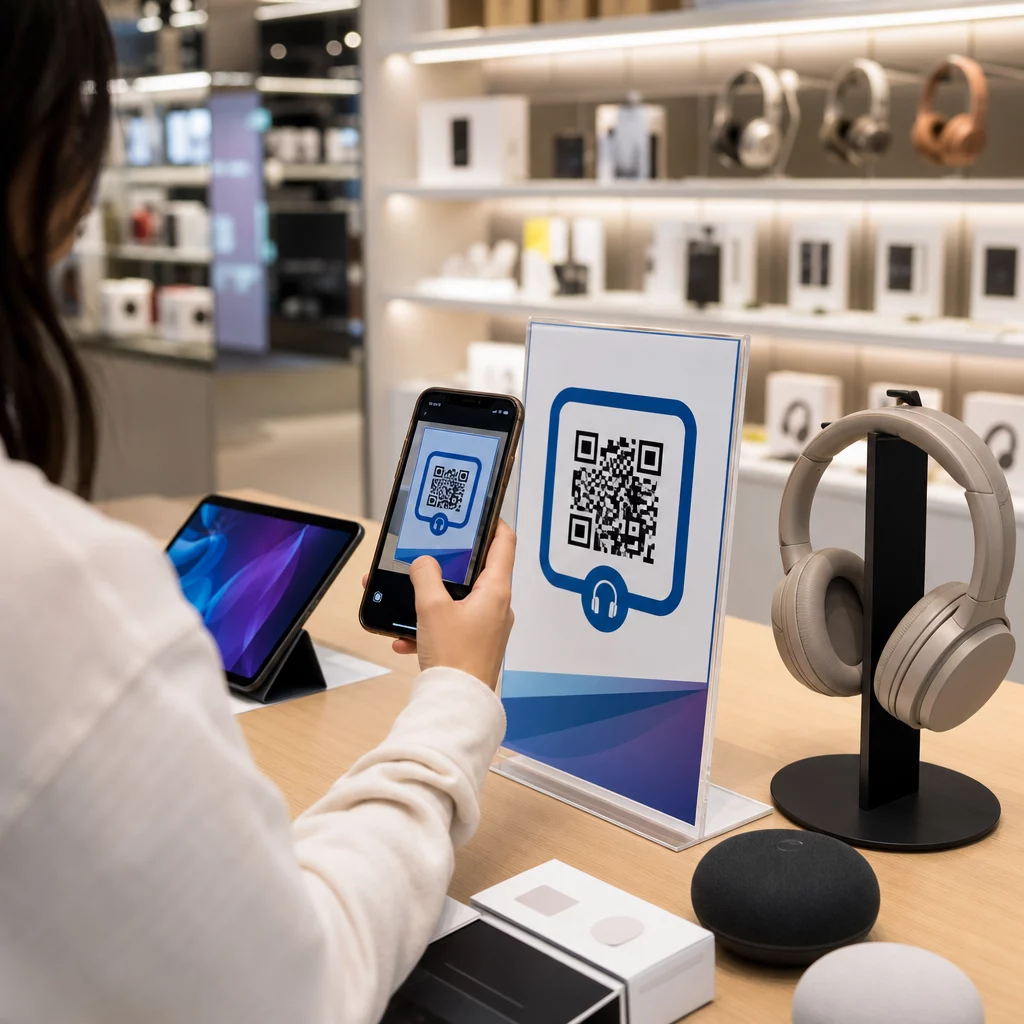
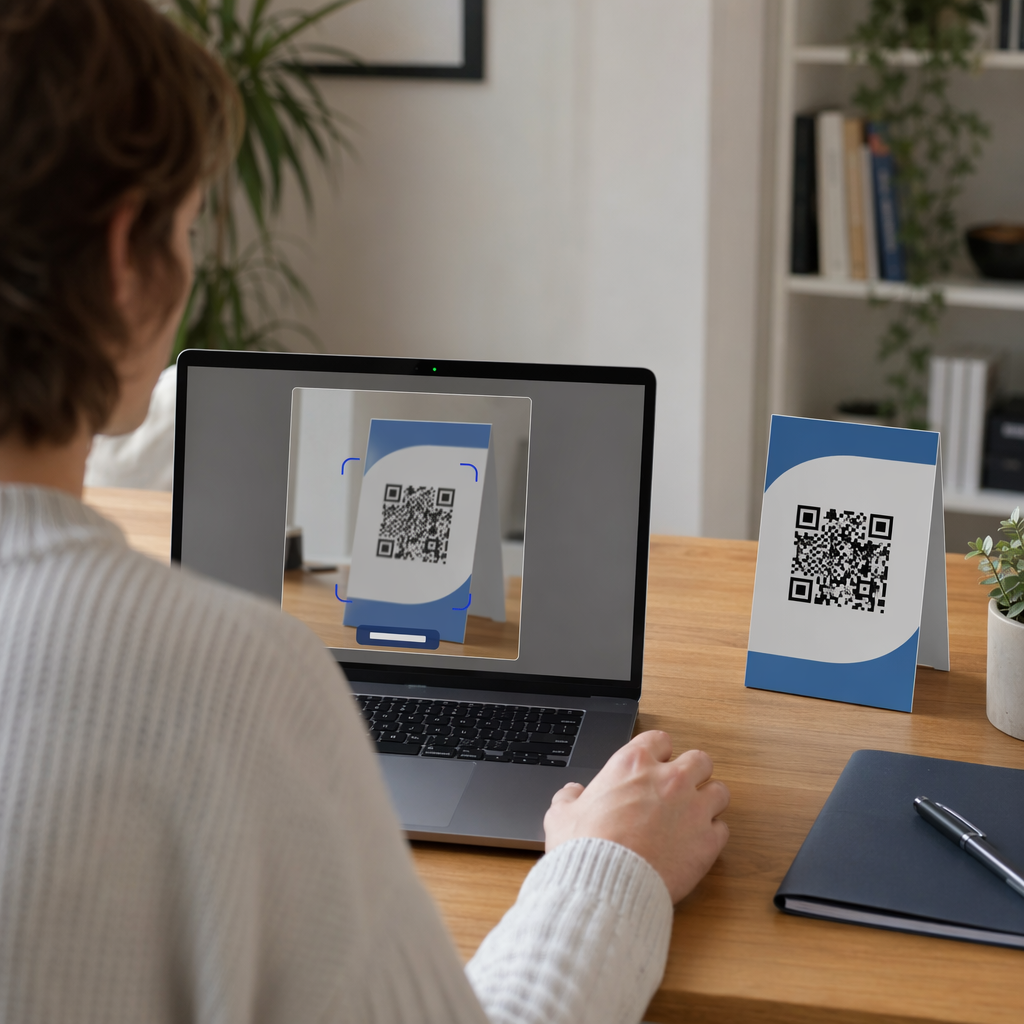
Your laptop’s webcam can be a handy tool for scanning QR codes from physical items like product labels, flyers, or another screen. If you’re using Windows, open the Camera app and enable the QR scanning option (it may need to be activated in settings). On macOS, open the Preview app, go to "File", select "Import from Camera" or "Take Photo", and the system will automatically read the QR code.

For the best results, ensure the QR code is well-lit, in sharp focus, and that your webcam lens is clean to avoid common QR code problems. A webcam with at least 720p resolution is recommended for accurate scanning.

Method 2: Using an Online QR Code Scanner

Online tools like scanqr.org, webqr.comとしています。 4QRCode allow you to scan QR codes without downloading any software. These tools typically offer two options: scanning live using your webcam or uploading an image file of the QR code.

To scan with a webcam, visit the website, click "Scan now" or "Open camera", and align the QR code within the frame. For image uploads, save the QR code (via screenshot or download), then drag and drop it into the designated upload area on the site.

Online scanners are particularly useful for decoding QR codes found in emails, social media posts, or websites without needing a smartphone. For example, the ME-QR online scanner has a user rating of 4.5 out of 5 based on 272 reviews. Always check the privacy policy of these tools to ensure uploaded images are deleted after processing. Understanding QRコードのプライバシーリスク can help you stay safe when using third-party services.

Method 3: Using Browser Tools or Extensions

Many modern browsers come with built-in QR scanning features, so you don’t need separate apps. For instance, Google Lens, available in Google Chrome and Microsoft Edge, can scan QR codes directly from a webpage. Just right-click the code and choose "Search images with Google" to decode it instantly.

You can also install QR code reader extensions from the Chrome Web Store. These extensions let you scan codes from websites, local image files, or even through your webcam. Some extensions are especially helpful for tasks like scanning two-factor authentication (2FA) QR codes directly on your laptop, saving you from switching devices. Privacy-focused extensions process images locally, ensuring your data remains secure.

Method 4: Using Third-Party Desktop Apps

For frequent QR code scanning, third-party desktop apps offer advanced features. Apps like QR Scanner Plus for Windows or QR Capture for macOS provide user-friendly interfaces for webcam scanning and often include a history of scanned codes, which can be helpful for professional use.

These apps also let you scan QR codes from specific screen areas or even from the clipboard. For example, CodeTwo QR Code Desktop Reader on Windows allows you to decode codes from files, the clipboard, or any part of your screen. On macOS, CleanShot X combines screenshot tools with OCR technology to recognize and open links from QR codes.

While native tools and online scanners are sufficient for casual use, these apps are ideal for those who regularly deal with QR codes in their work or business. With these methods, you can easily decode QR codes on your laptop, no matter the situation.

Choosing the right QR code scanning method depends on how often you scan and the QRコードタイプ you’re working with. Below, you’ll find the best tools for quick scans, handling images, and frequent or professional use. These suggestions build on the detailed methods covered earlier, making it easier to find the perfect fit for your needs.

Best Option for Quick Scans

If you need to scan a QR code just once and don’t want to install extra software, native tools are your best bet. Windows 11 users can rely on the Snipping Tool shortcut (Win + Shift + S) to grab an on-screen QR code. Then, click "Text Actions" to decode it instantly. For Mac users, Google Lens in Chrome is a great option for browser-based QR codes – just right-click the code for quick results. For more frequent use, explore advanced tools below.

Best Option for Scanning Images or Screenshots

If you’re working with QR codes saved in emails, PDFs, or downloaded images, online scanners like scanqr.org 或いは webqr.com are simple and effective. Drag and drop your file into the browser, and you’ll get instant results. On Windows 11, the Snipping Tool remains a reliable choice for capturing and decoding QR codes. For Mac users, try QR Capture, a free app that lets you scan any part of your screen using a movable frame.

Best Option for Frequent or Professional Use

For those who scan QR codes regularly at work, third-party desktop apps provide advanced features that native tools lack. On ウィンドウズ, CodeTwo QR Code Desktop Reader is a powerful option. It scans from your screen, webcam, files, or clipboard, all without needing an internet connection. Mac users can check out QR Journal, which integrates with AppleScript for automation – perfect for streamlining workflows. Another excellent option is QR Capture, which saves all scans in a local database for easy access. These tools are especially useful for tasks like setting up two-factor authentication or processing large batches of QR codes. If you need to create your own, you can use a QR code generator for instant sharing to distribute information quickly.

User Need Best Method (Windows) Best Method (macOS)
Quick Scans Snipping Tool or Camera App Google Lens in Chrome
Image/Screenshot Snipping Tool or online scanners QR Capture, with Preview for adjustments
Professional/Frequent CodeTwo QR Code Desktop Reader QR Journal or QR Capture

This table highlights the top tools for each scenario, helping you quickly identify the best option for your specific needs. Whether it’s a quick scan or a professional setup, there’s a solution ready to simplify your workflow.

結論

This guide has walked you through various ways to scan QR codes on both Windows and macOS. Scanning QR codes on a laptop can be simple and efficient. On Windows, you can use tools like the built-in Camera app or Snipping Tool, while macOS users might find third-party apps like QR Capture helpful. For those who prefer a universal option, web-based tools such as scanqr.org work seamlessly across platforms without requiring installation. If you often scan codes directly from websites, Google Lens in Chrome or Edge offers a quick and integrated solution.

Whether you’re scanning with a webcam or decoding an image, the methods outlined above cover all bases. To ensure smooth scanning, keep your webcam clean and ensure the QR code is well-lit and optimized for scanning. If a code doesn’t scan, try increasing your screen brightness or taking a screenshot to upload into a scanner. For handling sensitive information, tools like the Windows Snipping Tool or offline desktop apps provide added security by keeping data processing local.

Once you’re comfortable scanning codes, you might want to create your own. Check out our custom QR code generator free to design codes with logos, colors, and templates – perfect for business cards, flyers, or product labels. You can also make QR codes for PDFs using the QR code generator for PDF tool. Start with a 14-day free trial to access advanced features like editable codes and real-time analytics.

For everyday tasks, native apps are a solid choice, while desktop software like CodeTwo or QR Journal is ideal for frequent or professional use. Pick the method that aligns best with your workflow to ensure reliable and secure QR code scanning.

よくある質問

Why won’t my laptop scan a QR code?

Sometimes, your laptop might struggle to scan a QR code. This can happen for several reasons: the camera might not work or be unsupported, the lighting could be inadequate, the focus might be off, or you might not have the right software installed.

To troubleshoot, make sure your camera is enabled, functioning correctly, and positioned in a well-lit area. If your laptop doesn’t have a camera or the one it has isn’t working, you can always turn to online QR code scanners or download third-party apps as a workaround.

How can I scan a QR code on my screen without a camera?

If you need to scan a QR code directly from your screen without using a camera, you can upload an image or screenshot of the QR code to an online QR code scanner. Many web-based tools offer a feature like “Scan QR Code from Image,” allowing you to upload the file and quickly extract the information. It’s an easy way to handle QR codes without needing a physical camera.

Is it safe to use an online QR code scanner?

Using an online QR code scanner can be safe, but it’s important to stick with trusted and well-known platforms. Reliable scanners usually don’t ask for unnecessary registrations or store your data without permission. Be cautious of unfamiliar or sketchy websites – they might put your privacy at risk. Before uploading images or granting webcam access, take a moment to confirm the scanner’s credibility.

関連ブログ記事

著者について

Siim KostabiはPagelootのコンテンツリードです。Pagelootの革新的なQRコード生成サービスについて執筆しています。5年以上にわたるQRコードに関する深い専門知識を持つSiimは、この分野の専門家です。QRテクノロジーを活用してデジタルインタラクションを簡素化・拡張する上で、大きな進歩を遂げています。.

カテゴリー
について詳しくはこちら
QRマーケティングコードのスキャン
QRコード 追跡
✅ QRコードの#1ソリューション

オンラインでQRコードを作成する必要がある場合は QRコードを作る ここで無料で
ページルートは #1のGo-Toソリューション でQRコードを作成してスキャンすることができます。

売上、レビュー、フォロワーを増やすために 20,000 を超えるブランドから信頼されています。

クライアントのロゴ
トップブランドから信頼される
5 のうち 4.8 と評価しました

4.86 / 5つ星評価

ユーゴ・ローラン
ユーゴ・ローラン
レストランオーナー
最も簡単で信頼性の高いQRコードジェネレータです。PDFファイルを即座にアップロードできます。レストランのメニューがデジタル化されました。
ルーカス・ジャンセン
ルーカス・ジャンセン
不動産開発業者
これは優れたツールで、QRコードでちょうど欲しいところに連れて行ってくれます。私たちは位置情報のQRコードしか使っていませんが、とても便利な機能がたくさんあります。
エマ・モレッティ
エマ・モレッティ
小売製品
使いやすいし、早い。素晴らしい機能で、完璧な画像を作成してくれるので、社員は私のvCardをダウンロードすることができます。
ユーゴ・ローラン
ユーゴ・ローラン
レストランオーナー
最も簡単で信頼性の高いQRコードジェネレータです。PDFファイルを即座にアップロードできます。レストランのメニューがデジタル化されました。
ルーカス・ジャンセン
ルーカス・ジャンセン
不動産開発業者
これは優れたツールで、QRコードでちょうど欲しいところに連れて行ってくれます。私たちは位置情報のQRコードしか使っていませんが、とても便利な機能がたくさんあります。
エマ・モレッティ
エマ・モレッティ
小売製品
使いやすいし、早い。素晴らしい機能で、完璧な画像を作成してくれるので、社員は私のvCardをダウンロードすることができます。
QRコードをもっと見る
顧客がQRバナーをスキャン
QRコードの 屋外バナー
教会QRコードのスキャン
のQRコード 教会
美術館やアートギャラリーのための最高のQRコードジェネレータ
のQRコード ミュージアム
あらゆるものをデジタル体験に変えよう 3分以内に。

14日間の無料トライアル。

クレジットカードは必要ありません。

初回購入で30%オフ

次のコードを使用してください:

MP3ファイルを共有

PDF QRコードを作成するにはサインアップしてください

必要なものをすべてアップロードして表示する。

  • オーディオファイル
  • ポッドキャスト
  • 音楽

サインアップで14日間無料トライアル。.
トライアル終了後、QRコードは期限切れになります。.

オーディオmp3 QRコードを作成するにはサインアップしてください

フレームでより多くのスキャンを獲得

QRコードにフレームを追加するにはサインアップしてください

コールトゥアクションフレームは、お客様が簡単にQRコードと対話できるようにします。ぜひお試しください。

サインアップで14日間無料トライアル。.
トライアル終了後、QRコードは期限切れになります。.

QRコードにフレームを追加するにはサインアップしてください

シェイプでスタイルを追加

より多くの図形を作成するにはサインアップしてください

QRコードは四角いものである必要はありません。あなたのブランドのイメージに合わせて変えてみてください。

サインアップで14日間無料トライアル。.
トライアル終了後、QRコードは期限切れになります。.

より多くの図形を作成するにはサインアップしてください

QRコードにロゴを追加

QRコードにロゴを追加するにはサインアップしてください

QRコードにロゴやブランドを入れることで、目立たせることができます。

サインアップで14日間無料トライアル。.
トライアル終了後、QRコードは期限切れになります。.

QRコードにロゴを追加するにはサインアップしてください

スマートなApp Storeリダイレクト

アプリストアのQRコードを作成するにはサインアップしてください

スマートなApp StoreのQRコードに、あなたのアプリのリンクを追加します。ユーザーは、デバイスに応じてリダイレクトされます。

サインアップで14日間無料トライアル。.
トライアル終了後、QRコードは期限切れになります。.

アプリストアのQRコードを作成するにはサインアップしてください

QRコードに画像をアップロード

画像QRコードを作成するにはサインアップしてください

画像を簡単に共有できます。どんな画像も、数秒でダイナミックに変化します。

サインアップで14日間無料トライアル。.
トライアル終了後、QRコードは期限切れになります。.

画像QRコードを作成するにはサインアップしてください

PDFファイルを共有

PDF QRコードを作成するにはサインアップしてください

必要なものをすべてアップロードして表示する。

  • メニュー&プライスリスト
  • 指示
  • 任意の書類

サインアップで14日間無料トライアル。.
トライアル終了後、QRコードは期限切れになります。.

PDF QRコードを作成するにはサインアップしてください

印刷せずに後で編集

再度印刷せずにQRコードを編集するにはサインアップしてください

ダイナミックQRコードは、新たにQRコードを印刷することなく、QRコードの内容を変更することができます。

サインアップで14日間無料トライアル。.
トライアル終了後、QRコードは期限切れになります。.

再度印刷せずにQRコードを編集するにはサインアップしてください

いつ?どこで?QRコードのスキャンを追跡

QRコードを追跡するにはサインアップしてください

どのQRコードが最も多くスキャンされ、何が最も顧客を喜ばせているのかを知ることができます。

サインアップで14日間無料トライアル。.
トライアル終了後、QRコードは期限切れになります。.

QRコードを追跡するにはサインアップしてください

印刷可能なファイルが利用可能

PDFやSVGのようなベクターQRコードを作成するにはサインアップしてください

.eps、.pdf、.svg

QRコードをHD解像度でダウンロードしたいですか?すぐに印刷できるベクターまたはピクセル形式を入手しましょう。

サインアップで14日間無料トライアル。.
トライアル終了後、QRコードは期限切れになります。.

PDFやSVGのようなベクターQRコードを作成するにはサインアップしてください

しばらくお待ちください。あなたのQRコードは ロード... ロード...

あなただけのものに

サインアップしてQRコードを後で保存してください

異なる色、ロゴ、コールトゥアクションフレームで素晴らしいQRコードを作成することで、より多くのスキャンを得ることができます。

サインアップで14日間無料トライアル。.
トライアル終了後、QRコードは期限切れになります。.

サインアップしてQRコードを後で保存してください