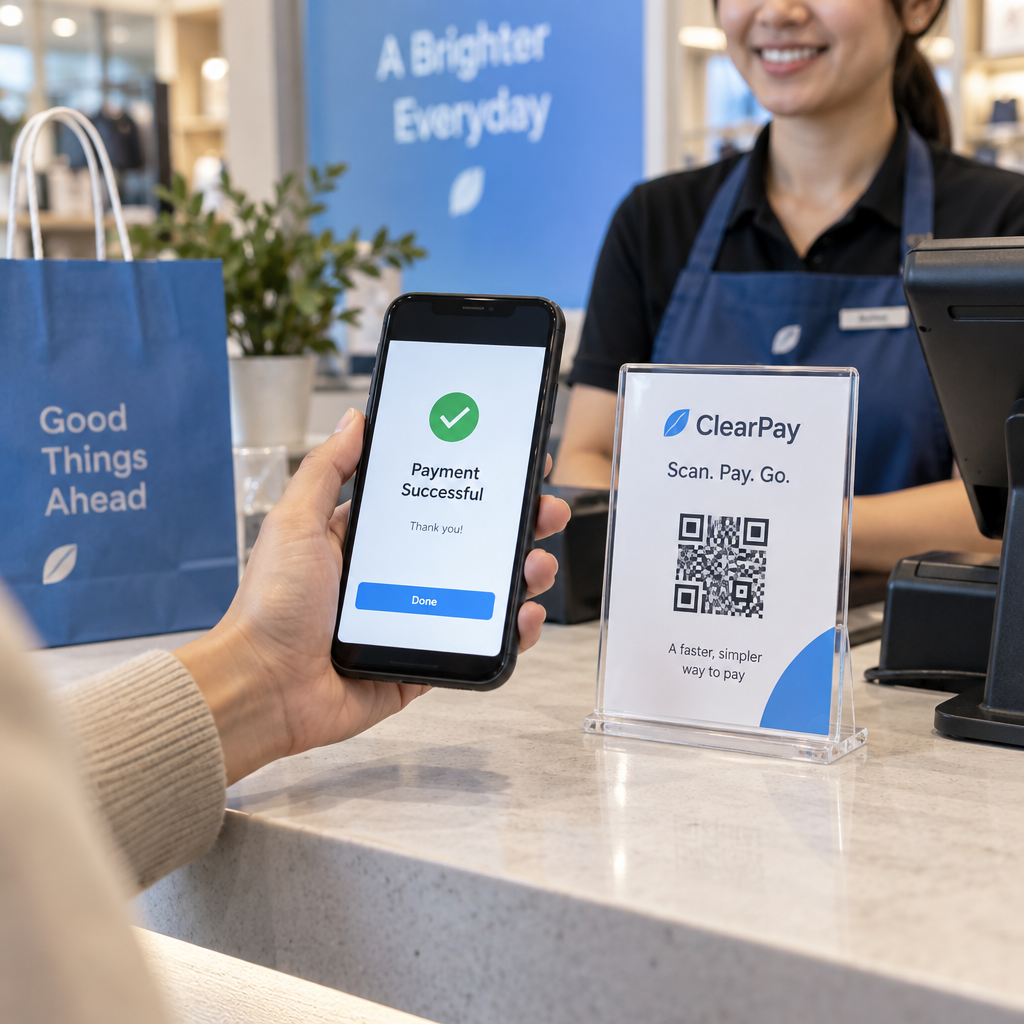
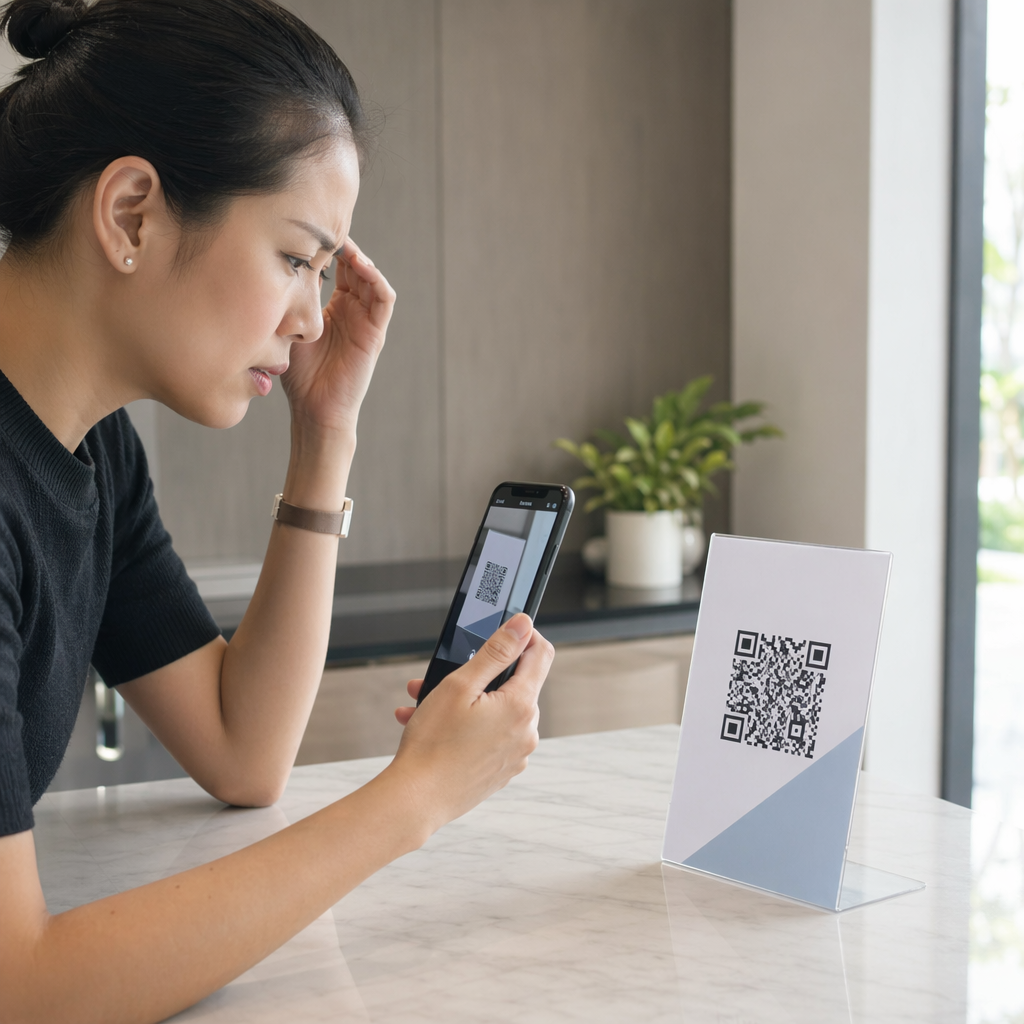
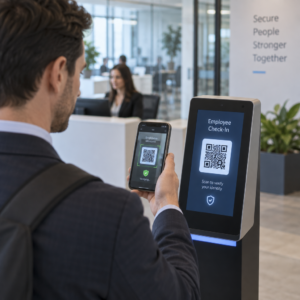
ต้องการแชร์ลิงก์หรือเอกสารกับผู้ชมของคุณกลางการนำเสนอใช่ไหม? การคลำหา URL ยาวๆ บนสไลด์จะทำให้การนำเสนอของคุณสะดุดและทำให้ผู้ชมหงุดหงิด คู่มือนี้จะแนะนำคุณตลอดสองวิธีปฏิบัติสำหรับการเพิ่มรหัส QR ที่สามารถสแกนได้ลงในสไลด์ PowerPoint ใดๆ ได้ในไม่กี่นาที.
ทำไมรหัส QR จึงทำงานได้ดีในการนำเสนอ
รหัส QR บนสไลด์ช่วยให้ผู้ชมของคุณเข้าถึงเนื้อหาสนับสนุนได้ทันที – ไม่ต้องพิมพ์ แทนที่จะอ่าน URL หรือหวังว่าผู้เข้าร่วมจะจดบันทึก คุณสามารถวางรหัสบนสไลด์และให้พวกเขาใช้โทรศัพท์สแกนได้.
กรณีการใช้งานทั่วไปได้แก่:
- การเชื่อมโยงไปยังหน้า Landing Page หรือแบบฟอร์มลงทะเบียนหลังการนำเสนอ
- การแชร์ไฟล์ PDF – เช่น รายงาน, Whitepaper, หรือเอกสารประกอบ – โดยไม่ต้องพิมพ์สำเนา
- การนำผู้ชมไปยังวิดีโอ, Portfolio, หรือหน้าผลิตภัณฑ์
- การรวบรวมความคิดเห็นผ่านแบบฟอร์มหรือแบบสำรวจระหว่างหรือหลังการประชุม
ตัวรหัส QR เองเป็นเพียงไฟล์รูปภาพ เมื่อคุณสร้างมันแล้ว การแทรกลงใน PowerPoint ใช้เวลาประมาณ 30 วินาที.
วิธีที่ 1: สร้างรหัส QR ด้วยเครื่องมือภายนอก จากนั้นแทรกเข้าไป
วิธีนี้ช่วยให้คุณควบคุมการปรับแต่ง การอัปเดตแบบไดนามิก และการติดตามการสแกนได้มากที่สุด – และใช้งานได้กับ PowerPoint ทุกเวอร์ชัน.
ขั้นตอนที่ 1: สร้าง QR โค้ดของคุณ
ไปที่ เครื่องสร้าง QR โค้ด Pageloot และเลือกประเภทเนื้อหาที่คุณต้องการเข้ารหัส:
- URL หรือลิงก์ – ใช้ เครื่องสร้างรหัส QR สำหรับลิงก์ เพื่อเข้ารหัสที่อยู่เว็บใดๆ
- เอกสาร PDF – ใช้ แปลงไฟล์ PDF เป็น QR Code ฟรี เพื่ออัปโหลดและแชร์ไฟล์โดยตรง
- รูปภาพหรือเนื้อหาภาพ – ใช้ ทำคิวอาร์โค้ดจากรูป เพื่อเชื่อมโยงไปยังแกลเลอรีรูปภาพหรือเนื้อหาภาพ
หาก URL ปลายทางอาจเปลี่ยนแปลงหลังจากที่คุณสรุปการนำเสนอ ให้เลือก รหัส QR แบบไดนามิก. รหัสแบบไดนามิกช่วยให้คุณอัปเดตเนื้อหาที่เชื่อมโยงได้ตลอดเวลาโดยไม่ต้องสร้างใหม่หรือแทนที่รูปภาพในสไลด์ของคุณ – ซึ่งมีประโยชน์อย่างยิ่งหากคุณนำเสนอชุดสไลด์เดียวกันในหลายกิจกรรม.
ขั้นตอนที่ 2: ปรับแต่งการออกแบบ
จับคู่รหัส QR ให้เข้ากับสไตล์ภาพของการนำเสนอของคุณ คุณสามารถปรับ:
- สีพื้นหน้าและพื้นหลัง
- รูปร่างจุดและสไตล์มุม
- โลโก้ที่วางอยู่ตรงกลางของรหัส
- กรอบคำกระตุ้นการตัดสินใจ (เช่น “สแกนเพื่อดาวน์โหลดคู่มือ”)
หากคุณเพิ่มโลโก้ ให้ใช้ระดับการแก้ไขข้อผิดพลาดสูง (Q หรือ H) เพื่อให้รหัสยังคงสแกนได้แม้ว่าส่วนหนึ่งของรูปแบบจะถูกปกคลุม รักษาหลักการหนึ่งให้มั่นคง: รูปแบบสีเข้มบนพื้นหลังสีอ่อน. การออกแบบแบบกลับด้าน – รหัสสีอ่อนบนพื้นหลังสีเข้ม – อาจทำให้แอปสแกนสับสน โดยเฉพาะแอปเก่าๆ ตั้งเป้าหมายให้มี อัตราส่วนคอนทราสต์อย่างน้อย 4:1 ระหว่างสีพื้นหน้าและพื้นหลัง.
ขั้นตอนที่ 3: ดาวน์โหลดรูปภาพรหัส QR
ดาวน์โหลดรหัสเป็น PNG สำหรับการใช้งานทั่วไป หรือเป็นไฟล์ SVG หรือ EPS หากคุณต้องการรูปแบบเวกเตอร์ที่ปรับขนาดได้อย่างคมชัดทุกขนาด สำหรับสไลด์ PowerPoint ส่วนใหญ่ PNG ความละเอียดสูงก็เพียงพอแล้ว.
ทดสอบรหัสก่อนดำเนินการต่อ. สแกนด้วยโทรศัพท์ของคุณเพื่อยืนยันว่ามันนำไปสู่ปลายทางที่ถูกต้อง.
ขั้นตอนที่ 4: แทรกรูปภาพลงใน PowerPoint
- เปิดการนำเสนอ PowerPoint ของคุณและไปยังสไลด์ที่คุณต้องการรหัส QR.
- คลิกแท็บ แทรก ในริบบอน.
- ในกลุ่ม ภาพ Images คลิก, Pictures จากนั้นเลือก This Device (หรือ Picture from File.
- ขึ้นอยู่กับเวอร์ชันของคุณ) แทรก.
- ไปยังรูปภาพรหัส QR ที่คุณดาวน์โหลด เลือกแล้วคลิก.
ปรับขนาดและจัดตำแหน่งรูปภาพบนสไลด์ตามต้องการ เปลี่ยนลิงก์การนำเสนอของคุณให้เป็นรหัส QR ที่ติดตามได้ Pageloot เครื่องสร้างรหัส QR ต้องการทราบว่ามีคนสแกนสไลด์ของคุณกี่คนและเมื่อใด? ใช้.
เพื่อสร้างรหัสแบบไดนามิกพร้อมการวิเคราะห์ในตัว – ไม่ต้องพิมพ์ใหม่หากเนื้อหาของคุณเปลี่ยนแปลง
วิธีที่ 2: ใช้ Add-In QR4Office ภายใน PowerPoint หากคุณต้องการสร้างรหัส QR โดยไม่ต้องออกจาก PowerPoint, Add-in QR4Office.
จะจัดการกระบวนการทั้งหมดจากภายในแอปพลิเคชัน ใช้งานได้กับ PowerPoint 2013 หรือใหม่กว่าบน Windows, PowerPoint บนเว็บ, PowerPoint บน iPad และ PowerPoint 2016 หรือใหม่กว่าบน Mac
- ขั้นตอนที่ 1: ติดตั้ง QR4Office แทรก เปิด PowerPoint และคลิกแท็บ.
- คลิก Insert This Device คลิก Get Add-ins.
- (หรือ คิวอาร์ Add-ins.
- ค้นหา หากคุณต้องการสร้างรหัส QR โดยไม่ต้องออกจาก PowerPoint, Add-in ขึ้นอยู่กับเวอร์ชันของคุณ) ในกลุ่ม Add-ins ในแถบค้นหา พิมพ์.
- QR4Office.
แล้วกด Enter
- ค้นหา.
- QR4Office.
- ในผลลัพธ์แล้วคลิก.
- คลิก แทรก Add.
ยอมรับข้อกำหนดเพื่อดำเนินการติดตั้งให้เสร็จสมบูรณ์.
ข้อแลกเปลี่ยนหลักของวิธีนี้คือ QR4Office สร้างโค้ดแบบคงที่พร้อมตัวเลือกการปรับแต่งพื้นฐาน คุณจะไม่ได้รับการแก้ไขแบบไดนามิก การติดตามการสแกน หรือคุณสมบัติการสร้างแบรนด์ขั้นสูง สำหรับสไลด์ที่ใช้ครั้งเดียวซึ่งความเรียบง่ายเป็นสิ่งสำคัญ มันทำงานได้ดี สำหรับการนำเสนอหรือแคมเปญที่ดำเนินอยู่ซึ่งปลายทางอาจเปลี่ยนแปลง หรือคุณต้องการวัดการมีส่วนร่วม วิธีการใช้เครื่องสร้างภายนอกจะให้ความยืดหยุ่นแก่คุณมากขึ้นอย่างมาก.

การปรับขนาดโค้ด QR ของคุณสำหรับการนำเสนอ
ขนาดมีความสำคัญมากกว่าในการนำเสนอมากกว่าในการพิมพ์ เพราะผู้ชมของคุณกำลังสแกนจากระยะไกลมากกว่าระยะใกล้.
ของ Pageloot แนวทางการอ่านโค้ด QR ปฏิบัติตาม กฎ 10:1: โค้ด QR ควรมีความกว้างอย่างน้อย 1 ซม. สำหรับทุกๆ 10 ซม. ของระยะการสแกนที่คาดไว้ ในห้องประชุมทั่วไปที่ผู้เข้าร่วมอาจอยู่ห่างออกไป 4-7 ฟุต การแสดงโค้ดในขนาดที่ใหญ่บนสไลด์เป็นจุดเริ่มต้นที่ใช้งานได้จริง.

- ห้องขนาดเล็กหรือพื้นที่รวมกลุ่ม: ตั้งเป้าที่อย่างน้อย 2 × 2 นิ้วบนสไลด์ที่แสดงผล
- ห้องประชุมขนาดกลาง: 3 × 3 นิ้วหรือใหญ่กว่า
- ห้องประชุมขนาดใหญ่หรือห้องจัดงาน: ทำให้โค้ดมีขนาดใหญ่ที่สุดเท่าที่เลย์เอาต์จะอนุญาต และพิจารณาวาง URL เป็นข้อความใต้โค้ดเพื่อเป็นทางเลือกสำรอง
หลีกเลี่ยงการวางข้อความหรือกราฟิกรอบโค้ด QR ให้แน่นเกินไป โซนเงียบ – ขอบว่างรอบโค้ด – ต้องคงความชัดเจนเพื่อให้เครื่องสแกนสามารถระบุตำแหน่งและอ่านรูปแบบขอบเขตได้อย่างถูกต้อง.
เคล็ดลับการออกแบบและการนำเสนอ
ข้อควรพิจารณาเชิงปฏิบัติบางประการก่อนที่คุณจะเริ่มใช้งานจริง:
- ทดสอบในห้องถ้าคุณทำได้. ความสว่างของโปรเจคเตอร์ แสงสะท้อนจากหน้าจอ และแสงโดยรอบ ล้วนส่งผลต่อความสามารถในการสแกน พื้นผิวการฉายภาพแบบด้านมักจะทำงานได้ดีกว่าแบบมันวาว.
- ให้โค้ด QR อยู่ในสไลด์ของตัวเองหรือมีเวลาแสดงผลนานพอ. อย่า วางมันบนสไลด์ที่คุณพลิกผ่านอย่างรวดเร็ว – ผู้ชมของคุณต้องการเวลาสักครู่เพื่อเปิดแอปกล้องและสแกน.
- เพิ่มบรรทัดคำแนะนำสั้นๆ. ข้อความเช่น “สแกนด้วยกล้องโทรศัพท์ของคุณ” จะช่วยขจัดความลังเลจากผู้ชมที่ไม่คุ้นเคยกับโค้ด QR.
- ใช้โค้ดแบบไดนามิกสำหรับการนำเสนอซ้ำๆ. หากคุณอัปเดตแหล่งข้อมูลที่เชื่อมโยงระหว่างเซสชัน โค้ดแบบไดนามิกหมายความว่าคุณเปลี่ยนปลายทางเพียงครั้งเดียวจากแดชบอร์ดของคุณ – ไม่จำเป็นต้องแก้ไขสไลด์หรือสร้างรูปภาพใหม่.
สำหรับการดูรายละเอียดเพิ่มเติมเกี่ยวกับการตัดสินใจออกแบบที่ส่งผลต่อว่าโค้ดของคุณสแกนได้จริงหรือไม่ the คู่มือความคมชัดของสีรหัส QR ครอบคลุมอัตราส่วนคอนทราสต์ การผสมสีที่ควรหลีกเลี่ยง และวิธีการทดสอบในอุปกรณ์และสภาพแสงต่างๆ.
เมื่อคุณคุ้นเคยกับพื้นฐานแล้ว ให้สำรวจคุณสมบัติทั้งหมดของ คุณสมบัติโค้ด QR ของ Pageloot เพื่อก้าวข้ามโค้ดลิงก์ธรรมดา – ตั้งแต่การแชร์ PDF และแกลเลอรีรูปภาพ ไปจนถึงการวิเคราะห์การสแกนและการออกแบบที่มีแบรนด์ครบวงจร.
คำถามที่พบบ่อย
ใช่ ถ้าคุณใช้คิวอาร์โค้ดแบบไดนามิกจากเครื่องมืออย่าง Pageloot โค้ดแบบไดนามิกจะเก็บ URL สำหรับเปลี่ยนเส้นทางที่คุณสามารถเปลี่ยนได้ตลอดเวลาจากแดชบอร์ดของคุณ รูปภาพใน PowerPoint ของคุณยังคงเหมือนเดิม – มีเพียงปลายทางเท่านั้นที่เปลี่ยนไป โค้ดแบบคงที่ รวมถึงโค้ดที่สร้างโดยส่วนเสริมส่วนใหญ่ ไม่สามารถอัปเดตได้หลังจากการสร้าง.
PNG เหมาะสมอย่างยิ่งสำหรับการนำเสนอส่วนใหญ่ รองรับพื้นหลังโปร่งใสและคงขอบที่คมชัดไว้ที่ขนาดสไลด์มาตรฐาน หากคุณวางแผนที่จะปรับขนาดโค้ดอย่างมากหรือใช้ในหลายรูปแบบ ให้ดาวน์โหลดไฟล์เวกเตอร์ SVG หรือ EPS แทน – ไฟล์เหล่านี้สามารถปรับขนาดได้โดยไม่สูญเสียความคมชัด.
ใช้กฎการกำหนดขนาด 10:1 – สำหรับทุกๆ ระยะการสแกน 10 ซม. โค้ดควรมีความกว้างอย่างน้อย 1 ซม. บนหน้าจอ สำหรับห้องที่ผู้ชมที่อยู่ไกลที่สุดห่างออกไปประมาณ 15 ฟุต คุณต้องการให้โค้ดปรากฏขนาดใหญ่และไม่มีสิ่งกีดขวางบนจอฉาย ทดสอบสไลด์จริงบนพื้นผิวที่ฉายภาพหากเป็นไปได้ และสแกนโค้ดด้วยตัวเองเสมอก่อนนำเสนอเพื่อยืนยันว่าสามารถอ่านได้ถูกต้อง.