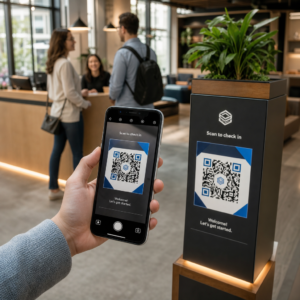
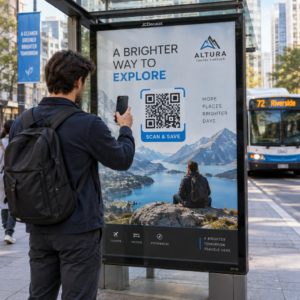
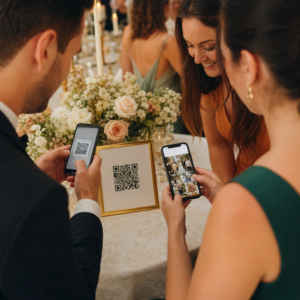
Reikia pasidalinti nuoroda arba dokumentu su savo auditorija pristatymo metu? Nerišlus darbas su ilgomis URL nuorodomis skaidrėje sutrikdo jūsų eigą ir erzina žiūrovus. Šis vadovas supažindins jus su dviem praktiniais metodais, kaip per kelias minutes pridėti nuskaitomą QR kodą į bet kurią „PowerPoint“ skaidrę.
Kodėl QR kodai gerai veikia pristatymuose
QR kodas skaidrėje suteikia jūsų auditorijai tiesioginę prieigą prie palaikomojo turinio – nereikia nieko vesti. Užuot skaitę URL arba tikėjęsi, kad dalyviai jį užsirašys, jūs įdedate kodą į skaidrę ir leidžiate jiems nuskaityti jį savo telefonu.
Dažni naudojimo atvejai apima:
- Susiejimas su nukreipimo puslapiu arba registracijos forma po pristatymo
- Dalijimasis PDF – pavyzdžiui, ataskaita, baltąja knyga arba dalomąja medžiaga – be kopijų spausdinimo
- Nukreipimas žiūrovų į vaizdo įrašą, portfolio arba produkto puslapį
- Atsiliepimų rinkimas per formą arba apklausą sesijos metu arba po jos
Pats QR kodas yra tiesiog paveikslėlio failas. Kai jį sugeneruojate, įterpimas į „PowerPoint“ užtrunka apie 30 sekundžių.
1 metodas: Sugeneruokite QR kodą naudodami išorinį įrankį, tada įterpkite jį
Šis metodas suteikia jums didžiausią kontrolę pritaikymo, dinaminių atnaujinimų ir nuskaitymo stebėjimo atžvilgiu – ir jis veikia su bet kuria „PowerPoint“ versija.
1 žingsnis: sukurkite savo QR kodą
Eikite į Pageloot QR kodo generatorius ir pasirinkite turinio tipą, kurį norite užkoduoti:
- URL arba nuoroda – naudokite Nuorodos QR kodo generatorius norėdami užkoduoti bet kokį žiniatinklio adresą
- PDF dokumentą – naudokite PDF QR kodo generatorius norėdami tiesiogiai įkelti ir bendrinti failą
- Paveikslėlis arba vaizdinis turinys – naudokite Paveikslėlio QR kodo generatorius norėdami susieti su nuotraukų galerija arba vaizdiniu turtu
Jei paskirties URL gali pasikeisti po to, kai baigsite pristatymą, pasirinkite dinaminis QR kodas. Dinaminiai kodai leidžia jums bet kuriuo metu atnaujinti susietą turinį, neregeneruojant ar nekeičiant paveikslėlio jūsų skaidrėse – ypač naudinga, jei pristatote tą patį rinkinį per kelis renginius.
2 žingsnis: Tinkinkite dizainą
Pritaikykite QR kodą prie savo pristatymo vizualinio stiliaus. Galite koreguoti:
- Priekinio plano ir fono spalvos
- Taškų formos ir kampų stiliai
- Logotipas, patalpintas kodo centre
- Veiksmo raginimo rėmelis (pvz., “Nuskaitykite, kad atsisiųstumėte vadovą”)
Jei pridedate logotipą, naudokite aukštą klaidų taisymo lygį (Q arba H), kad kodas liktų nuskaitomas, net jei dalis rašto yra uždengta. Laikykitės vienos taisyklės: tamsus raštas šviesiame fone. Apversti dizainai – šviesūs kodai tamsiame fone – gali suklaidinti skaitytuvų programas, ypač senesnes. Siekite kontrasto santykio bent 4:1 tarp priekinio plano ir fono spalvų.
3 žingsnis: Atsisiųskite QR kodo paveikslėlį
Atsisiųskite kodą kaip PNG bendram naudojimui, arba kaip SVG arba EPS failą, jei norite vektorinio formato, kuris švariai keičiasi bet kokiu dydžiu. Daugumai „PowerPoint“ skaidrių pakanka didelės raiškos PNG.
Išbandykite kodą prieš tęsdami. Nuskaitykite jį savo telefonu, kad patvirtintumėte, jog jis nukreipia į teisingą paskirties vietą.
4 žingsnis: Įterpkite paveikslėlį į „PowerPoint“
- Atidarykite savo „PowerPoint“ pristatymą ir pereikite prie skaidrės, kurioje norite QR kodo.
- Spustelėkite Įterpti skirtuką juostoje.
- Grupėje Vaizdai , spustelėkite Paveikslėliai, tada pasirinkite Šis įrenginys (arba Paveikslėlis iš failo priklausomai nuo jūsų versijos).
- Eikite į atsisiųstą QR kodo paveikslėlį, pasirinkite jį ir spustelėkite Įterpti.
- Pakeiskite paveikslėlio dydį ir padėtį skaidrėje pagal poreikį.
Paverskite savo pristatymo nuorodą į sekamą QR kodą Norite žinoti, kiek žmonių nuskaito jūsų skaidrę ir kada? Naudokite „Pageloot“ QR kodų generatorius norėdami sukurti dinaminį kodą su integruota analitika – nereikia perspausdinti, jei jūsų turinys keičiasi.
2 metodas: Naudokite „QR4Office“ priedą „PowerPoint“ programoje
Jei pageidaujate generuoti QR kodą neišeidami iš „PowerPoint“, QR4Office priedas tvarko visą procesą programos viduje. Jis veikia su „PowerPoint 2013“ ar naujesne versija „Windows“ sistemoje, „PowerPoint“ žiniatinklyje, „PowerPoint“ „iPad“ įrenginyje ir „PowerPoint 2016“ ar naujesne versija „Mac“ sistemoje.
1 žingsnis: Įdiekite „QR4Office“
- Atidarykite „PowerPoint“ ir spustelėkite Įterpti skirtuką.
- Spustelėkite Gaukite priedų (arba Priedai priklausomai nuo jūsų versijos) priedų grupėje.
- Paieškos juostoje įveskite QR ir paspauskite „Enter“.
- Raskite QR4Office rezultatuose ir spustelėkite Pridėti.
- Priimkite sąlygas, kad užbaigtumėte diegimą.
2 žingsnis: Sugeneruokite ir įterpkite QR kodą
- Įdiegus, atidarykite „QR4Office“ iš skirtuko „Įterpti“ arba priedų skydelio.
- Įveskite URL arba tekstą, kurį norite užkoduoti.
- Koreguokite spalvą, foną, dydį ir klaidų taisymo lygį skydelyje.
- Spustelėkite Įterpti norėdami įdėti QR kodą tiesiai į aktyvią skaidrę.
Priedas įterpia QR kodą kaip paveikslėlio objektą, todėl galite jį perkelti ir keisti dydį kaip bet kurią kitą figūrą skaidrėje.
Pagrindinis šio metodo trūkumas yra tas, kad QR4Office sukuria statinį kodą su pagrindinėmis tinkinimo parinktimis. Jūs negausite dinaminio redagavimo, nuskaitymo sekimo arba pažangių prekės ženklo funkcijų. Vienkartinei skaidrei, kurioje paprastumas yra prioritetas, tai veikia gerai. Nuolatiniams pristatymams arba kampanijoms, kuriose paskirties vieta gali keistis arba jūs norite matuoti įsitraukimą, išorinio generatoriaus metodas suteikia jums žymiai daugiau lankstumo.

QR kodo dydžio nustatymas pristatymui
Dydis yra svarbesnis pristatymo kontekste nei spausdinant, nes jūsų auditorija nuskaito iš atstumo, o ne iš arti.
Pagelooto QR kodo įskaitomumo gairių vadovaukitės 10:1 taisyklės: QR kodas turėtų būti bent 1 cm pločio kiekvieniems 10 cm numatomo nuskaitymo atstumo. Įprastoje konferencijų salėje, kurioje dalyviai gali būti 4–7 pėdų atstumu, kodo atvaizdavimas dideliu dydžiu ant skaidrės yra praktiškas pradžios taškas.

- Mažas kambarys arba susitikimų erdvė: siekite bent 2 × 2 colių ant atvaizduotos skaidrės
- Vidutinio dydžio posėdžių salė: 3 × 3 coliai arba didesnis
- Didelė konferencijų arba renginių salė: padarykite kodą tokį didelį, kokį leidžia išdėstymas, ir apsvarstykite galimybę po juo įdėti URL kaip tekstą kaip atsarginį variantą
Venkite užpildyti QR kodą aplinkiniu tekstu arba grafika. Tylioji zona – tuščia paraštė aplink kodą – turi likti aiški, kad skaitytuvai galėtų teisingai rasti ir perskaityti ribos modelį.
Dizaino ir pristatymo patarimai
Keletas praktinių patarimų prieš jums pradedant:
- Išbandykite kambaryje, jei jūs galite. Projektoriaus ryškumas, ekrano atspindžiai ir aplinkos apšvietimas – visa tai turi įtakos nuskaitymui. Matiniai projekcijos paviršiai paprastai veikia geriau nei blizgūs.
- Suteikite QR kodui atskirą skaidrę arba pakankamai laiko. Nedėkite jo ant skaidrės, kurią greitai perverčiate – jūsų auditorijai reikia akimirkos, kad atidarytų savo kameros programėlę ir nuskaitytų.
- Pridėkite trumpą instrukcijos eilutę. Kažkas panašaus į “Nuskaitykite savo telefono kamera” pašalina bet kokį dvejojimą iš auditorijos narių, kurie yra mažiau susipažinę su QR kodais.
- Naudokite dinaminį kodą pakartotiniams pristatymams. Jei jūs atnaujinate susietą išteklių tarp sesijų, dinaminis kodas reiškia, kad jūs pakeičiate paskirties vietą vieną kartą iš savo prietaisų skydelio – nereikia modifikuoti skaidrės arba iš naujo generuoti vaizdo.
Norėdami giliau pažvelgti į dizaino sprendimus, kurie turi įtakos tam, ar jūsų kodas iš tikrųjų nuskaito, QR kodo spalvų kontrasto vadovas apima kontrasto santykius, spalvų derinius, kurių reikia vengti, ir kaip testuoti įvairiuose įrenginiuose ir apšvietimo sąlygomis.
Kai jūs jaučiatės patogiai su pagrindais, tyrinėkite visą spektrą Pageloot QR kodo funkcijų kad peržengtumėte paprastų nuorodų kodų ribas – nuo PDF bendrinimo ir vaizdų galerijų iki nuskaitymo analizės ir visiškai firminių dizainų.
Dažniausiai užduodami klausimai
Taip, jei naudojate dinaminį QR kodą iš tokio įrankio kaip Pageloot. Dinaminiai kodai saugo nukreipimo URL, kurį galite pakeisti bet kuriuo metu iš savo prietaisų skydelio. Vaizdas jūsų PowerPoint prezentacijoje lieka toks pat – keičiasi tik paskirties vieta. Statiniai kodai, įskaitant tuos, kuriuos generuoja dauguma priedų, negali būti atnaujinami po sukūrimo.
PNG gerai tinka daugumai pristatymų. Jis palaiko skaidrų foną ir išlaiko švarius kraštus standartiniuose skaidrių dydžiuose. Jei planuojate žymiai pakeisti kodo dydį arba naudoti jį įvairiais formatais, atsisiųskite SVG arba EPS vektorinį failą – jie keičia mastelį neprarasdami ryškumo.
Taikykite 10:1 dydžio taisyklę – kiekvieniems 10 cm skenavimo atstumo, kodas turėtų būti bent 1 cm pločio ekrane. Kambariui, kuriame toliausiai esantis žiūrovas yra maždaug už 15 pėdų, norite, kad kodas atrodytų didelis ir neužstotas ant projektuojamo ekrano. Išbandykite tikrąją skaidrę ant projektuojamo paviršiaus, jei įmanoma, ir visada nuskenuokite kodą patys prieš pristatydami, kad patvirtintumėte, jog jis atpažįstamas teisingai.