Kas teil on vaja jagada linki või dokumenti oma publikuga esitluse keskel? Pikkade URL-idega slaidil kohmakalt toimetamine katkestab teie voolu ja frustreerib vaatajaid. See juhend tutvustab teile kahte praktilist meetodit skannitava QR-koodi lisamiseks mis tahes PowerPointi slaidile minutitega.
Miks QR-koodid esitlustes hästi töötavad
QR-kood slaidil annab teie publikule kohese juurdepääsu toetavale sisule – tippimist pole vaja. Selle asemel, et URL-i ette lugeda või loota, et osalejad selle üles kirjutavad, asetate koodi slaidile ja lasete neil selle oma telefoniga skannida.
Levinud kasutusjuhud hõlmavad:
- Lingi loomine sihtlehele või registreerimisvormile pärast esitlust
- PDF-i jagamine – näiteks aruanne, valge raamat või jaotusmaterjal – ilma koopiaid printimata
- Vaatajate suunamine video, portfoolio või tootelehele
- Tagasiside kogumine vormi või küsitluse kaudu seansi ajal või pärast seda
QR-kood ise on lihtsalt pildifail. Kui olete selle genereerinud, võtab selle PowerPointi sisestamine umbes 30 sekundit.
meetod: genereerige QR-kood välise tööriistaga, seejärel sisestage see
See meetod annab teile kõige suurema kontrolli kohandamise, dünaamiliste uuenduste ja skannimise jälgimise üle – ja see töötab mis tahes PowerPointi versiooniga.
1. samm: looge oma QR-kood
Mine lehele Pageloot QR-koodi generaatorit ja valige sisu tüüp, mida soovite kodeerida:
- URL või link – kasutage Lingi QR-koodi generaator mis tahes veebiaadressi kodeerimiseks
- PDF-dokumendi – kasutage PDF QR-koodi generaator faili otse üleslaadimiseks ja jagamiseks
- Pilt või visuaalne sisu – kasutage Pildi QR koodi loomine fotogalerii või visuaalse vara linkimiseks
Kui siht-URL võib pärast esitluse lõplikku vormistamist muutuda, valige dünaamiline QR-kood. Dünaamilised koodid võimaldavad teil lingitud sisu igal ajal värskendada, ilma et peaksite pilti oma slaididel uuesti genereerima või asendama – see on eriti kasulik, kui esitate sama esitlust mitmel üritusel.
samm: kohandage disaini
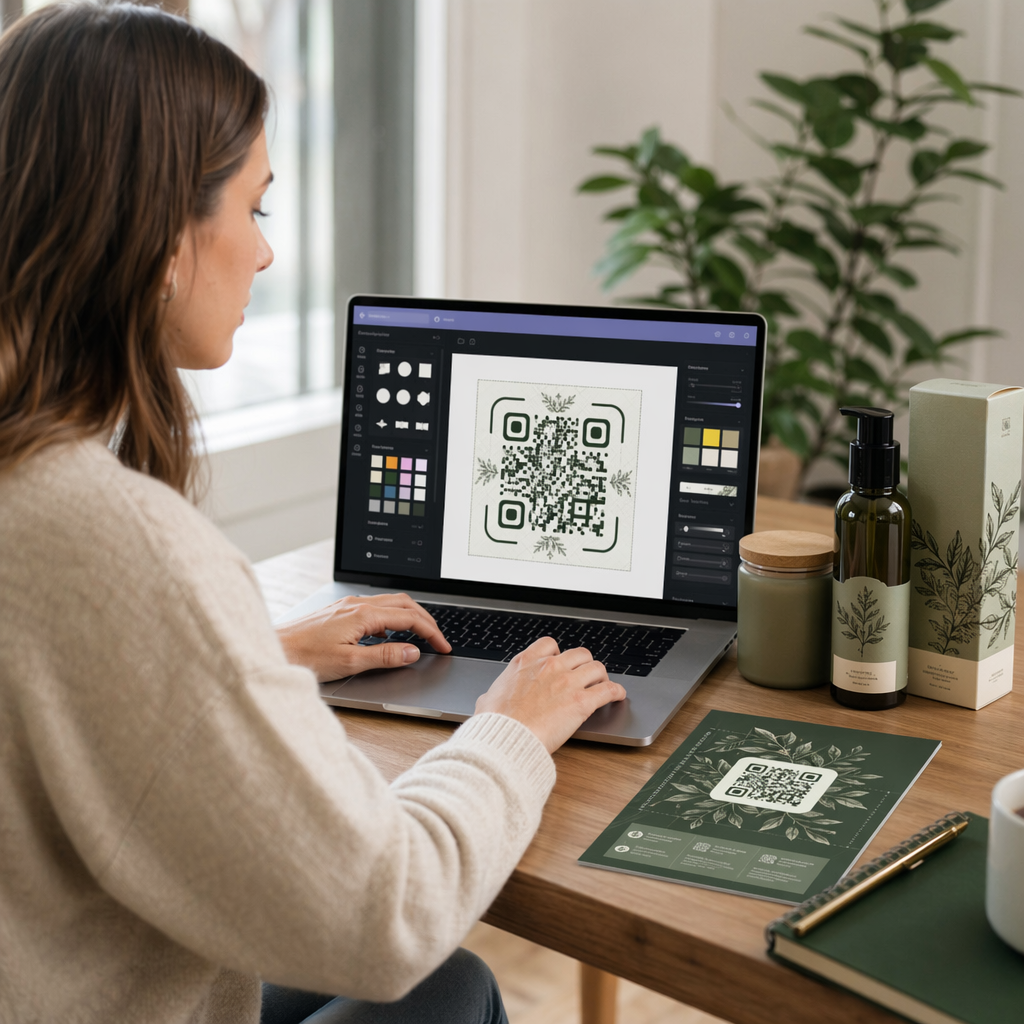
Kohandage QR-kood oma esitluse visuaalse stiiliga. Saate kohandada:
- Esi- ja taustavärvid
- Punktikujundid ja nurgastiilid
- Koodi keskele paigutatud logo
- Üleskutse raam (nt “Skannige juhendi allalaadimiseks”)
Kui lisate logo, kasutage kõrget veaparandustaset (Q või H), et kood jääks skannitavaks isegi siis, kui osa mustrist on kaetud. Hoidke üks reegel kindlalt meeles: tume muster heledal taustal. Pööratud kujundused – heledad koodid tumedal taustal – võivad skannerirakendusi segadusse ajada, eriti vanemaid. Püüdke saavutada kontrastisuhte vähemalt 4:1 esi- ja taustavärvide vahel.
samm: laadige alla QR-koodi pilt
Laadige kood alla PNG-na üldiseks kasutamiseks või SVG- või EPS-failina, kui soovite vektorformaati, mis skaleerub puhtalt igas suuruses. Enamiku PowerPointi slaidide jaoks piisab kõrge resolutsiooniga PNG-st.
Testige koodi enne edasiliikumist. Skannige see oma telefoniga, et kinnitada, et see viib õigesse sihtkohta.
samm: sisestage pilt PowerPointi
- Avage oma PowerPointi esitlus ja navigeerige slaidile, kuhu soovite QR-koodi.
- Klõpsake Sisesta vahekaardil lindil.
- Rühmas Pildid klõpsake Pildid, seejärel valige See seade (või Pilt failist olenevalt teie versioonist).
- Navigeerige oma allalaaditud QR-koodi pildile, valige see ja klõpsake Sisesta.
- Muutke pildi suurust ja paigutust slaidil vastavalt vajadusele.
Muutke oma esitluse link jälgitavaks QR-koodiks Kas soovite teada, kui palju inimesi teie slaidi skannib ja millal? Kasutage Pageloot QR-koodi generaator dünaamilise koodi loomiseks sisseehitatud analüütikaga – sisu muutumisel pole uuesti printimist vaja.
meetod: kasutage QR4Office'i lisandmoodulit PowerPointis
Kui eelistate QR-koodi genereerida PowerPointist lahkumata, siis QR4Office lisandmoodul haldab kogu protsessi rakenduse sees. See töötab PowerPoint 2013 või uuema versiooniga Windowsis, PowerPointiga veebis, PowerPointiga iPadis ja PowerPoint 2016 või uuema versiooniga Macis.
samm: installige QR4Office
- Avage PowerPoint ja klõpsake Sisesta vahekaardil.
- Klõpsake Hangi lisandmooduleid (või Lisandmoodulid olenevalt teie versioonist) rühmas Lisandmoodulid.
- Sisestage otsinguribale QR ja vajutage Enter.
- Leia QR4Office tulemustes ja klõpsake Lisa.
- Nõustuge tingimustega installimise lõpuleviimiseks.
samm: genereerige ja sisestage QR-kood
- Pärast installimist avage QR4Office vahekaardilt Lisa või lisandmoodulite paneelilt.
- Sisestage URL või tekst, mida soovite kodeerida.
- Kohandage paneelis värvi, tausta, suurust ja veaparandustaset.
- Klõpsake Sisesta QR-koodi otse aktiivsele slaidile paigutamiseks.
Lisandmoodul manustab QR-koodi pildiobjektina, nii et saate seda slaidil liigutada ja suurust muuta nagu mis tahes muud kuju.
Selle meetodi peamine kompromiss on see, et QR4Office toodab staatilise koodi põhiliste kohandamisvõimalustega. Te ei saa dünaamilist redigeerimist, skannimise jälgimist ega täiustatud brändingufunktsioone. Ühekordse slaidi puhul, kus prioriteediks on lihtsus, töötab see hästi. Pidevate esitluste või kampaaniate puhul, kus sihtkoht võib muutuda või soovite mõõta kaasatust, annab väline generaatori lähenemine teile oluliselt rohkem paindlikkust.

QR-koodi suuruse määramine esitluse jaoks
Suurus on esitluse kontekstis olulisem kui trükis, sest teie publik skannib kaugelt, mitte lähedalt.
Pagelooti QR-koodi loetavuse juhiseid järgige a 10:1 reeglit: QR-kood peaks olema vähemalt 1 cm lai iga 10 cm oodatava skaneerimiskauguse kohta. Tüüpilises konverentsiruumis, kus osalejad võivad olla 1,2–2,1 meetri kaugusel, on koodi slaidil piisavalt suureks renderdamine praktiline alguspunkt.

- Väike ruum või koosolekunurk: eesmärgiks on vähemalt 2 × 2 tolli renderdatud slaidil
- Keskmise suurusega koosolekuruum: 3 × 3 tolli või suurem
- Suur konverentsi- või ürituste saal: tehke kood nii suureks, kui paigutus võimaldab, ja kaaluge URL-i teksti paigutamist selle alla varuvariandina
Vältige QR-koodi ümbritseva teksti või graafikaga ülekoormamist. Vaikne tsoon – koodi ümber olev tühi äär – peab jääma selgeks, et skannerid saaksid piirimustri õigesti leida ja lugeda.
Disaini- ja esitlusnõuanded
Mõned praktilised kaalutlused enne otseülekannet:
- Testige ruumis, kui võimalik. Projektori heledus, ekraani peegeldus ja ümbritsev valgustus mõjutavad kõik skaneeritavust. Mattprojektsioonipinnad kipuvad töötama paremini kui läikivad.
- Andke QR-koodile oma slaid või piisavalt aega. Ärge asetage seda slaidile, mida kiiresti edasi kerite – teie publik vajab hetke, et avada oma kaamerarakendus ja skaneerida.
- Lisage lühike juhis. Midagi sellist nagu “Skaneeri oma telefonikaameraga” eemaldab igasuguse kõhkluse publiku liikmetelt, kes on QR-koodidega vähem tuttavad.
- Kasutage korduvate esitluste jaoks dünaamilist koodi. Kui värskendate lingitud ressurssi seansside vahel, tähendab dünaamiline kood, et muudate sihtkohta oma armatuurlaualt vaid korra – pole vaja slaidi muuta ega pilti uuesti genereerida.
Sügavama ülevaate saamiseks disainiotsustest, mis mõjutavad seda, kas teie kood tegelikult skaneerib, QR-koodi värvikontrasti juhendist hõlmab kontrastsussuhteid, vältimist vajavaid värvikombinatsioone ja seda, kuidas testida erinevates seadmetes ja valgustingimustes.
Kui olete põhitõdedega tuttav, uurige kõiki Pageloot QR-koodi funktsioone et minna kaugemale lihtsatest lingikoodidest – alates PDF-i jagamisest ja pildigaleriidest kuni skaneerimisanalüütika ja täielikult bränditud kujundusteni.
Korduma kippuvad küsimused
Jah, kui sa kasutad dünaamilist QR-koodi tööriistast nagu Pageloot. Dünaamilised koodid salvestavad ümbersuunamise URL-i, mida sa saad igal ajal oma juhtpaneelilt muuta. Pilt sinu PowerPointis jääb samaks – ainult sihtkoht muutub. Staatilisi koode, sealhulgas neid, mis on loodud enamiku lisandmoodulitega, ei saa pärast loomist uuendada.
PNG töötab hästi enamiku esitluste jaoks. See toetab läbipaistvaid taustu ja säilitab puhtad servad standardsetel slaidisuurustel. Kui plaanite koodi oluliselt suurust muuta või seda mitmes vormingus kasutada, laadige selle asemel alla SVG või EPS-vektorfail – need skaleeruvad teravust kaotamata.
Rakenda 10:1 suuruse reeglit – iga 10 cm skaneerimiskauguse kohta peaks kood olema ekraanil vähemalt 1 cm lai. Ruumi puhul, kus kaugeim vaataja on umbes 15 jala kaugusel, soovite, et kood ilmuks projitseeritud ekraanil suurena ja takistusteta. Testige tegelikku slaidi projitseeritud pinnal, kui võimalik, ja skaneerige kood alati ise enne esitlust, et veenduda selle õiges lahenduses.