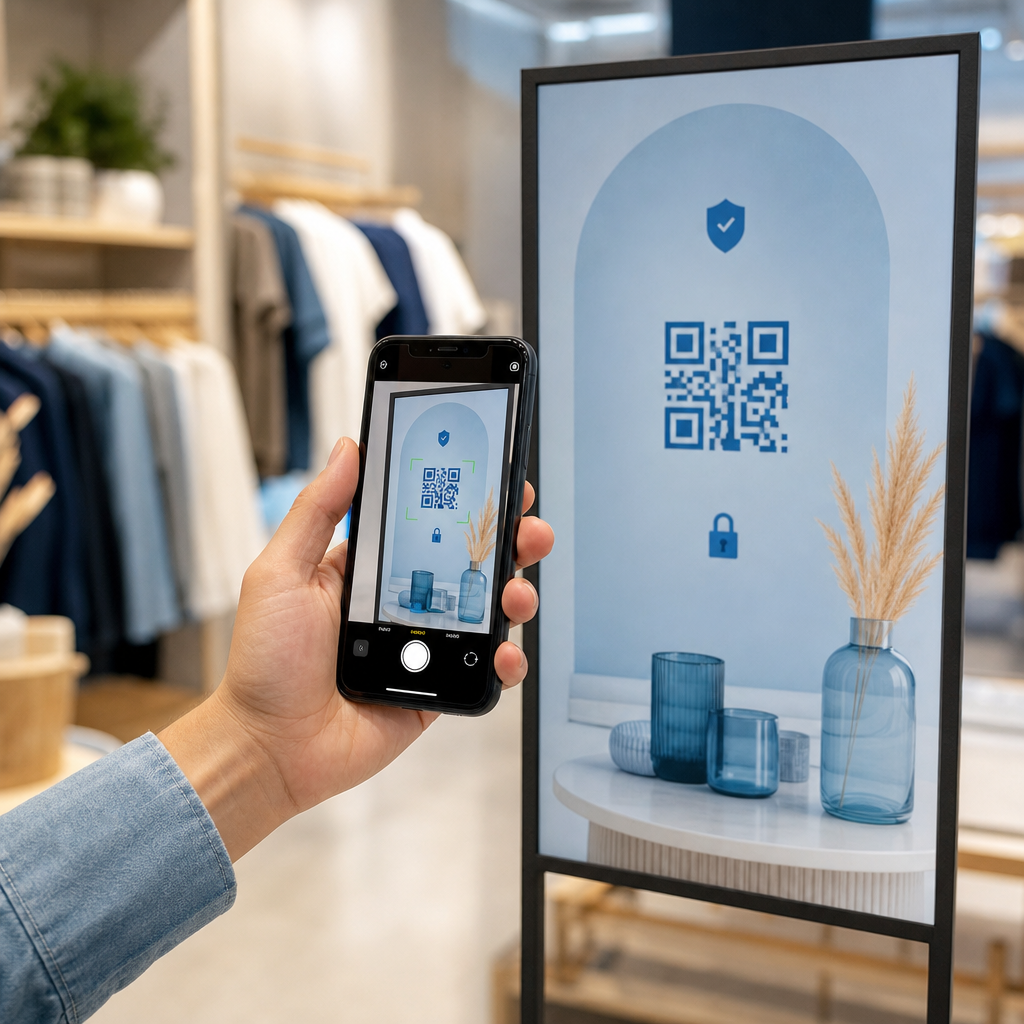
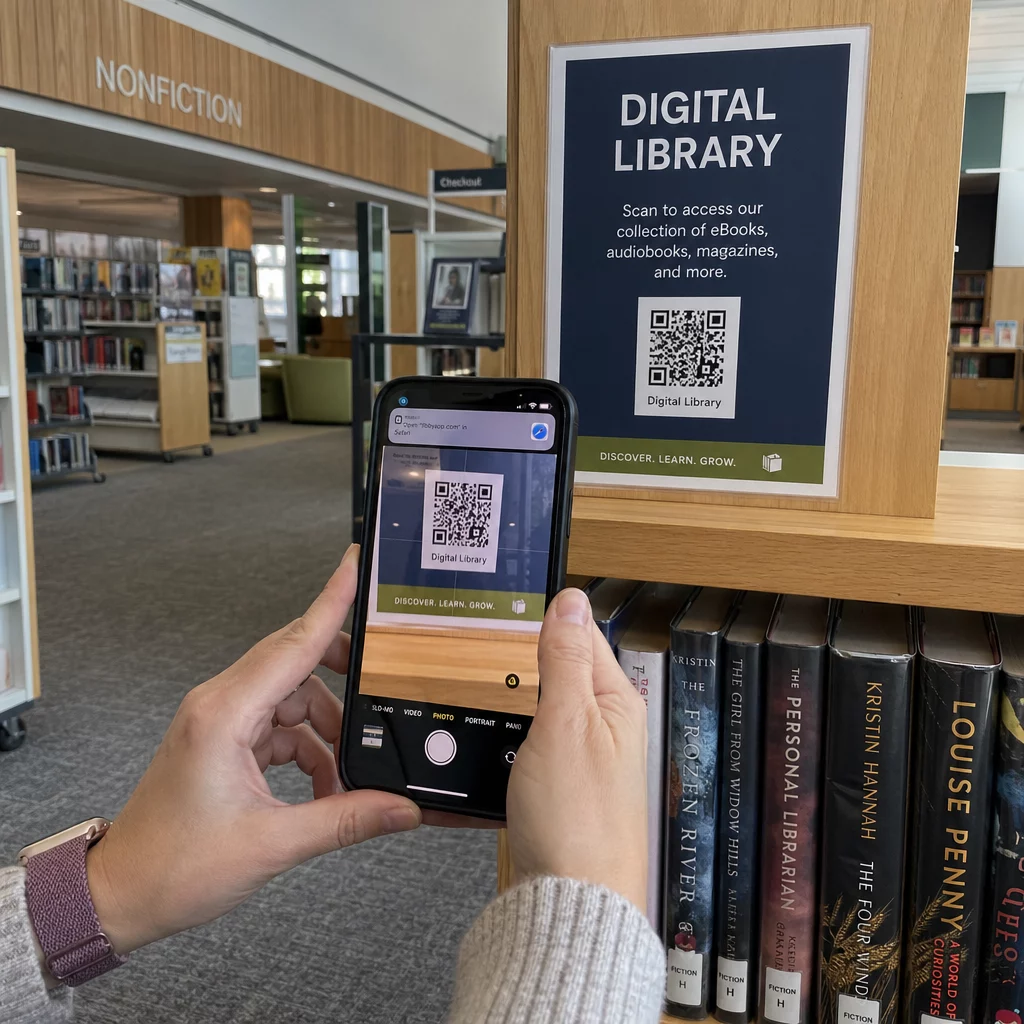
Трябва да споделите връзка или документ с аудиторията си по време на презентация? Неудобното боравене с дълги URL адреси на слайд прекъсва потока ви и дразни зрителите. Това ръководство ви превежда през два практични метода за добавяне на сканируем QR код към всеки PowerPoint слайд за минути.
Защо QR кодовете работят добре в презентации
QR код на слайд дава на аудиторията ви незабавен достъп до поддържащо съдържание – не е необходимо въвеждане. Вместо да четете на глас URL адрес или да се надявате присъстващите да го запишат, вие поставяте код на слайда и им позволявате да го сканират с телефона си.
Често срещани случаи на употреба включват:
- Свързване към целева страница или формуляр за регистрация след представяне
- Споделяне на PDF – като доклад, бяла книга или раздатка – без отпечатване на копия
- Насочване на зрителите към видео, портфолио или продуктова страница
- Събиране на обратна връзка чрез формуляр или анкета по време или след сесията
Самият QR код е просто файл с изображение. След като го генерирате, вмъкването му в PowerPoint отнема около 30 секунди.
Метод 1: Генериране на QR код с външен инструмент, след което го вмъкнете
Този метод ви дава най-голям контрол върху персонализирането, динамичните актуализации и проследяването на сканирания – и работи с всяка версия на PowerPoint.
Стъпка 1: Създайте своя QR код
Отидете на Генератор на QR кодове Pageloot и изберете типа съдържание, което искате да кодирате:
- URL или връзка – използвайте Генератор на QR кодове за връзки за кодиране на всеки уеб адрес
- PDF документ – използвайте PDF в QR код за директно качване и споделяне на файл
- Изображение или визуално съдържание – използвайте QR код за снимка за свързване към фотогалерия или визуален актив
Ако целевият URL адрес може да се промени, след като финализирате презентацията, изберете динамичен QR код. Динамичните кодове ви позволяват да актуализирате свързаното съдържание по всяко време, без да генерирате отново или да заменяте изображението в слайдовете си – особено полезно, ако представяте същата презентация на множество събития.
Стъпка 2: Персонализирайте дизайна
Съобразете QR кода с визуалния стил на вашата презентация. Можете да регулирате:
- Цветове на преден и заден план
- Форми на точки и стилове на ъгли
- Лого, поставено в центъра на кода
- Рамка с призив за действие (напр. “Сканирайте, за да изтеглите ръководството”)
Ако добавите лого, използвайте високо ниво на корекция на грешки (Q или H), така че кодът да остане сканируем, дори ако част от шаблона е покрита. Спазвайте едно твърдо правило: тъмен шаблон на светъл фон. Инвертираните дизайни – светли кодове на тъмен фон – могат да объркат приложенията за скенери, особено по-старите. Стремете се към контрастно съотношение от поне 4:1 между цветовете на предния и задния план.
Стъпка 3: Изтеглете изображението на QR кода
Изтеглете кода като PNG за обща употреба или като SVG или EPS файл, ако искате векторен формат, който се мащабира чисто при всякакъв размер. За повечето PowerPoint слайдове PNG с висока разделителна способност е достатъчен.
Тествайте кода, преди да продължите. Сканирайте го с телефона си, за да потвърдите, че води до правилната дестинация.
Стъпка 4: Вмъкнете изображението в PowerPoint
- Отворете вашата PowerPoint презентация и отидете до слайда, където искате QR кода.
- Кликнете върху Вмъкване раздел в лентата.
- В групата Изображения , кликнете върху Картини, след което изберете Това устройство (или Картина от файл в зависимост от вашата версия).
- Отидете до изтегленото изображение на QR кода, изберете го и кликнете върху Вмъкване.
- Преоразмерете и преместете изображението на слайда според нуждите.
Превърнете връзката на вашата презентация в проследим QR код Искате ли да знаете колко хора сканират вашия слайд и кога? Използвайте Генератор на QR кодове на PageLoot за да създадете динамичен код с вградена аналитика – не е необходимо повторно отпечатване, ако съдържанието ви се промени.
Метод 2: Използвайте добавката QR4Office в PowerPoint
Ако предпочитате да генерирате QR кода, без да напускате PowerPoint, добавката QR4Office обработва целия процес от самото приложение. Тя работи с PowerPoint 2013 или по-нова версия на Windows, PowerPoint в уеб, PowerPoint на iPad и PowerPoint 2016 или по-нова версия на Mac.
Стъпка 1: Инсталирайте QR4Office
- Отворете PowerPoint и кликнете върху раздела Вмъкване .
- Кликнете Вземете добавки (или Добавки в зависимост от вашата версия) в групата Добавки.
- В лентата за търсене въведете QR и натиснете Enter.
- Намерете QR4Office в резултатите и кликнете върху Добавяне.
- Приемете условията, за да завършите инсталацията.
Стъпка 2: Генерирайте и вмъкнете QR кода
- След като е инсталирана, отворете QR4Office от раздела Вмъкване или от панела с добавки.
- Въведете URL адреса или текста, който искате да кодирате.
- Регулирайте цвета, фона, размера и нивото на корекция на грешки в панела.
- Кликнете Вмъкване за да поставите QR кода директно върху активния слайд.
Добавката вгражда QR кода като обект-изображение, така че можете да го местите и преоразмерявате като всяка друга форма на слайда.
Основният компромис с този метод е, че QR4Office произвежда статичен код с основни опции за персонализиране. Няма да получите динамично редактиране, проследяване на сканирания или разширени функции за брандиране. За еднократен слайд, където простотата е приоритет, той работи добре. За текущи презентации или кампании, където дестинацията може да се промени или искате да измерите ангажираността, подходът с външен генератор ви дава значително повече гъвкавост.

Оразмеряване на вашия QR код за презентация
Размерът има по-голямо значение в контекста на презентация, отколкото при печат, защото вашата аудитория сканира от разстояние, а не отблизо.
На Pageloot насоки за четливост на QR код следвайте a правилото 10:1: QR кодът трябва да е широк поне 1 см за всеки 10 см очаквано разстояние за сканиране. В типична конферентна зала, където присъстващите може да са на 4–7 фута разстояние, изобразяването на кода с голям размер на слайда е практична отправна точка.

- Малка стая или място за срещи: стремете се към поне 2 × 2 инча на изобразен слайд
- Средно голяма заседателна зала: 3 × 3 инча или по-голям
- Голяма конферентна или събитие зала: направете кода толкова голям, колкото позволява оформлението, и обмислете поставянето на URL адреса като текст под него като резервен вариант
Избягвайте претрупването на QR кода с околен текст или графики. Тихата зона – празното поле около кода – трябва да остане чиста, за да могат скенерите да локализират и прочетат правилно граничния модел.
Съвети за дизайн и презентация
Няколко практически съображения, преди да стартирате:
- Тествайте в стаята, ако можете. Яркостта на проектора, отблясъците на екрана и околното осветление влияят на възможността за сканиране. Матовите прожекционни повърхности обикновено работят по-добре от гланцовите.
- Дайте на QR кода собствен слайд или време за престой. Не го поставяйте на слайд, който прелиствате бързо – вашата аудитория се нуждае от момент, за да отвори приложението на камерата си и да сканира.
- Добавете кратък ред с инструкции. Нещо като “Сканирайте с камерата на телефона си” премахва всяко колебание от членовете на аудиторията, които са по-малко запознати с QR кодовете.
- Използвайте динамичен код за повтарящи се презентации. Ако актуализирате свързания ресурс между сесиите, динамичният код означава, че променяте дестинацията веднъж от вашето табло – няма нужда да променяте слайда или да генерирате отново изображението.
За по-задълбочен поглед върху дизайнерските решения, които влияят дали вашият код действително се сканира, ръководство за цветовия контраст на QR кодове обхваща контрастни съотношения, цветови комбинации, които да избягвате, и как да тествате на различни устройства и условия на осветление.
След като сте запознати с основите, проучете пълната гама от функции на QR кода на Pageloot за да надхвърлите обикновените кодове за връзки – от споделяне на PDF и галерии с изображения до анализи на сканирания и напълно брандирани дизайни.
Често задавани въпроси
Да, ако използвате динамичен QR код от инструмент като Pageloot. Динамичните кодове съхраняват URL адрес за пренасочване, който можете да променяте по всяко време от вашето табло. Изображението във вашата PowerPoint остава същото – променя се само дестинацията. Статичните кодове, включително тези, генерирани от повечето добавки, не могат да бъдат актуализирани след създаването им.
PNG работи добре за повечето презентации. Поддържа прозрачни фонове и запазва чисти ръбове при стандартни размери на слайдове. Ако планирате да преоразмерите кода значително или да го използвате в множество формати, изтеглете SVG или EPS векторен файл вместо това – те се мащабират без загуба на рязкост.
Приложете правилото за оразмеряване 10:1 – за всеки 10 см разстояние за сканиране, кодът трябва да е широк поне 1 см на екрана. За стая, където най-отдалеченият зрител е на около 15 фута, искате кодът да изглежда голям и безпрепятствен на прожектирания дисплей. Тествайте действителния слайд върху прожектирана повърхност, ако е възможно, и винаги сканирайте кода сами, преди да представите, за да потвърдите, че се разчита правилно.