Acasă > Blog > How to Scan a QR Code on a Laptop
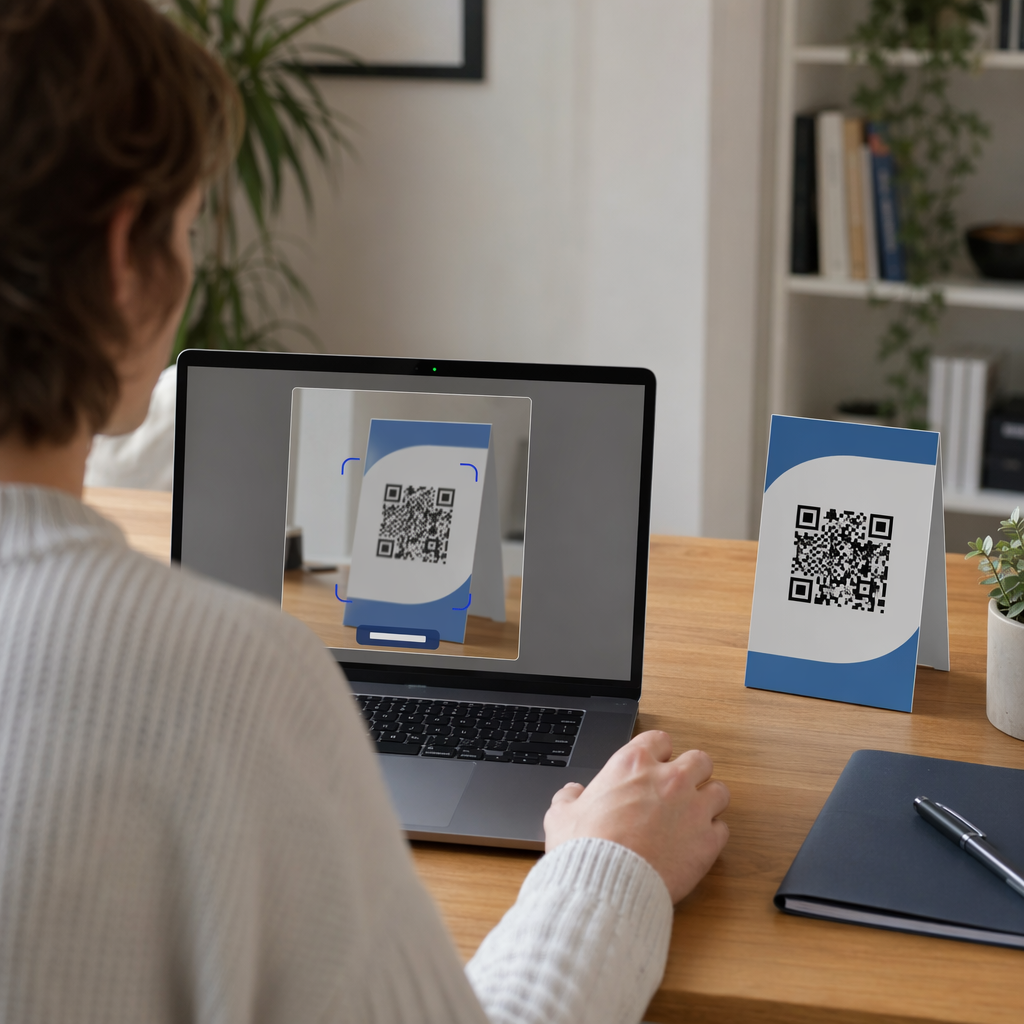
Laptop scanning QR code

How to Scan a QR Code on a Laptop

Learn how to scan a QR code on a laptop using built-in Windows and macOS tools. This guide covers scanning from your webcam, files, or directly on-screen.
Updated on iunie 10, 2026
Cuprins

Have a QR code on your screen or desk but no phone handy? Your laptop can decode it in seconds – using built-in tools, your browser, or a lightweight web scanner. This guide walks through every practical method for Windows and macOS, so you can pick the one that fits your situation.

Scanning QR Codes on Windows

Windows 10 and 11 offer several built-in options for decoding QR codes, so you often won’t need to install anything extra.

Using the Windows Camera App

On many Windows laptops, the Camera app includes a Barcode mode that scans QR codes directly through your webcam. Here’s how to use it:

  • Open the Camera app from the Start menu.
  • Look for a Cod de bare or barcode icon in the toolbar. On some versions, you may need to go to Settings (the gear icon), enable Experimental Features, and restart the app before this option appears.
  • Click the barcode icon, then hold your physical QR code in front of the webcam.
  • The app detects the code automatically and displays a clickable URL that opens in your default browser.

For best results, make sure the code is well-lit, the webcam lens is clean, and the code fills most of the frame. Keep in mind that availability of this feature can vary depending on your laptop manufacturer and Camera app version – if you don’t see the Barcode option, the browser-based methods below are a reliable fallback.

Using Microsoft Edge’s Built-In Tools

Microsoft Edge gives you two useful options for QR codes you encounter while browsing:

  • Right-click any QR code image on a webpage and select Search images with Google. Google Lens will decode the code and display the link or content.
  • Pentru two-factor authentication (2FA) codes, Edge integrates with the iCloud Passwords extension. Right-click a 2FA QR code and select Set Up Verification Code to sync it without needing a camera.
  • For QR codes saved as image files, drag the file into an Edge tab, right-click the image, select Inspect, press `Ctrl + Shift + P`, type “QR”, and choose Show QR Code reader from the DevTools command palette.

Using the Snipping Tool (Windows 11)

If a QR code is displayed on your screen – inside a document, email, or webpage – the Snipping Tool offers a quick, camera-free solution:

  • Press `Win + Shift + S` to open the snipping overlay.
  • Select the area containing the QR code.
  • In the Snipping Tool window, click Text Actions to extract and decode the content.

This keeps everything local on your device without uploading anything to a third-party service.

Windows Methods at a Glance

Metoda Cel mai bun caz de utilizare Key Requirement
Camera App (Barcode mode) Physical or printed QR codes Feature availability varies by device
Microsoft Edge DevTools Saved image files No extra software needed
Edge + Google Lens QR codes on webpages Right-click the image
Snipping Tool On-screen QR codes Windows 11 with Text Actions

Scanning QR Codes on macOS

macOS does not include native QR scanning in any of its built-in apps – you’ll need a browser tool, third-party app, or the Pageloot web scanner to decode codes on a Mac.

Using a Browser and Google Lens

For QR codes you encounter in Chrome or Edge on a Mac:

  • Right-click the QR code image on the webpage and select Search image with Google.
  • Google Lens opens and decodes the code, showing the URL or content with an option to open or copy it.

For QR codes saved as image files, drag the file into a Chrome tab, then right-click the image and follow the same steps.

Using Third-Party Mac Apps

Apps available from the Mac App Store – such as QR Capture, QR Journal, sau Code Reader – QR Scanner – use your Mac’s built-in camera or a USB webcam to scan codes in real time. Open the app, align the code within the on-screen frame, and it decodes automatically. Most apps also support dragging an image file into the window for file-based scanning.

For professional workflows, QR Journal integrates with AppleScript for automation and stores a local scan history – useful if you’re regularly processing codes as part of a business workflow.

Using Continuity with an iPhone

If you have an iPhone linked to the same Apple ID and on the same Wi-Fi network:

  • Open the Camera app on your iPhone and scan the QR code.
  • A Safari icon appears in your Mac’s Dock showing the decoded link.
  • Click it to open the URL directly on your Mac.

This is often the fastest option for occasional use without downloading any additional software.

Enabling Camera Permissions on macOS

Before any app or browser tool can use your webcam, you may need to grant permission:

  • Du-te la System Settings → Privacy & Security → Camera.
  • Enable access for the browser or app you’re using.

Scanning QR Codes Without a Webcam

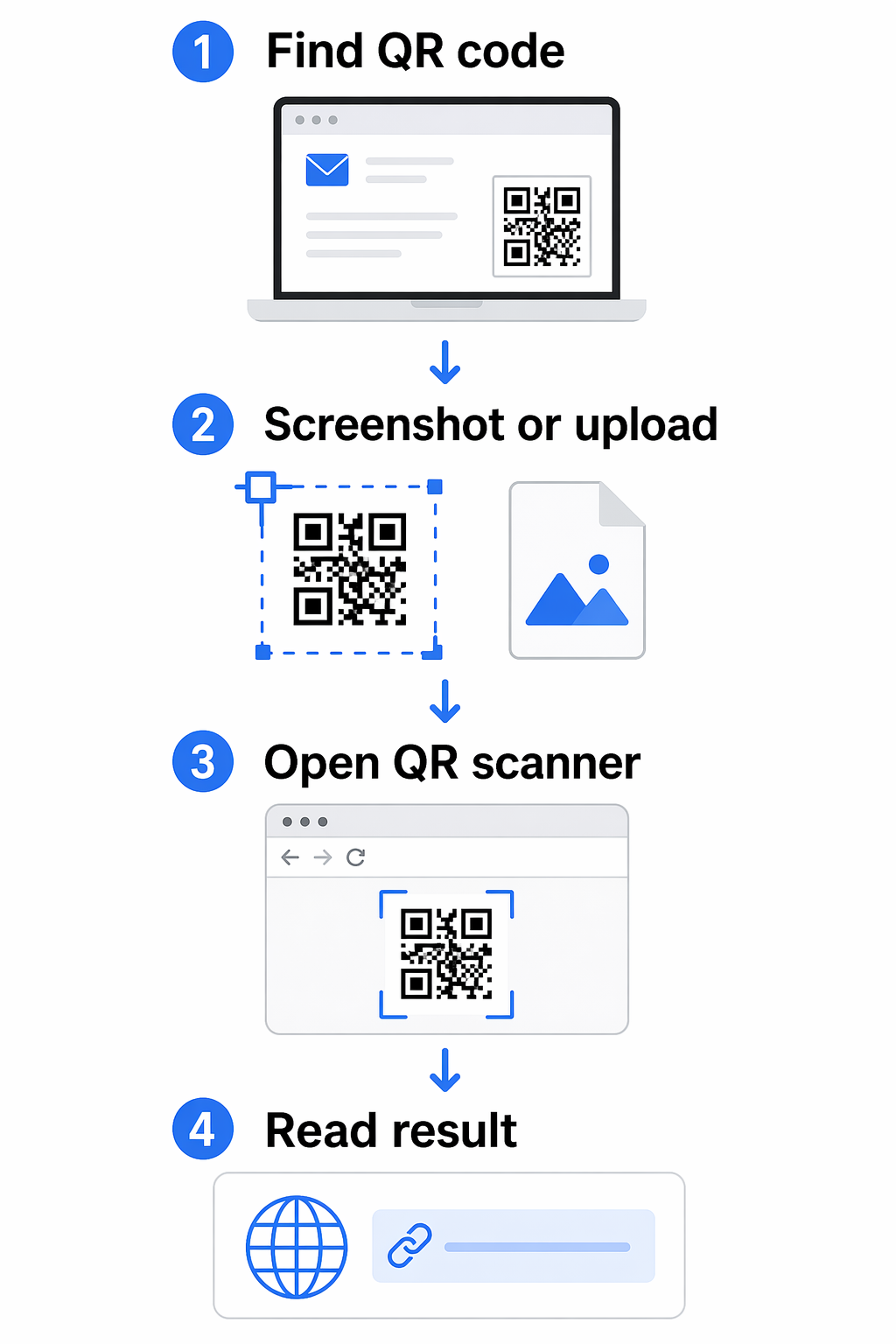
If you have a QR code saved as an image, a screenshot, or embedded in a PDF, you don’t need a camera at all.

Using an Online QR Code Scanner

Cel Pageloot QR Code Scanner works directly in your browser on any platform – no installation required. You can either:

  • Upload an image file: Drag and drop a PNG, JPG, or screenshot of the QR code into the scanner.
  • Use your webcam: Click the camera option, grant browser permission when prompted, and hold the QR code in front of your laptop’s webcam.

Other browser-based tools like scanqr.org work similarly and support both upload and webcam input.

Scan QR Codes Directly in Your Browser Need to decode a QR code on your laptop right now? The Pageloot QR Code Scanner works with both file uploads and your webcam – no app download needed.

Granting Camera Access in Your Browser

Different browsers handle camera permissions slightly differently:

  • Chrome: Click the site control icon to the left of the URL bar, set Camera la Allowed, and reload the page.
  • Safari: Click Allow when prompted, or go to Safari → Settings for [site] → Camera and set it to Allow, then refresh.
  • Edge: Click Allow in the prompt, or open the lock icon → Permission for this site, set Camera to Allow, and reload.

Scanning from Screenshots or PDFs

Most PDF viewers don’t include QR code recognition. The simplest workaround:

  • Take a screenshot of the QR code section using `Shift + Command + 4` (Mac) or the Snipping Tool (Windows 11).
  • Upload the screenshot to the Pageloot scanner or another browser-based tool.
  • On Windows 11, you can also use the Snipping Tool’s Text Actions feature directly on the captured image.

Tips for Better Image Quality

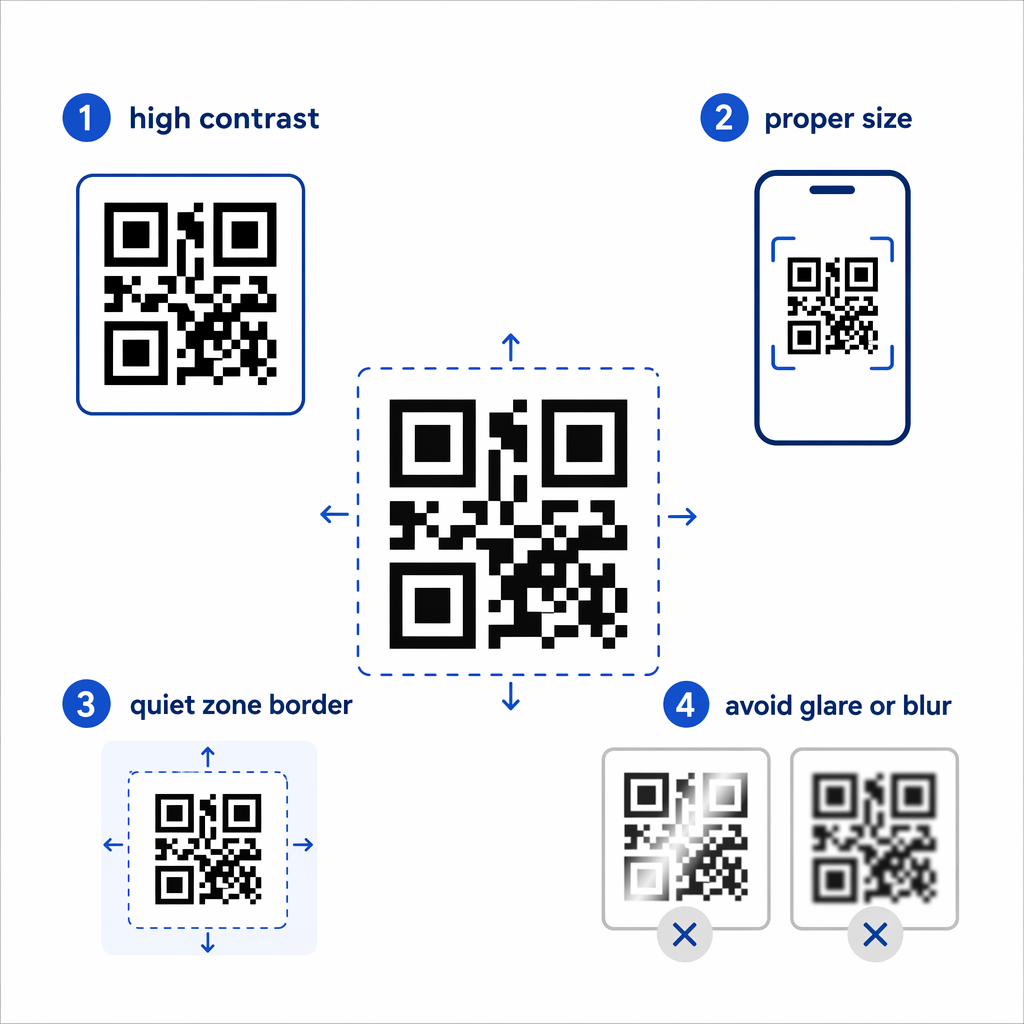
A blurry or poorly cropped image is the most common reason a file-based scan fails. Keep these points in mind:

  • Zoom in before screenshotting if the QR code appears small – use `Ctrl + +` (Windows) or `Command + +` (Mac) to enlarge it in your browser.
  • Crop tightly around the QR code, but keep the white border (called the “quiet zone”) intact – removing it prevents the scanner from detecting the code boundaries.
  • Increase screen brightness when screenshotting a code displayed on a monitor, to improve contrast.
  • If the image is still too blurry, try opening it in a photo editor and adjusting the contrast before uploading.

Choosing the Right Method for Your Situation

QR scanning methods
Situation Windows macOS
Physical or printed QR code Camera App (Barcode mode) Browser-based scanner or third-party app
QR code on a webpage Right-click → Google Lens in Chrome/Edge Right-click → Google Lens in Chrome
Saved image or screenshot Snipping Tool or online scanner Online scanner or QR Capture
Regular or professional use CodeTwo QR Code Desktop Reader QR Journal or QR Capture
No webcam, no install Upload to Pageloot QR Scanner Upload to Pageloot QR Scanner

For a deeper comparison of dedicated scanner apps – including security features and analytics – see the best QR code scanning apps comparison.

Staying Safe When Scanning QR Codes

Scanning a QR code on a laptop is generally safe, but the link it contains might not be. Before opening anything a scanned code returns, take a moment to:

Scanare QR sigură
  • Review the URL before clicking. Check for misspellings, unrelated domains, or anything that doesn’t match the expected source.
  • Consider the context. Did you receive this code in an unsolicited email? Was it a sticker placed over another code? Treat unfamiliar codes with the same caution you’d apply to unknown links.
  • Use a scanner that shows the URL first, rather than opening it automatically. This gives you a chance to evaluate the link before committing.
  • Close the browser if a decoded link leads to an unexpected login page, payment form, or request for personal data. Verify the site independently before returning.

If a QR code simply won’t scan despite good lighting and a clear image, the problem may be with the code itself. Common causes include a broken destination URL, low contrast, or a code that’s too small – see the QR code not working guide for a full breakdown of fixes.11The method you choose will depend on how often you scan, whether you’re working with physical codes or digital files, and which platform you’re on. For one-off situations, a browser upload or the Windows Snipping Tool handles most cases without any setup. For regular use, a dedicated desktop app or the Pageloot QR Code Scanner gives you more control, including webcam scanning and a scan history.

If you’re also creating QR codes from your laptop – for campaigns, documents, or business cards – learn how to scan QR codes across different devices to make sure your codes work before you distribute them.

Întrebări Frecvente

Why won’t my laptop camera scan a QR code?

The most common reasons are poor lighting, an out-of-focus webcam, or a camera app that doesn’t support QR scanning on your specific device. Try cleaning the webcam lens, improving the lighting, and ensuring the QR code fills most of the frame. If the Camera app still doesn’t detect the code, switch to a browser-based tool or upload a screenshot to the Pageloot QR Code Scanner instead.

How do I scan a QR code on my screen without a camera?

Take a screenshot of the QR code – use `Win + Shift + S` on Windows 11 or `Shift + Command + 4` on macOS – then upload the image to a browser-based scanner like the Pageloot QR Code Scanner. On Windows 11, the Snipping Tool’s Text Actions feature can also decode on-screen codes directly without any upload.

Is it safe to use an online QR code scanner?

It can be, as long as you use a reputable tool that doesn’t store your images or require unnecessary account sign-ups. More importantly, always review the URL the scanner returns before clicking it – check for misspellings, unexpected domains, or anything that doesn’t match the source you expect. Treat QR codes from unsolicited emails or unfamiliar public locations as potentially suspicious until verified.

Despre autor

Siim Kostabi este responsabil de conținut la Pageloot. El scrie despre serviciile noastre inovatoare de generare a codurilor QR. Cu o experiență vastă de peste o jumătate de deceniu în domeniul codurilor QR, Siim este un expert în domeniu. El face progrese semnificative în valorificarea tehnologiei QR pentru a simplifica și a îmbunătăți interacțiunile digitale.

Categorie
Află mai multe despre
Cum se generează coduri QR
Cum functioneazã Cod QR și cod de bare
✅ Soluția #1 pentru coduri QR

Dacă trebuie să creați coduri QR online, puteți Creați un cod QR chiar aici gratuit!
Pageloot este #1 Soluție Go-To pentru a crea și a scana coduri QR.

Peste 20 000 de mărci au încredere pentru a obține mai multe vânzări, recenzii și urmăritori.

Siglele clientului
De încredere de mărci de top
Evaluată la 4.8 din 5

Evaluare 4.86 / 5 stele

Hugo Laurent
Hugo Laurent
Proprietar de restaurant
Cel mai ușor și de încredere generator de coduri QR vreodată. Fișierele PDF pot fi încărcate instantaneu. Meniurile restaurantelor noastre sunt acum digitale.
Lucas Jansen
Lucas Jansen
Dezvoltator imobiliar
Acesta este un instrument excelent, iar codurile QR vă duc exact unde doriți. Folosim doar codul QR al locației, dar există atât de multe funcții utile.
Emma Moretti
Emma Moretti
Produse de vânzare cu amănuntul
Usor de folosit si rapid. Funcționează excelent și creează imagini perfecte, astfel încât angajații să-mi poată descărca vCard-ul.
Hugo Laurent
Hugo Laurent
Proprietar de restaurant
Cel mai ușor și de încredere generator de coduri QR vreodată. Fișierele PDF pot fi încărcate instantaneu. Meniurile restaurantelor noastre sunt acum digitale.
Lucas Jansen
Lucas Jansen
Dezvoltator imobiliar
Acesta este un instrument excelent, iar codurile QR vă duc exact unde doriți. Folosim doar codul QR al locației, dar există atât de multe funcții utile.
Emma Moretti
Emma Moretti
Produse de vânzare cu amănuntul
Usor de folosit si rapid. Funcționează excelent și creează imagini perfecte, astfel încât angajații să-mi poată descărca vCard-ul.
Vedeți mai multe coduri QR
Scanare cod QR de marketing
Cod QR Noțiuni de bază
Transformă orice într-o experiență digitală în mai puțin de 3 minute.

Perioadă de încercare gratuită de 14 zile.

Nu este necesar card de credit.

Obțineți o reducere de 30% la prima achiziție

Foloseste codul:

Partajați fișierele MP3

Înscrieți-vă pentru a crea coduri QR PDF

Încărcați și afișați tot ce aveți nevoie:

  • Fișiere audio
  • Podcasturi
  • Muzică

Perioadă de încercare gratuită de 14 zile cu înregistrare.
Codurile QR expiră după perioada de încercare.

înregistrați-vă pentru a crea un cod QR audio mp3

Obțineți mai multe scanări cu rame

Înscrieți-vă pentru a adăuga mai multe cadre la codurile dvs. QR

Cadrele de apel la acțiune ajută clienții să interacționeze cu ușurință cu codul QR. Încercați-le!

Perioadă de încercare gratuită de 14 zile cu înregistrare.
Codurile QR expiră după perioada de încercare.

Înscrieți-vă pentru a adăuga mai multe cadre la codurile dvs. QR

Adăugați mai mult stil cu forme

Înscrieți-vă pentru a crea mai multe forme

Codurile QR nu trebuie să fie pătrate. Încercați să le schimbați pentru a se potrivi cu imaginea mărcii dvs.

Perioadă de încercare gratuită de 14 zile cu înregistrare.
Codurile QR expiră după perioada de încercare.

Înscrieți-vă pentru a crea mai multe forme

Adăugați un logo la codul dvs. QR

Înscrieți-vă pentru a adăuga sigla la codurile QR

Scoateți codul QR în evidență adăugând logo-ul și marca dvs. la acesta.

Perioadă de încercare gratuită de 14 zile cu înregistrare.
Codurile QR expiră după perioada de încercare.

Înscrieți-vă pentru a adăuga sigla la codurile QR

Redirecționări inteligente către App Store

Înscrieți-vă pentru a crea un cod QR pentru magazinul de aplicații

Adăugați linkurile aplicațiilor dvs. la codul QR inteligent al magazinului nostru de aplicații. Utilizatorii sunt redirecționați în funcție de dispozitivul lor.

Perioadă de încercare gratuită de 14 zile cu înregistrare.
Codurile QR expiră după perioada de încercare.

Înscrieți-vă pentru a crea un cod QR pentru magazinul de aplicații

Încărcați o imagine într-un cod QR

Înscrieți-vă pentru a crea coduri QR pentru imagini

Împărtășiți-vă cu ușurință imaginile. Schimbați orice imagine în mod dinamic în câteva secunde.

Perioadă de încercare gratuită de 14 zile cu înregistrare.
Codurile QR expiră după perioada de încercare.

Înscrieți-vă pentru a crea coduri QR pentru imagini

Partajați fișierele PDF

Înscrieți-vă pentru a crea coduri QR PDF

Încărcați și afișați tot ce aveți nevoie:

  • Meniuri și liste de prețuri
  • Instrucțiuni
  • Orice documente

Perioadă de încercare gratuită de 14 zile cu înregistrare.
Codurile QR expiră după perioada de încercare.

Înscrieți-vă pentru a crea coduri QR PDF

Editați mai târziu fără a imprima

Înscrieți-vă pentru a vă edita codurile QR fără a imprima din nou

Codurile QR dinamice vă permit să modificați conținutul codului QR fără a fi nevoie să imprimați altele noi.

Perioadă de încercare gratuită de 14 zile cu înregistrare.
Codurile QR expiră după perioada de încercare.

Înscrieți-vă pentru a vă edita codurile QR fără a imprima din nou

Când? Unde? Urmăriți scanările codurilor dvs. QR

Înscrieți-vă pentru a vă urmări codurile QR

Descoperiți care dintre codurile dvs. QR primesc cele mai multe scanări și ce anume îi interesează cel mai mult pe clienții dvs.

Perioadă de încercare gratuită de 14 zile cu înregistrare.
Codurile QR expiră după perioada de încercare.

Înscrieți-vă pentru a vă urmări codurile QR

Fișiere gata de imprimare disponibile

Înscrieți-vă pentru a crea coduri QR vectoriale, cum ar fi PDF și SVG

.EPS, .PDF, .SVG

Doriți să descărcați codurile QR în rezoluție HD? Obțineți formate vectoriale sau în pixeli, gata de a fi tipărite.

Perioadă de încercare gratuită de 14 zile cu înregistrare.
Codurile QR expiră după perioada de încercare.

Înscrieți-vă pentru a crea coduri QR vectoriale, cum ar fi PDF și SVG

Vă rugăm să așteptați. Codul dvs. QR este încărcare... încărcare...

Personalizați-l

Înscrieți-vă pentru a vă salva codul QR pentru mai târziu

Obțineți mai multe scanări prin crearea unor coduri QR grozave, cu diferite culori, logo-uri și cadre de apel la acțiune.

Perioadă de încercare gratuită de 14 zile cu înregistrare.
Codurile QR expiră după perioada de încercare.

Înscrieți-vă pentru a vă salva codul QR pentru mai târziu