Dom > Blog > How to Scan a QR Code on a Laptop
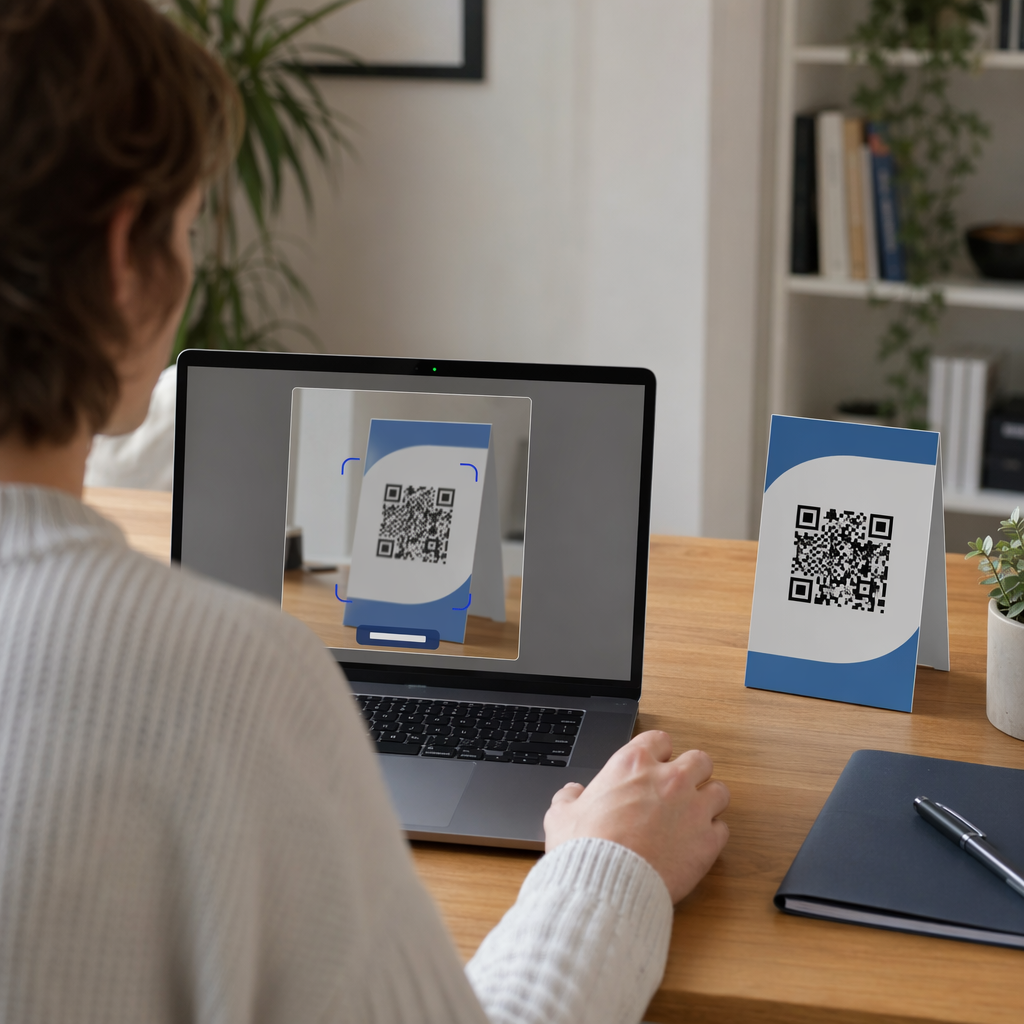
Laptop scanning QR code

How to Scan a QR Code on a Laptop

Learn how to scan a QR code on a laptop using built-in Windows and macOS tools. This guide covers scanning from your webcam, files, or directly on-screen.
Updated on lipanj 10, 2026
Sadržaj

Have a QR code on your screen or desk but no phone handy? Your laptop can decode it in seconds – using built-in tools, your browser, or a lightweight web scanner. This guide walks through every practical method for Windows and macOS, so you can pick the one that fits your situation.

Scanning QR Codes on Windows

Windows 10 and 11 offer several built-in options for decoding QR codes, so you often won’t need to install anything extra.

Using the Windows Camera App

On many Windows laptops, the Camera app includes a Barcode mode that scans QR codes directly through your webcam. Here’s how to use it:

  • Open the Camera app from the Start menu.
  • Look for a Barkod or barcode icon in the toolbar. On some versions, you may need to go to Settings (the gear icon), enable Experimental Features, and restart the app before this option appears.
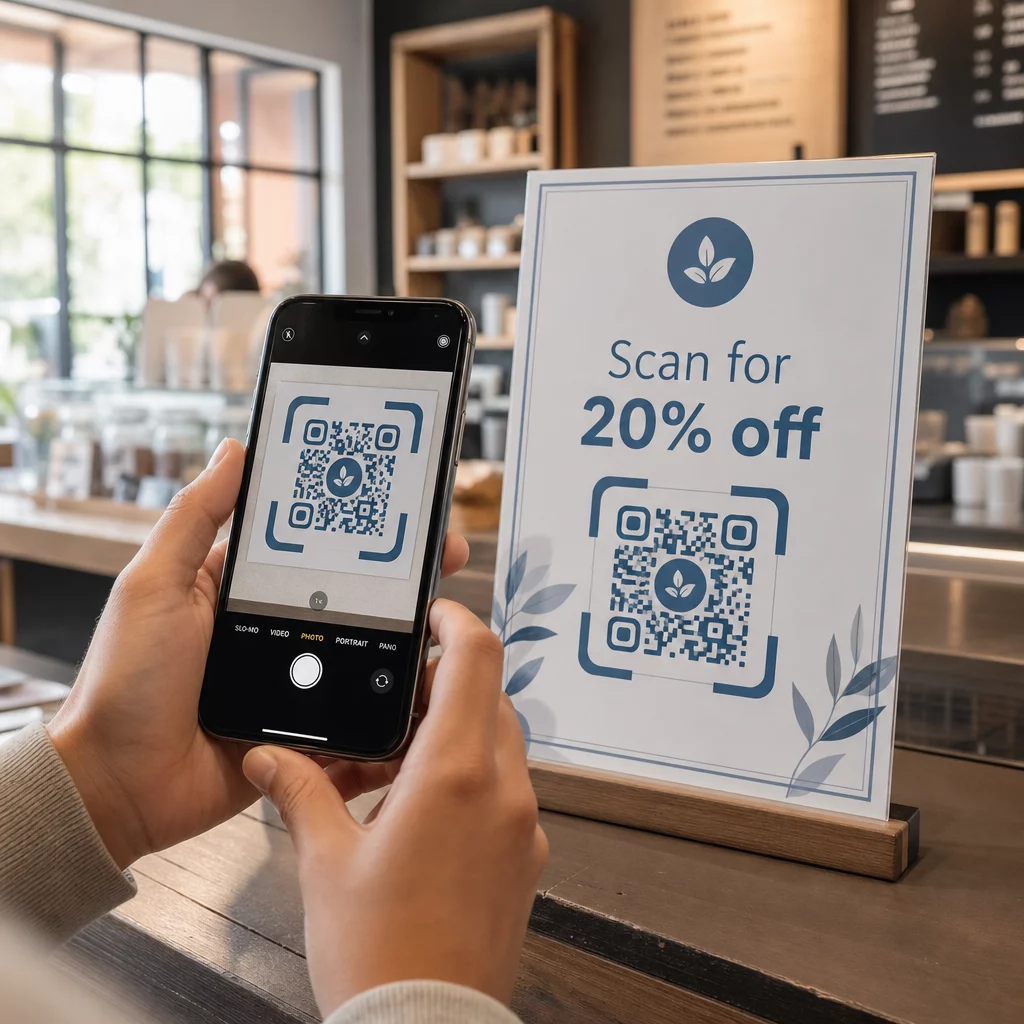
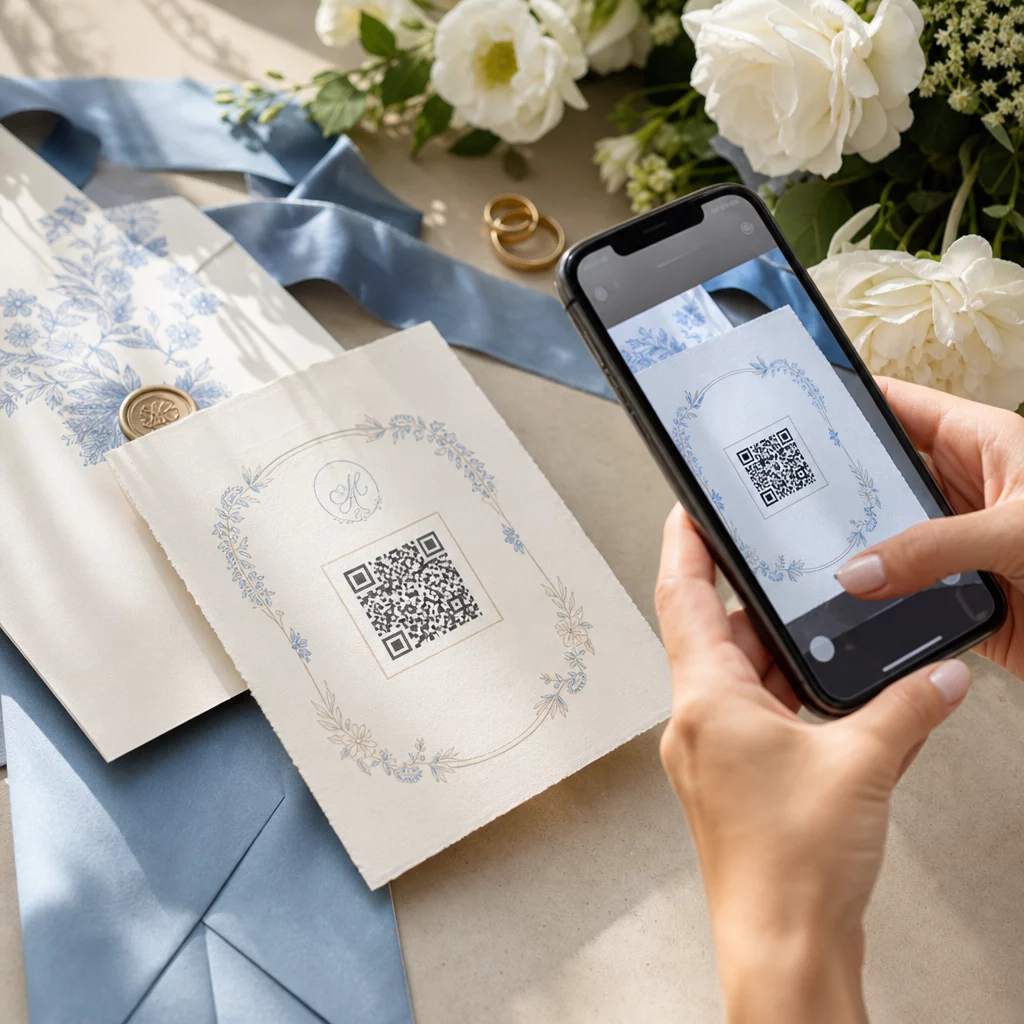
  • Click the barcode icon, then hold your physical QR code in front of the webcam.
  • The app detects the code automatically and displays a clickable URL that opens in your default browser.

For best results, make sure the code is well-lit, the webcam lens is clean, and the code fills most of the frame. Keep in mind that availability of this feature can vary depending on your laptop manufacturer and Camera app version – if you don’t see the Barcode option, the browser-based methods below are a reliable fallback.

Using Microsoft Edge’s Built-In Tools

Microsoft Edge gives you two useful options for QR codes you encounter while browsing:

  • Right-click any QR code image on a webpage and select Search images with Google. Google Lens will decode the code and display the link or content.
  • Za two-factor authentication (2FA) codes, Edge integrates with the iCloud Passwords extension. Right-click a 2FA QR code and select Set Up Verification Code to sync it without needing a camera.
  • For QR codes saved as image files, drag the file into an Edge tab, right-click the image, select Inspect, press `Ctrl + Shift + P`, type “QR”, and choose Show QR Code reader from the DevTools command palette.

Using the Snipping Tool (Windows 11)

If a QR code is displayed on your screen – inside a document, email, or webpage – the Snipping Tool offers a quick, camera-free solution:

  • Press `Win + Shift + S` to open the snipping overlay.
  • Select the area containing the QR code.
  • In the Snipping Tool window, click Text Actions to extract and decode the content.

This keeps everything local on your device without uploading anything to a third-party service.

Windows Methods at a Glance

metoda Najbolji slučaj upotrebe Key Requirement
Camera App (Barcode mode) Physical or printed QR codes Feature availability varies by device
Microsoft Edge DevTools Saved image files No extra software needed
Edge + Google Lens QR codes on webpages Right-click the image
Snipping Tool On-screen QR codes Windows 11 with Text Actions

Scanning QR Codes on macOS

macOS does not include native QR scanning in any of its built-in apps – you’ll need a browser tool, third-party app, or the Pageloot web scanner to decode codes on a Mac.

Using a Browser and Google Lens

For QR codes you encounter in Chrome or Edge on a Mac:

  • Right-click the QR code image on the webpage and select Search image with Google.
  • Google Lens opens and decodes the code, showing the URL or content with an option to open or copy it.

For QR codes saved as image files, drag the file into a Chrome tab, then right-click the image and follow the same steps.

Using Third-Party Mac Apps

Apps available from the Mac App Store – such as QR Capture, QR Journal, ili Code Reader – QR Scanner – use your Mac’s built-in camera or a USB webcam to scan codes in real time. Open the app, align the code within the on-screen frame, and it decodes automatically. Most apps also support dragging an image file into the window for file-based scanning.

For professional workflows, QR Journal integrates with AppleScript for automation and stores a local scan history – useful if you’re regularly processing codes as part of a business workflow.

Using Continuity with an iPhone

If you have an iPhone linked to the same Apple ID and on the same Wi-Fi network:

  • Open the Camera app on your iPhone and scan the QR code.
  • A Safari icon appears in your Mac’s Dock showing the decoded link.
  • Click it to open the URL directly on your Mac.

This is often the fastest option for occasional use without downloading any additional software.

Enabling Camera Permissions on macOS

Before any app or browser tool can use your webcam, you may need to grant permission:

  • Idi na System Settings → Privacy & Security → Camera.
  • Enable access for the browser or app you’re using.

Scanning QR Codes Without a Webcam

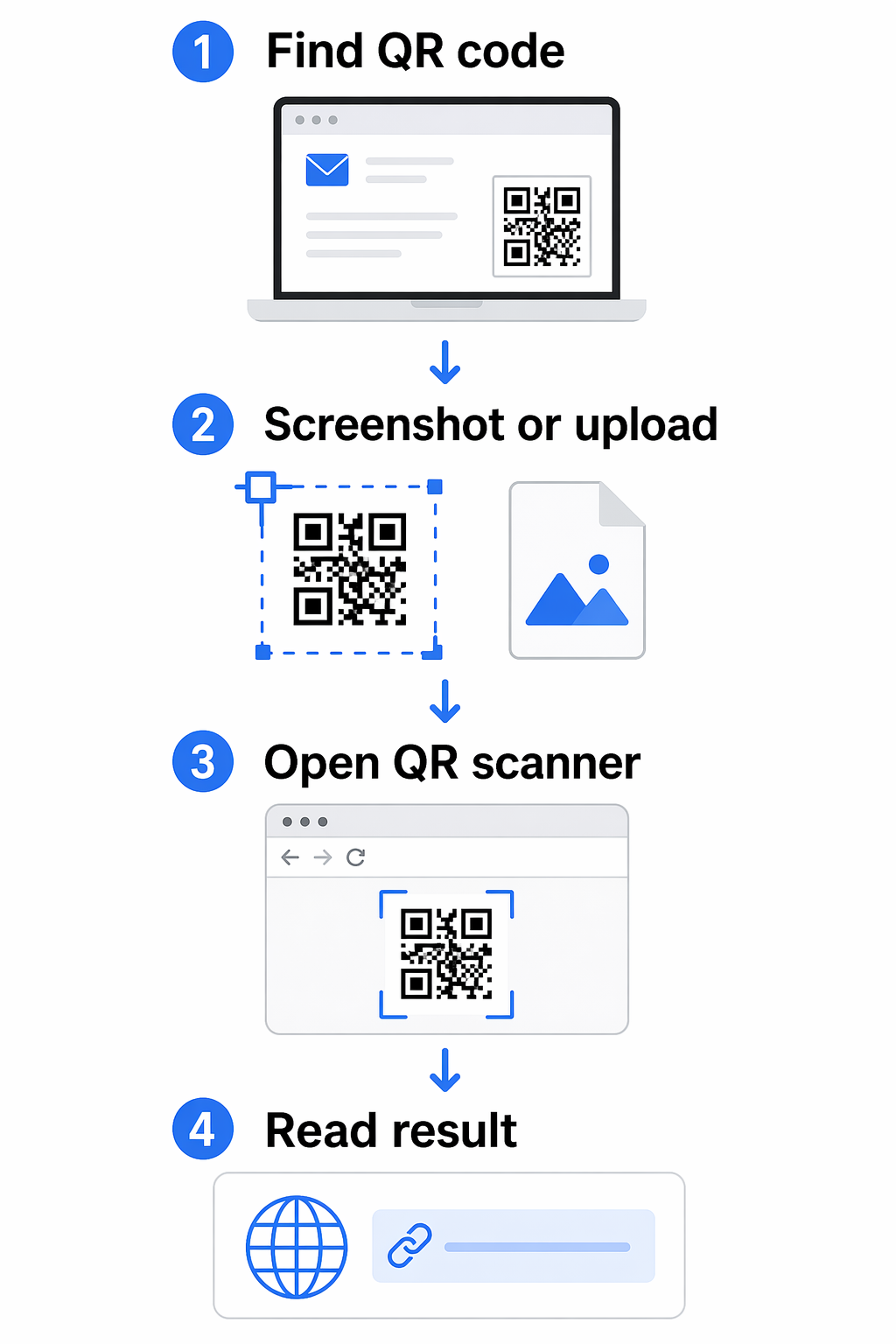
If you have a QR code saved as an image, a screenshot, or embedded in a PDF, you don’t need a camera at all.

Using an Online QR Code Scanner

The Pageloot QR Scanner works directly in your browser on any platform – no installation required. You can either:

  • Upload an image file: Drag and drop a PNG, JPG, or screenshot of the QR code into the scanner.
  • Use your webcam: Click the camera option, grant browser permission when prompted, and hold the QR code in front of your laptop’s webcam.

Other browser-based tools like scanqr.org work similarly and support both upload and webcam input.

Scan QR Codes Directly in Your Browser Need to decode a QR code on your laptop right now? The Pageloot QR Scanner works with both file uploads and your webcam – no app download needed.

Granting Camera Access in Your Browser

Different browsers handle camera permissions slightly differently:

  • Chrome: Click the site control icon to the left of the URL bar, set Kamera do Allowed, and reload the page.
  • Safari: Click Allow when prompted, or go to Safari → Settings for [site] → Camera and set it to Allow, then refresh.
  • Edge: Click Allow in the prompt, or open the lock icon → Permission for this site, set Camera to Allow, and reload.

Scanning from Screenshots or PDFs

Most PDF viewers don’t include QR code recognition. The simplest workaround:

  • Take a screenshot of the QR code section using `Shift + Command + 4` (Mac) or the Snipping Tool (Windows 11).
  • Upload the screenshot to the Pageloot scanner or another browser-based tool.
  • On Windows 11, you can also use the Snipping Tool’s Text Actions feature directly on the captured image.

Tips for Better Image Quality

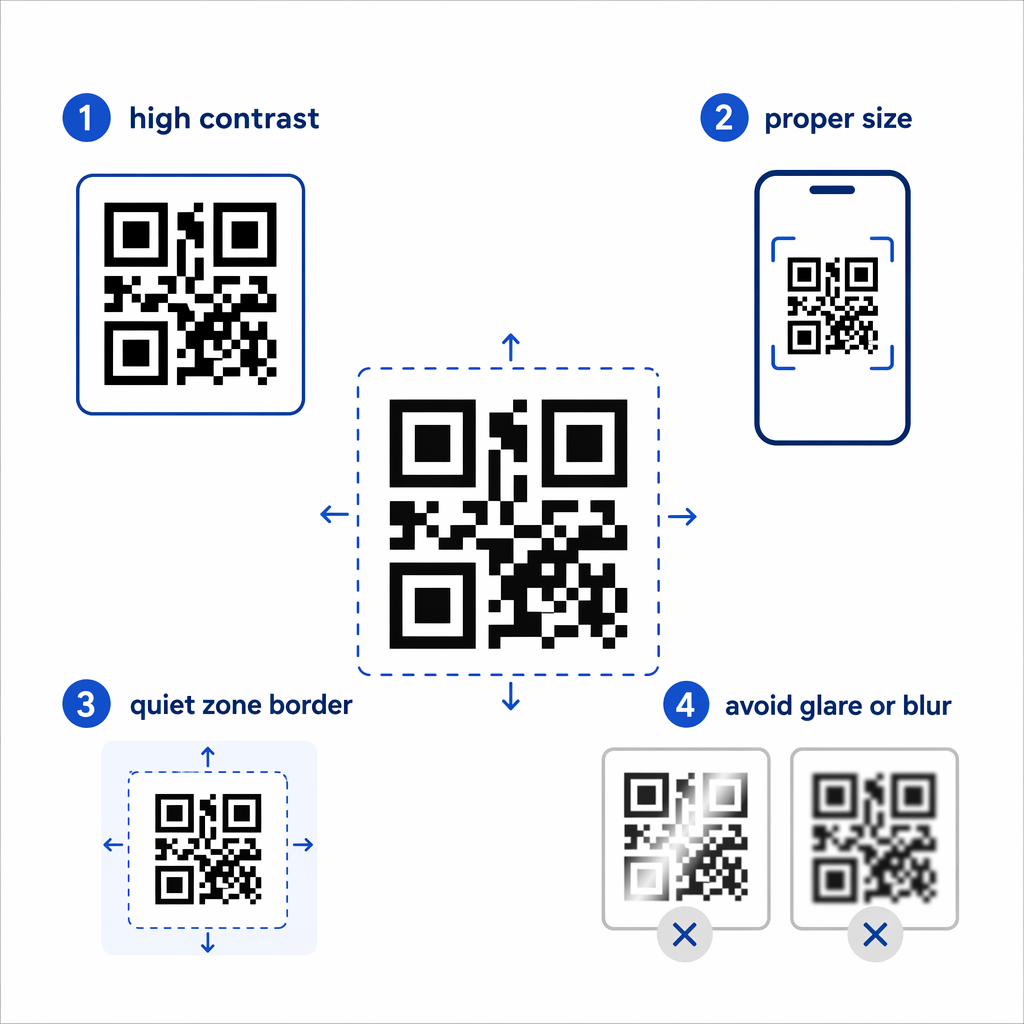
A blurry or poorly cropped image is the most common reason a file-based scan fails. Keep these points in mind:

  • Zoom in before screenshotting if the QR code appears small – use `Ctrl + +` (Windows) or `Command + +` (Mac) to enlarge it in your browser.
  • Crop tightly around the QR code, but keep the white border (called the “quiet zone”) intact – removing it prevents the scanner from detecting the code boundaries.
  • Increase screen brightness when screenshotting a code displayed on a monitor, to improve contrast.
  • If the image is still too blurry, try opening it in a photo editor and adjusting the contrast before uploading.

Choosing the Right Method for Your Situation

QR scanning methods
Situation Windows macOS
Physical or printed QR code Camera App (Barcode mode) Browser-based scanner or third-party app
QR code on a webpage Right-click → Google Lens in Chrome/Edge Right-click → Google Lens in Chrome
Saved image or screenshot Snipping Tool or online scanner Online scanner or QR Capture
Regular or professional use CodeTwo QR Code Desktop Reader QR Journal or QR Capture
No webcam, no install Upload to Pageloot QR Scanner Upload to Pageloot QR Scanner

For a deeper comparison of dedicated scanner apps – including security features and analytics – see the best QR code scanning apps comparison.

Staying Safe When Scanning QR Codes

Scanning a QR code on a laptop is generally safe, but the link it contains might not be. Before opening anything a scanned code returns, take a moment to:

Sigurno QR skeniranje
  • Review the URL before clicking. Check for misspellings, unrelated domains, or anything that doesn’t match the expected source.
  • Consider the context. Did you receive this code in an unsolicited email? Was it a sticker placed over another code? Treat unfamiliar codes with the same caution you’d apply to unknown links.
  • Use a scanner that shows the URL first, rather than opening it automatically. This gives you a chance to evaluate the link before committing.
  • Close the browser if a decoded link leads to an unexpected login page, payment form, or request for personal data. Verify the site independently before returning.

If a QR code simply won’t scan despite good lighting and a clear image, the problem may be with the code itself. Common causes include a broken destination URL, low contrast, or a code that’s too small – see the QR code not working guide for a full breakdown of fixes.11The method you choose will depend on how often you scan, whether you’re working with physical codes or digital files, and which platform you’re on. For one-off situations, a browser upload or the Windows Snipping Tool handles most cases without any setup. For regular use, a dedicated desktop app or the Pageloot QR Scanner gives you more control, including webcam scanning and a scan history.

If you’re also creating QR codes from your laptop – for campaigns, documents, or business cards – learn how to scan QR codes across different devices to make sure your codes work before you distribute them.

Često postavljana pitanja

Why won’t my laptop camera scan a QR code?

The most common reasons are poor lighting, an out-of-focus webcam, or a camera app that doesn’t support QR scanning on your specific device. Try cleaning the webcam lens, improving the lighting, and ensuring the QR code fills most of the frame. If the Camera app still doesn’t detect the code, switch to a browser-based tool or upload a screenshot to the Pageloot QR Code Scanner instead.

How do I scan a QR code on my screen without a camera?

Take a screenshot of the QR code – use `Win + Shift + S` on Windows 11 or `Shift + Command + 4` on macOS – then upload the image to a browser-based scanner like the Pageloot QR Code Scanner. On Windows 11, the Snipping Tool’s Text Actions feature can also decode on-screen codes directly without any upload.

Is it safe to use an online QR code scanner?

It can be, as long as you use a reputable tool that doesn’t store your images or require unnecessary account sign-ups. More importantly, always review the URL the scanner returns before clicking it – check for misspellings, unexpected domains, or anything that doesn’t match the source you expect. Treat QR codes from unsolicited emails or unfamiliar public locations as potentially suspicious until verified.

O autoru

Siim Kostabi je voditelj sadržaja u Pagelootu. Piše o našim inovativnim uslugama generiranja QR kodova. S bogatim iskustvom u QR kodovima koje obuhvaća više od pola desetljeća, Siim je stručnjak u tom području. Čini značajne korake u korištenju QR tehnologije za pojednostavljenje i poboljšanje digitalnih interakcija.

Kategorija
Nauči više o

Ako trebate izraditi QR kodove na mreži, možete Napravite QR kod ovdje besplatno!
Pageloot je #1 rješenje za prijelaz za stvaranje i skeniranje QR kodova.

Vjeruje mu više od 20 000 robnih marki za povećanje prodaje, recenzija i sljedbenika.

Logotipi klijenata
Pouzdanje vrhunskih marki
Ocijenjeno 4.8 od 5

Ocjena 4,86 / 5 zvjezdica

Hugo Laurent
Hugo Laurent
Vlasnik restorana
Najjednostavniji i najpouzdaniji generator QR kodova ikada. PDF datoteke se mogu učitati odmah. Naši restoranski jelovnici sada su digitalni.
Lucas Jansen
Lucas Jansen
Razvojni inženjer nekretnina
Ovo je izvrstan alat i QR kodovi vas vode tamo gdje želite. Koristimo samo QR kod za lokaciju, ali ima toliko korisnih značajki.
Emma Moretti
Emma Moretti
Maloprodajni proizvodi
Jednostavan za korištenje i brz. Radi izvrsno i stvara savršene slike, tako da zaposlenici mogu preuzeti moju vCard.
Hugo Laurent
Hugo Laurent
Vlasnik restorana
Najjednostavniji i najpouzdaniji generator QR kodova ikada. PDF datoteke se mogu učitati odmah. Naši restoranski jelovnici sada su digitalni.
Lucas Jansen
Lucas Jansen
Razvojni inženjer nekretnina
Ovo je izvrstan alat i QR kodovi vas vode tamo gdje želite. Koristimo samo QR kod za lokaciju, ali ima toliko korisnih značajki.
Emma Moretti
Emma Moretti
Maloprodajni proizvodi
Jednostavan za korištenje i brz. Radi izvrsno i stvara savršene slike, tako da zaposlenici mogu preuzeti moju vCard.
Pogledajte više QR kodova
Skeniranje marketinškog QR koda
QR kodovi za Mailchimp
Pretvorite bilo što u digitalno iskustvo za manje od 3 minute.

Besplatno 14-dnevno probno razdoblje.

Nije potrebna kreditna kartica.

Dobijte 30% popusta na prvu kupnju

Koristite kod:

Podijelite svoje MP3 datoteke

Prijavite se za izradu PDF QR kodova

Prenesite i prikažite sve što vam je potrebno:

  • Audio datoteke
  • Podcasti
  • glazba, muzika

14-dnevno besplatno probno razdoblje uz prijavu.
QR kodovi istječu nakon probnog razdoblja.

prijavite se za stvaranje audio mp3 QR koda

Dobijte više skeniranja s okvirima

Prijavite se za dodavanje više okvira svojim QR kodovima

Okviri s pozivom na radnju pomažu vašim klijentima u jednostavnoj interakciji s QR kodom. Isprobajte ih!

14-dnevno besplatno probno razdoblje uz prijavu.
QR kodovi istječu nakon probnog razdoblja.

Prijavite se za dodavanje više okvira svojim QR kodovima

Dodajte više stila s oblicima

Prijavite se za stvaranje više oblika

QR kodovi ne moraju biti kvadratni. Pokušajte ga promijeniti kako bi odgovarao imidžu vaše marke.

14-dnevno besplatno probno razdoblje uz prijavu.
QR kodovi istječu nakon probnog razdoblja.

Prijavite se za stvaranje više oblika

Dodajte logotip svom QR kodu

Prijavite se za dodavanje vašeg logotipa QR kodovima

Istaknite svoj QR kod tako da mu dodate svoj logotip i robnu marku.

14-dnevno besplatno probno razdoblje uz prijavu.
QR kodovi istječu nakon probnog razdoblja.

Prijavite se za dodavanje vašeg logotipa QR kodovima

Pametno preusmjeravanje na trgovinu aplikacijama

Prijavite se za izradu QR koda trgovine aplikacija

Dodajte poveznice svoje aplikacije u naš pametni QR kod App Storea. Korisnici se preusmjeravaju na temelju svog uređaja.

14-dnevno besplatno probno razdoblje uz prijavu.
QR kodovi istječu nakon probnog razdoblja.

Prijavite se za izradu QR koda trgovine aplikacija

Prenesite sliku na QR kod

Prijavite se za izradu slikovnih QR kodova

Jednostavno podijelite svoje slike. Promijenite bilo koju sliku dinamički u roku od nekoliko sekundi.

14-dnevno besplatno probno razdoblje uz prijavu.
QR kodovi istječu nakon probnog razdoblja.

Prijavite se za izradu slikovnih QR kodova

Podijelite svoje PDF datoteke

Prijavite se za izradu PDF QR kodova

Prenesite i prikažite sve što vam je potrebno:

  • Jelovnici i cjenici
  • Upute
  • Bilo kakvih dokumenata

14-dnevno besplatno probno razdoblje uz prijavu.
QR kodovi istječu nakon probnog razdoblja.

Prijavite se za izradu PDF QR kodova

Uredite kasnije bez ispisa

Prijavite se za uređivanje QR kodova bez ponovnog ispisa

Dinamički QR kodovi omogućuju vam promjenu sadržaja vašeg QR koda bez ispisivanja novih.

14-dnevno besplatno probno razdoblje uz prijavu.
QR kodovi istječu nakon probnog razdoblja.

Prijavite se za uređivanje QR kodova bez ponovnog ispisa

Kada? Gdje? Pratite svoja skeniranja QR koda

Prijavite se za praćenje svojih QR kodova

Otkrijte koji se od vaših QR kodova najviše skenira i što vaše klijente najviše uzbuđuje.

14-dnevno besplatno probno razdoblje uz prijavu.
QR kodovi istječu nakon probnog razdoblja.

Prijavite se za praćenje svojih QR kodova

Datoteke spremne za ispis dostupne

Prijavite se za izradu vektorskih QR kodova kao što su PDF i SVG

.EPS, .PDF, .SVG

Želite li preuzeti svoje QR kodove u HD rezoluciji? Nabavite vektorske ili pikselne formate koji su spremni za ispis.

14-dnevno besplatno probno razdoblje uz prijavu.
QR kodovi istječu nakon probnog razdoblja.

Prijavite se za izradu vektorskih QR kodova kao što su PDF i SVG

Molimo pričekajte. Vaš QR kod je Učitavam... Učitavam...

Prilagodite ga

Prijavite se da biste spremili svoj QR kod za kasnije

Dobijte više skeniranja stvaranjem sjajnih QR kodova s različitim bojama, logotipima i okvirima s pozivom na akciju.

14-dnevno besplatno probno razdoblje uz prijavu.
QR kodovi istječu nakon probnog razdoblja.

Prijavite se da biste spremili svoj QR kod za kasnije