Αρχική σελίδα > Ιστολόγιο > Πώς να σαρώσετε έναν Κωδικό QR σε ένα φορητό υπολογιστή
Σάρωση κωδικού QR από φορητό υπολογιστή

Πώς να σαρώσετε έναν Κωδικό QR σε ένα φορητό υπολογιστή

Learn how to scan a QR code on a laptop using built-in Windows and macOS tools. This guide covers scanning from your webcam, files, or directly on-screen.
Updated on Ιούνιος 10, 2026
Πίνακας περιεχομένων

Have a QR code on your screen or desk but no phone handy? Your laptop can decode it in seconds – using built-in tools, your browser, or a lightweight web scanner. This guide walks through every practical method for Windows and macOS, so you can pick the one that fits your situation.

Scanning QR Codes on Windows

Windows 10 and 11 offer several built-in options for decoding QR codes, so you often won’t need to install anything extra.

Using the Windows Camera App

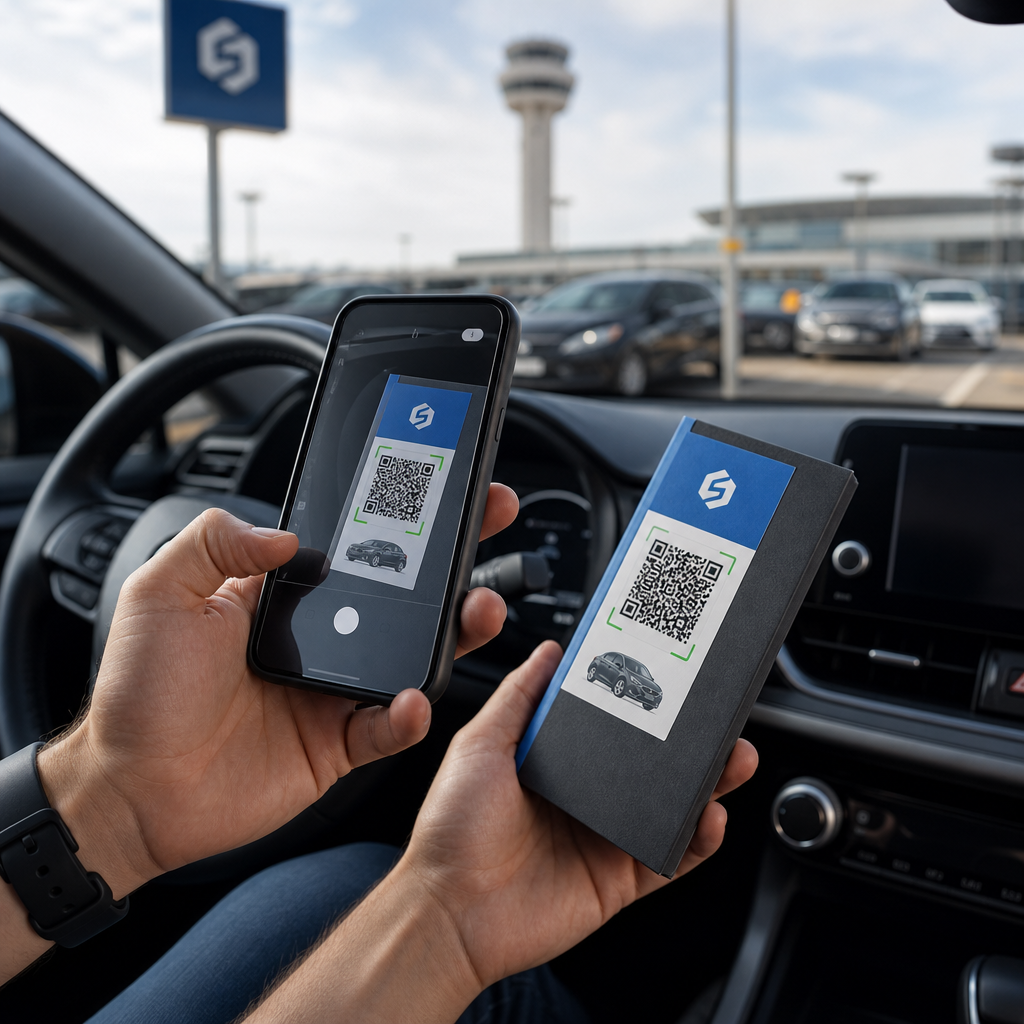
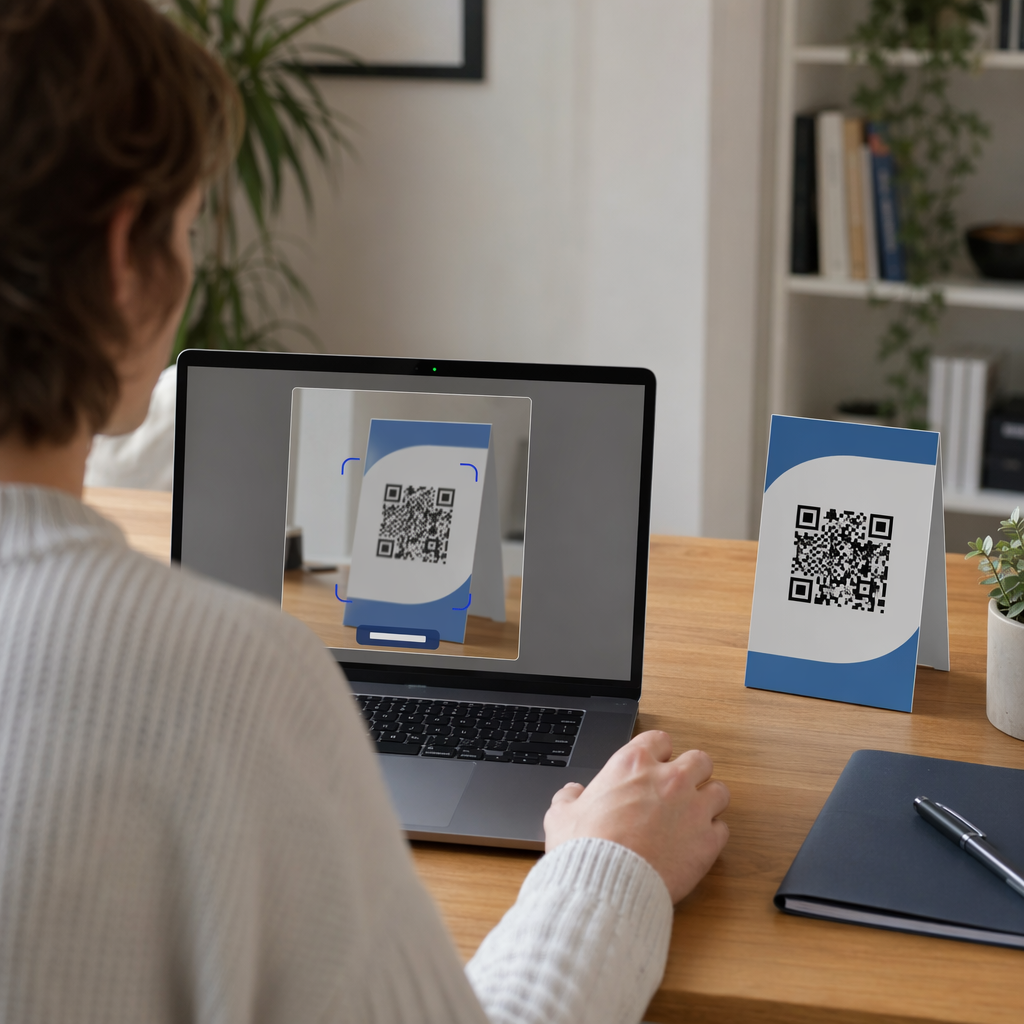
On many Windows laptops, the Camera app includes a Barcode mode that scans QR codes directly through your webcam. Here’s how to use it:

  • Open the Camera app from the Start menu.
  • Look for a Γραμμικός κώδικας or barcode icon in the toolbar. On some versions, you may need to go to Settings (the gear icon), enable Experimental Features, and restart the app before this option appears.
  • Click the barcode icon, then hold your physical QR code in front of the webcam.
  • The app detects the code automatically and displays a clickable URL that opens in your default browser.

For best results, make sure the code is well-lit, the webcam lens is clean, and the code fills most of the frame. Keep in mind that availability of this feature can vary depending on your laptop manufacturer and Camera app version – if you don’t see the Barcode option, the browser-based methods below are a reliable fallback.

Using Microsoft Edge’s Built-In Tools

Microsoft Edge gives you two useful options for QR codes you encounter while browsing:

  • Right-click any QR code image on a webpage and select Search images with Google. Google Lens will decode the code and display the link or content.
  • Για two-factor authentication (2FA) codes, Edge integrates with the iCloud Passwords extension. Right-click a 2FA QR code and select Set Up Verification Code to sync it without needing a camera.
  • For QR codes saved as image files, drag the file into an Edge tab, right-click the image, select Inspect, press `Ctrl + Shift + P`, type “QR”, and choose Show QR Code reader from the DevTools command palette.

Using the Snipping Tool (Windows 11)

If a QR code is displayed on your screen – inside a document, email, or webpage – the Snipping Tool offers a quick, camera-free solution:

  • Press `Win + Shift + S` to open the snipping overlay.
  • Select the area containing the QR code.
  • In the Snipping Tool window, click Text Actions to extract and decode the content.

This keeps everything local on your device without uploading anything to a third-party service.

Windows Methods at a Glance

Μέθοδος Καλύτερη περίπτωση χρήσης Key Requirement
Camera App (Barcode mode) Physical or printed QR codes Feature availability varies by device
Microsoft Edge DevTools Saved image files No extra software needed
Edge + Google Lens QR codes on webpages Right-click the image
Snipping Tool On-screen QR codes Windows 11 with Text Actions

Scanning QR Codes on macOS

macOS does not include native QR scanning in any of its built-in apps – you’ll need a browser tool, third-party app, or the Pageloot web scanner to decode codes on a Mac.

Using a Browser and Google Lens

For QR codes you encounter in Chrome or Edge on a Mac:

  • Right-click the QR code image on the webpage and select Search image with Google.
  • Google Lens opens and decodes the code, showing the URL or content with an option to open or copy it.

For QR codes saved as image files, drag the file into a Chrome tab, then right-click the image and follow the same steps.

Using Third-Party Mac Apps

Apps available from the Mac App Store – such as QR Capture, QR Journal, ή Code Reader – QR Scanner – use your Mac’s built-in camera or a USB webcam to scan codes in real time. Open the app, align the code within the on-screen frame, and it decodes automatically. Most apps also support dragging an image file into the window for file-based scanning.

For professional workflows, QR Journal integrates with AppleScript for automation and stores a local scan history – useful if you’re regularly processing codes as part of a business workflow.

Using Continuity with an iPhone

If you have an iPhone linked to the same Apple ID and on the same Wi-Fi network:

  • Open the Camera app on your iPhone and scan the QR code.
  • ΕΝΑ Safari icon appears in your Mac’s Dock showing the decoded link.
  • Click it to open the URL directly on your Mac.

This is often the fastest option for occasional use without downloading any additional software.

Enabling Camera Permissions on macOS

Before any app or browser tool can use your webcam, you may need to grant permission:

  • Μεταβείτε στο System Settings → Privacy & Security → Camera.
  • Enable access for the browser or app you’re using.

Scanning QR Codes Without a Webcam

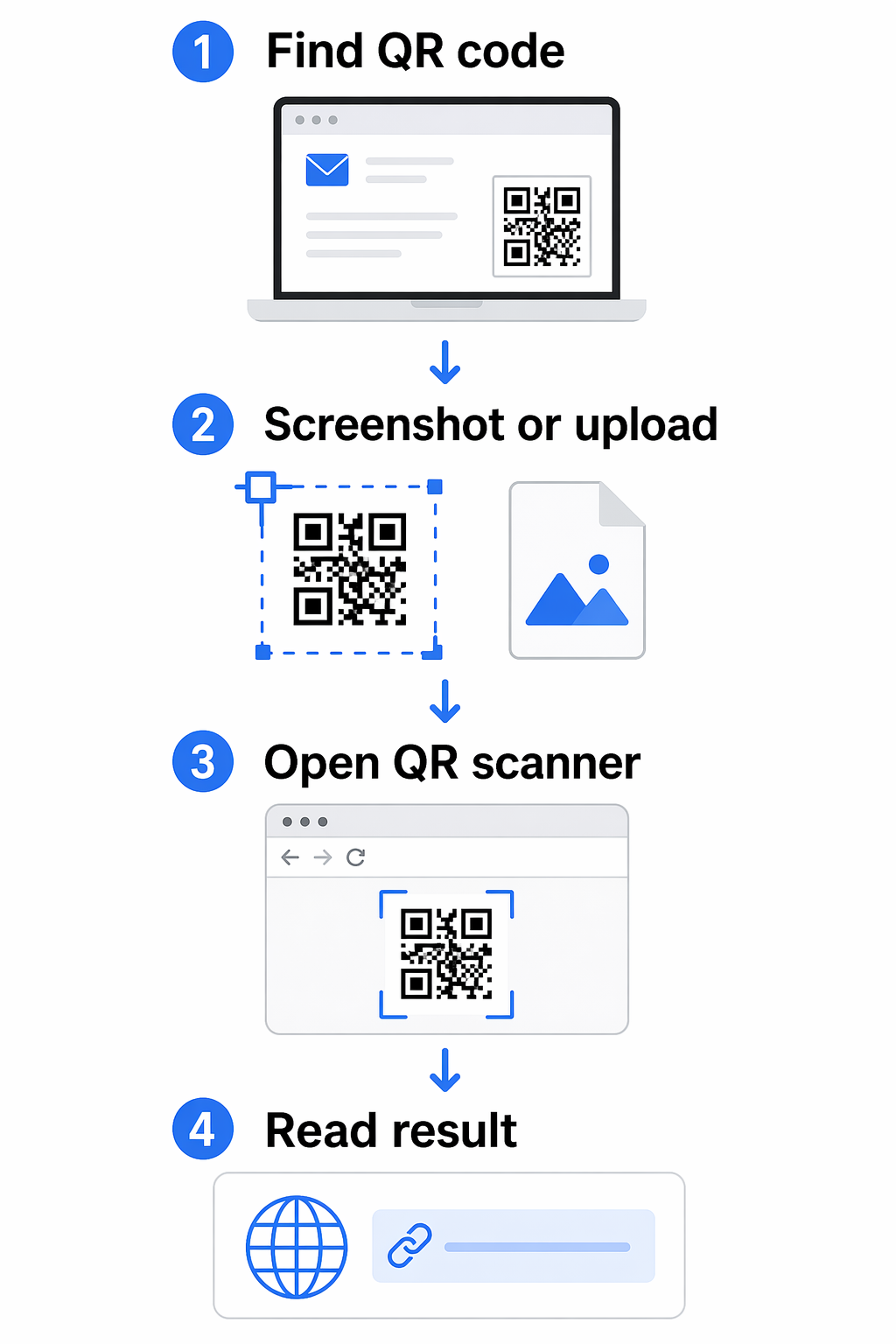
If you have a QR code saved as an image, a screenshot, or embedded in a PDF, you don’t need a camera at all.

Using an Online QR Code Scanner

ο Σαρωτής κώδικα Pageloot QR works directly in your browser on any platform – no installation required. You can either:

  • Upload an image file: Drag and drop a PNG, JPG, or screenshot of the QR code into the scanner.
  • Use your webcam: Click the camera option, grant browser permission when prompted, and hold the QR code in front of your laptop’s webcam.

Other browser-based tools like scanqr.org work similarly and support both upload and webcam input.

Scan QR Codes Directly in Your Browser Need to decode a QR code on your laptop right now? The Σαρωτής κώδικα Pageloot QR works with both file uploads and your webcam – no app download needed.

Granting Camera Access in Your Browser

Different browsers handle camera permissions slightly differently:

  • Chrome: Click the site control icon to the left of the URL bar, set Camera προς το Allowed, and reload the page.
  • Safari: Click Allow when prompted, or go to Safari → Settings for [site] → Camera and set it to Allow, then refresh.
  • Edge: Click Allow in the prompt, or open the lock icon → Permission for this site, set Camera to Allow, and reload.

Scanning from Screenshots or PDFs

Most PDF viewers don’t include QR code recognition. The simplest workaround:

  • Take a screenshot of the QR code section using `Shift + Command + 4` (Mac) or the Snipping Tool (Windows 11).
  • Upload the screenshot to the Pageloot scanner or another browser-based tool.
  • On Windows 11, you can also use the Snipping Tool’s Text Actions feature directly on the captured image.

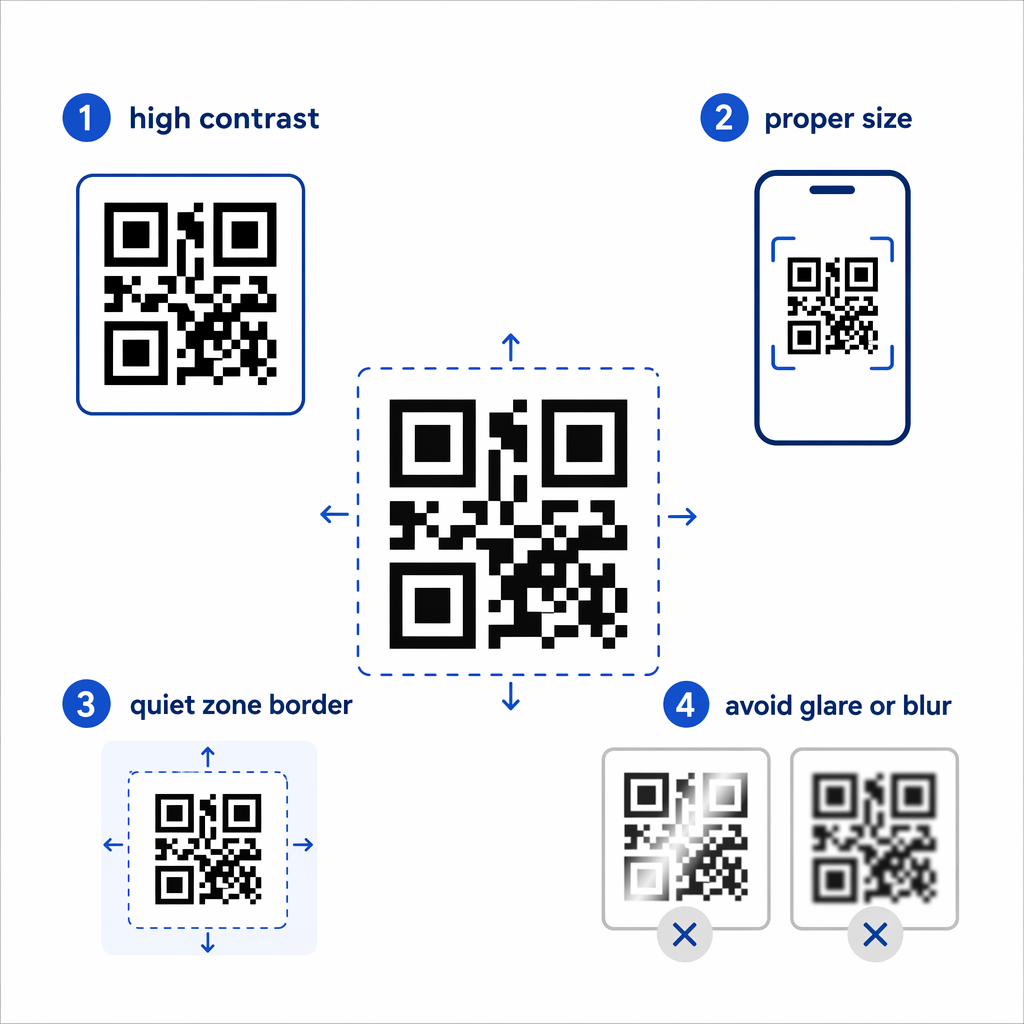
Tips for Better Image Quality

A blurry or poorly cropped image is the most common reason a file-based scan fails. Keep these points in mind:

  • Zoom in before screenshotting if the QR code appears small – use `Ctrl + +` (Windows) or `Command + +` (Mac) to enlarge it in your browser.
  • Crop tightly around the QR code, but keep the white border (called the “quiet zone”) intact – removing it prevents the scanner from detecting the code boundaries.
  • Increase screen brightness when screenshotting a code displayed on a monitor, to improve contrast.
  • If the image is still too blurry, try opening it in a photo editor and adjusting the contrast before uploading.

Choosing the Right Method for Your Situation

QR scanning methods
Situation Παράθυρα macOS
Physical or printed QR code Camera App (Barcode mode) Browser-based scanner or third-party app
QR code on a webpage Right-click → Google Lens in Chrome/Edge Right-click → Google Lens in Chrome
Saved image or screenshot Snipping Tool or online scanner Online scanner or QR Capture
Regular or professional use CodeTwo QR Code Desktop Reader QR Journal or QR Capture
No webcam, no install Upload to Pageloot QR Scanner Upload to Pageloot QR Scanner

For a deeper comparison of dedicated scanner apps – including security features and analytics – see the best QR code scanning apps comparison.

Staying Safe When Scanning QR Codes

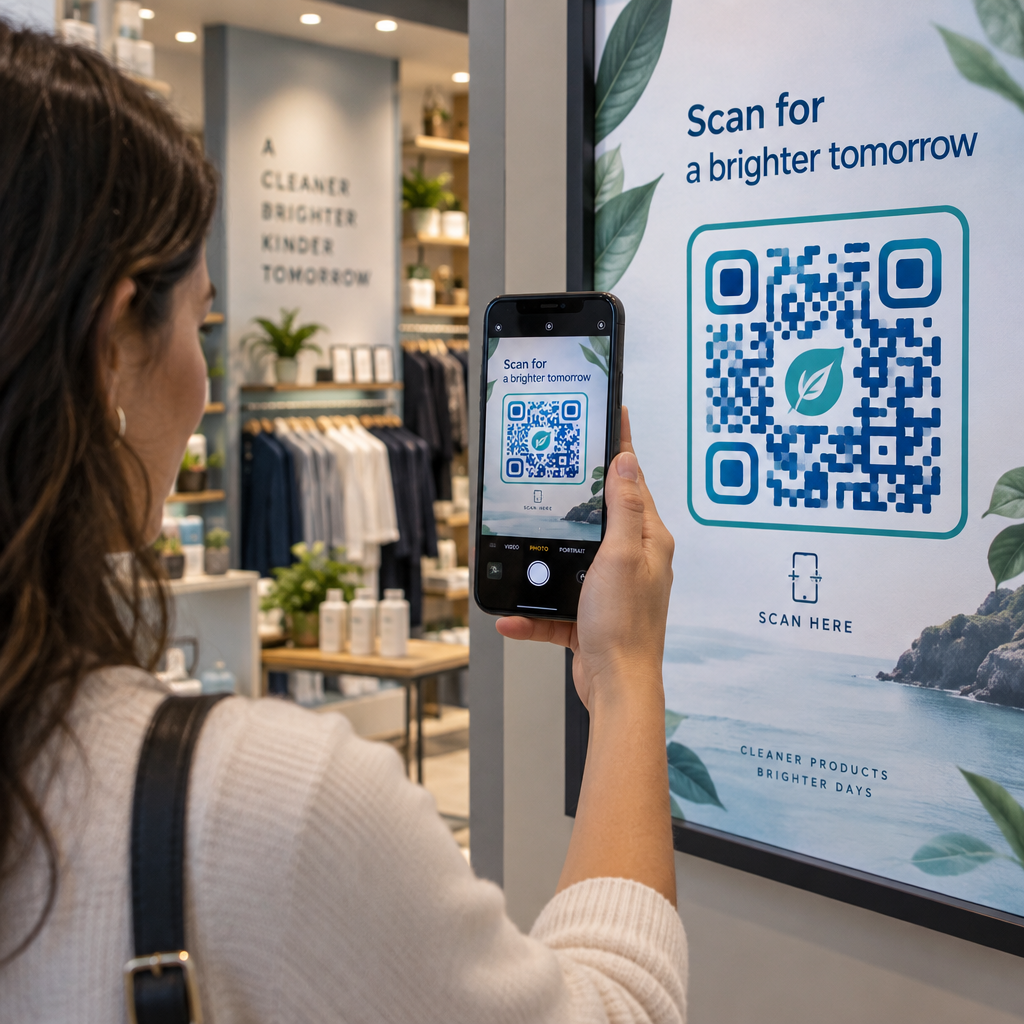
Scanning a QR code on a laptop is generally safe, but the link it contains might not be. Before opening anything a scanned code returns, take a moment to:

Ασφαλής σάρωση QR
  • Review the URL before clicking. Check for misspellings, unrelated domains, or anything that doesn’t match the expected source.
  • Consider the context. Did you receive this code in an unsolicited email? Was it a sticker placed over another code? Treat unfamiliar codes with the same caution you’d apply to unknown links.
  • Use a scanner that shows the URL first, rather than opening it automatically. This gives you a chance to evaluate the link before committing.
  • Close the browser if a decoded link leads to an unexpected login page, payment form, or request for personal data. Verify the site independently before returning.

If a QR code simply won’t scan despite good lighting and a clear image, the problem may be with the code itself. Common causes include a broken destination URL, low contrast, or a code that’s too small – see the QR code not working guide for a full breakdown of fixes.11The method you choose will depend on how often you scan, whether you’re working with physical codes or digital files, and which platform you’re on. For one-off situations, a browser upload or the Windows Snipping Tool handles most cases without any setup. For regular use, a dedicated desktop app or the Σαρωτής κώδικα Pageloot QR gives you more control, including webcam scanning and a scan history.

If you’re also creating QR codes from your laptop – for campaigns, documents, or business cards – learn how to scan QR codes across different devices to make sure your codes work before you distribute them.

Συχνές Ερωτήσεις

Why won’t my laptop camera scan a QR code?

The most common reasons are poor lighting, an out-of-focus webcam, or a camera app that doesn’t support QR scanning on your specific device. Try cleaning the webcam lens, improving the lighting, and ensuring the QR code fills most of the frame. If the Camera app still doesn’t detect the code, switch to a browser-based tool or upload a screenshot to the Pageloot QR Code Scanner instead.

How do I scan a QR code on my screen without a camera?

Take a screenshot of the QR code – use `Win + Shift + S` on Windows 11 or `Shift + Command + 4` on macOS – then upload the image to a browser-based scanner like the Pageloot QR Code Scanner. On Windows 11, the Snipping Tool’s Text Actions feature can also decode on-screen codes directly without any upload.

Is it safe to use an online QR code scanner?

It can be, as long as you use a reputable tool that doesn’t store your images or require unnecessary account sign-ups. More importantly, always review the URL the scanner returns before clicking it – check for misspellings, unexpected domains, or anything that doesn’t match the source you expect. Treat QR codes from unsolicited emails or unfamiliar public locations as potentially suspicious until verified.

Σχετικά με τον συγγραφέα

Ο Siim Kostabi είναι ο Υπεύθυνος Περιεχομένου στο Pageloot. Γράφει για τις καινοτόμες υπηρεσίες μας για τη δημιουργία κωδικών QR. Με βαθιά εμπειρία που εκτείνεται σε πάνω από μισή δεκαετία στους κωδικούς QR, ο Siim είναι ειδικός στον τομέα. Κάνει σημαντικά βήματα στην αξιοποίηση της τεχνολογίας QR για την απλοποίηση και την ενίσχυση των ψηφιακών αλληλεπιδράσεων.

Κατηγορία
Μάθε περισσότερα για
Αφίσα σάρωσης κωδικού QR
Κωδικός QR Περιορισμοί δεδομένων
Σάρωση μπλούζας QR
Οι κωδικοί QR είναι ενεργοποιημένοι είδη ένδυσης

Εάν πρέπει να δημιουργήσετε QR Codes online, μπορείτε Δημιουργήστε έναν κωδικό QR εδώ δωρεάν!
Το Pageloot είναι το #1 Go-To Λύση για δημιουργία και σάρωση κωδικών QR.

Εμπιστεύονται περισσότερες από 20 000 επωνυμίες για περισσότερες πωλήσεις, κριτικές και οπαδούς.

Λογότυπα πελατών
Αξιόπιστη από κορυφαίες μάρκες
Βαθμολογήθηκε 4.8 από 5

Βαθμολογία 4,86 / 5 αστέρια

Ούγκο Λοράν
Ούγκο Λοράν
Ιδιοκτήτης εστιατορίου
Η πιο εύκολη και αξιόπιστη Γεννήτρια κωδικών QR που υπήρξε ποτέ. Τα αρχεία PDF μπορούν να φορτωθούν άμεσα. Τα μενού των εστιατορίων μας είναι πλέον ψηφιακά.
Λούκας Γιάνσεν
Λούκας Γιάνσεν
Εργολάβος ακινήτων
Αυτό είναι ένα εξαιρετικό εργαλείο και οι κωδικοί QR σας μεταφέρουν ακριβώς εκεί που θέλετε. Χρησιμοποιούμε μόνο τον κωδικό QR τοποθεσίας, αλλά υπάρχουν τόσες πολλές χρήσιμες λειτουργίες.
Έμμα Μορέτι
Έμμα Μορέτι
Προϊόντα λιανικής
Εύκολο στη χρήση και γρήγορο. Λειτουργεί εξαιρετικά και δημιουργεί τέλειες εικόνες, ώστε οι υπάλληλοι να μπορούν να κάνουν λήψη της vCard μου.
Ούγκο Λοράν
Ούγκο Λοράν
Ιδιοκτήτης εστιατορίου
Η πιο εύκολη και αξιόπιστη Γεννήτρια κωδικών QR που υπήρξε ποτέ. Τα αρχεία PDF μπορούν να φορτωθούν άμεσα. Τα μενού των εστιατορίων μας είναι πλέον ψηφιακά.
Λούκας Γιάνσεν
Λούκας Γιάνσεν
Εργολάβος ακινήτων
Αυτό είναι ένα εξαιρετικό εργαλείο και οι κωδικοί QR σας μεταφέρουν ακριβώς εκεί που θέλετε. Χρησιμοποιούμε μόνο τον κωδικό QR τοποθεσίας, αλλά υπάρχουν τόσες πολλές χρήσιμες λειτουργίες.
Έμμα Μορέτι
Έμμα Μορέτι
Προϊόντα λιανικής
Εύκολο στη χρήση και γρήγορο. Λειτουργεί εξαιρετικά και δημιουργεί τέλειες εικόνες, ώστε οι υπάλληλοι να μπορούν να κάνουν λήψη της vCard μου.
Δείτε περισσότερους κωδικούς QR
Μετατρέψτε οτιδήποτε σε ψηφιακή εμπειρία σε λιγότερο από 3 λεπτά.

Δωρεάν δοκιμαστική περίοδος 14 ημερών.

Δεν απαιτείται πιστωτική κάρτα.

Αποκτήστε 30% από την πρώτη σας αγορά

Χρησιμοποιήστε τον κωδικό:

Μοιραστείτε τα αρχεία MP3 σας

Εγγραφείτε για να δημιουργήσετε κωδικούς PDF QR

Ανεβάστε και εμφανίστε όλα όσα χρειάζεστε:

  • Αρχεία ήχου
  • Podcasts
  • Μουσική

Δωρεάν δοκιμή 14 ημερών με εγγραφή.
Οι κωδικοί QR λήγουν μετά τη δοκιμή.

εγγραφείτε για να δημιουργήσετε έναν κωδικό QR ήχου mp3

Αποκτήστε περισσότερες σαρώσεις με πλαίσια

Εγγραφείτε για να προσθέσετε περισσότερα καρέ στους κωδικούς QR σας

Τα πλαίσια πρόσκλησης προς δράση βοηθούν τους πελάτες σας να αλληλεπιδρούν εύκολα με τον κωδικό QR. Δοκιμάστε τα!

Δωρεάν δοκιμή 14 ημερών με εγγραφή.
Οι κωδικοί QR λήγουν μετά τη δοκιμή.

Εγγραφείτε για να προσθέσετε περισσότερα καρέ στους κωδικούς QR σας

Προσθέστε περισσότερο στυλ με σχήματα

Εγγραφείτε για να δημιουργήσετε περισσότερα σχήματα

Τα QR Codes δεν χρειάζεται να είναι τετράγωνα. Δοκιμάστε να τα αλλάξετε ώστε να ταιριάζουν με την εικόνα της μάρκας σας.

Δωρεάν δοκιμή 14 ημερών με εγγραφή.
Οι κωδικοί QR λήγουν μετά τη δοκιμή.

Εγγραφείτε για να δημιουργήσετε περισσότερα σχήματα

Προσθέστε ένα λογότυπο στον κωδικό QR σας

Εγγραφείτε για να προσθέσετε το λογότυπό σας σε κωδικούς QR

Κάντε τον κωδικό QR σας να ξεχωρίζει προσθέτοντας το λογότυπο και το εμπορικό σήμα σας σε αυτόν.

Δωρεάν δοκιμή 14 ημερών με εγγραφή.
Οι κωδικοί QR λήγουν μετά τη δοκιμή.

Εγγραφείτε για να προσθέσετε το λογότυπό σας σε κωδικούς QR

Έξυπνες ανακατευθύνσεις στο App Store

Εγγραφείτε για να δημιουργήσετε έναν κωδικό QR καταστήματος εφαρμογών

Προσθέστε τους συνδέσμους των εφαρμογών σας στον έξυπνο κωδικό QR του App Store. Οι χρήστες ανακατευθύνονται με βάση τη συσκευή τους.

Δωρεάν δοκιμή 14 ημερών με εγγραφή.
Οι κωδικοί QR λήγουν μετά τη δοκιμή.

Εγγραφείτε για να δημιουργήσετε έναν κωδικό QR καταστήματος εφαρμογών

Ανεβάστε μια εικόνα σε έναν κωδικό QR

Εγγραφείτε για να δημιουργήσετε κωδικούς QR εικόνων

Μοιραστείτε εύκολα τις εικόνες σας. Αλλάξτε οποιαδήποτε εικόνα δυναμικά μέσα σε δευτερόλεπτα.

Δωρεάν δοκιμή 14 ημερών με εγγραφή.
Οι κωδικοί QR λήγουν μετά τη δοκιμή.

Εγγραφείτε για να δημιουργήσετε κωδικούς QR εικόνων

Μοιραστείτε τα αρχεία PDF σας

Εγγραφείτε για να δημιουργήσετε κωδικούς PDF QR

Ανεβάστε και εμφανίστε όλα όσα χρειάζεστε:

  • Μενού & τιμοκατάλογοι
  • Οδηγίες
  • Οποιαδήποτε έγγραφα

Δωρεάν δοκιμή 14 ημερών με εγγραφή.
Οι κωδικοί QR λήγουν μετά τη δοκιμή.

Εγγραφείτε για να δημιουργήσετε κωδικούς PDF QR

Επεξεργασία αργότερα χωρίς εκτύπωση

Εγγραφείτε για να επεξεργαστείτε τους κωδικούς QR χωρίς να εκτυπώσετε ξανά

Οι δυναμικοί κώδικες QR σας επιτρέπουν να αλλάξετε το περιεχόμενο του κώδικα QR χωρίς να χρειάζεται να εκτυπώσετε νέους.

Δωρεάν δοκιμή 14 ημερών με εγγραφή.
Οι κωδικοί QR λήγουν μετά τη δοκιμή.

Εγγραφείτε για να επεξεργαστείτε τους κωδικούς QR χωρίς να εκτυπώσετε ξανά

Πότε; Πού; Παρακολουθήστε τις σαρώσεις του κωδικού QR σας

Εγγραφείτε για να παρακολουθείτε τους κωδικούς QR σας

Ανακαλύψτε ποια από τα QR Codes σας λαμβάνουν τις περισσότερες σαρώσεις και τι ενθουσιάζει περισσότερο τους πελάτες σας.

Δωρεάν δοκιμή 14 ημερών με εγγραφή.
Οι κωδικοί QR λήγουν μετά τη δοκιμή.

Εγγραφείτε για να παρακολουθείτε τους κωδικούς QR σας

Διαθέσιμα αρχεία έτοιμα για εκτύπωση

Εγγραφείτε για να δημιουργήσετε διανυσματικούς κωδικούς QR όπως PDF και SVG

.EPS, .PDF, .SVG

Θέλετε να κατεβάσετε τους κωδικούς QR σε ανάλυση HD; Αποκτήστε διανυσματικές ή pixel μορφές που είναι έτοιμες για εκτύπωση.

Δωρεάν δοκιμή 14 ημερών με εγγραφή.
Οι κωδικοί QR λήγουν μετά τη δοκιμή.

Εγγραφείτε για να δημιουργήσετε διανυσματικούς κωδικούς QR όπως PDF και SVG

Παρακαλώ περιμένετε. Ο κωδικός QR σας είναι φόρτωση... φόρτωση...

Κάντε το δικό σας

Εγγραφείτε για να αποθηκεύσετε τον κωδικό QR για αργότερα

Αποκτήστε περισσότερες σαρώσεις δημιουργώντας φοβερούς κώδικες QR με διαφορετικά χρώματα, λογότυπα και πλαίσια κλήσης προς δράση.

Δωρεάν δοκιμή 14 ημερών με εγγραφή.
Οι κωδικοί QR λήγουν μετά τη δοκιμή.

Εγγραφείτε για να αποθηκεύσετε τον κωδικό QR για αργότερα