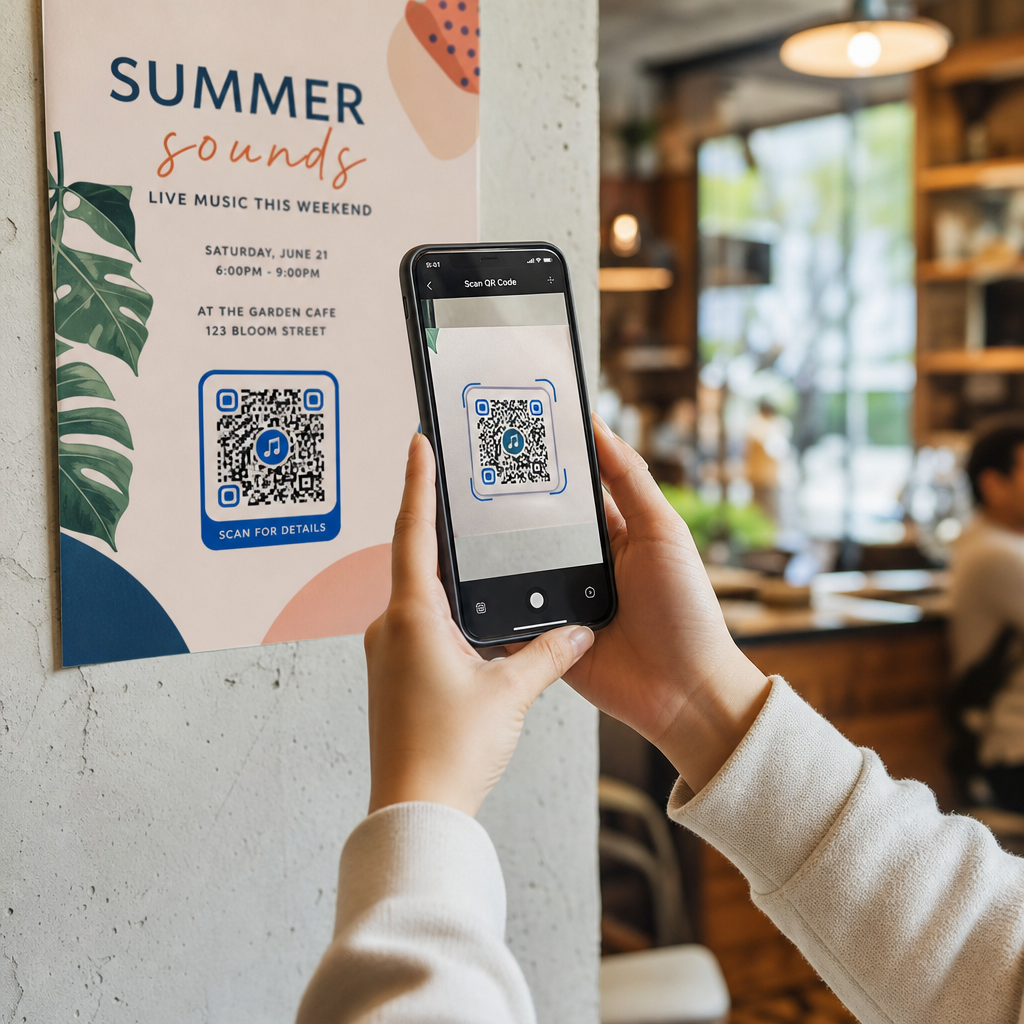
¿No estás seguro de dónde se encuentra la función de escaneo QR en tu teléfono Android? Android te ofrece varias formas integradas de escanear códigos QR, y esta guía te explica cada una de ellas, incluyendo qué hacer cuando un código ya está en tu pantalla o cuando el escaneo no funciona.
Método 1: Escanear con la aplicación de cámara de Android
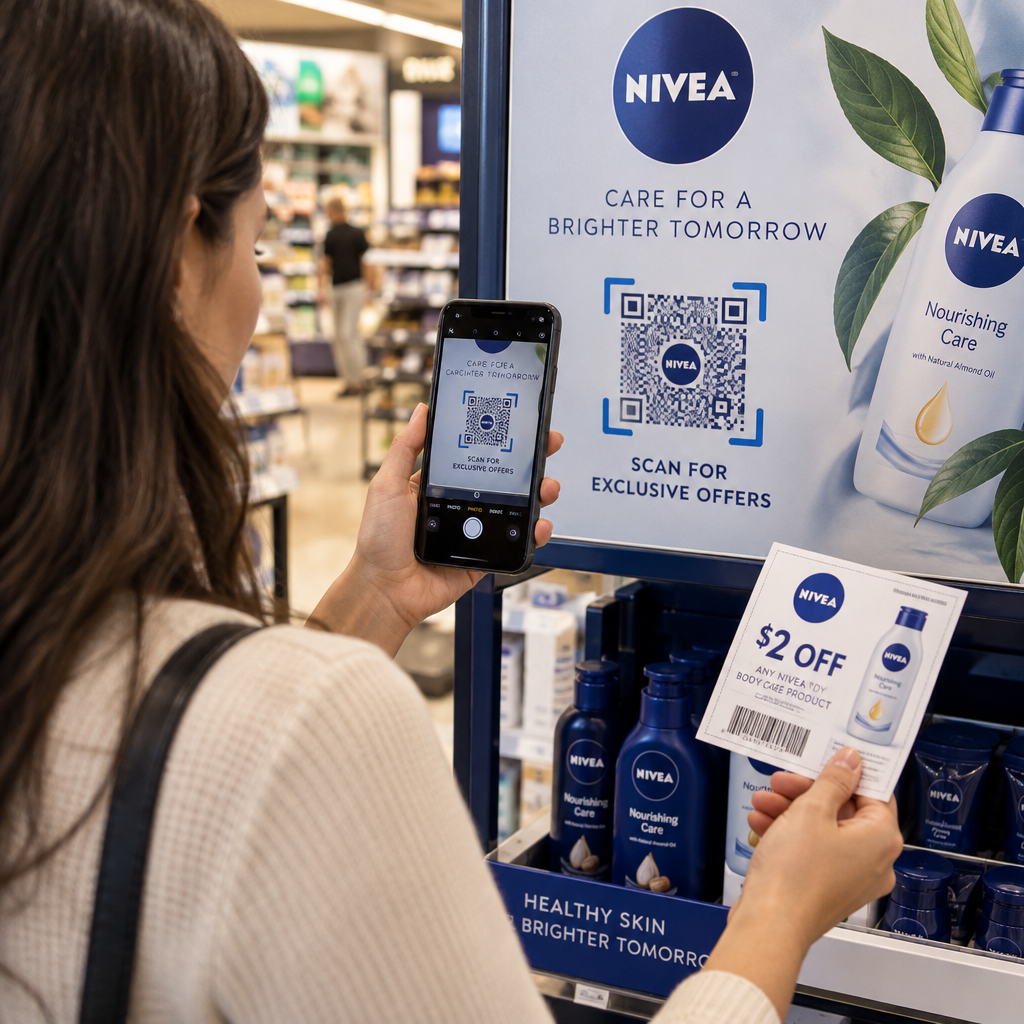
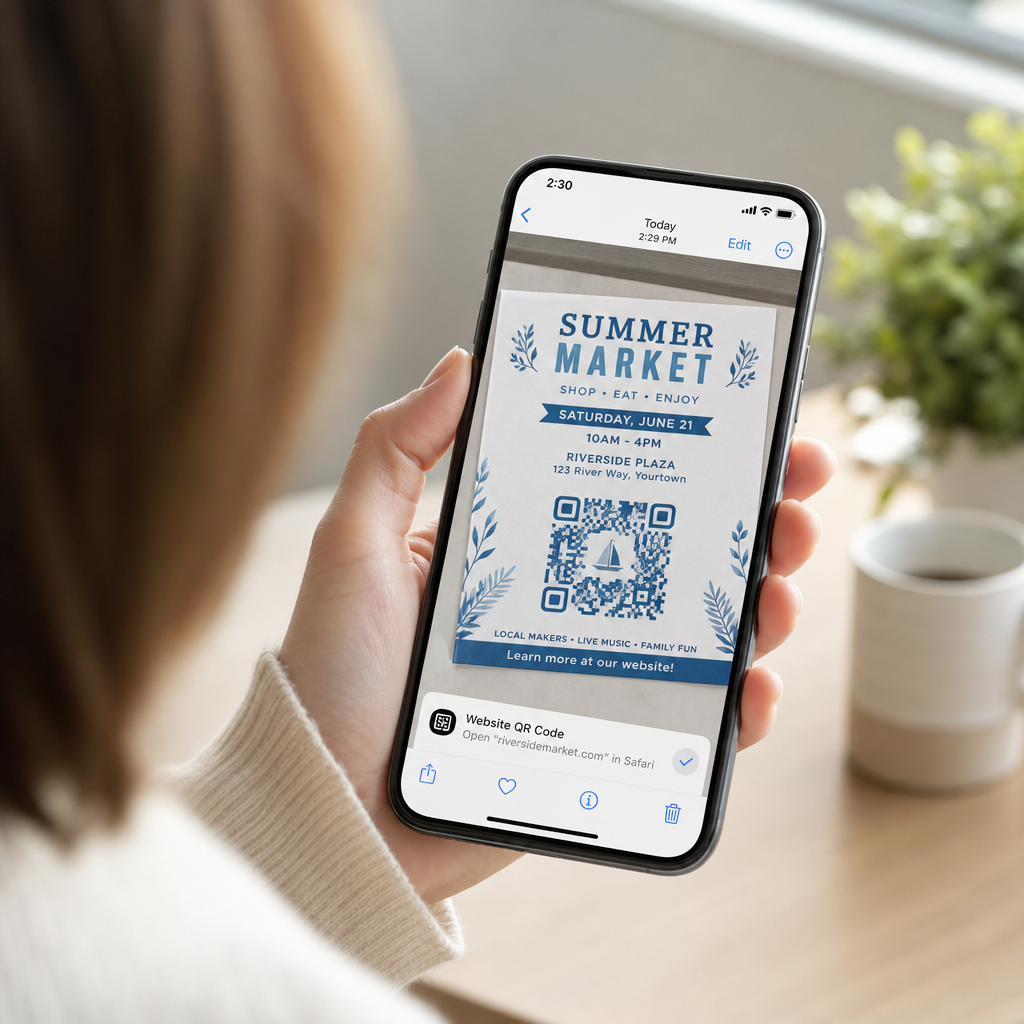
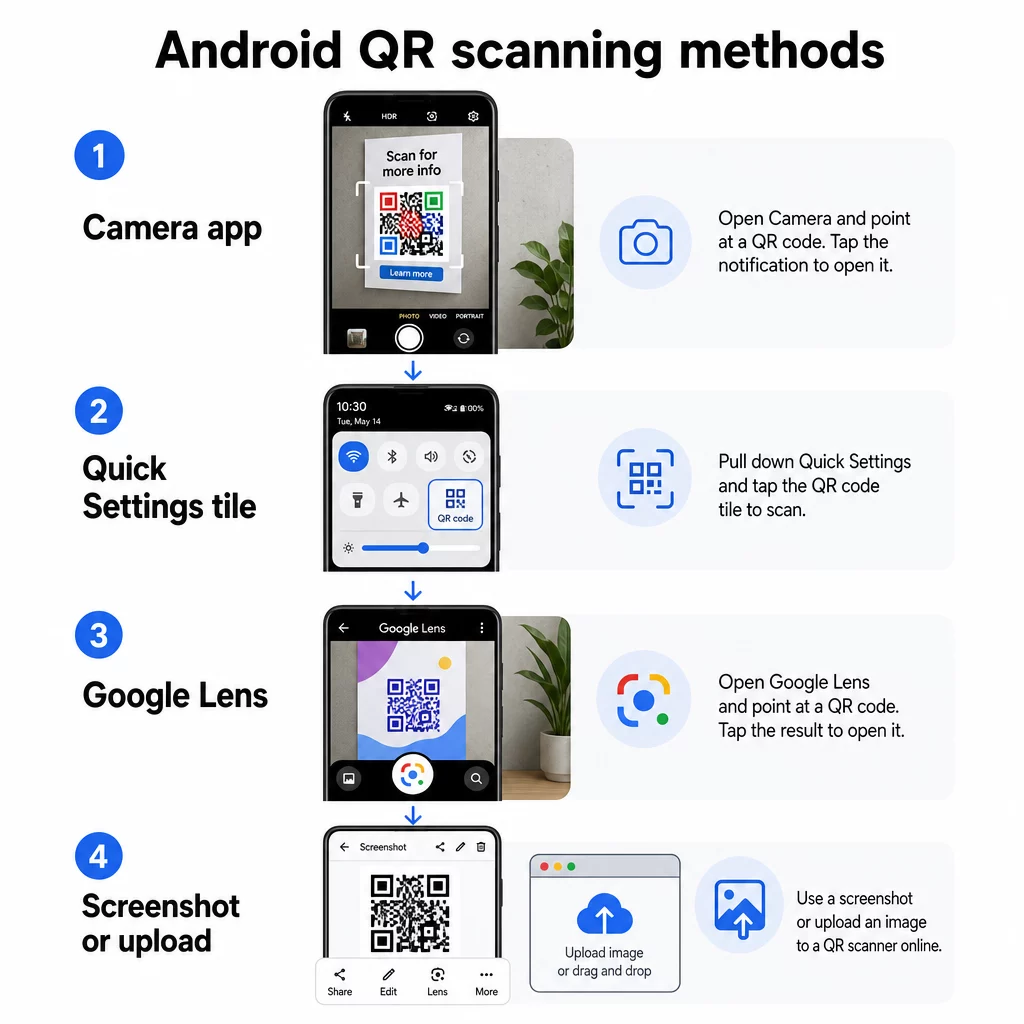
La forma más rápida de escanear un código QR en la mayoría de los teléfonos Android es con la aplicación de cámara predeterminada. Abre la aplicación Cámara, cambia a modo Foto, y apunta la cámara de forma constante al código QR durante un par de segundos. Aparecerá un banner de notificación o una ventana emergente; tócalo para abrir el contenido vinculado.
Si no ocurre nada, es posible que la función esté desactivada. Ve a la aplicación Cámara, a su Ajustes, busca un interruptor etiquetado como “Escanear códigos QR” o “Sugerencias de Google Lens” y actívalo. Una vez activado, la cámara detectará los códigos automáticamente sin pasos adicionales.
Consejo: Asegúrate de estar en modo Foto, no en modo Video. La detección de QR normalmente no se activa en modo video en la mayoría de los dispositivos Android.
Método 2: Usar el escáner QR de Ajustes rápidos
Muchos teléfonos Android incluyen un mosaico de escáner QR dedicado en el panel de Ajustes rápidos, una opción más rápida cuando no quieres abrir la aplicación de cámara manualmente.
- Desliza hacia abajo desde la parte superior de la pantalla con dos dedos para abrir la cuadrícula completa de Ajustes rápidos
- Busca un mosaico etiquetado como “Escanear código QR” o similar
- Tócalo, apunta tu cámara al código y el resultado aparecerá inmediatamente
Este mosaico no está disponible en todos los dispositivos Android. Si no lo ves, es posible que puedas agregarlo tocando el icono de edición (lápiz) en tu panel de Ajustes rápidos.
Método 3: Escanear con Google Lens
Google Lens está integrado en la mayoría de las cámaras Android y puede leer códigos QR de forma fiable. En muchos teléfonos, verás un icono de Lens dentro de la aplicación de cámara; tócalo y luego apunta la cámara al código.
Si Lens no es visible dentro de tu cámara, puedes acceder a él a través de la aplicación de Google o el Asistente de Google:
- Abre la aplicación de Google y toca el icono de la cámara en la barra de búsqueda
- O mantén pulsado el botón de Inicio para abrir el Asistente de Google, luego toca el icono de Lens
Google Lens es particularmente útil porque puede escanear múltiples códigos a la vez y funciona bien en condiciones de iluminación difíciles.
Cómo escanear un código QR que ya está en tu pantalla
A veces, el código QR que necesitas escanear está en tu propio teléfono – dentro de un correo electrónico, un PDF o una captura de pantalla. Apuntar tu cámara a la pantalla no funciona bien en este caso, así que aquí tienes dos enfoques fiables.
Usando Circle to Search (dispositivos Android seleccionados):
En teléfonos compatibles, mantén pulsado el botón de Inicio o de navegación para activar Circle to Search, luego dibuja un círculo alrededor del código QR en pantalla. El código se leerá directamente sin necesidad de hacer una captura de pantalla.
Usando una captura de pantalla y Google Lens:
- Haz una captura de pantalla del código QR
- Abre Google Fotos, busca la captura de pantalla y toca el icono de Lens
- Lens detectará el código QR en la imagen y mostrará el contenido vinculado
También puedes subir una captura de pantalla directamente al escáner de códigos QR gratuito de Pageloot desde cualquier navegador – no se requiere instalación de aplicación.
Instrucciones específicas del dispositivo
Los teléfonos Android varían según el fabricante. Aquí hay una referencia rápida para marcas comunes.
| Marca | Método principal | Notas |
|---|---|---|
| La Galaxia Samsung | Aplicación de cámara o mosaico de Ajustes rápidos | Habilitar “Escanear códigos QR” en Ajustes de la cámara; ver pasos detallados de Samsung |
| Google Pixel | Aplicación de cámara con Google Lens | Habilitar sugerencias de Lens en Ajustes de la cámara |
| OnePlus | Aplicación de cámara | Apuntar al código; redirige automáticamente |
| Huawei | Aplicación de cámara, pantalla de bloqueo o aplicación de Galería | La aplicación de Galería puede escanear una imagen de código QR guardada |
| Nokia | Aplicación de cámara o Asistente de Google Lens | Usar el botón de Inicio para iniciar Lens si la cámara no detecta |
| HTC | Aplicación de cámara | Comprueba la configuración si el escaneo de QR no se activa |
| LG | Aplicación o Asistente de Google Lens | Descarga Google Lens de Play Store si es necesario |
| Sony | Aplicación de cámara | Toca el botón azul de la “i”, enfoca el código y luego mantén pulsado “Detalles del producto” |
Para una visión más amplia del escaneo en otras plataformas de smartphones, consulta cómo escanear códigos QR en smartphones.
Solución de problemas: Cuando el escaneo no funciona
Si la cámara de tu Android no detecta un código QR, el problema suele ser uno de los siguientes.
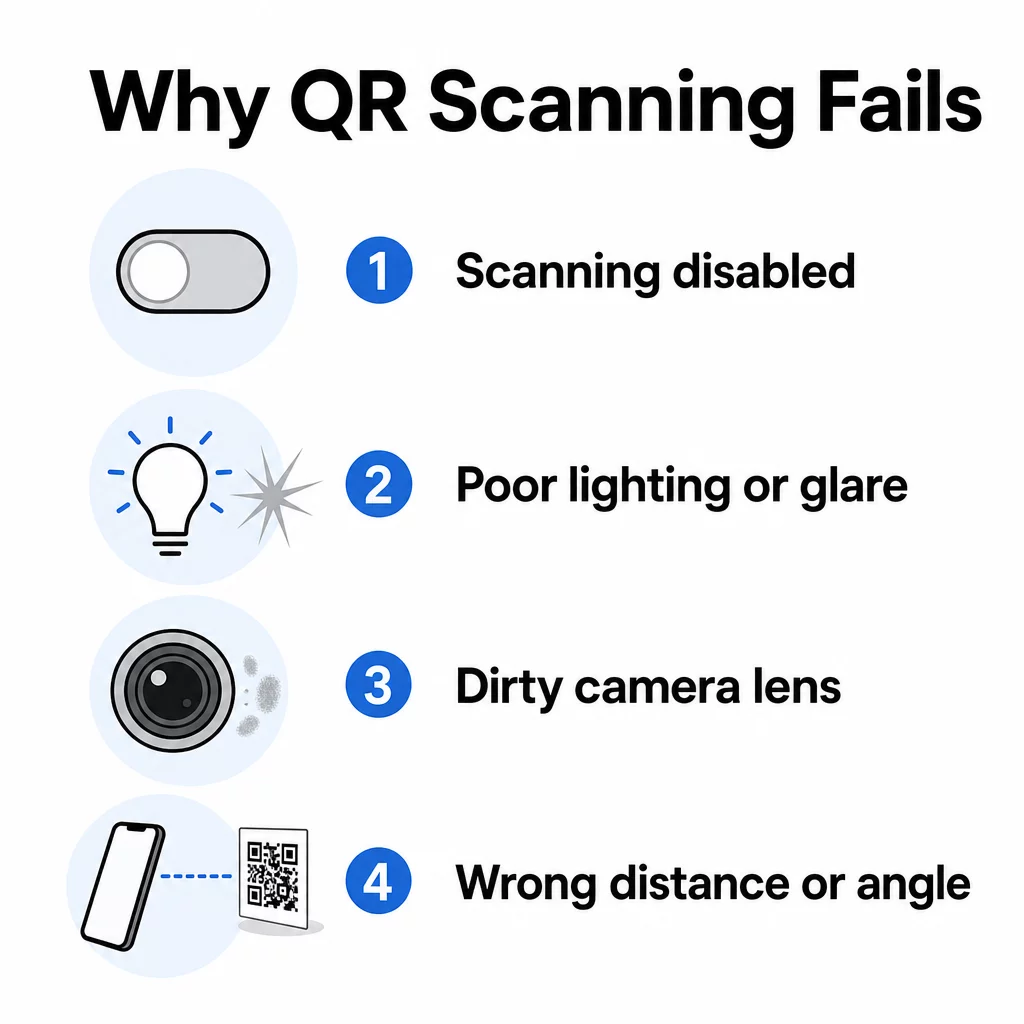
El escaneo de QR está desactivado. Ve a Ajustes de la cámara y activa la opción “Escanear códigos QR” o el interruptor de sugerencias de Lens. Esta es la solución más común.
Versión de Android antigua. El escaneo nativo de QR requiere aproximadamente Android 9 o superior. Si tu dispositivo ejecuta un sistema operativo más antiguo, la cámara integrada podría no ser compatible; prueba Google Lens o una aplicación de escáner de terceros de Play Store en su lugar.
Mala iluminación. Entornos oscuros o el reflejo directo en superficies brillantes pueden impedir que la cámara lea el código. Muévete a condiciones mejor iluminadas o aumenta el brillo de la pantalla si escaneas desde una pantalla.
Lente de la cámara sucia. Una lente manchada es algo fácil de pasar por alto. Límpiala con un paño suave antes de seguir solucionando problemas.
Distancia y ángulo. Sostén tu teléfono paralelo al código y céntralo en el encuadre. Una pauta común es una relación de 10:1: por cada 10 cm de distancia de escaneo, el código debe tener al menos 1 cm de ancho. Ajusta la distancia hasta que el enfoque automático se active.
Problema con el propio código. Si otros códigos se escanean correctamente, el problema puede ser el código: bajo contraste, una zona silenciosa dañada o una URL de destino rota. Aprende más sobre razones comunes por las que los códigos QR no se escanean y las mejores prácticas para la legibilidad de los códigos QR.
Problemas de conectividad. Si el escaneo tiene éxito pero no carga nada, verifica tu conexión a internet. Algunos códigos QR abren páginas web que requieren una conexión activa para mostrarse correctamente.
Si ninguno de estos pasos resuelve el problema, cambiar a un método alternativo – el mosaico de Ajustes rápidos, Google Lens o una aplicación de escáner QR dedicada – suele funcionar.
Escanea cualquier código QR desde tu navegador ¿Necesitas escanear un código desde una captura de pantalla o un archivo de imagen? El Escáner de código QR Pageloot funciona directamente en tu navegador: sube una imagen o usa tu cámara sin instalar nada.
Cuándo usar una aplicación de escáner dedicada
La cámara integrada es suficiente para el escaneo ocasional. Pero si escaneas códigos con frecuencia – para negocios, eventos o marketing – una aplicación dedicada añade funciones útiles de las que carece la cámara nativa: historial de escaneo, marcado de URL sospechosas y la capacidad de decodificar códigos de imágenes guardadas.
Para una comparación lado a lado de las opciones, consulta el Comparación de aplicaciones de escáner de códigos QR.
Preguntas frecuentes
La mayoría de los teléfonos Android con Android 9 o posterior pueden escanear códigos QR usando la aplicación de cámara predeterminada, aunque la función puede necesitar ser habilitada primero en la Configuración de la Cámara. Los dispositivos más antiguos pueden no ser compatibles con el escaneo nativo y pueden requerir Google Lens o una aplicación de terceros.
Usa Circle to Search si tu dispositivo lo admite – mantén pulsado el botón de Inicio, luego rodea el código. Alternativamente, haz una captura de pantalla, ábrela en Google Fotos y toca el icono de Lens. También puedes subir la captura de pantalla al escáner QR de Pageloot en tu navegador.
El escaneo puede tener éxito mientras el contenido vinculado no se carga. Verifique su conexión a internet, asegúrese de que su navegador permita las cookies y verifique que la URL de destino del código QR aún esté activa. Si la URL está rota o ha caducado, es posible que el propio código deba actualizarse.