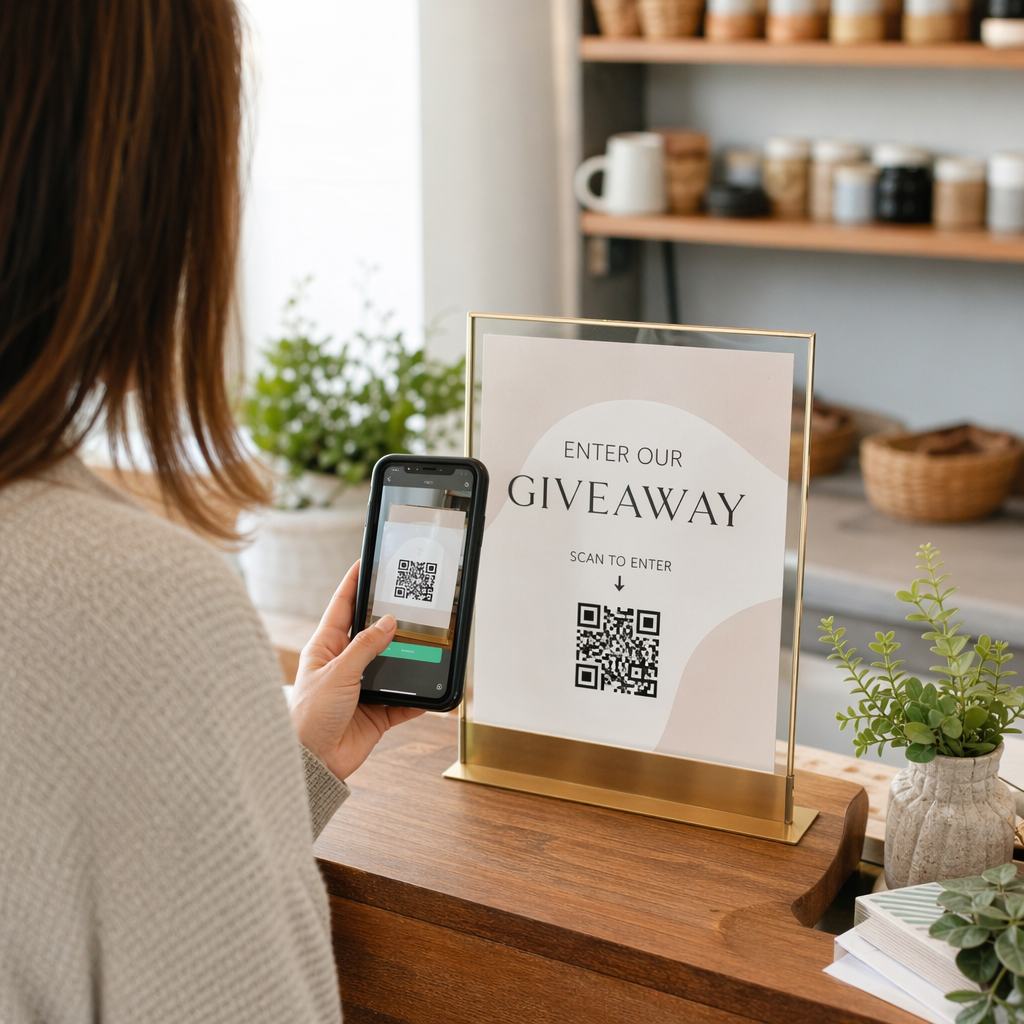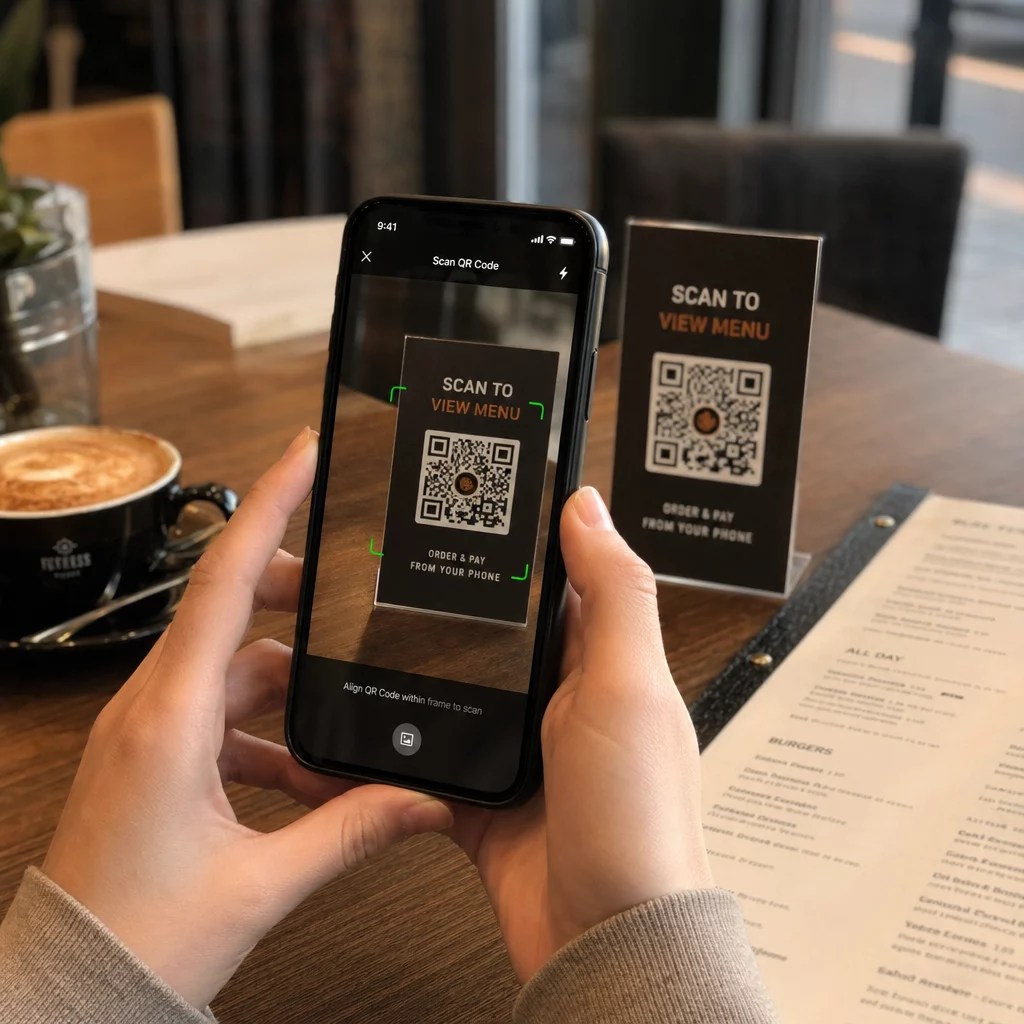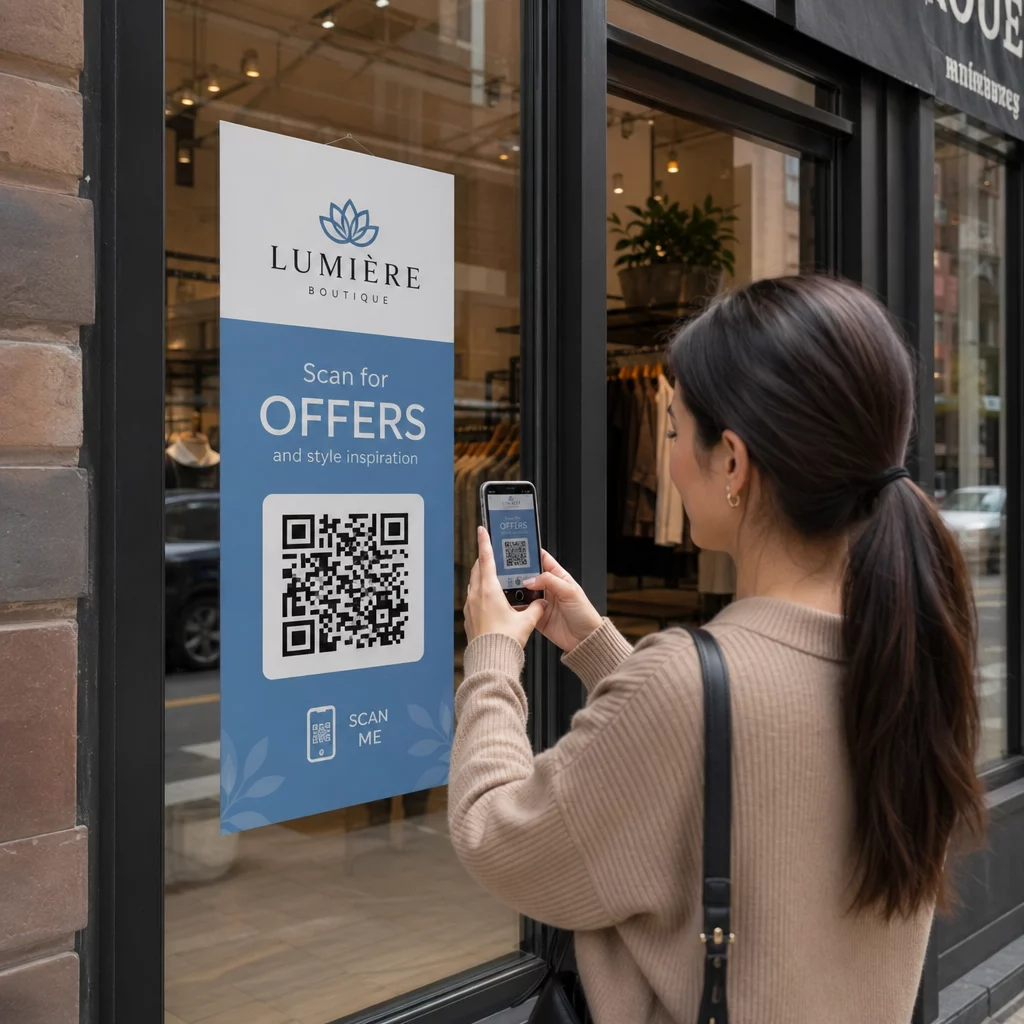
Not sure where the QR scanning feature actually lives on your Android phone? Android gives you several built-in ways to scan QR codes, and this guide walks you through each one – including what to do when a code is already on your screen or when scanning isn’t working.
Method 1: Scan with the Android Camera App
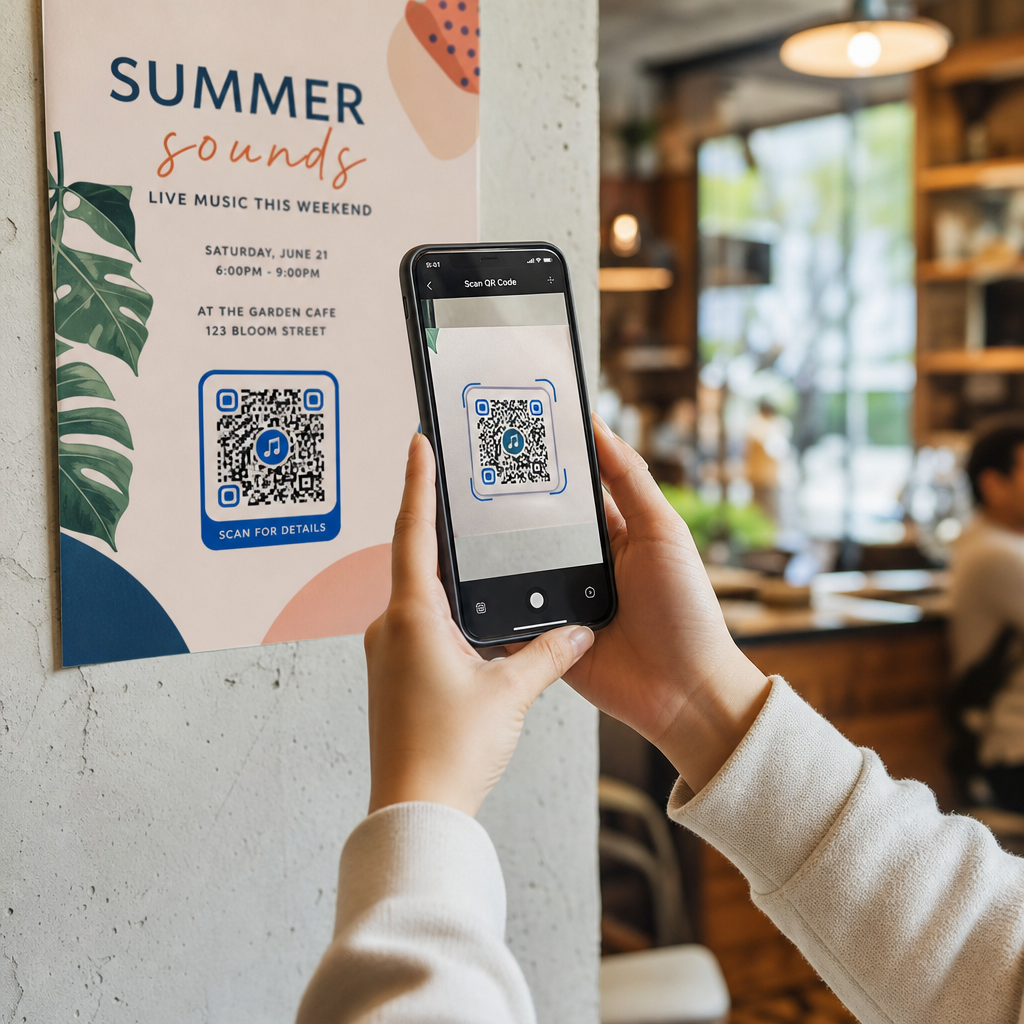
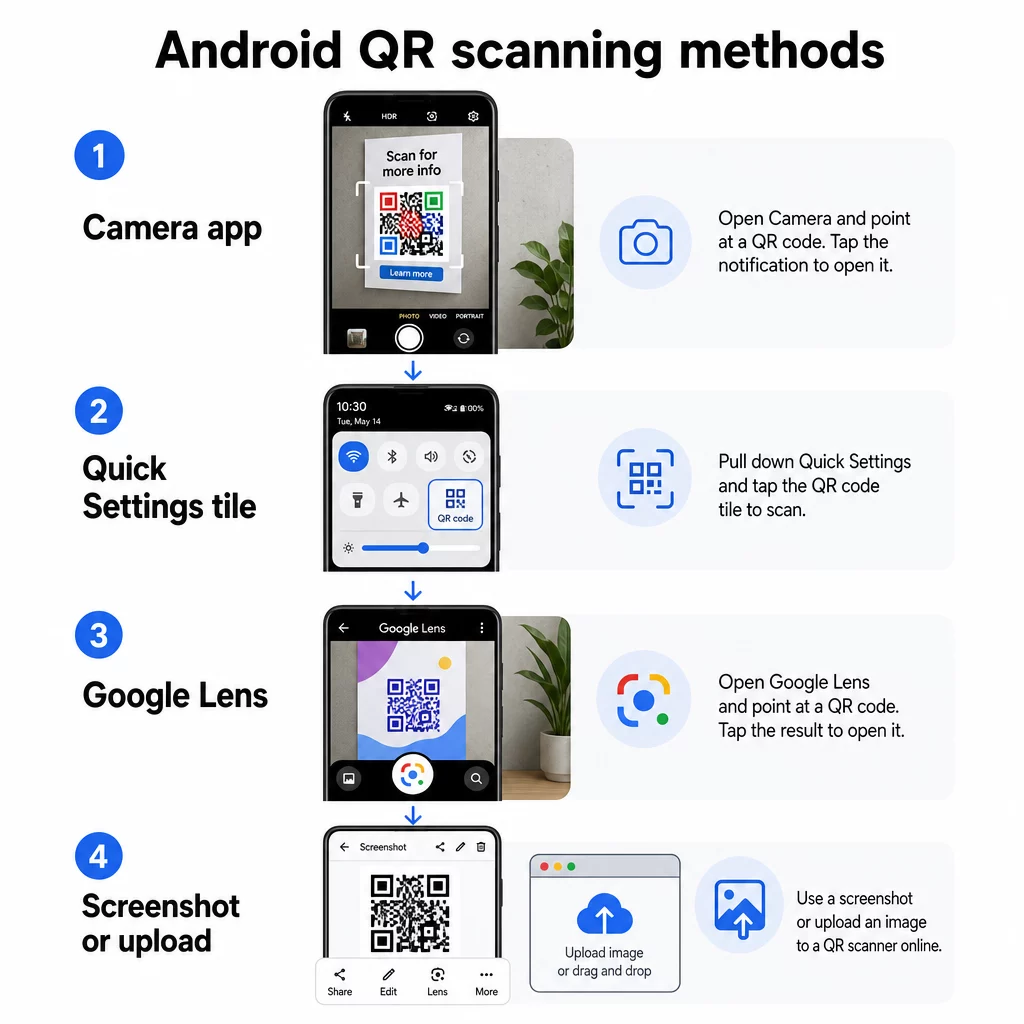
The fastest way to scan a QR code on most Android phones is with the default camera app. Open the Camera app, switch to modalità Foto, and point the camera steadily at the QR code for a couple of seconds. A notification banner or pop-up will appear – tap it to open the linked content.
If nothing happens, the feature may be turned off. Go into the Camera app’s Impostazioni, look for a toggle labeled “Scan QR codes” or “Google Lens suggestions,” and enable it. Once on, the camera will detect codes automatically without any extra steps.
Suggerimento: Make sure you’re in Photo mode, not Video mode. QR detection typically doesn’t activate in video mode on most Android devices.
Method 2: Use the Quick Settings QR Scanner
Many Android phones include a dedicated QR scanner tile in the Quick Settings panel – a faster option when you don’t want to open the camera app manually.
- Swipe down from the top of the screen with two fingers to open the full Quick Settings grid
- Look for a tile labeled “Scan QR code” or similar
- Tap it, point your camera at the code, and the result will appear immediately
This tile isn’t available on every Android device. If you don’t see it, you may be able to add it by tapping the edit (pencil) icon in your Quick Settings panel.
Method 3: Scan with Google Lens
Google Lens is built into most Android cameras and can read QR codes reliably. On many phones, you’ll see a Lens icon inside the camera app – tap it, then point the camera at the code.
If Lens isn’t visible inside your camera, you can access it through the Google app or Google Assistant:
- Open the Google app and tap the camera icon in the search bar
- Or press and hold the Home button to open Google Assistant, then tap the Lens icon
Google Lens is particularly useful because it can scan multiple codes at once and works well in tricky lighting conditions.
How to Scan a QR Code Already on Your Screen
Sometimes the QR code you need to scan is on your own phone – inside an email, a PDF, or a screenshot. Pointing your camera at the screen doesn’t work well in this case, so here are two reliable approaches.
Using Circle to Search (select Android devices):
On supported phones, long-press the Home or navigation button to activate Circle to Search, then draw a circle around the on-screen QR code. The code will be read directly without taking a screenshot.
Using a screenshot and Google Lens:
- Take a screenshot of the QR code
- Open Google Photos, find the screenshot, and tap the Lens icon
- Lens will detect the QR code in the image and display the linked content
You can also upload a screenshot directly to the free Pageloot QR code scanner from any browser – no app install required.
Device-Specific Instructions
Android phones vary by manufacturer. Here’s a quick reference for common brands.
| Marchio | Primary Method | Note |
|---|---|---|
| Samsung Galaxy | Camera app or Quick Settings tile | Enable “Scan QR codes” in Camera Settings; see detailed Samsung steps |
| Google Pixel | Camera app with Google Lens | Enable Lens suggestions in Camera Settings |
| OnePlus | App per le macchine fotografiche | Point at code; redirects automatically |
| Huawei | Camera app, lock screen, or Gallery app | Gallery app can scan a saved QR code image |
| Nokia | Camera app or Google Lens Assistant | Use Home button to launch Lens if camera doesn’t detect |
| HTC | App per le macchine fotografiche | Check Settings if QR scanning isn’t activating |
| LG | Google Lens app or Assistant | Download Google Lens from the Play Store if needed |
| Sony | App per le macchine fotografiche | Tap the blue “i” button, focus on code, then hold “Product details” |
For a broader overview of scanning on other smartphone platforms, see come scansionare codici QR su smartphone.
Troubleshooting: When Scanning Isn’t Working
If your Android camera isn’t picking up a QR code, the issue is usually one of the following.
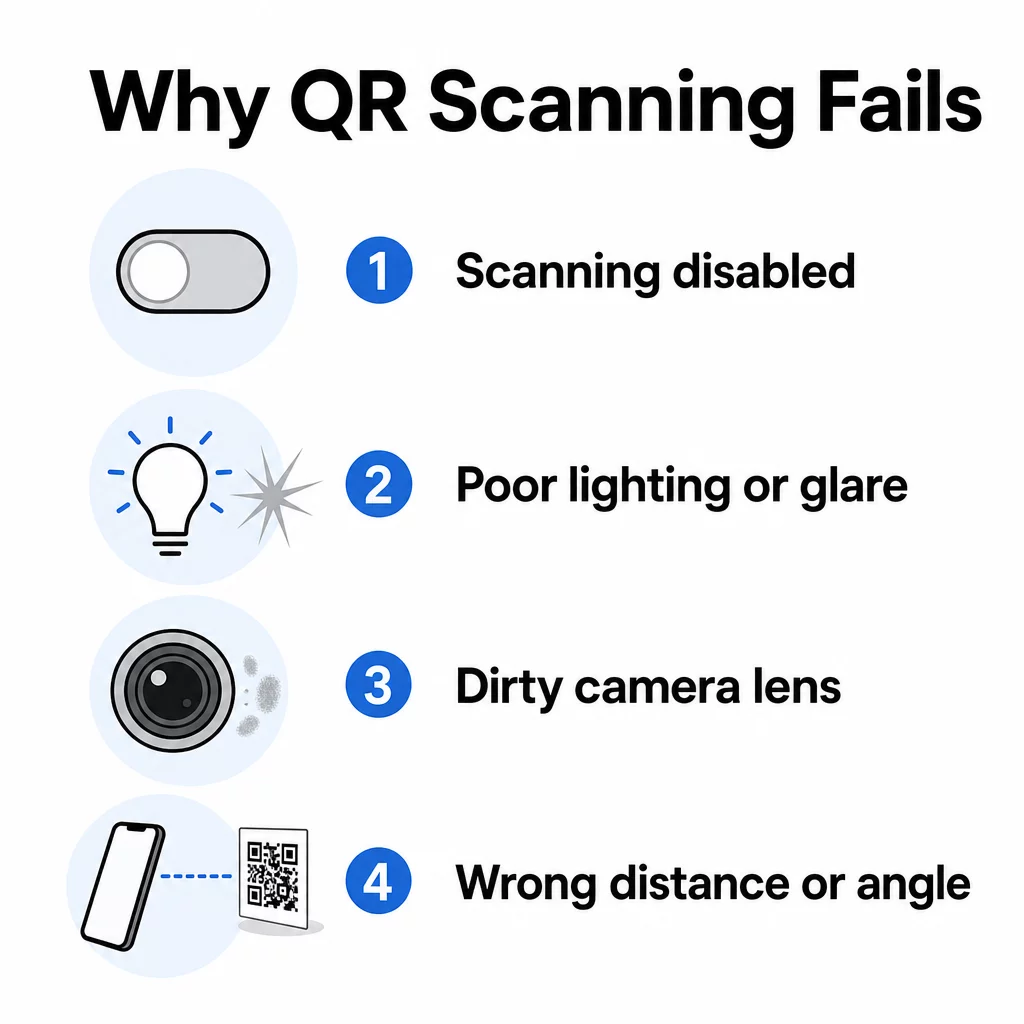
QR scanning is turned off. Go to Camera Settings and enable the “Scan QR codes” or Lens suggestions toggle. This is the most common fix.
Older Android version. Native QR scanning requires roughly Android 9 or newer. If your device is running an older OS, the built-in camera may not support it – try Google Lens or a third-party scanner app from the Play Store instead.
Poor lighting. Dark environments or direct glare on glossy surfaces can stop the camera from reading the code. Move to better-lit conditions or increase screen brightness if scanning from a display.
Dirty camera lens. A smudged lens is an easy thing to overlook. Wipe it with a soft cloth before troubleshooting further.
Distance and angle. Hold your phone parallel to the code and center it in frame. A common guideline is a 10:1 ratio – for every 10 cm of scanning distance, the code should be at least 1 cm wide. Adjust distance until autofocus engages.
Problem with the code itself. If other codes scan fine, the issue may be the code – low contrast, a damaged quiet zone, or a broken destination URL. Learn more about common reasons QR codes fail to scan e le migliori pratiche per la leggibilità dei codici QR.
Connectivity issues. If the scan succeeds but nothing loads, check your internet connection. Some QR codes open web pages that require a live connection to display correctly.
If none of these steps resolve the problem, switching to an alternative method – Quick Settings tile, Google Lens, or a dedicated QR scanner app – usually does the trick.
Scan Any QR Code from Your Browser Need to scan a code from a screenshot or image file? The Pageloot QR Code Scanner works directly in your browser – upload an image or use your camera without installing anything.
When to Use a Dedicated Scanner App
The built-in camera is enough for casual scanning. But if you’re scanning codes frequently – for business, events, or marketing – a dedicated app adds useful features the native camera lacks: scan history, suspicious URL flagging, and the ability to decode codes from saved images.
For a side-by-side comparison of options, see the QR code scanner apps comparison.
Domande Frequenti
Most Android phones running Android 9 or newer can scan QR codes using the default camera app, though the feature may need to be enabled in Camera Settings first. Older devices may not support native scanning and may require Google Lens or a third-party app.
Use Circle to Search if your device supports it – long-press the Home button, then circle the code. Alternatively, take a screenshot, open it in Google Photos, and tap the Lens icon. You can also upload the screenshot to the Pageloot QR scanner in your browser.
The scan may be succeeding while the linked content fails to load. Check your internet connection, make sure your browser allows cookies, and verify that the QR code’s destination URL is still active. If the URL is broken or expired, the code itself may need to be updated.