Need to generate clean vector QR codes without leaving your design canvas? Manually building patterns or importing blurry raster images leads to unreadable print materials and wasted production runs. This step-by-step guide explains how to generate, customize, and export crisp, scannable QR codes natively in Inkscape.
Locating the QR Code Extension in Inkscape
Inkscape includes a native extension that renders QR codes directly as vector paths. Unlike raster images that pixelate when enlarged, vector objects scale cleanly from a business card to an outdoor banner without sacrificing edge definition or scan reliability.
To open the tool, launch Inkscape with an open document and navigate to:
Paplašinājumi > Atveidot > Svītrkods > QR kods
In certain versions, the tool is labeled under Paplašinājumi > Atveidot > QR koda ģenerators. If the barcode menu does not appear, ensure your Inkscape installation is updated to the latest stable release.
Configuring Generation Settings for Reliable Scans
When the QR Code dialog opens, you need to define several technical settings before placing the code onto your canvas. Setting these parameters properly ensures mobile devices can decode your content quickly.
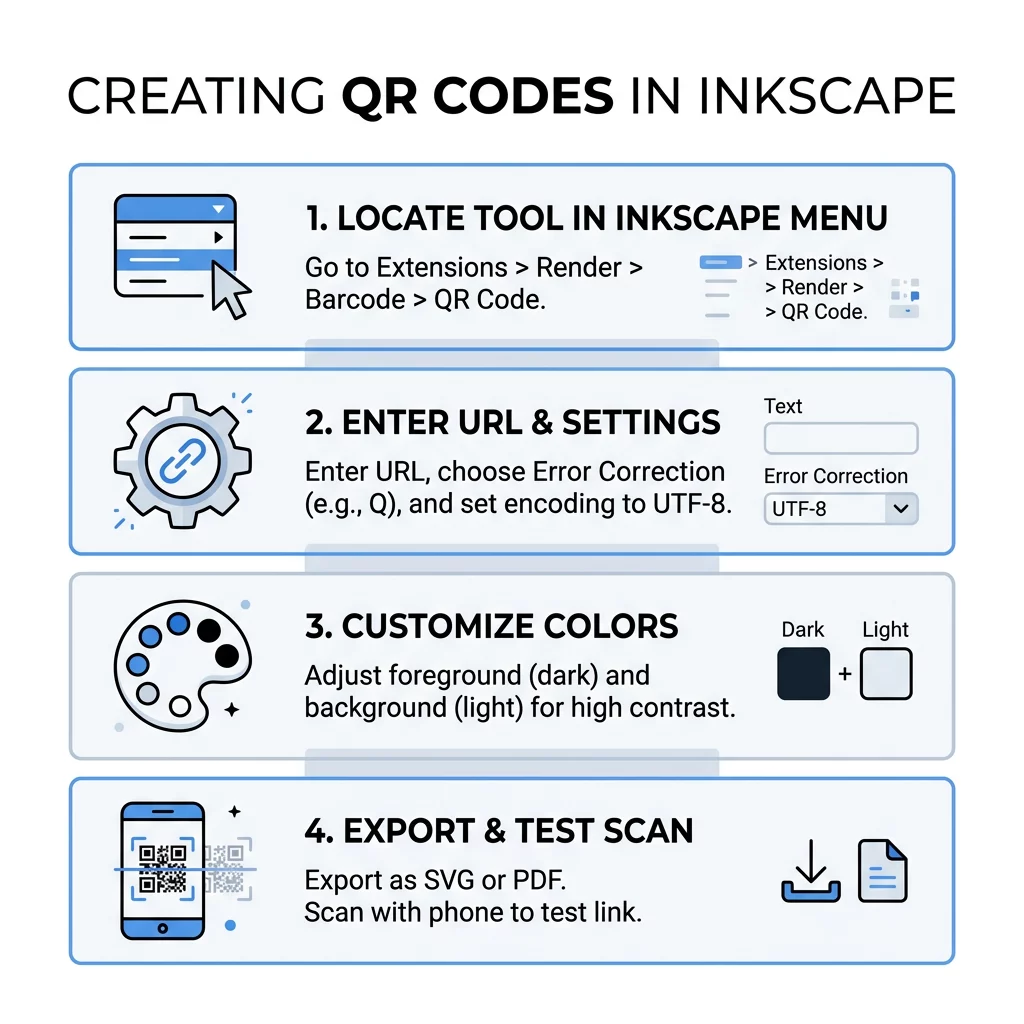
- Teksts: Enter the exact destination URL, plain text, or contact information. When encoding web links, always type the complete protocol (`https://`) so camera apps instantly recognize the link. Inkscape also supports multiline text strings if you are formatting vCards or event details.
- Size, in unit squares: Select Auto to let Inkscape determine the appropriate grid dimensions based on your data volume, or define a specific grid size manually.
- Character Encoding: Choose UTF-8 for broad international character compatibility. Options like Latin 1, CP 1250, un CP 1252 remain available for legacy Western text systems.
- Kļūdu korekcijas līmenis: Select between levels L, M, Q, un H. Level L tolerates up to 7% damage, Level M handles 15%, Level Q withstands 25%, and Level H recovers up to 30% obstructed data. Choose Level M for standard text or URL links. If you plan to embed a logo or icon in the center, switch to Level Q or Level H.
- Square Size: Adjust this value to alter the initial scale of each individual module on your canvas.
Once configured, click Lietot to generate the QR code object directly on your canvas. To understand how encoding parameters affect barcode structure, review our guide on kā izveidot QR kodu.
Need Advanced Tracking and Dynamic Links? If you need to edit your destination after printing or want to track scans across marketing campaigns, use the Pageloot QR kodu ģenerators to create fully customizable dynamic codes in seconds.
Customizing Colors and Branding in Inkscape
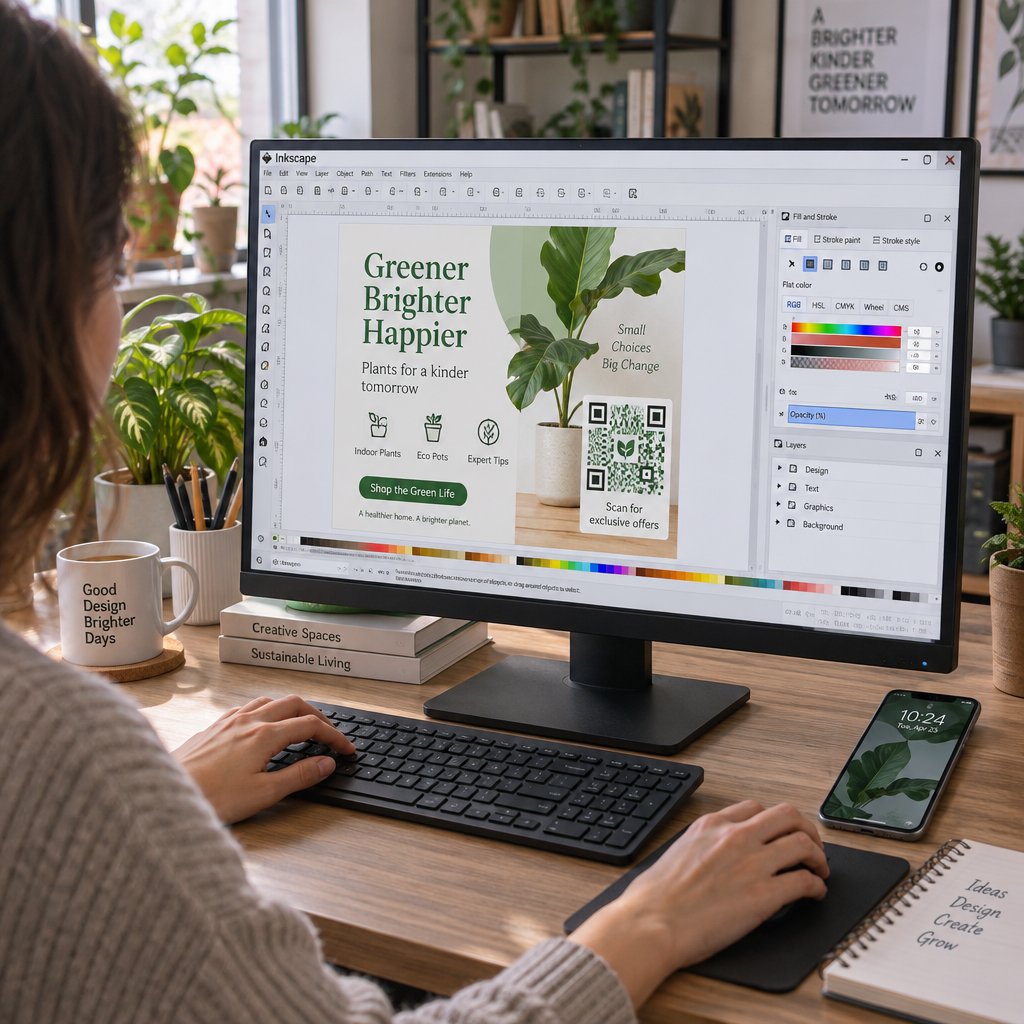
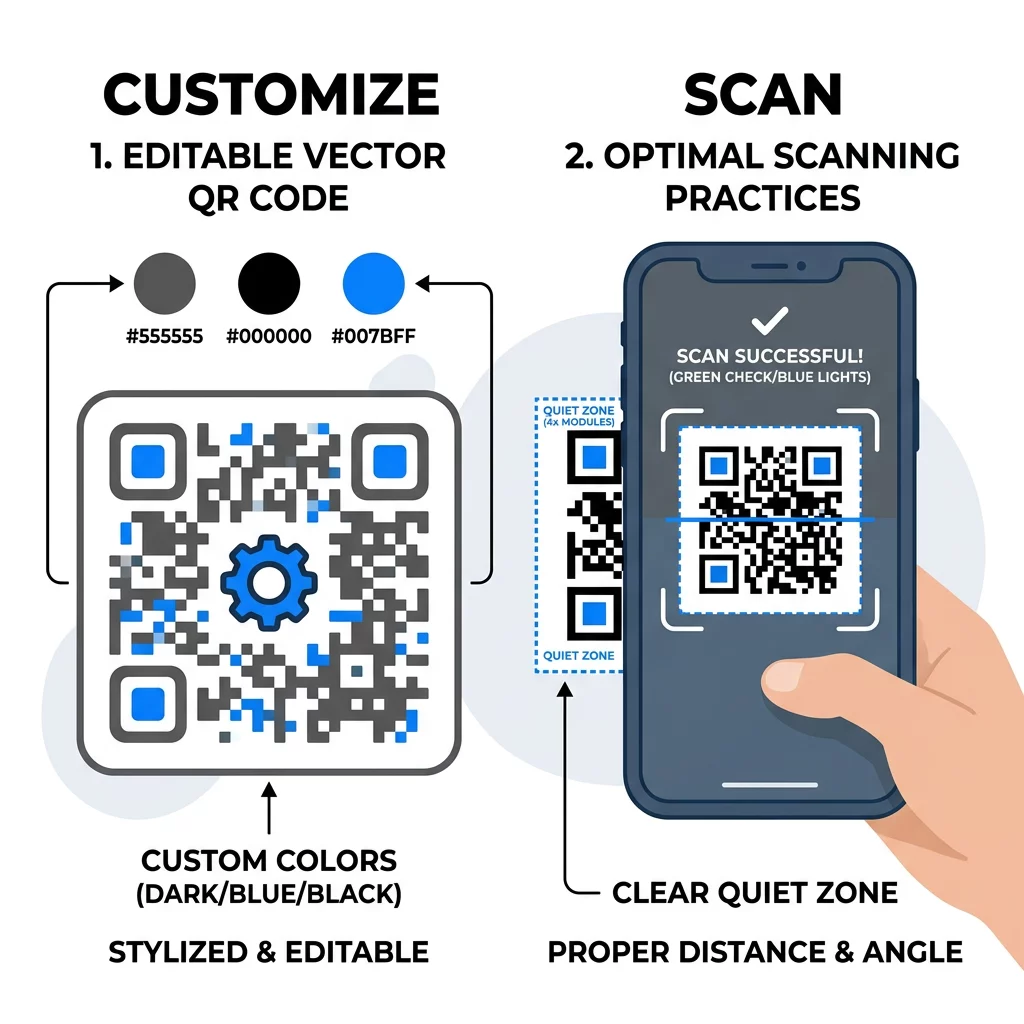
Inkscape outputs the QR code as two grouped vector objects: the dark foreground modules and the light solid background. You can style these elements to align with brand palettes while preserving scanner recognition.
To alter the appearance:
- Select the QR code on your canvas using the Select and Transform objects tool (S).
- Ungroup the paths by choosing Objekts > Atgrupēt or pressing Ctrl+Shift+G.
- Click the foreground modules to select them, then pick a new swatch from the color palette along the bottom of the window.
- Atveriet Aizpildījums un kontūra panel (Shift+Ctrl+F) to enter exact HEX or CMYK color values for your brand.
- Select the background object separately if you wish to adjust the background fill.
When modifying colors, adhere to established QR kodu krāsu kontrasta labāko praksi. Camera sensors detect barcodes by evaluating the brightness difference between dark modules and light backgrounds. Aim for a contrast ratio of at least 4.5:1 for compact designs, or 3:1 for large display prints. Never invert your colors to place light modules on a dark background, as many default camera decoders fail to read inverted matrices.
If you want to add a central icon or emblem, use an error-correction setting of Q or H. Position your graphic directly in the center, ensuring it covers no more than 20% to 30% of the symbol surface. For complex branding with custom frames and automated error handling, explore a dedicated QR koda ģenerators ar logotipu.
Preserving Scannability and Print Dimensions
A visually appealing vector graphic is useless if smartphones cannot decode it under real-world conditions. Follow these production rules to ensure your Inkscape files scan effortlessly once printed:
- Maintain a minimum physical dimension of 2 × 2 cm (0.8 × 0.8 inches) for close-range printed items such as business cards and flyers.
- Follow the 10:1 distance-to-size ratio, making the QR code at least 1 cm wide for every 10 cm of expected viewing distance.
- Preserve an unobstructed quiet zone measuring at least four module widths around all four outer edges.
- Hold the Ctrl key while dragging bounding handles to maintain an exact 1:1 square aspect ratio without distorting modules into rectangles.
- Shorten encoded URLs before inputting them to reduce module density and create a cleaner, faster-scanning grid.
Detailed rules for handling size ratios and scaling geometry appear in our guidelines on how to resize a QR code. For extended testing procedures, consult our technical labāko praksi QR kodu lasāmībā.
Exporting Your QR Code for Print and Digital Media
Once you complete your adjustments in Inkscape, save your master asset properly to prevent accidental quality loss:
- Vector master file: Izmantojiet File > Save to store your layout as an Inkscape SVG. If sending artwork to a commercial print vendor, use File > Save a Copy and select PDF vai EPS to keep all paths sharp at any reproduction scale.
- Bitmap export: Open File > Export PNG Image. Select your QR code, set the export area to Selection, and set the resolution to at least 300 DPI for physical printing. If you need a transparent background for digital layouts, hide or delete the background rectangle before exporting a QR code in PNG format.
Always print a physical sample at final scale and test it using multiple smartphone cameras under varied lighting before launching mass production.
Choosing Between Static and Dynamic Workflows
Codes generated within Inkscape are strictly static. The encoded destination remains embedded directly within the physical module pattern. If your landing page changes, or if you discover a typo after printing thousands of brochures, the printed code cannot be edited and must be reprinted.
Dynamic workflows solve this limitation by embedding a short redirect link instead of a fixed destination. This architecture allows you to update destination URLs at any time, run A/B testing, and collect real-time scan analytics covering user devices and geographical locations. For permanent campaigns or recurring marketing collateral, pair your Inkscape vector illustrations with dynamic codes to ensure long-term flexibility and measurable campaign insights.
Biežāk uzdotie jautājumi
The most common cause is inadequate contrast between the foreground modules and the background. Scanners require dark modules over a light background with at least a 4.5:1 contrast ratio. If your chosen brand colors are too light or inverted, camera sensors cannot separate the data grid from the background.
No. Inkscape generates static QR codes that hardcode the text or URL directly into the geometric pattern. To change destinations without reprinting materials, you must use a dynamic QR code generator that routes scans through an editable redirect link.
Select the code, hold down the Ctrl key on your keyboard, and click and drag one of the corner transformation handles. Holding Ctrl constrains the proportions to an exact square, preventing rectangular distortion that breaks camera decoding algorithms.