活动二维码生成器
Paste the link to your event page, registration form or schedule and get an event QR code that opens it on any phone. Add your logo and colors, then download it as PNG, SVG or PDF. Free, no signup needed to download.
 框架颜色
框架颜色 背景颜色
背景颜色 颜色上方的文字
 颜色下方的文字
 车身颜色
车身颜色 边球颜色
边球颜色为活动创建 QR 码 实例
点击图片放大
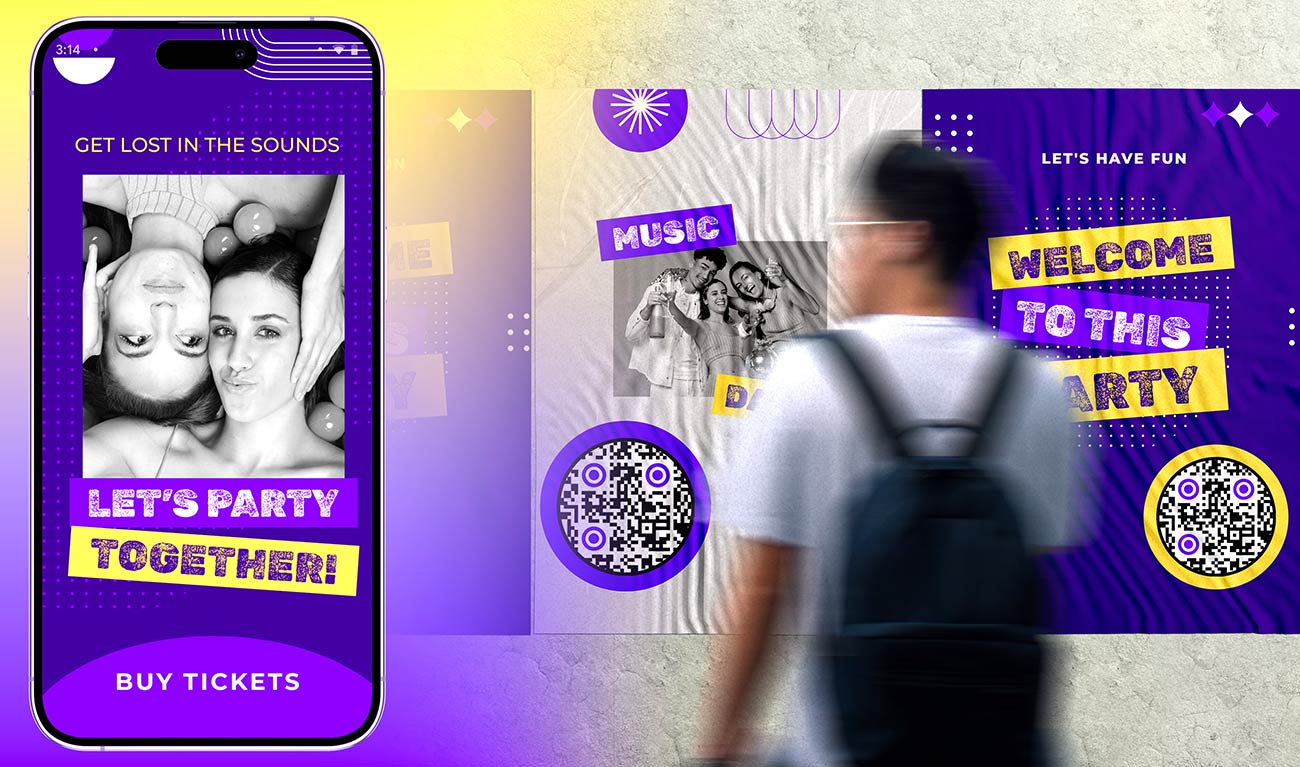

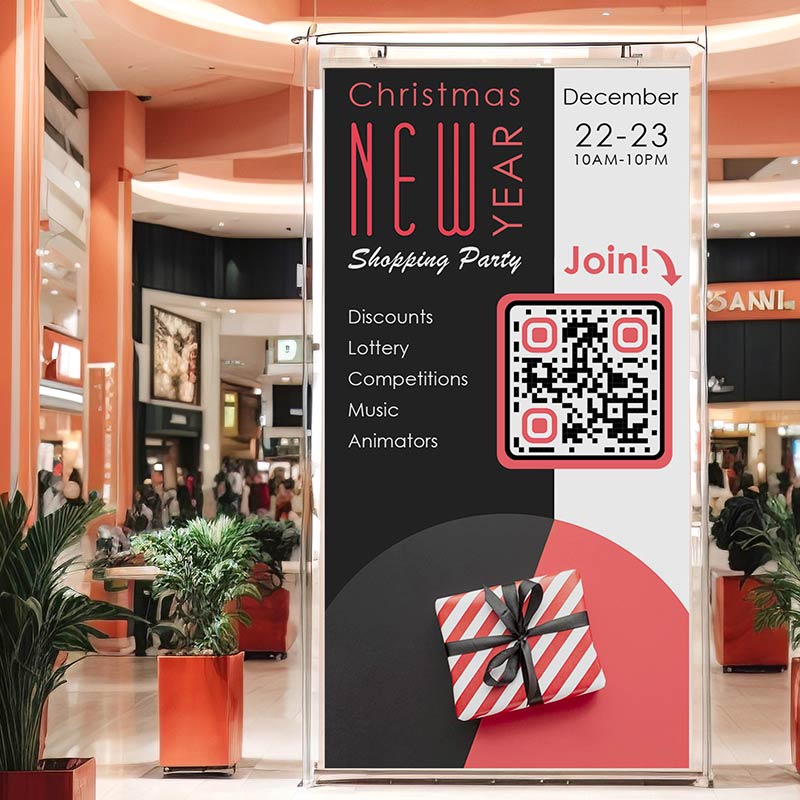
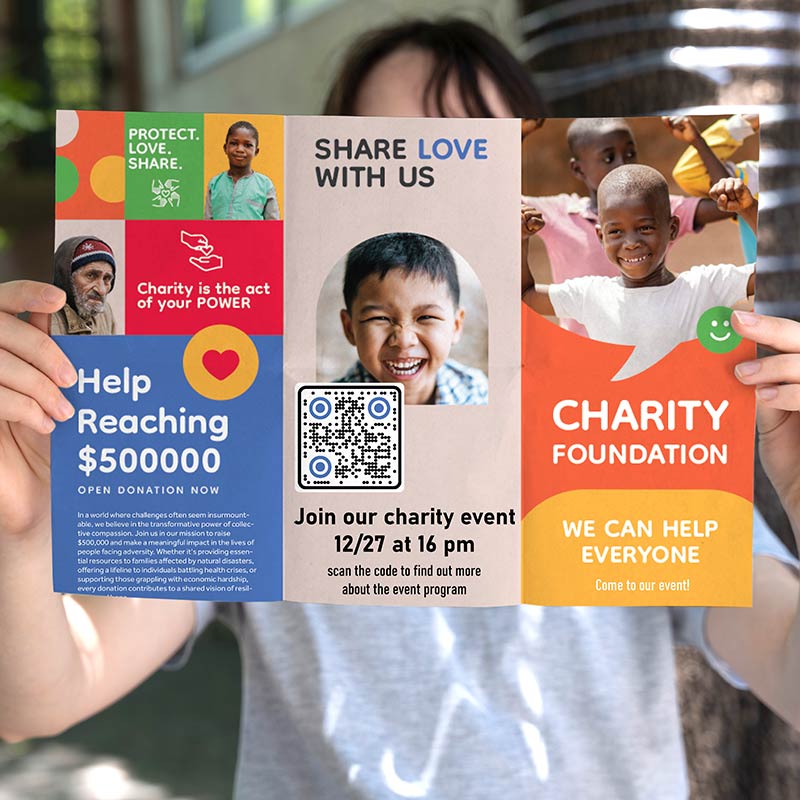
什么是活动二维码?
An event QR code is a QR code that opens a web page about your event. Guests point their phone camera at it and the page opens in their browser. Nobody has to type a long web address.
The page can be anything that has a link: an Eventbrite page, a Google Form, the registration page on your own website, a schedule, a feedback form or a photo album. A QR code for events works on posters, badges, flyers, tickets and slides.
To create a QR code for your event you need only one thing: a link. The code does not hold your event details. It holds that link. That is why a dynamic event QR code is useful: you print it once and change the page behind it before, during and after the event.
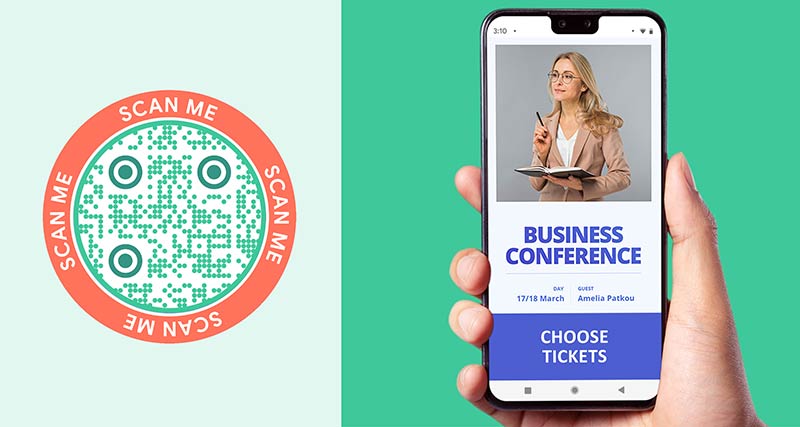
How does an event QR code work from registration to feedback?

Link the code to the place where people sign up: your Eventbrite event page, a Google Form or the registration page on your website. Put the code on invitations, flyers, posters and social posts. An event registration QR code saves guests from typing a long link on their phone.

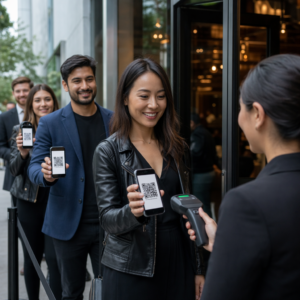
For a small event, make a short check-in form with name and email and show the code at the entrance. Guests scan it and check themselves in. For a ticketed event, most ticketing tools, such as Eventbrite, put a unique code on every ticket and have their own check-in app. Use those for entry. A code made here is not a ticket.
Show the code on screens, banners and table cards. Point it at the schedule, a map, the speaker list or the Wi-Fi details. A schedule saved as a PDF opens well on phones: use the PDF QR 码生成器, or paste the link to a shared document.
After the event, point the same code, or a new one, at a feedback form or a shared photo album. Ask for feedback while the event is fresh, so guests answer from memory. A thank-you message with the photo album link keeps the event in their minds.
如何为活动创建 QR 代码?

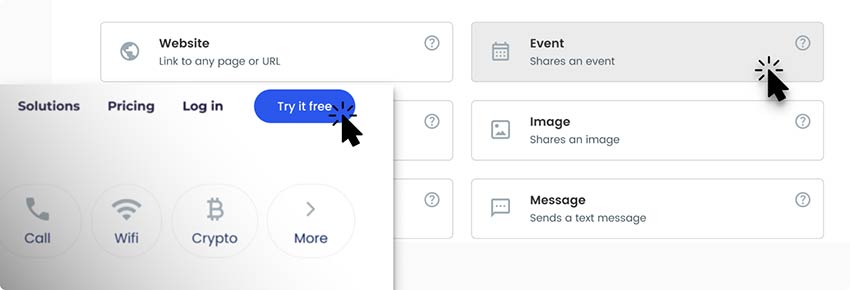

在 QR 代码创建页面上,添加活动页面的网络链接。您还可以添加页面标题和活动一般信息的描述。
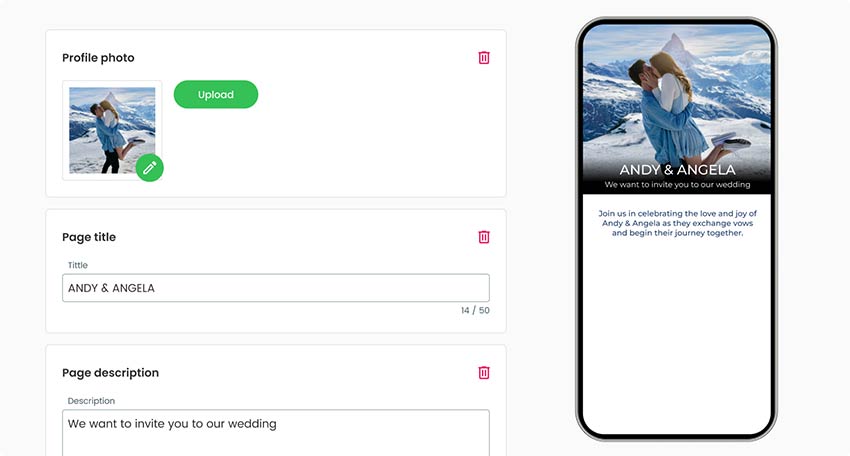

完成一般信息后,您就可以开始设计您的活动登陆页面,选择主题颜色、背景和个人资料图片。
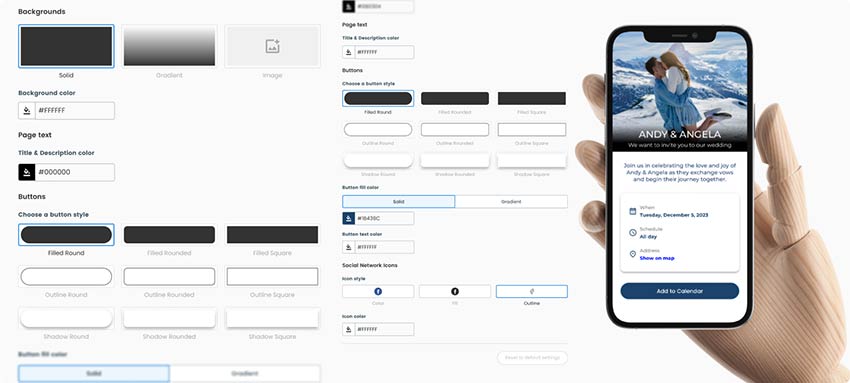

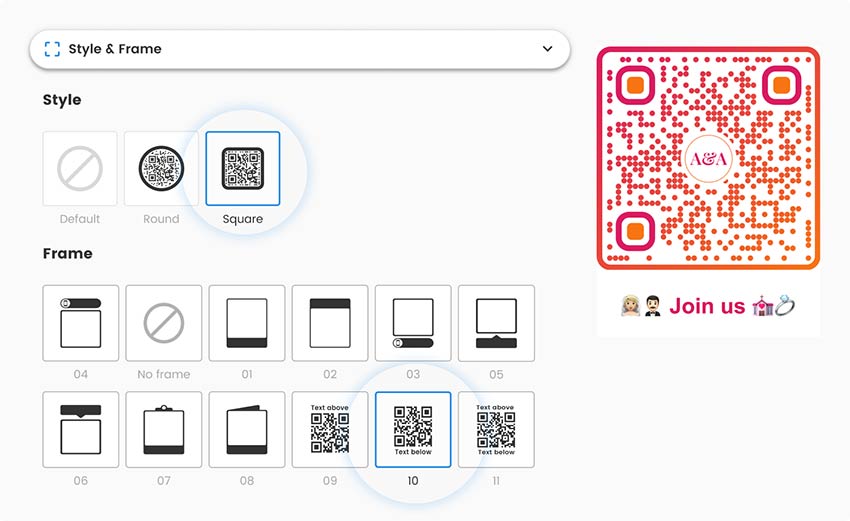
在完成之前,请确保您还定制了二维码。定制的颜色、形状或图像会让用户和受众注意到它,并将其与您的品牌联系起来。

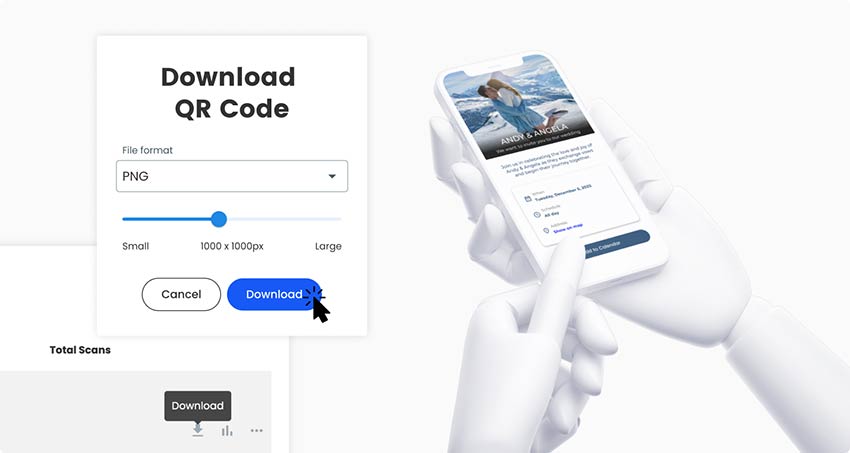
保存并下载准备好的 QR 代码,然后检查它是否能顺利扫描并传输到登陆页面。

为什么活动需要二维码?
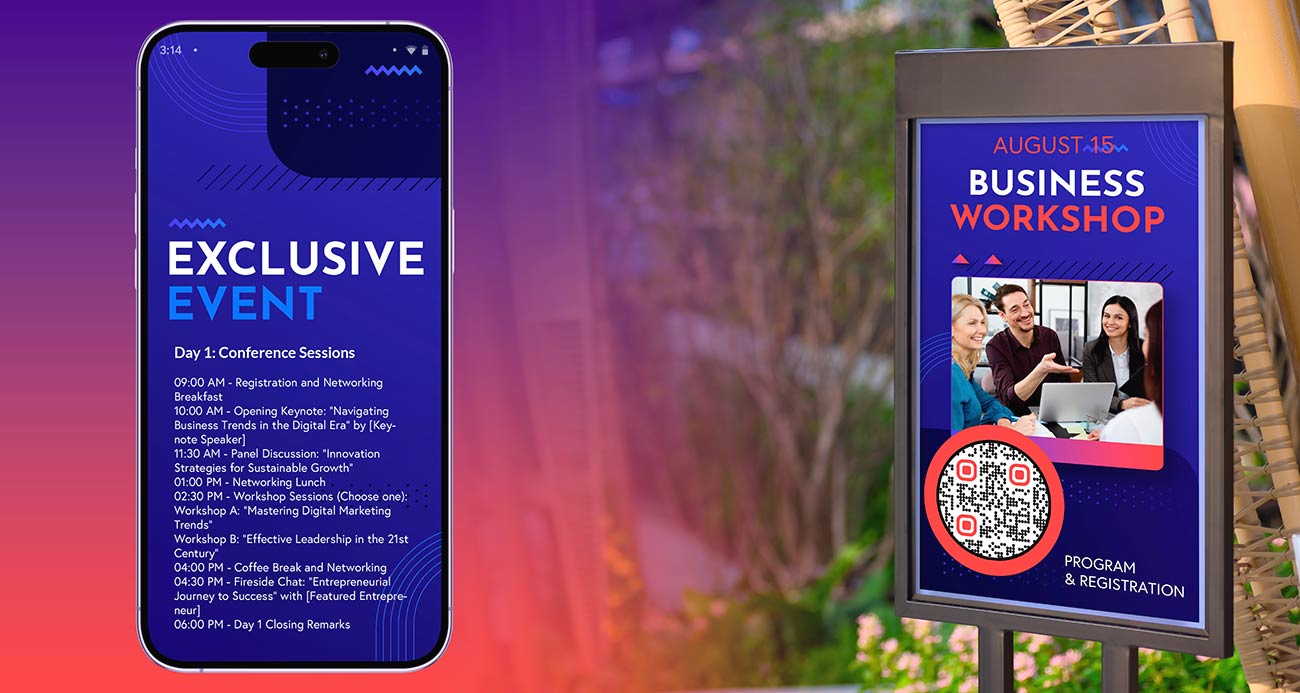
A long registration link on a poster is hard to type, so most people will not do it. A QR code for events turns the poster, flyer or invitation into a one-scan sign-up. The page behind the code can show the date, the price, a map and a Register button.
The same code is useful at the venue. Guests scan it for the schedule, the speaker list or the Wi-Fi details, and you hand out fewer printed programs. After the event, a feedback form or a photo album keeps the code useful.
You do not always need to pay. A static code is enough when the link will not change. The next section explains when a dynamic code is worth it.
One event QR code that changes before, during and after the event
With a dynamic code the printed code stays the same and you change the page it opens. One banner at the entrance can do three jobs.
Before the event: the code opens the registration or ticket page. On the day: you switch it to the schedule, a map or the live program. After the event: you switch it to a feedback form, a photo album or the save-the-date page for next year.
This is QR code event management in its simplest form: one printed code with a job at every stage. One rule: if a flyer says “Scan to register”, keep that code on registration. Use a separate code for signs that should follow the stage of the event, such as the entrance banner. Otherwise someone who picks up an old flyer lands on a feedback form.
Static or dynamic? A static code is enough for a one-off event whose link will not change. Choose a dynamic code if you reuse signs for a yearly event, want to change the page between stages, or want to see which poster gets scans (when, where and on which device, with the detail depending on your plan). Tick 稍后编辑 要么 跟踪扫描 in the generator above to start a 14-day free trial.
A dynamic code works only while your plan is active, apart from the lifetime deal. Subscribe before you print. See the 定价页面.
常见问题

For QR code event registration, get a registration link first. This can be your Eventbrite event page, a Google Form (Send, then the link tab) or a registration page on your website. Paste the link into the generator at the top of this page, add your logo, colors and a frame such as “Scan to register”, and download the code. Test it on two phones before you print.
The code holds a link, so it needs a page that adds the event to a calendar. Use the add-to-calendar link that your ticket page or calendar app offers, or link to an .ics calendar file that you host. Paste that link into the free tool at the top of this page. Some phones open the file in the calendar app and others download it, so test on an iPhone and an Android phone.
Making and downloading a static event QR code is free, as PNG, SVG or PDF. If you want to edit the link after printing or see scan stats, you need a dynamic code. Start with the 14-day free trial. After that, the Starter plan is EUR 7 a month, billed yearly, and the code NEW30 gives 30% off your first purchase. A one-time lifetime deal also exists. See the 定价页面.
The generator on this page makes a QR code for any event link: registration or ticket pages, forms, schedules, maps, feedback surveys and photo albums. For a schedule saved as a file, use the PDF QR 码生成器. A QR code can also hold a contact card or Wi-Fi details, see the 电子名片 和 无线网络 generators.
Not always. With a dynamic code you can point the same printed code at next year’s page, so you can reuse banners, badges and signs. With a static code you need a new code whenever the link changes. If your event page keeps the same address each year and you only update its content, a static code keeps working.
Use this page as an Eventbrite QR code generator. Open your event page on Eventbrite, make sure the event is live, and copy its address from the browser. Paste it into the generator and download the code. Guests who scan it land on your ticket page. Eventbrite gives each ticket holder their own ticket code for entry. The code you make here is for promotion, not for entry.
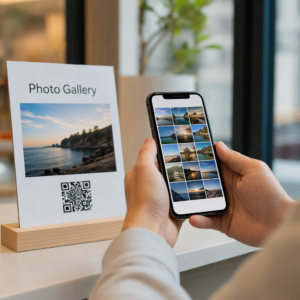
Yes. Create a shared album in Google Photos, Google Drive or Dropbox, copy the sharing link and make a QR code from it. Check the album’s sharing settings first: anyone with the link must be able to open it, and to add photos if you want guests to upload. Put the code on table cards or the exit sign.
A code from this page opens a web page. It does not check a person in by itself. For a small event, show it at the door and let guests fill in a check-in form with their name. For a ticketed event, use your ticketing tool’s own tickets and check-in app. Pageloot scan stats count scans of your code, not attendees.

与我们联系,我们将竭诚为您服务!
4.86 / 5 星评级



在哪里使用活动二维码? 实例
点击图片放大
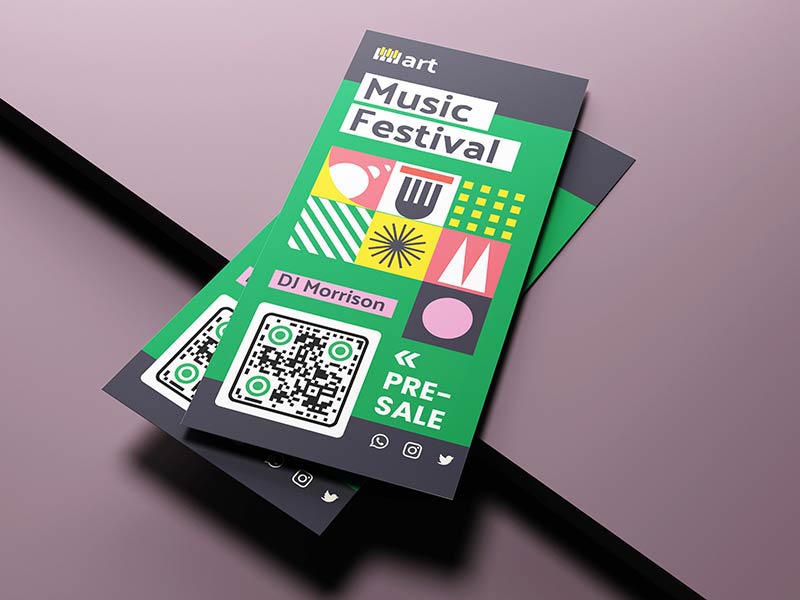
Print a code on the badge that opens the schedule and the Wi-Fi details. Use a different code at your booth for a brochure or a meeting request. With one code per booth or session, scan stats show which ones attract people.

A festival QR code on street posters and flyers can open the ticket page. On site, a code can open the line-up and the site map. Posters are read from about 1 m away, so print the code at least 10 cm wide. Put the code where crowds stop, such as the entrance queue and the bar.
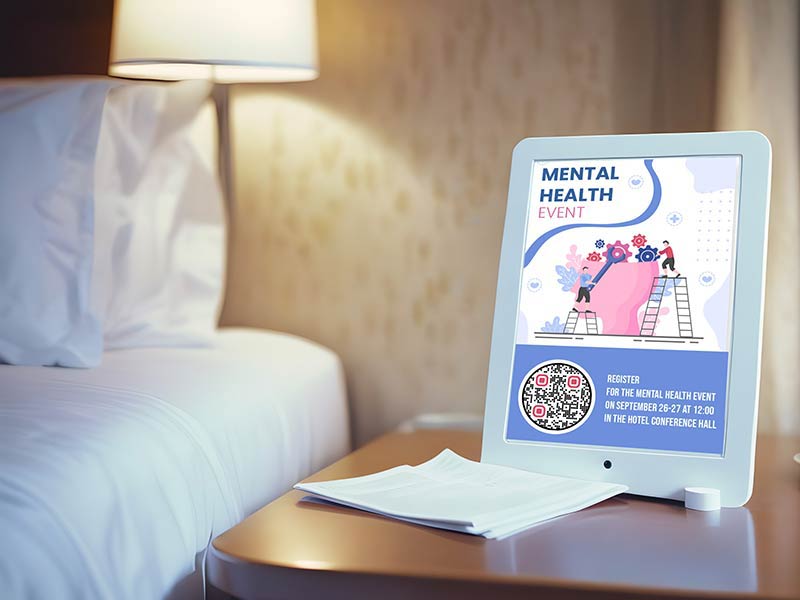
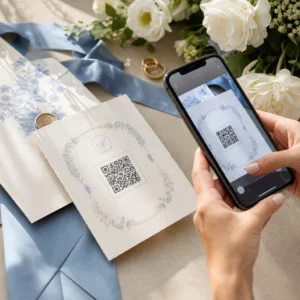
Add a code to the invitation that opens the RSVP form. On the day, put a code on each table card that opens a shared photo album. A static code is enough here, because nothing about the printed cards changes after printing.
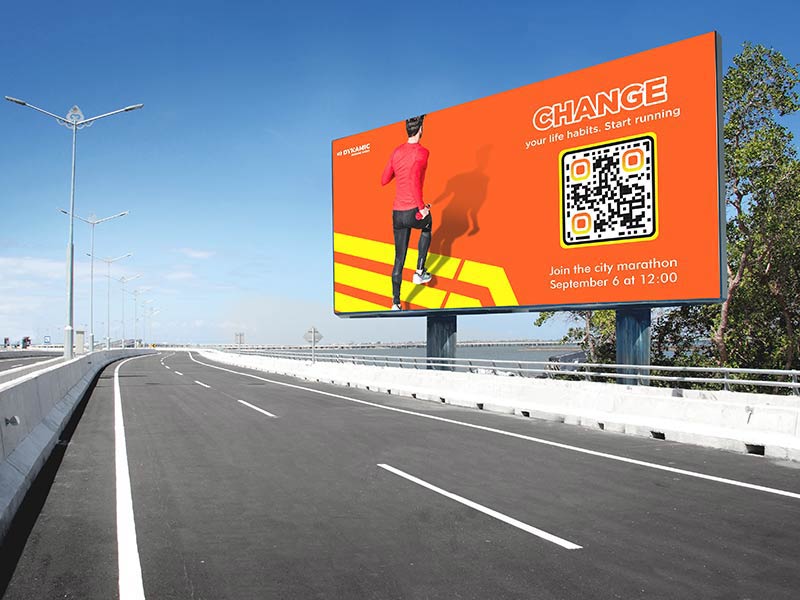
School fairs, charity runs and club days use flyers, banners and billboards. The code opens a sign-up or volunteer form before the event and the results page afterward. For a banner read from 3 m away, make the code about 30 cm wide.
如何获得更多扫描结果 活动 QR 码?
-
Tell people what the code does
Add a frame with a short call to action, such as "Scan to register" or "Scan for the schedule". A code with no words gives people no reason to scan. -
Put it where people wait
Queues, registration desks, bar counters and seat backs give people a few seconds to scan. A moving crowd does not.
-
Use one code per place
Make a separate dynamic code for each poster, flyer and channel. Scan stats then show which one works, with the detail depending on your plan. -
Update it when tickets sell out
With a dynamic code you can switch to a waitlist form when tickets sell out, and to next year's date when the event is over. Old posters still lead somewhere useful.
Event QR code not working? Check these first
Draft or unpublished events often show an error to everyone except you. Publish the event, then open the link on a phone that is not signed in to your account.

Google Forms limited to your organization, shared documents set to Restricted and some Facebook event pages ask visitors to sign in. Set sharing to anyone with the link, or use a public page.
Print the code at least 2 x 2 cm (0.8 in), and bigger on posters. Keep a white border and a dark code on a light background. Glossy badge holders reflect light, so choose matte, and keep the code off folds and creases.
Halls, basements and festival fields often have weak mobile data. Keep the page light, and print the venue Wi-Fi name next to the code. A short PDF schedule loads faster than a page full of photos.
Event QR code size and placement: badges, posters and screens
Badges are scanned from about 30 cm (1 ft). Print the code 3 cm (1.2 in) wide, and never below 2 x 2 cm (0.8 in). Put it on the side of the badge that faces out.
A poster read from 1 m away needs a code about 10 cm wide. A flyer or card held in the hand is fine with 2.5 to 3 cm. Add a frame with a call to action.

People read banners from 2 to 3 m away, so make the code 20 to 30 cm wide. Hang it at chest to eye height, where people can raise a phone, not high above the crowd.
Make the code large, about a quarter of the slide height, on a plain light background. Leave it on screen for at least 30 seconds and say out loud what it does. Test it from the back row.
Use 3 to 4 cm for a table card read from 30 cm. A registration desk sign read from 1 m needs about 10 cm. Matte paper avoids glare.
Print about 2.5 cm (1 in) wide on a ticket or program, away from edges, perforations and folds. A code made here sends people to a page. It does not work as a ticket.
了解有关活动二维码的更多信息