Need attendees to join your Zoom meeting faster? Typing out a meeting link or reading a long URL out loud creates friction, and in classrooms, conferences, or events, that friction adds up. This guide walks you through exactly how to turn your Zoom meeting link into a scannable QR code that attendees can access in seconds.
Why a QR Code Makes Joining Easier
Zoom generates a unique meeting link for every session. That link contains everything a participant needs – the meeting ID and, in most cases, an embedded passcode. When a passcode is the selected security method, it is automatically embedded into the join link so participants can join with a single tap, no manual entry required.
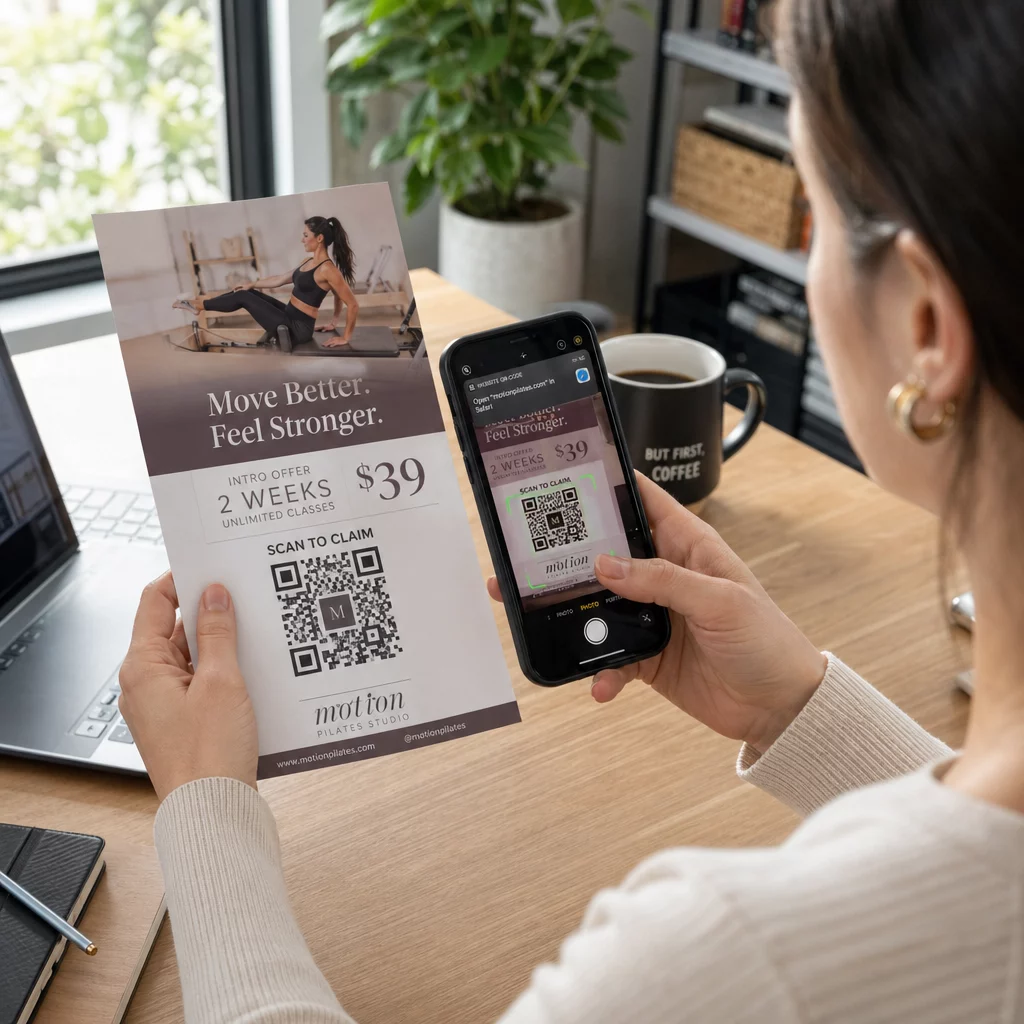
When you encode that link into a QR code, you give attendees a way to join by simply pointing their phone camera at a screen, poster, slide, or printed handout. This is especially useful in several common scenarios.
- Classrooms and workshops – display the code on a projector slide so students can join without waiting for you to share a link
- 会議とイベント – print the code on signage, lanyards, or table cards
- Hybrid meetings – place the code on a whiteboard or screen so in-person participants can join the digital session
- Printed agendas or flyers – any physical material where a clickable link would not work
Step 1: Get Your Zoom Meeting Link
Before creating the QR code, you need the actual join URL from Zoom. To schedule a new meeting and copy the link, sign in to the Zoom web portal, click Meetings in the left sidebar, then click Schedule a Meeting. Set your date, time, and any other preferences, then click 保存. On the meeting details page, click Copy the Invitation to grab the full invite, or copy just the join link directly.
For an existing meeting, go to Meetings in the Zoom portal, find the meeting, click on its name, and copy the Join URL shown on that page.
The join link will look something like `https://zoom.us/j/123456789?pwd=XXXXXXXX`. That full URL – including the `?pwd=` portion – is what you want to encode. It carries the embedded passcode so attendees do not have to enter it separately.
Step 2: Convert the Link into a QR Code
Once you have the URL, generating a QR code takes under a minute. Open the PagelootリンクQRコードジェネレーター and paste your full Zoom meeting URL into the URL field. Click 次のページ to generate the code, then customize the design if needed – you can add a logo, adjust colors, or apply a frame with a call-to-action label like “Scan to Join.” Finally, download the QR code in your preferred format.
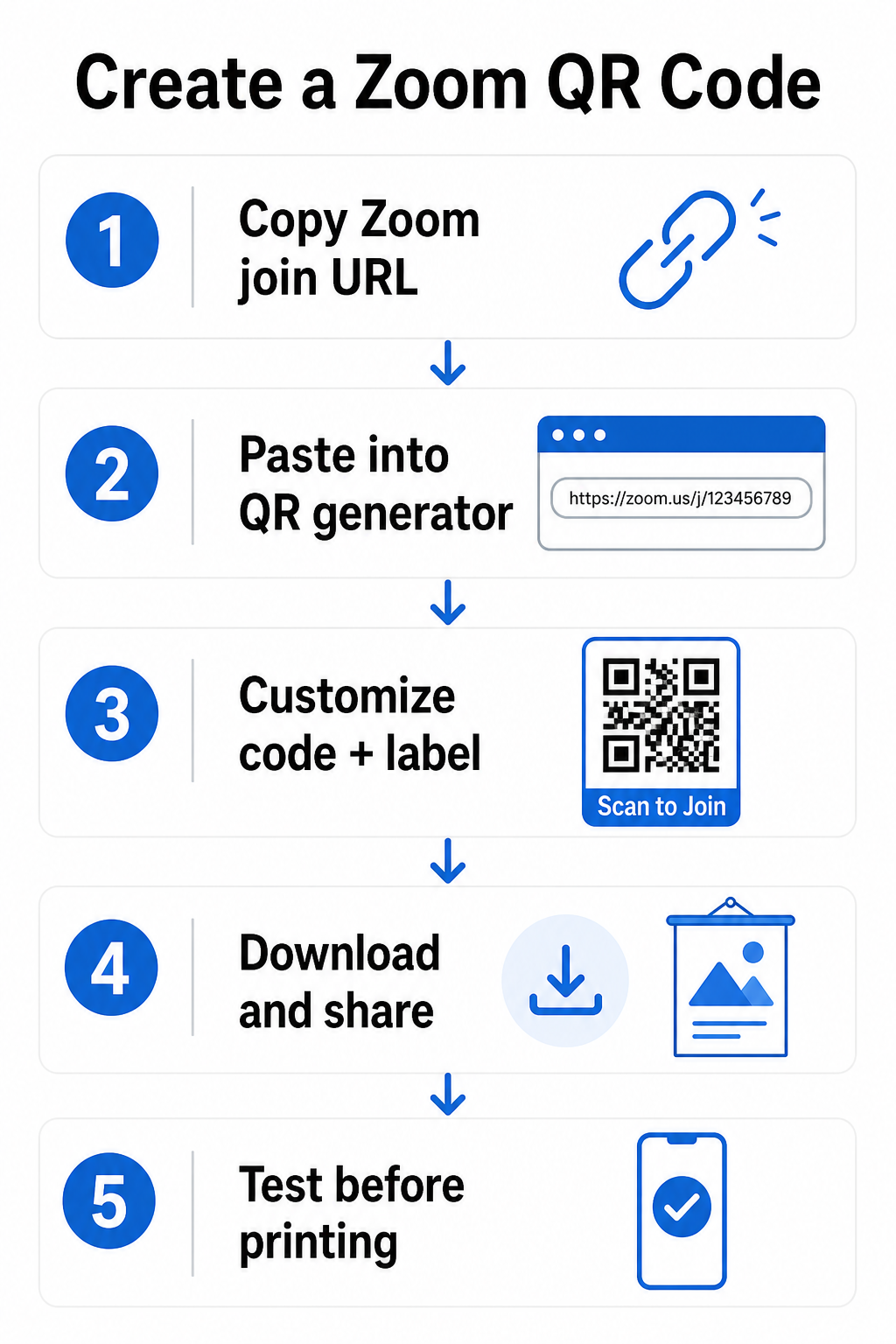
Ready to Create Your Zoom Meeting QR Code? を使用しています。 Pageloot QRコードジェネレータ to turn your meeting link into a scannable code in seconds – no technical knowledge needed.
Step 3: Choose Between a Static and Dynamic QR Code
This is an important decision, especially if you plan to reuse the code or print it at scale.
| 静的QRコード | ダイナミックQRコード | |
|---|---|---|
| 目的地 | Fixed – cannot be changed | 作成後に編集可能 |
| 最適 | One-time or single-use meetings | Recurring meetings or printed materials |
| 解析 | なし | Scan tracking and location data |
| Reprint needed to update | はい | いいえ |
If you are printing signage for a recurring weekly class or a standing team meeting, a ダイナミックQRコード is the smarter choice. You can update the destination URL to point to a new meeting link each session without reprinting anything. Pageloot’s platform lets you edit the destination from your dashboard at any time – tracking and editing features only apply to dynamic codes, so it is important to select that option before printing. For a one-off event where the link will not change, a static code is perfectly sufficient.
Step 4: Design the QR Code for Reliable Scanning
A QR code that looks good but fails to scan defeats the purpose. A few design principles make a meaningful difference in real-world performance.
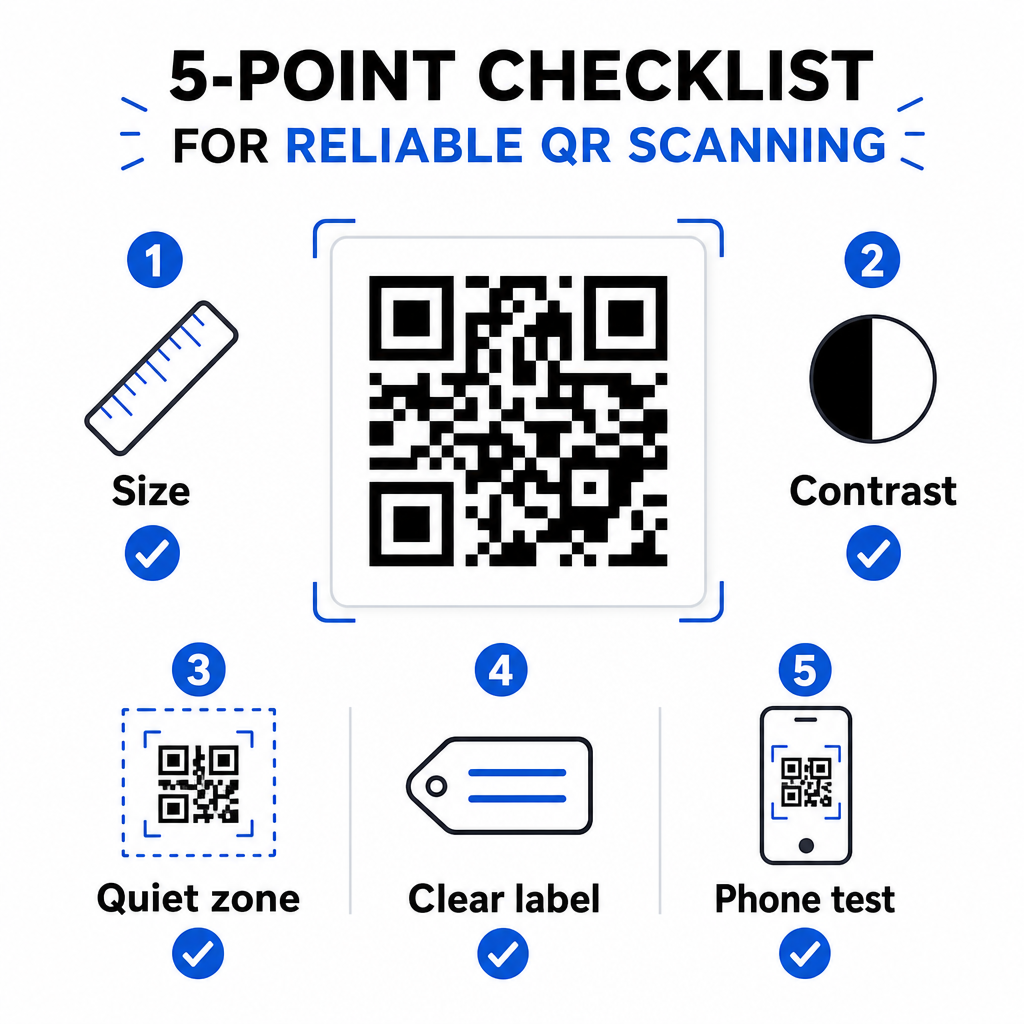
サイズ – The minimum recommended size is 0.8 x 0.8インチ (2 x 2 cm) for materials scanned at close range, such as handouts or table cards. For signage viewed from a distance, apply the 10:1 rule: for every 10 feet of expected scanning distance, the code should be approximately 1 foot wide. You can find more detail in the QRコードの可読性に関するベストプラクティス ガイドで詳しく学ぶことができます。.
色のコントラスト – Dark patterns on a light background are essential. Black on white is the most reliable combination and can achieve a 21:1 contrast ratio. At minimum, aim for a 4.5:1 contrast ratio between the foreground and background. Avoid light-on-dark designs, as many scanning apps struggle to read them.
クワイエットゾーン – Every QR code needs a clear border of empty space – called a quiet zone – around all four sides. This margin must be free of text, logos, or other graphics. The standard requirement is at least four modules wide on all sides.
Label it clearly – A simple label like “Scan to join the Zoom meeting” removes any ambiguity and encourages more people to scan. Descriptive text that explains the code’s purpose helps users understand exactly what will happen before they scan.
Step 5: Test Before You Share or Print
Always test the QR code before distributing it – especially before printing large quantities.
- 少なくとも2つの異なるデバイス(iOSとAndroid)でスキャンする
- コードが表示される実際の照明条件下でテストする
- Confirm that the Zoom link opens correctly and routes to the right meeting
- If you are using a dynamic code, verify that the redirect is working
For guidance on scanning from different devices, see how to iPhoneでQRコードをスキャンする方法 或いは scan a QR code from a laptop. You can also use the Pageloot QRコードスキャナー directly in your browser to verify the code without installing anything.
A Note on Zoom Security and QR Codes
Zoom requires all meetings to be secured with either a passcode, a Waiting Room, or authenticated user access. If none of these is configured, Zoom automatically enables a Waiting Room. This means that even attendees who scan your QR code and tap the join link directly may enter a Waiting Room first – the host still controls who is admitted.
Keep in mind that the QR code you share contains your full meeting link, including any embedded passcode. Only share it in contexts where you intend all scanners to have access. For public-facing printed materials, consider whether a Waiting Room provides adequate control over who can join your session.
Additionally, be aware that QR codes can be tampered with – for example, a sticker with a fraudulent code placed over a legitimate one. If you are printing codes for a physical venue, periodically check that the codes have not been physically interfered with, and never use a code that appears to have been altered.
Where to Use Your Zoom Meeting QR Code
Once you have a tested, well-designed QR code, there are several practical places to put it to work.
- プレゼンテーションスライド – add the code to your title slide or a dedicated “Join the meeting” slide
- Printed agendas or programs – ideal for conferences, workshops, or training sessions
- Email newsletters – some recipients may prefer to scan from a printed email rather than click a link
- Event signage and posters – place at eye level in high-traffic areas
- Whiteboards or flip charts – useful for in-room participants who need to join digitally
- Name badges or lanyards – for multi-session events where each session has its own meeting
For events where you also need to track who attended, Pageloot’s 出席QRコード tool pairs well with this workflow, letting guests check in by scanning a code linked to a registration form.
Creating a QR code for a Zoom meeting is a straightforward way to eliminate one of the most common friction points in virtual and hybrid events. Get your meeting link, generate the code, apply the basic design principles above, and test it on real devices before you deploy. If the meeting recurs or you are printing materials in volume, choose a dynamic code so you can update the destination without starting over.
Create Your Zoom Meeting QR Code 仝 PagelootリンクQRコードジェネレーター makes it easy to paste in your Zoom URL and generate a customized, print-ready code – with the option to track scans and update the link anytime.
よくある質問
In most cases, yes. Zoom automatically embeds the meeting passcode into the join link, so when an attendee scans the QR code and taps the link, they are taken directly into the meeting or Waiting Room without needing to type a passcode separately. This assumes the passcode is not disabled in your Zoom settings.
It depends on how you plan to use it. For a one-time meeting with a fixed link, a static QR code is sufficient. If you run recurring meetings, plan to print materials in advance, or want to track how many people scan the code, a dynamic QR code is the better choice – you can update the destination URL without reprinting anything.
For materials scanned at close range, such as table cards or handouts, a minimum of 0.8 x 0.8 inches (2 x 2 cm) is recommended. For larger signage viewed from a distance, use the 10:1 rule: the code should be roughly 1 unit wide for every 10 units of expected scanning distance. See the full QR code size guidelines for more detail.